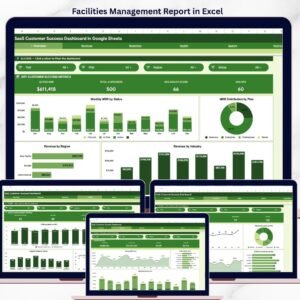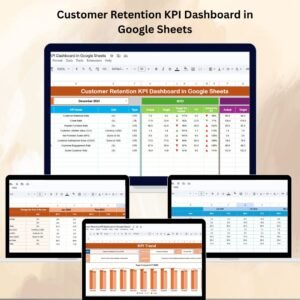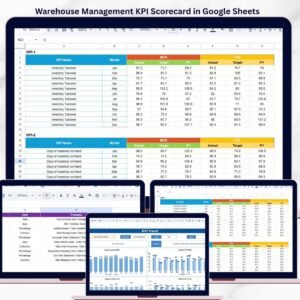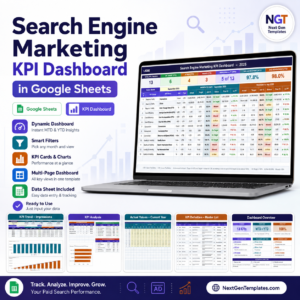

Customer churn can silently impact your business growth if not tracked properly. Losing customers without understanding the reasons behind it can lead to missed opportunities and declining revenue.
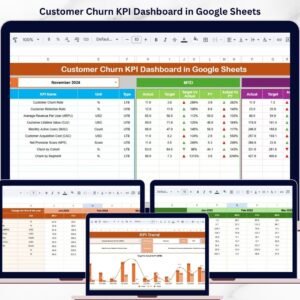
Introducing the Customer Churn KPI Dashboard in Google Sheets – a smart, ready-to-use solution designed to help you track customer retention, identify churn patterns, and make data-driven decisions effortlessly.
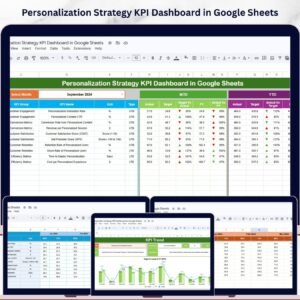
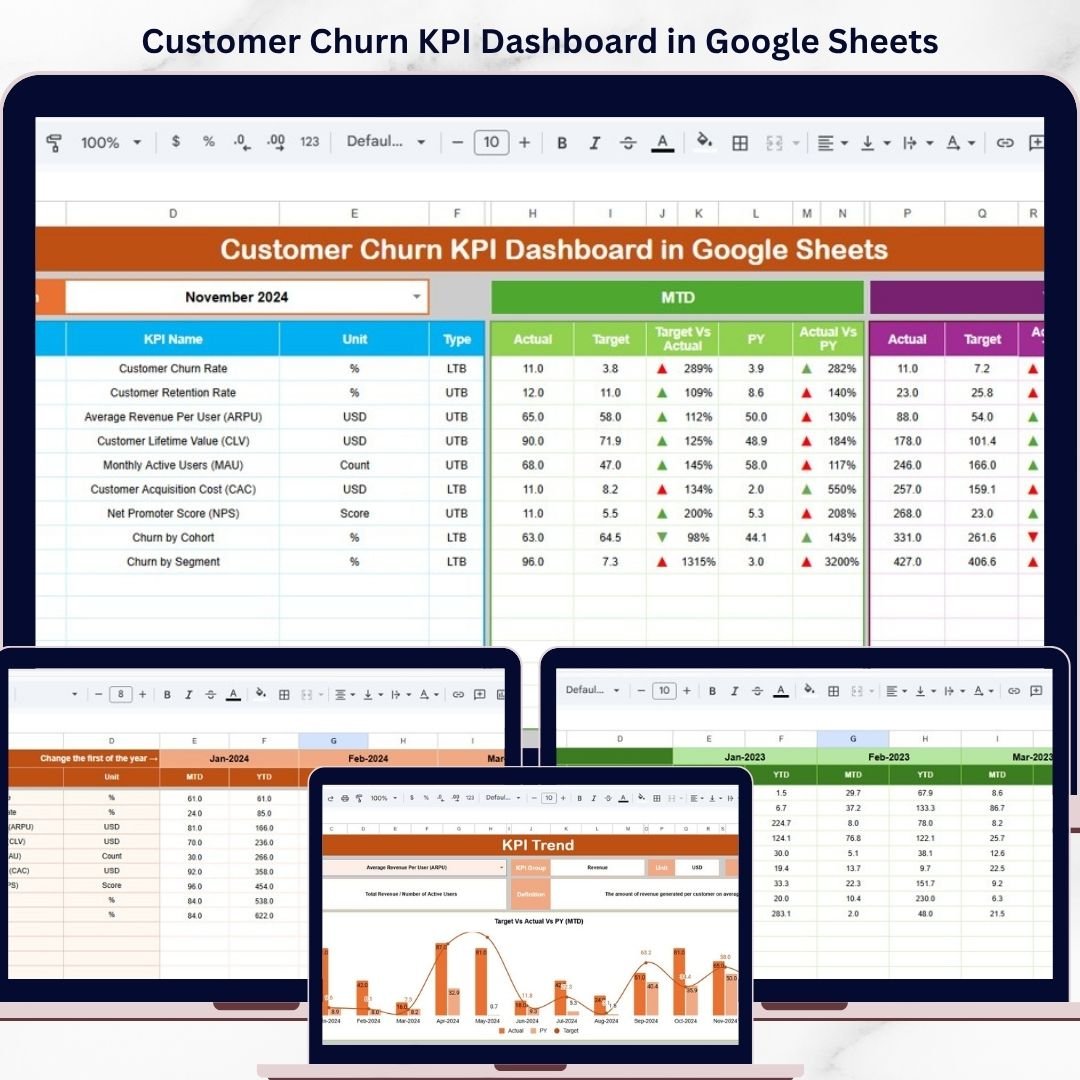
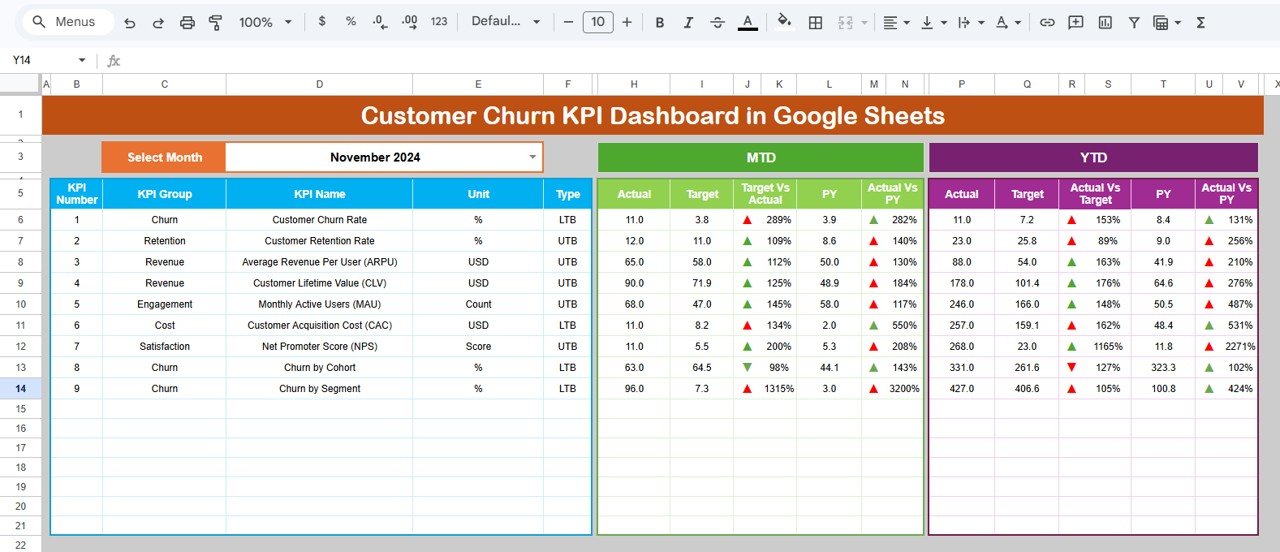
This interactive Google Sheets dashboard transforms complex churn data into simple, easy-to-understand insights. Moreover, it allows you to monitor Month-to-Date (MTD) and Year-to-Date (YTD) performance, compare actual vs target vs previous year, and quickly identify areas that need improvement.
Whether you are a business owner, marketer, or analyst, this dashboard gives you complete visibility into your customer lifecycle and retention performance.
🚀 Key Features of Customer Churn KPI Dashboard in Google Sheets
📊 Interactive KPI Dashboard – Track churn metrics with dynamic monthly selection
📅 MTD & YTD Analysis – Compare actual, target, and previous year performance
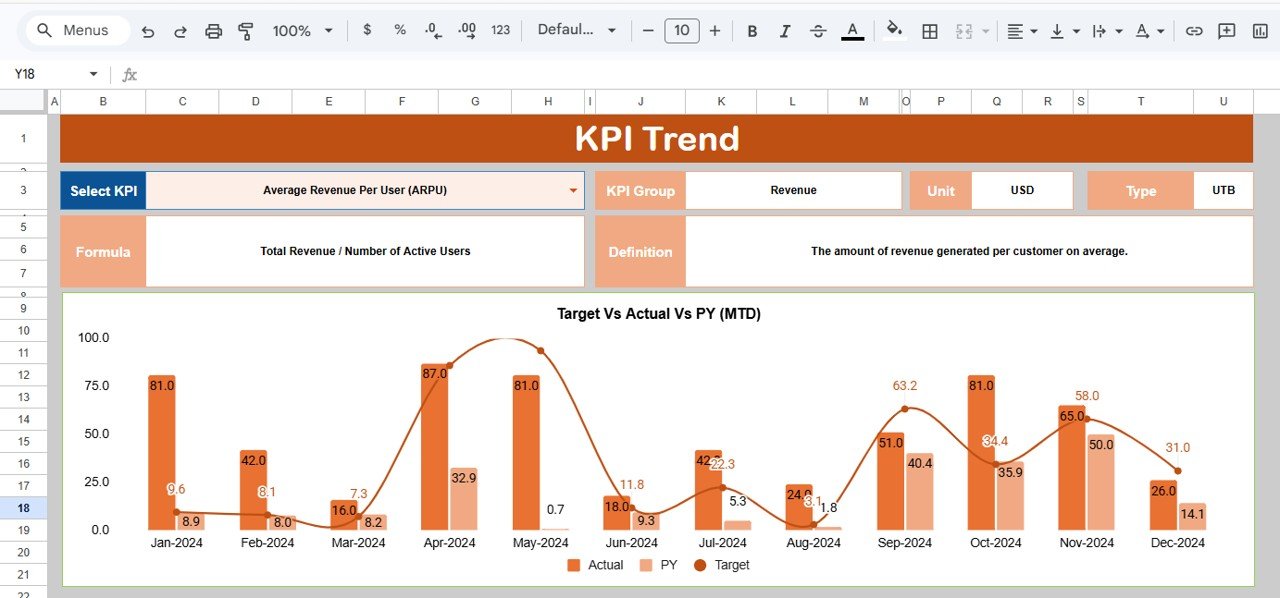
📈 Trend Visualization – Monitor churn patterns over time with charts
🔺 Conditional Formatting Indicators – Instantly identify performance gaps
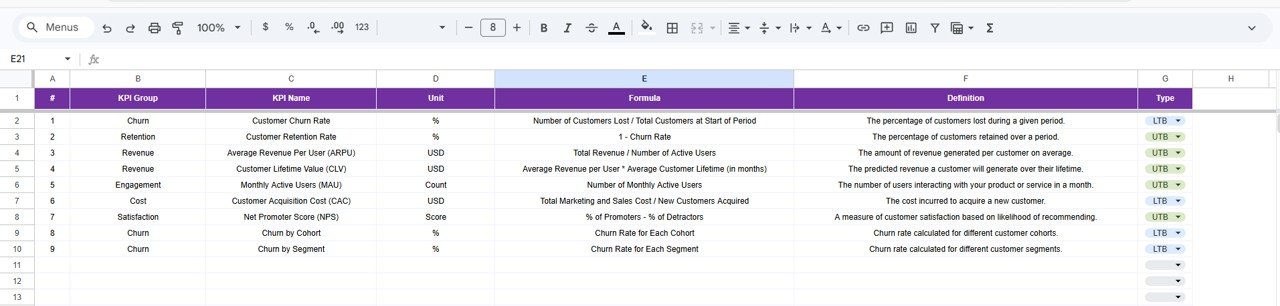
📘 Detailed KPI Definitions – Understand each KPI with formulas and explanations
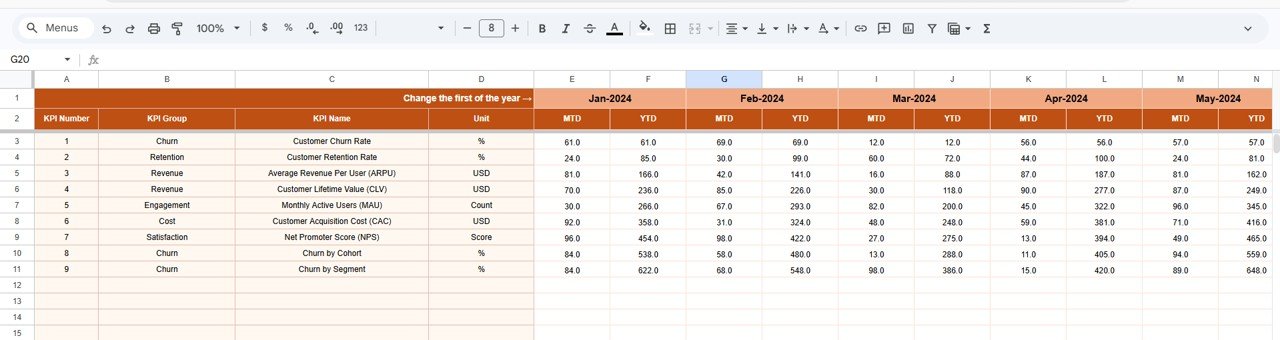
📥 Structured Data Input Sheets – Easily input actual, target, and historical data
🧭 Seamless Navigation – Switch between sheets using dropdowns and controls
🌐 Google Sheets Accessibility – Access and collaborate anytime, anywhere
📦 What’s Inside the Customer Churn KPI Dashboard in Google Sheets
This template includes multiple well-structured sheets for complete churn analysis:
📊 Dashboard Sheet – View all KPIs with MTD and YTD comparisons in one place
📈 KPI Trend Sheet – Analyze individual KPI trends and performance insights
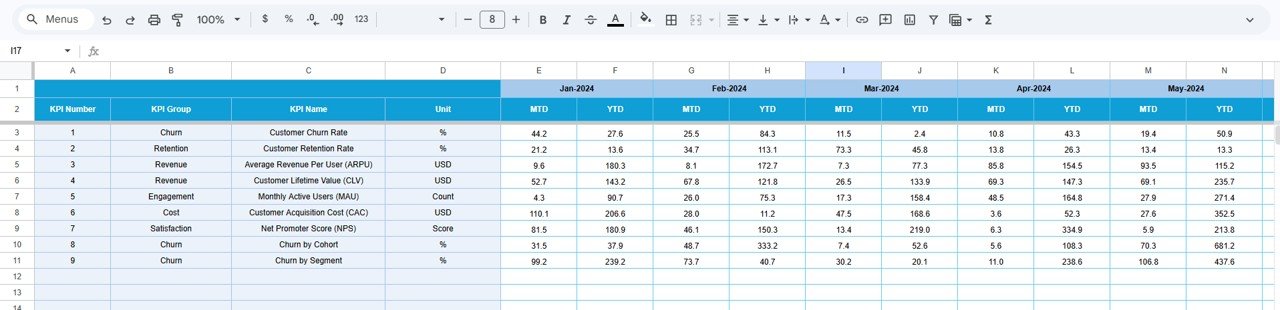
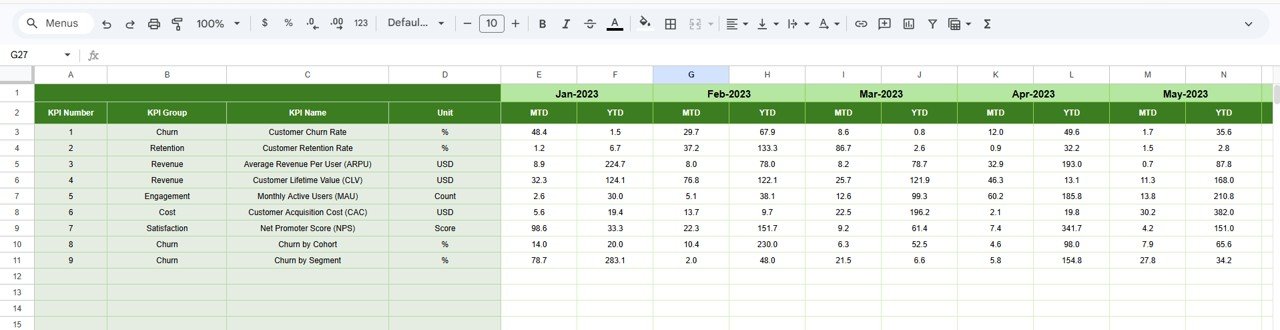
📥 Actual Data Sheet – Input real-time churn data
🎯 Target Data Sheet – Set KPI benchmarks for performance comparison
📅 Previous Year Sheet – Track historical churn data
📘 KPI Definition Sheet – Maintain KPI details including formulas and types
Additionally, the dashboard includes dynamic charts, dropdown filters, and automated comparisons to simplify your analysis process.
⚙️ How to Use the Customer Churn KPI Dashboard in Google Sheets
Getting started is quick and simple:
1️⃣ Enter Data – Input actual, target, and previous year churn data
2️⃣ Select Month – Choose the desired month using the dropdown
3️⃣ Review Dashboard – Instantly view updated KPI metrics
4️⃣ Analyze Trends – Use the KPI Trend sheet for deeper insights
5️⃣ Take Action – Improve retention strategies based on insights
👉 Within minutes, you can transform your churn data into actionable strategies.
👥 Who Can Benefit from This Customer Churn KPI Dashboard in Google Sheets
This dashboard is ideal for professionals across industries:
👨💼 Business Owners – Monitor customer retention and revenue impact
📢 Marketing Teams – Identify churn patterns and optimize campaigns
📊 Data Analysts – Perform detailed churn analysis
💼 Customer Success Teams – Improve retention and engagement
🏢 Startups & Enterprises – Scale with data-driven decision-making
👉 In short, anyone focused on customer retention and growth will benefit from this tool.
With its intuitive design, real-time updates, and powerful analytics, this dashboard helps you reduce churn, improve customer loyalty, and boost long-term profitability.
Stop guessing why customers leave—start making smarter decisions today.
👉 Download now and take control of your customer retention strategy! 🚀
📖 Click here to read the Detailed blog post
🎥 Visit our YouTube channel to learn step-by-step video tutorials
👉 https://www.youtube.com/@PKAnExcelExpert
Compatibility and Requirements
- Works in Google Sheets with a free Google account and a web browser.
- Make a copy to your own Google Drive, then share it with your team if you want to work on it together.
- New to Sheets? Google’s guide How to use Google Sheets covers the basics.
Frequently Asked Questions
Which sheets are in the Customer Churn KPI Dashboard?
Dashboard, KPI Trend, Actual Data, Target Data, Previous Year and KPI Definition sheets.
Can I see MTD and YTD figures?
Yes. Pick a month from the dropdown and the Dashboard sheet shows MTD and YTD results compared with target and previous year.
How are weak KPIs flagged?
Conditional formatting indicators show which KPIs are behind target.
Where do I enter my churn numbers?
Enter actuals in the Actual Data sheet, targets in the Target Data sheet and last year’s figures in the Previous Year sheet.
Related Churn and Retention Templates
- Customer Churn KPI Dashboard in Excel: the same KPIs in Excel
- Customer Retention KPI Dashboard in Google Sheets: retention KPIs in Google Sheets
- Subscription Retention KPI Dashboard in Google Sheets: for subscription businesses
- SaaS MRR & Churn Tracker in Google Sheets: track MRR and churn by month
- SaaS Customer Success Dashboard in Google Sheets: customer success reporting
Browse all Google Sheets KPI dashboards or the Google Sheets dashboards.