




Managing office events is more than just organizing speakers and booking venues—it’s about collecting honest feedback, analyzing the results, and improving future events. Introducing the Office Event Feedback Tracker in Excel—a powerful Excel + VBA tool designed to streamline your feedback collection, automate data analysis, and help you make better decisions.
Whether you’re hosting a conference, a seminar, or a team-building session, this tracker makes it easier to capture every attendee’s voice—and turn that into action.
Let’s explore what makes this tool essential for every modern office ⬇️
✨ Key Features of Office Event Feedback Tracker in Excel
🔐 Login Form with User Control
Start with a secure login! Only authorized users can access the tracker using unique credentials. Admins can add, edit, or remove users as needed.
🏠 Main Form – Your Command Center
Once logged in, you land on a central dashboard with easy navigation to all core functions: data entry, feedback management, dashboard, and settings.
📊 Interactive Dashboard Sheet
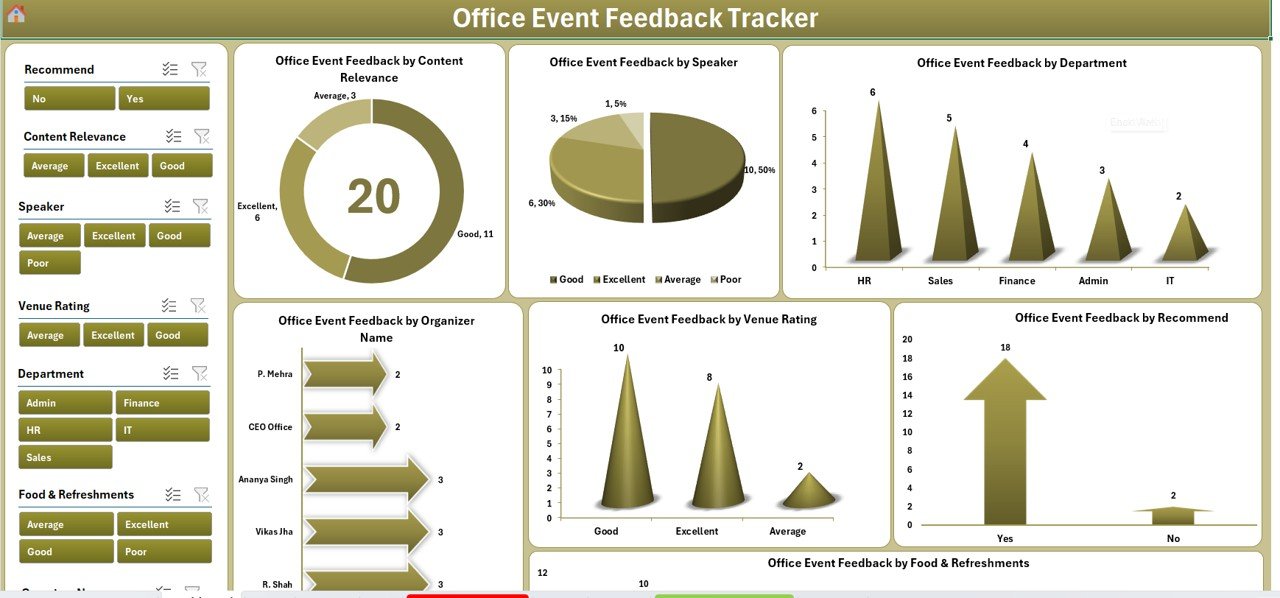
See the big picture at a glance with:
7 dynamic slicers for filtering feedback
7 visual charts including:
📘 Content Relevance Doughnut Chart
🎤 Speaker Feedback Pie Chart
🏢 Department-wise Feedback Column Chart
👤 Organizer Performance Bar Chart
🏟️ Venue Rating Column Chart
✅ Recommendation Arrow Chart
🍽️ Food & Refreshment Chart
This dashboard updates automatically based on entries, helping you act fast on feedback!
📝 Data Entry Sheet
Capture every attendee’s response with structured fields:
Event ID, Event Name, Date, Department
Organizer, Attendee Name, Ratings
Feedback on content, speaker, venue, food, and more
Buttons included:
✅ Add New Record
✏️ Update Existing Record
❌ Delete Record
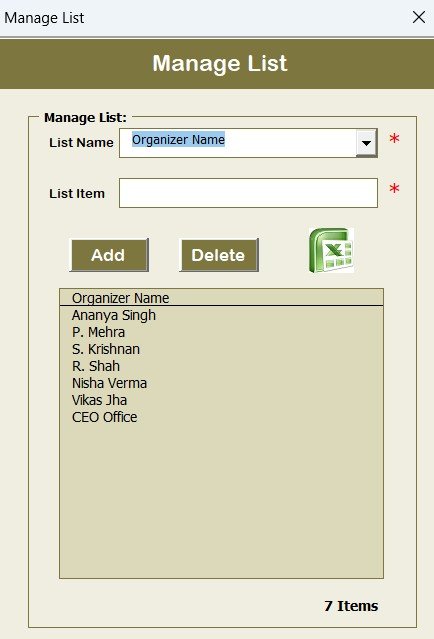
📂 Manage List Sheet
Customize dropdowns with ease! Manage your list of:
Organizers
Departments
Feedback categories
This ensures standardized data entry across the board.
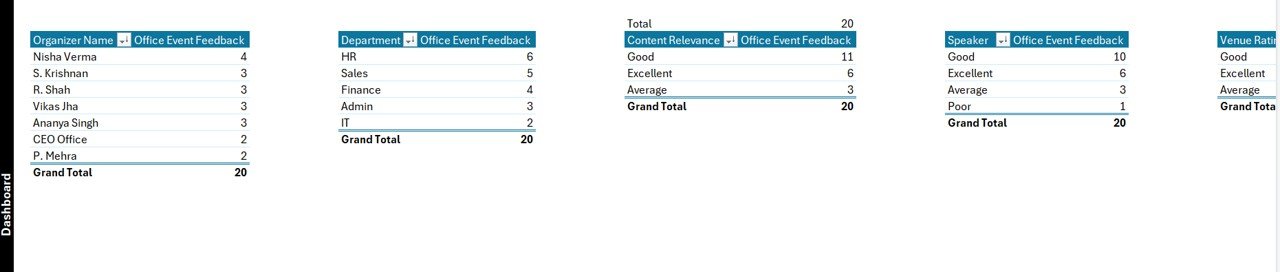
🧠 Support Sheet
No need to touch it—it powers your charts with pivot tables behind the scenes.
👥 User Management
Control who accesses the tracker. Add, edit, delete users, or update passwords—all with just a few clicks.
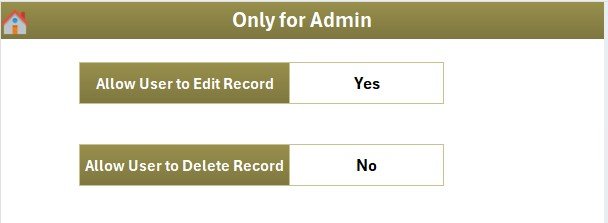
⚙️ Settings Sheet
Adjust tool behavior and display preferences to fit your needs. It’s flexible, customizable, and built for scale.
📂 What’s Inside the Feedback Tracker
Your download includes 7 Excel-based sheets:
Login Form – Secure tool access
Main Form – Navigation hub
Dashboard Sheet – Insightful visuals
Data Entry Sheet – Centralized record-keeping
Manage List Sheet – Dropdown configuration
Support Sheet – Powers dashboard charts
User Management & Settings – Access control & preferences
Each element is linked, automated, and user-friendly—even for Excel beginners!
🛠️ How to Use the Feedback Tracker
Log In using Admin credentials
Navigate via the Main Form
Add Feedback in the Data Entry sheet
View Insights on the Dashboard
Update Lists in the Manage List sheet
Control Access via User Management
Customize Settings to align with your workflow
With VBA automation, all actions are swift, smooth, and error-free.
👥 Who Can Benefit from This Tool?
🎤 Event Planners – Gather detailed feedback instantly
🏢 HR Teams – Track employee satisfaction after workshops
📈 Managers & Admins – Analyze event success via dashboard
🔧 IT Teams – Customize and secure feedback processes
📅 Office Coordinators – Simplify post-event evaluations
✅ Small to Large Companies – Scalable and adaptable for all sizes
🔗 Click here to read the Detailed blog post
📺 Visit our YouTube channel to learn step-by-step video tutorials
Watch the step-by-step video tutorial:
Compatibility and Requirements
- Works in Microsoft Excel desktop on Windows with macros enabled. The login form, main form and buttons run on VBA, so the tracker does not run in Excel for the web, Google Sheets or mobile.
- The Dashboard sheet uses slicers to filter the feedback. Microsoft explains how they work in Enable or disable macros in Microsoft 365 files.
Frequently Asked Questions
Which sheets are included?
The download has seven sheets: Login Form, Main Form, Dashboard, Data Entry, Manage List, Support, and User Management and Settings.
What feedback can I record for each event?
The Data Entry sheet holds the Event ID, Event Name, Date, Department, Organizer and Attendee Name. It also records ratings and feedback on content, speaker, venue, and food and refreshments.
What does the dashboard show?
The Dashboard sheet has 7 slicers and 7 charts: Content Relevance, Speaker Feedback, Department-wise Feedback, Organizer Performance, Venue Rating, Recommendation, and Food and Refreshment. It updates from the entries you add.
Can I change the dropdown lists?
Yes. The Manage List sheet lets you edit the lists of organizers, departments and feedback categories, so every entry uses the same values.
Is there a Google Sheets version?
Yes. See the Office Event Feedback Tracker in Google Sheets.
Related Office Event Templates
- Office Event Feedback Tracker in Google Sheets: the same feedback tracker in Google Sheets
- Office Event Registration Tracker in Excel: record who signs up before the event
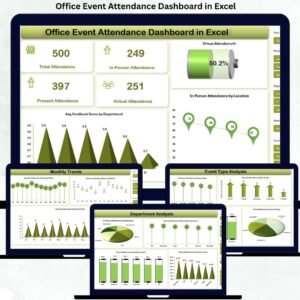
- Office Event Attendance Dashboard in Excel: attendance analysis for the same events
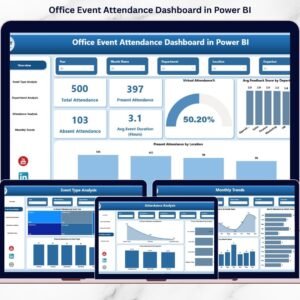
- Office Event Attendance Dashboard in Power BI: the attendance dashboard in Power BI
- Small Business Owner Essentials: 12 templates for owners in one download
Browse all Excel trackers and VBA tools.



Reviews
There are no reviews yet.