

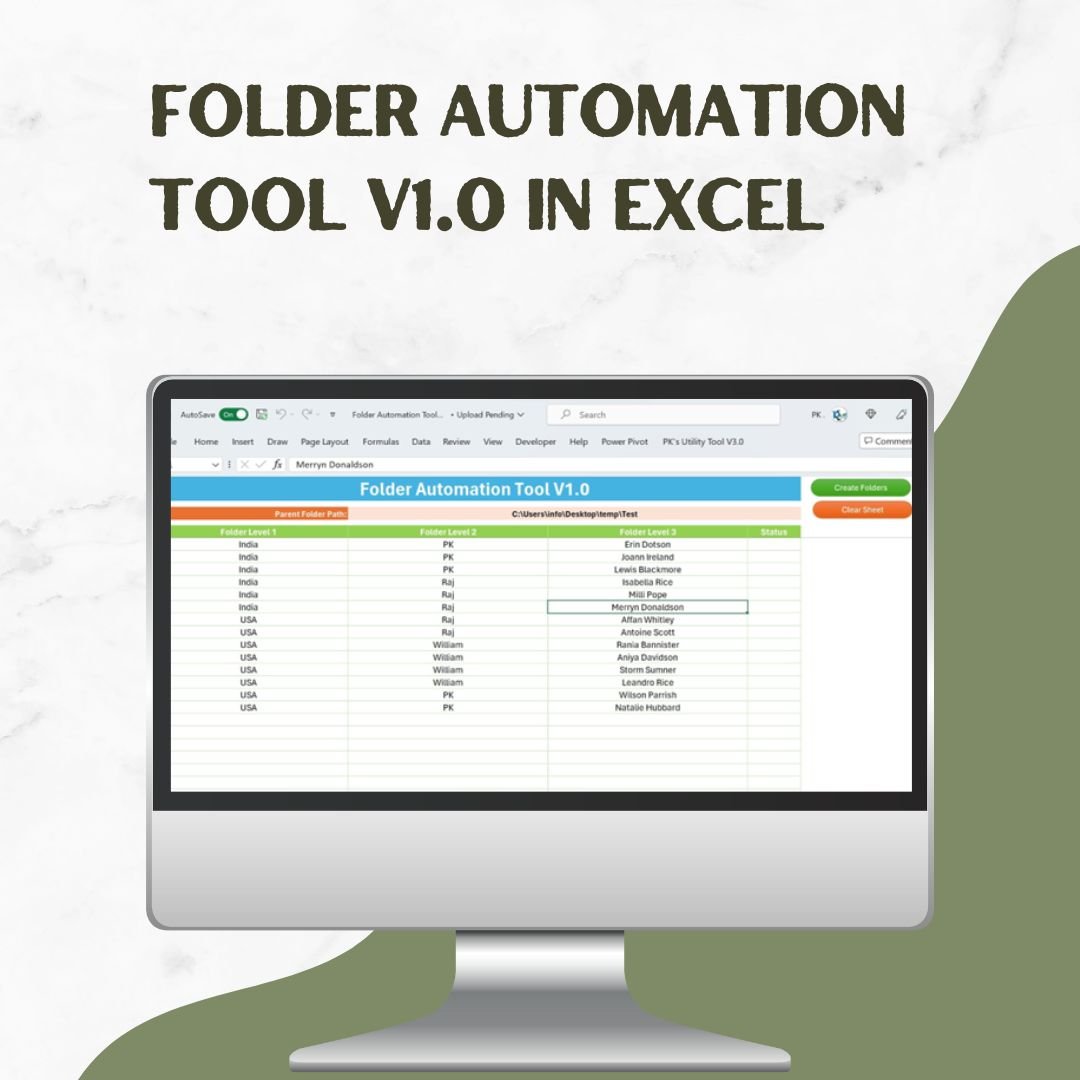

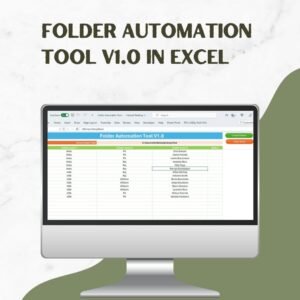
The Folder Automation Tool V1.0 in Excel is a ready-made Excel VBA tool for creating, renaming and organizing folders in bulk from a simple spreadsheet interface. It is built for project managers, business professionals, IT administrators and freelancers who are tired of building folder structures by hand. Enter your folder names, click a button, and the tool builds or renames your folders for you, with no coding required.
Creating and renaming folders manually takes time and leads to mistakes, especially when you work with several hierarchical structures for projects, client directories or document storage. This tool handles bulk folder operations in one click, so your folders stay accurate and consistent.
Key Features of the Folder Automation Tool
1. Bulk Folder Creation: Build Hierarchies in One Click
- Create structured folder hierarchies up to three levels deep with a single click.
- Works well for managing projects, sorting client documents, or setting up directories for file storage.
- Example use case: create folder structures by country, department or category in moments.
2. One-Click Folder Renaming: Skip the Manual Work
- Rename folders in bulk, even thousands of them, through one interface.
- Fetch the current folder names, edit them, and apply the changes with the Rename Folders button.
- Helps businesses set and keep consistent folder naming conventions.
3. User-Friendly Excel Interface: No Coding Required
- Dedicated sheets for folder creation and for folder renaming.
- Clear step-by-step instructions and simple buttons.
- You do not need technical skills or VBA knowledge. Fill in the data and let the tool do the rest.
4. Secure and Efficient: Built with VBA Macros
- Uses VBA scripting to run folder operations automatically, which removes manual errors.
- Gives a smooth process with high-performance execution.
- Cuts down repetitive tasks for professionals who manage many folders.
What’s Inside the Tool
| Component | What It Does |
|---|---|
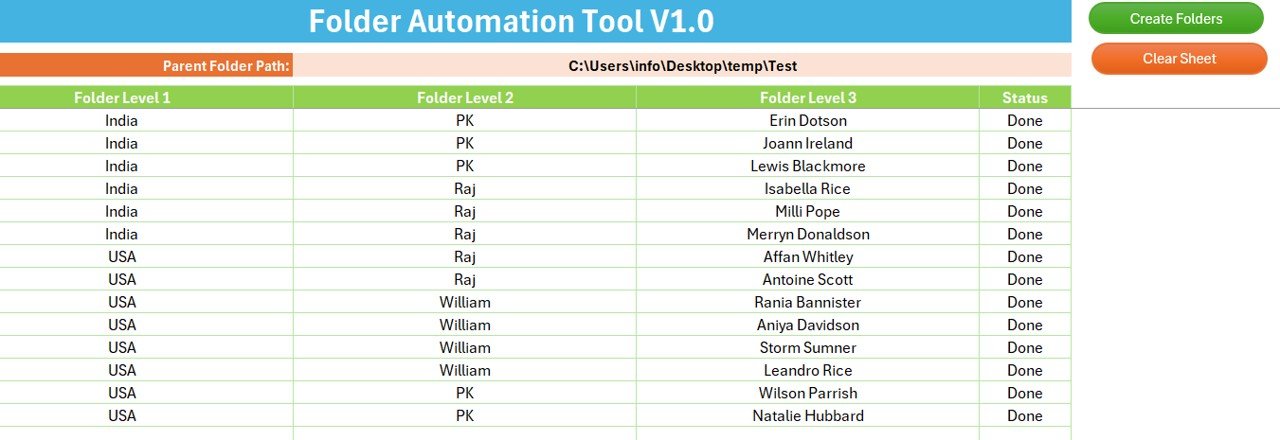
| Folder creation sheet | Enter Folder Level 1, Level 2 and Level 3 names and the parent folder path. |
| Create Folders button | Builds the full folder structure automatically. |
| Folder renaming sheet | Lists the current folder names next to a New Name column. |
| Fetch Current Name button | Pulls in the existing folder names. |
| Rename Folders button | Applies all the new names at once. |
| Clear Sheet button | Resets the interface so you can start again. |
Who Is This Folder Management Tool For?
- Project managers: keep project files organized with structured folder hierarchies.
- Business professionals: rename and sort client folders or department folders.
- IT administrators: automate folder creation and renaming across network drives.
- Freelancers and content creators: maintain a clean folder structure for projects and resources.
If you handle folder management regularly, this tool turns a slow manual job into a quick, repeatable process.
How to Use It
Step 1: Create New Folders
- Enter the folder hierarchy in the Excel sheet (Folder Level 1, Level 2, Level 3).
- Specify the parent folder path where the new folders should be created.
- Click the “Create Folders” button. The tool generates the entire folder structure automatically.
Step 2: Rename Existing Folders
- Click “Fetch Current Name” to retrieve the existing folder names.
- Type the new names in the “New Name” column.
- Click “Rename Folders”. All the folders are updated at once.
Step 3: Clear Data (If Needed)
- Use the “Clear Sheet” button to reset the interface and start fresh.
Why Choose This Tool?
- No more manual folder management: you don’t have to create or rename folders one by one.
- Higher efficiency: bulk folder operations finish in seconds.
- Fewer naming errors: folder names follow one consistent structure.
- User-friendly interface: no programming knowledge required.
- Time and effort saved: suits businesses and individuals with large folder structures.
Click here to read the detailed blog post
Watch the step-by-step video tutorial:
Also check our Project Management Issue Tracker Form
Frequently Asked Questions
What does the Folder Automation Tool V1.0 in Excel do?
It lets you create folder hierarchies and rename existing folders in bulk from an Excel interface. Each task runs with a single button click, powered by VBA macros.
How many folder levels can I create?
You can create structured folder hierarchies up to three levels deep: Folder Level 1, Level 2 and Level 3.
Do I need to know Excel VBA to use it?
No. The Excel VBA code is already built in. You fill in the sheets and click buttons such as Create Folders, Fetch Current Name, Rename Folders and Clear Sheet.
Can I rename folders that already exist?
Yes. Click Fetch Current Name to load the existing folder names, enter the new names in the New Name column, then click Rename Folders to rename folders all at once.
Where are the new folders created?
The folders are created inside the parent folder path you enter in the sheet. IT administrators can also use the tool for folder creation and renaming across network drives.
Is bulk folder creation suitable for client or department folders?
Yes. Bulk folder creation works well for folder structures by country, department or category, as well as for client directories and project files.
Last updated: October 2026
Compatibility and Requirements
- Needs Microsoft Excel desktop on Windows with macros enabled, because the buttons run VBA code.
- It does not run in Excel for the web, Google Sheets or the Excel mobile apps.
- Microsoft explains how to turn macros on in Enable or disable macros in Microsoft 365 files.
Related Excel VBA File Tools
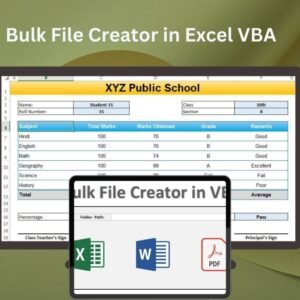
- Bulk File Creator in Excel VBA: create many files from a list in one run
- Export all Excel Worksheets in separate PDF files: save each worksheet as its own PDF
- Data Consolidation: Allow User to select files on Runtime: pick source files at run time and combine them
- Data Consolidation from multiple files in Excel: combine data from many workbooks into one
Browse all Excel VBA tools or the Excel utility and converter tools.











Reviews
There are no reviews yet.