


In today’s Finance Compliance AI Implementation Calendar in Excel is not optional—it’s critical for survival. Organizations face increasing pressure to meet strict deadlines, submit accurate reports, and prepare for frequent audits. Missing a single deadline can lead to penalties, reputational harm, or even legal action. To stay ahead, businesses need structured tools that combine precision, automation, and intelligence.
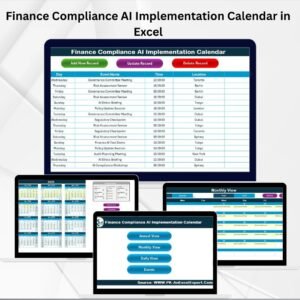
That’s exactly what the Finance Compliance AI Implementation Calendar in Excel delivers. 🎯 This ready-to-use template combines the flexibility of Excel with the predictive power of AI to help finance teams streamline compliance management. It centralizes deadlines, automates reminders, highlights risks, and provides flexible calendar views—making compliance effortless and audit readiness a standard practice.
✨ Key Features of Finance Compliance AI Implementation Calendar
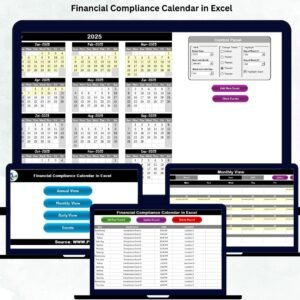
🏠 Home Sheet – Central navigation hub with buttons to Annual, Monthly, Daily, and Events views.
📅 Annual View – 12-month calendar with customizable year, month, theme, and event highlighting.
📆 Monthly View – Month-by-month compliance overview with quick event entry and multiple event indicators.
📖 Daily View – Focused tracking of compliance activities within a specific date range.
📂 Events Sheet – A full event database with auto-generated IDs, dates, times, locations, and task descriptions.
⚡ AI-Powered Insights – Predicts workload peaks, highlights recurring delays, and automates reminders.
🎨 Customizable Themes – Choose from five color palettes and highlight weekends or key compliance deadlines.
🔄 Automation Features – Add, update, or delete events with built-in forms and buttons.
📂 What’s Inside the Finance Compliance AI Implementation Calendar
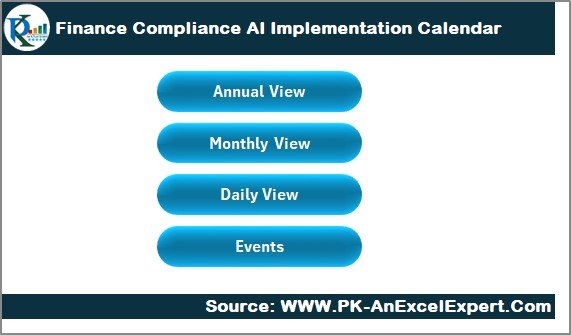
This Excel template includes five structured worksheet tabs, each serving a unique purpose:
Home Sheet Tab – Quick navigation and clean interface.
Annual View – Year-long compliance calendar with control panel customization.
Monthly View – Short-term planning for tax filings, closings, and audits.
Daily View – Detailed breakdown for critical weeks and high-pressure compliance periods.
Events Sheet – Centralized database for all compliance activities, with add, update, and delete functions.
🛠 How to Use the Finance Compliance AI Implementation Calendar
Start at Home Sheet – Navigate to annual, monthly, or daily views.
Set Up Annual View – Define year, start month, day preferences, and themes.
Add Compliance Events – Use the Add New Event button to record deadlines.
Plan Monthly Activities – Track audit prep, tax submissions, and reporting obligations.
Drill into Daily View – Use for audit-heavy weeks or critical filing deadlines.
Update Events Database – Manage compliance records with auto-generated IDs.
Leverage AI – Use AI insights to predict workload spikes and automate reminders.
👥 Who Can Benefit from This Finance Compliance AI Implementation Calendar
This template is built for finance professionals across industries:
💼 Finance Managers – Gain visibility into upcoming compliance events.
🛡 Compliance Officers – Track and document regulatory obligations.
📊 Auditors – Stay prepared with centralized compliance data.
🧾 Accountants – Manage tax filings and financial reporting deadlines.
👨💼 Business Owners – Ensure compliance without investing in costly systems.
📌 Click here to read the Detailed blog post
Visit our YouTube channel to learn step-by-step video tutorials
Watch the step-by-step video tutorial:
Compatibility and Requirements
- Works in Microsoft Excel desktop (Excel 2016 or later, or Microsoft 365).
- Calendar colors and event highlights follow your choices on the Annual View. Excel explains the feature in Use conditional formatting to highlight information.
Frequently Asked Questions
Which sheets are included?
Five sheets: Home, Annual View, Monthly View, Daily View and Events.
How do I add a compliance deadline?
Use the Add New Event button. Each event is saved on the Events sheet with an auto-generated ID, a date, a time, a location and a task description.
Can I change how the annual calendar looks?
Yes. The Annual View lets you set the year and start month, pick one of five color themes, and highlight weekends and key compliance deadlines.
What can I do in the Daily View?
The Daily View tracks compliance activities within a date range you choose. It suits audit-heavy weeks and critical filing periods.
Can I edit or delete events later?
Yes. The Events sheet has buttons to add, update and delete events.
Related Compliance and AI Implementation Calendars
- Compliance AI Implementation Calendar in Excel: the same calendar for general compliance work
- Finance Compliance Remote Work Calendar in Excel: finance compliance planning for remote work
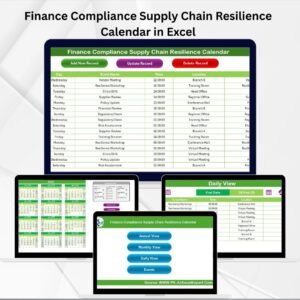
- Finance Compliance Supply Chain Resilience Calendar in Excel: finance compliance planning for supply chains
- Legal Compliance Calendar in Excel: a calendar for legal deadlines
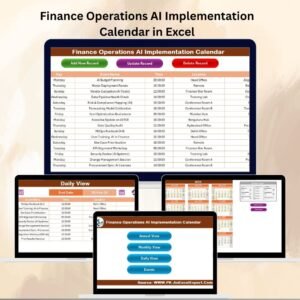
- Finance Operations AI Implementation Calendar in Excel: AI rollout planning for finance operations
Browse all Excel calendar templates.












Reviews
There are no reviews yet.