


Educational institutions manage hundreds of operations every single day — from scheduling classes and exams to handling transportation, events, and student services. In this busy environment, the overall customer experience (students, staff, teachers, and parents) depends directly on how well logistics are planned and communicated.
That’s why we created the Education Logistics Customer Experience Calendar in Excel — a ready-to-use, interactive scheduling tool that simplifies planning, enhances communication, and ensures smooth operations. This Excel-based solution is more than just a timetable — it’s a complete logistics and customer experience management system.
🔑 Key Features of the Customer Experience Calendar

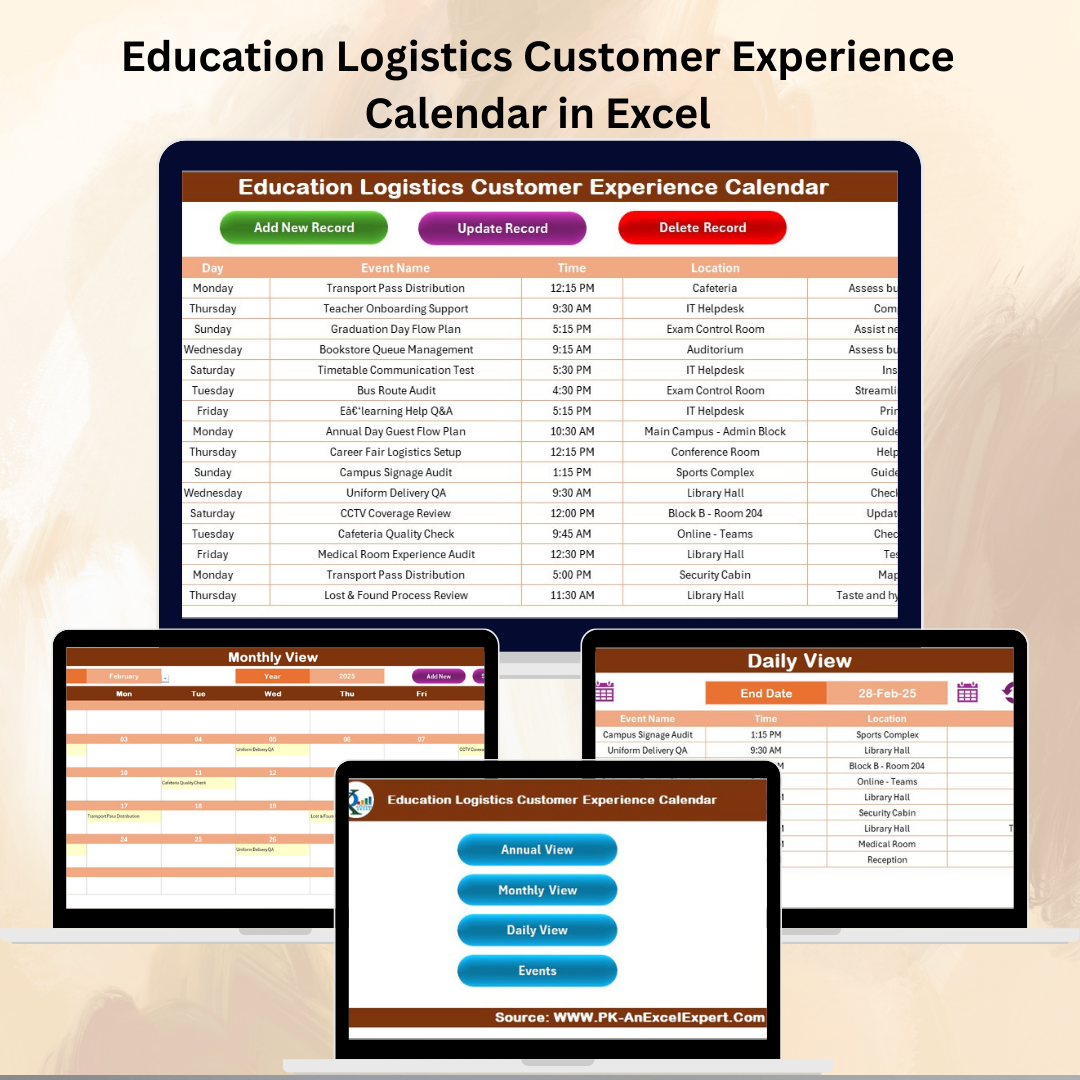
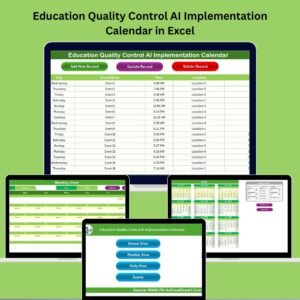
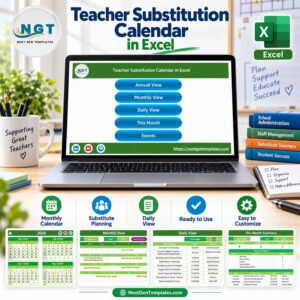
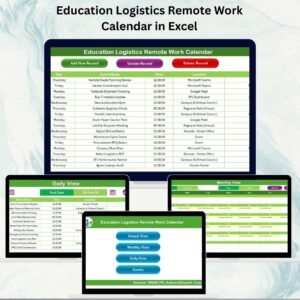
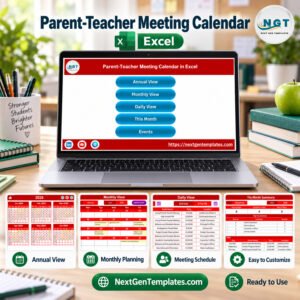
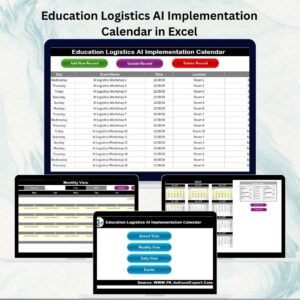
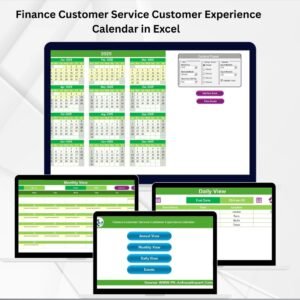
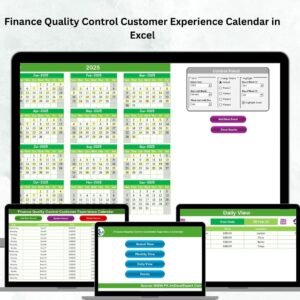
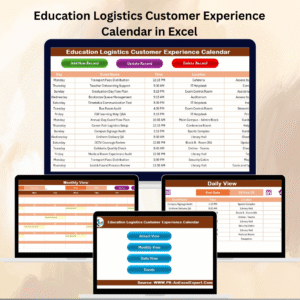
✨ Five Interactive Worksheets – Home, Annual View, Monthly View, Daily View, and Events Database.
✨ Easy Navigation – The Home sheet includes quick buttons to jump between calendar views.
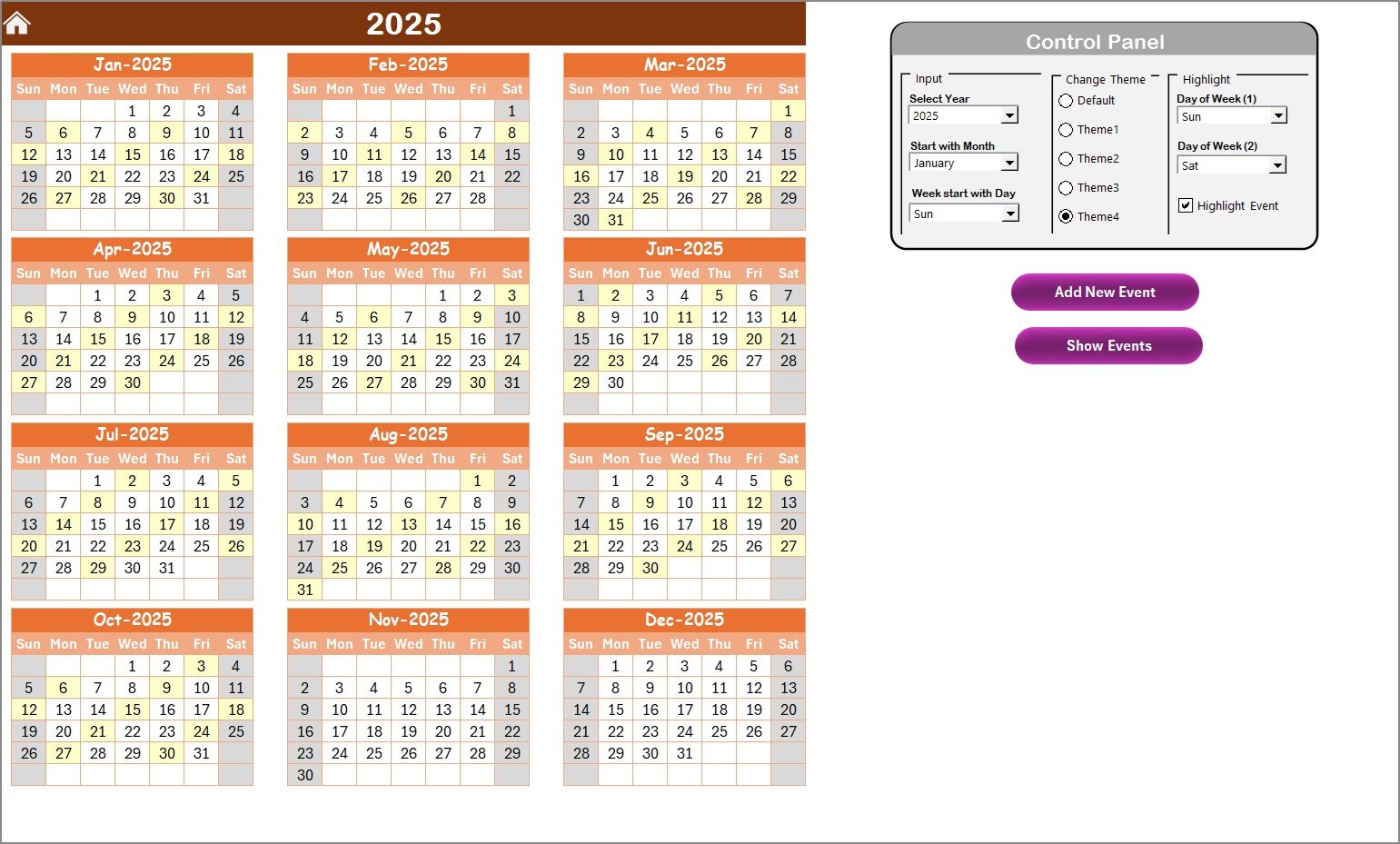
✨ Annual Overview – Track all academic and administrative activities across 12 months.
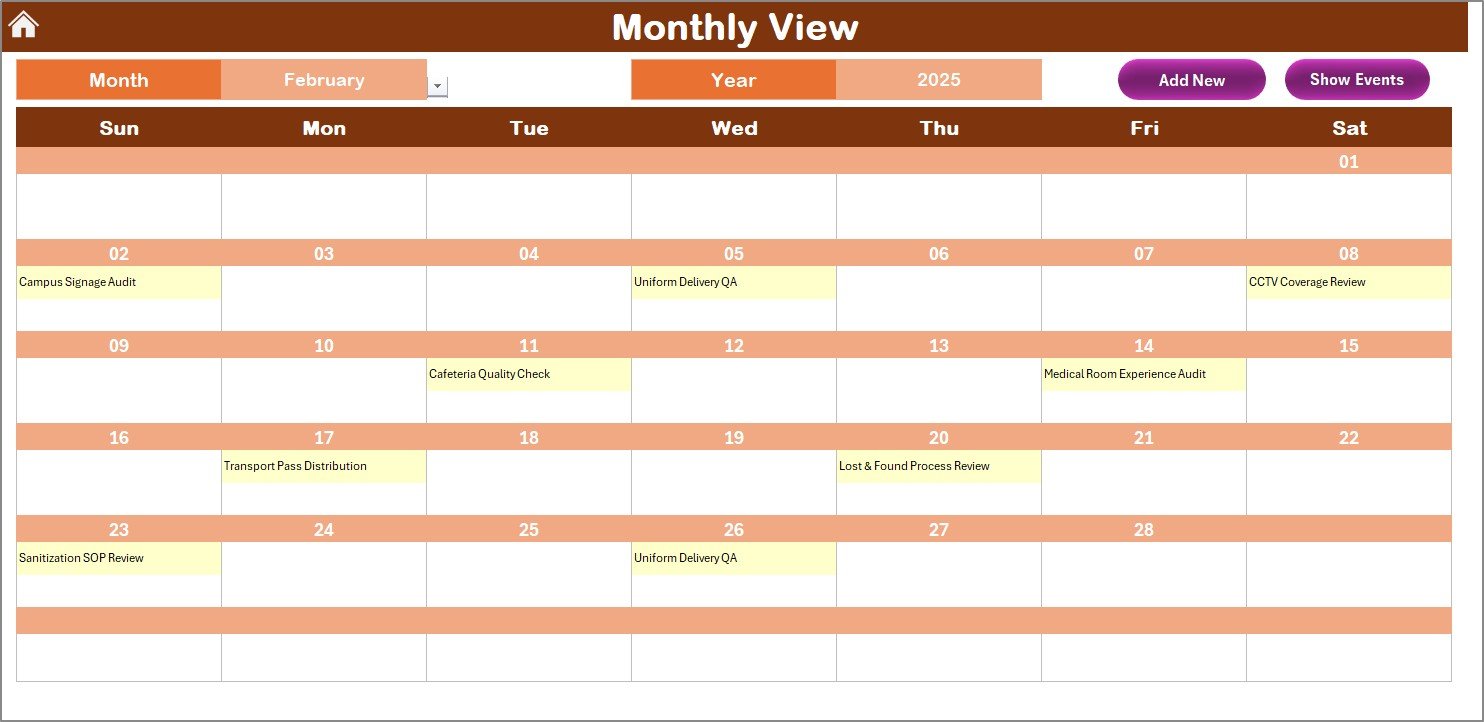
✨ Monthly View – Focus on detailed planning for one month with clear event markers.
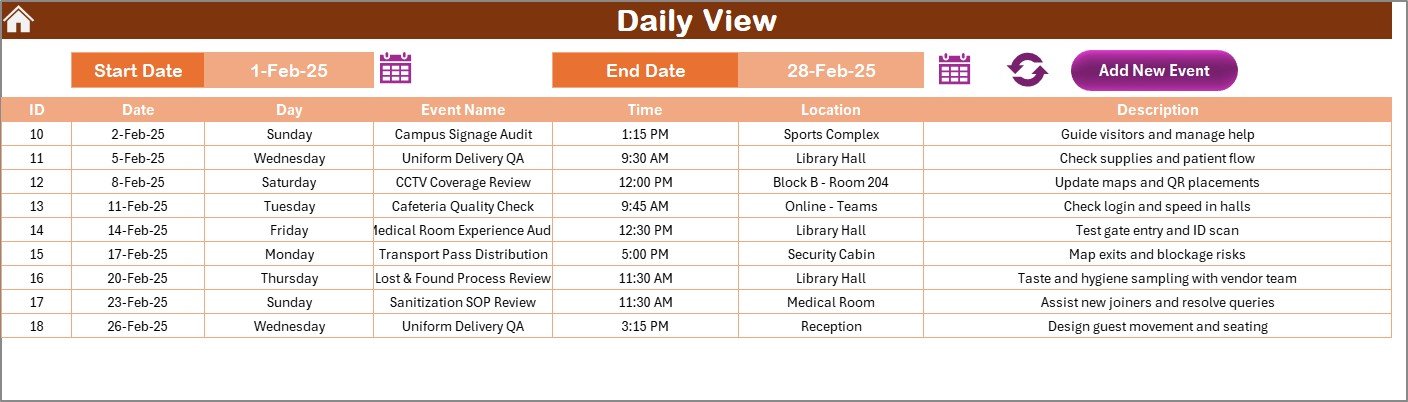
✨ Daily View – Plan activities by date range with full event details.
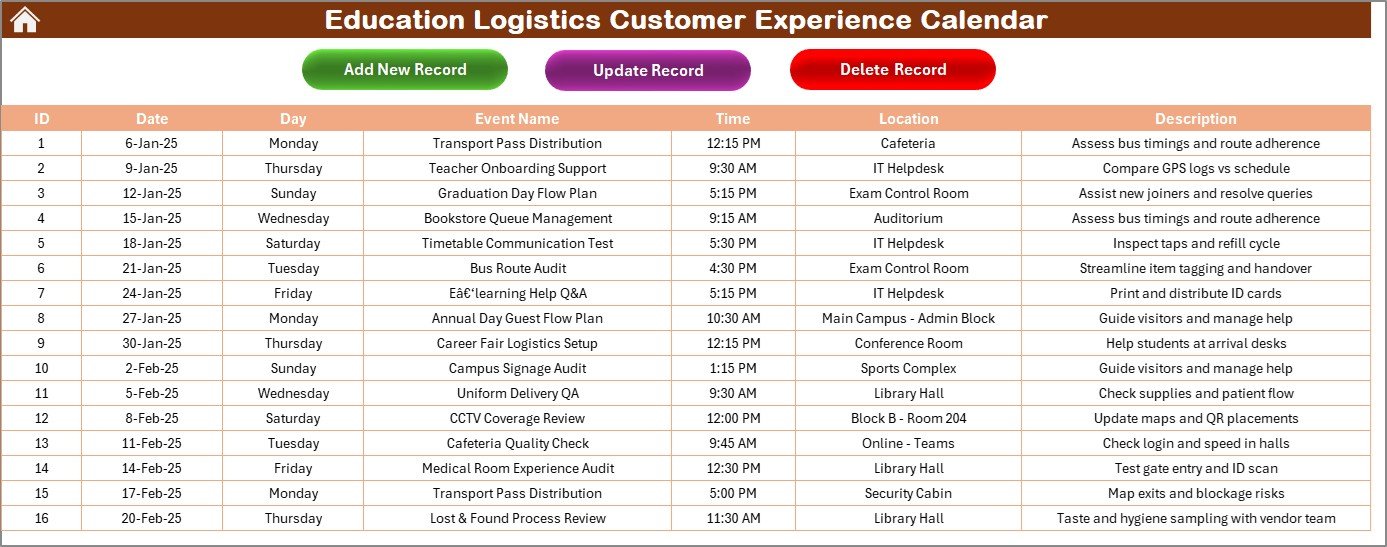
✨ Events Database – Centralized record of all events with add, update, and delete functions.
✨ Customization Options – Change calendar themes, highlight weekends, and personalize views.
✨ User-Friendly – Built in Excel, so anyone with basic knowledge can use it.
📦 What’s Inside the Calendar
When you download the Education Logistics Customer Experience Calendar in Excel, you’ll get:
1️⃣ Home Sheet – Acts as your navigation dashboard with buttons to move between views.
2️⃣ Annual View Sheet – A bird’s-eye overview of the academic year, with theme options and event highlighting.
3️⃣ Monthly View Sheet – Displays one event per date and indicates if multiple events exist.
4️⃣ Daily View Sheet – Allows users to filter by date range and view events with details like time, location, and description.
5️⃣ Events Sheet – The core database storing ID, date, event name, location, and description, with built-in action buttons for adding, editing, or deleting events.
This setup ensures clarity, transparency, and accountability across all departments.
🛠️ How to Use the Calendar
✔️ Step 1 – Add Events: Use the Events Sheet or event buttons in each view to record activities.
✔️ Step 2 – Switch Views: Navigate to Annual, Monthly, or Daily view depending on the detail required.
✔️ Step 3 – Customize Settings: Change themes, highlight weekends, or adjust the start month of the year.
✔️ Step 4 – Review & Track: Use the Annual View for big-picture planning and the Daily View for detailed execution.
✔️ Step 5 – Keep Updated: Regularly refresh the calendar with new events, ensuring everyone stays informed.
No coding needed — it’s plug-and-play in Excel!
👥 Who Can Benefit from This Calendar
🏫 Administrators – For planning academic years, exams, and institutional events.
👩🏫 Teachers – For managing class schedules, training, and extracurriculars.
🚌 Logistics Teams – For coordinating transport, supplies, and student services.
👨👩👧 Parents & Students – To stay updated on important academic and extracurricular activities.
🎯 Event Coordinators – To manage workshops, seminars, and special programs.
From small schools to large universities, this calendar adapts to all educational setups.
✅ Why Use the Education Logistics Customer Experience Calendar?
✔️ Centralized Planning – All logistics and events in one place.
✔️ Smooth Communication – Prevents overlaps and gaps between departments.
✔️ Time-Saving – Quick add, update, and delete options streamline scheduling.
✔️ Customizable – Themes and highlights make it fit any institution’s needs.
✔️ Better Experience – Keeps students, staff, and parents informed and engaged.
Click here to read the Detailed blog post
Visit our YouTube channel to learn step-by-step video tutorials 👉 Youtube.com/@PKAnExcelExpert
Watch the step-by-step video tutorial:
Compatibility and Requirements
- Works in Microsoft Excel desktop (Excel 2016 or later, or Microsoft 365).
- The Annual, Monthly and Daily views are Excel worksheets, and the Events sheet holds the records they read from. Microsoft explains how to build and format charts and worksheets in Excel for Windows training.
Frequently Asked Questions
Which sheets are included?
Five sheets: Home, Annual View, Monthly View, Daily View and Events.
Where do I enter events?
Use the Events sheet, which stores the ID, date, event name, location and description. It has buttons to add, update and delete events. The views also have event buttons.
Can I change how the calendar looks?
Yes. You can change the calendar theme, highlight weekends and adjust the start month of the year.
What does the Daily View show?
You filter by date range and see each event with its time, location and description.
Do I need coding skills?
No. The calendar is built in Excel and basic Excel knowledge is enough to use it.
Related Education and Customer Experience Calendars
- Education Operations Customer Experience Calendar in Excel: the same calendar for operations teams
- Education Customer Service Customer Experience Calendar in Excel: for student and parent support teams
- Education Marketing Customer Experience Calendar in Excel: for school marketing and admissions events
- Logistics Customer Experience Calendar in Excel: the logistics edition outside education
- Customer Experience KPI Dashboard in Excel: track customer experience metrics
Browse all Excel calendar templates and Excel education templates.





Reviews
There are no reviews yet.