


The EdTech industry is exploding with data—enrollments, course performance, learner engagement, revenue, dropouts, and growth trends. Yet, many EdTech businesses still struggle to turn this valuable data into clear, actionable insights. Decisions often rely on guesswork instead of facts, slowing growth and impacting learner success.
That is exactly where the EdTech Dashboard in Power BI becomes a must-have analytics solution.
This professionally designed, ready-to-use Power BI dashboard converts complex EdTech data into simple visuals, meaningful trends, and powerful insights. Whether you manage an online learning platform, training institute, or digital education business, this dashboard helps you track performance, boost revenue, and improve learner outcomes—all in one place.
## 🔑 Key Features of EdTech Dashboard in Power BI
📊 All-in-One Performance View – Monitor learner, course, and revenue KPIs from a single interactive dashboard.
⚡ Instant Decision-Making – Get real-time insights with slicers, filters, and drill-downs.
🎯 Learner Performance Tracking – Analyze completion rates, progress percentages, and final scores easily.
💰 Revenue & Enrollment Insights – Understand which courses, plans, and segments drive growth.
📈 Growth & Trend Analysis – Track monthly revenue, enrollments, and engagement trends visually.
🧠 User-Friendly Design – No technical expertise required to explore insights.
🚀 Scalable & Flexible – Works perfectly for startups, growing platforms, and enterprise EdTech organizations.
## 📦 What’s Inside the EdTech Dashboard in Power BI
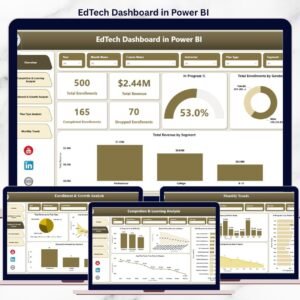
This Power BI desktop file contains five fully designed analytical pages, each focused on a critical business question:
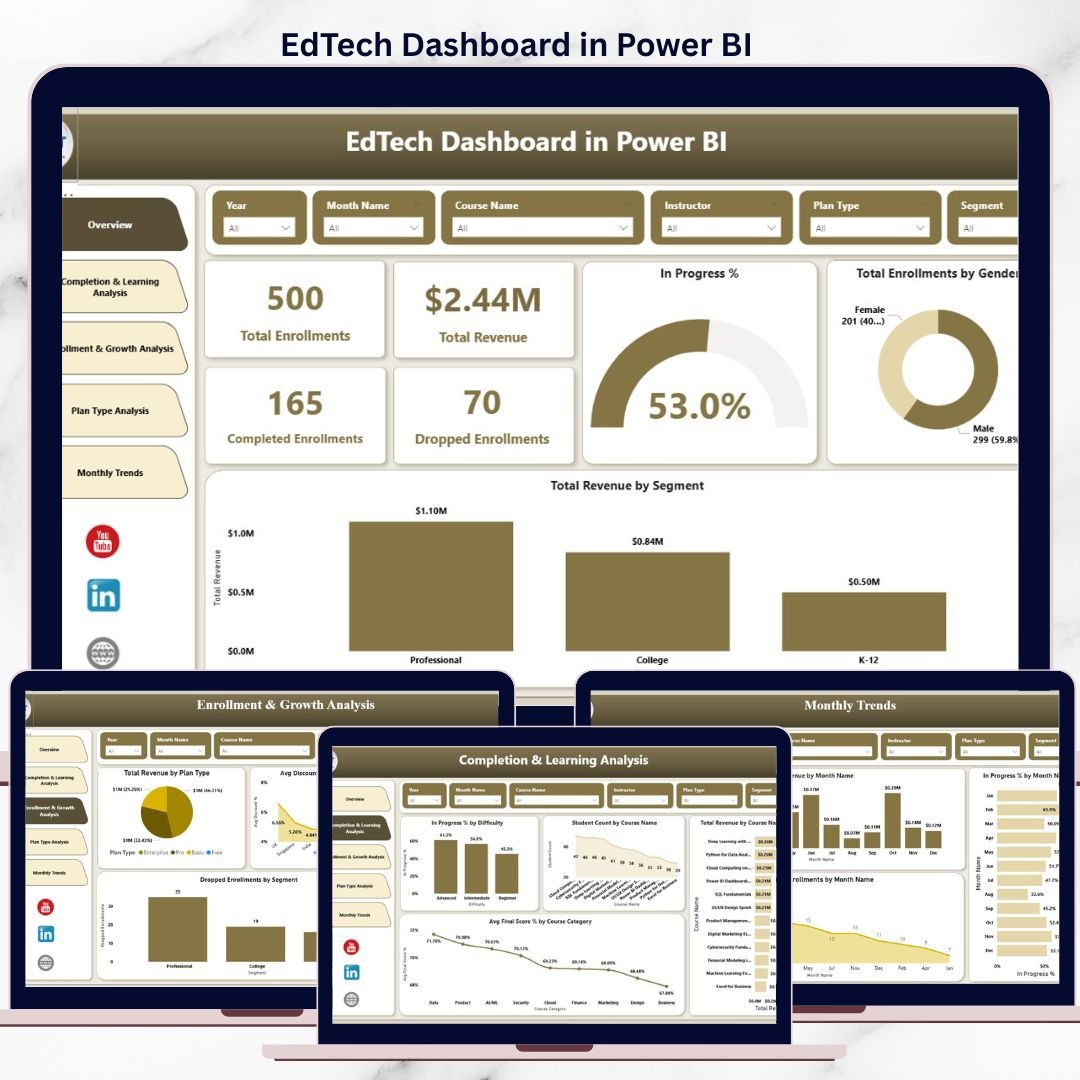
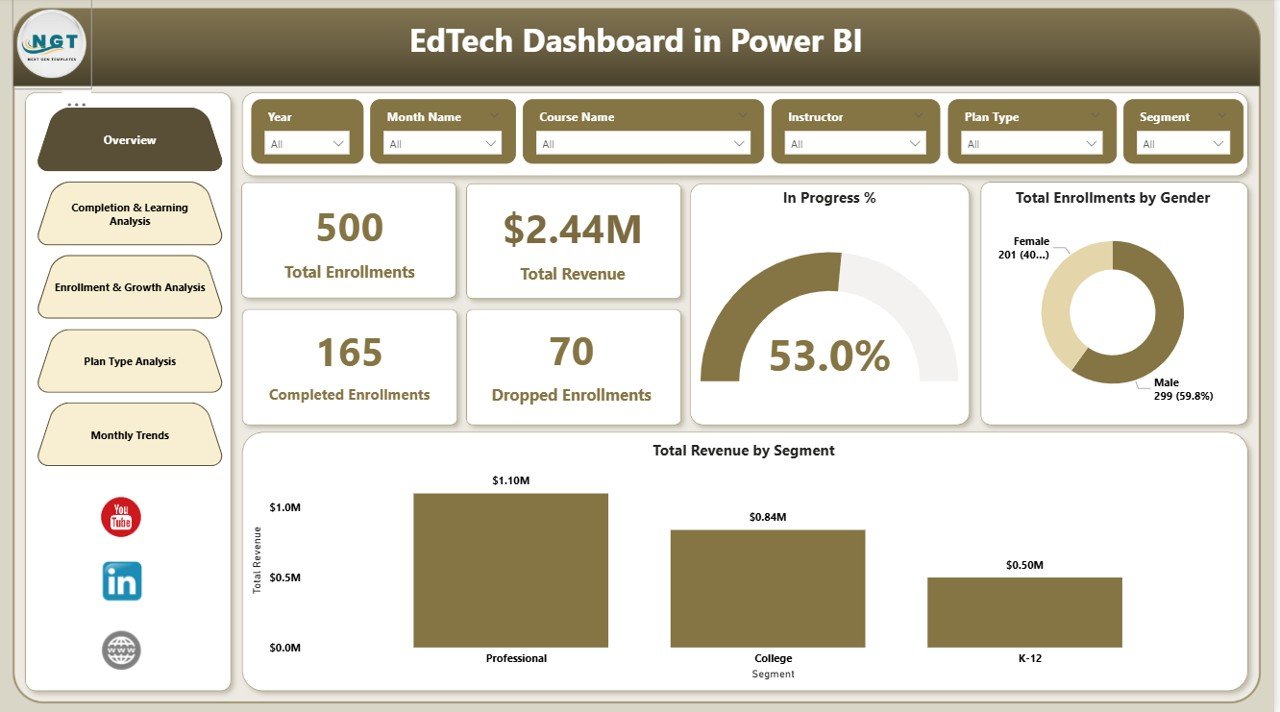
📌 Overview Page – High-level KPIs like total revenue, enrollments, completion status, gender distribution, and revenue by segment.
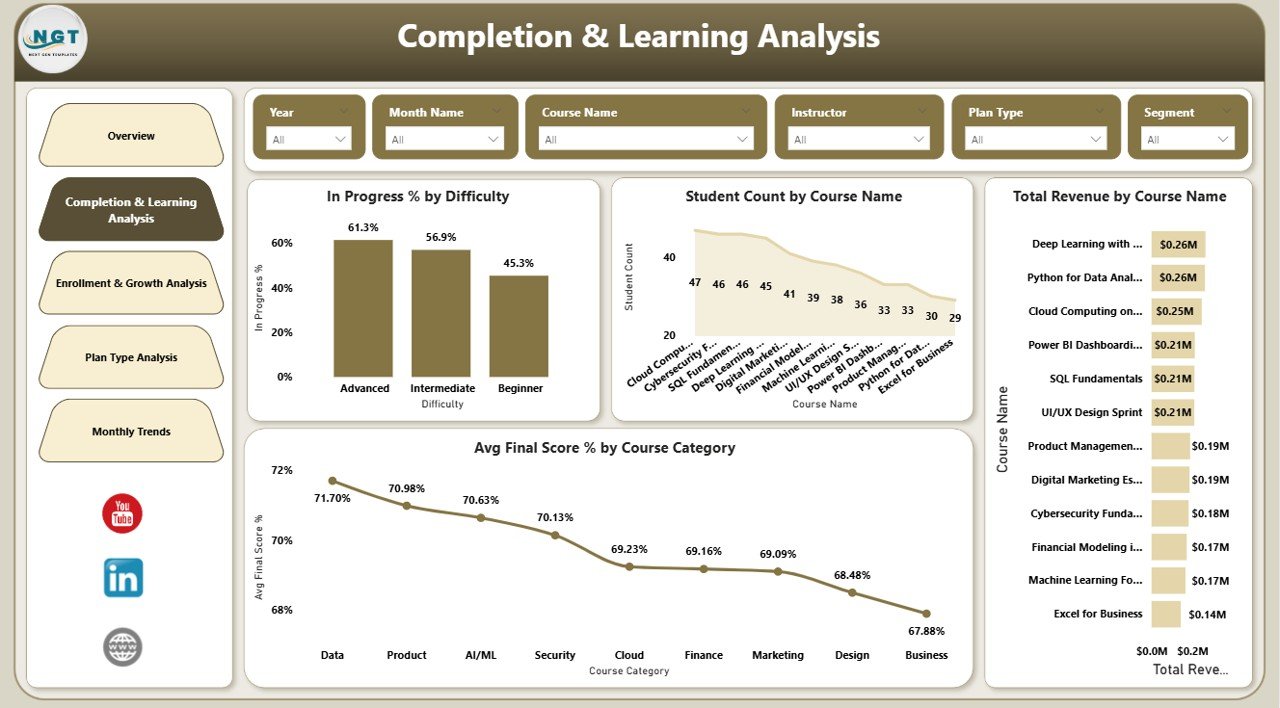
📌 Completion & Learning Analysis – Deep insights into learner progress, course performance, difficulty levels, and average scores.
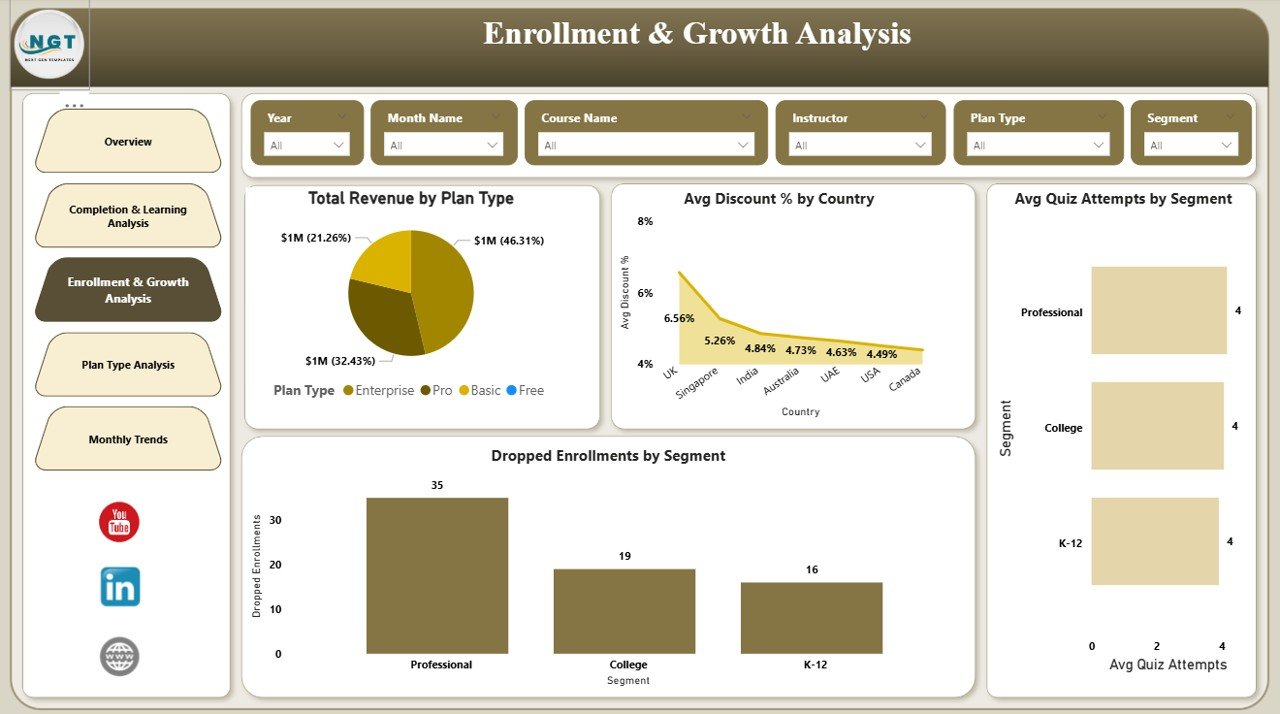
📌 Enrollment & Growth Analysis – Tracks revenue by plan, discounts by country, quiz attempts, and dropout behavior.
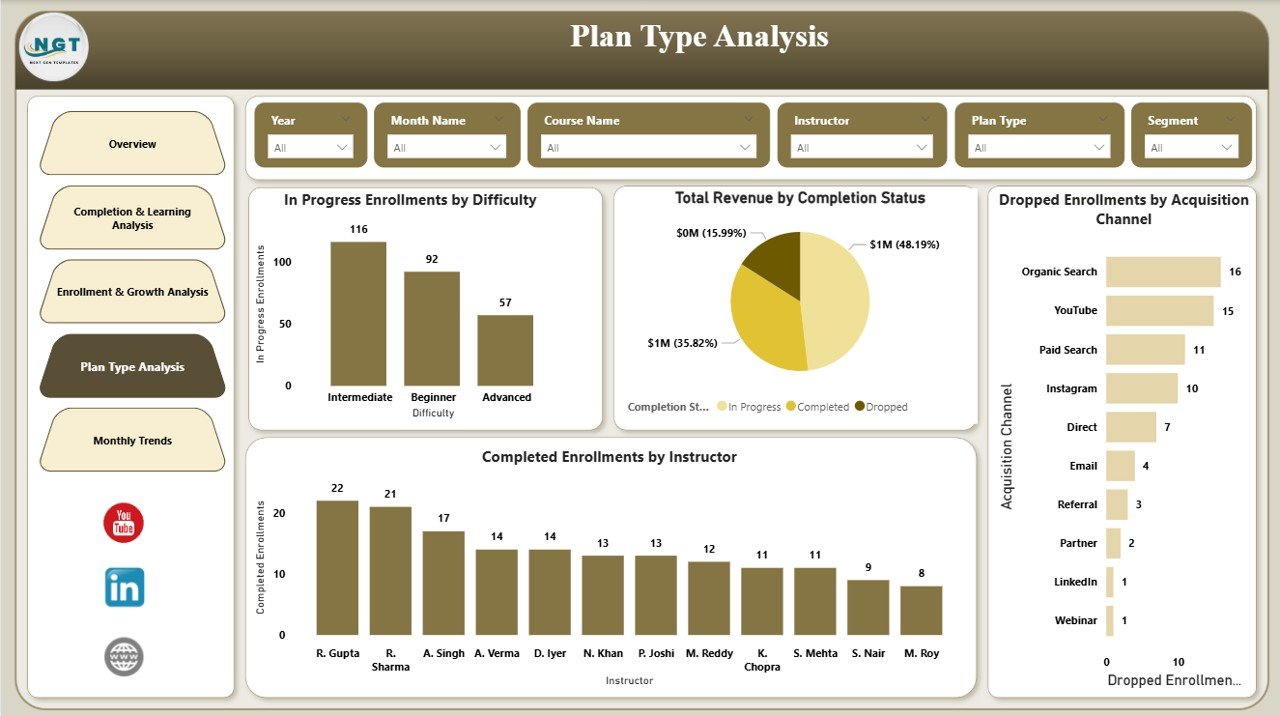
📌 Plan Type Analysis – Evaluates pricing plans, instructor performance, completion status, and acquisition effectiveness.
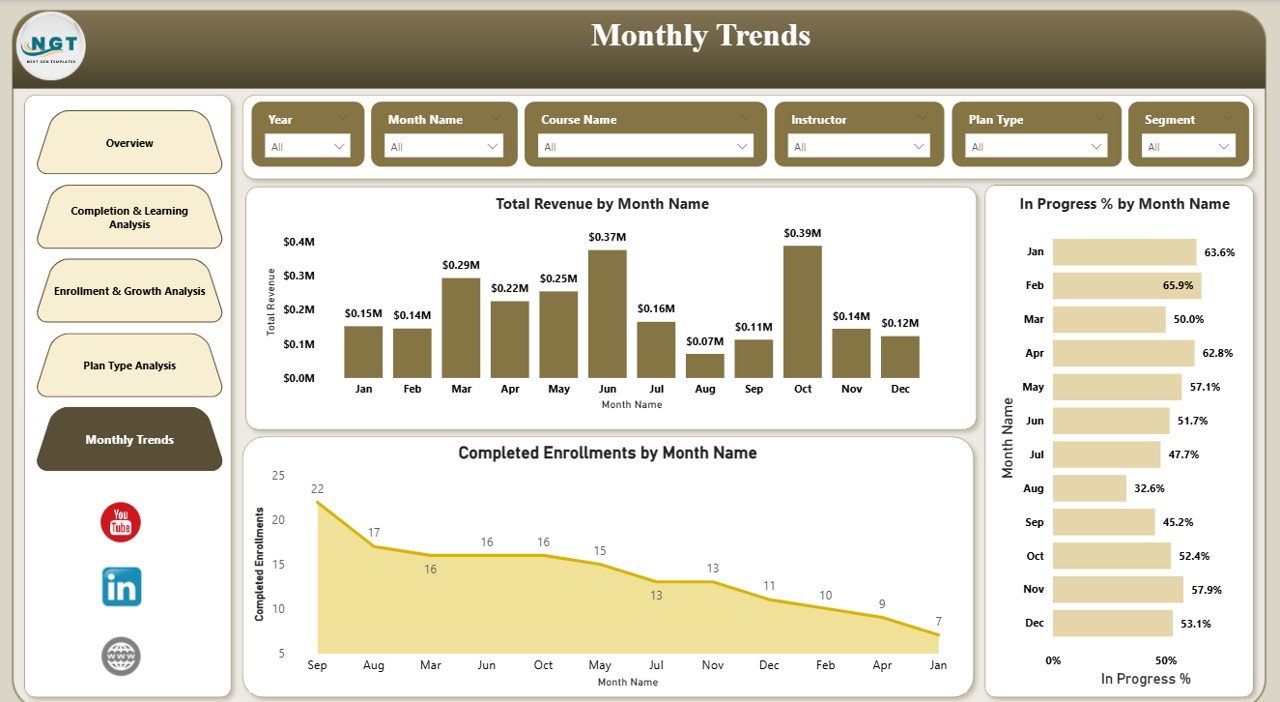
📌 Monthly Trends Page – Visualizes month-by-month revenue, completions, and engagement trends for forecasting.
Together, these pages deliver a 360-degree view of your EdTech ecosystem.
## 🛠️ How to Use the EdTech Dashboard in Power BI
Using this dashboard is simple and fast:
1️⃣ Open the Power BI file.
2️⃣ Connect or refresh your EdTech data source.
3️⃣ Use slicers and filters to explore insights by course, segment, plan, or time period.
4️⃣ Drill down into visuals to identify trends, gaps, and opportunities.
5️⃣ Share insights with stakeholders for faster decision-making.
No coding. No complex setup. Just powerful analytics in minutes.
## 🎓 Who Can Benefit from This EdTech Dashboard in Power BI
👨💼 EdTech Founders & Executives – Make confident, data-driven strategic decisions.
📚 Academic & Learning Managers – Improve learner success and course quality.
👩🏫 Instructors & Content Creators – Understand student performance and engagement.
📢 Sales & Marketing Teams – Optimize plans, pricing, and acquisition strategies.
📊 Data & Business Analysts – Get structured, visual insights without heavy manual work.
If your organization relies on learning data and revenue metrics, this dashboard is built for you.
Watch the step-by-step video tutorial:
Click here to read the Detailed blog post
Visit our YouTube channel to learn step-by-step video tutorials
Compatibility and Requirements
- Works in Power BI Desktop, which is free to download from Microsoft. Microsoft explains the install in Get Power BI Desktop.
- The download is a Power BI Desktop file with five report pages.
- You connect or refresh your own EdTech data source to fill the visuals.
Frequently Asked Questions
How many pages does the dashboard have?
Five pages: Overview, Completion and Learning Analysis, Enrollment and Growth Analysis, Plan Type Analysis and Monthly Trends.
Can I filter the data by course, plan or time period?
Yes. Slicers and filters let you explore the visuals by course, segment, plan or time period, and you can drill down into the charts.
What learner data does it show?
It shows completion rates, progress percentages, final scores, course difficulty levels, quiz attempts and dropout behavior.
What revenue data does it show?
It shows total revenue, revenue by segment and by plan, discounts by country, and month-by-month revenue trends.
Is there an Excel or Google Sheets version?
Yes. See the EdTech Dashboard in Excel and the EdTech Dashboard in Google Sheets.
Related EdTech and Power BI Templates
- EdTech KPI Dashboard in Power BI: a KPI-focused EdTech report in Power BI
- EdTech Dashboard in Excel: the same topic for Excel users
- EdTech Dashboard in Google Sheets: the same topic in Google Sheets
- Training and Development Dashboard in Power BI: track training programs in Power BI
- Power BI Dashboard Mega Collection: 15 Power BI dashboard templates in one download
Browse all Power BI dashboards.





Reviews
There are no reviews yet.