


In today’s competitive market, happy clients aren’t just nice to have—they’re essential for growth, referrals, and long-term loyalty. The secret to keeping them satisfied? Systematic feedback tracking. But collecting surveys isn’t enough—you need a tool that turns feedback into action.
📊 Introducing the Client Satisfaction Survey Tracker in Excel (with VBA) – a ready-to-use, interactive tool that helps you collect, manage, and analyze client feedback effortlessly.
From automated forms to smart dashboards, this Excel tool gives you everything you need to track satisfaction, resolve concerns, and drive retention.
✅ Key Features of Client Satisfaction Survey Tracker in Excel
🔐 Secure Login Form
Start with safe access using built-in login functionality.
Username: Admin1
Password: abcd
🎯 Control who can view or edit sensitive feedback data
🏠 Main Form Dashboard – Your Command Center
Everything is accessible in one place:
📋 Add, update, or delete feedback entries
🔄 Navigate between forms and dashboards
⚙️ Manage records with ease—no technical skills required
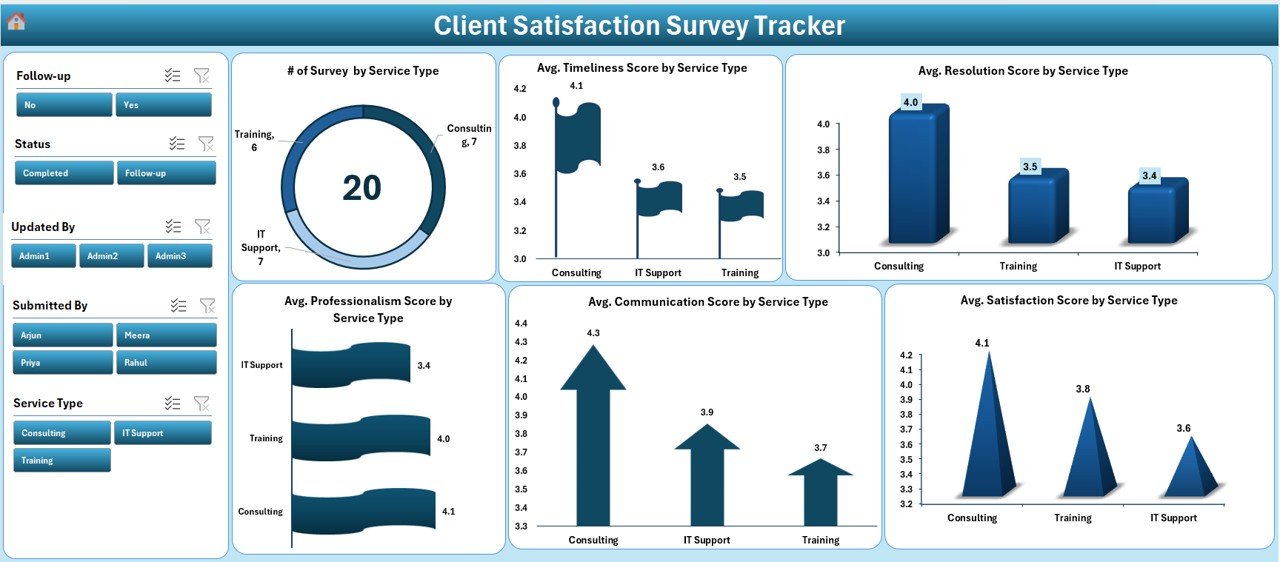
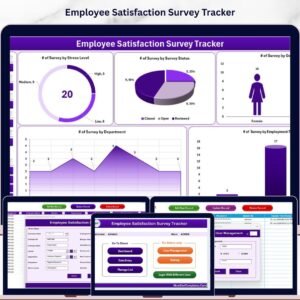
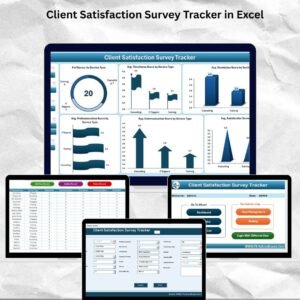
📊 Dashboard Sheet Tab – Real-Time Insights
Turn raw feedback into visual intelligence:
🎯 5 Slicers: Filter by Service, Date, Status, etc.
📈 6 Powerful Charts:
Surveys by Service Type (Doughnut)
Avg. Timeliness (Flag)
Avg. Resolution (Column)
Avg. Professionalism (Bar)
Avg. Communication (Arrow)
Overall Satisfaction Score (Column)
See what’s working—and what’s not—at a glance.
📝 Data Entry Sheet – Structured Feedback Logging
Easily record details like:
👤 Client Name & Company
🛠️ Service Type
📅 Survey Date
📈 Ratings (Satisfaction, Communication, Timeliness)
💬 Comments, Status, Follow-Up Details
🖱️ Action Buttons:
Add New Record
Update Existing
Delete Record
⚡Dashboard updates instantly with every change!
📋 Manage List Sheet – Custom Dropdowns
Save time and reduce input errors:
Add or delete items for fields like:
Service Type
Status
Follow-up Options
No more manual typing—fully dynamic dropdowns!
🔒 User Management & Access Control
👤 Add, edit, or delete user accounts
🔑 Reset passwords
👁️🗨️ Role-based access control
Stay secure while managing multiple users.
⚙️ Settings Sheet – Customize to Your Workflow
Adjust default filters
Set behavior preferences
Manage backend controls
Everything is editable—tailor the tool to your exact needs.
📦 What’s Inside the Client Satisfaction Survey Tracker?
✅ 6 Sheet Tabs:
Login Form
Main Form
Dashboard
Data Entry
Manage List
Support/Settings Sheets
💡 Built using Excel + VBA. Fully automated. No coding required.
🛠️ How to Use the Client Satisfaction Tracker
🔓 Login using the default user ID/password
📝 Enter feedback in the Data Entry Form
📊 Review results in the Dashboard using slicers
🔄 Update dropdowns in Manage List as needed
👥 Add users through the User Management tab
🧾 Export or share reports from the Dashboard
✅ Quick to set up. Easy to use. Instant results.
👥 Who Can Benefit from This Tracker?
🏢 Customer Support Teams
📈 Business Analysts
🧑💼 Account Managers
👩💻 Service Agencies
🧳 Consultants & Freelancers
🏪 Small Businesses
If client satisfaction matters to you—this tool is for you.
📚 Click here to read the Detailed blog post
📺 Visit our YouTube channel to learn step-by-step video tutorials
Watch the step-by-step video tutorial:
Compatibility and Requirements
- Needs Microsoft Excel desktop on Windows with macros enabled, because the login, forms and buttons run VBA code.
- It does not work in Excel for the web, Google Sheets or the Excel mobile apps.
- Microsoft explains how to turn macros on in Enable or disable macros in Microsoft 365 files.
Frequently Asked Questions
Which charts are on the dashboard?
Six: surveys by service type, average timeliness, average resolution, average professionalism, average communication and the overall satisfaction score. Five slicers filter them by service, date, status and more.
What can I record for each survey?
Client name and company, service type, survey date, ratings for satisfaction, communication and timeliness, comments, status and follow-up details.
Can I change the dropdown options?
Yes. Add or delete service types, statuses and follow-up options on the Manage List sheet, and the dropdowns pick them up.
Can more than one person use it?
Yes. User Management lets you add, edit or delete users, reset passwords and set role-based access.
Does the dashboard update when I edit a record?
Yes. Adding, updating or deleting a record through the form refreshes the dashboard.
Related Client Satisfaction Templates
- Client Satisfaction Survey Tracker in Google Sheets: the same survey tracker in Google Sheets
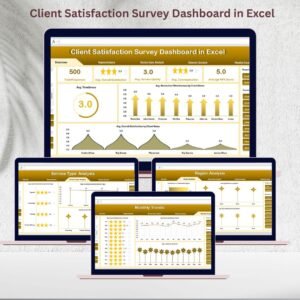
- Client Satisfaction Survey Dashboard in Excel: a client satisfaction survey dashboard in Excel
- Customer Satisfaction Survey Tracker in Excel: a customer satisfaction survey tracker in Excel
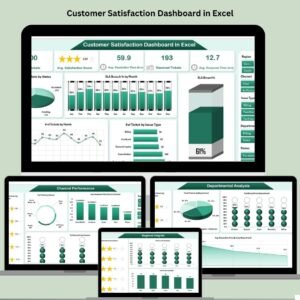
- Customer Satisfaction Dashboard in Excel: a customer satisfaction dashboard in Excel
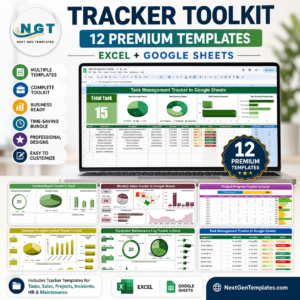
- Tracker Toolkit: 12 tracker templates in one bundle
Browse all Excel trackers or the Excel VBA tools.




Reviews
There are no reviews yet.