

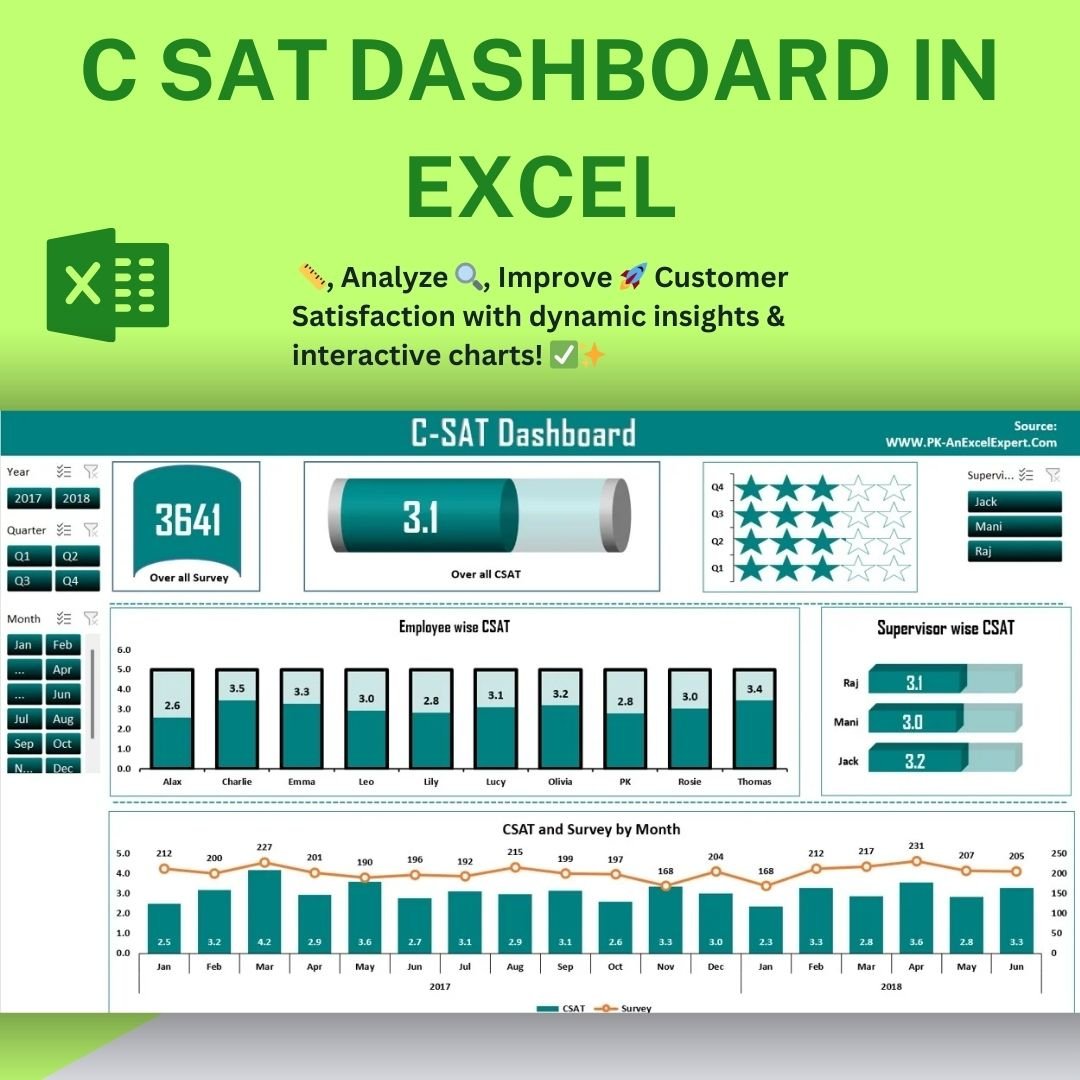
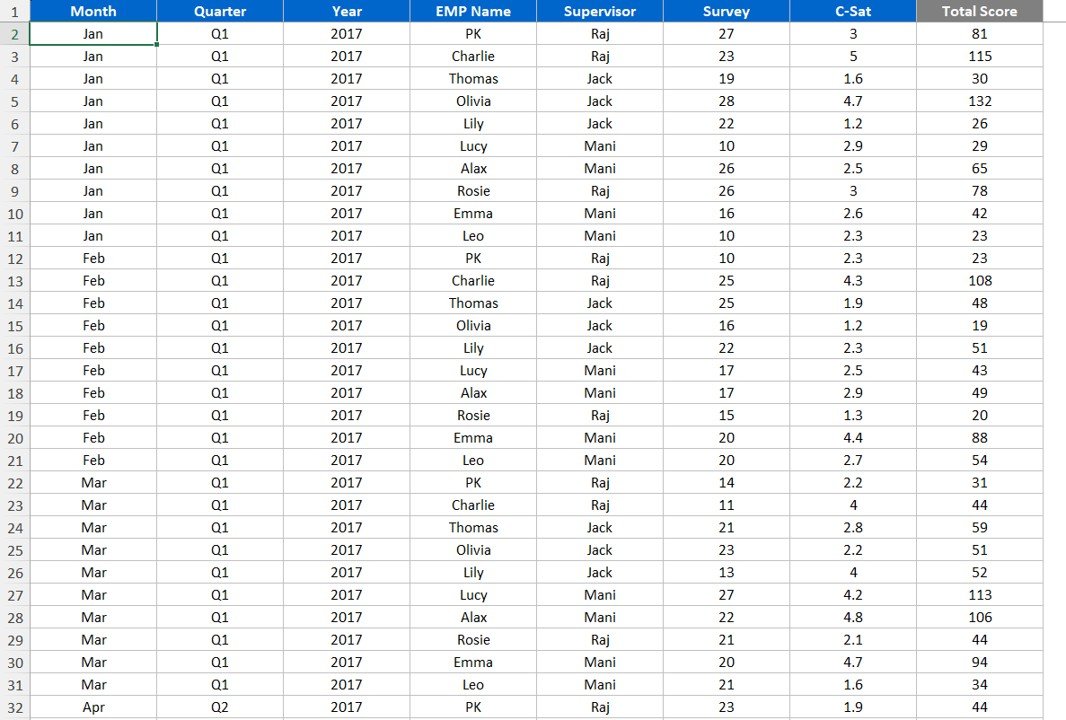

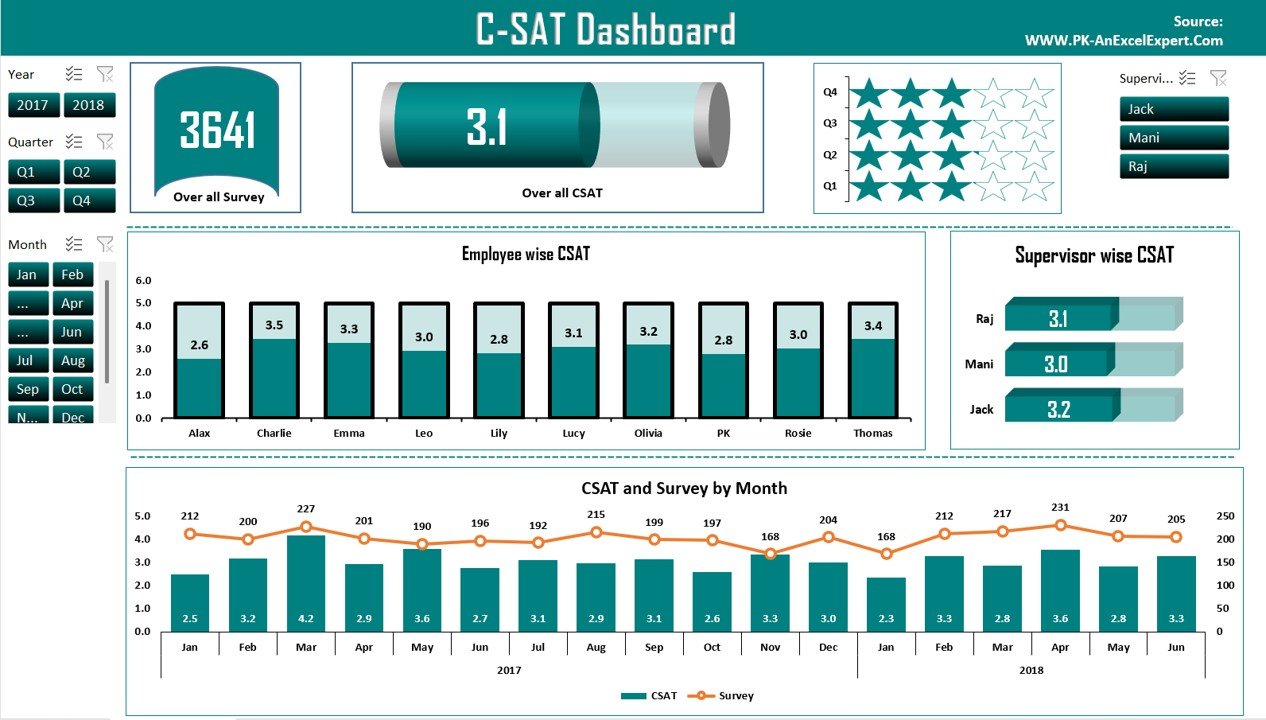
The C SAT Dashboard in Excel is an automated, interactive, data-driven template for monitoring and analyzing Customer Satisfaction (CSAT) scores. It is built for customer service teams, HR managers and business analysts who need employee-wise and supervisor-wise insight into customer experience. You can see CSAT performance by year, quarter, month and supervisor on one visual screen.
Customer satisfaction matters to every business. This customer satisfaction dashboard turns raw survey results into a clear story. It tracks customer experience trends, compares performance at different organizational levels, and shows which employees and supervisors are doing well and where improvement is needed.
Key Features of the C SAT Dashboard in Excel
Interactive Slicers for Advanced Filtering
- Filter CSAT scores by Year, Quarter, Month and Supervisor with dynamic slicers for customized insights.
- Use one-click filtering to analyze trends quickly and make decisions backed by data.
Segmented Data Visualization for Clear Insights
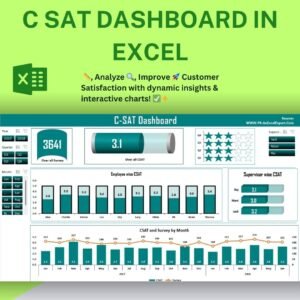
- Battery Chart: Shows overall CSAT performance as an easy-to-read visual gauge.
- Star Chart: Displays CSAT scores across quarters for a holistic view of customer satisfaction levels in the organization.
- Filling Column Chart: Presents employee-wise CSAT ratings so you can pinpoint top-performing employees.
Dynamic Analysis Tools for Supervisor Performance
- 3D Bar Charts: Compare CSAT ratings among supervisors to identify strengths and areas for improvement.
- Combo Charts: Track monthly CSAT scores alongside the number of survey responses, so you can relate customer engagement to satisfaction.
- Trend Analysis: Review employee-wise and supervisor-wise performance metrics in one place.
Aesthetic and Functional Design
- Professionally designed and visually appealing dashboard layout.
- Makes complex data analysis simple while keeping the presentation clean and engaging.
Customizable and Scalable
- The dashboard is fully adaptable, so businesses can modify and expand it as needed.
- You can add extra data fields, metrics or visualization enhancements.
What’s Inside the Dashboard
This CSAT analysis template brings these visual elements together in one Excel workbook:
| Component | What It Shows |
|---|---|
| Slicers | Year, Quarter, Month and Supervisor filters |
| Battery Chart | Overall CSAT performance gauge |
| Star Chart | Quarter-wise CSAT scores |
| Filling Column Chart | Employee-wise CSAT ratings |
| 3D Bar Charts | Supervisor-wise CSAT comparison |
| Combo Charts | Monthly CSAT scores vs. number of survey responses |
| Trend Analysis | Employee-wise and supervisor-wise performance over time |
How This Dashboard Helps You
- Better decisions: Get detailed CSAT score analysis to support your decisions.
- More accountability: Transparent data tracking holds employees and supervisors accountable.
- Earlier problem-solving: Spot trends in customer satisfaction before issues grow.
- Higher efficiency: Survey data analysis in Excel runs automatically, with no manual chart updates.
Who It’s For
- Customer service teams who want a ready Excel CSAT report on service quality.
- HR managers who need employee CSAT tracking and supervisor performance reviews.
- Business analysts who want an easy-to-use, visually rich reporting system for customer satisfaction management.
How to Use It
- Open the C SAT Dashboard in Excel in Microsoft Excel.
- Add your CSAT survey data with employee, supervisor and date details.
- Use the Year, Quarter, Month and Supervisor slicers to filter the view.
- Review the battery, star, filling column, 3D bar and combo charts for insights.
- Follow the video tutorial below for a step-by-step walkthrough.
Click here to read the detailed blog post on the C SAT Dashboard in Excel.
Watch the step-by-step video tutorial:
Frequently Asked Questions
What is the C SAT Dashboard in Excel used for?
It tracks, analyzes and visualizes Customer Satisfaction (CSAT) scores. It includes employee-wise and supervisor-wise insights, trend analysis and monthly breakdowns.
Can I filter CSAT data by time period or supervisor?
Yes. Dynamic slicers let you filter CSAT scores by Year, Quarter, Month and Supervisor with one click.
Does it show the number of survey responses?
Yes. Combo charts show monthly CSAT scores alongside the number of survey responses, so you can compare engagement with satisfaction.
Can I customize the dashboard?
Yes. The dashboard is fully adaptable. You can add data fields, metrics or visualization enhancements as your needs grow.
Who should use this customer satisfaction dashboard?
It is ideal for customer service teams, HR managers and business analysts who manage customer satisfaction and team performance.
Is there a tutorial available?
Yes. A step-by-step video tutorial and a detailed blog post are linked on this page.
Also check our Project Management Dashboard in Excel
Last updated: October 2026
Compatibility and Requirements
- Works in Microsoft Excel desktop (Excel 2016 or later, or Microsoft 365).
- The Year, Quarter, Month and Supervisor filters are slicers. Microsoft explains them in Use slicers to filter data.
Related Satisfaction Dashboards
- Customer Satisfaction Dashboard in Excel: another Excel view of customer satisfaction
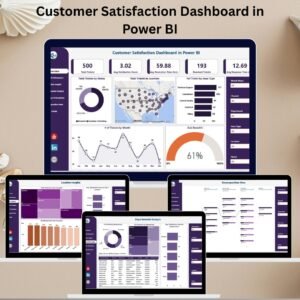
- Customer Satisfaction Dashboard in Power BI: the Power BI edition
- Customer Satisfaction Dashboard in Google Sheets: for teams that work in Google Sheets
- Customer Satisfaction Survey Tracker in Excel: a place to log survey results
- Employee Satisfaction Dashboard in Excel: the same idea for staff satisfaction
Browse all Excel dashboards and Excel templates.






Reviews
There are no reviews yet.