



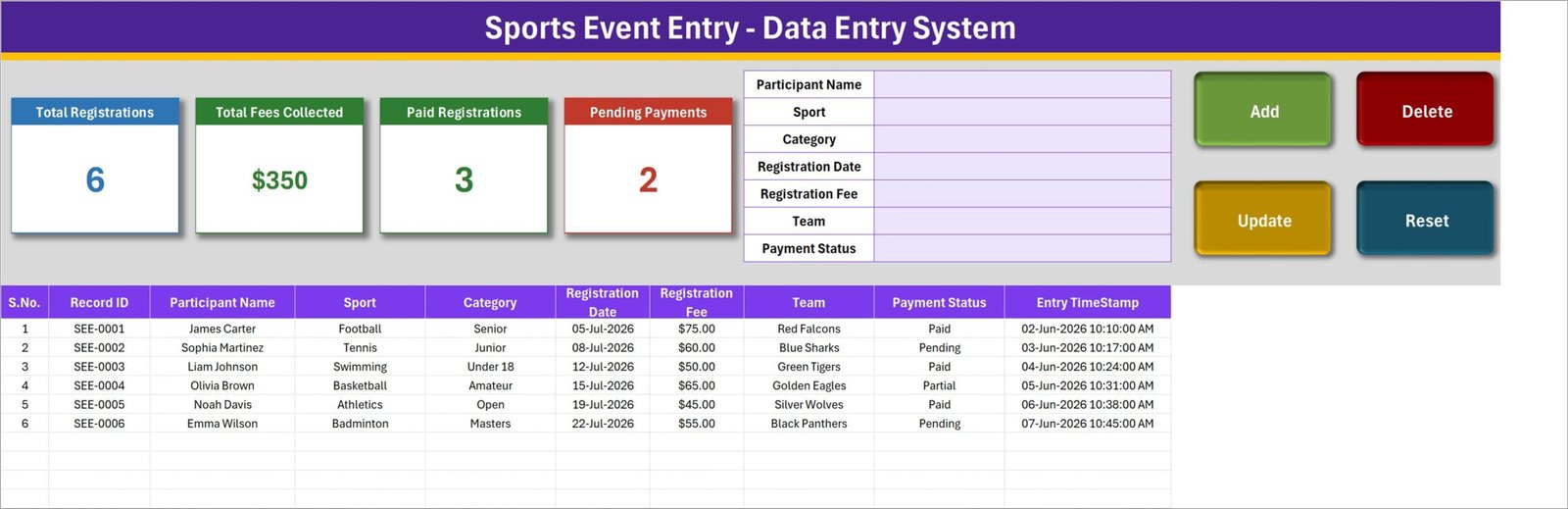
The Sports Event Data Entry System in Excel turns event sign-ups into a seven-field form and one button. It is a macro-enabled workbook (.xlsm) with an Add, Update, Delete and Reset button set written in VBA, a records table of 10 columns, and four summary cards that recalculate as you type. The sample file ships with 6 registrations, 12 sports, 10 categories, 10 teams and 6 payment statuses, all editable on a Setting sheet. Every saved row is given its own Record ID (SEE-0001 onward) and an Entry TimeStamp, so the same entrant is never written down twice. Instant download, lifetime access, free bug fixes.
Read this before you buy: this is a record-keeping workbook, nothing more. It is not a registration portal – entrants cannot sign themselves up, it takes no payments, it sends no confirmation or reminder e-mails, and it produces no fixtures, seedings, heats, brackets, results or scores. It does not verify ages, hold waivers, consent forms or medical information, and it makes no event safety, insurance, safeguarding or governing-body compliance claim. You type the registrations in; it stores and counts them.
Key Features of the Sports Event Data Entry System in Excel
- A seven-field form, not a wall of columns. Participant Name, Sport, Category, Registration Date, Registration Fee, Team and Payment Status sit in one block beside the buttons.
- Four VBA buttons. Add writes the row, Update saves an edit, Delete removes a row after a confirmation that shows the Record ID, Reset clears the form.
- Record IDs are generated for you. The sample rows run SEE-0001 to SEE-0006; the next entry continues the sequence.
- An Entry TimeStamp column. The table’s last column captures the moment each row was saved, separately from the Registration Date you type.
- Four summary cards. Total Registrations, Total Fees Collected, Paid Registrations and Pending Payments – in the sample data 6, $350, 3 and 2. Read the arithmetic note below before you trust the money card.
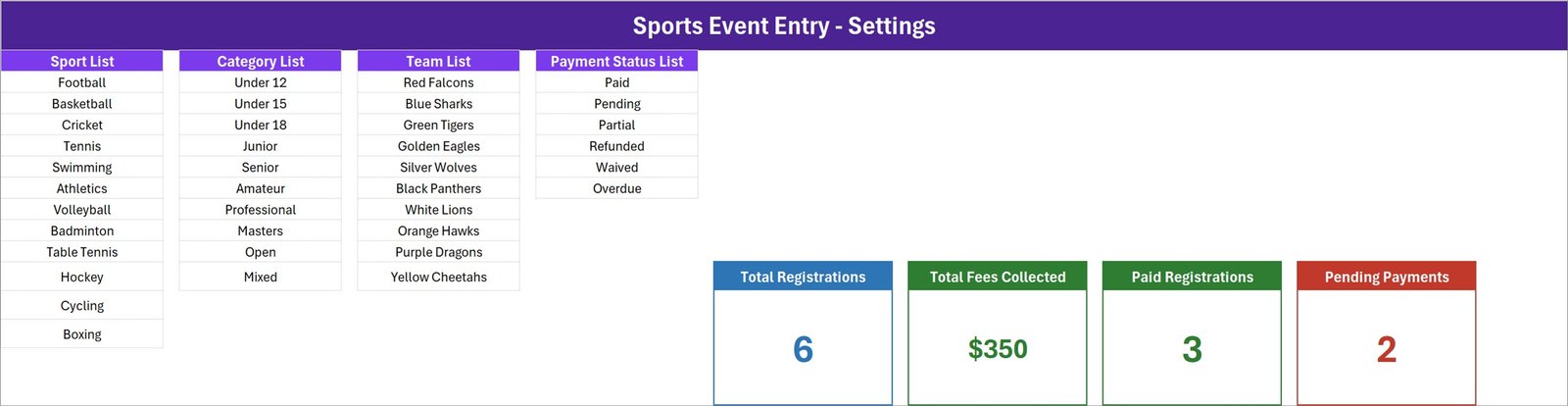
- Dropdowns you own. The Setting sheet holds Sport (12 entries: Football, Basketball, Cricket, Tennis, Swimming, Athletics, Volleyball, Badminton, Table Tennis, Hockey, Cycling, Boxing), Category (10: Under 12, Under 15, Under 18, Junior, Senior, Amateur, Professional, Masters, Open, Mixed), Team (10 sample club names from Red Falcons to Yellow Cheetahs) and Payment Status (6: Paid, Pending, Partial, Refunded, Waived, Overdue).
- Double-click editing. Double-click any record to load it into the form; the workbook remembers its ID, so Update finds the right row wherever it has moved to.
- Type in the table too. The Sport, Category, Team and Payment Status columns carry the same dropdowns as the form, so quick corrections do not need the buttons.
- Macro-enabled .xlsm. Desktop Microsoft Excel for Windows. Enable Content on the yellow bar the first time you open it.
What’s Inside the Sports Event Entry Data Entry System
1. Data Entry sheet. The working page: title bar, the four summary cards, the entry form, the Add / Update / Delete / Reset buttons, and the records table with S.No., Record ID, Participant Name, Sport, Category, Registration Date, Registration Fee, Team, Payment Status and Entry TimeStamp.
2. Setting sheet. The four dropdown lists plus the master copies of the four summary cards. The cards on the Data Entry sheet are linked pictures of these, which is why they restyle when you restyle the originals.
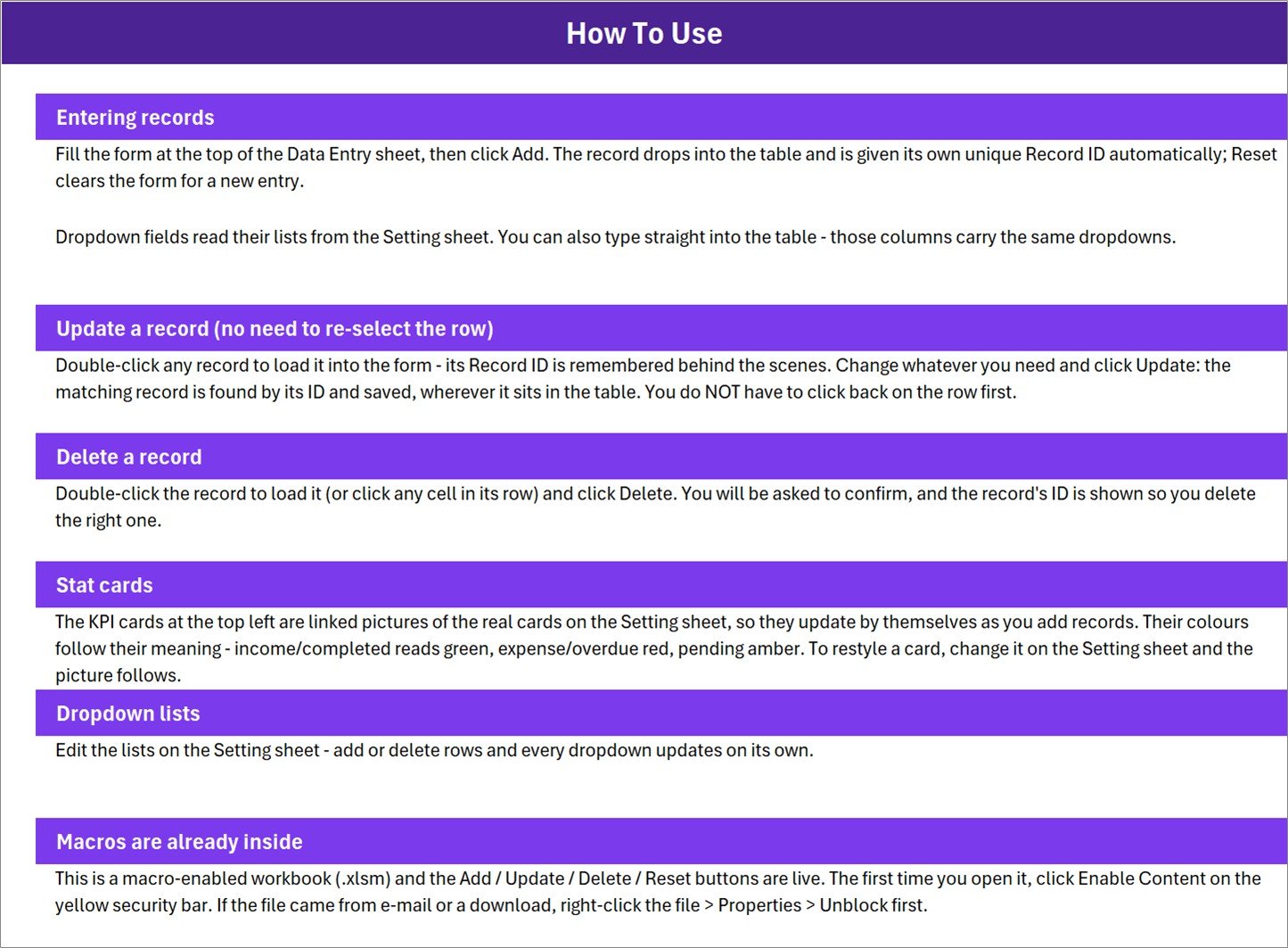
3. How To Use sheet. Six short sections written into the workbook: entering records, updating without re-selecting the row, deleting safely, how the stat cards work, editing the dropdown lists, and enabling macros. (The sheet tab is named Instructions; the page heading reads How To Use.)
4. Get More Templates sheet. A one-page index of the wider NextGenTemplates catalogue, with nothing to fill in.
5. The download. One ZIP containing a single file, Sports_Event_Entry_System.xlsm.
Be honest about the arithmetic before you rely on it. The card labelled Total Fees Collected adds up the Registration Fee column for every row whatever its Payment Status, so it is really fees entered, not fees banked: in the sample data the $350 includes $115 sitting at Pending and a $65 row marked Partial, and only $170 of it is against rows marked Paid. Only two of the six statuses have a card, so Paid Registrations (3) plus Pending Payments (2) will not add up to Total Registrations (6) – the Partial row is in neither. Total Registrations counts filled cells in the Participant Name column rather than the Record ID column, so a row saved with the name left blank is stored but never counted. The money card is formatted to whole dollars while the table column carries cents, so a total ending in cents rounds on the card. And in the sample data the Registration Dates sit in July 2026 while the Entry TimeStamps are early June 2026; that is demo data, and you will delete it.
One more thing worth knowing about the dropdowns. The How To Use sheet says the lists update on their own when you add rows. In practice each list is a fixed named range – Sport covers 12 rows, Category and Team 10 each, Payment Status 6 – so replacing or shortening entries works immediately, while appending an extra item below the last row of a list needs the named range extended in Formulas > Name Manager. The in-table dropdowns are applied to rows 15-214, which is 200 record rows.
Sports Event Entry Data Entry System in Excel vs. Google Sheets vs. Event Registration SaaS – Where This Fits
| What matters | Sports Event Entry Data Entry System in Excel | A Google Sheets entry list | Eventbrite / RaceRoster / SportsEngine |
|---|---|---|---|
| Cost | One payment, this listing | Free, but you build it | Per-ticket fee or monthly subscription |
| Platform | Desktop Excel for Windows (.xlsm) | Any browser | Browser and mobile apps |
| Setup time | Minutes – open, enable macros, start typing | Hours of formula and validation work | Hours to days, plus a payout account |
| Entrants register themselves | No – you type the entries in | Only with a linked Form | Yes |
| Takes payment / issues confirmations | No | No | Yes |
| Fixtures, seedings, heats or results | No | No | Sometimes, on sports-specific platforms |
| Real-time team collaboration | No – one file, one person at a time | Yes | Yes |
| Mobile access | No – VBA does not run on mobile or the web | Yes | Yes |
| Customizable sports, categories and teams | Yes – edit the four Setting-sheet lists | Yes | Within the vendor’s model |
| Your entrant list stays on your own machine | Yes – it is a file you own | In your Google account | On the vendor’s servers |
| One-click Add / Update / Delete | Yes – VBA buttons | Only if you write Apps Script | Yes |
| Automatic record IDs and timestamps | Yes – SEE-0001 onward, stamped on save | Only if you script it | Yes |
Who This Template Is For – and Who It’s Not For
It is for you if you run a school sports day, a club tournament, an inter-house meet, a charity fun run or a corporate sports league; if entries reach you by paper form, WhatsApp or a phone call and somebody has to type them up anyway; if you work in desktop Excel on Windows; and if you want one clean list of who has entered, in what, for which team, and who still owes the fee.
It is not for you if you need entrants to register themselves online, if you need to collect entry fees through the workbook, if you want automatic confirmation e-mails or reminders, if you need draws, seedings, heats, brackets, fixtures or results, if several officials must enter registrations at the same time, if you need it on a phone, or if you are on a Mac or Excel for the web – VBA does not run there. It is also not a compliance tool: age verification, parental consent, medical and emergency-contact records, waivers, insurance and safeguarding are duties this file does not discharge, and the Under 12 / Under 15 / Under 18 entries in the Category list are text labels for your own sorting, not an age check.
A word on entrants’ personal data. The Participant Name column holds real people’s names, and in youth categories those people are children. Keep the file somewhere access-controlled, share it only with the officials who need it, delete it when the event is over, and follow whatever data-protection rules apply where you organise. A single unprotected .xlsm on a shared drive is not a safe home for a list of minors.
How to Use the Sports Event Entry Data Entry System
- Unblock and open. Unzip the download, right-click Sports_Event_Entry_System.xlsm, choose Properties and tick Unblock if it came from e-mail or a download. Open it in desktop Excel and click Enable Content on the yellow bar.
- Edit your lists first. On the Setting sheet, replace the Sport, Category, Team and Payment Status entries with the ones your event actually uses. Replacing entries in place works straight away; to add more items than a list currently holds, extend that list’s named range in Name Manager.
- Clear the demo data. Delete the six sample registrations before you record anything real.
- Enter a registration. Fill the seven fields and click Add. The row lands in the table with its own Record ID and Entry TimeStamp; Reset clears the form for the next entrant.
- Correct a record. Double-click the row, change what is wrong, click Update. You do not have to click back on the row first.
- Remove a record. Double-click it and click Delete; confirm the Record ID shown in the prompt.
- Work the fees. Move a row from Pending to Partial to Paid as the money arrives, and filter the Payment Status column for the entrants you still need to chase.
- Watch the cards. Total Registrations, Total Fees Collected, Paid Registrations and Pending Payments refresh as you work – no refresh button, no pivot to rebuild.
Real-World Use Cases
Meera, PE teacher organising a school sports day. Entry slips come back in envelopes from eight classes. She types each one against a Sport and an Under 12 / Under 15 / Under 18 Category, sorts the table by Sport, and prints a clean list per event.
Tom, secretary of a five-a-side league. Every player is entered against a Team and an entry fee. He filters Payment Status to Pending on a Thursday night and sends one round of reminders instead of ten.
Sunita, running a charity 10K. Registrations arrive by phone and by paper form at the club. She logs each one, marks Waived for the volunteers who run free, and uses Total Registrations as the headcount she gives the marshals.
Frequently Asked Questions
Can entrants register themselves through this workbook?
No. It is an internal record-keeping file, not a registration portal. There is no web form, no sign-up link and no way for an entrant to add themselves – somebody in the organising team types each registration into the form and clicks Add.
Does it take entry fees or send confirmations?
No. There is no payment gateway, no invoice, no receipt and no e-mail of any kind. Registration Fee and Payment Status are columns you fill in yourself to record what you have agreed and what has actually arrived.
Does it create fixtures, heats, seedings, brackets or results?
No. The workbook stores entries. It does no draw, no seeding, no heat allocation, no bracket generation, no scoring and no ranking. If you need those, do them elsewhere and keep this as the entry list.
Why doesn’t Paid Registrations plus Pending Payments equal Total Registrations?
Because only two of the six payment statuses have a card. In the sample data one entrant is marked Partial, so 3 Paid plus 2 Pending comes to 5 against a total of 6. Refunded, Waived and Overdue have no card either. Add a COUNTIF of your own on the Setting sheet if you want them.
Is Total Fees Collected really money received?
No – and this is worth knowing before you quote the number to a committee. The card sums the whole Registration Fee column regardless of Payment Status, so Pending, Partial and Overdue entries are inside it. In the sample data it reads $350 while only $170 sits against rows marked Paid. Treat it as fees entered, and use a SUMIF on Paid if you need the banked figure.
Do I have to enable macros?
Yes. The Add, Update, Delete and Reset buttons are VBA, so the workbook must be opened as a macro-enabled .xlsm with content enabled. If the yellow bar does not appear, right-click the file, open Properties and tick Unblock.
Will it work in Google Sheets, Excel for the web, or on a Mac?
It is built and tested for desktop Microsoft Excel on Windows. Google Sheets and Excel for the web do not run VBA at all, so the buttons will not work there. We do not guarantee Excel for Mac.
Can I change the fields and the dropdown lists?
The four lists on the Setting sheet are yours to edit. Replacing or shortening entries works immediately; adding more items than a list currently holds needs that list’s named range extended in Name Manager. The seven form fields themselves are fixed by the VBA behind the buttons, so renaming or adding a field means editing the macro code.
How many registrations can it hold?
The in-table dropdowns are applied to rows 15 to 214, which is 200 record rows – comfortably more than most club events and school meets need. Rows below that still accept data; they simply have no dropdown validation until you extend it. The screenshots show six sample records.
Is the sample data mine to keep?
The six rows, the team names and the sports are demonstration data. Delete them before you enter real entrants – and keep your own backups, because a single file has a single point of failure.
About the Author
Built by PK – Microsoft Certified Professional with 15+ years of Excel, Google Sheets, and Power BI experience. Founder of NextGenTemplates, reaching 300K+ subscribers across YouTube channels. Every template is hand-built and tested before release.
Explore Related Templates
- Sports & Recreation Dashboard in Excel – when the entry list has grown enough to want charts on top of it.
- Sports KPI Dashboard in Excel – the season-level scorecard that sits above a season of events.
- Course Enrollment Data Entry System in Excel – the same form-and-buttons build for course sign-ups.
- Physiotherapy Session Data Entry System in Excel – the sibling workbook for the treatment table.
- Gym Membership Tracker in Google Sheets – the browser-based counterpart if you need shared access.
- Adventure Sports Booking Management System Web App – the full multi-user system for when a workbook is no longer enough.
- Browse the whole Excel VBA Tools category, or everything under MS Excel.
Ready to stop losing entry slips? Download the Sports Event Entry Data Entry System in Excel, enable macros, clear the six sample rows and log your first registration in the next five minutes. The full walkthrough is on the blog: Sports Event Entry Data Entry System in Excel. Sports Event Data Entry System in Excel
Last updated: 29 August 2026.
















Reviews
There are no reviews yet.