

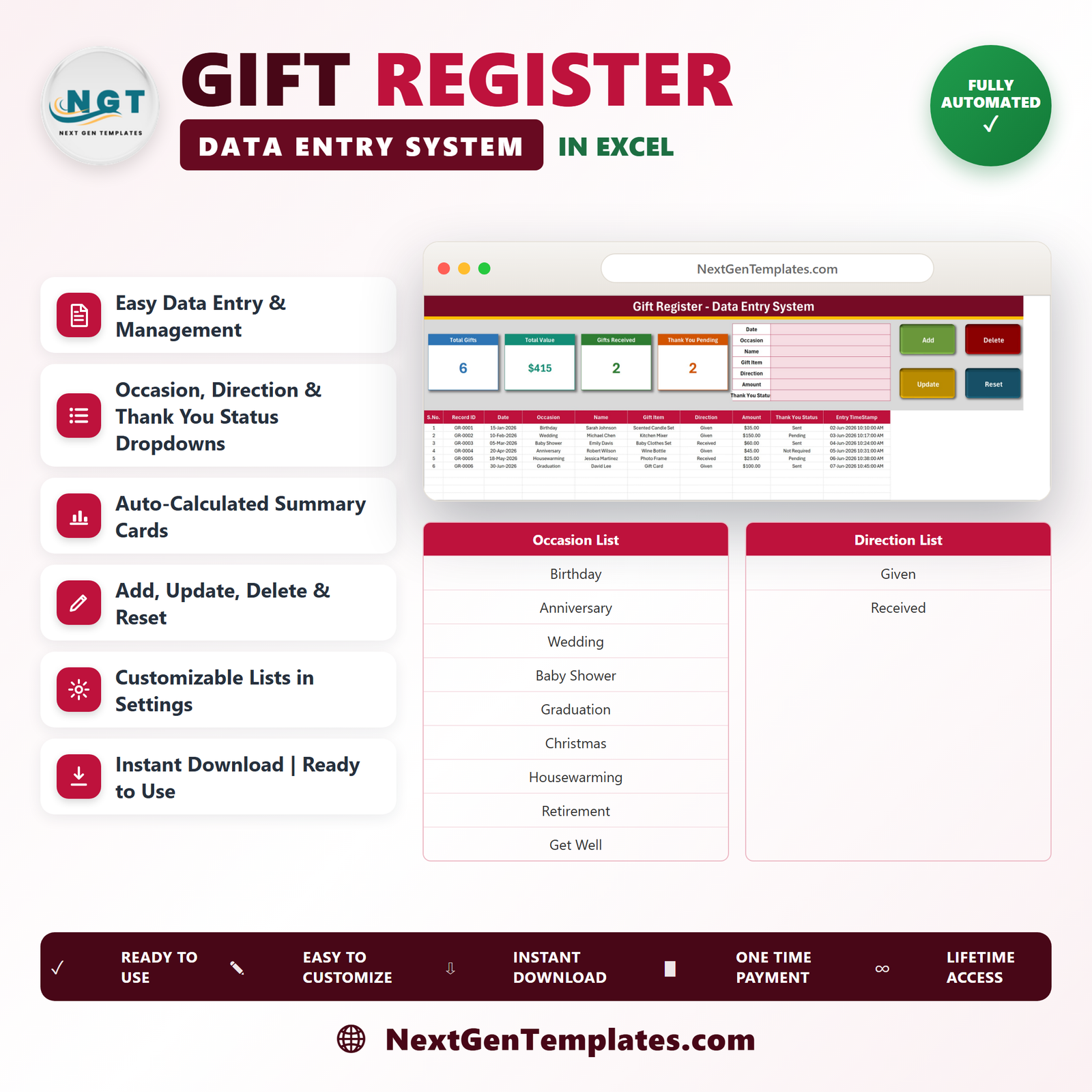
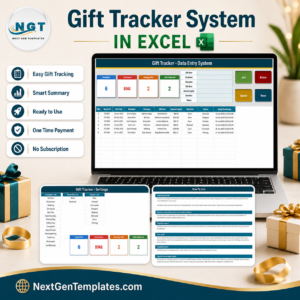
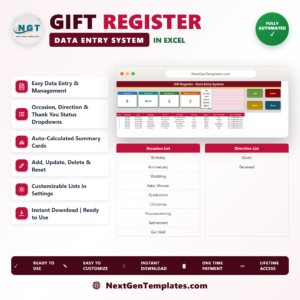
The Gift Register Data Entry System in Excel is a single macro-enabled workbook that records every gift you give and receive on one screen. Fill in seven fields, click Add, and the record lands in the table with its own ID such as GR-0004 and an entry timestamp. Four KPI cards at the top – Total Gifts, Total Value, Gifts Received and Thank You Pending – recalculate the moment you save. There is nothing to install and no monthly fee: you download one .xlsm file, open it in desktop Excel, and start typing. Every name and amount you see in the screenshots is sample data supplied so you can see the layout working; clear it and the register is yours.
Key Features of the Gift Register Data Entry System in Excel
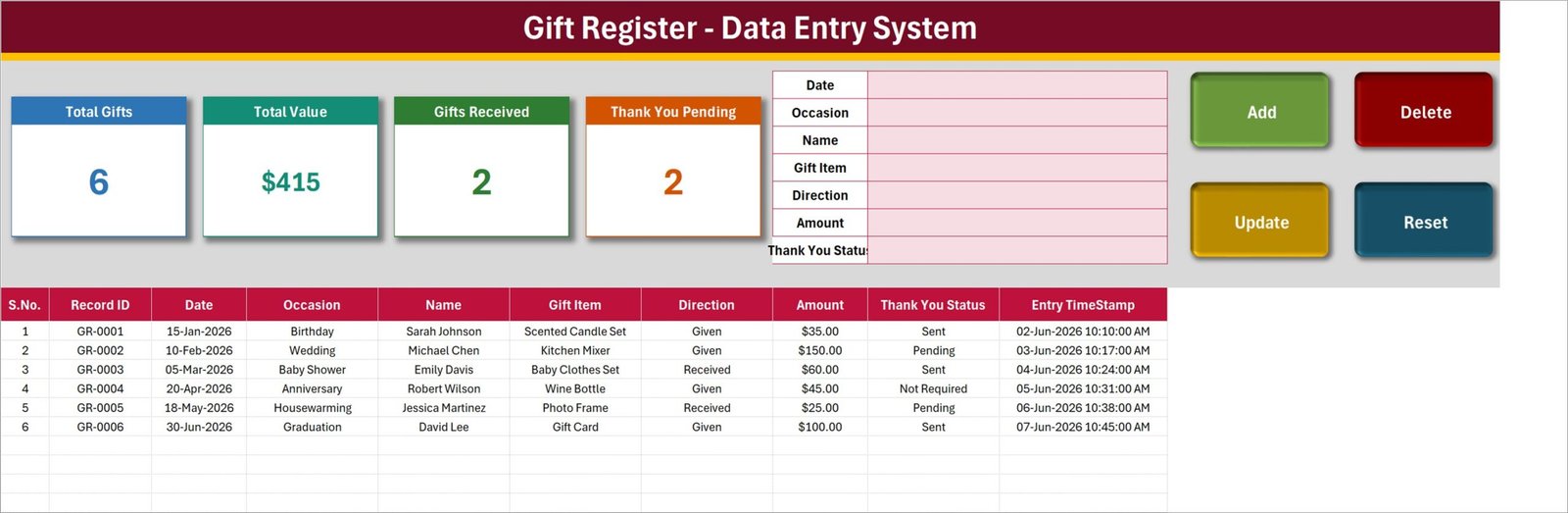
- A seven-field form, not a wall of columns. Date, Occasion, Name, Gift Item, Direction, Amount and Thank You Status sit in one bordered panel at the top of the Data Entry sheet.
- Four working buttons. Add, Update, Delete and Reset are wired to VBA. Add appends and numbers the record, Update saves changes by Record ID, Delete asks you to confirm and shows the ID first, Reset clears the form for the next entry.
- Record IDs generated for you. The system issues GR-0001 upward so two identical gifts from two people never get confused.
- Live KPI cards. The four cards are linked pictures of master cards on the Setting sheet, so they restyle from one place and refresh by themselves.
- Given and Received together. A Direction dropdown carries Given or Received, and the Gifts Received card counts one side without hiding the other.
- Thank-you tracking. Thank You Status holds Sent, Pending or Not Required, and the Thank You Pending card tells you how many notes are still outstanding.
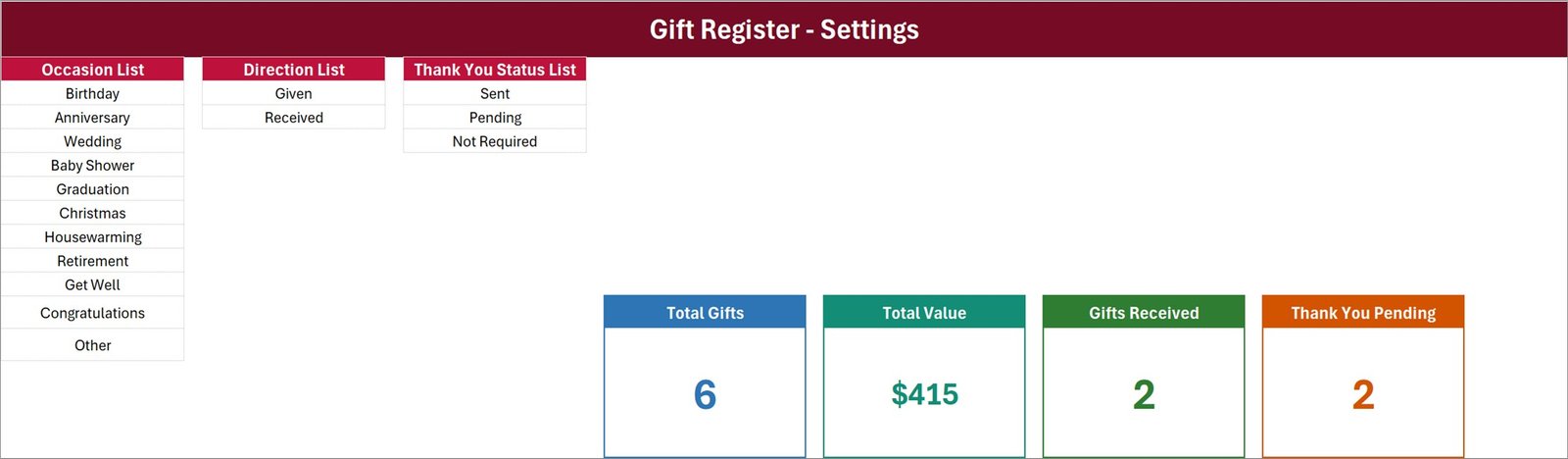
- Dropdowns you control. Occasion ships with 11 entries – Birthday, Anniversary, Wedding, Baby Shower, Graduation, Christmas, Housewarming, Retirement, Get Well, Congratulations and Other – and every list grows or shrinks from the Setting sheet.
- Entry timestamps. An Entry TimeStamp column records the date and time each row was written, so you can see the order things were logged.
What’s Inside the Gift Register Data Entry System in Excel
Data Entry – the working screen
This is where you spend your time. The KPI row runs across the top – Total Gifts, Total Value, Gifts Received and Thank You Pending – with the seven-field entry form beside it and the Add, Delete, Update and Reset buttons on the right. Below sits the records table: S.No., Record ID, Date, Occasion, Name, Gift Item, Direction, Amount, Thank You Status and Entry TimeStamp. You can type straight into the table too, because those columns carry the same dropdowns as the form.
Setting – the lists and the master cards
Three lists live here: Occasion List (11 values), Direction List (Given, Received) and Thank You Status List (Sent, Pending, Not Required). Add a row and the matching dropdown picks it up on its own – add “Farewell” or “Diwali” and it appears in the form immediately. The four master KPI cards are also on this sheet; change a colour or a font here and the pictures on the Data Entry sheet follow.
How To Use – the built-in guide
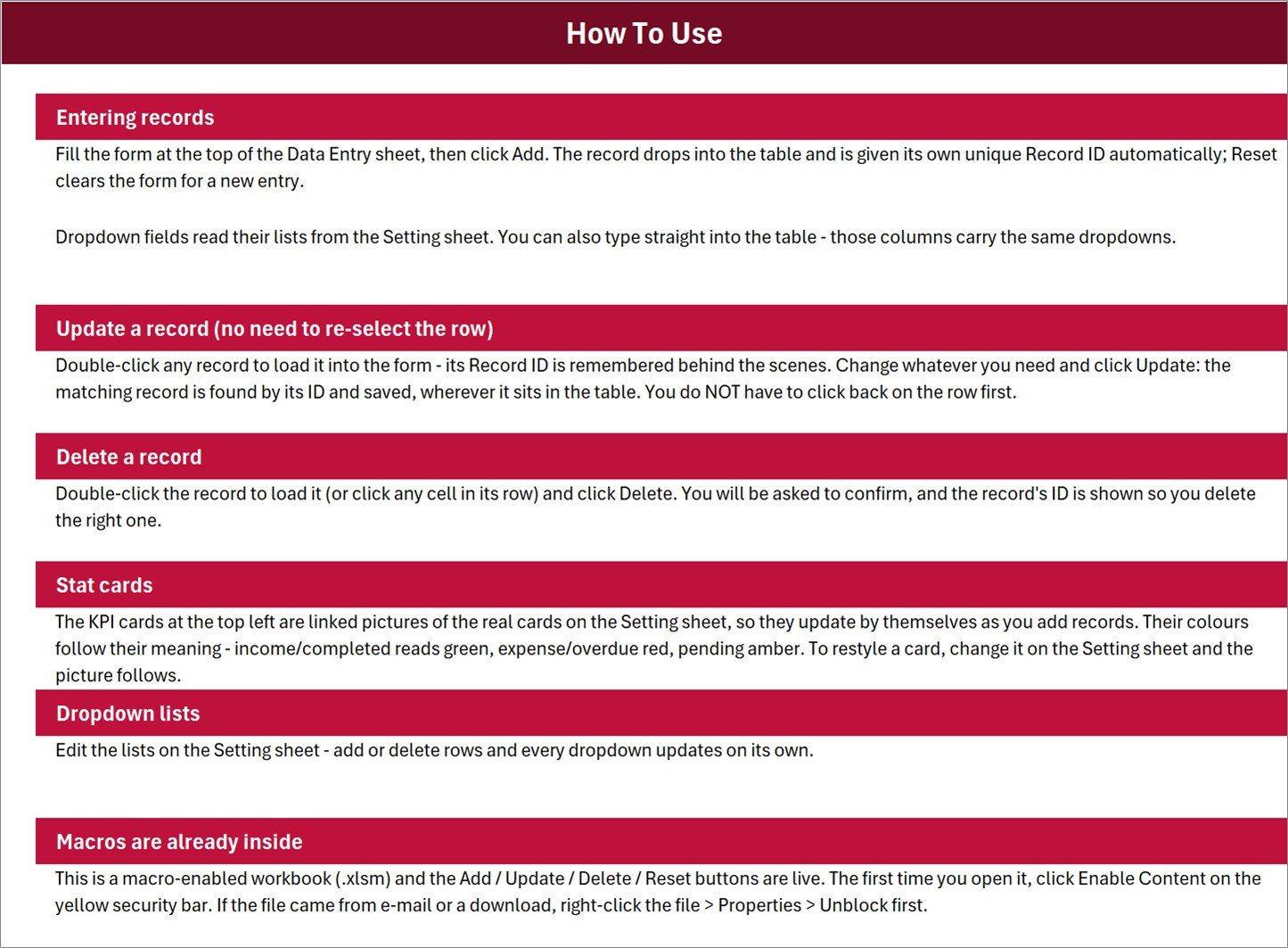
Six short sections cover entering records, updating a record without re-selecting its row, deleting safely, how the stat cards work, editing the dropdown lists, and enabling macros the first time you open the file. It ships inside the workbook, so nobody has to hunt for a separate PDF.
Get More Templates
A fourth sheet with links back to the NextGenTemplates catalogue – Excel dashboards, trackers and other data entry systems. Nothing on it affects your data; delete it if you would rather not have it in your file.
Gift Register Data Entry System in Excel vs. Google Sheets vs. Paid Event Software – Where This Fits
| This Excel system | A Google Sheets gift list | Paid event / registry software | |
|---|---|---|---|
| Cost | 6.99 one-off | Free, but you build it | 15-40 per month |
| Platform | Desktop Microsoft Excel (.xlsm) | Browser | Browser / app |
| Setup time | Under 5 minutes | 1-3 hours of building | 30-60 minutes plus onboarding |
| Real-time team collaboration | No – file based | Yes | Yes |
| Mobile access | View only; buttons need desktop Excel | Yes | Yes |
| Customizable fields | Yes, edit the sheet and the VBA | Yes | Limited to the vendor’s fields |
| Share with link | No – send the file | Yes | Yes |
| Year-1 cost at 5 users | 6.99 total | 0 | 900-2,400 |
| Given and Received in one register | Yes, via the Direction field | Only if you build it | Usually registry-only |
| Thank-you status tracking | Yes, with a pending count | Manual column | Varies by plan |
| Your data stays on your machine | Yes | Google’s servers | Vendor’s servers |
Who This Template Is For – and Who It’s Not For
It fits you if you are keeping a personal or household record of gifts across birthdays, weddings and holidays; you run an office or club that logs presents given and received during the year; you want to know which thank-you notes are still outstanding; you already own desktop Excel and would rather pay once than subscribe.
It is not for you if several people need to edit the same register at the same moment – that is a Google Sheets or web-app job. It is also not for you if you work only on a phone or tablet, or only in Excel for the web: the VBA buttons do not run there. And it does not price gifts, chase people, or produce any kind of receipt or statement – it records what you tell it and reports it back.
How to Use the Gift Register Data Entry System in Excel
- Download the ZIP and unzip it. Right-click Gift_Register_System.xlsm, choose Properties and tick Unblock if Windows added that flag.
- Open it in desktop Excel and click Enable Content on the yellow bar. The buttons will not work until you do.
- Go to the Setting sheet and edit the three lists so the occasions match how you actually celebrate.
- Delete the six sample rows (GR-0001 to GR-0006) from the records table.
- On Data Entry, fill the form and click Add. The record appears with its own ID and timestamp, and the KPI cards move.
- To change something, double-click the record – it loads into the form – edit it and click Update. You do not need to click back on the row first.
- Filter the Thank You Status column to Pending whenever you want to see what is still owed, and switch each one to Sent as you go.
- Save with Ctrl+S. Keep the .xlsm extension or the macros are stripped out.
Real-World Use Cases
Priya, planning a wedding. Guests arrive with everything from envelopes to kitchen mixers. Priya logs each one as it is opened, sets Direction to Received, and leaves Thank You Status on Pending. Two weeks later the Thank You Pending card reads 34, and she works down the filtered list until it reads zero.
Daniel, an office manager. His team sends leaving presents, festive hampers and congratulation baskets across the year. He logs them all as Given with the Amount field filled in, and at year end the Total Value card gives him one number to hand to the finance team instead of a folder of receipts.
The Osei family, keeping a household register. Birthdays, baby showers and Christmas for a large extended family. Because Given and Received sit in one table, they can see at a glance who they have not reciprocated with this year – and the Occasion dropdown keeps everyone spelling “Housewarming” the same way.
Frequently Asked Questions
Do I have to enable macros?
Yes. This is a macro-enabled workbook (.xlsm) and the Add, Update, Delete and Reset buttons are VBA. Click Enable Content on the yellow security bar the first time you open it. If you would rather not run macros you can still type directly into the table, but the buttons and the automatic Record IDs will not work.
Will it work in Excel for the web or Google Sheets?
No. Neither runs VBA. Use desktop Microsoft Excel on Windows or Mac – Excel 2013 or later is fine.
Can I add my own occasions?
Yes. The Occasion List on the Setting sheet is just a range of cells. Add or delete rows and every dropdown updates on its own, in the form and in the table column.
Can I add a field the system does not have, like a phone number?
Yes, though it takes a small edit. Add the column to the table and the label to the form, then extend the VBA to read and write that cell. The module is unlocked and commented.
Is the sample data real?
No. The six records, names and amounts in the screenshots exist only to show the layout working. Delete them before you begin.
How many records can it hold?
Thousands. It is an ordinary Excel table, so the practical limit is your machine rather than the template. A household or office register of a few hundred rows a year will not trouble it.
What exactly do I download?
One ZIP containing Gift_Register_System.xlsm. There is nothing else to install and no account to create.
About the Author
Built by PK – Microsoft Certified Professional with 15+ years of Excel, Google Sheets, and Power BI experience. Founder of NextGenTemplates, reaching 300K+ subscribers across YouTube channels. Every template is hand-built and tested before release.
Explore Related Templates
- Donation Register Data Entry System in Excel – the same form-and-buttons pattern for incoming donations.
- Petty Reimbursement Data Entry System in Excel – small out-of-pocket claims, logged the same way.
- Employee Document Data Entry System in Excel – staff paperwork with expiry tracking.
- Class Schedule Data Entry System in Excel – timetable records with the same VBA engine.
- Bar Stock Register Data Entry System in Excel and Supplement Sales Data Entry System in Excel – two more registers from the same line.
- Browse the full Excel VBA Tools and Excel Trackers categories.
Add to cart, download, unzip, enable macros – you can be logging your first gift inside five minutes. One file, one payment, yours to keep and to edit.
Last updated: 14 August 2026.
Reviews
There are no reviews yet.