

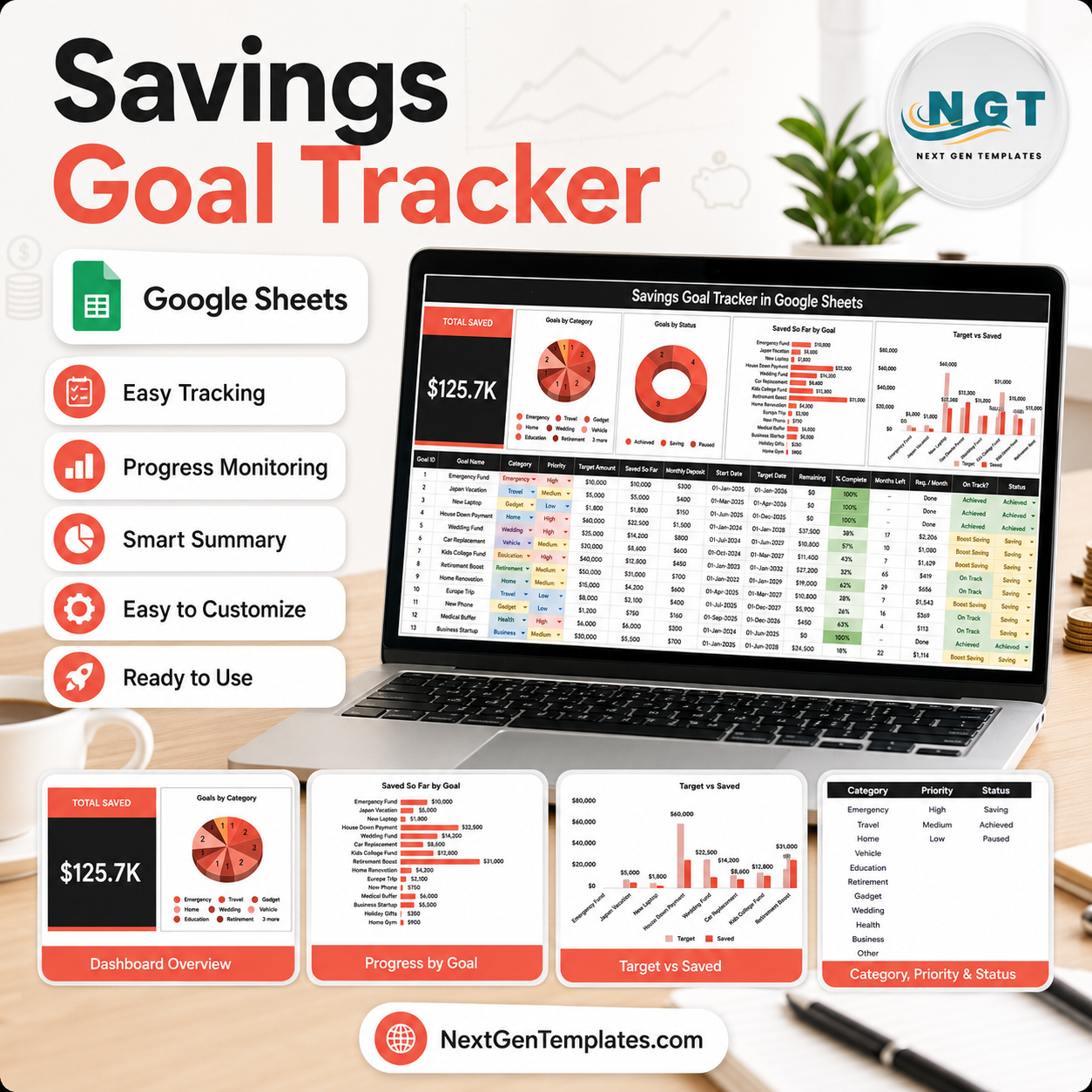
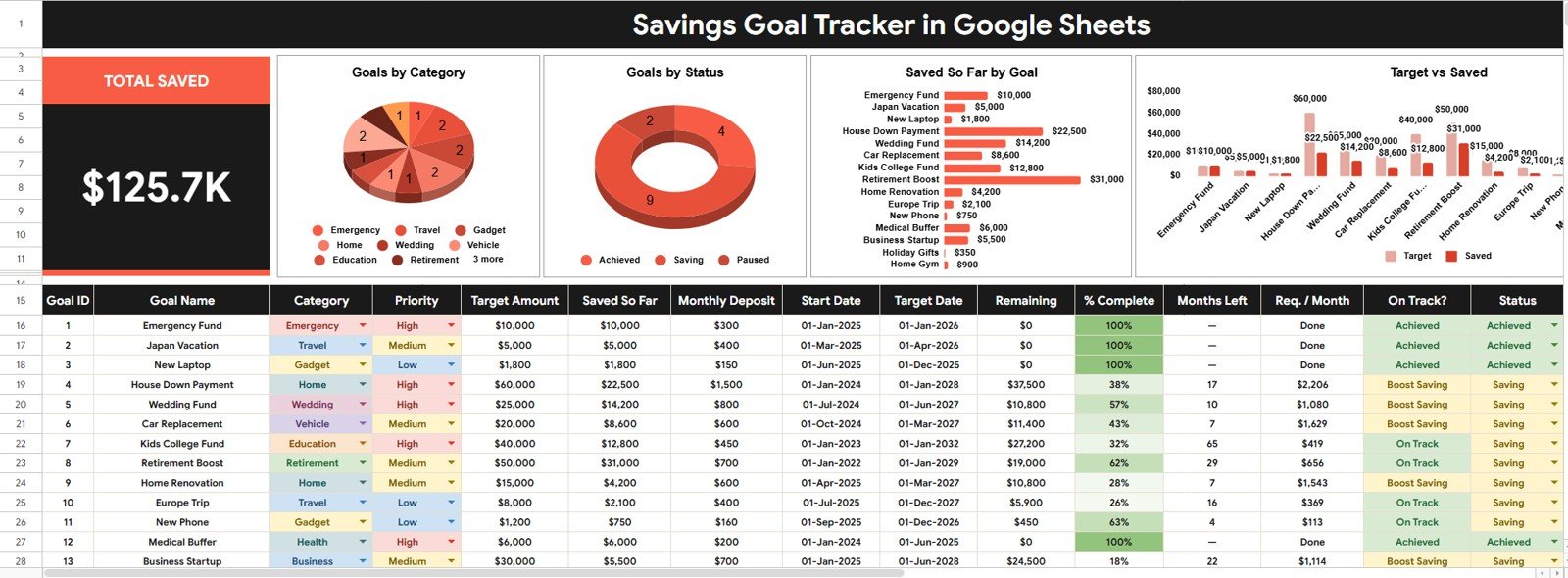
Savings Goal Tracker in Google Sheets gives you 2 focused sheet tabs, 1 Total Saved card, 4 savings analysis charts, multiple dashboard slicers, and 3 editable setup lists for a one-time $6.99 sale price. Built by PK, a Microsoft Certified Professional with 15+ years of Excel, Google Sheets, and Power BI experience and 300K+ subscribers across YouTube channels, this template is made for people who want visible savings progress without paying for another monthly finance app. Use it to track emergency funds, vacations, deposits, education funds, debt payoff reserves, and other personal savings goals in one editable Google Sheets file.
Key Features of Savings Goal Tracker in Google Sheets
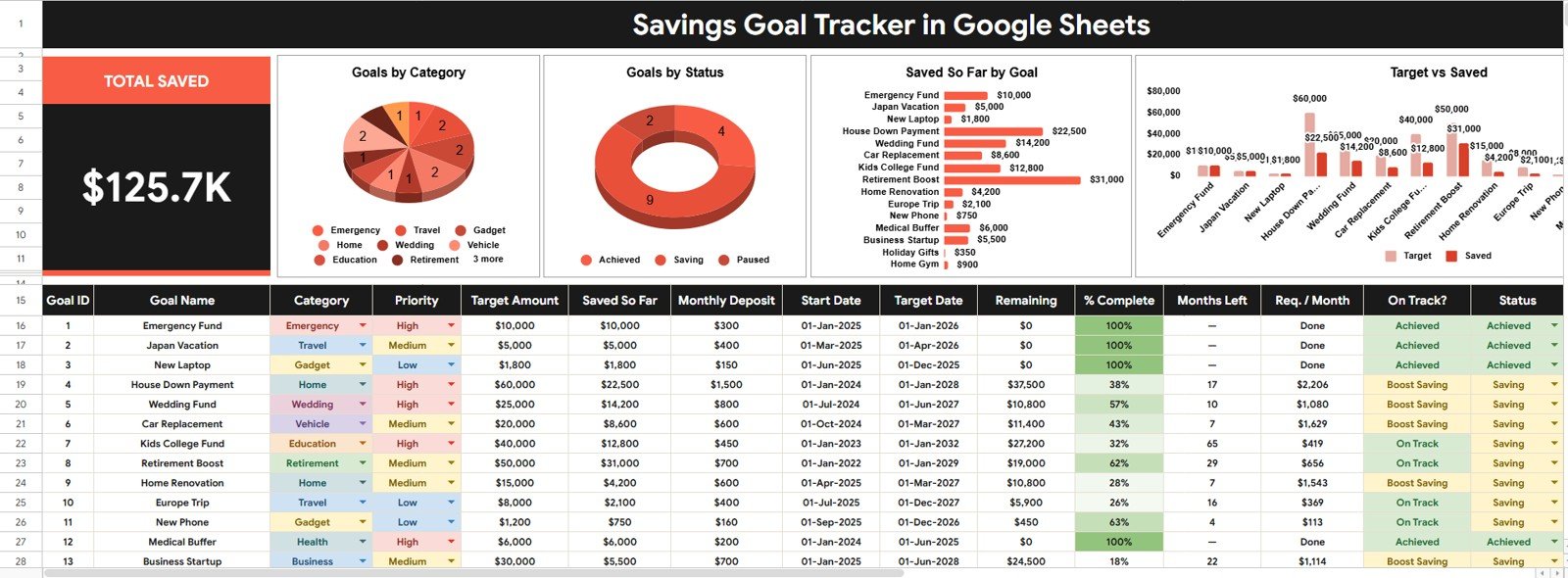
- Overview dashboard: Review high-level savings progress from one clean Google Sheets page.
- Total Saved card: See the total amount saved across all active and completed goals.
- 4 built-in charts: Analyze goals by category, status, saved amount, and target-versus-saved progress.
- Multiple slicers: Filter the dashboard quickly by goal category, priority, status, and other available fields.
- Setup Lists tab: Maintain dropdown values for category, priority, and status in one place.
- Google Sheets workflow: Copy the template to Google Drive and edit it from a browser or the Google Sheets app.
- No monthly software fee: Buy once, copy the file, and keep using your own version.
What’s Inside the Savings Goal Tracker in Google Sheets
1 – Overview Page
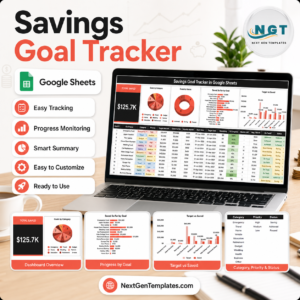
The Overview Page is the main dashboard sheet. At the top, the Total Saved card shows the high-level savings amount so you can immediately see how much money has been put toward your goals.
Goals by Category: This chart groups savings goals by category, such as emergency fund, travel, education, home, or other custom groups. It helps you understand where your savings plan is concentrated and whether one category is taking most of your attention.
Goals by Status: This chart shows how goals are distributed across statuses such as active, completed, paused, or planned. It makes it easier to review which goals need action and which goals are already finished.
Saved So Far by Goal: This chart compares the current saved amount for each savings goal. It helps you spot the goals with the most progress and the goals that may need more regular contributions.
Target Amount and Saved So Far by Goal: This comparison chart puts the target amount and saved amount side by side for each goal. It gives a fast visual gap analysis so you can see how far each savings goal still has to go.
2 – Setup Lists
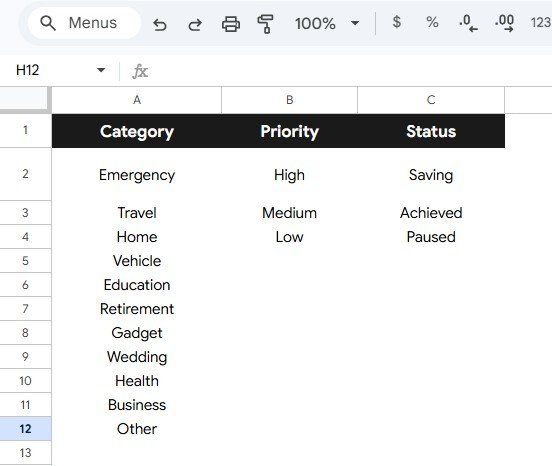
The Setup Lists sheet stores the dropdown options used by the tracker. Editing these lists before you start entering goal data keeps the workbook consistent and prevents messy duplicate labels.
Category Options by Savings Goal Type: Use this list to define the goal categories that match your financial life, such as travel, home, education, emergency fund, family, or custom categories.
Priority Options by Priority Level: Use this list to classify goals by urgency or importance. Priority values make it easier to focus contributions on the goals that matter most right now.
Status Options by Goal Status: Use this list to manage goal stages such as planned, active, paused, completed, or cancelled. Status values help keep the dashboard useful as goals change over time.
Savings Goal Tracker in Google Sheets vs. Microsoft Excel vs. Paid Finance Apps – Where This Fits
| Feature | This Google Sheets tracker | Microsoft Excel alternative | Paid finance app |
|---|---|---|---|
| Cost | $6.99 sale price, one-time | Template cost or custom workbook build | Often monthly or annual subscription |
| Platform | Google Sheets in Drive | Excel desktop or web | Vendor-hosted app |
| Setup time | Copy the file, edit lists, enter goals | Open or customize workbook | Create account, connect sources, configure settings |
| Real-time team collaboration | Built into Google Sheets sharing | Available through OneDrive workflows | Depends on plan |
| Mobile access | Google Sheets mobile app | Excel mobile app | Usually included |
| Customizable fields | Edit setup lists and sheet values | Editable if workbook is unlocked | Often limited to app settings |
| Share with link | Yes, through Google Drive permissions | Yes, through Microsoft sharing | Vendor controlled |
| Year-1 cost at 5 users | $6.99 total before any Google Workspace costs | Template cost plus any Microsoft licensing | Can become recurring per user or household |
| Goal progress view | Target and saved amount comparison included | Must be built or customized | Depends on app category design |
Who This Template Is For – and Who It’s Not For
This template is for individuals, couples, students, parents, finance coaches, and small household teams that want a simple place to track savings goals, target amounts, saved amounts, priorities, categories, and statuses. It is especially useful when you want a visual goal tracker but prefer to avoid bank connections or recurring app fees.
It is not an investment advisor, tax planner, debt management service, bank-feed connector, accounting system, or replacement for professional financial advice. If you need automatic transaction syncing, brokerage data, credit monitoring, or regulated planning, use a specialist tool alongside this tracker.
How to Use the Savings Goal Tracker in Google Sheets
- Open the PDF guide included with your purchase and click the Google Sheets copy link.
- Choose Make a copy so the tracker is saved to your own Google Drive.
- Open the Setup Lists sheet and customize category, priority, and status options.
- Enter your savings goals, target amounts, saved so far, category, priority, and status.
- Open the Overview Page to review the Total Saved card and the 4 dashboard charts.
- Use slicers to filter the dashboard during weekly, monthly, or goal-specific reviews.
Real-World Use Cases
Maya, first-time saver: tracks her emergency fund, travel goal, and laptop savings goal in one sheet so she can see which target is closest to completion.
Daniel and Priya, household planners: use categories and priorities to separate home deposit savings from vacation and education goals before monthly budget meetings.
Renee, finance coach: creates a copy of the tracker for each client and uses the Overview Page to discuss saved amount, target gap, and goal status visually.
Frequently Asked Questions
What software do I need?
You need a Google account and access to Google Sheets. No Excel license, macro, or add-on is required.
How many sheet tabs are included?
The visible workflow described here includes an Overview Page and a Setup Lists sheet for dropdown control.
Can I customize the savings categories?
Yes. The Setup Lists tab lets you customize category options so the tracker matches your own savings plan.
Can I track multiple goals at the same time?
Yes. The dashboard is built to compare multiple goals by category, status, saved amount, target amount, and remaining progress.
Does this connect directly to my bank?
No. It is designed for manual entry or pasted data, which keeps the template simple and under your control.
Can I share it with someone else?
Yes. Because it runs in Google Sheets, you can share your copied file with a spouse, family member, coach, or collaborator using Google Drive permissions.
About the Author
Built by PK – Microsoft Certified Professional with 15+ years of Excel, Google Sheets, and Power BI experience. Founder of NextGenTemplates, reaching 300K+ subscribers across YouTube channels. Every template is hand-built and tested before release.
Explore Related Templates
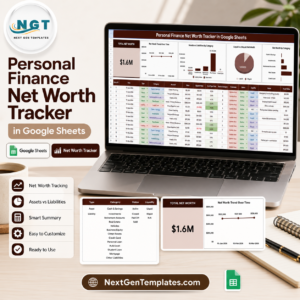
- Personal Finance Net Worth Tracker in Google Sheets – track assets, liabilities, liquidity, and net worth progress.
- Budget Request & Approval Tracker in Google Sheets – manage budget requests and approval status.
- Finance KPI Scorecard in Google Sheets – monitor finance performance metrics.
- Browse Google Sheets tracker templates.
- Browse Google Sheets financial tools.
Download the Savings Goal Tracker in Google Sheets and start tracking target amounts, saved so far, goal categories, priorities, and statuses in one editable spreadsheet.
Watch the step-by-step video Demo:
Last updated: July 8, 2026.

Reviews
There are no reviews yet.