


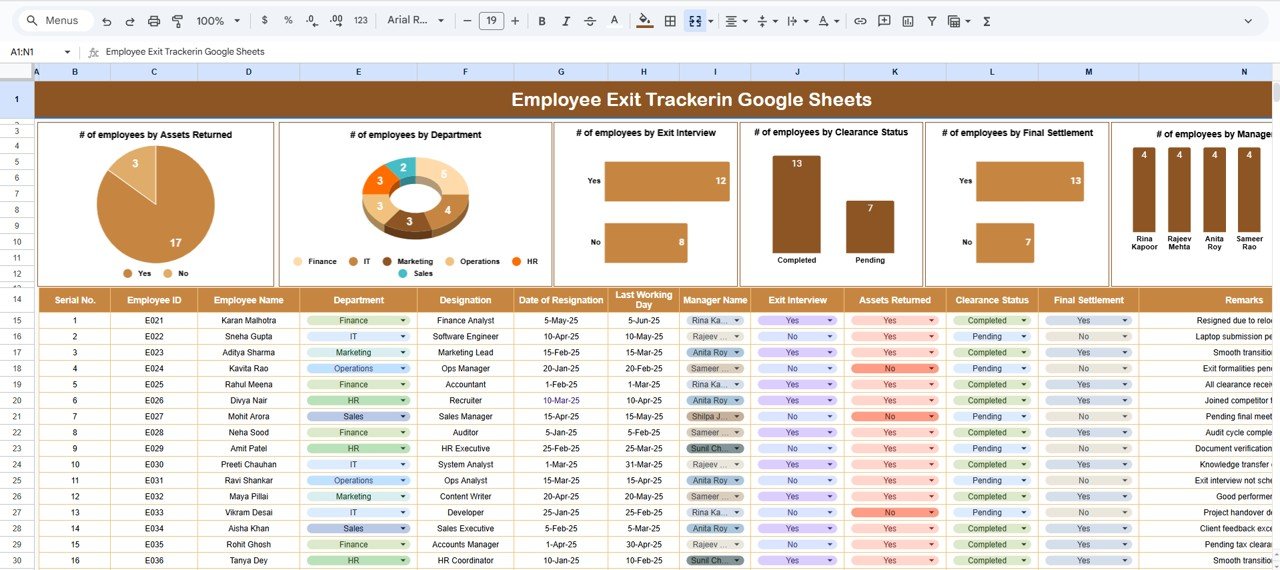

Employee exits are a regular part of every organization — whether due to resignations, retirements, or terminations. What matters most is how efficiently the offboarding process is managed. The Employee Exit Tracker in Google Sheets is a ready-to-use HR tool that helps you monitor every stage of employee separation — from clearance to final settlement — ensuring compliance, accountability, and smooth transitions. 🧾👋
This comprehensive tracker consolidates all exit activities in one place, offering visual dashboards, automated summaries, and collaborative tracking. Designed for HR professionals, it simplifies offboarding, reduces administrative errors, and saves valuable time — all within the familiar Google Sheets environment. 📊
🔑 Key Features of the Employee Exit Tracker in Google Sheets
📋 Tracker Sheet Tab (Main Dashboard)
Get a quick visual summary of the entire offboarding process with automated charts:
# of Employees by Assets Returned – Tracks return of laptops, ID cards, and company property.
# of Employees by Department – Identifies turnover trends across departments.
# of Employees by Exit Interview – Monitors completion of exit interviews for valuable feedback.
# of Employees by Clearance Status – Tracks IT, Finance, and HR clearance progress.
# of Employees by Final Settlement – Ensures timely payroll closure and compliance.
All charts update in real time as data changes, giving HR managers a live, bird’s-eye view of the organization’s offboarding progress.
🔍 Search Functionality
Quickly locate employee records using custom filters. You can search by:
Employee Name
Department
Manager Name
Clearance Status
Final Settlement Status
Example: Type “Pending” to instantly see all employees with incomplete exits or unsettled dues.
📊 Data Sheet Tab (Master Input Sheet)
This is the foundation of the dashboard — a structured table where all exit data is recorded.
Typical columns include:
Employee ID / Name / Department
Manager / Location
Exit Date / Reason for Exit
Clearance Status (IT, HR, Finance)
Assets Returned (Yes/No)
Exit Interview Completed (Yes/No)
Final Settlement (Completed/Pending)
Each record automatically feeds into the dashboard and updates all charts and KPIs.
📦 What’s Inside the Employee Exit Tracker
✅ Fully automated Google Sheets file with visual dashboards
✅ Prebuilt charts and filters for instant analysis
✅ Search tab for fast record retrieval
✅ Color-coded indicators for pending vs completed actions
✅ Ready for multi-user collaboration (HR, IT, Finance)
✅ Fully customizable fields and visuals
✅ Exportable PDF reports for management reviews
No coding required — just enter data and get actionable insights instantly. 🚀
🧑💼 Who Can Benefit from This Tracker
👩💼 HR Managers – Manage and verify all offboarding steps efficiently.
💼 Finance Teams – Monitor pending settlements and ensure payroll closure.
🧑💻 IT Departments – Track asset retrieval and access deactivation.
🏢 Business Owners – Get visibility into overall attrition and compliance metrics.
Perfect for organizations of all sizes, this tracker streamlines HR offboarding while maintaining data transparency and accountability.
🧪 How to Use the Employee Exit Tracker
1️⃣ Enter Employee Exit Data – Fill details in the Data Sheet tab.
2️⃣ Review Dashboard – Charts and KPIs update automatically.
3️⃣ Search Records – Use the Search tab to find pending actions.
4️⃣ Monitor Progress – Check clearance and settlement completion.
5️⃣ Share Reports – Collaborate live or export summaries as PDFs.
💡 Tip: Connect Google Forms for automatic data collection and use Apps Script for email alerts on pending settlements!
🌟 Why Choose This Tracker
Centralized offboarding management
Automated visualization and analytics
Real-time, cloud-based collaboration
Simplifies compliance tracking
Fully customizable and easy to use
Saves HR hours of manual reporting
The Employee Exit Tracker in Google Sheets is your all-in-one solution for managing employee exits smoothly, transparently, and professionally. 🌟
🔗 Click here to read the Detailed blog post
Watch the step-by-step video Demo:
🔗 Visit our YouTube channel for step-by-step tutorials
Compatibility and Requirements
- Works in Google Sheets. You need a free Google account and a web browser.
- The charts on the Tracker sheet update as you add records. Google explains how charts work in Add and edit a chart or graph.
Frequently Asked Questions
Which sheets are included?
The file has a Tracker sheet with the dashboard charts, a Search tab for finding records, and a Data Sheet where you enter all exit details.
What exit details can I record?
The Data Sheet holds employee ID, name, department, manager, location, exit date, reason for exit, clearance status for IT, HR and Finance, assets returned, exit interview completed and final settlement status.
How do I find employees whose exit is not finished?
Use the Search tab. You can search by employee name, department, manager name, clearance status or final settlement status. Typing “Pending” lists employees with incomplete exits or unsettled dues.
What do the dashboard charts show?
They show the number of employees by assets returned, department, exit interview, clearance status and final settlement. They update as you change the data.
Is there an Excel or Power BI version?
There is an Employee Turnover Dashboard in Excel and an Employee Turnover Dashboard in Power BI. They focus on turnover, while this tracker follows each exit step by step.
Related HR Templates
- Employee Turnover Dashboard in Excel: turnover figures in Excel
- Employee Turnover Dashboard in Power BI: the Power BI edition
- Exit Interview Form Template in MS Word and Google Docs: a free form for exit interviews
- Employee Onboarding Tracker in Google Sheets: the start of the employee cycle
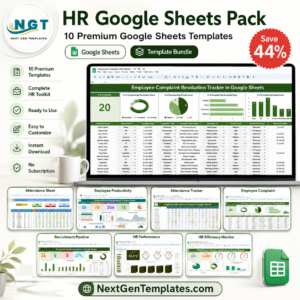
- HR Google Sheets Pack: 10 HR templates in one download
Browse all Google Sheets trackers and HR and payroll templates in Google Sheets.



















Reviews
There are no reviews yet.