


Managing your finances shouldn’t be a mystery. Whether you’re overseeing a business budget or keeping tabs on your personal expenses, our Expense Allocation Tracker in Google Sheets is the tool you need to simplify and streamline your expense management. 🧾
This ready-to-use Google Sheets template is loaded with powerful visuals, a user-friendly layout, and customizable fields that let you monitor spending across departments, projects, categories, and approval flows—all in real time! Perfect for small businesses, startups, finance teams, or even organized individuals, this tool will make tracking expenses a breeze.

✨ Key Features of Expense Allocation Tracker in Google Sheets
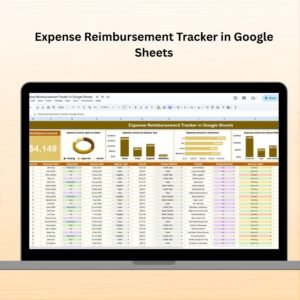
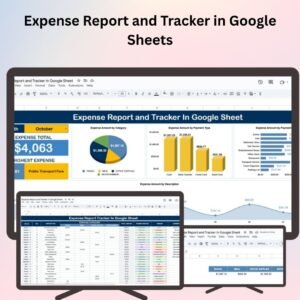
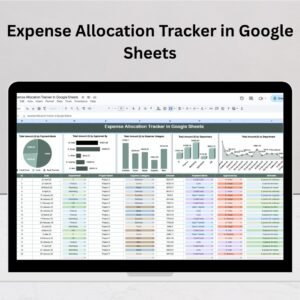
📊 Interactive Charts for Instant Insights
Total Amount by Payment Mode: See how much is being paid via credit card, cash, or bank transfers.
Total Amount by Approved By: Know who is approving the largest spending blocks.
Total Amount by Expense Category: Track if you’re overspending on travel, utilities, or office supplies.
Total Amount by Department: Monitor department-wise spending like Marketing, HR, or Finance.
📋 Organized Data Section
Log detailed information for each expense with the following fields:
ID
Date
Department
Project Name
Expense Category
Amount
Payment Mode
Approved By
Remarks
Every new entry automatically updates the dashboard’s charts—no manual calculations needed!
⚙️ Fully Customizable & Dynamic
Modify categories, departments, approval names, and chart styles to fit your exact workflow. No advanced spreadsheet knowledge required!
🌐 Real-Time Collaboration
Because it’s powered by Google Sheets, you can share and collaborate live with your team from anywhere.
📦 What’s Inside the Expense Allocation Tracker?
This template is structured into one main sheet tab:
🔹 Tracker Sheet Tab
This is where the magic happens! You can:
Enter all your expense data
Analyze expenses with dynamic charts
Track approvals and payment methods
Visualize spending by department or category
Everything is tightly integrated—add an expense, and the charts update instantly. 💡
🛠 How to Use the Expense Allocation Tracker in Google Sheets
Enter new expenses in the data section by filling out all the columns.
Track approval by selecting the person in charge of each expense.
Use charts to visualize where your money is going.
Filter or sort by department, category, or date for better control.
Share with your team for real-time collaboration and updates.
Whether you’re a solo user or managing a team’s budget, this tool is incredibly easy to use and requires no technical setup. 🚀
👥 Who Can Benefit from This Expense Tracker?
This template is ideal for:
🏢 Small Businesses & Startups – Manage multiple departments and projects effortlessly
👨👩👧 Families or Households – Track home budgets, travel, and bills
📊 Finance Teams – Get a centralized view of company spending
🧾 Freelancers & Contractors – Monitor project-based expense allocation
🎓 Students & Researchers – Stay within budgets for events, research, or coursework
🔑 Benefits at a Glance
✅ No Software Required – Just your Google account
📉 Reduce Overspending – Identify high-cost categories fast
⏰ Save Time – Automated updates & visual analysis
🔁 Always Up-to-Date – No lag in data tracking
🧩 Modular Design – Adapt it to your business model
🧠 Best Practices to Maximize Use
💡 Update Frequently – Log expenses daily or weekly
🧾 Be Specific in Remarks – Add context for clearer records
📊 Use Filters to Drill Down – Analyze department or project-specific spending
👥 Assign Approval Roles Clearly – Prevent delays and mismanagement
✍️ Customize Early – Add the categories & departments relevant to your work
📚 Click here to read the Detailed blog post
Watch the step-by-step video Demo:
📺 Visit our YouTube channel to learn step-by-step video tutorials
👉 Youtube.com/@NeotechNavigators
Compatibility and Requirements
- Works in Google Sheets with a free Google account and a web browser.
- Make a copy to your own Google Drive, then share it with your team if you want to work on it together.
- New to Sheets? Google’s guide How to use Google Sheets covers the basics.
- The charts are standard Google Sheets charts. Google’s guide Add & edit a chart or graph explains how to restyle them.
Frequently Asked Questions
Which fields does each expense record have?
Each row holds ID, Date, Department, Project Name, Expense Category, Amount, Payment Mode, Approved By and Remarks.
Which charts are included?
Four charts show the total amount by payment mode, by approver, by expense category and by department.
How many sheet tabs are there?
The template has one main Tracker tab where you enter expenses and see the charts update.
Can my team work in it at the same time?
Yes. Because it runs in Google Sheets, you can share the file and edit it together in real time.
Can I change the categories and departments?
Yes. You can edit categories, departments, approver names and chart styles to fit your workflow.
Related Expense Tracking Templates
- Expense Allocation Tracker in Excel: the same tracker for Excel desktop
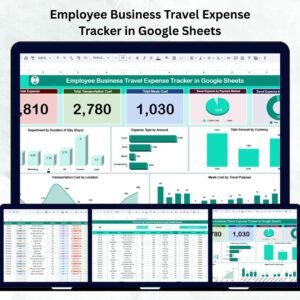
- Employee Business Travel Expense Tracker in Google Sheets: for travel claims
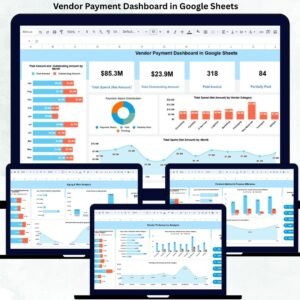
- Vendor Payment Dashboard in Google Sheets: track what you pay suppliers
- Weekly Expense Tracker Template in Google Sheets: a free weekly spending log
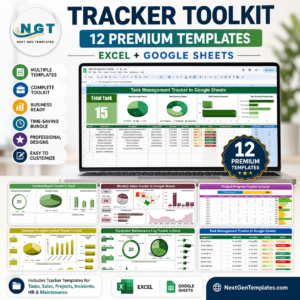
- Finance and Accounting Command Center: 8 premium finance templates in one bundle
Browse all Google Sheets financial tools or the Google Sheets trackers.







Reviews
There are no reviews yet.