



Managing deadlines, compliance tasks, and remote work plans in educational institutions has never been easier! The Education Compliance Remote Work Calendar in Excel is a powerful, ready-to-use tool designed specifically for the education sector. Whether you’re running a school, university, or training center, this calendar helps streamline schedules, track critical events, and enhance productivity with ease. 🏫💻
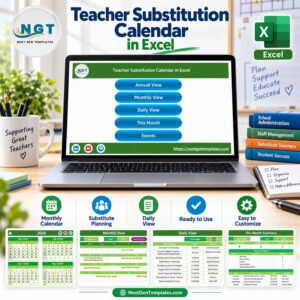
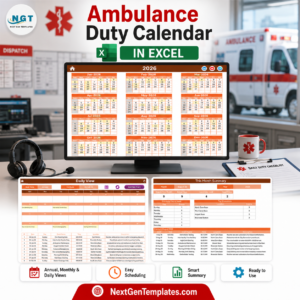
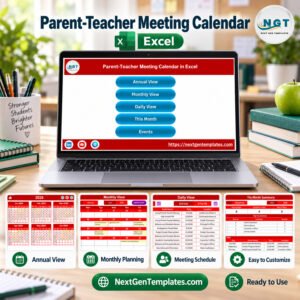
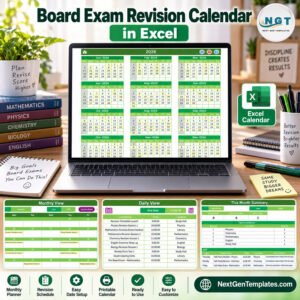
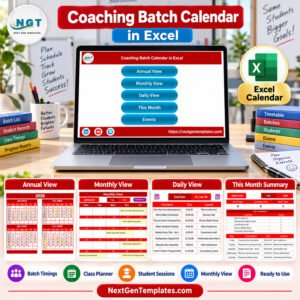
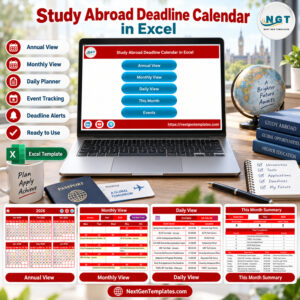
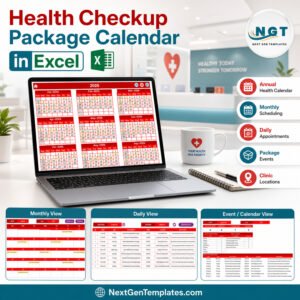
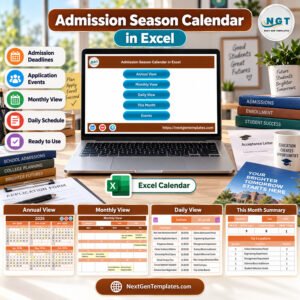
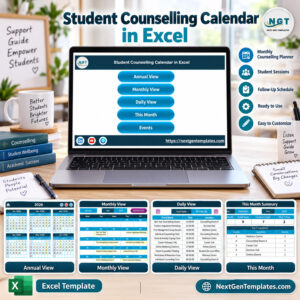
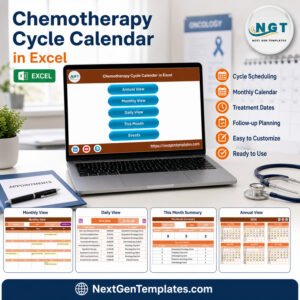
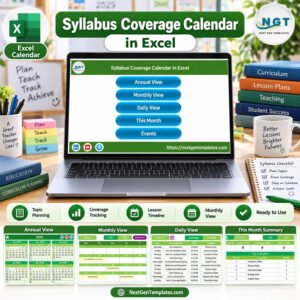
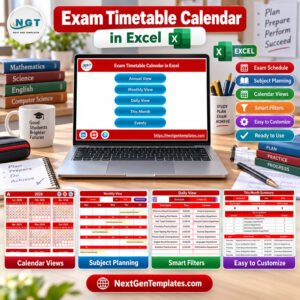
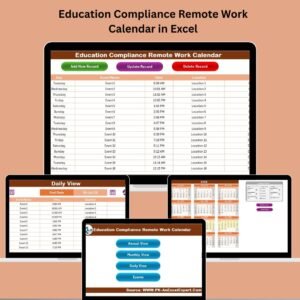
With multiple views (Annual, Monthly, Daily), a centralized events database, and one-click navigation, this Excel-based tool transforms how educational institutions plan and manage remote compliance operations.
✅ Key Features of Education Compliance Remote Work Calendar in Excel
🧭 Easy Navigation with Home Sheet
Jump directly to any calendar view—Annual, Monthly, daily—or the Event Database using built-in buttons.
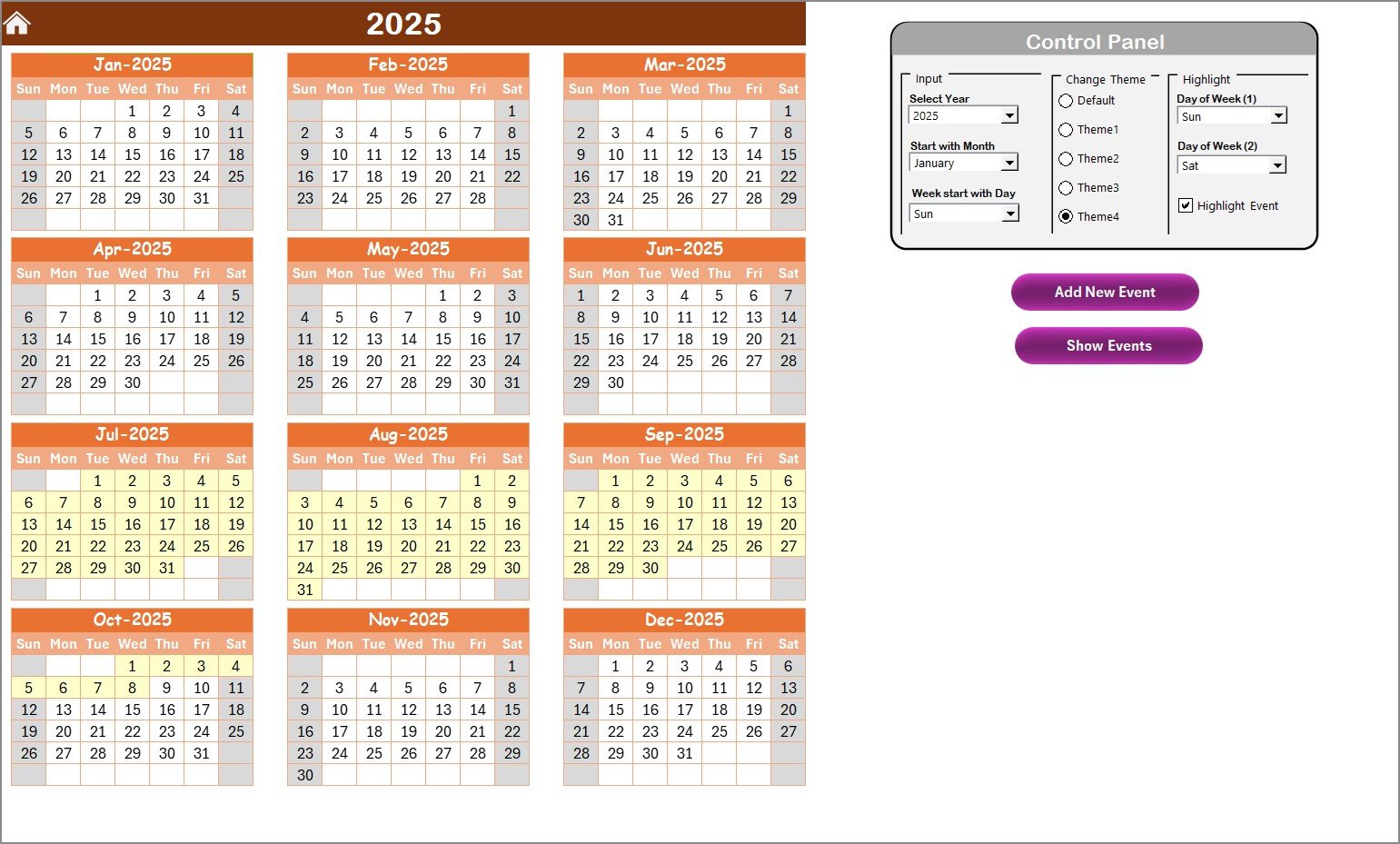
📆 Annual Calendar with Control Panel
Customize your calendar year, start month, and day of the week. Apply color themes and highlight specific days.
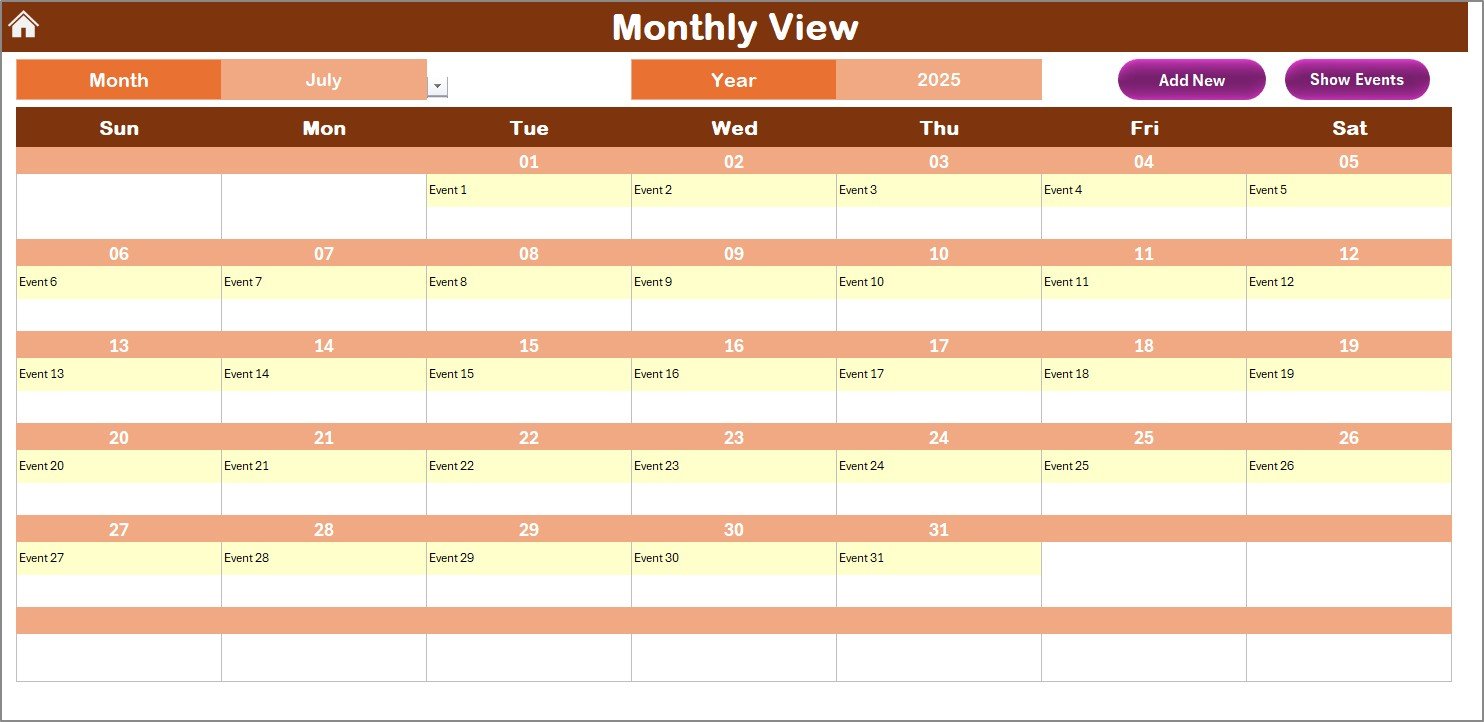
🗓️ Monthly View for Focused Planning
See each month in detail. Know what’s happening each day at a glance—even when there are multiple events.
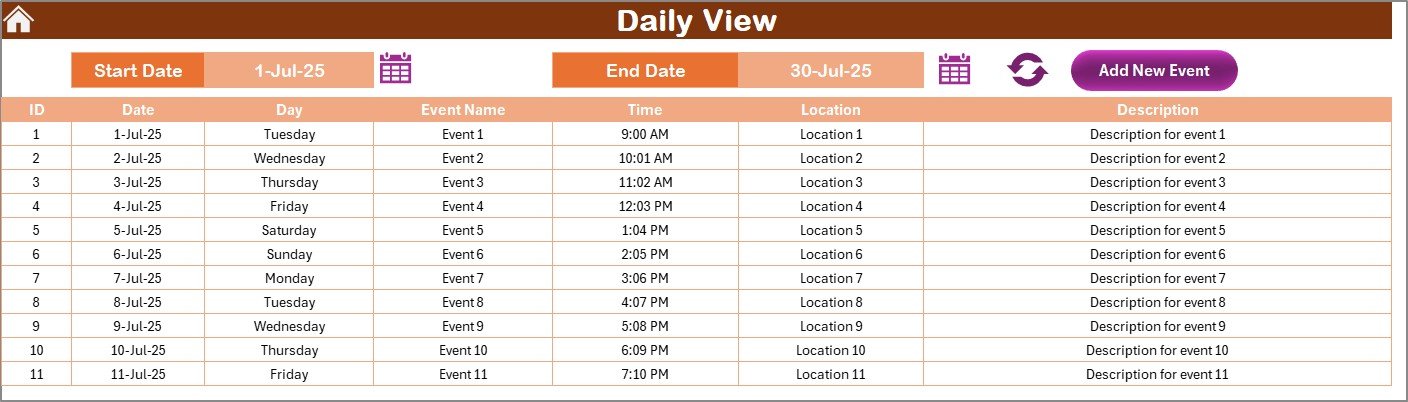
📝 Daily View for Task-Level Clarity
Filter by a date range and see all scheduled events. Great for handling short-term compliance planning.
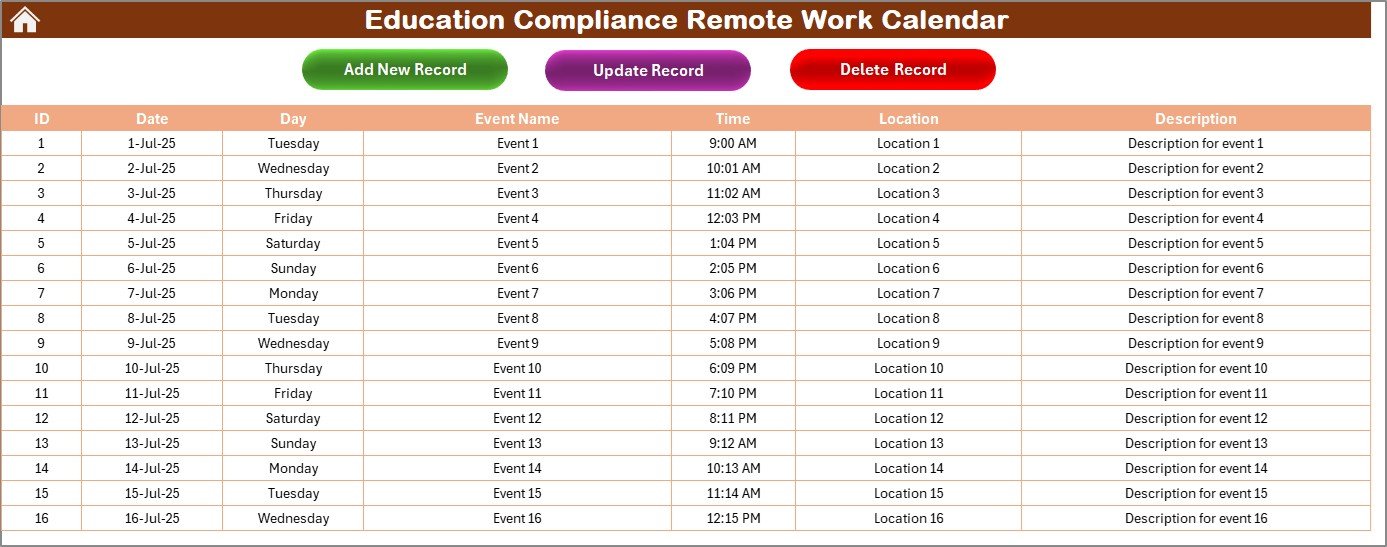
📋 Centralized Events Sheet
Manage all event data in one place—add, update, or delete with just a click.
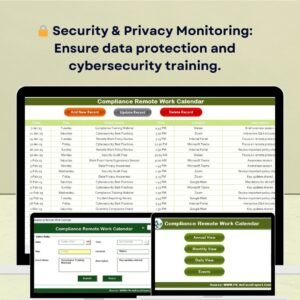
🔄 Form-Based Event Entry
Add new records with a user-friendly form. Avoid data entry errors and maintain clean records.
🎨 Fully Customizable
Modify themes, highlight holidays, change formats—tailor it to match your institution’s workflow.
📦 What’s Inside the Calendar?
Explore the 5 powerful worksheet tabs that make this calendar your all-in-one compliance and scheduling tool:
🏠 Home Sheet
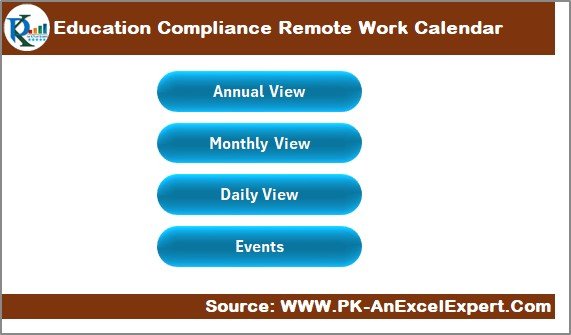
Your navigation hub—move quickly between calendar views and the events database with intuitive buttons.
📅 Annual View Sheet
Plan the entire academic or calendar year:
Select start year, start month, and start day
Apply color-coded highlights for weekends or key events
View full-year event overview at a glance
📆 Monthly View Sheet
Focus on one month at a time:
See daily scheduled events
Add or review events with one click
Alerts you when more than one event exists on a date
📋 Daily View Sheet
Manage daily operations:
Choose a start and end date to filter events
Perfect for busy weeks or compliance-intensive periods
Add new records from this sheet directly
🗂️ Events Sheet
The heart of your database:
Store event name, date, day, time, location, and description
Auto-generate Event IDs
Update or delete any record with a single button click
🛠️ How to Use the Calendar
📥 Download and Open the Excel file
🟢 Enable Macros for full functionality
🧭 Navigate from the Home Sheet
🗓️ Use Control Panel in Annual View to set year & theme
➕ Add Events using form-based buttons
📋 Manage Records in the Events Sheet
🔍 Monitor Deadlines via Monthly and Daily views
💾 Save and Backup Regularly
👥 Who Can Benefit from This Calendar?
🏫 School Administrators – Coordinate remote learning schedules and regulatory deadlines
📚 Compliance Officers – Track audit dates, policy reviews, and submission deadlines
👩💼 Remote Work Coordinators – Plan team work-from-home shifts and meetings
🏛️ Colleges & Universities – Manage large-scale academic events and staff compliance
🎓 Online Learning Institutions – Keep track of virtual sessions and compliance check-ins
📋 Department Heads – Schedule internal reviews and communication timelines
🧑🏫 Teachers & Staff – Stay on top of academic calendars and virtual meetings
🔗 ### Click here to read the Detailed blog post
🔗 Visit our YouTube channel to learn step-by-step video tutorials
Watch the step-by-step video tutorial:
Compatibility and Requirements
- Works in Microsoft Excel desktop on Windows with macros enabled. Microsoft explains how in Enable or disable macros in Microsoft 365 files.
- It does not run in Excel for the web, Google Sheets or the Excel mobile apps, because those do not run VBA macros.
- The event form and navigation buttons need macros to work.
Frequently Asked Questions
Which views does the calendar have?
A Home sheet, an Annual View, a Monthly View, a Daily View and an Events sheet.
How do I set the calendar year?
Use the control panel in the Annual View to pick the start year, start month and first day of the week. You can also apply a color theme.
How do I add an event?
Click the add button to open the form and enter the event. You can add records from the Monthly View or the Daily View.
What does each event record hold?
Event name, date, day, time, location and description. Event IDs are created automatically.
What if two events fall on the same day?
The Monthly View alerts you when more than one event exists on a date.
Related Remote Work and Compliance Calendars
- Compliance Remote Work Calendar in Excel: the same calendar for compliance teams
- HR Remote Work Calendar in Excel: the same calendar for HR teams
- Education Compliance Supply Chain Resilience Calendar in Excel: another education compliance calendar
- Education Compliance Customer Experience Calendar in Excel: plans customer experience dates
- Calendar & Planner Pack: 12 calendar and planner templates in one download
Browse all Excel calendars or the Excel education templates.





Reviews
There are no reviews yet.