


Managing business travel shouldn’t feel like a juggling act. With the Travel Authorization Tracker in Google Sheets, you’ll have a simple yet powerful tool to track employee travel requests, monitor approval statuses, and manage estimated costs—all in one place.
This ready-to-use Google Sheets template gives you real-time visibility over every travel request, department-wise budget insights, and manager-level approval patterns. It’s perfect for teams who want organized, budget-friendly, and data-backed travel planning without expensive software.

🚀 Key Features of Travel Authorization Tracker
✅ Dynamic Approval Status Dashboard
Visually track how many requests are Approved, Pending, or Declined—at a glance.
✅ Department & Manager-Level Charts
Quickly identify travel volume and cost distribution by Department and Manager.
✅ Centralized Data Section
Capture everything you need—Employee Info, Destination, Purpose, Cost, Manager, Approval Status, and more.
✅ Estimated Cost Monitoring
Stay within budget by tracking the Estimated Cost of each trip and grouping totals department-wise or by approving manager.
✅ Advance Required Indicator
Easily view whether an advance was requested for each trip with a simple Yes/No toggle.
✅ Remarks Section for Transparency
Add comments or notes to every request, improving documentation and audit readiness.
📂 What’s Inside the Travel Authorization Tracker
🟢 Tracker Sheet Tab
The heart of the template! Here you can:
Add new travel requests
Monitor travel by employee, manager, and department
Track budgets and approval progress
Visualize data with ready-made charts
🟢 Built-in Charts Included
📊 Approval Status Distribution – Pie chart showing approval trends
📊 Travel Count by Department – Helps track departmental travel load
📊 Travel Count by Manager – See who’s approving the most trips
📊 Estimated Cost by Department – Monitor your department-level travel spend
📊 Estimated Cost by Manager – Understand cost distribution by manager
All charts auto-update as you enter data in the sheet!
🛠️ How to Use the Travel Authorization Tracker
1️⃣ Open the Template in Google Sheets
Make a copy and begin customizing.
2️⃣ Enter Employee Travel Details
Add Serial No., Employee ID, Name, Department, Destination, and Purpose.
3️⃣ Input Cost and Dates
Log Estimated Costs, Start Date, and End Date accurately.
4️⃣ Set Approval Status & Manager
Mark each request as Approved, Pending, or Declined using the dropdown.
5️⃣ Monitor with Charts
View automatically updating charts and reports to track everything visually.
6️⃣ Update as Needed
Adjust approval statuses, costs, or remarks anytime—your tracker stays real-time!
👥 Who Can Benefit from This Tracker?
✅ HR and Admin Teams – For handling travel requests company-wide
✅ Finance Departments – To control and review travel budgets
✅ Project Managers – Who need to manage travel across teams
✅ Corporate Travel Coordinators – Simplify all authorization workflows
✅ Startups & SMEs – Avoid costly travel tools, use this lightweight, effective solution
No matter your company size, if you handle employee travel, this tracker makes life easier.
🧠 Why Use Google Sheets for Travel Tracking?
💡 No installations needed—cloud-based and shareable
🔄 Real-time updates for better collaboration
✏️ Fully editable to fit your organization
💸 Zero cost, yet full functionality
🔐 Easy access control via Google Drive sharing
🏁 Conclusion: Get Travel Under Control
If you’re tired of disorganized emails, forgotten approvals, or budget surprises, it’s time to get organized. The Travel Authorization Tracker in Google Sheets gives you the tools you need to centralize requests, manage costs, and stay on top of approvals—without switching tools or paying for expensive software.
✔ Organize your travel process
✔ Track budget spend in real time
✔ Collaborate effortlessly with your team
✅ Click here to read the Detailed blog post
🔗 Visit our YouTube channel to learn step-by-step video tutorials
Watch the step-by-step video Demo:
Compatibility and Requirements
- Works in Google Sheets. You need a free Google account and a web browser.
- You set each request to Approved, Pending or Declined from a dropdown. Google explains dropdowns in Create an in-cell dropdown list.
Frequently Asked Questions
What details can I record for each travel request?
Serial number, employee ID, name, department, destination, purpose, start and end dates, estimated cost, manager, approval status, whether an advance is required, and remarks.
Which charts are included?
Five charts: approval status distribution, travel count by department, travel count by manager, estimated cost by department and estimated cost by manager. They update as you enter data in the tracker sheet.
How do I mark a request as approved or declined?
Pick Approved, Pending or Declined from the dropdown in the approval status column. The approval status chart updates with it.
Can I see travel spend by department?
Yes. The Estimated Cost by Department chart groups the estimated costs you enter for each trip. A matching chart groups the same costs by manager.
Is there an Excel version?
Yes. See the Travel Authorization Tracker in Excel.
Related Travel Templates
- Travel Authorization Tracker in Excel: the same tracker for Excel
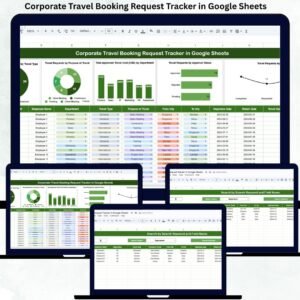
- Corporate Travel Booking Request Tracker in Google Sheets: track booking requests in Google Sheets
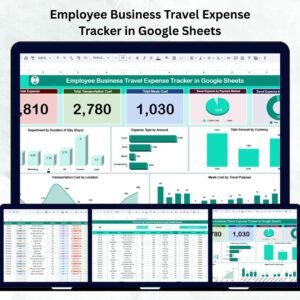
- Employee Business Travel Expense Tracker in Google Sheets: follow expenses after the trip
- Travel Expense Tracker Checklist in Google Sheets: a checklist for trip costs
- Business Travel Plan Tracker and Dashboard: plan trips with a dashboard in Excel
Browse all Google Sheets trackers.




Reviews
There are no reviews yet.