


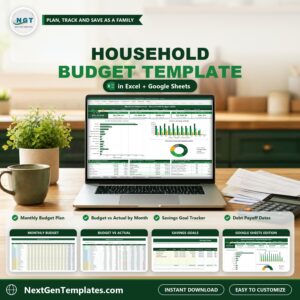
Household Budget Template in Excel and Google Sheets is a monthly family budget in one file. Plan every category for each month, log what really comes in and goes out, and see budget vs actual for any month, where the money went, how close each savings goal is and when each debt will be paid off. It ships in two editions, Google Sheets and Microsoft Excel, with the same tabs, the same formulas and sample data for a fictional family of four in Raleigh, NC.
Watch the Household Budget Template in Excel and Google Sheets walkthrough
If you are searching for a household budget template excel file, a household budget template google sheets version or a simple family budget spreadsheet with budget vs actual, savings goals and debt payoff, this is a ready-made one.
Good to know: this is a budgeting tool you fill in yourself. It does not connect to a bank, and the sample store names and amounts are illustrative. It is not financial advice.
What You Get
- Dashboard with a month dropdown, six tiles, three charts, the top 8 spending categories, the budget summary and your goals and debts
- Setup tab for the household name, city, budget year, who keeps the budget and the savings rate target
- Budget tab with a monthly plan for every category in five groups and a Left to Budget line
- Transactions tab with category dropdowns and a Row Check column
- Monthly Actuals and Budget vs Actual tabs with year-to-date variance and a status for every category
- Savings Goals tab with progress and the amount needed per month
- Debt Payoff tab with estimated interest, months to payoff and payoff dates
- How to Use tab with step-by-step instructions
- Two editions in one download: Excel (.xlsx, no macros) and a PDF guide with the Make a copy link for Google Sheets
Key Features
Dashboard (Google Sheets)
Pick a month from the dropdown and six tiles update: Income, Spent, Saved, Debt Paid, Left Over and Budget Used. Under them sit three charts (variable spending budget vs actual, income vs spending by month and a doughnut of where the money went), the top 8 spending categories, the budget summary for the month and the year to date, and your savings goals and debts. Links under the title jump to every tab.

Budget (Google Sheets)
One row per category in five groups: Income, Fixed Expenses, Variable Expenses, Savings and Debt Payments. Type the plan for every month in the yellow cells, so seasonal bills such as electricity, natural gas, summer camp and holiday gifts can change by month. Totals by group and a Left to Budget line sit at the bottom.

Transactions (Google Sheets)
Log every paycheck, bill, purchase, savings transfer and debt payment as a positive amount. Pick the category from the dropdown and the group fills in by itself. A Row Check column warns you about a missing date or an unknown category.

Monthly Actuals (Google Sheets)
SUMIFS adds up the Transactions tab by category and month, with the year-to-date actual, the year-to-date budget and a variance where a positive number is always good news.

Budget vs Actual (Google Sheets)
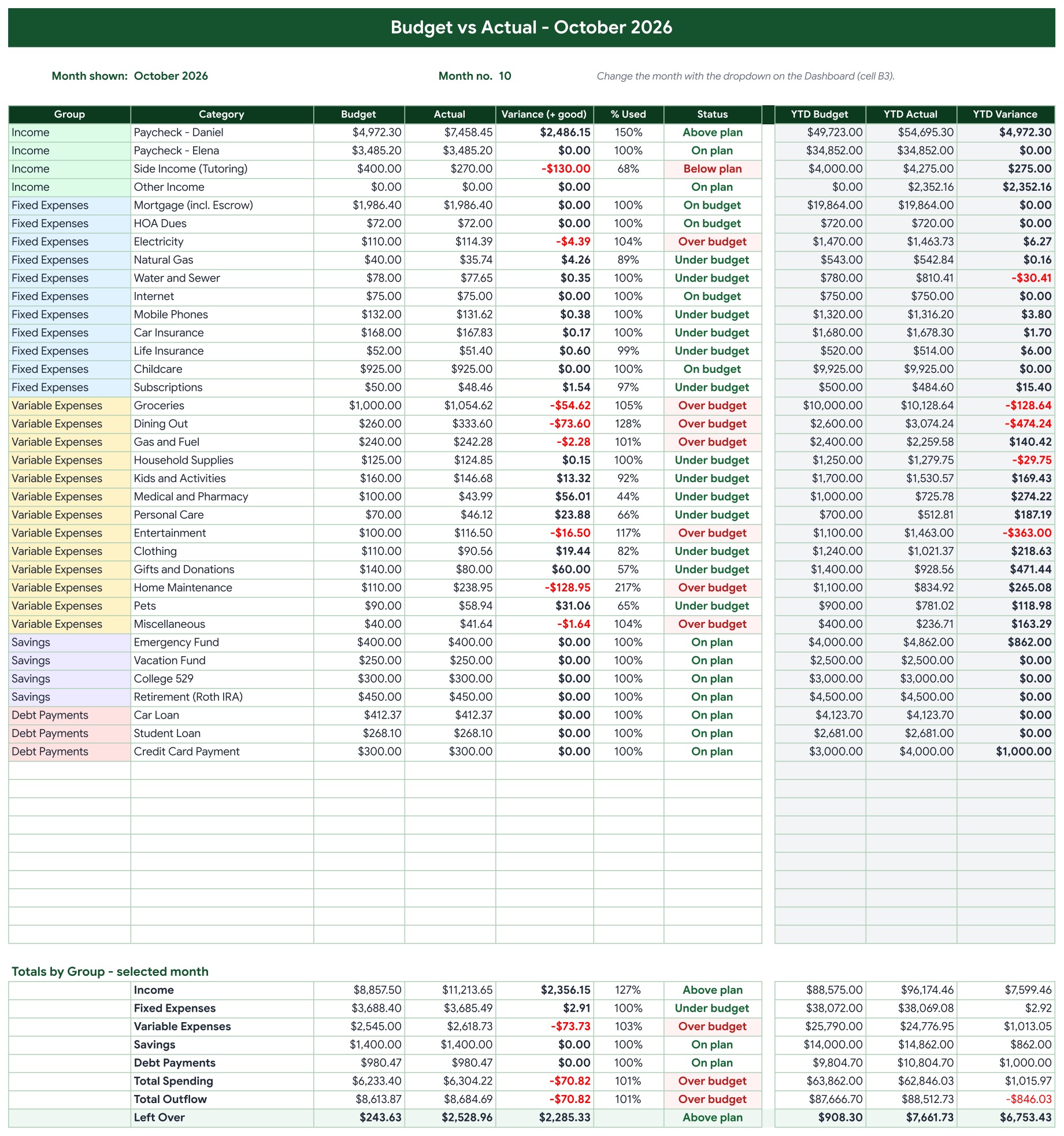
The selected month for every category: budget, actual, variance, percent used and a status such as Over budget or Under budget, with the year to date on the right. Over budget rows turn red.
Savings Goals (Google Sheets)
Link each goal to a savings category and type the target, the target date and the January 1 balance. Every transfer you log counts toward the goal, and you see the progress, what is still to go and the amount needed per month against what the budget holds.

Debt Payoff (Google Sheets)
Link each debt to a Debt Payments category and type the January 1 balance, the interest rate and the planned payment. Logged payments reduce the balance, and the template estimates the interest, the months to payoff and the payoff date for each debt and for all of them together.

How to Use (Google Sheets)
A step-by-step guide to every tab in simple words.

Dashboard (Excel edition)
Pick a month from the dropdown and six tiles update: Income, Spent, Saved, Debt Paid, Left Over and Budget Used. Under them sit three charts (variable spending budget vs actual, income vs spending by month and a doughnut of where the money went), the top 8 spending categories, the budget summary for the month and the year to date, and your savings goals and debts. Links under the title jump to every tab.

Budget vs Actual (Excel edition)
The selected month for every category: budget, actual, variance, percent used and a status such as Over budget or Under budget, with the year to date on the right. Over budget rows turn red.

Savings Goals (Excel edition)
Link each goal to a savings category and type the target, the target date and the January 1 balance. Every transfer you log counts toward the goal, and you see the progress, what is still to go and the amount needed per month against what the budget holds.

Debt Payoff (Excel edition)
Link each debt to a Debt Payments category and type the January 1 balance, the interest rate and the planned payment. Logged payments reduce the balance, and the template estimates the interest, the months to payoff and the payoff date for each debt and for all of them together.

Who Is It For?
Families, couples and households that want one place for the monthly plan, the real spending, the savings goals and the debts. It suits people who prefer a budget they can keep and edit in Excel or Google Sheets, with no macros, no add-ins and no subscription.
How to Use
- Open the PDF guide and click Make a copy for Google Sheets, or open the Excel file.
- On the Setup tab, type the household name, city, budget year and your savings rate target.
- On the Budget tab, type the plan for every category and month in the yellow cells.
- Log every paycheck, bill and purchase on the Transactions tab, then clear the sample rows first if you want a fresh start.
- Pick a month on the Dashboard and read budget vs actual, your savings goals and your debt payoff dates.
Comparison
| Feature | This template | Blank spreadsheet |
|---|---|---|
| Monthly plan for every category | Budget tab, seasonal bills by month | Design the grid yourself |
| Budget vs actual for any month | One dropdown drives the Dashboard | Write SUMIFS for each month |
| Savings goals and debt payoff dates | Built in, with amount needed per month | Separate sheets |
| Google Sheets and Excel editions | Both included | One platform |
Frequently Asked Questions
How does the household budget template work?
You plan every category for each month on the Budget tab and log real income and spending on the Transactions tab. The Monthly Actuals and Budget vs Actual tabs add everything up by category and month, and the Dashboard shows the month you pick.
Does it work in Google Sheets and in Excel?
Yes. The ZIP holds an Excel edition (.xlsx, no macros) and a PDF guide with the Make a copy link for Google Sheets. Both have the same tabs, formulas and sample data.
What does the sample data show?
A fictional family of four in Raleigh, NC with 664 transactions from January 1 to November 14, 2026, four savings goals and three debts. Store names are common US merchants used as examples and every amount is illustrative.
Can I change the categories?
Yes. Add new categories in the empty Budget rows and they appear everywhere automatically. The Lists tab holds the groups, the payment methods and the months for the dropdowns.
How are savings goals and debts tracked?
Link each goal or debt to a category, type the target or the January 1 balance, and every transaction you log updates the progress, the months to payoff and the payoff date.
Does it connect to my bank?
No. You type or paste each transaction yourself. It does not import from a bank and it is not financial advice.
How do I handle credit cards?
If you pay for purchases with a card and clear it in full each month, log the purchases and not the card payment. Log only payments toward an old balance under Debt Payments.
Get the Template
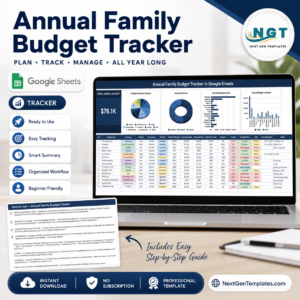
Download the Household Budget Template in Excel and Google Sheets and see where your money goes every month. To plan every dollar before the month starts, see the Zero-Based Budget Template in Excel and Google Sheets, or try the Annual Family Budget Tracker in Google Sheets and the Financial Goals and Milestones Tracker, or browse all Google Sheets templates. Join 10,000+ customers in 180+ countries.

Reviews
There are no reviews yet.