


Managing wealth becomes easier and more accurate when every investment, every contribution, and every performance metric shows up on a single screen. Yet most individuals, investment advisors, and wealth managers juggle multiple sheets, scattered reports, and manual calculations. This leads to confusion, delayed decisions, and missed growth opportunities. To solve this problem, we created the Wealth Management Dashboard in Excel — a simple, interactive, and powerful tool that makes wealth tracking effortless.
This ready-to-use dashboard converts complex data into clean visuals, charts, and KPIs. You can track AUM, contribution trends, portfolio diversification, high-risk exposure, advisor-wise performance, and investment category insights instantly. Excel’s dynamic formulas, slicers, and pivot visuals make navigation smooth—even for users with basic Excel knowledge.
Whether you’re an individual investor, a financial advisor, or a wealth management firm, this dashboard becomes your go-to tool for financial planning, risk analysis, and long-term growth visualization.
✨ Key Features of the Wealth Management Dashboard in Excel
📌 Five Analytical Pages
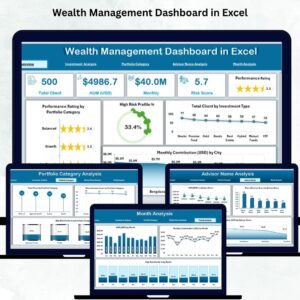
You get five pages: Overview, Investment Analysis, Portfolio Category Analysis, Advisor Name Analysis, and Month Analysis. Each one focuses on a different aspect of wealth performance.
📌 Page Navigator
A left-side navigation menu allows you to move between pages instantly. No scrolling, no searching, no confusion — just seamless navigation.
📌 Interactive Slicers
Use slicers to filter by Month, Investment Type, Portfolio Category, Advisor Name, or City. With one click, every chart updates automatically.
📌 Automated Charts & KPIs
Once you update the Data Sheet, all visuals refresh instantly. This makes financial tracking faster, cleaner, and far more reliable.
📦 What’s Inside the Wealth Management Dashboard
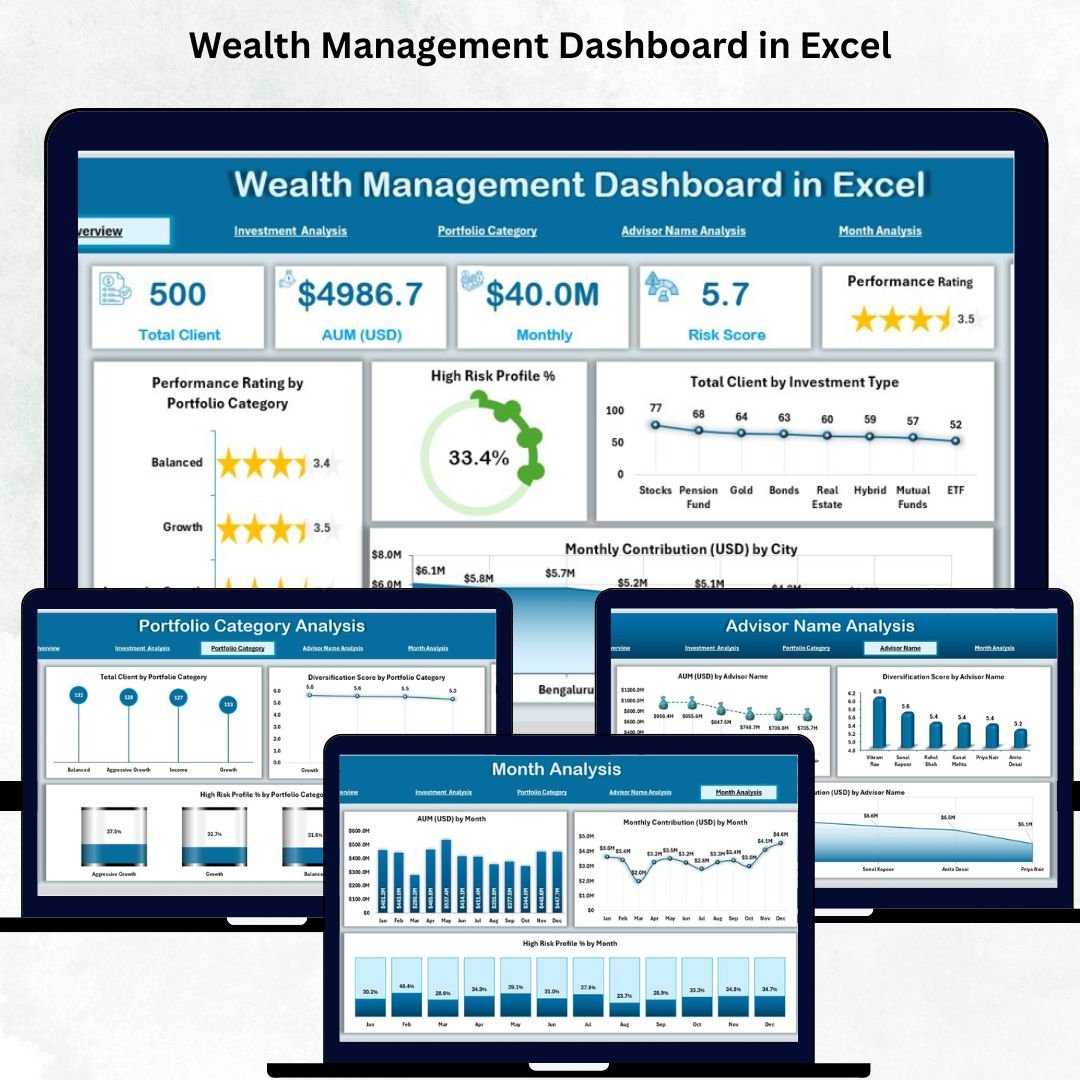
🏠 1. Overview Page – The Full Wealth Snapshot
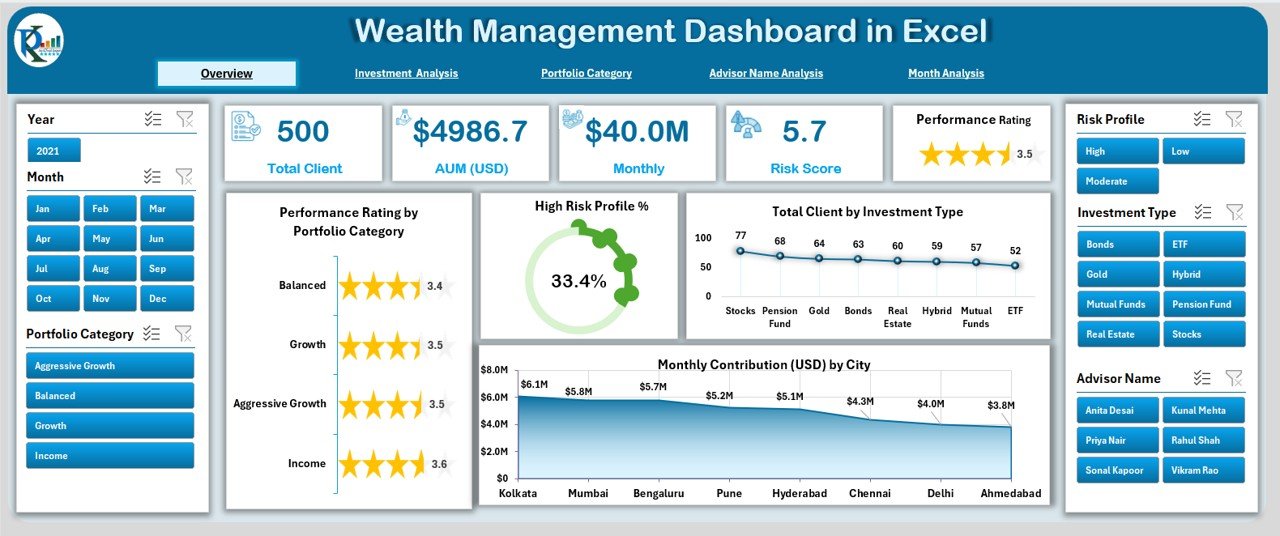
This page gives a high-level summary of overall financial performance.
You will see:
🔹 Five KPI Cards:
Total Clients
Total AUM
High-Risk Portfolio %
Total Investment Types
Contribution Summary
🔹 Four Powerful Charts:
Performance Rating by Portfolio Category
High-Risk Profile (%)
Total Clients by Investment Type
Monthly Contribution (USD) by City
This page gives you instant clarity on portfolio health and client distribution.
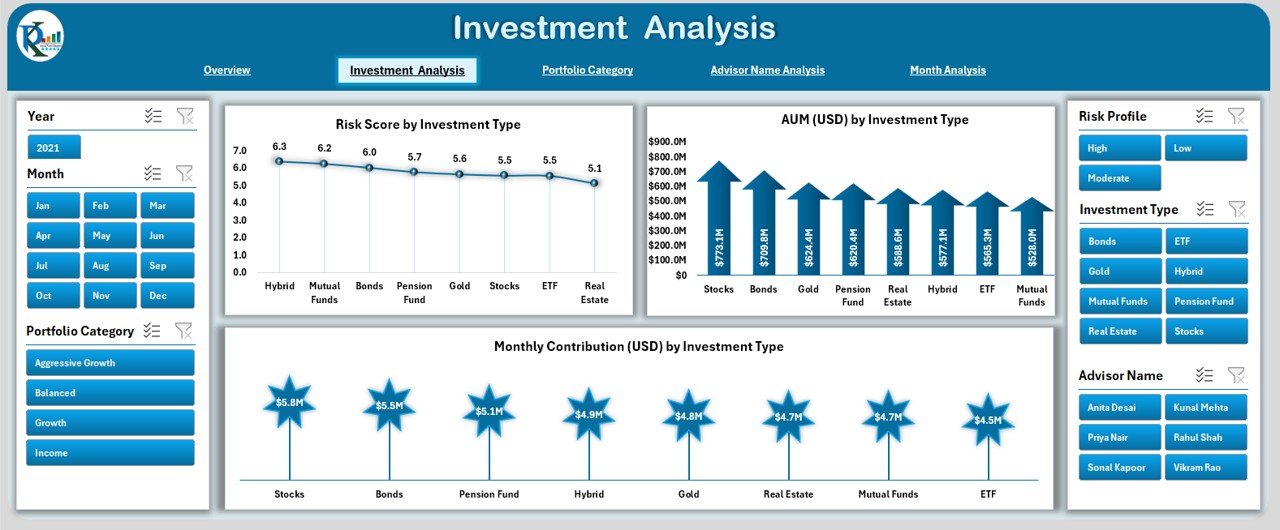
💰 2. Investment Analysis Page – Track Investment Type Performance
Perfect for reviewing category-wise performance.
You get:
Risk Score by Investment Type
AUM (USD) by Investment Type
Monthly Contribution (USD) by Investment Type
These insights help identify high-performing investment categories and areas needing rebalancing.
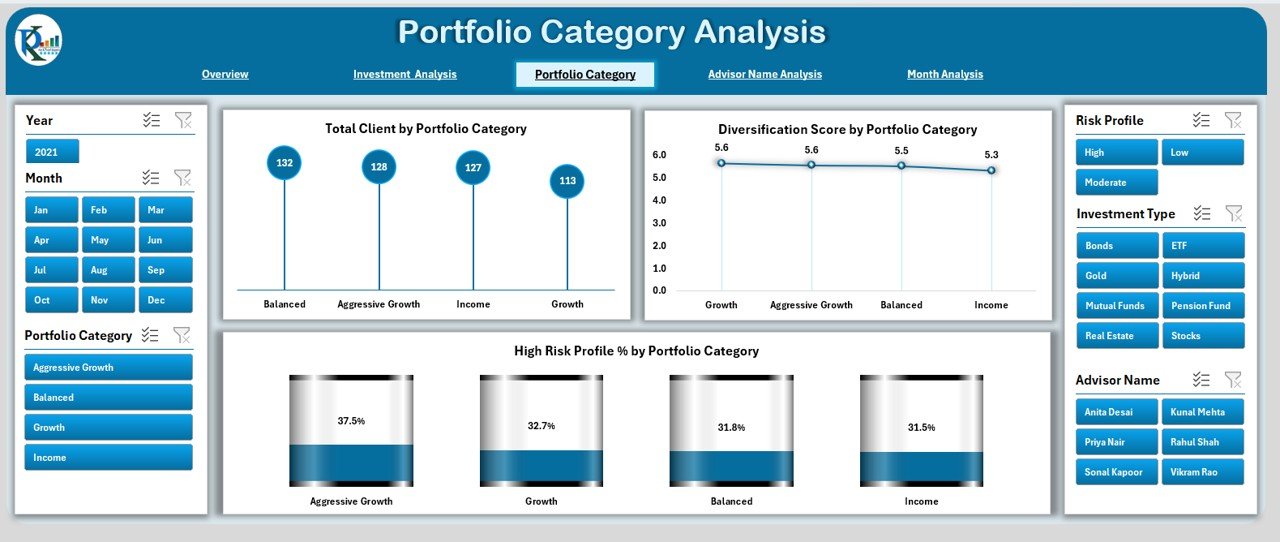
📂 3. Portfolio Category Analysis Page – Understand Portfolio-Level Insights
This page highlights:
Total Clients by Portfolio Category
Diversification Score
High-Risk Profile %
You can quickly find out which categories offer stability, diversity, or higher risk.
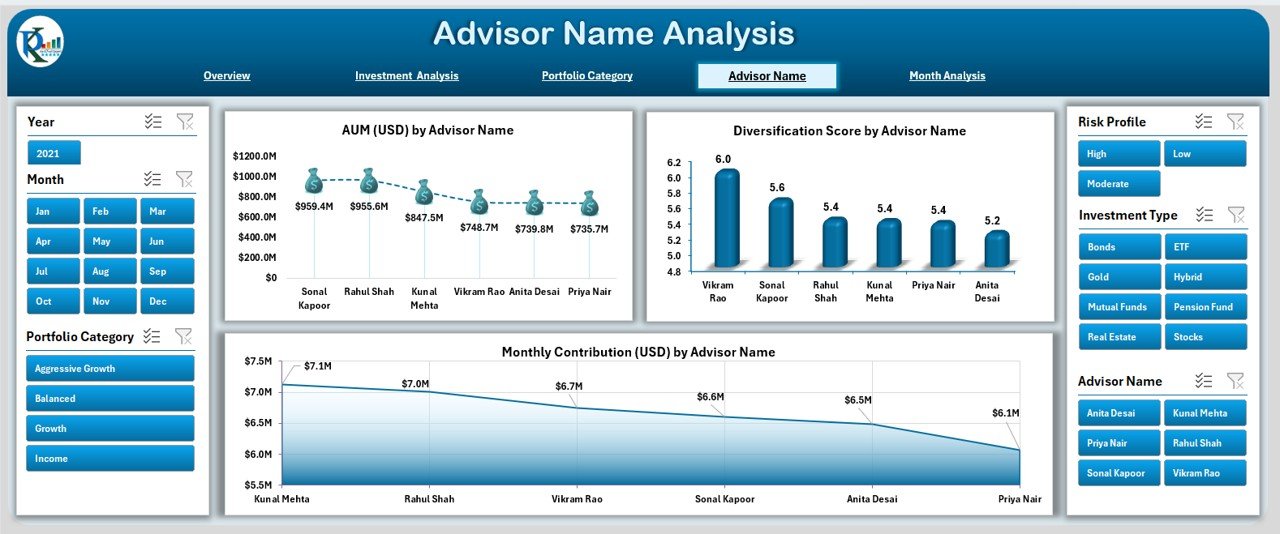
👨💼 4. Advisor Name Analysis Page – Compare Advisor Performance Easily
Advisor performance has a huge impact on overall wealth management.
This page includes:
AUM (USD) by Advisor
Diversification Score by Advisor
Monthly Contribution (USD) by Advisor
It’s perfect for reviewing advisor efficiency, contribution strength, and client portfolio quality.
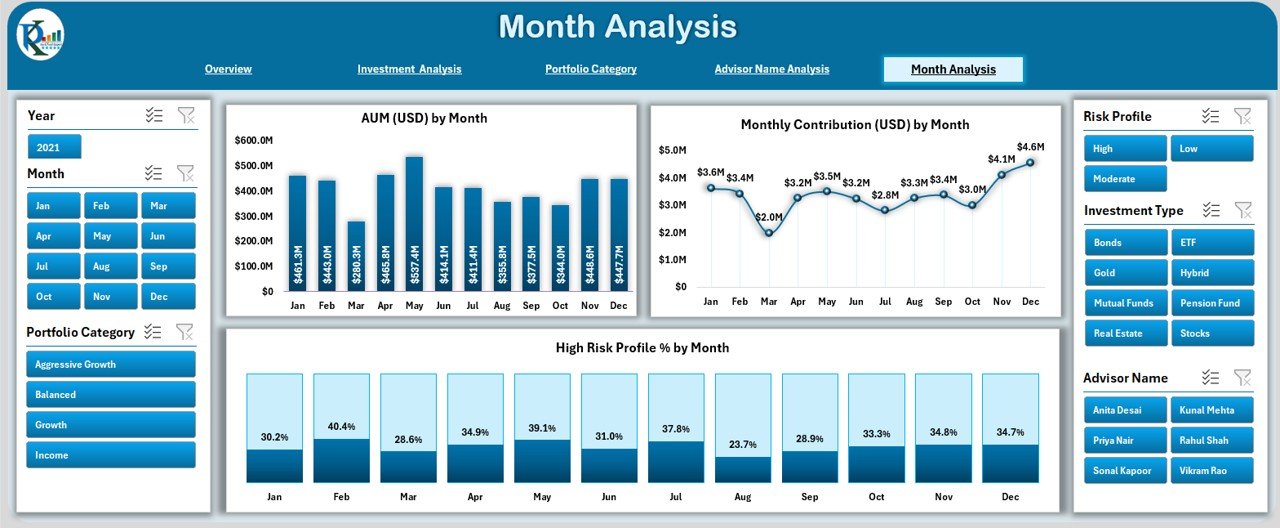
📅 5. Month Analysis Page – Identify Monthly & Seasonal Trends
Track how wealth performance changes month by month.
Charts include:
AUM (USD) by Month
Monthly Contribution (USD) by Month
High-Risk Profile (%) by Month
These visuals help with planning, forecasting, and understanding contribution cycles.
📊 Supporting Sheets
📁 Data Sheet
This is where you enter:
Client Name
Advisor Name
Investment Type
Portfolio Category
Contribution
AUM
Diversification Score
Risk Score
Location
High-Risk Flag
Month & Year
Update this sheet — the rest happens automatically!
🎯 Who Can Benefit from This Dashboard
Wealth Managers
Financial Advisors
Investment Analysts
Portfolio Managers
Private Clients
Financial Planning Teams
Anyone who needs fast, visual, and reliable wealth insights will benefit from this dashboard.
### Click hare to read the Detailed blog post
Visit our YouTube channel to learn step-by-step video tutorials
👉 Youtube.com/@PKAnExcelExpert
Watch the step-by-step video tutorial:
How to Use the Wealth Management Dashboard
- Open the Data Sheet and enter client name, advisor name, investment type, portfolio category, contribution, AUM, diversification score, risk score, location, high-risk flag, and month and year.
- Let the charts and KPI cards refresh from the updated data.
- Use the Page Navigator on the left to move between Overview, Investment Analysis, Portfolio Category Analysis, Advisor Name Analysis and Month Analysis.
- Filter with the slicers for Month, Investment Type, Portfolio Category, Advisor Name or City.
Compatibility and Requirements
- Works in Microsoft Excel desktop (Excel 2016 or later, or Microsoft 365).
- The pages use slicers. Microsoft explains slicers in Use slicers to filter data.
Frequently Asked Questions
What does the Overview page show?
Five KPI cards (Total Clients, Total AUM, High-Risk Portfolio %, Total Investment Types and a Contribution Summary) and four charts.
Can I compare advisors?
Yes. The Advisor Name Analysis page shows AUM, diversification score and monthly contribution by advisor.
Which filters are available?
Slicers for Month, Investment Type, Portfolio Category, Advisor Name and City.
Do I need to rebuild charts when I add data?
No. Once you update the Data Sheet, all visuals refresh.
Related Wealth and Investment Templates
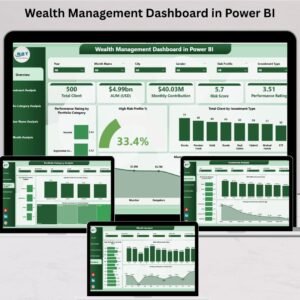
- Wealth Management Dashboard in Power BI: the same topic in Power BI
- Wealth Management KPI Dashboard in Excel: track wealth KPIs against targets
- Investment Management Dashboard in Excel: investment reporting in Excel
- Portfolio Performance KPI Dashboard in Excel: portfolio KPIs by month
- Finance and Accounting Command Center: a bundle of 8 finance templates
Browse all Excel dashboards or the Excel financial tools.







Reviews
There are no reviews yet.