


Meetings are the lifeblood of teamwork, but without proper structure, even the best discussions can lead to confusion and missed deadlines. That’s where our Team Meeting Minutes Tracker in Excel comes in 🚀. This ready-to-use Excel + VBA-powered tool helps you capture, track, and analyze meeting details in a way that ensures productivity, accountability, and efficiency.
Forget about scattered notes or endless email threads. With this tool, you can centralize your meeting records, assign responsibilities, and monitor follow-ups — all within Excel. Whether you’re a corporate team, a school faculty, a healthcare organization, or a small business, this tracker adapts to your needs.
✨ Key Features of the Team Meeting Minutes Tracker in Excel
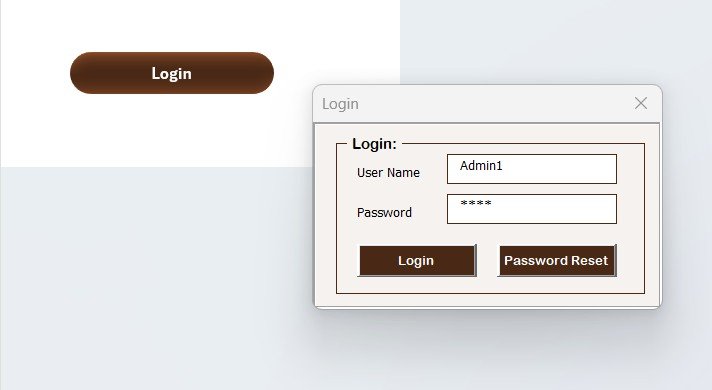
✅ Secure Login System – Protect your meeting data with a User ID & Password. Default login (Admin1/abcd) is provided, and you can set up new users anytime.
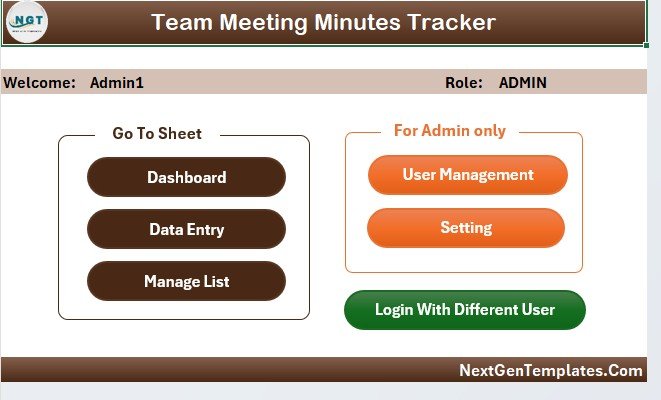
✅ Main Form Dashboard – Acts as the control center of the tool, where you can navigate to Data Entry, Dashboard, User Management, and Settings in just one click.
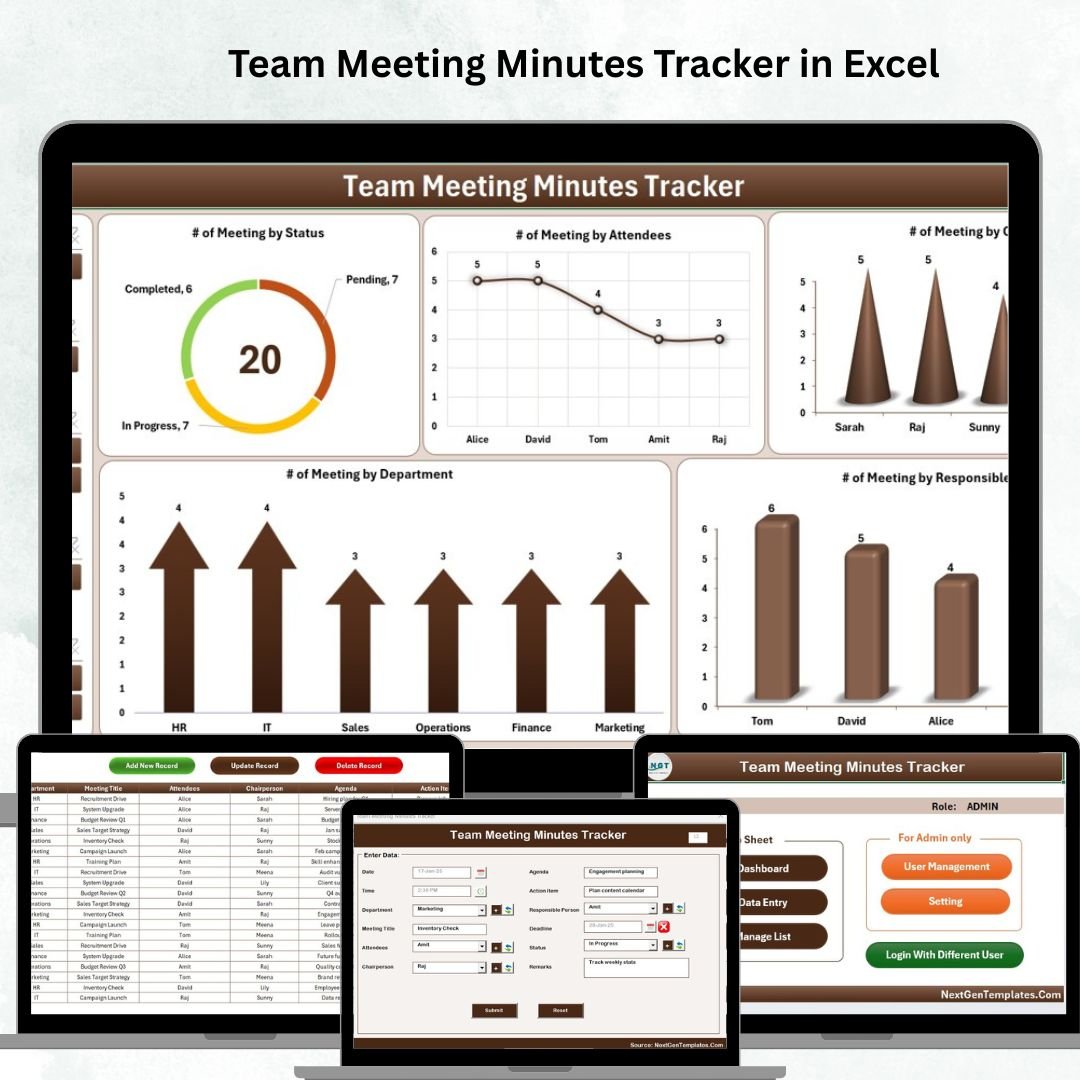
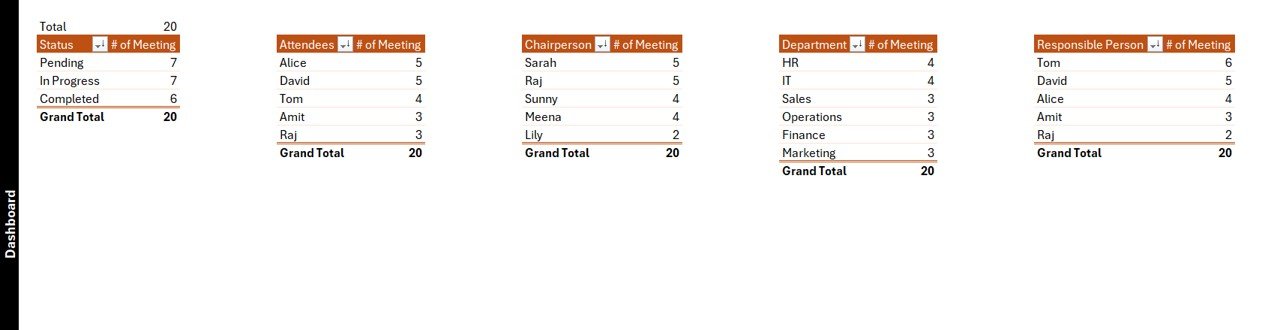
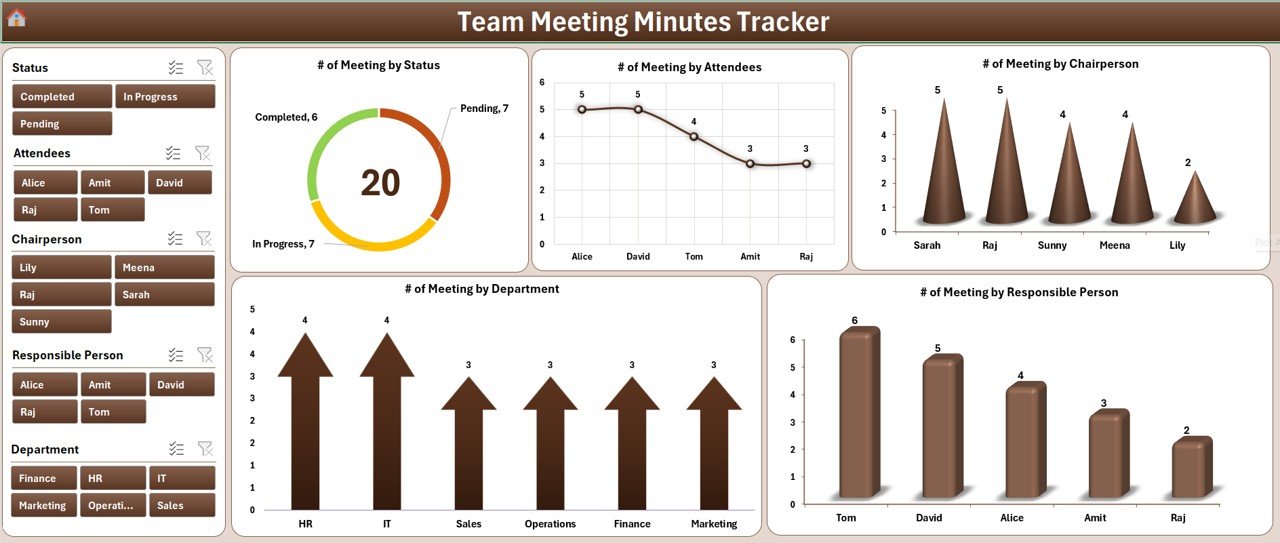
✅ Interactive Dashboard – Visualize your meetings with 5 slicers & 5 powerful charts:
📊 Meetings by Status
👥 Meetings by Attendees
🎙 Meetings by Chairperson
🏢 Meetings by Department
🎯 Meetings by Responsible Person
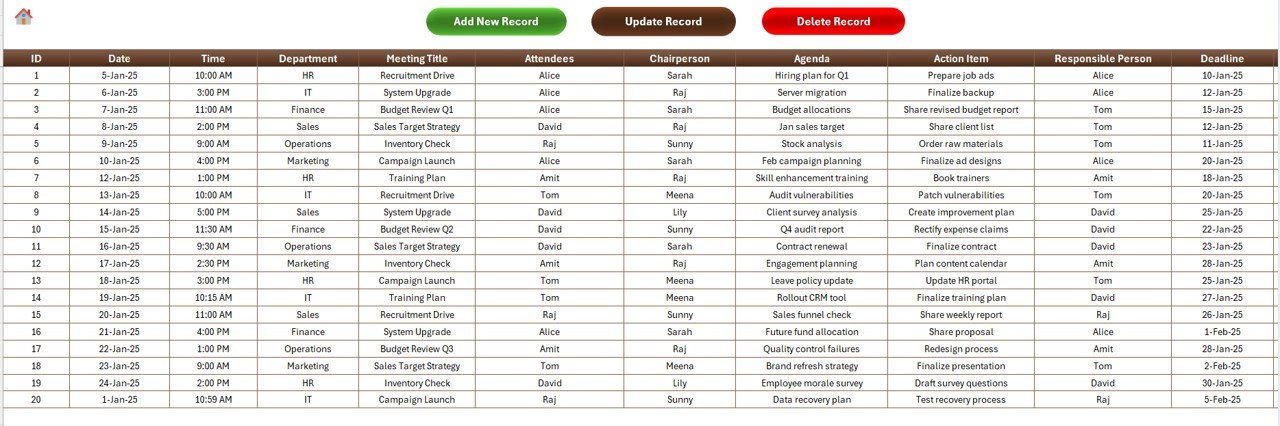
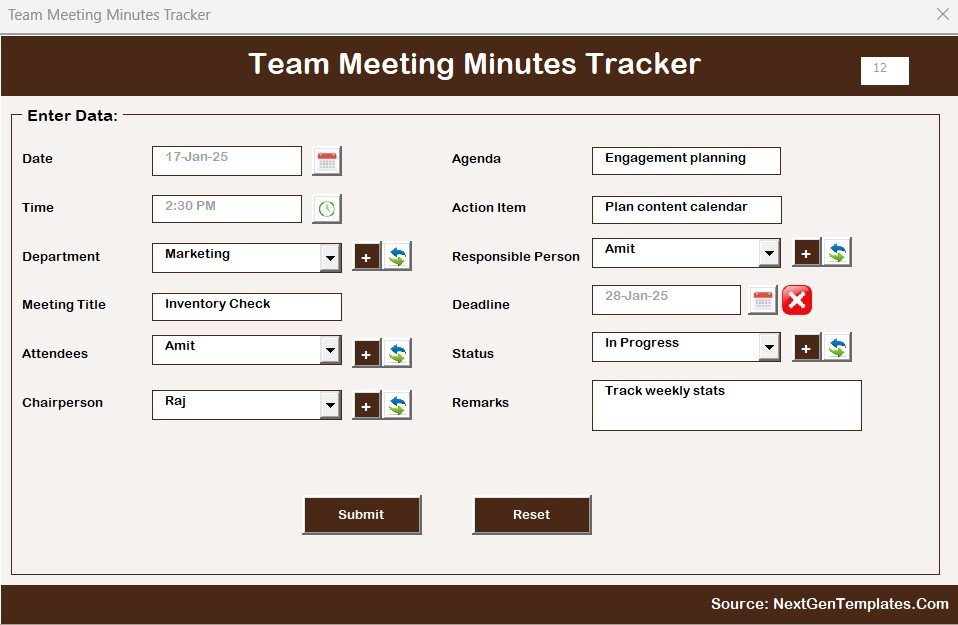
✅ Data Entry Form – Add, update, and delete meeting records effortlessly using a form-based system.
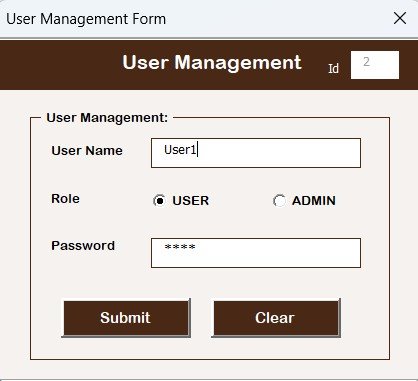
✅ User Management – Create multiple users with role-based access, reset passwords, and manage team accounts.
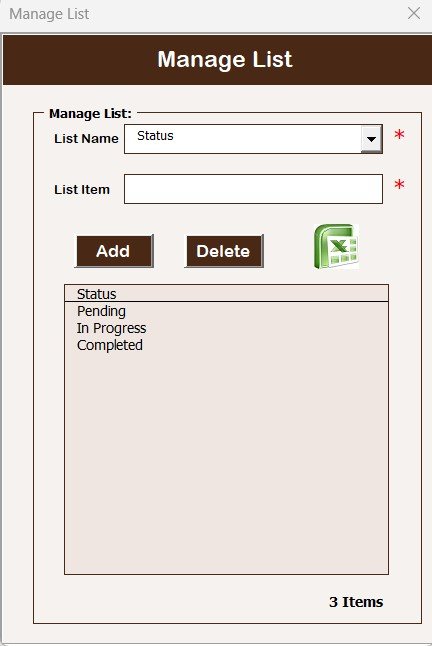
✅ Manage Lists Easily – Standardize departments, chairpersons, and attendees with a centralized list sheet for dropdowns.
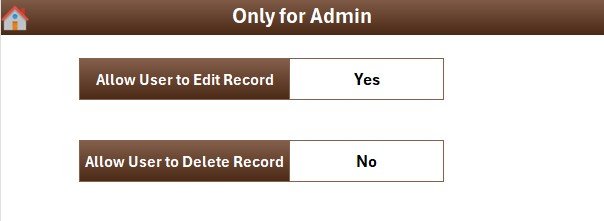
✅ Customization & Settings – Adapt the tracker to your organization’s policies and workflow with flexible settings.
📂 What’s Inside the Team Meeting Minutes Tracker in Excel
When you download this tool, you’ll get:
Login Form – Secure access to protect meeting data.
Main Form – Simple and clean navigation system.
Dashboard Sheet – Visual reports with charts and slicers.
Data Entry Sheet – User-friendly meeting entry system.
Manage List Sheet – Dropdown management for accuracy.
Support Sheet – Backend pivot tables (hidden for ease).
User Management Sheet – Add or edit user accounts.
Settings Sheet – Adjust preferences and customize fields.
⚡ How to Use the Team Meeting Minutes Tracker in Excel
Using this tool is super simple — no technical expertise required:
1️⃣ Login with your User ID & Password.
2️⃣ Navigate from the Main Form to the section you need.
3️⃣ Add New Record with meeting details like date, attendees, and agenda.
4️⃣ Update/Delete Records as needed with a simple click.
5️⃣ View Dashboard to analyze meetings using slicers and charts.
6️⃣ Assign Responsibilities and ensure accountability across departments.
7️⃣ Manage Users & Lists to keep everything standardized.
8️⃣ Export/Share Reports for team presentations or audits.
🎯 Who Can Benefit from This Team Meeting Minutes Tracker?
This tracker is versatile and can be used by:
🏢 Corporate Teams – Manage cross-departmental meetings with ease.
🎓 Educational Institutions – Track faculty and staff meetings.
🏥 Healthcare Organizations – Record critical meetings and assign follow-ups.
👨💼 Project Managers – Ensure every meeting leads to actionable results.
🤝 Nonprofits – Maintain transparency in board and volunteer meetings.
💡 Small Businesses – Organize daily huddles and team reviews efficiently.
✅ Why Choose This Tracker?
Saves time ⏳ with automated data entry and dashboards
Enhances accountability ✔ by assigning responsibilities
Improves collaboration 🤝 across teams
Provides real-time insights 📊 with charts and slicers
Secure access 🔐 for authorized users only
📖 Click here to read the Detailed blog post
📺 Visit our YouTube channel to learn step-by-step video tutorials
Watch the step-by-step video tutorial:
Compatibility and Requirements
- Works in Microsoft Excel desktop on Windows with macros enabled. It does not run in Excel for the web, Google Sheets or mobile apps.
- The tool uses a login form, data entry forms and a dashboard with slicers. Microsoft explains how to turn on macros in Enable or disable macros in Microsoft 365 files.
Frequently Asked Questions
What is the default login?
The default User ID is Admin1 and the password is abcd. You can add new users in the User Management sheet.
What does the dashboard show?
The dashboard has 5 slicers and 5 charts: meetings by status, attendees, chairperson, department and responsible person.
Can I add, edit and delete meeting records?
Yes. The data entry form lets you add new meeting records, update them and delete them.
How do I change the departments, chairpersons and attendees in the dropdowns?
Edit them in the Manage List sheet. The dropdowns in the data entry form use those lists.
Is there a Google Sheets version?
Yes. See the Team Meeting Minutes Tracker in Google Sheets.
Related Meeting and Team Templates
- Team Meeting Minutes Tracker in Google Sheets: the same tracker for Google Sheets
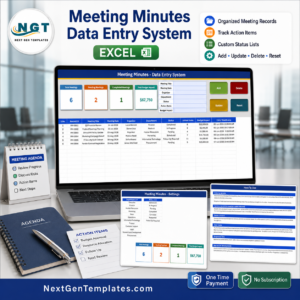
- Meeting Minutes Data Entry System in Excel: a data entry system for meeting records
- Meeting Room Booking Tracker in Excel: book and track meeting rooms
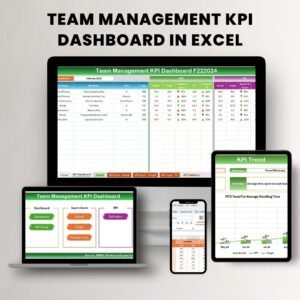
- Team Management KPI Dashboard in Excel: team KPIs in one dashboard
- VBA Management Systems Mega Pack: 5 Excel templates built with VBA
Browse all Excel trackers.


Reviews
There are no reviews yet.