

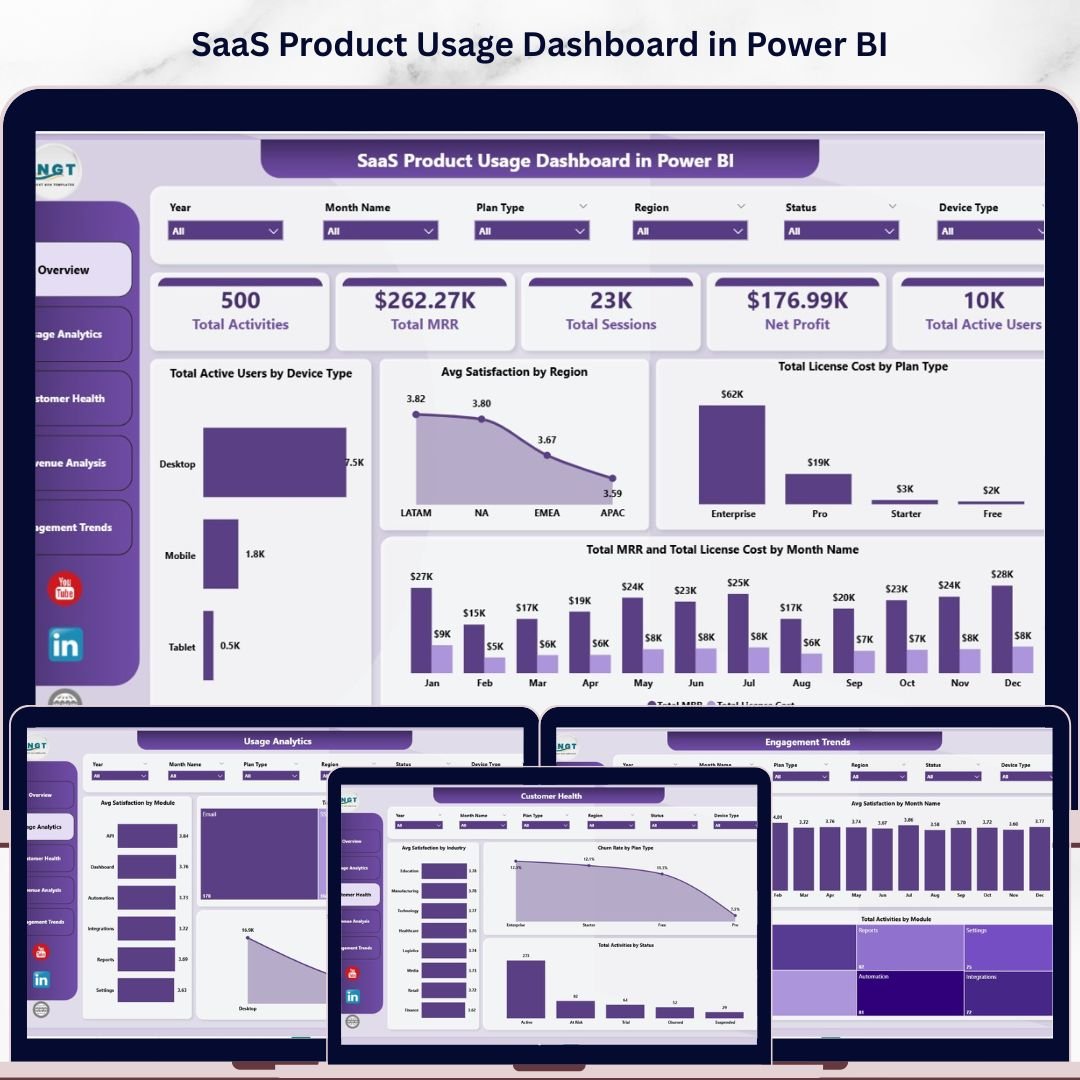
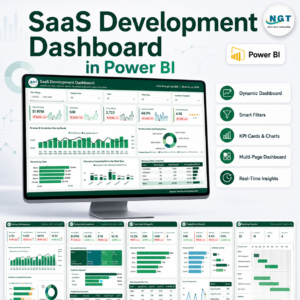
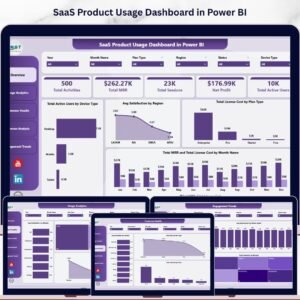
The SaaS Product Usage Dashboard in Power BI tracks 5 high-level KPI cards — Total Activities, Total MRR, Total Sessions, Net Profit, and Total Active Users — across 5 interactive analysis pages with 16 pre-built charts and cross-page slicers. Setup takes under 10 minutes: open the .pixy in Power BI Desktop, point the data model at your usage export, and every chart, KPI card, and filter recalculates automatically.
🌍 Join 8,400+ teams in 40+ countries using Nextgen Templates to replace paid SaaS analytics tools with one-time-purchase Excel, Google Sheets, Power BI, and HTML templates.
✅ Instant download · One-time payment · No subscription · No per-user fees · Lifetime access
According to Microsoft’s Power BI documentation, cross-page slicer sync and DAX-driven KPI cards are the two highest-leverage features for SaaS reporting — they let one click filter every visual in the report. This Power BI dashboard packages both into a ready-to-use SaaS reporting layer covering MRR trends, license cost, satisfaction, churn, and active-user behaviour by plan, device, region, and module.
🔑 Key Features of SaaS Product Usage Dashboard in Power BI
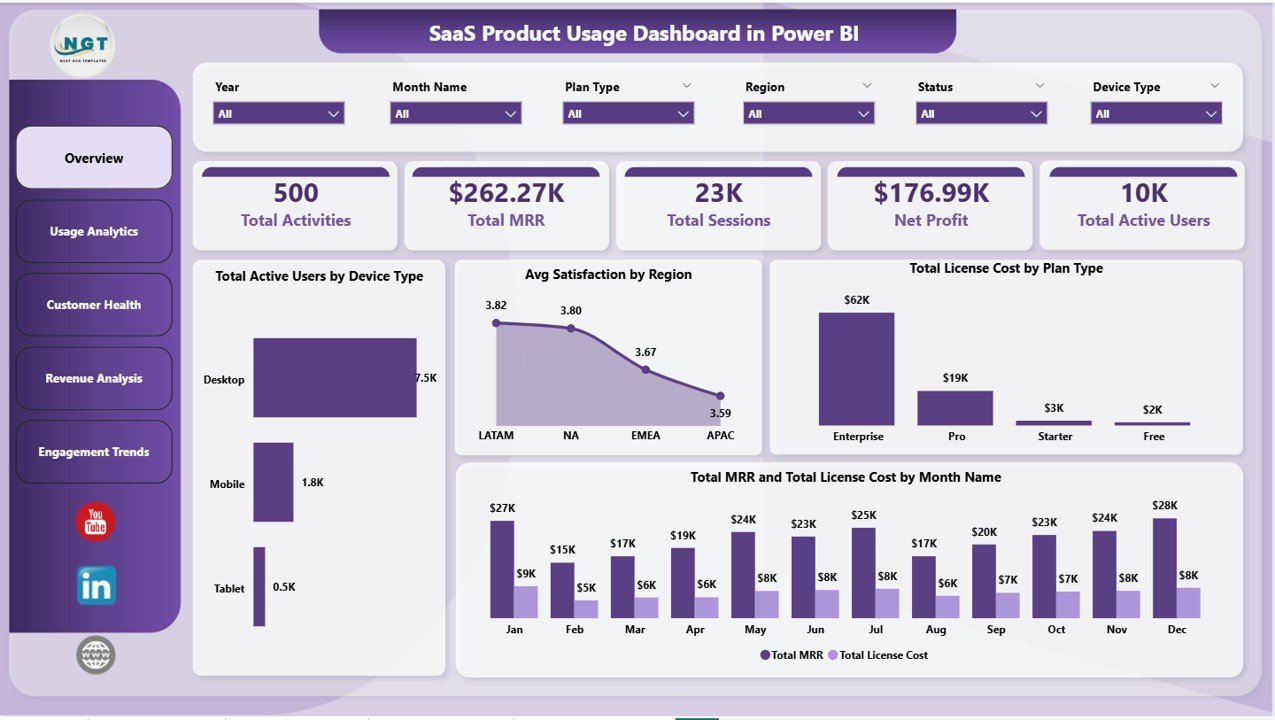
📊 5 KPI cards on the Overview page — Total Activities, Total MRR, Total Sessions, Net Profit, and Total Active Users. Every card recalculates instantly as you click any slicer, giving leadership a one-glance read on the health of the SaaS business.
📈 16 pre-built charts across 5 pages — Overview, Usage Analytics, Customer Health, Revenue Analysis, and Engagement Trends. Each page is built around one specific business question — from “where is MRR growing” to “where is satisfaction dropping before churn lands”.
🎯 Combined revenue + churn view — Total MRR and Total License Cost by Month sit on the Overview page next to Avg Satisfaction by Region and Churn Rate by Plan Type, so finance, customer success, and product teams use the same source of truth instead of three competing exports.
🔍 Cross-page slicer filtering — filter by Plan Type, Device Type, Region, Module, Login Method, Industry, and Status. Slicer changes propagate to every visual on every page through Power BI’s native sync — no DAX edits required.
📅 Month-by-month trend pages — Total MRR by Month Name, Total Active Users by Month Name, and Avg Satisfaction by Month Name run on the Revenue Analysis and Engagement Trends pages. Spot seasonality and validate pricing changes within seconds.
💰 Plan-level and device-level profitability — Total License Cost by Plan Type, Total MRR by Device Type, and Total Activities by Login Method surface exactly which segments deliver margin and which segments leak it.
📦 What’s Inside the SaaS Product Usage Dashboard in Power BI
This Power BI report contains 5 fully interactive pages — each with its own set of slicers and 3-5 visuals. We are showing multiple types of pages to give you complete coverage of MRR, usage, customer health, revenue, and engagement.
1 — Overview Page
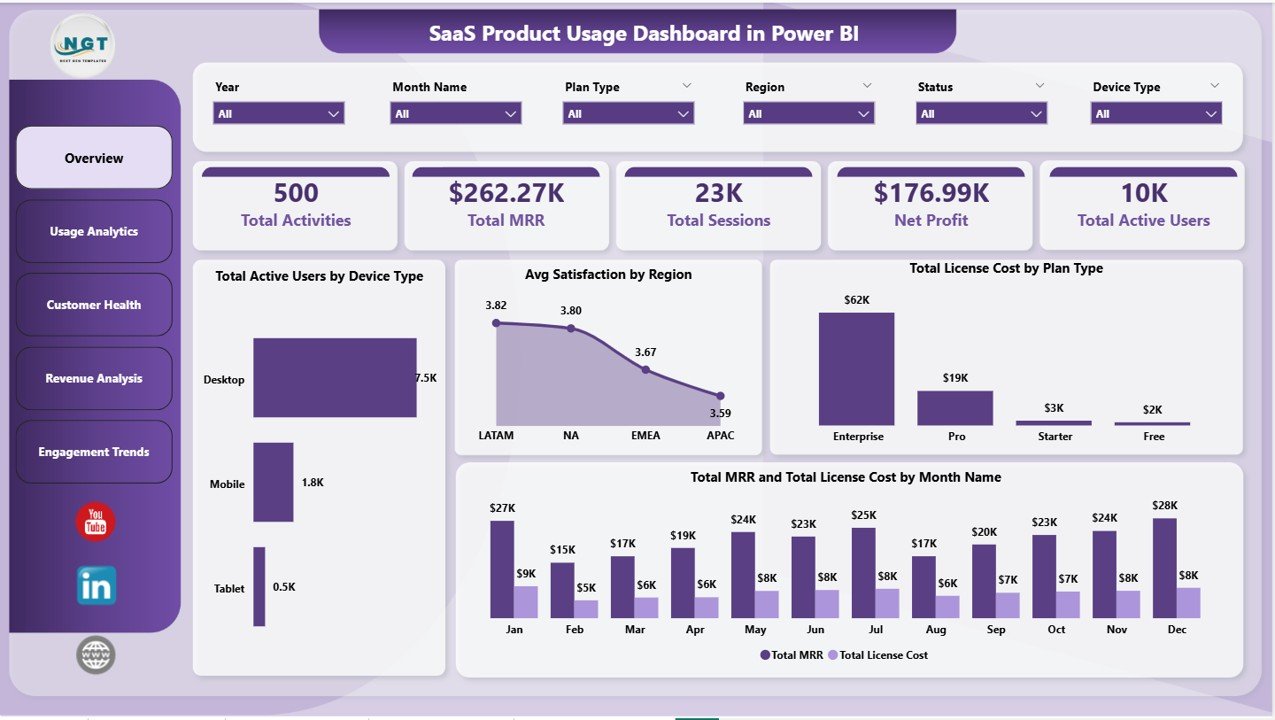
The Overview page sits on top of the report and gives high-level information at a glance. It includes 5 KPI cards (Total Activities, Total MRR, Total Sessions, Net Profit, Total Active Users) and the following charts with slicers to filter the entire dashboard quickly:
📊 Total Active Users by Device Type — A bar chart breaking down active users across desktop, mobile, and tablet, instantly revealing which device segment drives engagement.
📊 Avg Satisfaction by Region — A column chart comparing average satisfaction scores across regions, surfacing markets where CS intervention is most urgent.
📊 Total License Cost by Plan Type — A bar visual showing cost concentration by plan tier, so finance can audit where infrastructure spend goes.
📊 Total MRR and Total License Cost by Month Name — A combined column-and-line chart pairing revenue against cost month-by-month, instantly exposing margin compression periods.
 SaaS Product Usage Dashboard in Power BI
2 — Usage Analytics
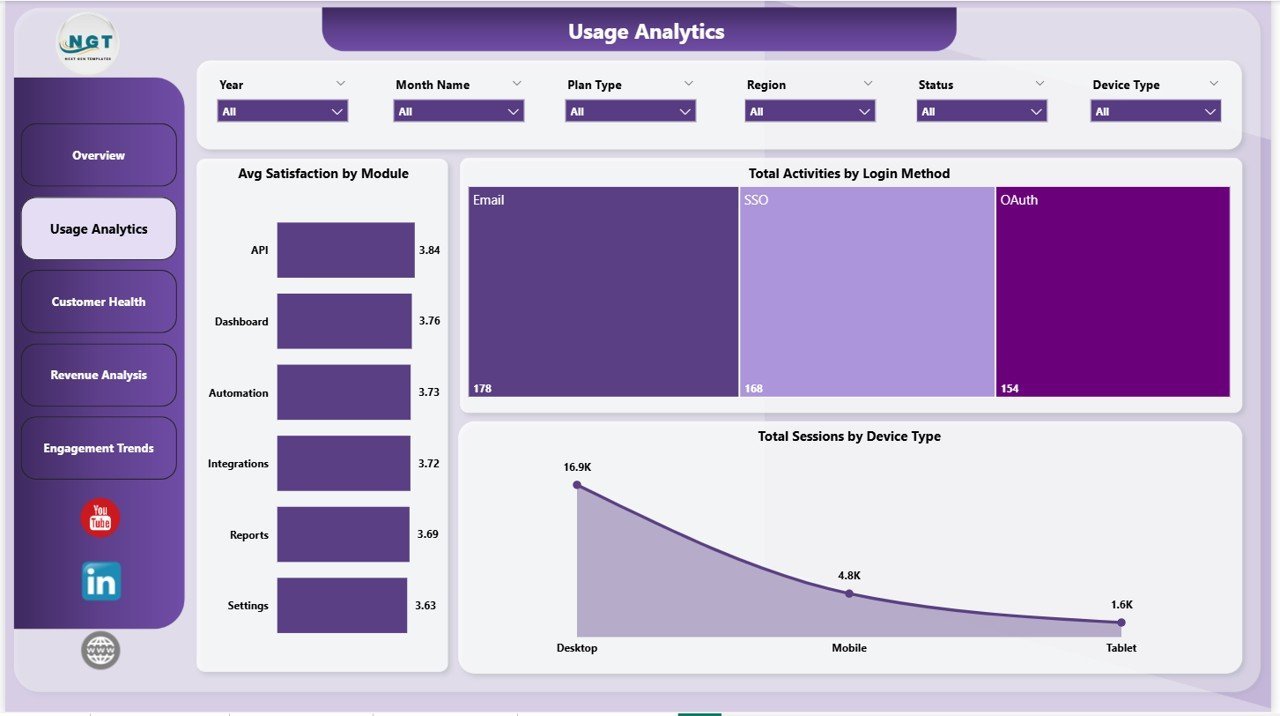
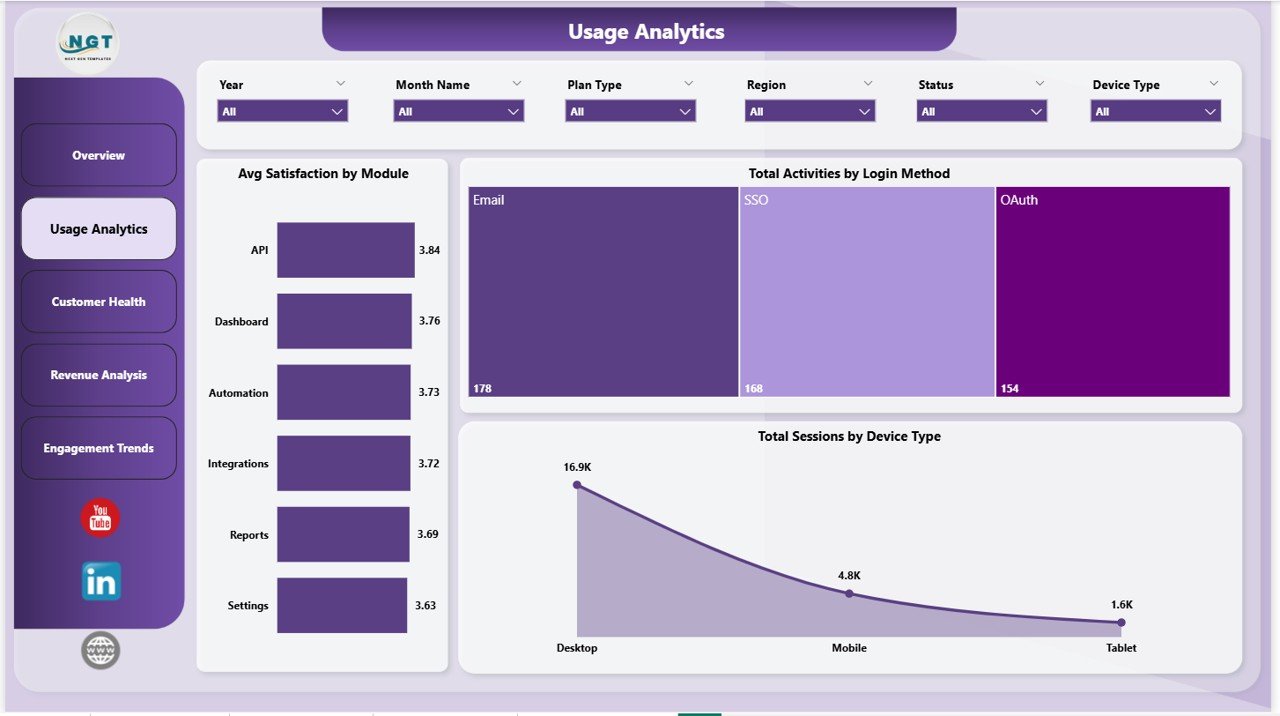
The Usage Analytics page focuses on which modules drive engagement and how users authenticate. In this sheet tab, we have created the following analyses:
📊 Avg Satisfaction by Module — Highlights which product modules customers love and which ones drag the overall satisfaction score down.
📊 Total Activities by Login Method — Compares activity volume across SSO, email/password, and social login, useful for prioritising your auth roadmap.
📊 Total Sessions by Device Type — Splits session counts across desktop, mobile, and tablet so product teams can see where users actually spend time.
 Usage Analytics
3 — Customer Health
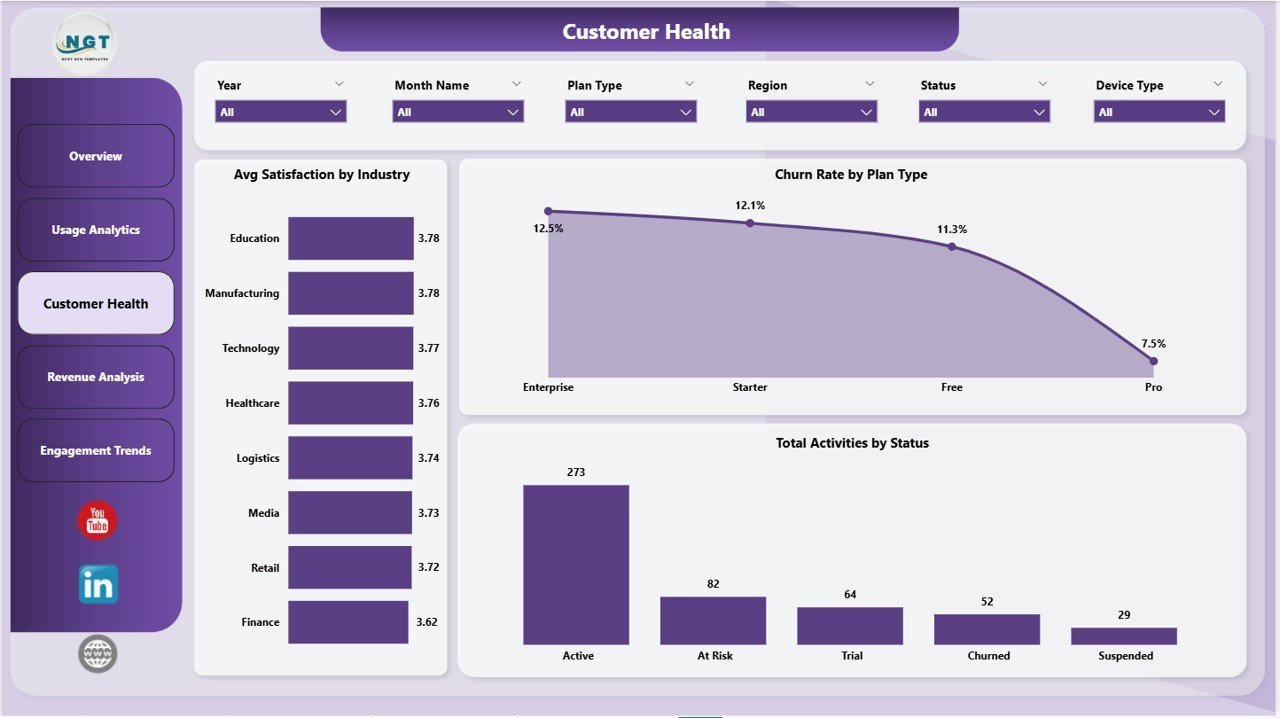
The Customer Health page surfaces churn risk and satisfaction patterns. In this sheet tab, we have created the following analyses:
📊 Avg Satisfaction by Industry — Reveals which verticals are happiest with the product and which need targeted onboarding investment.
📊 Churn Rate by Plan Type — Shows churn percentage across Starter, Pro, and Enterprise tiers so you can see whether downgrade-to-churn or downgrade-to-stay is the bigger risk.
📊 Total Activities by Status — Breaks activities into active, paused, trial, and cancelled buckets, giving CS leaders a leading indicator of revenue churn.
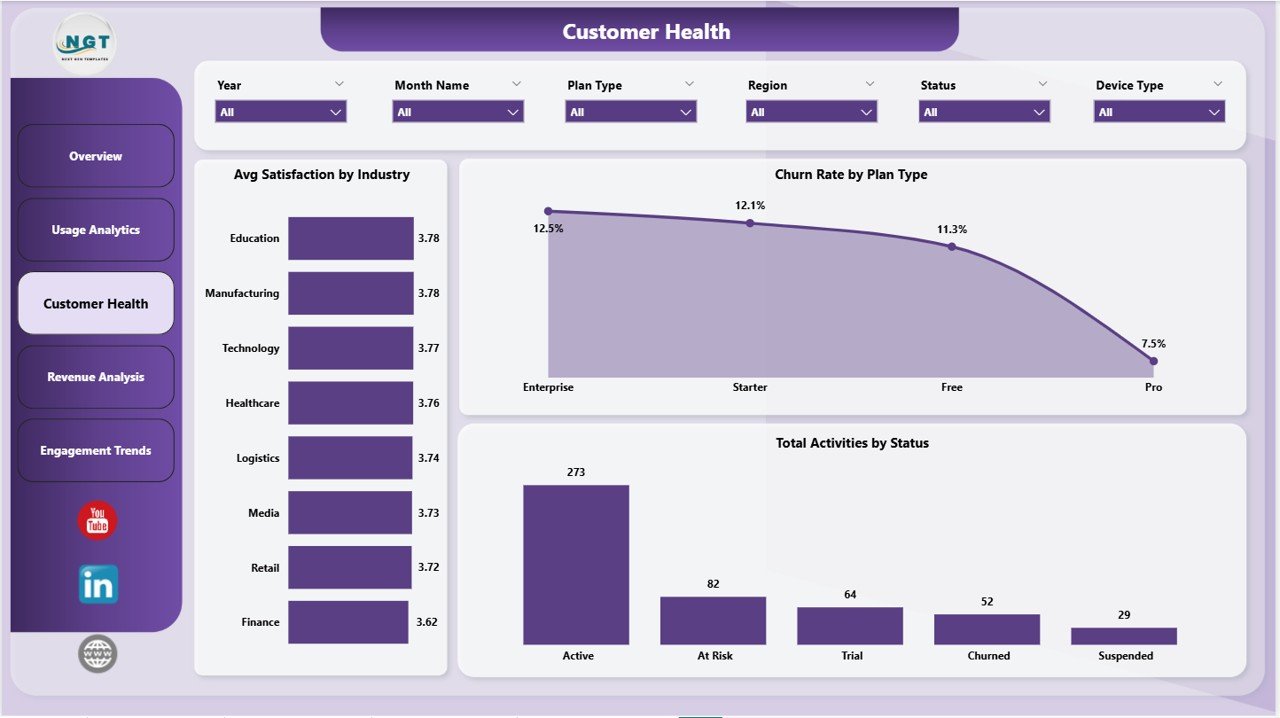 Customer Health
4 — Revenue Analysis
The Revenue Analysis page focuses on month-on-month MRR and regional revenue mix. In this sheet tab, we have created the following analyses:
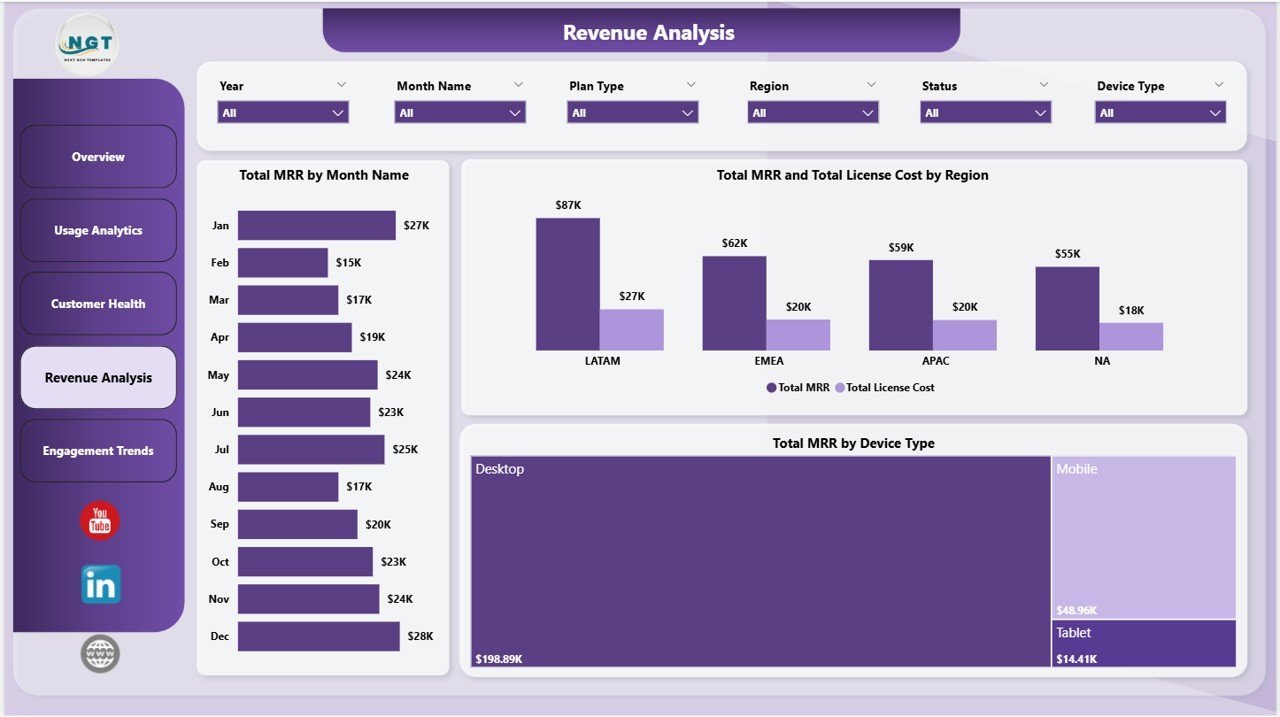
📊 Total MRR by Month Name — Tracks monthly recurring revenue across all 12 months, your single most important SaaS metric for board reporting.
📊 Total MRR and Total License Cost by Region — Pairs revenue with infrastructure cost by geography, exposing which regions deliver the highest gross margin.
📊 Total MRR by Device Type — Splits MRR across desktop, mobile, and tablet customers so product can size investment in mobile-first features.
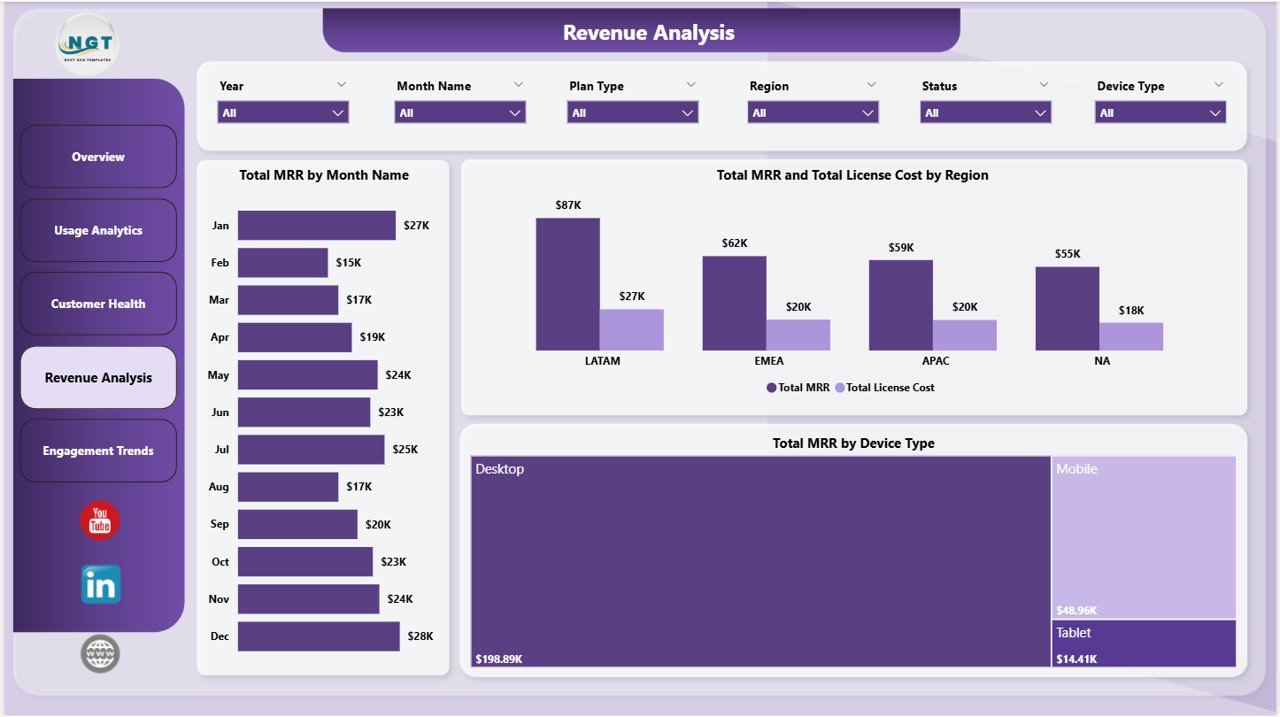 Revenue Analysis
5 — Engagement Trends
The Engagement Trends page turns raw event data into the activation patterns product teams quote in board meetings. In this sheet tab, we have created the following analyses:
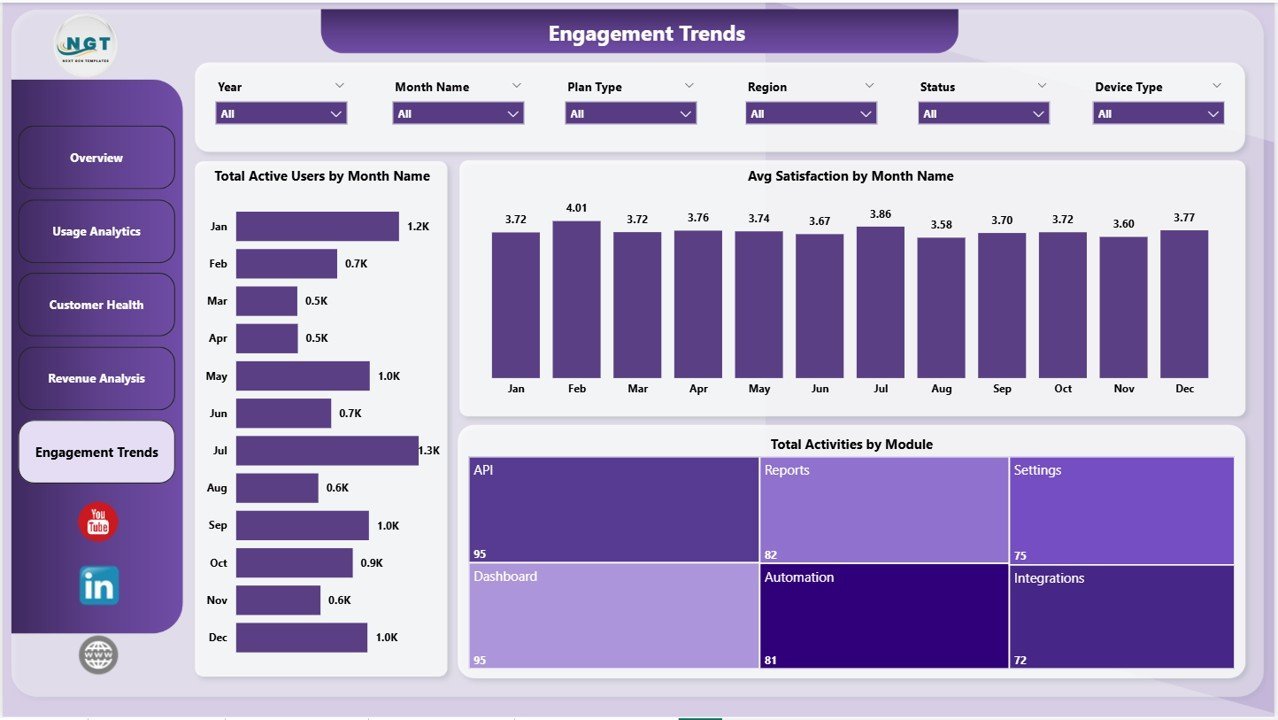
📊 Total Active Users by Month Name — Plots active users month-by-month, the foundation for WAU/MAU storytelling and growth-rate calculations.
📊 Avg Satisfaction by Month Name — Tracks satisfaction trend over 12 months, ideal for proving the impact of CS investment to the executive team.
📊 Total Activities by Module — Shows where users actually spend their time in-product, so product managers can prioritise the next release with data, not opinions.
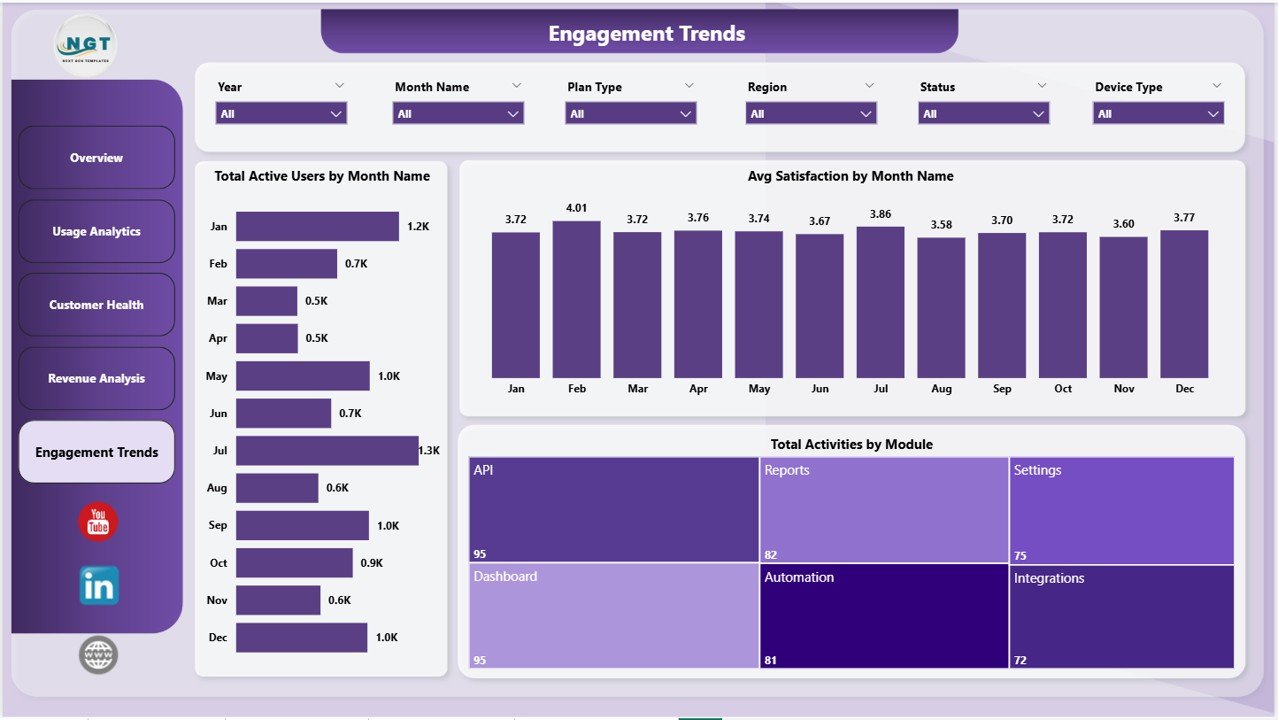 Engagement Trends
📊 SaaS Product Usage Dashboard in Power BI vs. Tableau / Qlik vs. Mix panel / Amplitude / HubSpot — Where This Fits
| Feature | SaaS Product Usage Dashboard in Power BI | Tableau / Qlik Equivalent | Mixpanel / Amplitude / HubSpot |
|---|---|---|---|
| Cost | $17.99 one-time ✅ | $70-100 / user / month | $25-2,000 / user / month |
| Platform | Power BI Desktop (free) ✅ | Tableau Desktop / Qlik Sense | Cloud SaaS (vendor lock-in) |
| Setup time | Under 10 minutes ✅ | 2-4 hours per dashboard | 2-6 weeks (event SDK + tracking plan) |
| Customizable DAX measures | Yes, fully editable ✅ | Yes (calculated fields) | Limited to vendor’s query builder |
| 5 pre-built pages with slicers | Yes ✅ | Build from scratch | Limited prebuilt SaaS templates |
| Mobile + web viewing | Yes (Power BI Service) | Yes | Yes |
| Vendor lock-in | None — your .pbix file ✅ | Tableau ecosystem | Locked to platform |
| Year-1 cost at 5 users | $17.99 ✅ | $4,200 – $6,000 | $1,500 – $120,000 |
| Works with custom data sources | Yes (Excel, SQL, API) ✅ | Yes | Limited to native integrations |
For SaaS founders, customer-success leads, and FP&A teams who want full MRR + churn + usage visibility without paying $1,500/year for Mixpanel seats, the SaaS Product Usage Dashboard in Power BI sits in the sweet spot.
👥 Who This Template Is For — and Who It’s Not For
✅ This template is built for:
- SaaS founders and operators at 5-200 employee companies tracking MRR, churn, and product usage in one place
- Customer success managers who need a Customer Health page tied to satisfaction and churn by plan and industry
- FP&A and finance leads who want MRR vs. license-cost margin trends without a Tableau or Looker license
- Product managers replacing $30-$200/month seat-based analytics tools during seed and Series A stages
- Power BI users who prefer customizable .pbix files over closed SaaS dashboards
❌ This template is NOT for:
- Enterprise SaaS teams needing real-time event streaming and SOC 2 compliance (use Mixpanel / Amplitude / Heap)
- Teams that don’t want to install the free Power BI Desktop application
- Companies that need row-level security on usage data tied to Active Directory groups
- Operators looking for autopilot dashboards with no data preparation step at all
⚙️ How to Use the SaaS Product Usage Dashboard in Power BI
- Download the .zip file and extract the .pbix workbook to your local drive.
- Open the .pbix file in Power BI Desktop (free download from Microsoft).
- In the Data view, replace the sample dataset with your own SaaS usage records, keeping the same column headers.
- Click “Refresh” on the Home ribbon to recalculate every page, KPI card, slicer, and chart.
- Use the slicers on each page to filter by Plan Type, Device, Region, Module, Login Method, Industry, or Status.
- Publish to Power BI Service for team-wide sharing or export individual pages as PDF for board packs.
💼 Real-World Use Cases
Priya runs growth at a 25-person B2B SaaS startup. She uses the SaaS Product Usage Dashboard in Power BI to track Total MRR by Month Name and Total Active Users by Month Name for her Tuesday investor update — generating the same numbers her old Mix panel dashboard produced, but without the $400/month bill that became hard to justify after the seed round.
Marcus heads customer success at a 60-employee fintech SaaS. He pulls the Customer Health page weekly to monitor Avg Satisfaction by Industry and Churn Rate by Plan Type, flags any plan tier where churn drifts above 4%, and assigns a CSM to run a save call before renewal. Two plans caught early in Q3 saved roughly $48k in ARR.
Anita, an FP&A analyst at a Series A vertical SaaS, uses the Revenue Analysis page to compare Total MRR and Total License Cost by Region every month-end. The dashboard surfaces gross-margin compression in two regions where infrastructure scaling outpaced subscription growth, three quarters before it would have shown up in the company’s QuickBooks-only finance reporting.
❓ Frequently Asked Questions
What KPIs does the SaaS Product Usage Dashboard in Power BI track?
The SaaS Product Usage Dashboard in Power BI tracks 5 primary KPIs on the Overview page (Total Activities, Total MRR, Total Sessions, Net Profit, Total Active Users) plus 16 supporting charts across 4 analysis pages covering satisfaction, churn rate, license cost, and active users by plan, device, region, industry, and module.
How does this compare to Mixpanel, Amplitude, or HubSpot?
The SaaS Product Usage Dashboard in Power BI costs $17.99 one-time vs $25-$2,000 per user per month for Mixpanel, Amplitude, or HubSpot. You own the .pbix file forever, can edit DAX measures freely, and there is no per-user fee. Year 1 saves a 5-user team $1,470 to $119,982.
How long does setup take?
Setup for the SaaS Product Usage Dashboard in Power BI takes under 10 minutes. Download, open the .pbix in Power BI Desktop, paste your SaaS usage data into the existing data table, and click Refresh. Every chart, slicer, and KPI card updates automatically — no DAX rewriting required.
Can I customize the DAX measures and visuals?
Yes. The SaaS Product Usage Dashboard in Power BI ships as an unlocked .pbix with all DAX measures fully editable. You can add new pages, swap chart types, change the colour theme, or extend the data model with your own calculated columns and tables without breaking the slicer sync.
Does this work with Stripe, HubSpot, or Salesforce data?
The SaaS Product Usage Dashboard in Power BI accepts any tabular data with the matching column headers. You can connect it to Excel, CSV, SQL Server, or any source Power BI supports — including direct Stripe, HubSpot, or Salesforce exports — by repointing the data source in Power Query.
Does the dashboard track churn and customer health together?
Yes — the dedicated Customer Health page in the SaaS Product Usage Dashboard in Power BI tracks Avg Satisfaction by Industry, Churn Rate by Plan Type, and Total Activities by Status side-by-side, so you can spot industries where satisfaction is dropping before the churn rate spikes in the next quarter.
Is the same template available in Excel?
Yes — the same dashboard logic is available as the SaaS Product Usage Dashboard in Excel. The Power BI version is recommended when you need cross-page slicer sync, DAX measures, and online publishing via Power BI Service for team-wide access.
👤 About the Author
Built by PK — Microsoft Certified Professional with 15+ years of Excel, Google Sheets, and Power BI experience. Founder of NextGen Templates, reaching 300K+ subscribers across YouTube channels (@PK-AnExcelExpert, @NextGenTemplates, @NeoTechNavigators). Every template is hand-built and tested before release.
🔗 Explore Related Templates
📦 Also available as: SaaS Product Usage Dashboard in Excel — same 5 KPI cards and 5 pages, built natively in Excel with pivot-driven refresh.
🎯 Related Power BI & SaaS Dashboards:
- Subscription Box Dashboard in Power BI — Power BI sibling for subscription-revenue businesses with plan-level profit views.
- SaaS Onboarding Dashboard in Excel — pair with this dashboard to track activation alongside long-term usage.
- SaaS Customer Success Dashboard in Google Sheets — Google Sheets equivalent for teams already living in Drive.
- Sales Funnel KPI Dashboard in Power BI — adjacent template covering top-of-funnel conversion alongside SaaS metrics.
Browse all Power BI Dashboard Templates or explore the full Dashboard Templates library on NextGen Templates.
📖 Click here to read the Detailed Blog Post
🎥 Visit our YouTube channel for step-by-step video tutorials
👉 YouTube.com/@NextGenTemplates
📅 Last updated: May 2026
Watch the step-by-step video tutorial:
YouTube

Reviews
There are no reviews yet.