

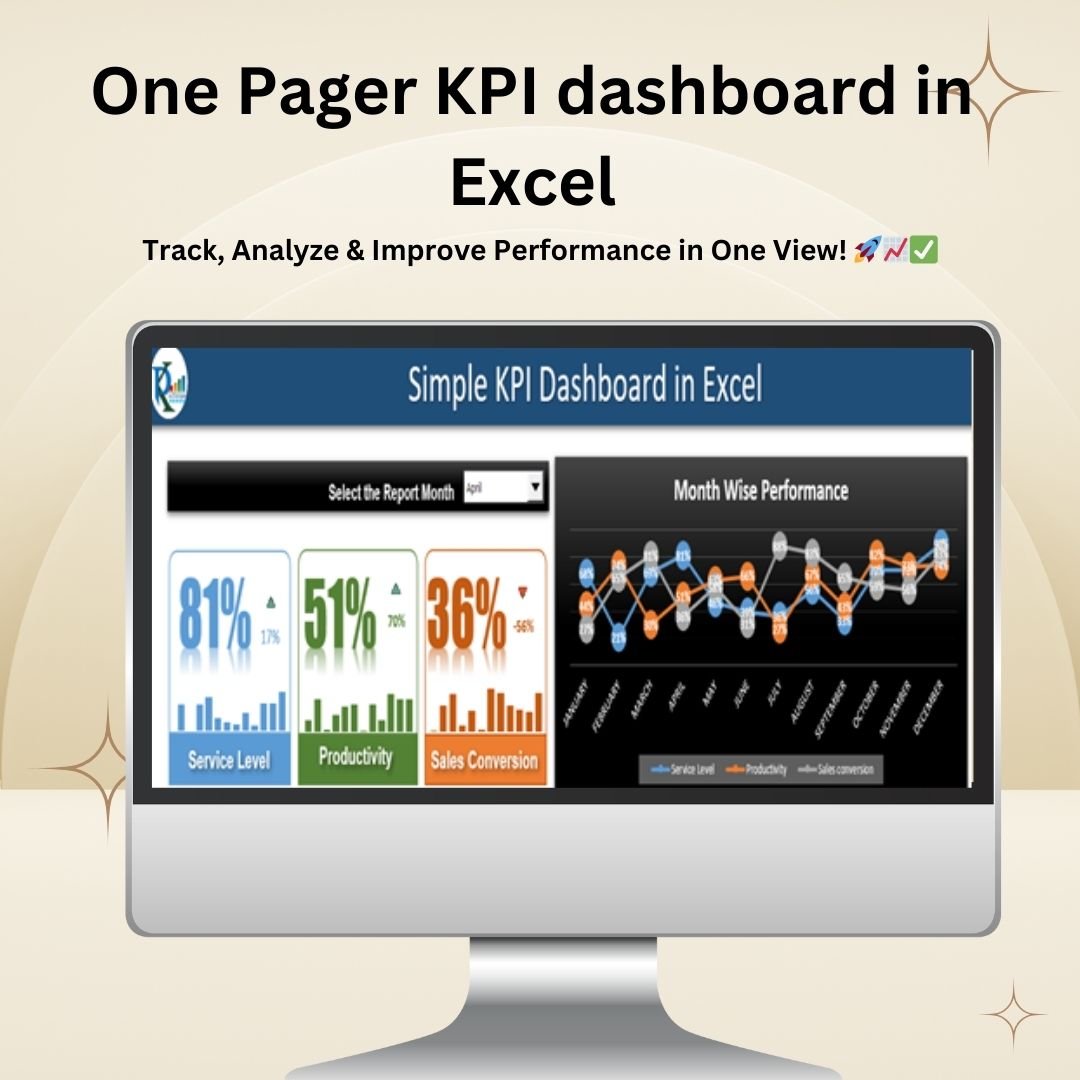
The One Pager KPI Dashboard in Excel is a ready-made, interactive dashboard that tracks three essential KPIs on a single page: Service Level, Productivity and Sales Conversion. It is built for business managers, analysts and team leads who want to review monthly performance, spot trends and act on problem areas quickly.
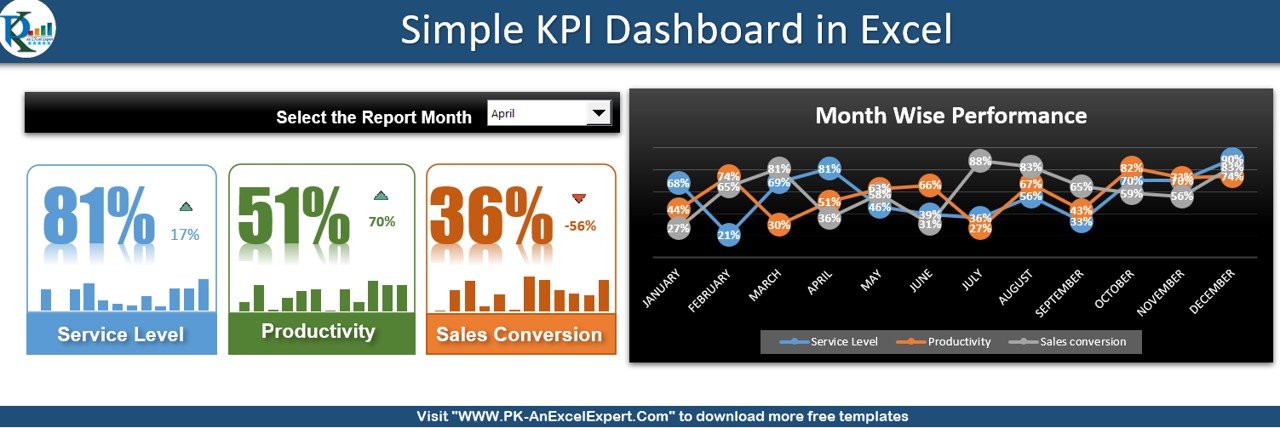
Choose a month from the dropdown and the visuals, KPI values and percentage change indicators update automatically. You get month-over-month comparisons and 12-month trends in one compact, easy-to-read view.
Why Choose This One Pager KPI Dashboard?
This interactive Excel dashboard has a clean, intuitive interface with dynamic visuals, so you can read performance at a glance. You can analyse month-over-month progress, spot trends and find areas for improvement without digging through raw numbers. As an Excel KPI template, it gives you an efficient, automated way to measure success.
Key Features
Comprehensive KPI Overview
- Displays three essential KPIs: Service Level, Productivity and Sales Conversion.
- Shows trend analysis and month-over-month comparisons for each KPI.
- Helps you assess performance, identify growth areas and take corrective action.
Interactive Combo Box (Report Month Selector)
- A report month selector lets you pick any month from a dropdown.
- All visuals and data fields update automatically for the selected month.
- Removes the need for manual adjustments and makes data exploration easier.
Dynamic Textbox Display
- Key KPI values appear in readable, visually engaging textboxes.
- Textboxes update automatically from your data inputs.
- Helps teams grasp performance trends without studying raw figures.
Visual Percentage Change Indicators
- Color-coded arrows show improvement (green) or decline (red).
- Positive and negative performance trends stand out instantly.
- Highlights the areas that need attention, which supports faster decisions.
Trend Analysis with Sparklines
- 12-month trend sparklines show KPI progress at a glance.
- Give you a historical view of performance changes.
- Help you recognise long-term trends for strategic planning.
Detailed Monthly Trend Chart
- A line chart for month-wise KPI performance.
- Plots Service Level, Productivity and Sales Conversion trends across the year.
- Helps you analyse seasonal patterns and anticipate future performance.
User-Friendly and Highly Customizable
- A structured layout with minimal clutter keeps the page clear.
- You can customize colors, fonts and labels to match your business.
- Simple but powerful data visualization makes reporting more insightful.
What’s Inside the Dashboard
| Element | What It Shows |
|---|---|
| Report month combo box | Dropdown to select the reporting month; refreshes the whole page |
| KPI textboxes | Current values for Service Level, Productivity and Sales Conversion |
| Percentage change arrows | Green for improvement and red for decline versus the previous month |
| 12-month sparklines | A compact trend line for each KPI |
| Monthly trend line chart | Month-wise performance of all three KPIs across the year |
Who Is It For?
- Business Managers: Analyse company-wide performance trends quickly.
- Sales and Marketing Teams: Use it for sales conversion tracking and productivity monitoring.
- HR and Operations Teams: Monitor service levels and overall business efficiency.
- Entrepreneurs and Small Businesses: Get a snapshot of business performance in seconds.
- Analysts and Team Leads: Present monthly KPI results on one clean page.
Whether you need a business performance tracker for leadership reviews or a productivity dashboard for your team, this single-page layout keeps the focus on the numbers that matter.
How to Use It
- Open the One Pager KPI Dashboard in Excel.
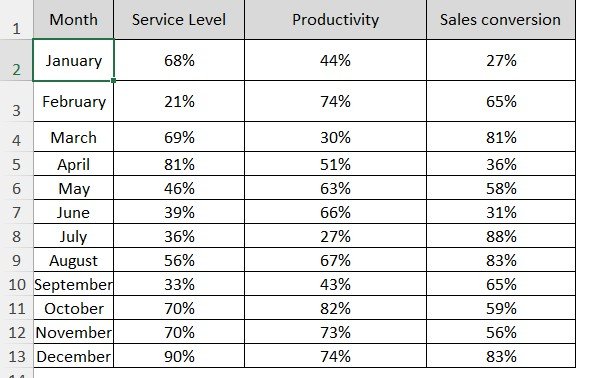
- Enter or update your monthly values for Service Level, Productivity and Sales Conversion.
- Select the report month from the combo box dropdown.
- Review the KPI textboxes, green or red arrows, sparklines and monthly trend chart.
- If you like, customize colors, fonts and labels to match your brand.
Click here to read the detailed blog post One Pager KPI dashboard in Excel
Watch the step-by-step video tutorial: One Pager KPI dashboard in Excel
Frequently Asked Questions
Which KPIs does the dashboard track?
It tracks three essential KPIs: Service Level, Productivity and Sales Conversion. Each one includes trend analysis and month-over-month comparisons.
How do I switch between months?
Use the report month selector, an interactive combo box. Pick a month from the dropdown and all visuals and data fields update automatically.
What do the green and red arrows mean?
They are color-coded percentage change indicators. Green shows an improvement and red shows a decline, so you can see positive and negative trends instantly.
Can I see long-term trends?
Yes. Twelve-month sparklines and a monthly trend line chart show how each KPI moves across the year. This helps you spot seasonal patterns and long-term trends.
Can I customize the dashboard design?
Yes. You can customize colors, fonts and labels to suit your business needs.
Is there a tutorial available?
Yes. A detailed blog post and a step-by-step video tutorial are linked above on this page.
Also check our Inventory Management Form in Excel
Last updated: October 2026
Compatibility and Requirements
- Works in Microsoft Excel desktop (Excel 2016 or later, or Microsoft 365).
- The monthly trend uses a standard Excel line chart, which Microsoft explains in Create a chart from start to finish.
Related KPI Dashboard Templates
- Productivity Tracker KPI Dashboard in Excel: more productivity KPIs
- Employee Productivity Tracking KPI Dashboard in Excel: productivity KPIs by employee
- Employee Performance Rating Card and Dashboard in Excel: a performance card with a dashboard
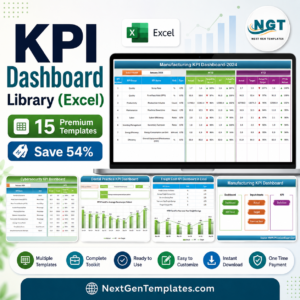
- KPI Dashboard Library (Excel): 15 premium Excel KPI dashboards in one bundle
Browse all Excel KPI dashboards or the Excel dashboards.






Reviews
There are no reviews yet.