

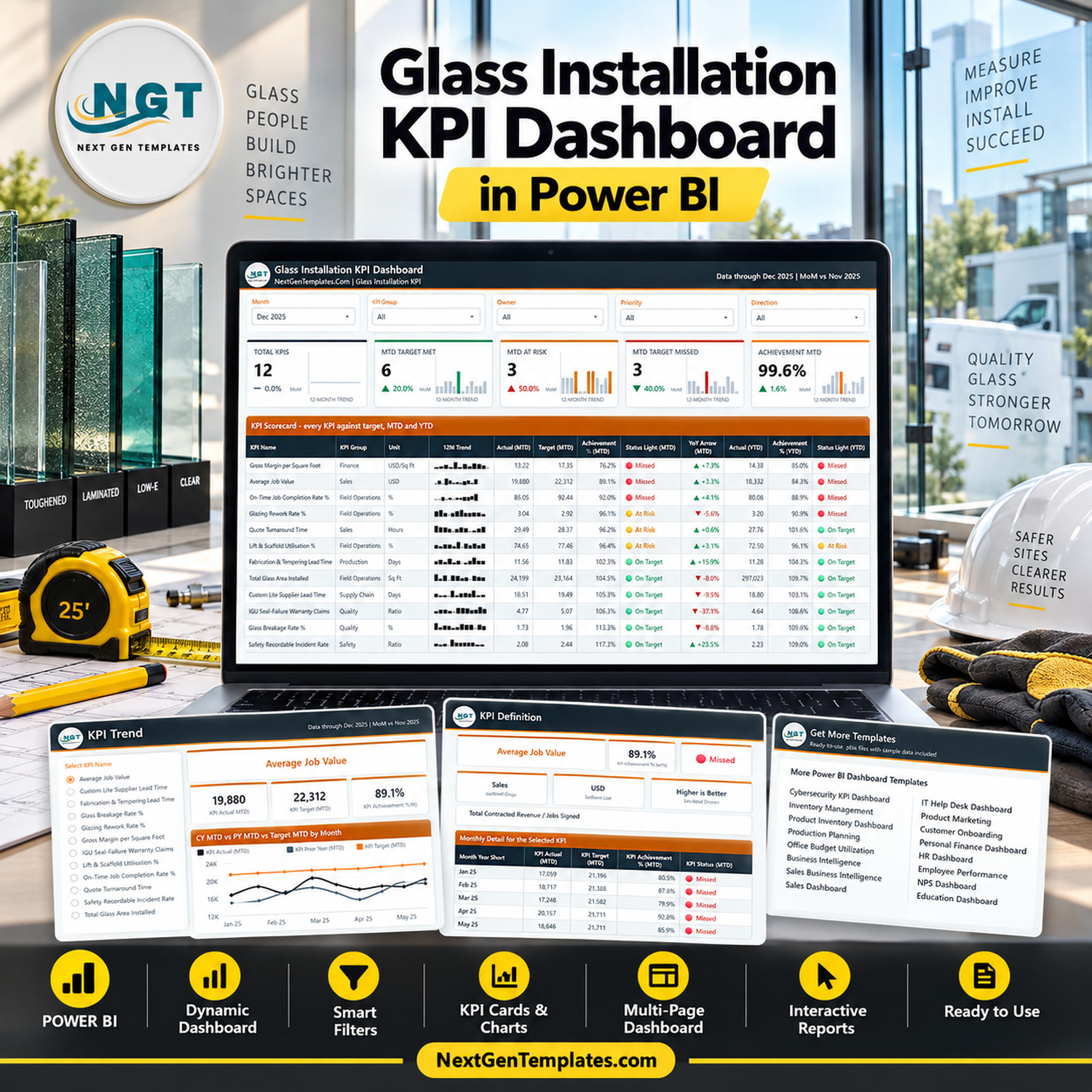

The Glass Installation KPI Dashboard in Power BI scores 12 glazing and glass installation KPIs against target every month, across 7 KPI groups, with MTD and YTD traffic lights printed side by side on the same row. Pick a month and the whole report follows. Achievement is direction-aware: 5 of the 12 KPIs are higher-is-better and 7 are lower-is-better, so beating a breakage, rework or lead-time target scores above 100% instead of reading as a failure. You get a fully editable .pbix, the Excel data pack that drives it and a Power BI user manual PDF, for one payment of $12.99 (regular $19.99) – no subscription, no per-seat licence, lifetime access to the file. Not what you needed? Tell us within 7 days and we will sort it out under our refund policy.

Which product is this? This is the KPI Dashboard line: a month picker, a target-versus-actual scorecard, three-state traffic lights, a KPI Trend page and a KPI Definition page. It is not the analytical “Dashboard” line that slices revenue by crew, branch or glass type, and it is not the lighter Glass Installation KPI Scorecard family, which is a single-file build with its own shorter KPI list. Several NextGenTemplates families carry deliberately similar glass and glazing names. Compare the page images above before you buy – and if you want more than one, they complement each other rather than repeat.
Key Features of the Glass Installation KPI Dashboard in Power BI
- 12 glazing KPIs, scored not just displayed. Total Glass Area Installed, On-Time Job Completion Rate %, Glazing Rework Rate %, Lift & Scaffold Utilisation %, Glass Breakage Rate %, IGU Seal-Failure Warranty Claims, Fabrication & Tempering Lead Time, Custom Lite Supplier Lead Time, Quote Turnaround Time, Average Job Value, Gross Margin per Square Foot and Safety Recordable Incident Rate.
- 7 KPI groups – Field Operations (4 KPIs), Quality (2), Sales (2), Production, Finance, Safety and Supply Chain (1 each) – so a monthly review runs group by group instead of number by number.
- Direction-aware achievement. Higher-is-better KPIs score Actual / Target. Lower-is-better KPIs score Target / Actual. That is why the shipped December sample scores Glass Breakage Rate % at 113.3% when the actual rate (1.73%) came in under the 1.96% target, while Gross Margin per Square Foot reads 76.2% because $13.22 came in under a $17.35 target.
- Three-state traffic lights on two horizons. On Target at 100% or more, At Risk from 95% up to 100%, Missed below 95% – printed separately for MTD and for YTD, so a KPI that looks passable this month but is behind for the year cannot hide. Glazing Rework Rate % does exactly that in the sample: At Risk for December at 96.1%, Missed for the year at 90.9%.
- Five slicers on the scorecard page – Month, KPI Group, Owner, Priority and Direction. The KPI selector on KPI Trend is synced with the one on KPI Definition, so whichever KPI you pick carries across when you switch tabs.
- A 12-month sparkline inside every scorecard row, plus five summary cards (Total KPIs, MTD Target Met, MTD At Risk, MTD Target Missed, Achievement MTD), each with its own 12-month trend bars and a month-on-month delta. The December 2025 sample reads 12 KPIs, 6 met, 3 at risk, 3 missed and 99.6% achievement, up 1.6% on November.
- Rows sorted worst first. The scorecard opens with Gross Margin per Square Foot at 76.2% at the top and Safety Recordable Incident Rate at 117.3% at the bottom, so the monthly conversation starts where the problem is.
- An owner and a priority against every KPI. The sample ships 11 named owners – Field Operations Director, Operations Manager, Fabrication Manager, Plant Manager, Warranty & Service Manager, Estimating Manager, Sales Director, Finance Manager, Safety Manager, Equipment Manager and Procurement Manager – at Critical (5 KPIs), High (5) or Medium (2).
- Real prior-year comparison. The data pack carries two full years of actuals – 2024 and 2025, 288 rows – so every YoY arrow and every “PY” line on the trend charts comes from typed history, not from an estimate.
- Two hidden tooltip pages (KPI Detail and Trend Detail, 280×360) that surface on hover without adding clutter to the printed page.
- Native Power BI visuals only, plus one custom theme file that drives every colour. Nothing to install from AppSource, nothing that breaks when a custom visual is deprecated, and every figure on the page is a DAX measure rather than a stored column.
What Is Inside the Glass Installation KPI Dashboard in Power BI
The download is a single ZIP holding three files: the .pbix report, the Data.xlsx pack it reads from, and a Power BI Dashboard user manual PDF. Keep all three in one folder.
Page 1 – KPI Scorecard. Five slicers across the top, five summary cards under them, then the full scorecard table: KPI Name, KPI Group, Unit, a 12-month sparkline, Actual (MTD), Target (MTD), Achievement % (MTD), Status Light (MTD), YoY Arrow (MTD), Actual (YTD), Achievement % (YTD) and Status Light (YTD). December 2025 ships as the sample month, measured month-on-month against November 2025.

Page 2 – KPI Trend. A “Select KPI Name” list on the left holding all twelve KPIs, six context cards naming the selected KPI, its group, unit, direction, owner and priority, five value cards (KPI Actual MTD, KPI Target MTD, KPI Achievement % MTD, KPI Status MTD, KPI YoY % MTD) and two line charts – CY MTD vs PY MTD vs Target MTD by Month and CY YTD vs PY YTD vs Target YTD by Month. Three lines on each: this year, last year, target.

Page 3 – KPI Definition. The same synced KPI selector, and then the part most KPI packs leave out: the formula and the plain-English definition for whichever KPI is selected. Average Job Value, for example, reads “Total Contracted Revenue / Jobs Signed” with the definition “Average contract value across signed storefront, curtain wall, shower enclosure, and mirror jobs”. Under it sit a Monthly Detail for the Selected KPI table covering all twelve months plus a total row, an MTD Actual vs Target by Month chart and an Achievement % by Month chart.

Page 4 – Get More Templates, a short catalogue and customisation page, plus the two hidden tooltip pages that never appear in the page tabs.
The data pack (Data.xlsx) has four sheets. Read Me explains the model, including the rule that a rate, ratio or index YTD is the average of the months so far and never a sum. KPI Definition is one row per KPI with group, unit, formula, definition, UTB/LTB type, owner and priority – 12 rows. Input_ Target holds 144 rows: 12 KPIs by 12 months, MTD and YTD. Input_ Actual holds 288 rows, because it carries 2024 as well as 2025. Nothing in the report hard-codes a KPI name: add a row, delete a row, or rename a KPI in all three sheets, press Home > Refresh, and the counts, the scorecard, the selector list and every chart follow.
Where the data comes from. The model is one imported table built from those three sheets, plus a Date table generated in Power Query. It connects to no live system – there is no API, no gateway and no accounting, CRM or field-service connector. You type numbers into the workbook and refresh. The report opens with the sample data already loaded, so you can look around before touching anything; before your first Refresh, point the query at your own copy with Home > Transform data > Data source settings > Change Source, because the path saved in the file is the folder it was built in.
Glass Installation KPI Reporting: This Template vs. Tableau or Qlik vs. Paid Field-Service SaaS
| This template (Power BI) | Tableau or Qlik build | ServiceTitan / Jobber analytics | |
|---|---|---|---|
| Cost | $12.99 once | Roughly $70-$115 per user per month for a creator seat, plus build time | Quoted per technician or per crew, typically four figures a year and up |
| Platform | Power BI Desktop, free from Microsoft (Windows) | Tableau Desktop or Qlik Sense | Vendor cloud, browser only |
| Setup time | Open, retype 12 KPI rows, refresh – under an hour | Days to weeks for the same scorecard | Weeks, plus onboarding and data migration |
| Real-time team collaboration | No – publish to the Power BI Service if you need shared access | Yes, on a paid server | Yes |
| Mobile access | Via the free Power BI mobile app once published | Yes | Yes |
| Customisable fields | Every KPI, group, unit, formula, owner and priority is a spreadsheet row | Fully custom, but you write it | Limited to the vendor’s field model |
| Live job-site data feed | No – you type actuals into Data.xlsx and refresh | Possible, if you build the connection | Yes, that is the product |
| Year-1 cost at 5 users | $12.99, plus optional Power BI Pro seats if you publish | $4,200-$6,900 | Typically far higher again |
| Direction-aware scoring (UTB/LTB) | Built in – 5 higher-is-better, 7 lower-is-better | You build the logic | Fixed to the vendor’s metric set |
| Glazing-specific KPI set out of the box | Yes – installed square footage, rework, breakage, IGU seal-failure claims, lift utilisation, custom lite lead time | No – start from a blank canvas | Generic field-service metrics |
Who This Template Is For – and Who It Is Not For
It fits a commercial or residential glazing contractor running anywhere from two crews to a couple of dozen, a glass shop that fabricates and installs storefront, curtain wall, IGUs, shower enclosures and mirrors, an owner-operator who already reports monthly on square footage, breakage and crew labour, an estimator watching quote turnaround and average job value, or a Power BI user who wants a finished scorecard pattern to fork for another trade.
It is not for you if you want live data off a crew tablet – this reads a spreadsheet you refresh by hand. It is not for you if you want per-job, per-crew or per-elevation drill-down: the report is a company-level monthly scorecard by design, and individual jobs are not a dimension in the model. It is not a takeoff, estimating, optimisation or glass-cutting package, it does not schedule crews, route trucks or manage a cut list, it is not accounting software, and it does not connect to QuickBooks, Xero, Sage, ServiceTitan, Jobber or Procore. And it is not a safety, warranty or compliance system – see the FAQ.
How to Use the Glass Installation KPI Dashboard in Power BI
- Unzip all three files into one folder and keep them together – the report reads
Data.xlsxfrom beside it. - Open the
.pbixin Power BI Desktop, free from Microsoft and Windows-only. Have a look around first: the December 2025 sample is already loaded. - Repoint the query with Home > Transform data > Data source settings > Change Source, so it reads your copy of
Data.xlsxrather than the build folder’s. - Edit the three sheets. Put your KPIs on KPI Definition (group, unit, formula, definition, UTB or LTB, owner, priority), your monthly targets on Input_ Target and your actuals – this year and last – on Input_ Actual. The KPI name is the join key across all three.
- Press Home > Refresh. The summary cards, the scorecard, the KPI selector lists and every chart rebuild themselves around whatever KPIs now exist.
- Pick a month on the KPI Scorecard, then narrow with the KPI Group, Owner, Priority or Direction slicers. Click a KPI on KPI Trend and the KPI Definition page already shows that KPI’s formula and monthly detail when you switch tabs.
Real-World Use Cases
Marco runs a six-crew commercial glazing company. His monthly meeting used to open with a spreadsheet of raw totals and an argument about whether a number was good. Now it opens on the KPI Scorecard with Dec 2025 selected: 6 met, 3 at risk, 3 missed. The three misses – Gross Margin per Square Foot, Average Job Value and On-Time Job Completion Rate % – each carry a named owner on the row, so the meeting becomes three conversations instead of twelve.
Elena runs the fabrication shop. She owns Glass Breakage Rate % and Fabrication & Tempering Lead Time. She selects Glass Breakage Rate % on KPI Trend, sees where the current-year line sits against target and against last year, and takes the twelve-month table off the KPI Definition page straight into the shop review – with the formula card beside it, so nobody relitigates how breakage is counted before the discussion starts.
Sam buys custom lites and manages the lifts. He watches Custom Lite Supplier Lead Time and Lift & Scaffold Utilisation %, and uses the Direction slicer to pull the whole scorecard down to the lower-is-better KPIs when he wants to see only the time-and-cost side of the month.
Frequently Asked Questions
Do I need a Power BI licence to use this?
No. Power BI Desktop is free from Microsoft and opens, edits and refreshes the file. It runs on Windows only. A Power BI Pro or Premium seat is needed only if you want to publish the report to the Power BI Service and share it with colleagues.
Can I add, remove or rename KPIs?
Yes, and that is the point of the build. Nothing in the report hard-codes a KPI. Add a row to KPI Definition plus its monthly Target and Actual rows, or delete those rows, or rename the KPI in all three sheets, then refresh. The counts, the scorecard, the selector list and every chart follow.
Is there a drill-through page?
No – and it is worth saying plainly, because builds in this family vary. There is no right-click drill-through in this report. The KPI Definition page is reached from the page tabs; its KPI selector is synced with the KPI Trend page’s selector, so whichever KPI you picked is already applied when you get there. Two hidden tooltip pages appear on hover, and those are the only hidden pages.
Does it connect to my accounting or field-service system?
No. The model imports one Excel workbook and builds a Date table from it. There is no API, no gateway, no scheduled refresh against a live source and no connector to QuickBooks, Xero, Sage, ServiceTitan, Jobber, Housecall Pro or Procore. Actuals and targets are typed into Data.xlsx.
Does it track OSHA recordables, warranty claims or glazing certification?
No. Safety Recordable Incident Rate and IGU Seal-Failure Warranty Claims are numbers you type in – figures you already produce elsewhere. The dashboard does not file OSHA 300 logs, does not administer warranty claims, does not store customer or job records, and is not a damage-prevention, insurance or compliance system. It does not verify or track glazier certification, AAMA, IGCC or safety-glazing conformance, and nothing in it substitutes for the codes and standards your work is inspected against.
Are the targets industry benchmarks?
No. Every figure in the file is sample data, including all twelve targets. There is no benchmark set, no industry average, no trade-association standard and no external data source behind any number. Replace the targets with your own before anyone treats a traffic light as meaningful.
How is this different from the Excel and Google Sheets editions of the same name?
They are separate builds, not one file exported three times. This Power BI edition scores 12 KPIs across 7 groups with five slicers, a 12-month sparkline in every scorecard row, month-on-month deltas on the summary cards, a dedicated KPI Definition page, two hidden tooltip pages and two years of typed actuals behind a December 2025 sample. The Excel and Google Sheets editions are built around dropdowns rather than slicers and carry their own KPI lists and page sets. Buy whichever tool your team already lives in, or more than one if you report in both.
What exactly do I download?
One ZIP containing the .pbix report, Data.xlsx and a Power BI Dashboard user manual PDF. It is a one-time payment with lifetime access to the file you buy.
About the Author
Built by PK – Microsoft Certified Professional with 15+ years of Excel, Google Sheets, and Power BI experience. Founder of NextGenTemplates, reaching 300K+ subscribers across YouTube channels. Every template is hand-built and tested before release.
Explore Related Templates
- Glass Installation KPI Dashboard in Excel and in Google Sheets – the same trade and the same KPI-dashboard idea, built natively for each tool.
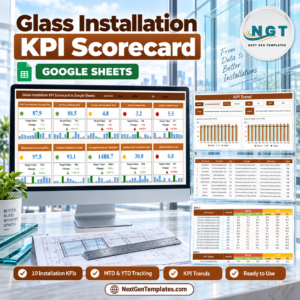
- Glass Installation KPI Scorecard in Google Sheets and in Excel – the lighter scorecard family, same trade, different KPI list.
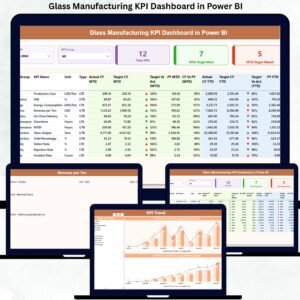
- Glass Manufacturing KPI Dashboard in Power BI and Glassware Production KPI Dashboard in Power BI – the plant side of glass rather than the install side.
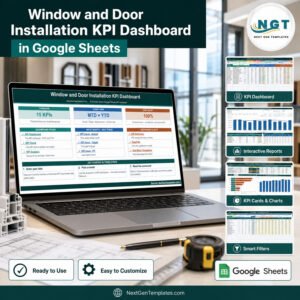
- Window and Door Installation KPI Dashboard in Google Sheets – the neighbouring fenestration trade on the same pattern.
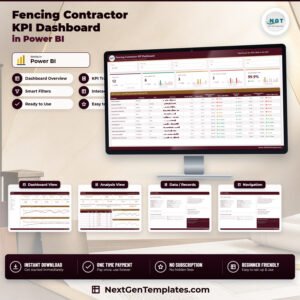
- Fencing Contractor KPI Dashboard in Power BI, Drywall Contractor, Insulation Contractor and Painting Contractor – the same scorecard build, other trades.
- Browse every Power BI template or the full KPI Dashboard category.
A full walkthrough of every page, with the sample December numbers explained, is on the blog: Glass Installation KPI Dashboard in Power BI.
Buy the Glass Installation KPI Dashboard in Power BI for $12.99 (regular $19.99), download it straight away, and have twelve glazing KPIs scored against target in an afternoon. One payment, no subscription, lifetime access to the file.
Watch the step-by-step video Demo:
Last updated: 9 September 2026.
Compatibility and Requirements
- Works in Power BI Desktop, which is free from Microsoft. It runs on Windows only. See Get Power BI Desktop.
- Keep the .pbix report, Data.xlsx and the user manual PDF in one folder. The report reads its data from Data.xlsx.
- A Power BI Pro or Premium seat is needed only if you want to publish the report to the Power BI Service and share it.







Reviews
There are no reviews yet.