

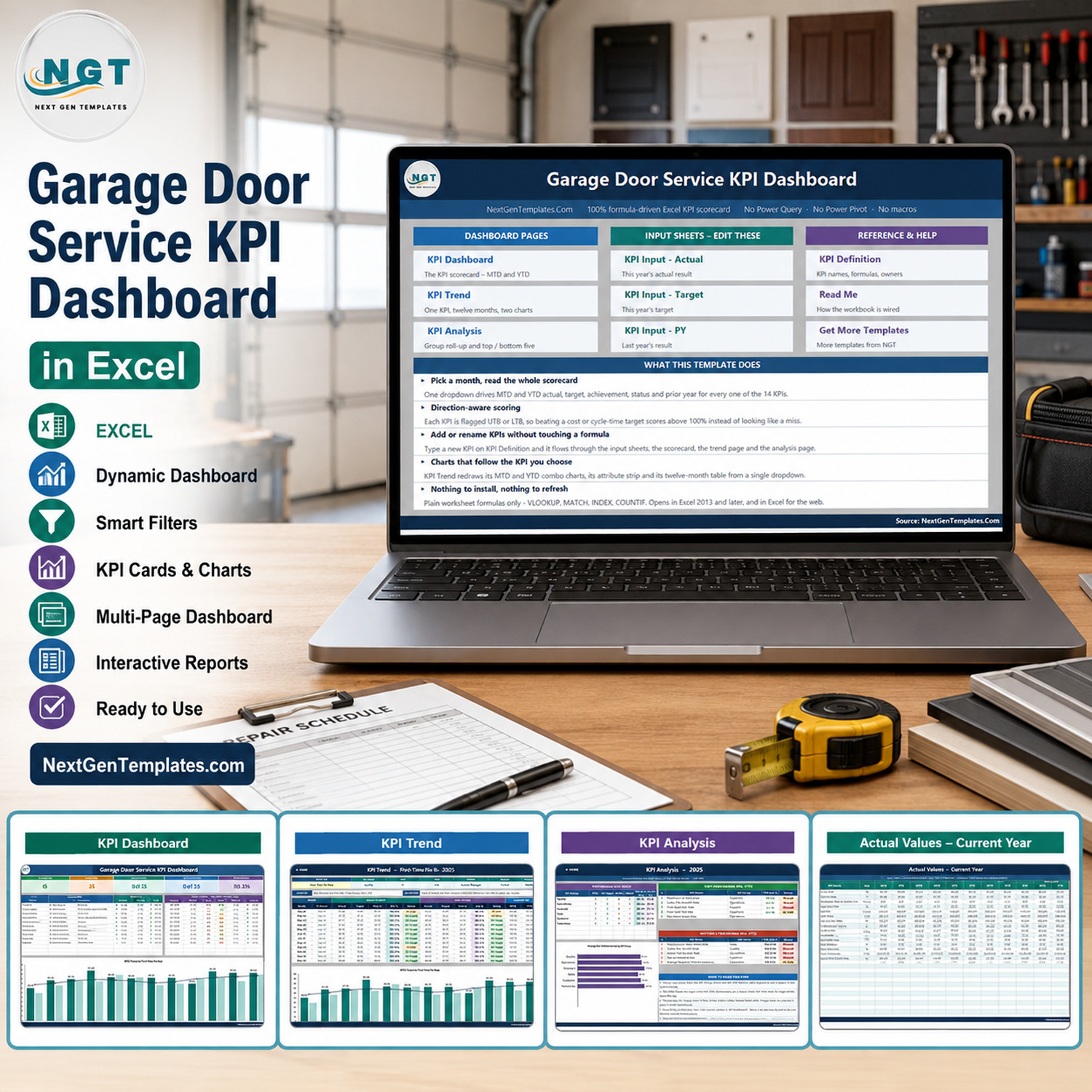

Running a garage door company means living between the phone and the van. Springs snap without warning, openers fail on the coldest morning of the year, and the difference between a profitable month and a merely busy one is usually invisible until the accounts close. The Garage Door Service KPI Dashboard in Excel puts that month on one screen: thirteen operating metrics, month-to-date and year-to-date side by side, each one scored against its own target and against last year.
Pick a month from a single dropdown and the whole workbook redraws – seven summary cards, thirteen KPI rows, a twelve-month trend page and a group roll-up with your best and worst performers. There is no data model, no query to refresh and nothing to install. Every figure is a plain worksheet formula you can click into and read.
🔑 Key Features of the Garage Door Service KPI Dashboard in Excel
- 13 garage door KPIs in 6 groups – Quality (2), Operations (4), Financial (1), Sales (2), Customer (2) and Technician (2): first-time fix rate, on-time arrival, average response time, same-day service, jobs completed, average job value, estimate conversion, CSAT, Net Promoter Score, callback and rework rate, technician utilisation, revenue per technician and maintenance plan attach rate.
- One month dropdown drives everything – cell D6 on the KPI Dashboard sheet. Change it and the seven summary cards, all thirteen rows and the entire KPI Analysis page recalculate at once.
- MTD and YTD on the same row – actual, target, achievement %, status, prior year and vs-prior-year movement for both periods, so a strong month inside a weak year is impossible to miss.
- Direction-aware scoring – 11 KPIs are typed UTB (upper the better) and 2 are typed LTB (lower the better), so beating a response-time or callback target scores above 100% instead of looking like a miss.
- Traffic lights you can re-band – On Target from 100%, At Risk 95-99%, Missed below 95%. The thresholds live in two formulas in columns L and U and are yours to change.
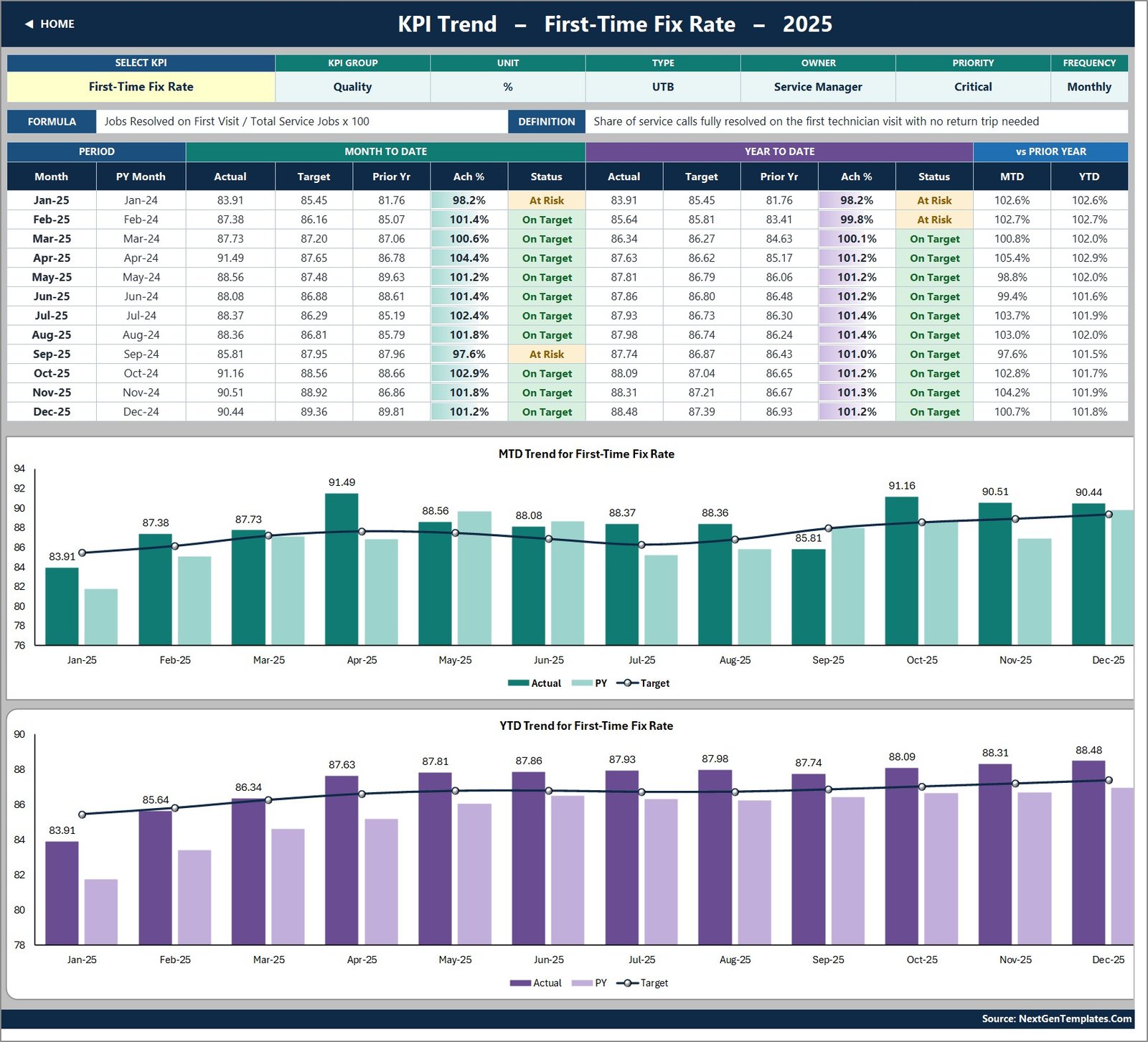
- KPI Trend page – pick any one KPI and get a twelve-month table plus MTD and YTD combo charts, actual and prior-year columns against a target line.
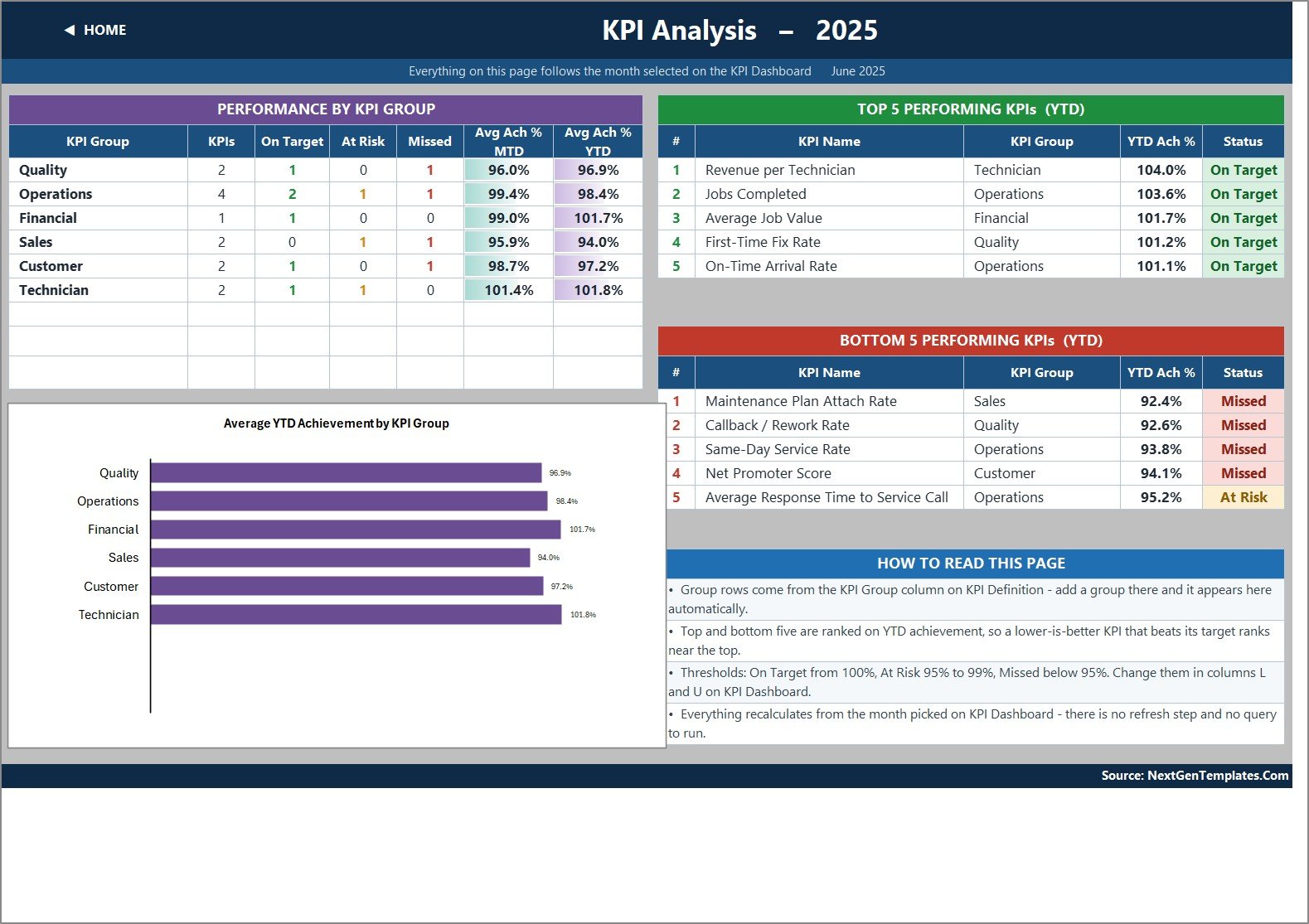
- KPI Analysis page – achievement rolled up by KPI group with a bar chart, plus Top 5 and Bottom 5 performers for the year to date.
- Room for 22 KPIs – nine rows are live and empty, so adding a metric is typing, not formula surgery.
- No macros, no Power Query, no Power Pivot – VLOOKUP, MATCH, INDEX and COUNTIF only. Opens in Excel 2013 and later, and in Excel for the web.
- A full 2025 sample year included – actual, target and prior-year numbers for all twelve months, so you can see the whole thing working before you type anything.
📦 What Is Inside
Eleven sheets in total: ten you can see and one hidden Support sheet holding the helper calculations. Nothing is locked and nothing is password protected.
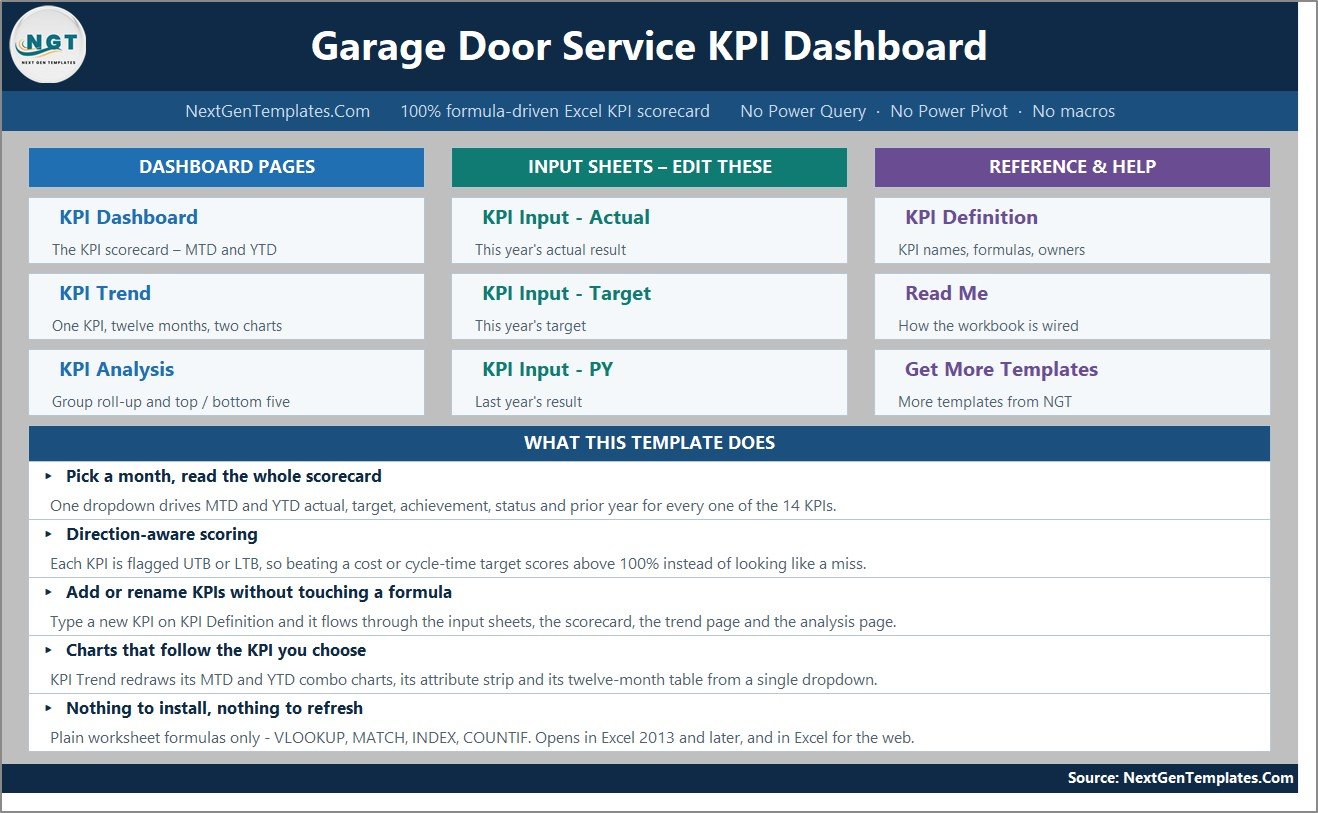
Page 1: Home
A navigation hub in three columns – Dashboard Pages, Input Sheets and Reference & Help – with a plain-English summary of what the template does.
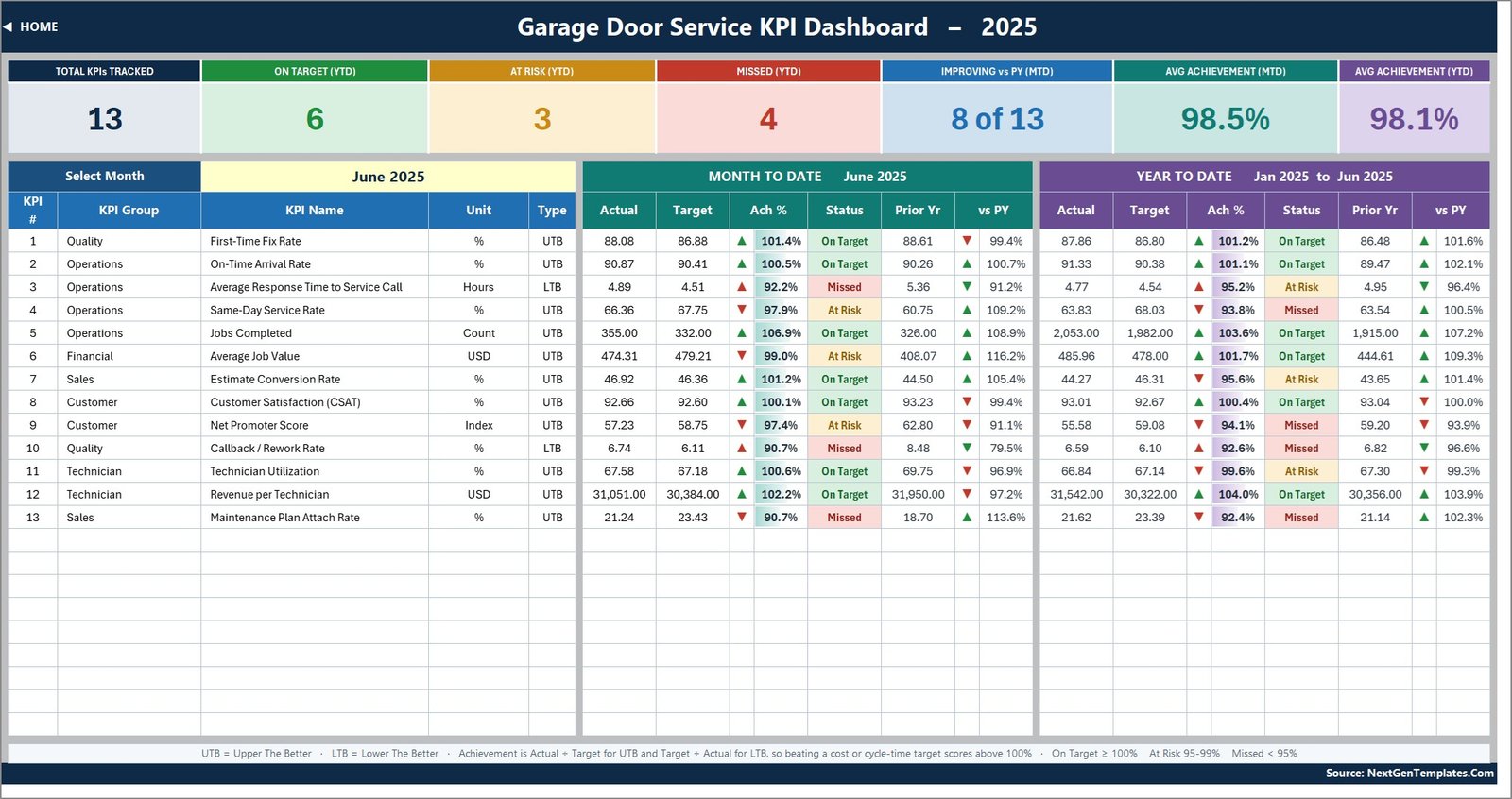
Page 2: KPI Dashboard – the scorecard
The main screen. Seven summary cards across the top read Total KPIs Tracked 13, On Target (YTD) 6, At Risk (YTD) 3, Missed (YTD) 4, Improving vs PY (MTD) 8 of 13, Avg Achievement (MTD) 98.5% and Avg Achievement (YTD) 98.1% on the shipped June 2025 sample. Below them, one row per KPI with group, unit and type, then the full MTD and YTD blocks.
Page 3: KPI Trend
One KPI at a time, chosen from a dropdown in cell B4. The attribute strip shows its group, unit, type, owner, priority, frequency, formula and definition; underneath sit a twelve-month table and two combo charts. The sample opens on First-Time Fix Rate, which runs from 83.91% in January to 90.44% in December against a rising target line.
Page 4: KPI Analysis
Performance by KPI group with an average-achievement bar chart, then the Top 5 and Bottom 5 performers on year-to-date achievement. On the sample month, Technician leads on 101.8% YTD and Sales trails on 94.0%; Revenue per Technician tops the table at 104.0% while Maintenance Plan Attach Rate sits at the bottom on 92.4%.
Pages 5, 6 and 7: KPI Input – Actual, Target and Prior Year
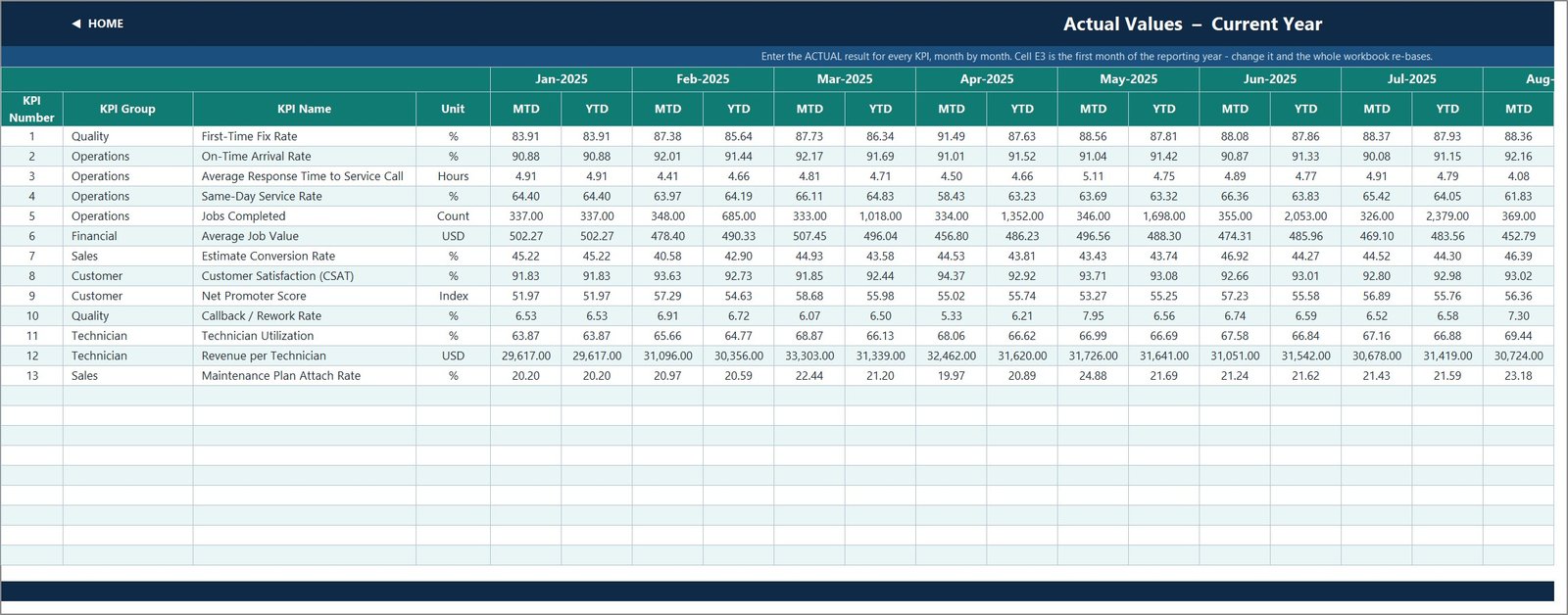
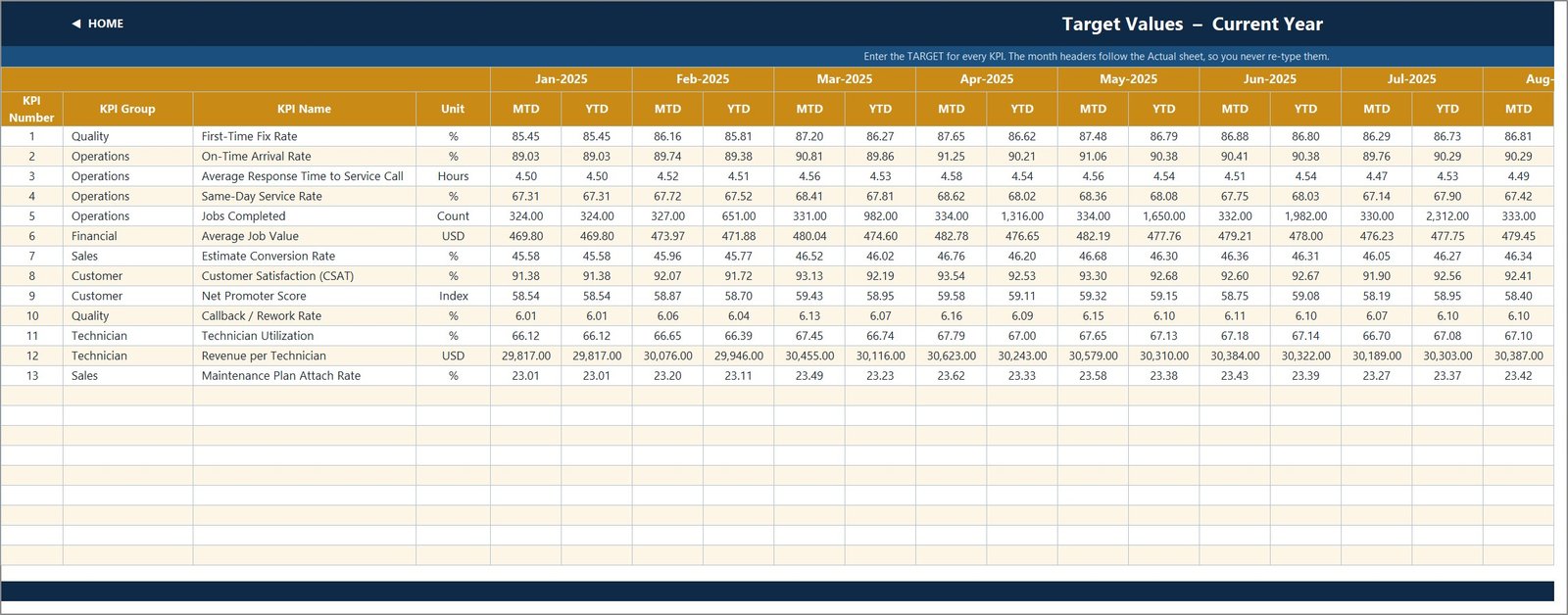
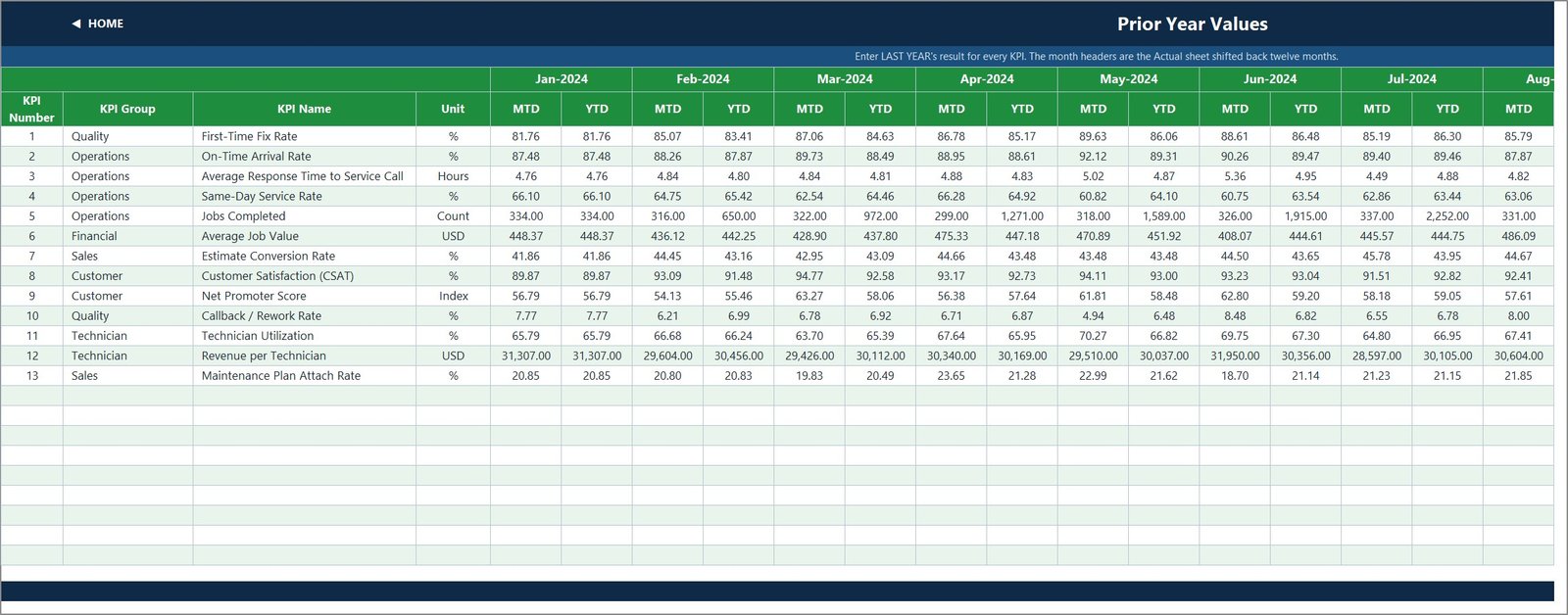
The three sheets you actually type in. Each holds an MTD and a YTD column for every month, and each takes its KPI rows straight from the KPI Definition sheet, so the three always line up. Cell E3 on the Actual sheet is the first month of your reporting year – change it and the Target sheet, the Prior Year sheet, the month dropdown and every sheet title re-base themselves.
Page 8: KPI Definition – the master list
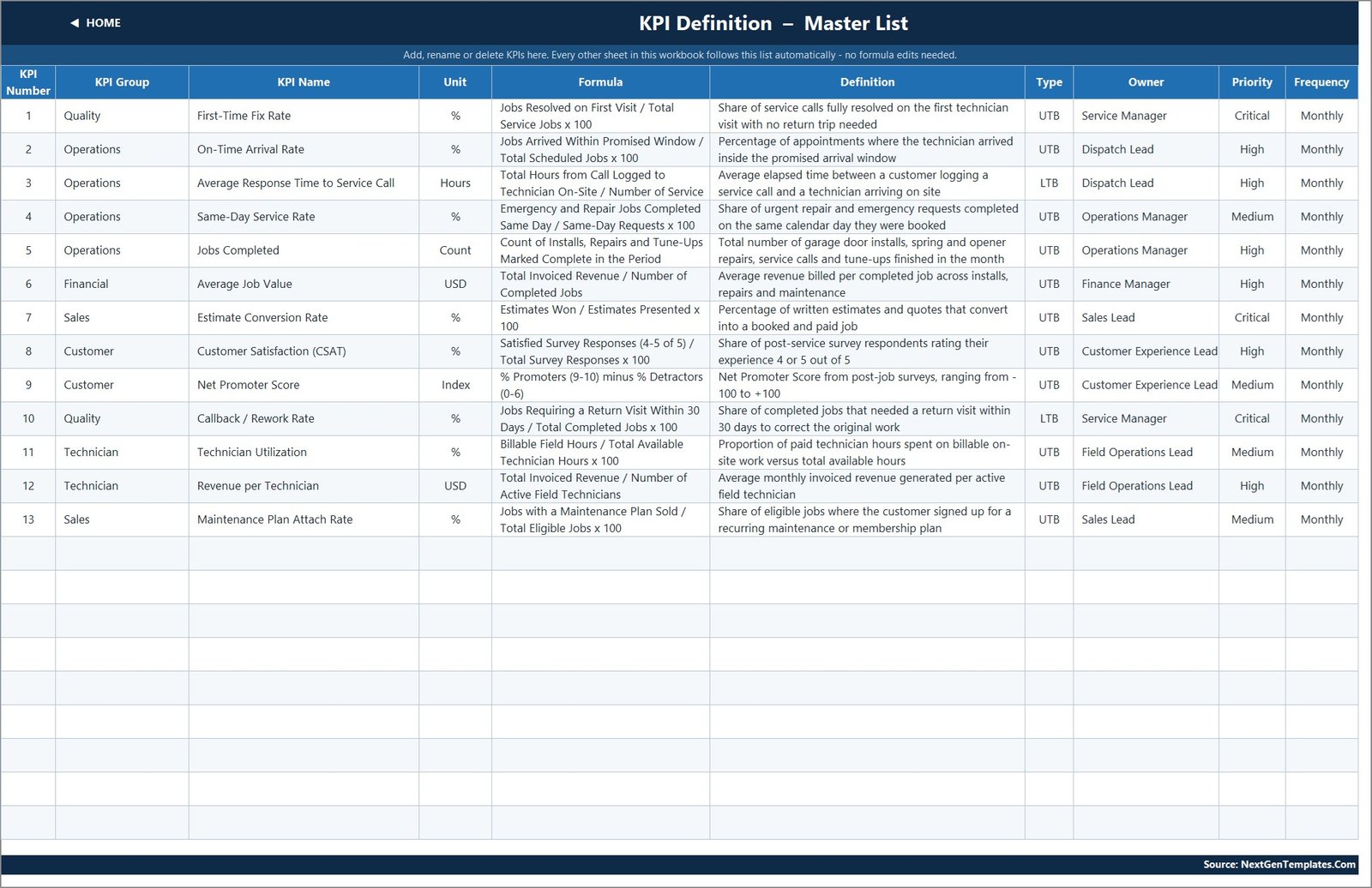
The spine of the workbook: number, group, name, unit, formula, definition, type, owner, priority and frequency for each KPI. Rename a KPI here and every other sheet follows; clear its row and the dashboard row goes blank while the summary cards recount themselves.
Pages 9 and 10: Read Me and Get More Templates
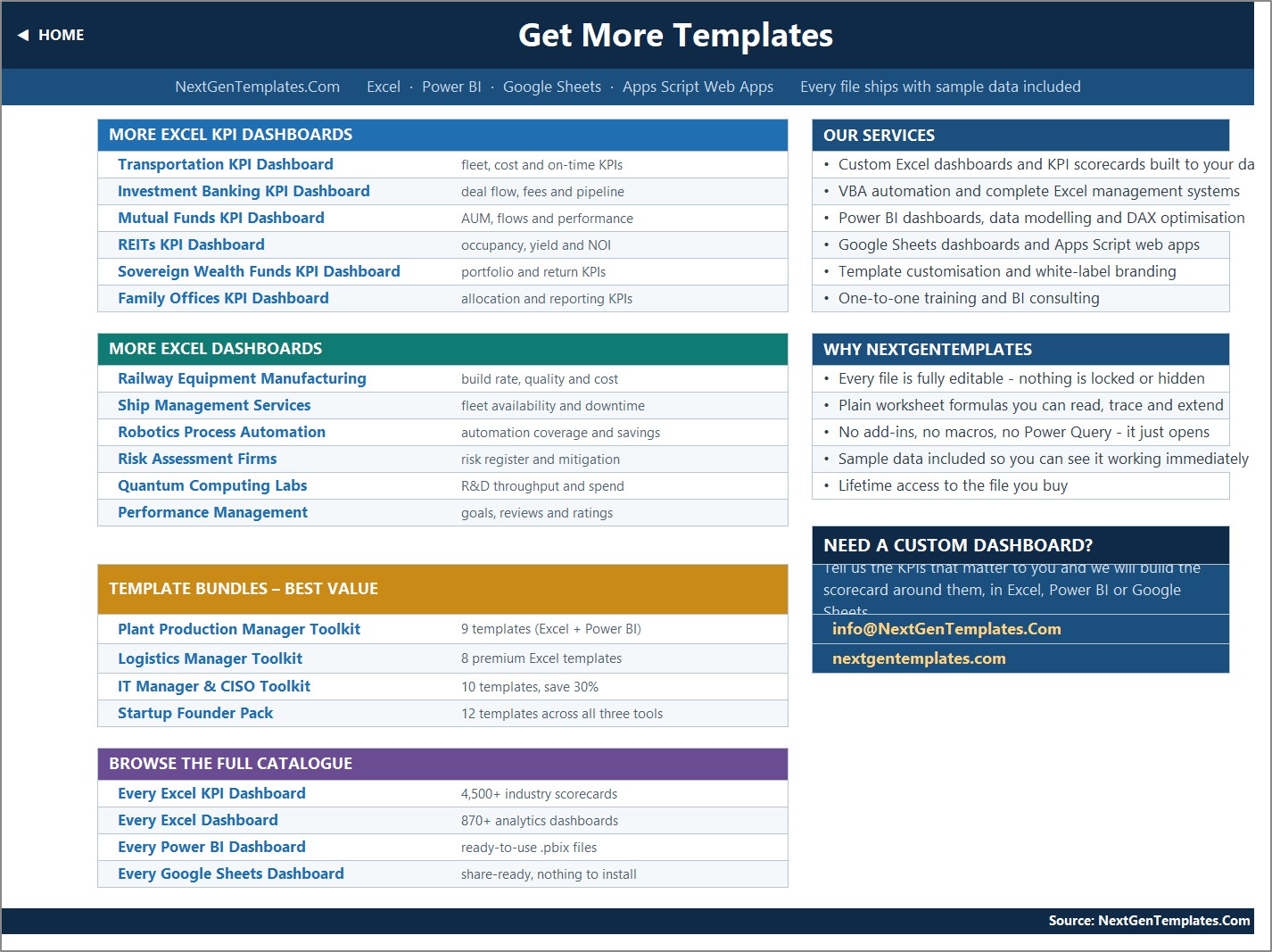
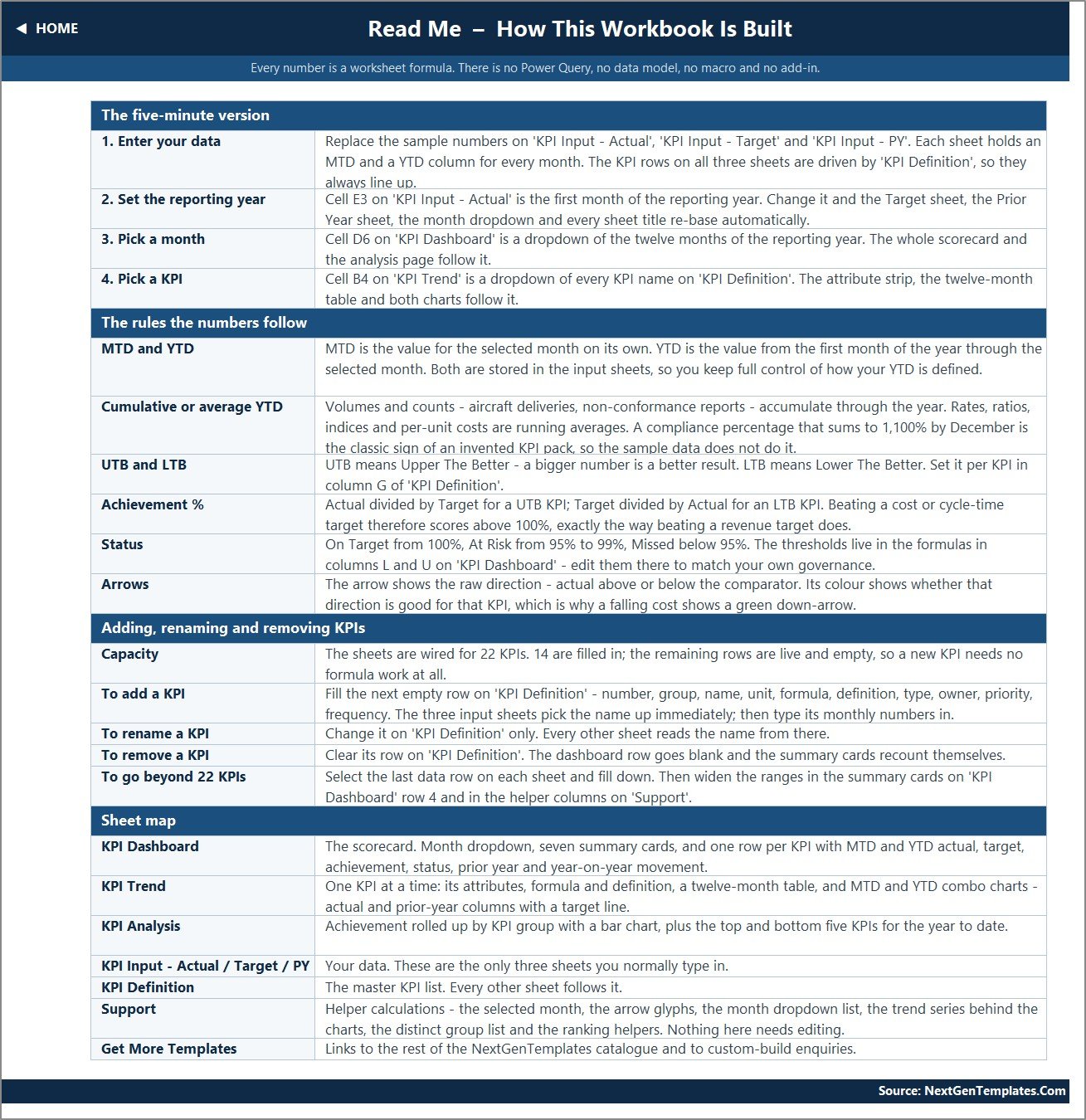
Read Me explains the wiring in five minutes – how MTD and YTD are stored, what UTB and LTB mean, how achievement and status are calculated, and how to add, rename or remove a KPI. Get More Templates links out to the rest of the NextGenTemplates catalogue.
📊 How This Compares
| This Excel dashboard | Our Google Sheets edition | Field-service SaaS | |
|---|---|---|---|
| Price | One-off 19.99 (12.99 on sale) | One-off 13.99 | Typically 50-200+ per user per month |
| Setup | Open the file, type your numbers | Make a copy, type your numbers | Onboarding, data migration, training |
| KPIs | 13 shipped, room for 22 | Its own KPI set, same engine | Fixed set, custom metrics often paid |
| Works offline | Yes | No | No |
| Formulas visible | Yes, every one | Yes, every one | No |
| Dispatching and invoicing | No – reporting only | No | Yes |
| Where your data sits | Your machine | Google Drive | Vendor cloud |
The Garage Door Service KPI Dashboard in Excel is a reporting layer, not a field-service platform. It will not dispatch a technician, take a payment or print an invoice. What it does is turn the numbers you already have into a monthly scorecard your team can argue with.
👥 Who This Is For – And Who It Is Not For
A good fit if you are an owner-operator or a two-to-thirty-van garage door company that already records jobs somewhere – a job book, ServiceTitan, Jobber, Housecall Pro or a spreadsheet – and wants a monthly management review that fits on one page. Also a good fit for a franchise reporting a standard KPI set upward, and for an operations manager who needs a board pack without buying a BI seat.
Not a good fit if you want live dispatching, GPS tracking or an automatic sync from your field-service software – every number here is typed or pasted in monthly. It is also the wrong tool if you need daily granularity; the grid is monthly by design.
⚙ How To Use It
- Unzip the download and open Garage Door Service KPI Dashboard.xlsx. Start on the Read Me sheet.
- Set cell E3 on KPI Input – Actual to the first month of your reporting year. Everything else re-bases from it.
- Open KPI Definition and make the thirteen KPIs yours – rename them, retype UTB or LTB, reassign owners, or clear rows you do not want.
- Replace the sample numbers on KPI Input – Actual, KPI Input – Target and KPI Input – PY. Each month has an MTD and a YTD cell, so you keep control of how your year-to-date is defined.
- Go to KPI Dashboard, pick your month in cell D6 and read the scorecard. Adjust the On Target and At Risk thresholds in columns L and U if your governance uses different bands.
- Use KPI Trend for the single-metric story and KPI Analysis for the group roll-up and the top and bottom five.
The zip also contains the Excel KPI Dashboard user manual as a PDF. Most owners have the Garage Door Service KPI Dashboard in Excel populated with a full reporting year inside an afternoon.
💼 Real-World Use Cases
- Monthly management review – one screen that shows whether June was actually better than May, or just busier.
- Technician performance conversation – callback and rework rate next to first-time fix rate, so the discussion is about quality rather than speed alone.
- Dispatch accountability – on-time arrival and average response time tracked against a target instead of a feeling.
- Recurring revenue push – maintenance plan attach rate trended over twelve months to see whether a sales push actually stuck.
- Franchise or multi-branch reporting – one copy of the file per branch, the same thirteen definitions, comparable numbers.
- Bank or buyer pack – a clean twelve-month record of revenue per technician, average job value and jobs completed.
❓ Frequently Asked Questions
What exactly does the Garage Door Service KPI Dashboard in Excel track?
Thirteen KPIs: First-Time Fix Rate, On-Time Arrival Rate, Average Response Time to Service Call, Same-Day Service Rate, Jobs Completed, Average Job Value, Estimate Conversion Rate, Customer Satisfaction (CSAT), Net Promoter Score, Callback / Rework Rate, Technician Utilization, Revenue per Technician and Maintenance Plan Attach Rate.
Is this the same as your Garage Door Service KPI Scorecard?
No. The scorecard is a separate, lighter product with its own KPI set and page layout. This is the KPI dashboard line: a month picker, seven summary cards, a dedicated KPI Trend page and a KPI Analysis page with group roll-ups and top and bottom five. If you already own the scorecard, this is an upgrade in depth, not a duplicate. It is also distinct from our analytical Excel Dashboard range, which is built around pivot tables and slicers rather than a KPI scorecard.
Do I need macros, Power Query or Power Pivot?
None of the three. The workbook is plain worksheet formulas, which is why it opens in Excel 2013 and later and in Excel for the web without a security prompt.
How long does setup take?
About twenty minutes if your numbers already exist somewhere. Set the reporting year, edit the KPI Definition list, paste twelve months of actuals, targets and prior-year figures, and you are done.
Can I add a fourteenth KPI?
Yes. The sheets are wired for 22 KPIs and 13 are used, so fill the next empty row on KPI Definition and type its monthly numbers on the three input sheets. No formula work at all.
Does it calculate year-to-date for me?
No, and that is deliberate. Each input sheet stores an MTD and a YTD value per month, so you decide whether a KPI accumulates (jobs completed) or averages (a rate or a score). The Read Me sheet explains the distinction.
Is anything locked or password protected?
Nothing. Every formula, chart and helper column is open, including the hidden Support sheet, which you can unhide and edit.
Does it handle licensing, insurance or safety compliance?
No. This is a performance reporting workbook. Garage door work involves high-tension springs and, in many places, licensed or insured installation – keep your compliance records in the system your regulator and insurer expect.
🔗 Explore Related Templates
- Garage Door Service KPI Dashboard in Google Sheets – the same line for teams that live in Drive.
- Garage Door Service KPI Dashboard in Power BI – the Power BI edition of this dashboard.
- Garage Door Service KPI Scorecard in Google Sheets – the lighter scorecard line, same trade.
- Plumbing Business KPI Dashboard in Excel and Septic Tank Service KPI Dashboard in Excel – the same engine for neighbouring trades.
- Window and Door Installation KPI Dashboard in Google Sheets and Locksmith Business KPI Dashboard in Google Sheets.
📖 Read the detailed walkthrough
Garage Door Service KPI Dashboard in Excel – the full blog post, with a page-by-page tour and an honest list of the workbook’s rough edges.
🎥 Video tutorials
Visit youtube.com/@NextGenTemplates for step-by-step videos on our Excel, Power BI and Google Sheets templates.
👤 About NextGenTemplates
NextGenTemplates builds ready-to-use Excel, Power BI and Google Sheets templates for small and mid-sized businesses – over 4,500 KPI dashboards and 870 analytics dashboards to date. Everything ships editable, with sample data, and with formulas you are meant to read. Need this dashboard rebuilt around your own KPIs? Email [email protected].
Watch the demo video:
Compatibility and Requirements
- Works in Microsoft Excel desktop (Excel 2016 or later, or Microsoft 365). The workbook uses plain worksheet formulas, so it needs no macros.
- You pick the month from a dropdown in cell D6 of the KPI Dashboard sheet. Microsoft explains dropdowns in Create a drop-down list.
Related Garage Door and Field Service Templates
- Garage Door Service KPI Scorecard in Excel: a scorecard view of garage door metrics in Excel
- Garage Door Service KPI Dashboard in Google Sheets: the same dashboard for Google Sheets
- Garage Door Service KPI Dashboard in Power BI: the Power BI edition
- Plumbing Business KPI Dashboard in Excel: the same layout for a neighboring trade
- KPI Dashboard Library (Excel): 15 KPI dashboards in one download
Browse all Excel KPI dashboards.






























Reviews
There are no reviews yet.