




Tracking donation requests shouldn’t be chaotic or time-consuming. Whether you’re managing a nonprofit, CSR initiative, school fundraiser, or community event, the Donation Request Tracker in Excel gives you complete control of your donation process in a professional, user-friendly system. 📋💝
Powered by Excel and VBA automation, this ready-to-use tracker enables secure login, structured data entry, and real-time dashboards—all without writing a single line of code. Perfect for nonprofits, religious institutions, corporates, and schools, this tool helps you stay organized, efficient, and transparent.
🔑 Key Features of Donation Request Tracker in Excel
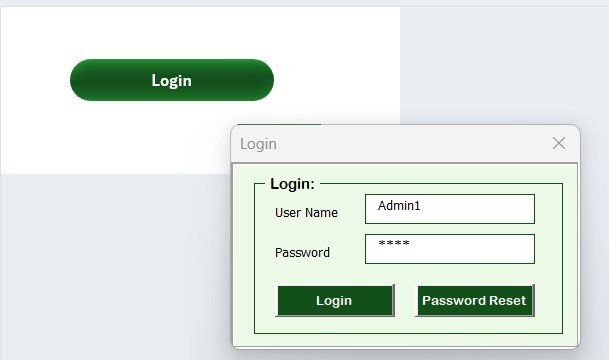
🔐 Login Form – Secure Access for Authorized Users
Users must log in using secure credentials (Admin1 / abcd) to access donation data. Prevents unauthorized edits and maintains confidentiality.
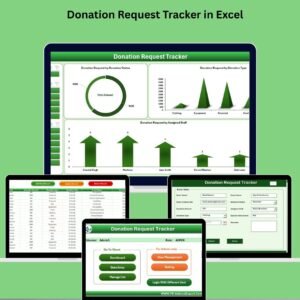
🧭 Main Form – Your All-in-One Control Panel
From this central hub, users can:
Add new donation requests
Update existing records
Delete old entries
All operations happen through intuitive, form-based interactions.
📊 Dashboard Sheet – Visual Analytics at a Glance
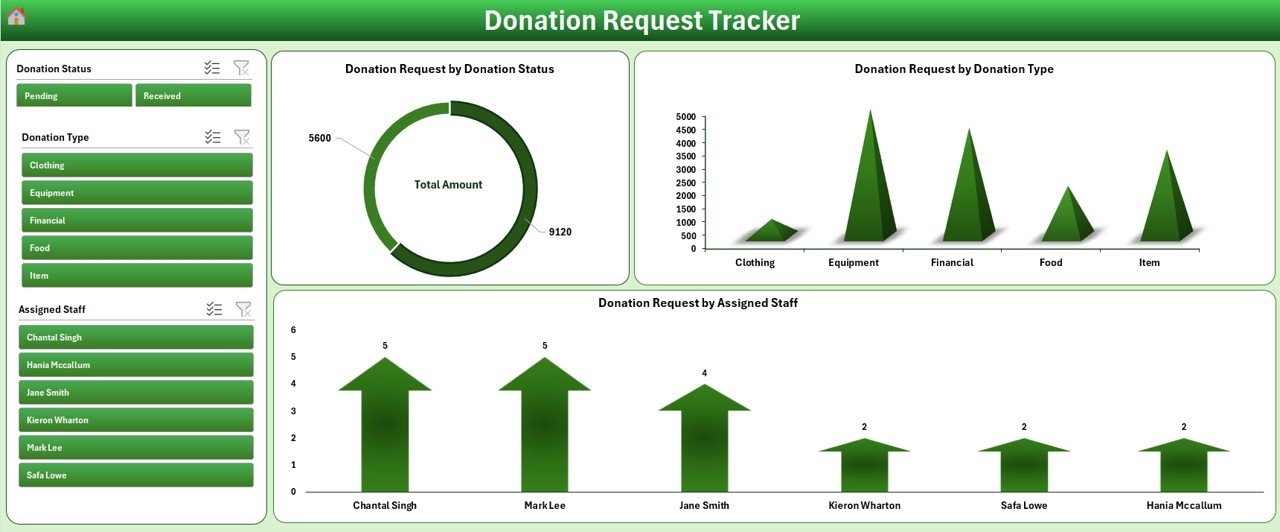
This dynamic dashboard gives instant insights:
Donation Requests by Status (Doughnut Chart)
By Donation Type (Column Chart)
By Assigned Staff (Bar Chart)
All visuals auto-refresh with every entry or update.
📝 Data Entry Sheet – Record Repository
A structured sheet that stores all records including:
Donation ID, Date
Donor Name, Donation Type
Status, Event Name
Staff Assigned, Remarks
Supports automated record editing and deletion.
🔽 Manage List Sheet – Customizable Dropdowns
Update dropdowns for:
Donation Types
Staff Names
Statuses and Events
Just add or remove items—no formulas or coding required!
🔧 Support Sheet – Powering the Dashboard
Hidden by default, this tab manages pivot tables for dashboards. You can unhide it to create custom reports or add advanced visualizations.
👥 User Management – Admin-Level Control
Admins can:
Add new users
Change passwords
Delete users
This enables multi-user access with accountability.
⚙️ Settings Sheet – Tailored Configuration
Customize settings like:
Default security preferences
System refresh behavior
Role defaults or future expansions
📦 What’s Inside the Donation Request Tracker
📁 Macro-Enabled Excel File
🔐 Secure Login System
🧾 Main Form for Add, Update, Delete
📊 Dynamic Dashboard
🧰 Dropdown List Management Tab
👥 Multi-User Access with Role Control
🔄 Real-Time Chart Refreshing
📈 Support Sheet for Custom Reports
Everything is prebuilt, tested, and ready to scale with your organization.
🛠️ How to Use the Donation Request Tracker
1️⃣ Download the tracker and enable macros
2️⃣ Log in using Admin1 / abcd
3️⃣ Use the Main Form to add, edit, or delete donations
4️⃣ View performance in the Dashboard tab
5️⃣ Update dropdowns via Manage List tab
6️⃣ Securely manage users via User Management
💡 No technical experience needed—ideal for beginners and professionals alike!
🎯 Who Can Benefit from This Donation Tracker?
🧑🤝🧑 Nonprofit Organizations – Manage and report donations
🏢 Corporate CSR Teams – Track internal donation drives
🏫 Schools & Colleges – Organize fundraising events
🕌 Religious Institutions – Handle community contributions
🏛️ Government & Civic Departments – Manage public donation programs
🎪 Event Organizers – Track sponsors, donations, and staff allocation
🔗 Click here to read the Detailed blog post
🎥 Visit our YouTube channel to learn step-by-step video tutorials
(YouTube.com/@PKAnExcelExpert)
Watch the step-by-step video tutorial:
Compatibility and Requirements
- Needs Microsoft Excel desktop on Windows with macros enabled. It does not run in Excel for the web, Google Sheets or the mobile apps.
- Microsoft explains how to turn macros on in Enable or disable macros in Microsoft 365 files.
Frequently Asked Questions
Does it have a login?
Yes. Users log in before they can see donation data, and admins can add users, change passwords and delete users.
Which charts does the dashboard show?
Donation requests by status (doughnut chart), by donation type (column chart) and by assigned staff (bar chart). They refresh with every entry.
What does each donation record hold?
Donation ID, date, donor name, donation type, status, event name, staff assigned and remarks.
Can I change the dropdown lists?
Yes. Use the Manage List sheet to add or remove donation types, staff names, statuses and events.
Related Donation and Fundraising Templates
- Donation Request Tracker in Google Sheets: the same tracker in Google Sheets
- Donation Management Tracker in Google Sheets: manage donations received
- Charity Fundraising KPI Dashboard in Excel: measure fundraising results
- Nonprofit Fundraising Dashboard in Excel: a full fundraising dashboard
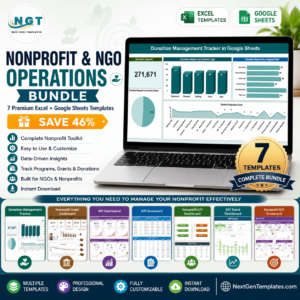
- Nonprofit & NGO Operations Bundle: 7 nonprofit templates in one download
Browse all Excel VBA tools or the Excel trackers.


Reviews
There are no reviews yet.