


Managing a brand becomes easier when you have clear, accurate, and timely data. Companies run ads, launch campaigns, promote different products, and build brand awareness every single day. But when information sits across scattered spreadsheets, disconnected tools, and incomplete reports, teams lose visibility and waste countless hours. This leads to slow decisions, poor campaign execution, and missed growth opportunities.
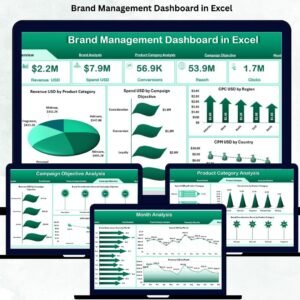
The Brand Management Dashboard in Excel solves these challenges instantly. It gives you a clean, interactive, and data-driven way to monitor brand performance across regions, product categories, months, and campaign objectives. Instead of guessing what works, your team can see the truth with clear charts, KPIs, and powerful slicers—all inside Excel, without any technical skills.
This dashboard transforms raw marketing data into meaningful insights such as revenue, spend, brand awareness score, brand consideration score, brand preference score, CPM, CPU, conversion rate, and more. Whether you’re a brand manager, marketing analyst, product owner, or leadership professional, this dashboard becomes your complete command center for managing brand success.
📊 Key Features of the Brand Management Dashboard in Excel
The dashboard includes a left-side Page Navigator that allows you to move quickly between different views. With five analytical pages and a dedicated data structure, it becomes a powerful tool for analyzing every part of your branding strategy.
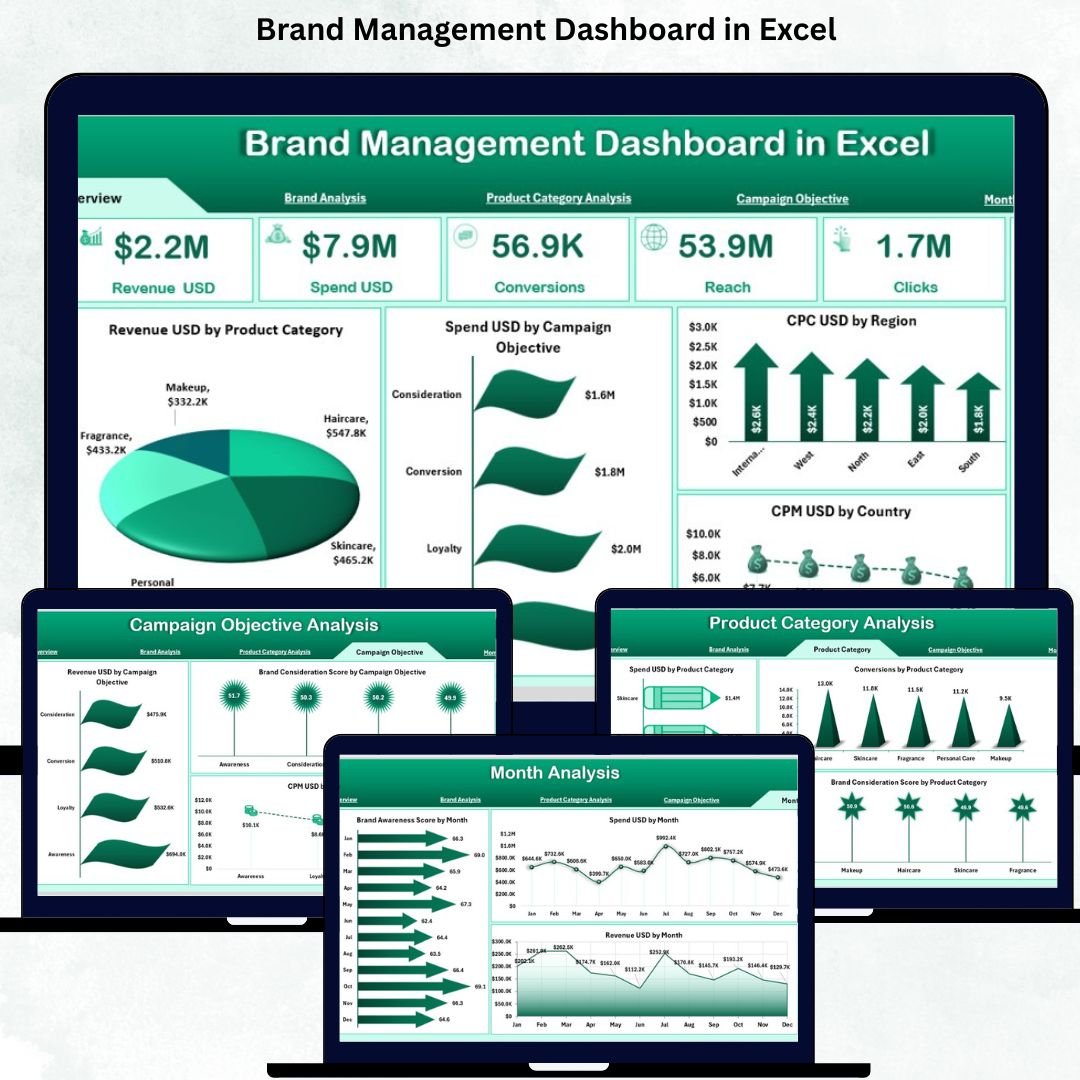
⭐ 1. Overview Page – Your Brand’s Performance in One Place
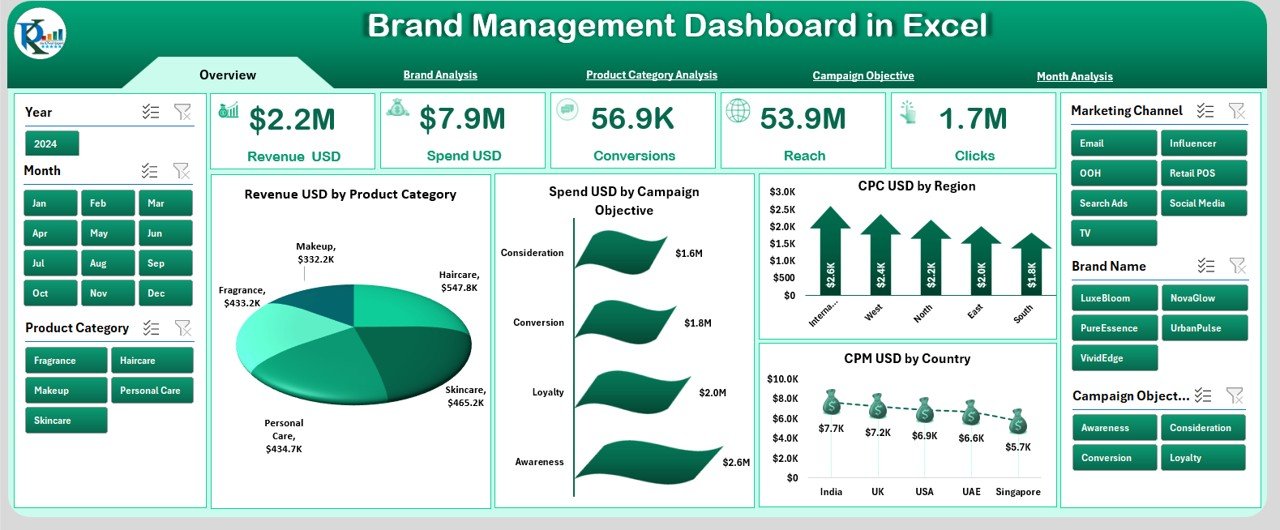
The Overview Page is the most important screen of the dashboard.
It includes:
✔ Right-side Slicer Panel to filter by region, country, brand, product category, month, and campaign objective
✔ Five KPI Cards showing:
Revenue (USD)
Spend (USD)
CPU (Cost per Unit)
CPM (Cost per Thousand Impressions)
Overall Brand Performance Score
✔ Four key charts displaying:
Revenue by Product Category
Spend by Campaign Objective
CPU by Region
CPU by Country
This page helps you instantly understand where your brand is performing well and where attention is required.
⭐ 2. Brand Analysis Page – See How Each Brand Performs
This page helps you compare different brands inside your portfolio.
It includes:
✔ Filtering options
✔ Three powerful charts:
Spend (USD) by Brand Name
Revenue (USD) by Brand Name
Brand Preference Score by Brand Name
You can clearly identify your top-performing brands and spot those that need improvement.
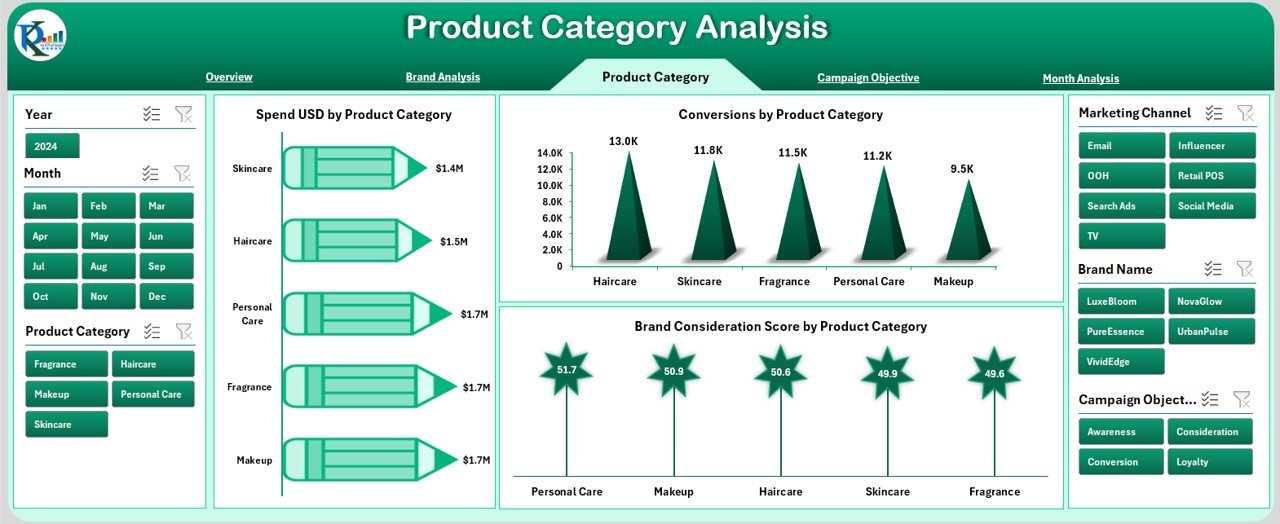
⭐ 3. Product Category Analysis Page – Discover Winning Categories
Every product category behaves differently.
This page tracks:
✔ Spend by Product Category
✔ Conversion Rate by Product Category
✔ Brand Consideration Score by Product Category
It helps you see which categories give high revenue, high conversions, or better market perception.
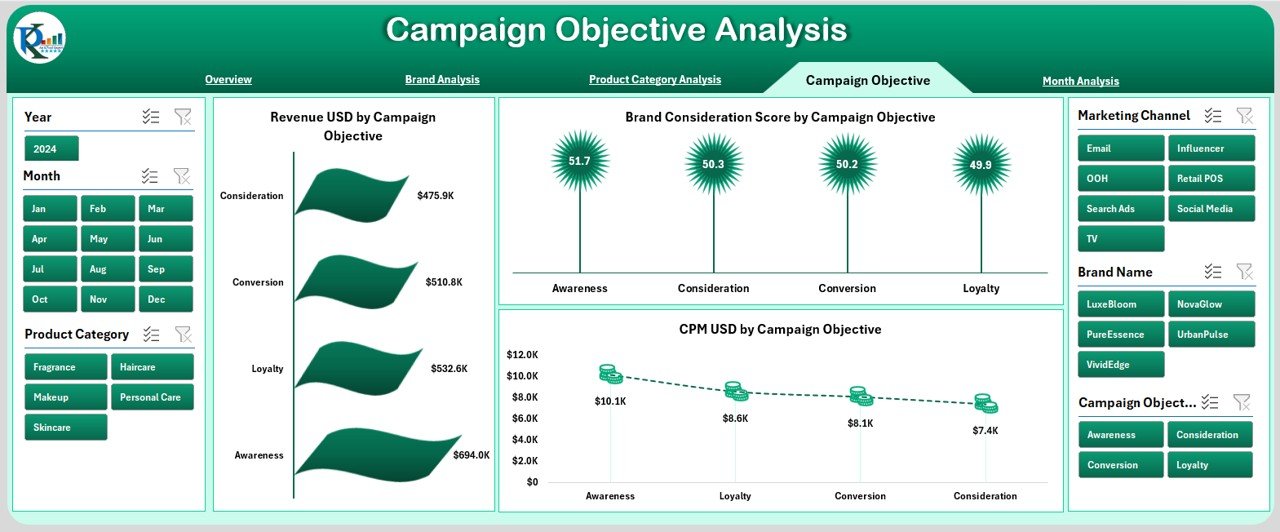
⭐ 4. Campaign Objective Analysis Page – Measure Campaign Effectiveness
Campaigns such as awareness, conversion, or engagement behave differently.
This page shows:
✔ Revenue by Campaign Objective
✔ Brand Consideration Score
✔ CPM
These visuals help you understand which campaign objectives deliver value and which ones waste budget.
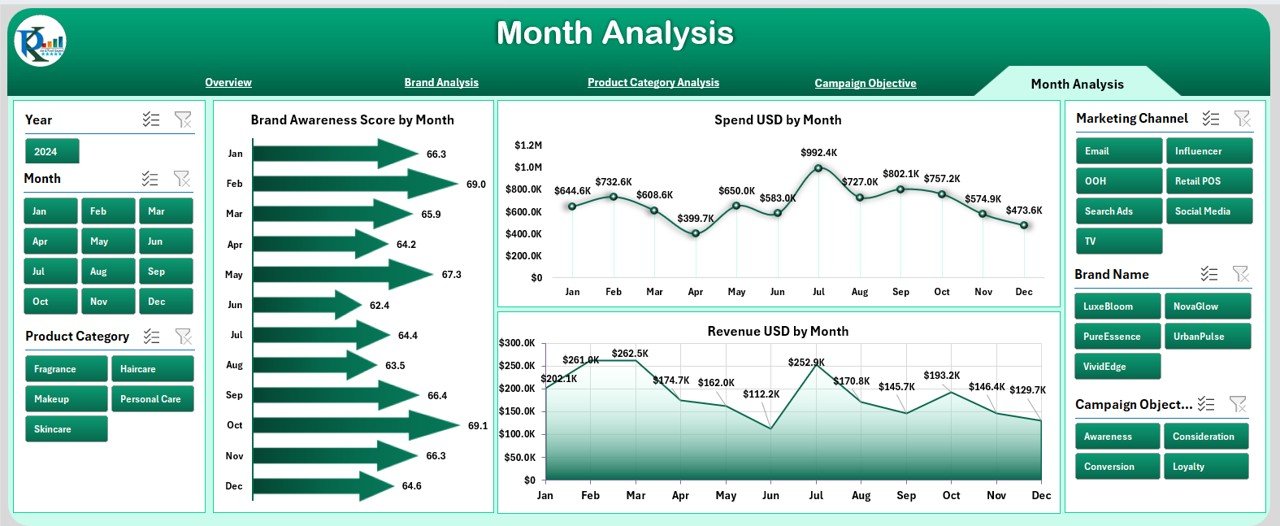
⭐ 5. Month Analysis Page – Track Trends and Seasonal Behavior
Month-wise performance is critical in brand planning.
This page includes:
✔ Brand Awareness Score by Month
✔ Spend by Month
✔ Revenue by Month
You can easily compare performance across months to identify growth and seasonal demand.
📦 What’s Inside the Brand Management Dashboard in Excel
When you download this dashboard, you get:
A professionally designed Excel dashboard
Five analytical pages
Fully functional KPI cards
Interactive charts and slicers
A structured Data Sheet for raw inputs
A Support Sheet for dropdown values
Automatically updating calculations
A clean navigational layout
No coding is needed—simply enter your data and refresh the pivot tables.
🧩 How to Use the Brand Management Dashboard in Excel
Using this dashboard is extremely simple:
📥 Enter your data in the Data Sheet
🔄 Refresh the dashboard
🎚 Use slicers to filter brand, month, region, or campaign objective
📊 Compare KPIs and identify performance gaps
🚀 Optimize campaigns, spending, and product strategies
📈 Use monthly trends for forecasting and planning
Everything works smoothly within Excel, even for beginners.
👤 Who Can Benefit from This Brand Management Dashboard
This dashboard is ideal for:
🧑💼 Brand Managers
📈 Marketing Teams
📦 Product Managers
🧠 Strategy Leaders
👨💻 Analysts
💼 Senior Management
📊 Advertising & Media Teams
Anyone responsible for brand planning, performance review, or marketing execution will benefit from this tool.
### Click hare to read the Detailed blog post
Visit our YouTube channel to learn step-by-step video tutorials
👉 Youtube.com/@PKAnExcelExpert
Watch the step-by-step video tutorial:
Compatibility and Requirements
- Works in Microsoft Excel desktop (Excel 2016 or later, or Microsoft 365).
- The dashboard uses slicers to filter by region, country, brand, product category, month and campaign objective. Microsoft explains them in Use slicers to filter data.
Frequently Asked Questions
Which pages does the dashboard have?
Five pages: Overview, Brand Analysis, Product Category Analysis, Campaign Objective Analysis and Month Analysis. A Page Navigator on the left switches between them. The file also has a Data Sheet for your raw inputs and a Support Sheet for dropdown values.
Which KPIs does the Overview page show?
Five KPI cards: Revenue (USD), Spend (USD), CPU (Cost per Unit), CPM (Cost per Thousand Impressions) and the Overall Brand Performance Score.
How do I add my own data?
Enter your data in the Data Sheet and refresh the dashboard. The pivot tables, KPI cards and charts update from that sheet.
Can I filter the dashboard by brand or month?
Yes. The Overview page has a slicer panel on the right for region, country, brand, product category, month and campaign objective.
Is there a Power BI version?
Yes. See the Brand Management Dashboard in Power BI.
Related Brand Management Templates
- Brand Management Dashboard in Power BI: the same dashboard as a Power BI report
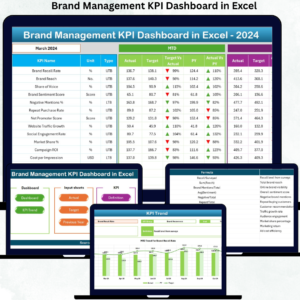
- Brand Management KPI Dashboard in Excel: a KPI-focused view of brand metrics
- Brand Awareness KPI Dashboard in Excel: tracks brand awareness in Excel
- Brand Consistency KPI Dashboard in Excel: measures brand consistency
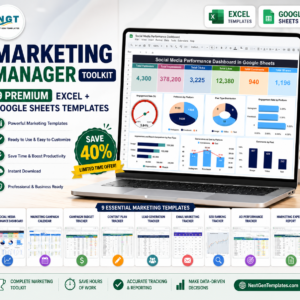
- Marketing Manager Toolkit: 9 marketing templates in one download
Browse all Excel dashboards.




Reviews
There are no reviews yet.