

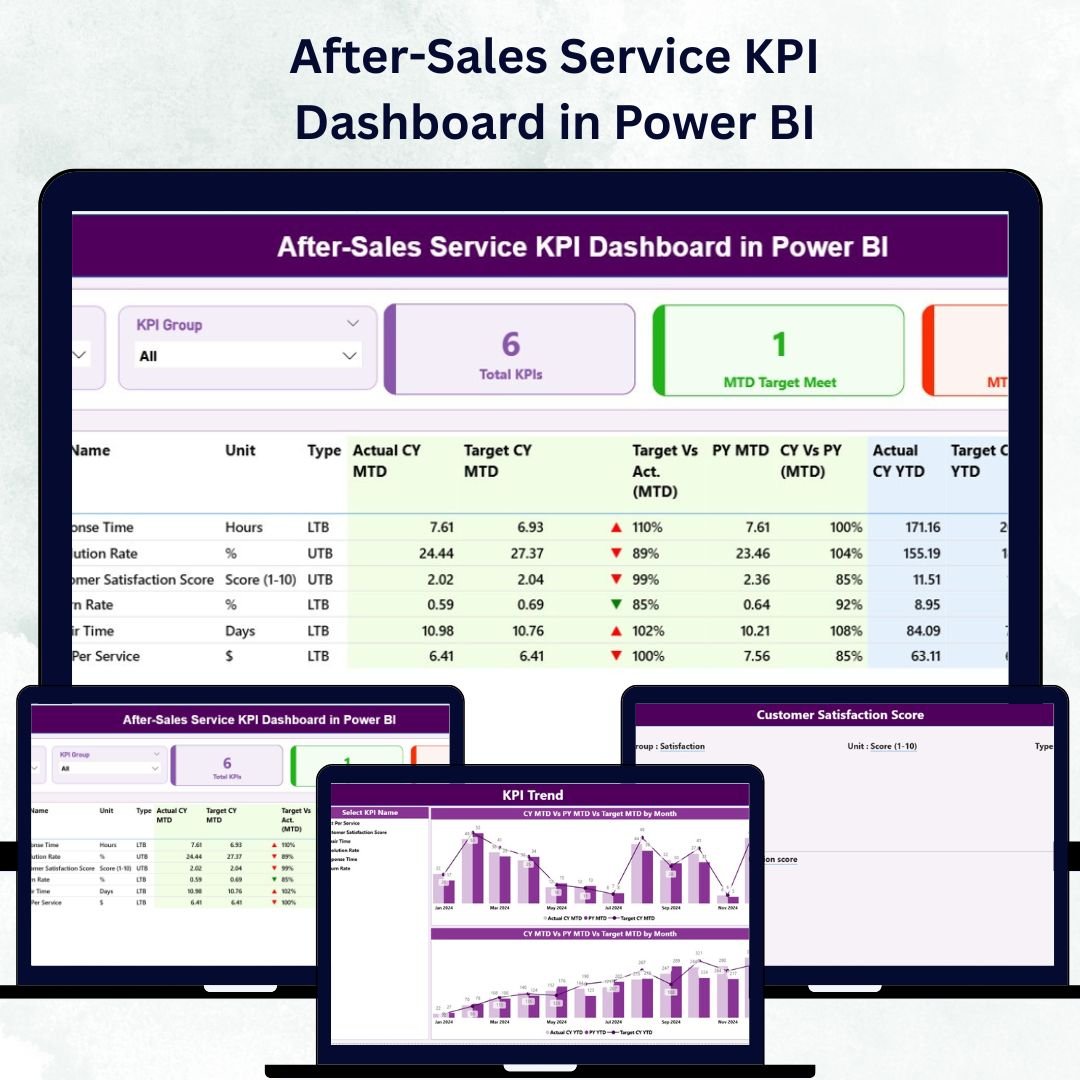

In today’s customer-centric world, service quality defines brand success. A great product may earn a customer once, but great service keeps them forever. That’s why the After-Sales Service KPI Dashboard in Power BI is a must-have for any business that values loyalty, reputation, and repeat business.
This ready-to-use, interactive Power BI dashboard gives you real-time visibility into your after-sales performance — helping you measure customer satisfaction, service quality, response times, and efficiency in one place.
Whether you manage a service center, handle warranty requests, or track complaint resolutions, this dashboard helps you make data-driven decisions that improve customer experience and operational excellence.
⚙️ Key Features of After-Sales Service KPI Dashboard in Power BI
✅ 📄 Three Powerful Analytical Pages – Summary, KPI Trend, and KPI Definition — each purpose-built for in-depth insight and easy navigation.
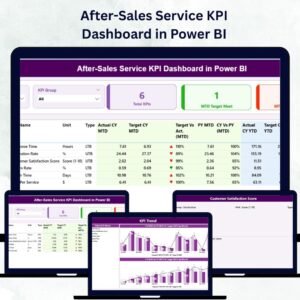
✅ 📊 Summary Page (Central Control Panel) – View Total KPI Count, MTD Target Met Count, and MTD Target Missed Count instantly. The data table displays each KPI’s Group, Unit, Type (UTB/LTB), Actual vs Target, and Previous Year comparison.
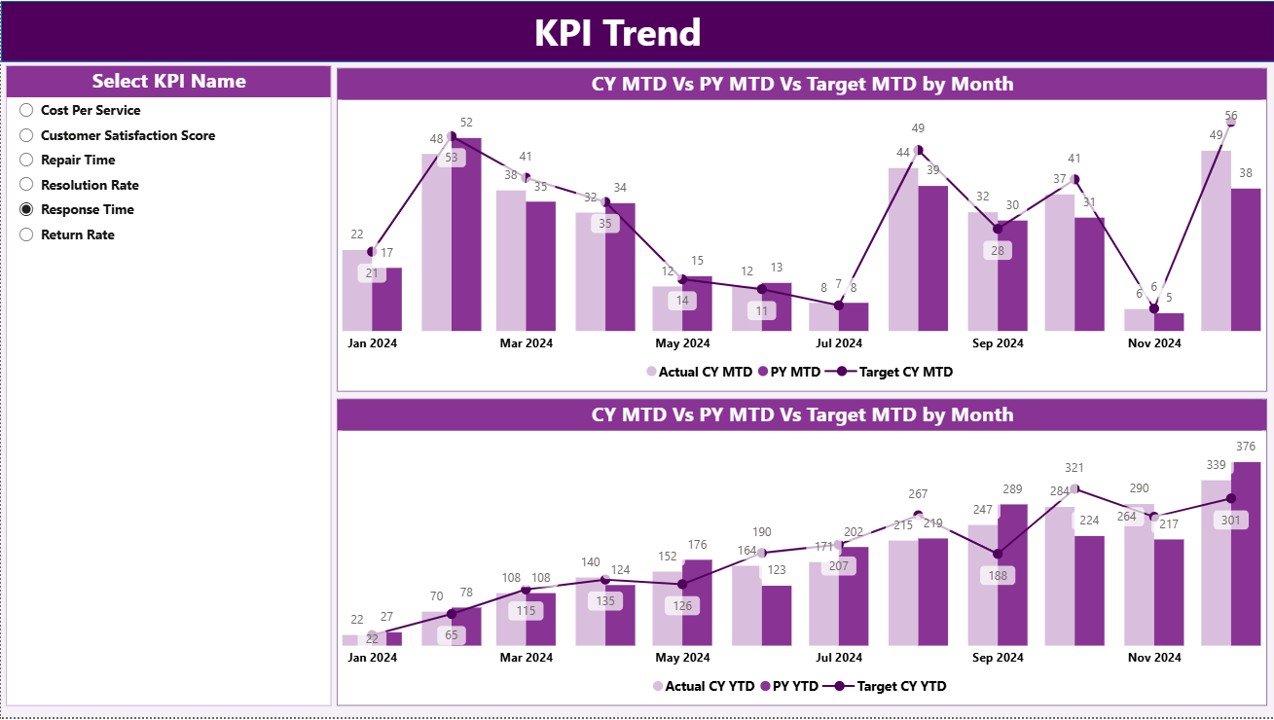
✅ 📈 KPI Trend Page – Two combo charts (for MTD and YTD) show Actual, Target, and Previous Year values. Use the KPI slicer to track trends and performance progress visually.
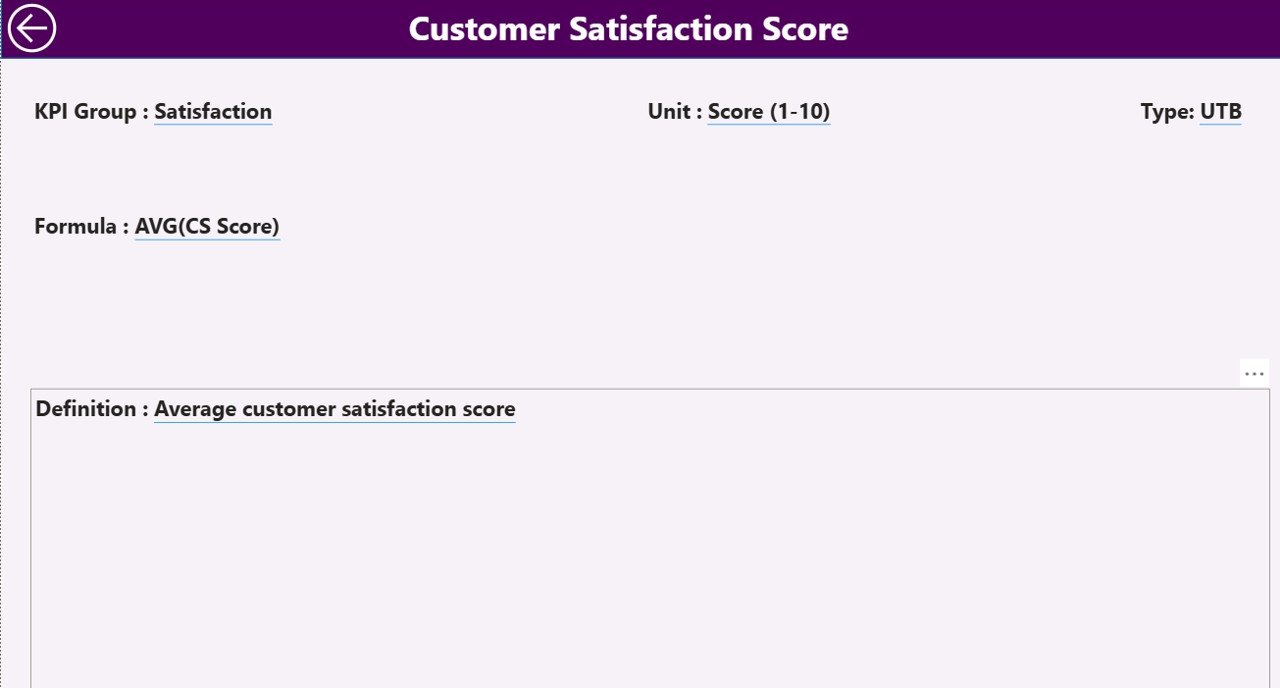
✅ 📘 KPI Definition Page – A hidden drill-through page where you can see each KPI’s Formula, Definition, Unit, and Type — ensuring clarity and standardization across the organization.
✅ 💾 Excel-Based Data Source – Connected to structured Excel sheets (Input_Actual, Input_Target, KPI Definition) for seamless updates and Power BI refresh.
✅ ⚡ Automatic Updates – Once linked, Power BI refreshes data automatically, ensuring real-time reporting without manual work.
✅ 🧠 Performance Icons – Built-in ▲ and ▼ indicators highlight which KPIs meet or miss targets — no extra calculations needed.
✅ 🔍 Easy Filtering – Filter data by Month and KPI Group for quick, focused analysis.
✅ 📂 Transparent Structure – All formulas and metrics are clearly documented for total visibility and consistency.
🧩 What’s Inside the After-Sales Service KPI Dashboard
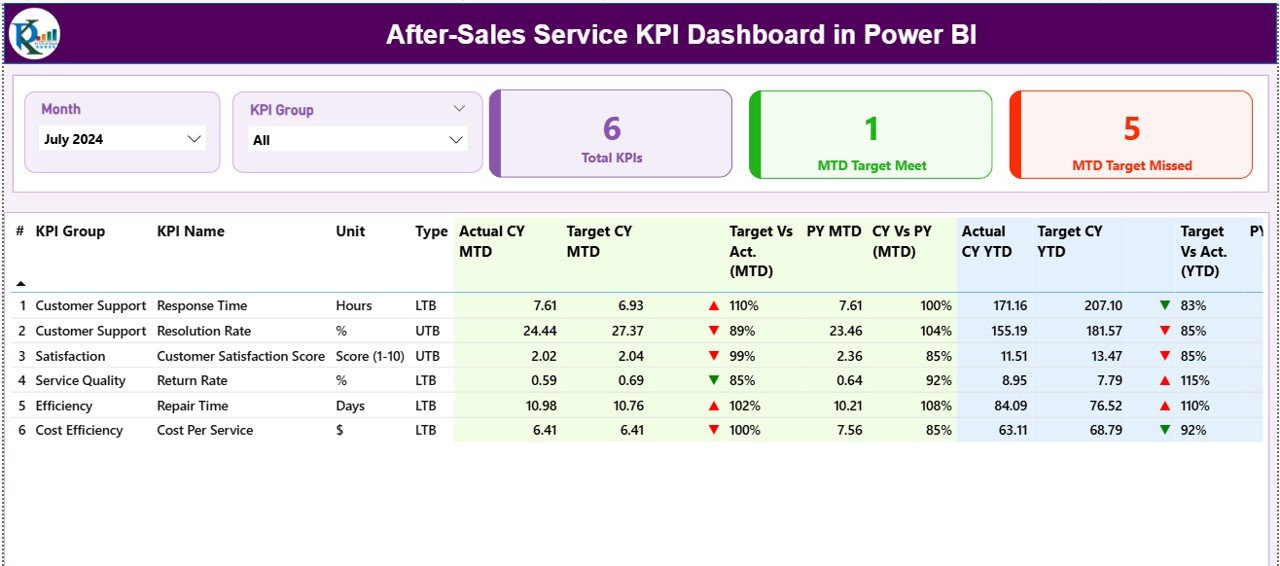
📁 Summary Page: The heart of the dashboard — your one-stop view for KPI performance across departments and service areas.
📁 KPI Trend Page: Analyze performance evolution over time using MTD and YTD comparisons.
📁 KPI Definition Page: Understand exactly how each KPI is calculated and what it represents.
📁 Excel File (Data Source): Structured with three sheets — Input_Actual, Input_Target, and KPI Definition — all Power BI-ready.
Every chart, card, and metric is dynamically linked, so updating your Excel file automatically updates your Power BI visuals — saving you hours of manual effort every month.
💡 How to Use the After-Sales Service KPI Dashboard
1️⃣ Enter your data in the Excel sheets (Actual, Target, Definition).
2️⃣ Connect Power BI to the Excel source file using Power Query.
3️⃣ Use slicers to filter by Month or KPI Group.
4️⃣ Drill through to the KPI Definition Page for detailed metric info.
5️⃣ Publish & share securely via Power BI Service for web or mobile viewing.
6️⃣ Schedule refreshes weekly or monthly to keep data up-to-date automatically.
You don’t need any coding or advanced BI skills — the dashboard is completely plug-and-play!
👩💼 Who Can Benefit from This Dashboard
🏭 Manufacturers – Track warranty repairs, parts turnaround, and service quality.
🚗 Automotive Dealers – Monitor customer satisfaction, resolution rates, and feedback.
📱 Consumer Electronics Companies – Manage complaints, returns, and installations.
🏬 Retail Chains – Track returns and post-purchase assistance across locations.
🧰 Service & Support Teams – Identify performance gaps and training needs.
💡 Business Analysts & Executives – Access high-level KPI summaries instantly.
If your goal is happy customers and efficient service, this dashboard turns your after-sales department into a growth engine.
🔗 Click here to read the Detailed blog post
📺 Visit our YouTube channel to learn step-by-step video tutorials
👉 YouTube.com/@PKAnExcelExpert
Watch the step-by-step video tutorial:
Compatibility and Requirements
- Works in Power BI Desktop, which is free. Microsoft explains how to get it in Get Power BI Desktop.
- The data lives in an Excel file with three sheets: Input_Actual, Input_Target and KPI Definition. You need Excel to edit it.
- Publishing and scheduled refresh use the Power BI Service.
Frequently Asked Questions
Which pages are included?
Three pages: Summary, KPI Trend and KPI Definition. The KPI Definition page is a hidden drill-through page.
Where do I enter my data?
In the Excel source file. Put your actual figures in Input_Actual, your goals in Input_Target and your KPI formulas and definitions in KPI Definition. Power BI reads the file through Power Query.
How do I see which KPIs missed their target?
The Summary page shows the MTD Target Met Count and the MTD Target Missed Count. The table also has the ▲ and ▼ icons next to each KPI, plus Actual, Target and Previous Year values.
Can I filter by month?
Yes. Use the slicers to filter by Month and KPI Group. The KPI Trend page has a KPI slicer for its MTD and YTD charts.
Is there an Excel or Google Sheets version?
Yes. See the After-Sales Service KPI Dashboard in Excel and the After-Sales Service KPI Dashboard in Google Sheets.
Related Customer Service Templates
- After-Sales Service KPI Dashboard in Excel: the same KPIs in Excel
- After-Sales Service KPI Dashboard in Google Sheets: the Google Sheets edition
- Customer Service Dashboard in Excel: a wider view of support performance
- Customer Service Performance Dashboard in Google Sheets: service metrics in Google Sheets
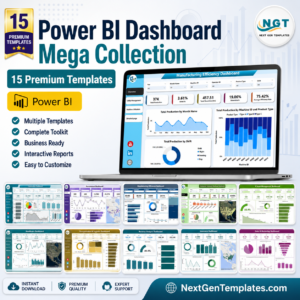
- Power BI Dashboard Mega Collection: 15 Power BI templates in one download
Browse all Power BI KPI dashboards.







Reviews
There are no reviews yet.