

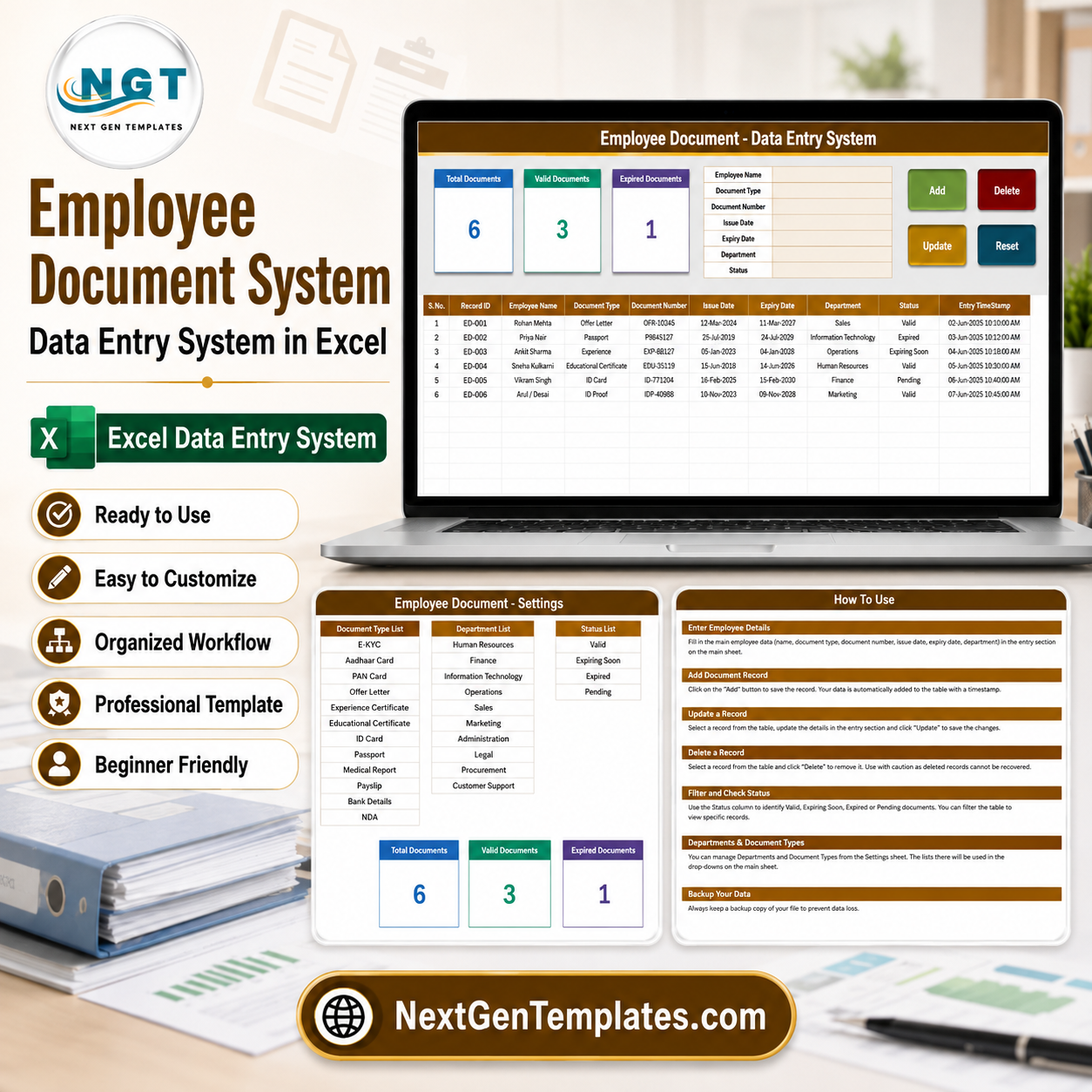
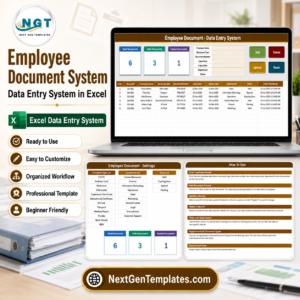
HR usually finds out a passport expired when someone tries to travel on it. Document compliance fails quietly: the file exists, nobody looked at the date, and the first sign of trouble is an audit or a border. The Employee Document Data Entry System in Excel is a small, deliberate tool for that job – a 7-field entry form with four working VBA buttons, 3 live KPI cards, an automatic Record ID on every row, a timestamped audit column, and a status list built around expiry: Valid, Expiring Soon, Expired and Pending. It ships with 12 document types and 10 departments already set up, all editable from one Setting sheet. Built by PK, a Microsoft Certified Professional with 15+ years in Excel and 300K+ subscribers across two YouTube channels. Unzip, open the .xlsm, click Enable Content, and it works – no add-in, no subscription, no database Employee Document Data Entry System in Excel
Key Features of the Employee Document Data Entry System in Excel
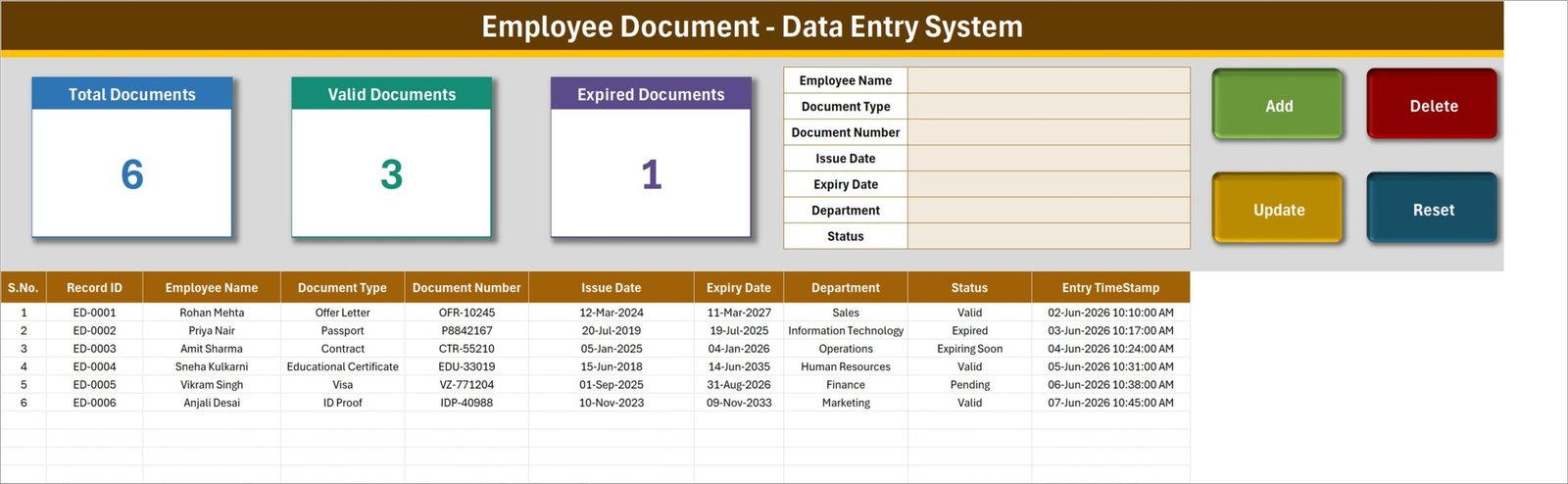
- Four working buttons, not four instructions. Add, Update, Delete and Reset are live VBA macros. Fill the form, click Add, and the record drops into the table with its own ID. Reset clears the form for the next one.
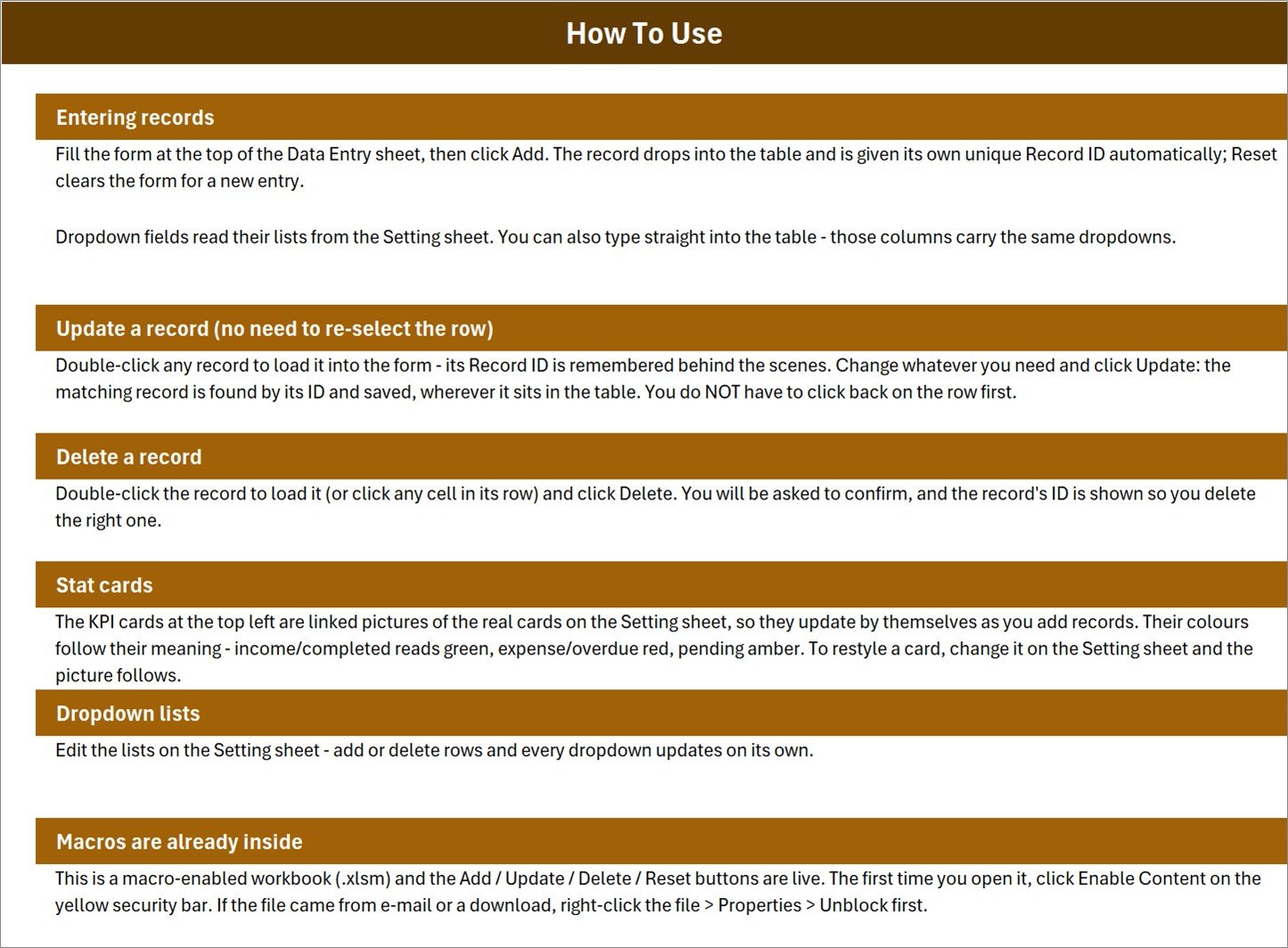
- Update without re-selecting the row. Double-click any record and it loads into the form, with its Record ID remembered behind the scenes. Change what you need, click Update, and the system finds the matching record by ID wherever it now sits in the table. This is the part that goes wrong in most home-built systems, and it is handled here.
- Delete that names what it is deleting. Click Delete and you are asked to confirm, with the record’s ID shown in the prompt – so nobody removes the wrong row on a Friday afternoon.
- Three KPI cards that keep themselves current. Total Documents, Valid Documents and Expired Documents are linked pictures of live cards on the Setting sheet, so they recalculate as you add records without any refresh step.
- Expiry as a first-class status. The status list runs Valid, Expiring Soon, Expired and Pending. That middle value is the one that matters – a document you can still renew in time, rather than one you are already explaining.
- Issue and expiry dates on every record, so the renewal window is a fact in the sheet rather than something living in somebody’s calendar Employee Document Data Entry System in Excel
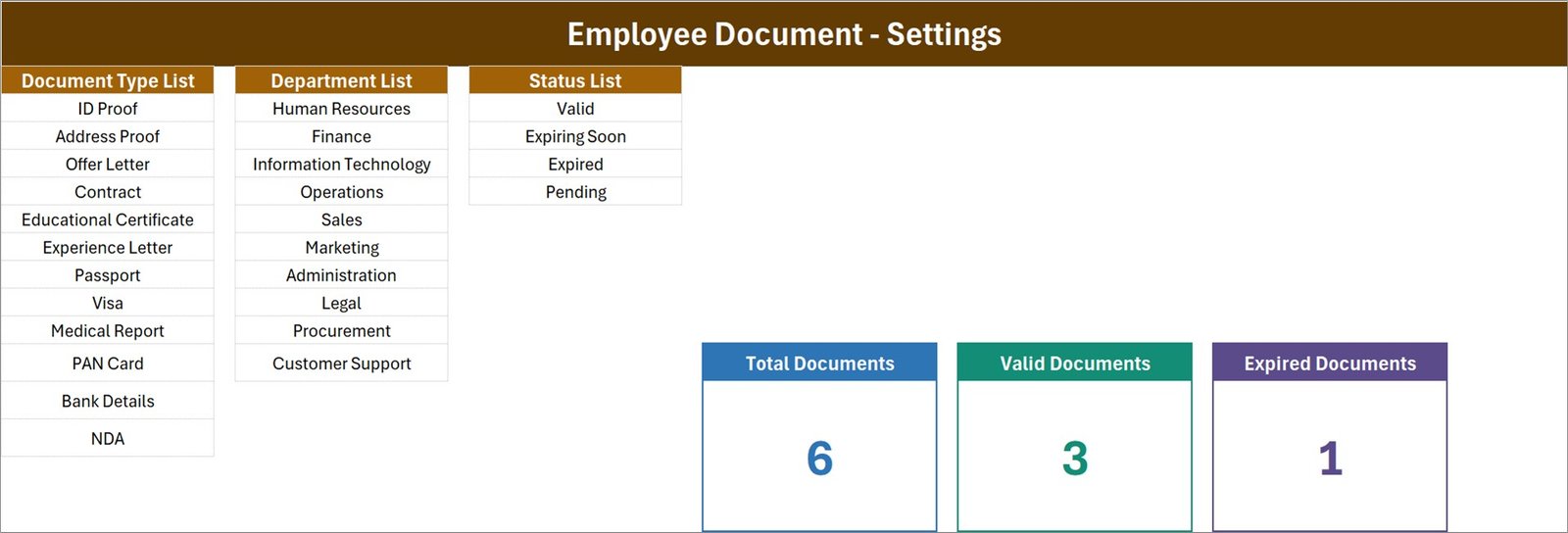
- 12 document types out of the box: ID Proof, Address Proof, Offer Letter, Contract, Educational Certificate, Experience Letter, Passport, Visa, Medical Report, PAN Card, Bank Details and NDA.
- 10 departments out of the box: Human Resources, Finance, Information Technology, Operations, Sales, Marketing, Administration, Legal, Procurement and Customer Support.
- Entry timestamp per record. Every row carries the date and time it was entered – the minimum audit trail an HR file needs.
- Everything editable from one sheet. Add or delete a row on the Setting sheet and every dropdown updates on its own. Restyle a KPI card there and the linked picture follows.
What’s Inside the Employee Document Data Entry System
Three sheets, one macro module, nothing else to learn.
1. Data Entry. The working screen. A branded title banner, the three KPI cards at the top left, the seven-field entry form in the middle – Employee Name, Document Type, Document Number, Issue Date, Expiry Date, Department, Status – and the four action buttons on the right. Below it, the records table with S.No., Record ID, all seven fields and the Entry TimeStamp. Six sample records ship with it so you can see a valid document, an expired one, one expiring soon and one pending before you clear them out.
2. Setting. Three source lists – Document Type, Department and Status – plus the real KPI cards the Data Entry sheet mirrors. This is the only sheet you edit to reshape the system for your organisation.
3. How To Use. A plain-language guide covering entry, the update-by-ID behaviour, deletion, how the KPI cards work, how to edit the dropdown lists, and the one thing every macro workbook needs: enabling content, and unblocking the file if it arrived by email Employee Document Data Entry System in Excel.
Employee Document System vs. a Plain Spreadsheet vs. an HR Information System – Where This Fits
| This Excel system | A plain spreadsheet | An HRIS document module | |
|---|---|---|---|
| Cost | 6.99 once | Free | 5 to 12 per employee per month |
| Platform | Microsoft Excel on desktop | Anything | Vendor web app |
| Setup time | Under 10 minutes | None, until it breaks | Days, plus employee import |
| Guards against editing the wrong row | Yes – update by Record ID | No | Yes |
| Expiry status tracking | Yes, four states including Expiring Soon | Only if you build it | Yes |
| Audit timestamp | Yes, on every record | No | Yes, usually with user names |
| Stores the actual document files | No – it tracks them | No | Yes |
| Automated expiry reminders | No | No | Yes |
| Works offline | Yes | Yes | No |
| Year-1 cost for 40 employees | 6.99 | 0 | 2,400 and up |
The honest position: an HRIS stores the files and emails the reminders, and if you have one you should use it. This system is for the very common middle case – a team too large for a shared folder and too small to justify a per-employee licence, where the documents live in a drive and what is missing is a register that knows which ones expire when.
Who This Template Is For – and Who It’s Not For
A good fit if you are: an HR officer or generalist in a 10-200 person company tracking contracts, IDs and right-to-work documents; an office administrator responsible for visa and passport expiry dates; a compliance lead preparing for an audit who needs one clean register; a small consultancy tracking staff certifications; anyone who currently keeps this in a spreadsheet that nobody trusts.
Not the right tool if you are: looking for document storage – this tracks documents, it does not hold the scans; expecting automatic expiry emails, which need a system with a scheduler rather than a workbook; managing thousands of employees, where an HRIS is the correct answer; or working somewhere macros are blocked by policy, since the four buttons are VBA and will not run.
How to Use the Employee Document Data Entry System
- Unzip the download and open the .xlsm in Microsoft Excel. Click Enable Content on the yellow security bar. If the file arrived by email, right-click it first, choose Properties and tick Unblock.
- Open the Setting sheet and edit the three lists to match your organisation – your document types, your departments, your status wording.
- Delete the six sample records from the table once you have looked at them.
- Enter your first document. Fill the seven fields and click Add. The record lands in the table with its own Record ID and a timestamp.
- To change a record, double-click it. It loads into the form with its ID held behind the scenes. Edit and click Update – you do not need to click back on the row.
- To remove one, load it and click Delete. Confirm the ID shown in the prompt.
- Watch the Expired card. It is the number that should be zero, and the one to check before any audit.
- Review Expiring Soon monthly. That status exists so renewals happen in advance rather than in a hurry Employee Document Data Entry System in Excel
Real-World Use Cases
An HR officer at a 60-person firm. Contracts, ID proofs and educational certificates were in a shared drive with no register. Entering them took an afternoon and produced a first Expired count of four – three of which were renewable and one of which explained a payroll query that had been open for weeks.
Visa and passport tracking for an international team. The Expiring Soon status is doing the real work here: a passport with eight months left is not a problem, but it becomes one the week a trip is booked. Filtering the table to that status once a month turns a recurring emergency into a diary item.
Preparing for a compliance audit. The auditor asked for a document register with issue and expiry dates by department. Because the timestamp column records when each entry was made, the register was demonstrably maintained rather than assembled the night before.
Frequently Asked Questions
Does it store the actual document files?
No. It is a register: it tracks which document exists, its number, its dates, whose it is and whether it is still valid. The scans stay wherever you keep them. That is the deliberate scope – a tracking system, not a document store Employee Document Data Entry System in Excel
Will the macros work in my Excel?
Excel 2010 or later on Windows, including Microsoft 365. Click Enable Content the first time you open it. If your workplace blocks macros entirely, the four buttons will not run and this is not the right tool for you Employee Document Data Entry System in Excel
Why does the file need unblocking?
Windows marks files downloaded from the internet or received by email as blocked, which prevents macros from running. Right-click the file, choose Properties, tick Unblock and apply. This is a Windows security feature, not something specific to this workbook.Employee Document Data Entry System in Excel
Can I add my own document types and departments?
Yes. Edit the lists on the Setting sheet – add or delete rows and every dropdown updates on its own. Nothing is hard-coded into the macros.
Does it send expiry reminders?
No. It shows you what has expired and what is expiring, but it does not email anyone. Reviewing the Expiring Soon status once a month is the workflow this is designed around.
What happens if I sort or filter the table?
Nothing breaks. Updates and deletions find the record by its ID rather than by row position, which is exactly why the ID exists.
Can more than one person use it?
One at a time. It is a macro-enabled desktop workbook, so it does not support simultaneous editing the way a cloud tool does. For a single HR owner – which is how most companies of this size run – that is not a limitation.
About the Author
Built by PK – Microsoft Certified Professional with 15+ years of Excel, Google Sheets, and Power BI experience. Founder of NextGenTemplates, reaching 300K+ subscribers across YouTube channels. Every template is hand-built and tested before release.
Explore Related Templates
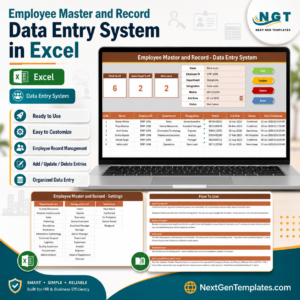
- Employee Master and Record Data Entry System in Excel – the employee register this document list sits beside.
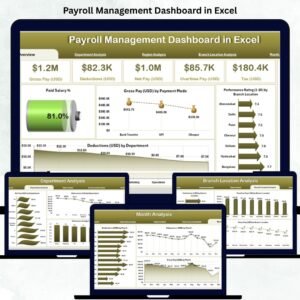
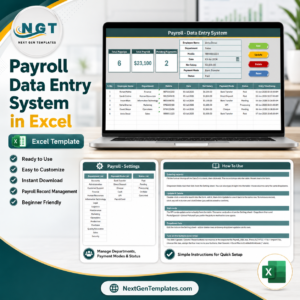
- Payroll Data Entry System in Excel – the same form-and-buttons pattern for payroll.
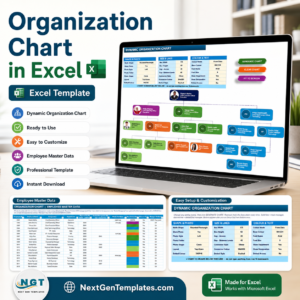
- Organization Chart in Excel – the structure behind the departments list.
- Access Control and ID Card Management System Web App – for issuing and tracking physical IDs.
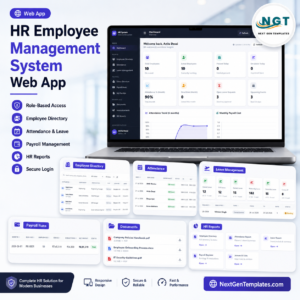
- HR Employee Management System Web App – a full multi-user HR system when a workbook is no longer enough.
- Browse every Excel VBA tool or the full MS Excel template catalogue.
Get Your Copy
Enter your ten most sensitive documents – contracts, visas, right-to-work IDs – and look at the Expired card. If it is not zero, you have just found something worth knowing before an auditor does. If anything does not work as described, contact us and we will put it right Employee Document Data Entry System in Excel.





Reviews
There are no reviews yet.