

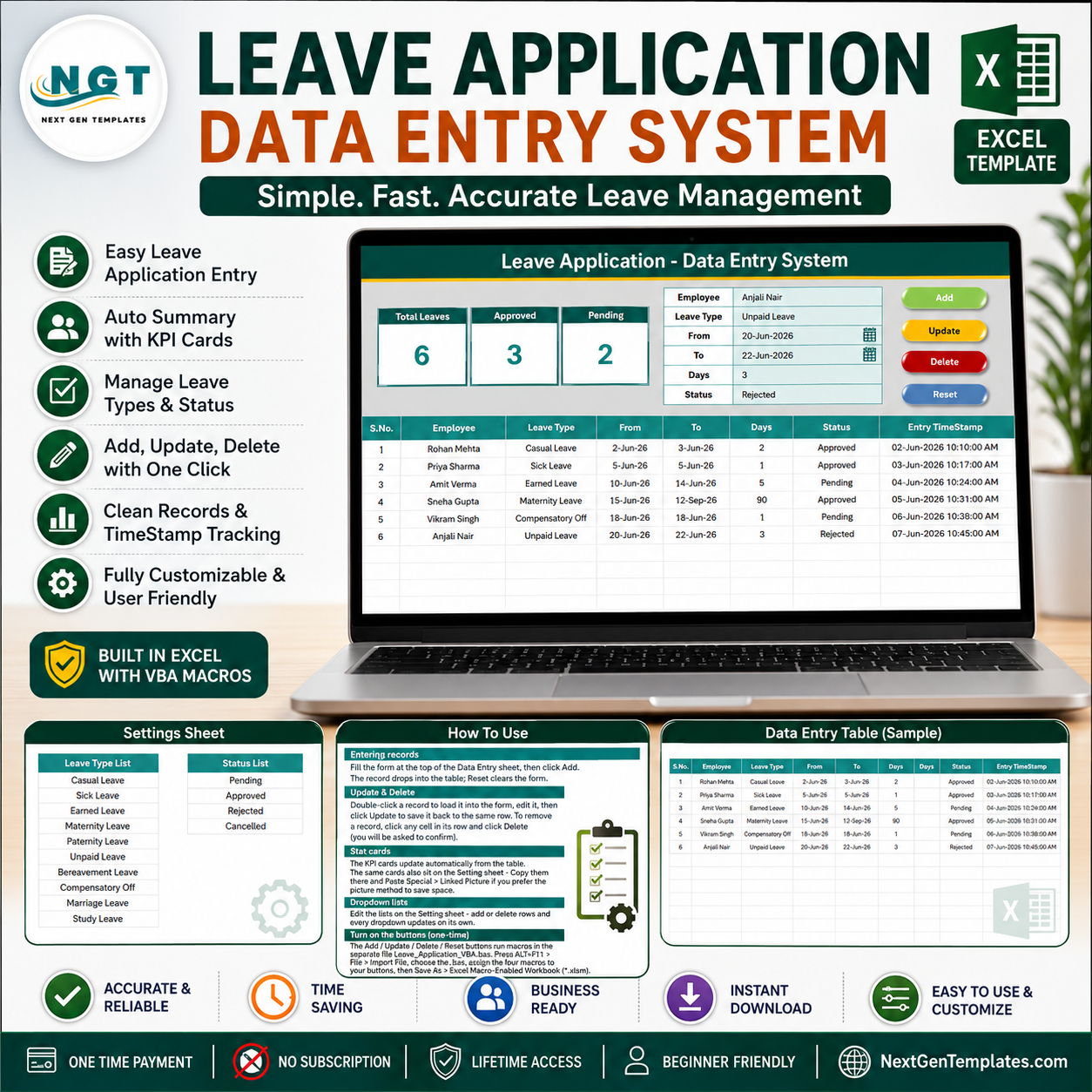
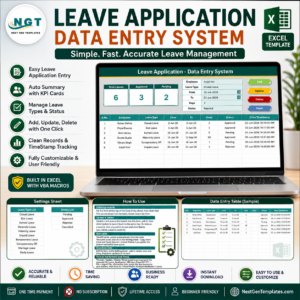
The Leave Application Data Entry System in Excel captures 6 leave fields per record — Employee, Leave Type, From, To, Days, and Status — and rolls them into 3 live KPI cards (Total Leaves, Approved, Pending) that recalculate the moment you Add, Update, or Delete a record. The built-in VBA form handles Add / Update / Delete / Reset, so a leave clerk can log an application in under 15 seconds without touching a single formula.
🌍 Join 8,400+ teams in 40+ countries using NextGenTemplates to replace paid SaaS tools with one-time-purchase Excel, Google Sheets, Power BI, and HTML templates.
✅ Instant download · One-time payment · No subscription · No per-user fees · Lifetime access
🔑 Key Features of the Leave Application Data Entry System in Excel
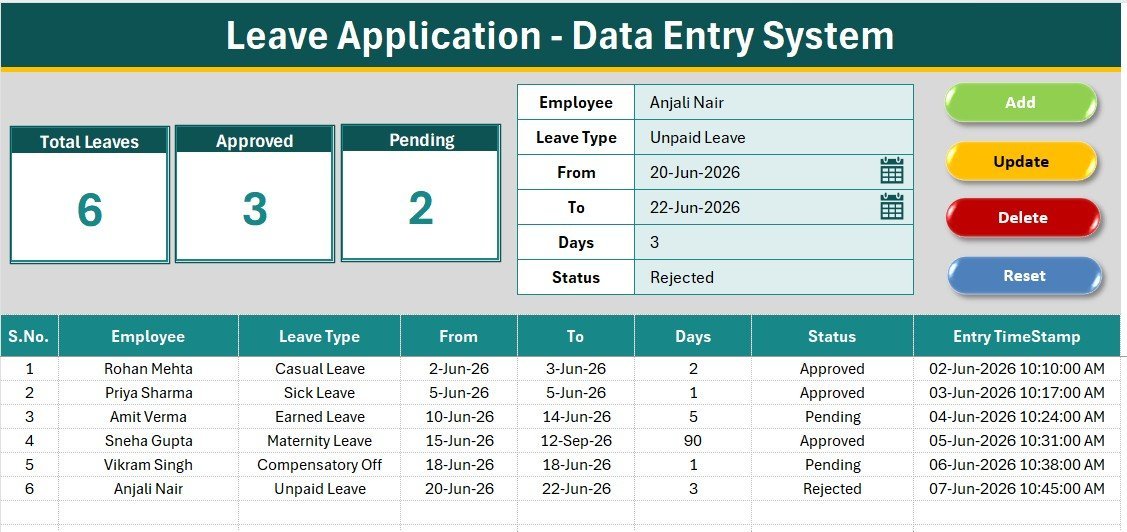
This Excel leave application form is built around a single Data Entry sheet that combines a form, KPI cards, action buttons, and a records table — everything an HR coordinator needs on one screen.
- 🔹 6-field leave form – Employee, Leave Type, From, To, Days, and Status, with Leave Type and Status driven by editable dropdown lists on the Setting sheet.
- 🔹 3 live KPI cards – Total Leaves counts every record, Approved counts Status = “Approved”, and Pending counts Status = “Pending”. All three update automatically as records change.
- 🔹 VBA Add / Update / Delete / Reset – Four macro buttons run the full record lifecycle; double-click any row to load it back into the form for editing.
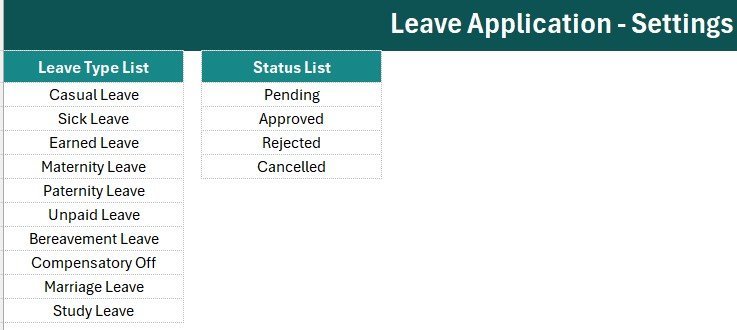
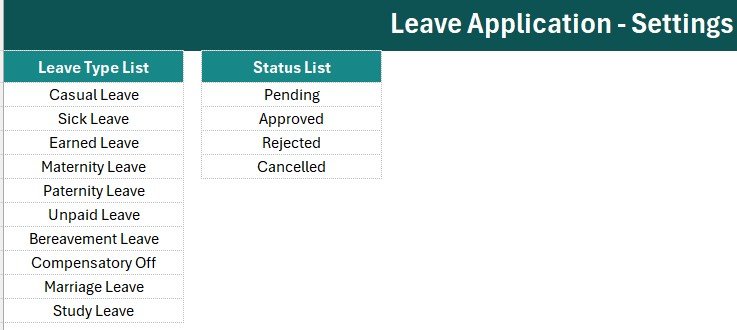
- 🔹 Editable dropdowns – 10 leave types (Casual, Sick, Earned, Maternity, Paternity, Unpaid, Bereavement, Compensatory Off, Marriage, Study) and 4 statuses (Pending, Approved, Rejected, Cancelled) you can rename to match your policy.
- 🔹 Auto S.No, date formatting, and Entry TimeStamp – Each row is numbered automatically and stamped with the entry time for a clean audit trail.
📦 What’s Inside the Leave Application Data Entry System in Excel
The workbook ships with four sheets — Data Entry, Setting, Instructions, and Get More Templates — plus a separate VBA module you import once.
Data Entry Dashboard
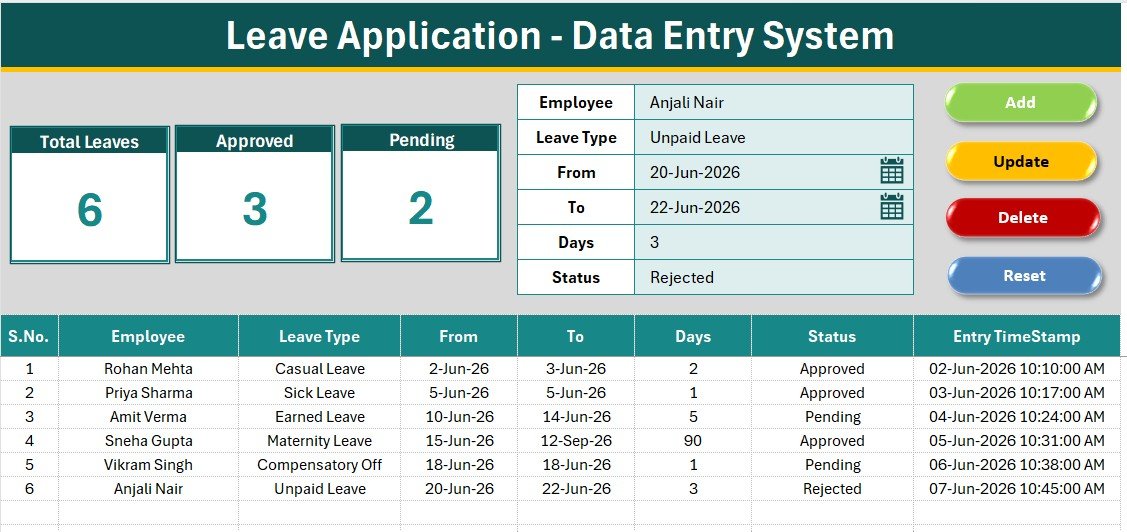
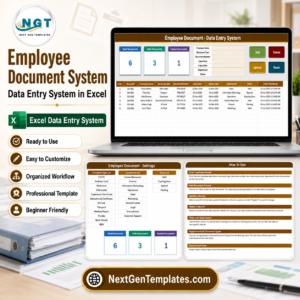
The main screen holds the Total Leaves, Approved, and Pending KPI cards, the 6-field input form, the four coloured Add/Delete/Update/Reset buttons, and the running records table with auto S.No and Entry TimeStamp.
Records Table & Status Tracking
Every submitted leave application lands in the records table with its dates, day count, and approval status, so you can scan pending versus approved leave at a glance and filter by employee or leave type.
Setting & Instructions Sheets
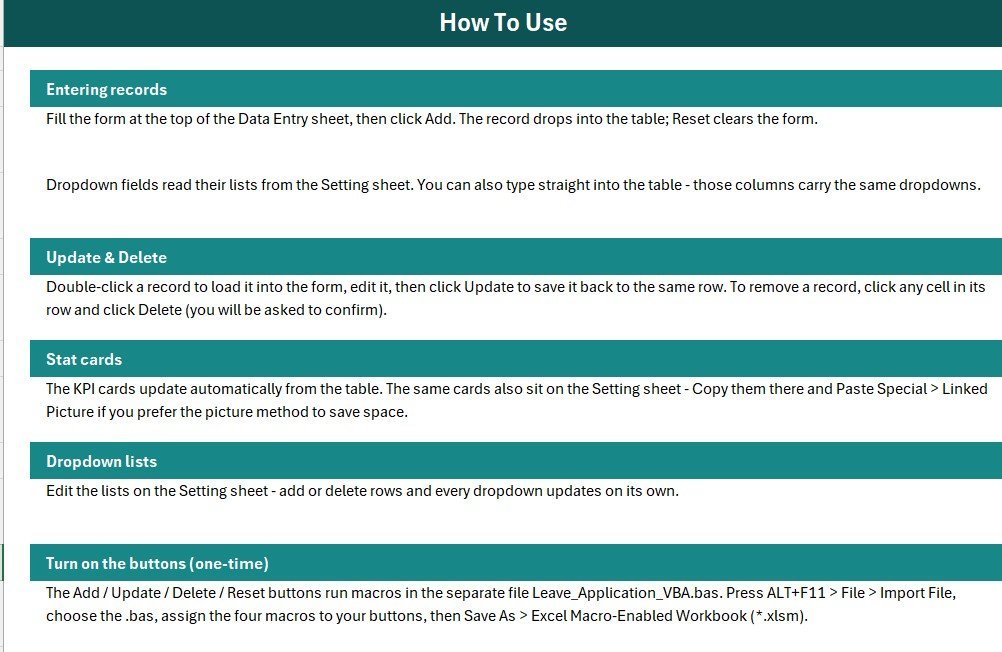
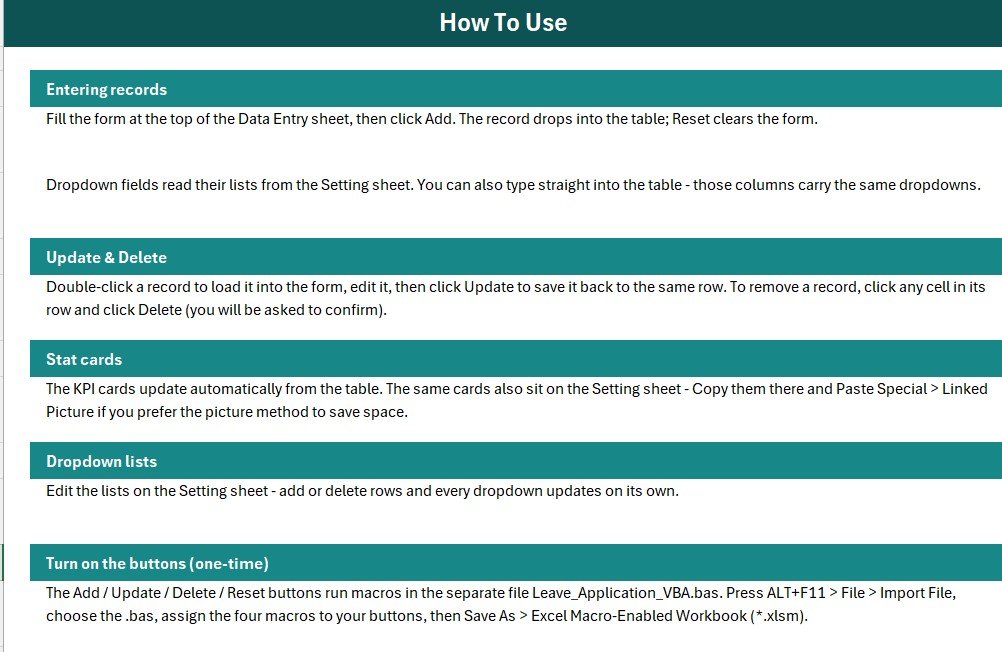
The Setting sheet holds the Leave Type and Status dropdown source lists plus duplicated stat cards you can paste as a linked picture, while the Instructions sheet walks you through one-time VBA activation.
📊 Leave Application Data Entry System vs. Google Sheets vs. Paid HR SaaS — Where This Fits
| Feature | Leave Application Data Entry System | Google Sheets Equivalent | BambooHR / Workday |
|---|---|---|---|
| Cost | $5.99 one-time | Free (build it yourself) | $6–12 / user / month |
| Platform | Microsoft Excel (offline) | Browser + Google account | Cloud only |
| Setup time | Under 10 minutes | Hours to build form + KPIs | Days (onboarding + import) |
| One-click Add/Update/Delete form | ✅ VBA-powered | Needs Apps Script | ✅ |
| Works offline | ✅ Yes | ❌ Needs internet | ❌ Needs internet |
| Customisable leave types & status | ✅ Editable lists | ✅ | Limited to plan |
| Per-user fees | None | None | Charged per employee |
| Year-1 cost at 5 users | $5.99 total | $0 + your time | $360–720 |
For small teams that want fast, offline leave logging without paying per-employee SaaS fees, the Leave Application Data Entry System sits in the sweet spot.
👥 Who This Template Is For — and Who It’s Not For
✅ This template is built for:
- HR coordinators and office admins at 5–200 person companies logging daily leave applications
- Small business owners who want approved-vs-pending leave visibility without monthly software
- Team leads and supervisors tracking leave for a single department or shift
❌ This template is NOT for:
- Enterprises needing SSO, automated approval workflows, and payroll integration
- Fully remote teams that need multiple people editing the same leave log in real time (use a Google Sheets or web-app version instead)
⚙️ How to Use the Leave Application Data Entry System in Excel
- Open the workbook, press ALT+F11, and import the included VBA module file.
- Add four Form-Control buttons over the coloured cells and assign Add_Record, Delete_Record, Update_Record, and Reset_Form.
- Save the file as a Macro-Enabled Workbook (.xlsm).
- Fill the form, pick Leave Type and Status from the dropdowns, and click Add — the record and KPI cards update instantly.
- Double-click any existing row to edit it, then click Update; click Delete to remove it.
💼 Real-World Use Cases
Meera manages HR at a 40-person manufacturing firm. She logs every leave application into the system, instantly sees how many are still Pending each morning, and approves them in batches — without paying $8 per employee per month for cloud HR software.
Rahul runs a 12-person digital agency. He uses the Approved and Pending KPI cards to confirm coverage before sprint planning, and the Entry TimeStamp column gives him a tidy audit trail when employees query their leave history.
❓ Frequently Asked Questions
What fields does the Leave Application Data Entry System track?
The Leave Application Data Entry System tracks 6 fields per record — Employee, Leave Type, From date, To date, Days, and Status. Leave Type and Status use editable dropdown lists, and the three KPI cards summarise total, approved, and pending leaves.
Do I need to enable macros?
Yes. The Leave Application Data Entry System uses VBA for the Add, Update, Delete, and Reset buttons, so you must enable macros and save the file as a macro-enabled workbook (.xlsm) for the form to work.
Can I change the leave types and status options?
Absolutely. The Leave Application Data Entry System keeps all dropdown values on the Setting sheet, so you can rename, add, or remove leave types and status labels to match your company’s leave policy in seconds.
How does this compare to BambooHR or Workday?
The Leave Application Data Entry System is a one-time $5.99 offline Excel tool, while BambooHR and Workday charge $6–12 per user per month. It covers fast leave logging and approval tracking but not automated workflows, SSO, or payroll integration.
How long does setup take?
Setup takes under 10 minutes — import the VBA module, attach four buttons to the macros, and save as .xlsm. After that, logging a leave application takes about 15 seconds.
👤 About the Author
Built by PK — Microsoft Certified Professional with 15+ years of Excel, Google Sheets, and Power BI experience. Founder of NextGenTemplates, reaching 300K+ subscribers across YouTube channels (@PK-AnExcelExpert, @NextGenTemplates, @NeoTechNavigators). Every template is hand-built and tested before release.
🔗 Explore Related Templates
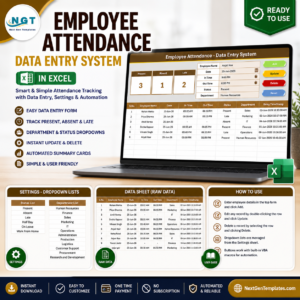
Pair this with the Employee Attendance Data Entry System in Excel to log attendance alongside leave, or step up to the Employee Attendance & Payroll Management System web app for multi-user access. For reporting, the HR & Payroll Templates category covers dashboards and trackers across the employee lifecycle, and you can browse more Excel VBA Tools for other data-entry workflows.
💎 Save more — get all 10 HR templates in the HR & Workforce Analytics Bundle →
📖 Click here to read the Detailed Blog Post
🎥 Visit our YouTube channel for step-by-step video tutorials
👉 YouTube.com/@NextGenTemplates
📅 Last updated: June 2026











Reviews
There are no reviews yet.