

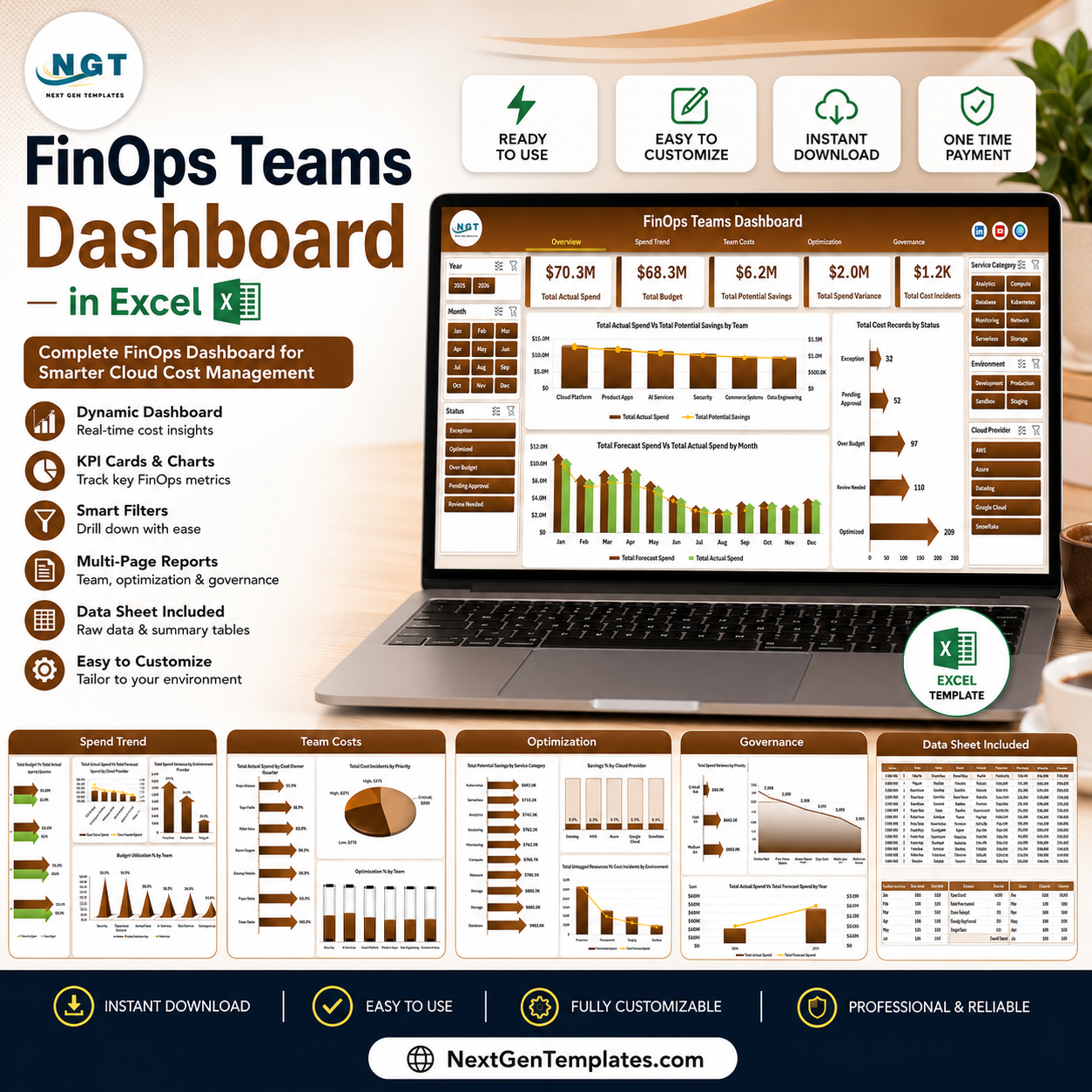



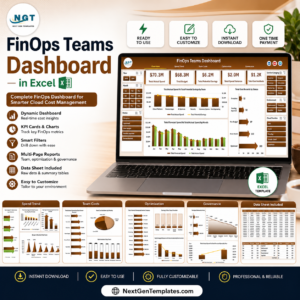
FinOps Teams DashboaFinOps Teams Dashboard in Excelrd in Excel gives cloud finance teams, engineering managers, platform owners, and cost governance leads a ready Excel reporting workbook for cloud spend, budget control, savings opportunities, cost incidents, untagged resources, and forecast variance. The template includes 7 worksheet tabs, 5 executive KPI cards, 18 analysis charts, multiple slicers, a structured Data sheet, and a pivot-powered Support sheet. For a one-time price of $17.99, teams can move from scattered cloud cost exports to a clear FinOps review dashboard without paying a monthly SaaS fee.
Key Features of FinOps Teams Dashboard in Excel
- 7 worksheet tabs covering Overview, Spend Trend, Team Costs, Optimization, Governance, Data Sheet, and Support Sheet.
- 5 top KPI cards for Total Actual Spend, Total Budget, Total Potential Savings, Total Spend Variance, and Total Cost Incidents.
- Interactive slicers for quick filtering by team, cloud provider, environment, service category, cost owner, priority, status, and time fields.
- Cloud spend analysis across teams, months, quarters, years, providers, environments, and service categories.
- Optimization and governance views for potential savings, untagged resources, incidents, priorities, and budget utilization.
- Pivot-based refresh workflow so users can update the Data sheet and use Refresh All to update every chart and card.
- Editable Excel workbook with charts, slicers, pivots, labels, and formulas that can be customized for your FinOps process.
What’s Inside the FinOps Teams Dashboard in Excel
1. Overview Page
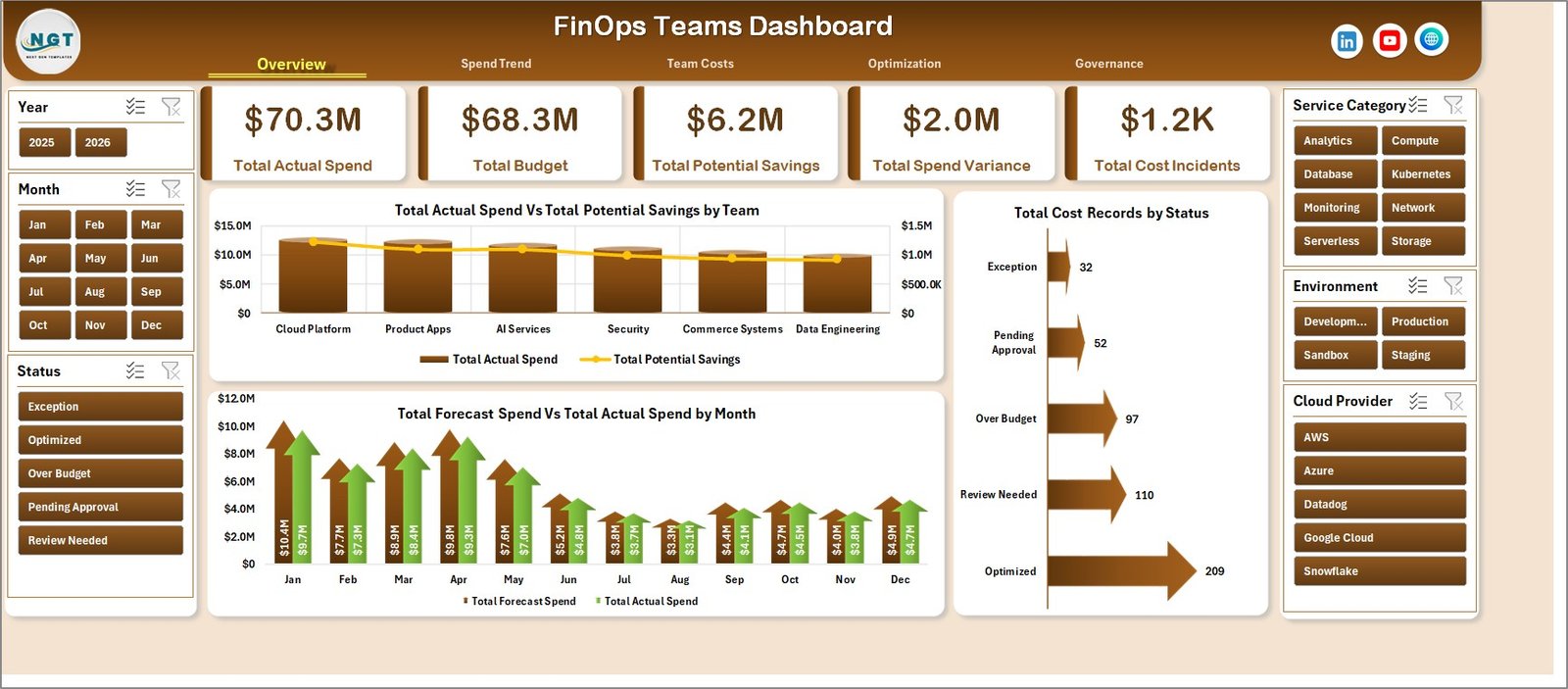
The Overview Page gives leadership a quick read on cloud cost health. The top cards summarize Total Actual Spend, Total Budget, Total Potential Savings, Total Spend Variance, and Total Cost Incidents, while slicers make it easy to filter the dashboard in seconds.
Total Actual Spend and Total Potential Savings by Team: This chart compares actual cloud spend with the savings opportunity for each team. It helps managers identify where spend is high and where optimization work can deliver the biggest return.
Total Forecast Spend and Total Actual Spend by Month: This monthly view compares expected spend with actual spend over time. It helps teams catch variance trends before they become recurring budget problems.
Total Cost Records by Status: This chart summarizes cloud cost records by status, such as open, reviewed, optimized, or pending. It supports faster governance review and follow-up ownership.
2. Spend Trend
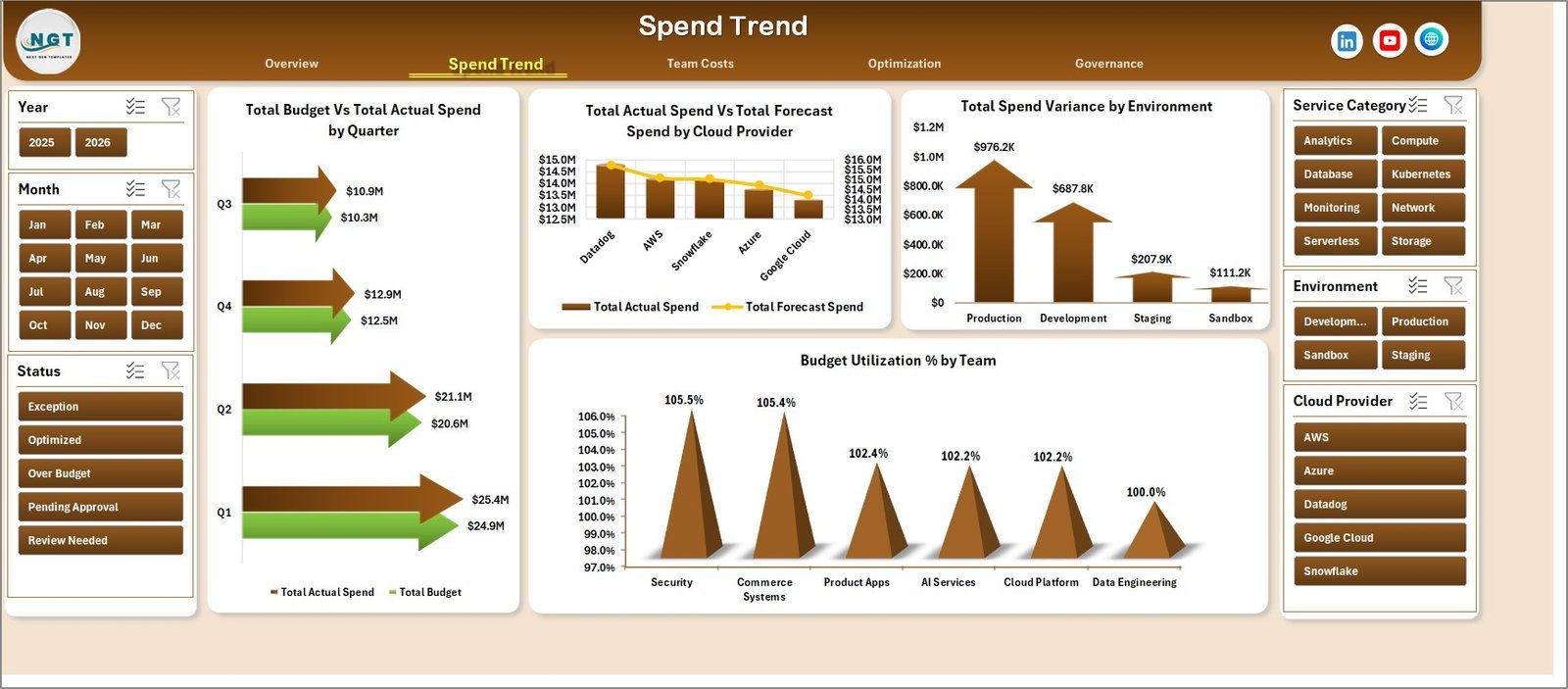
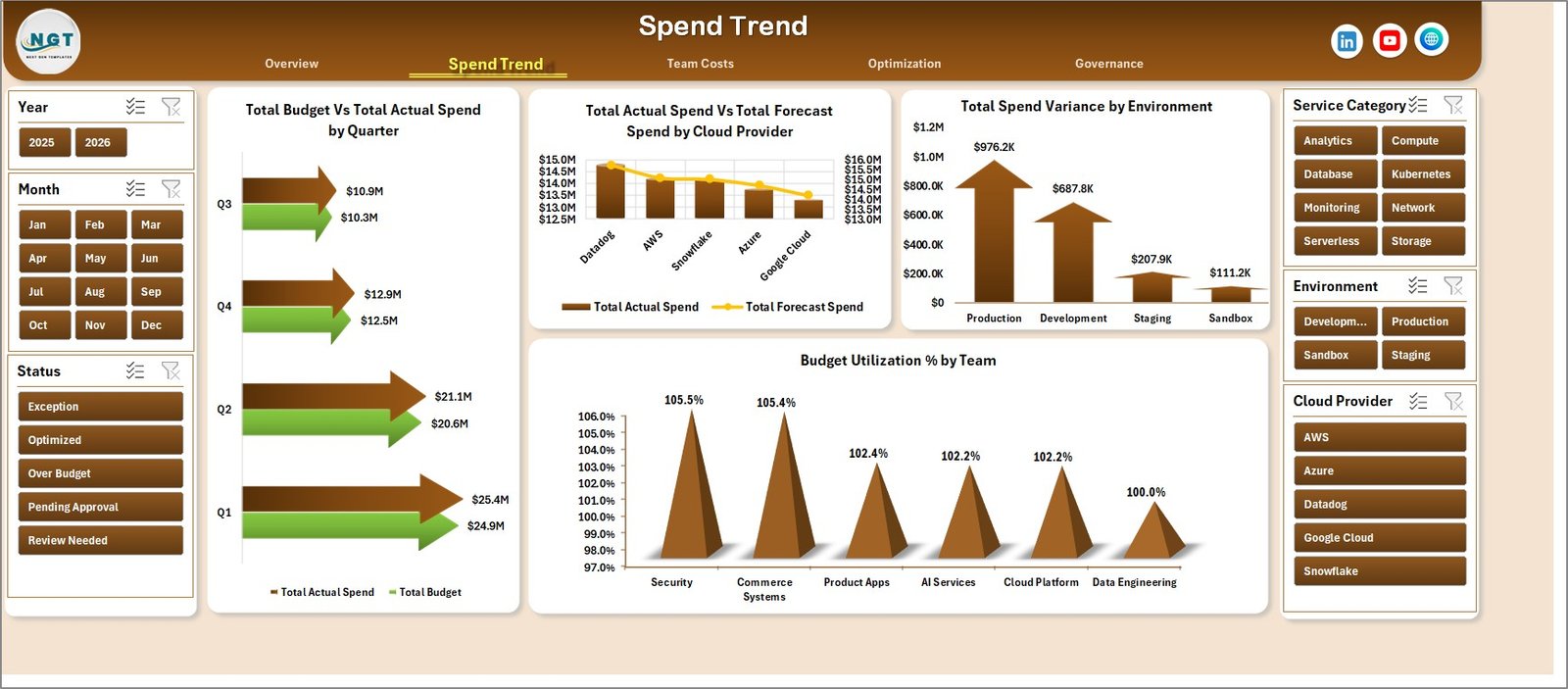
The Spend Trend sheet focuses on time, provider, environment, and team-level budget usage. It includes Total Budget and Total Actual Spend by Quarter, Total Actual Spend and Total Forecast Spend by Cloud Provider, Total Spend Variance by Environment, and Budget Utilization % by Team.
3. Team Costs
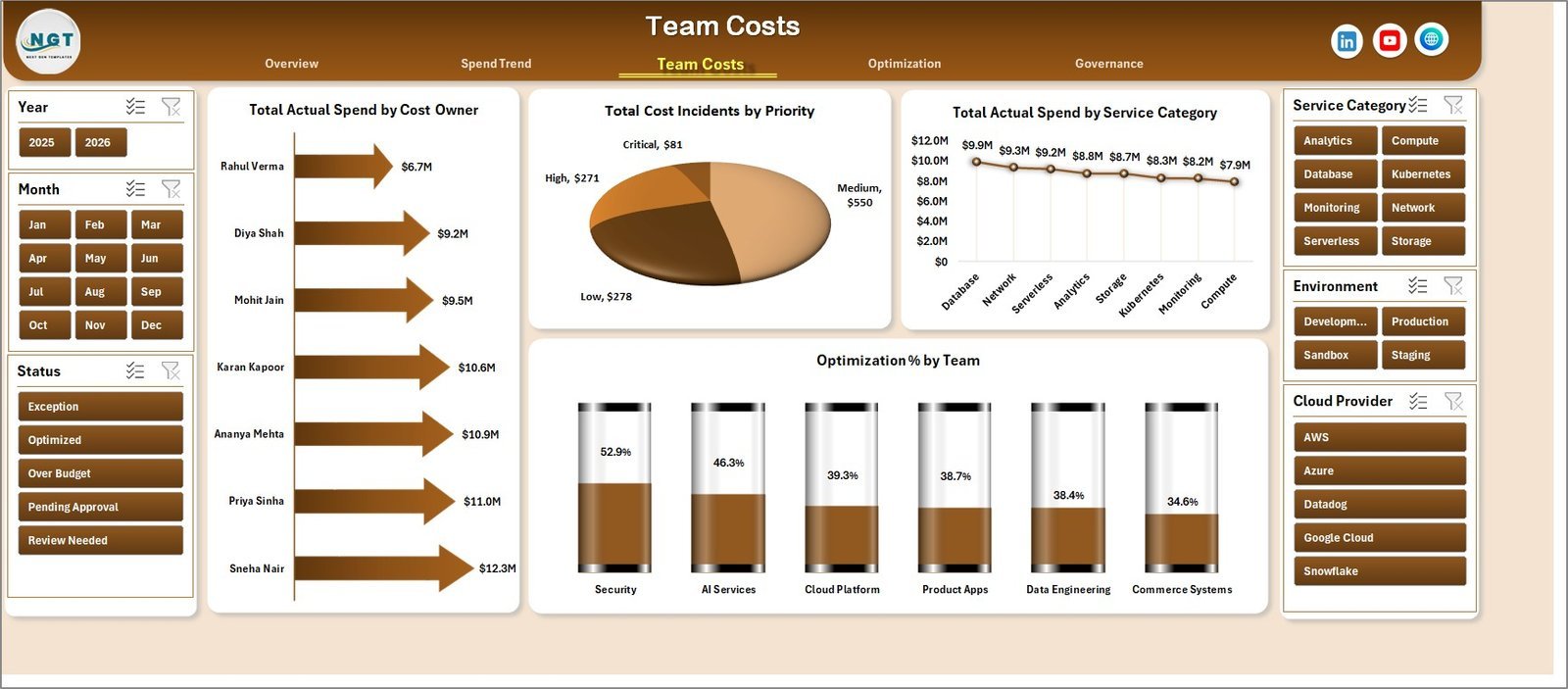
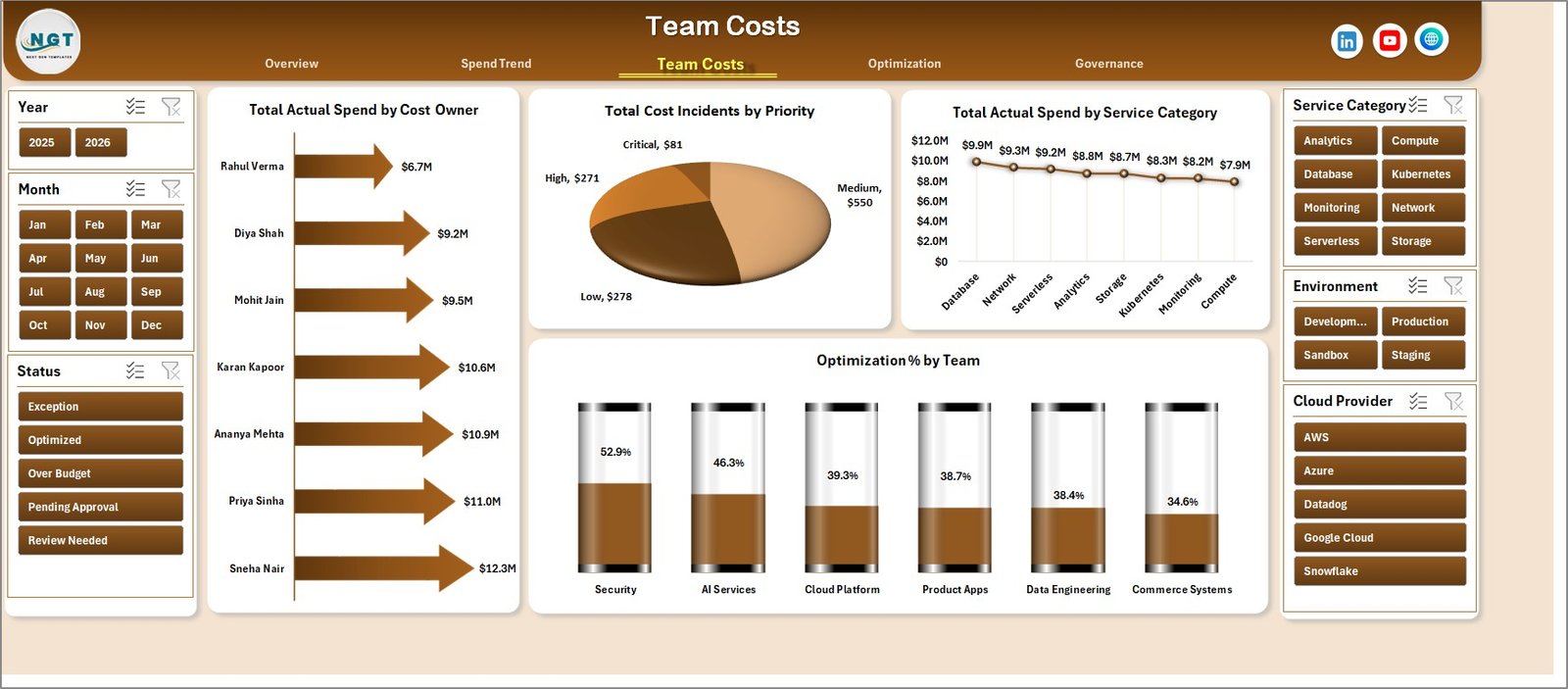
The Team Costs sheet helps compare ownership and service-level cost patterns. It includes Total Actual Spend by Cost Owner, Total Cost Incidents by Priority, Total Actual Spend by Service Category, and Optimization % by Team.
4. Optimization
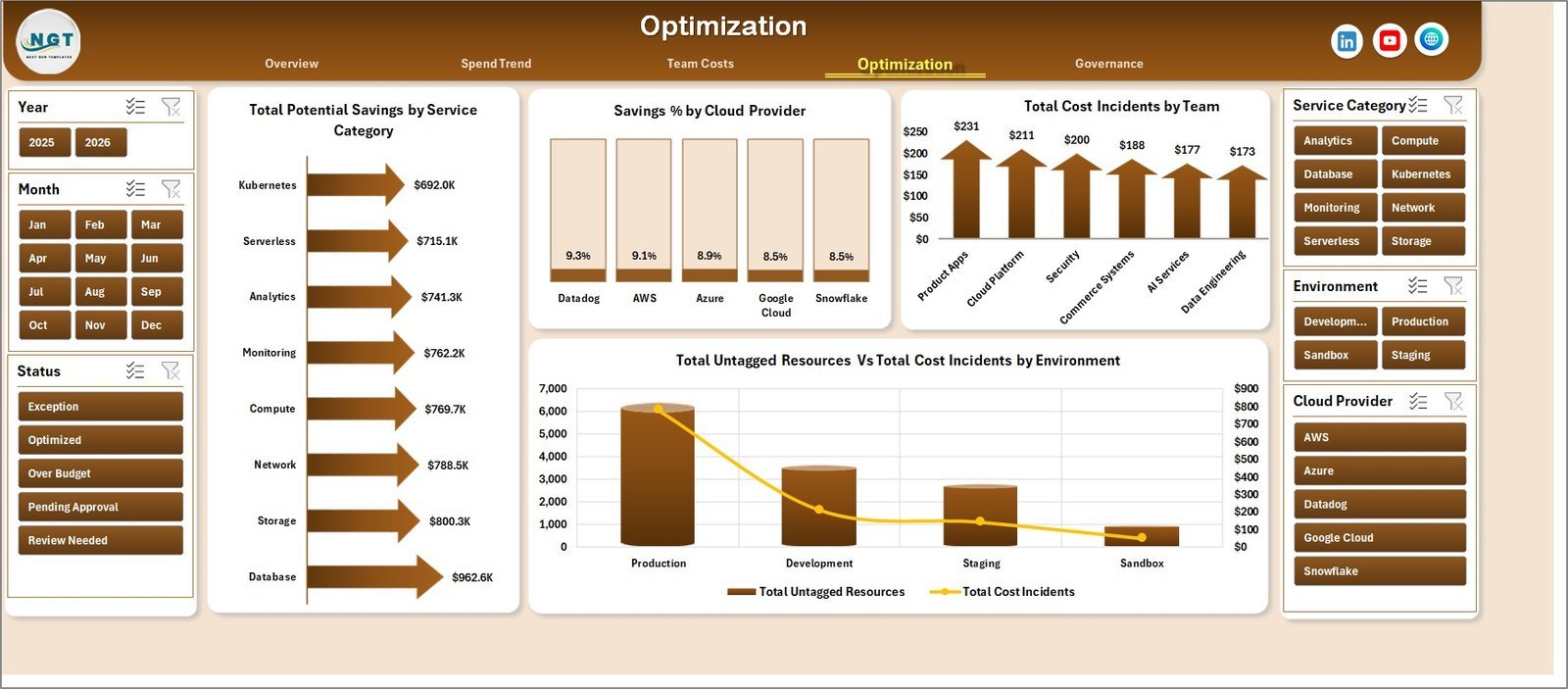
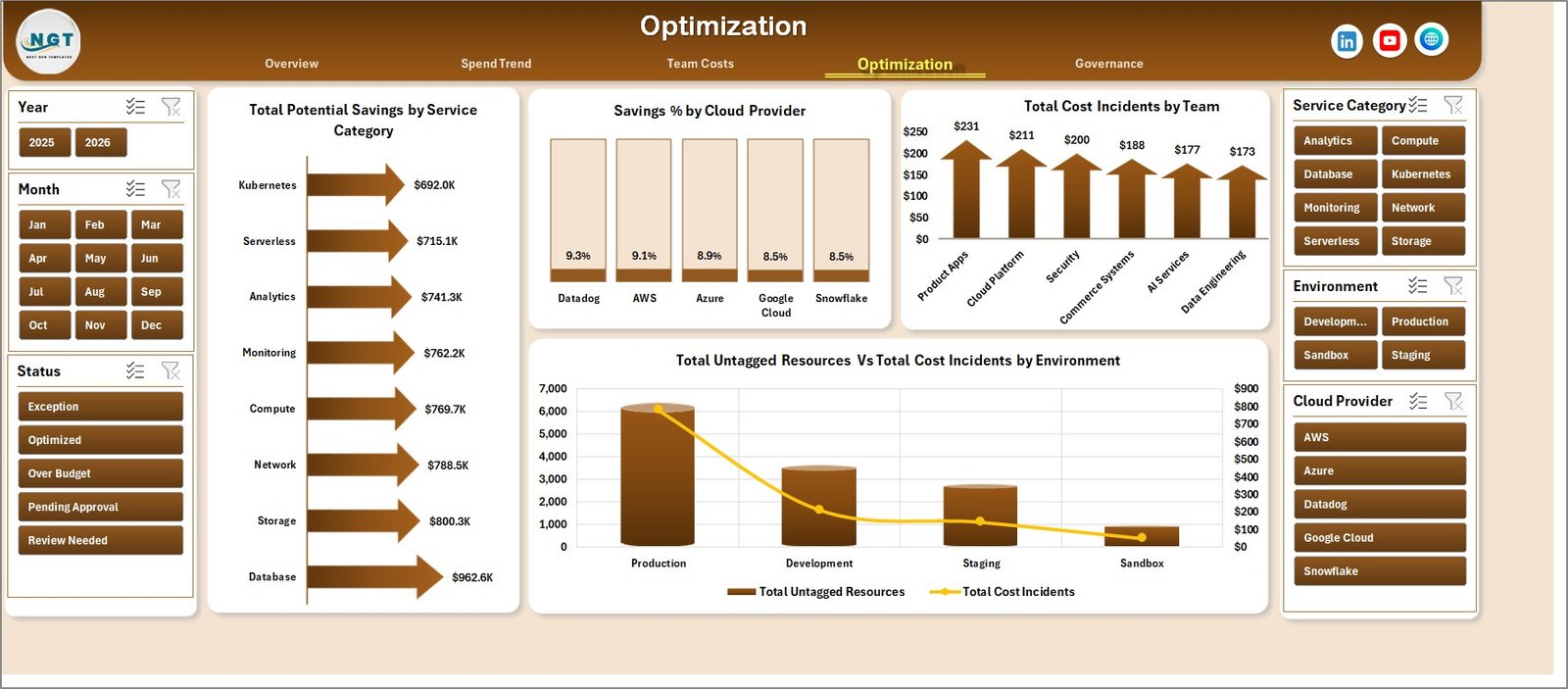
The Optimization sheet shows where cloud cost savings may be available. It includes Total Potential Savings by Service Category, Savings % by Cloud Provider, Total Cost Incidents by Team, and Total Untagged Resources with Total Cost Incidents by Environment.
5. Governance
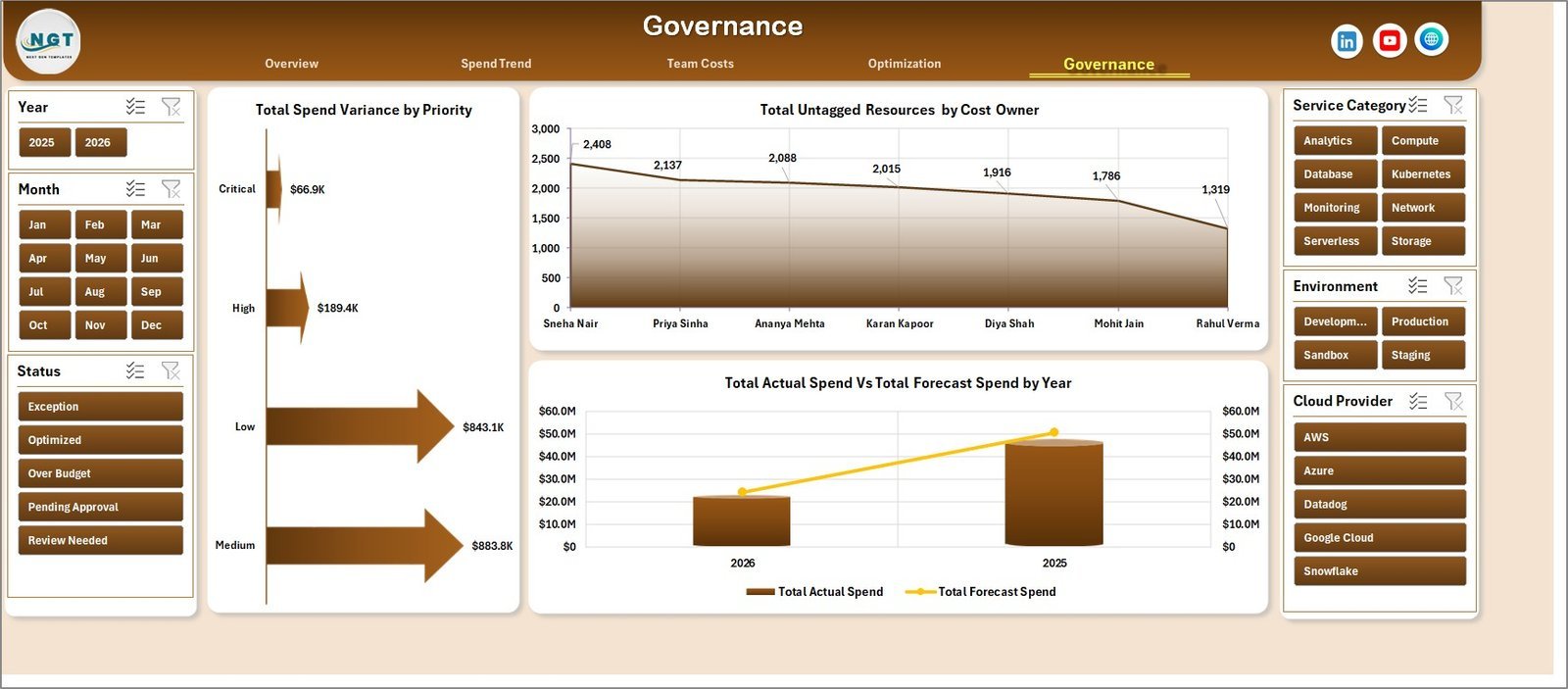
The Governance sheet supports review of controls and accountability. It includes Total Spend Variance by Priority, Total Untagged Resources by Cost Owner, and Total Actual Spend with Total Forecast Spend by Year.

6. Data Sheet Tab
The Data Sheet tab is where you paste or enter your FinOps records in the same column format as the sample data. Keep the same structure, refresh the workbook, and the dashboard pages update automatically.

7. Support Sheet Tab
The Support Sheet contains the pivot tables used to build the dynamic dashboard. After updating the Data sheet, go to the Data tab in the Excel Ribbon and click Refresh All. You can keep this sheet hidden during normal use.

FinOps Teams Dashboard in Excel vs. Google Sheets vs. Paid Cloud Cost SaaS – Where This Fits
| Feature | This Excel Dashboard | Google Sheets Alternative | Paid Cloud Cost SaaS |
|---|---|---|---|
| Cost | $17.99 one-time | Low cost, but may need rebuild | Monthly or annual subscription |
| Platform | Microsoft Excel | Browser-based spreadsheet | Vendor cloud platform |
| Setup time | Replace data and refresh | Copy sheet and paste data | Onboarding and integrations |
| Customizable fields | Fully editable workbook | Editable sheet | Limited by vendor setup |
| Share with link | Use OneDrive or SharePoint if needed | Built-in sharing | Login controlled |
| Year-1 cost at 5 users | $17.99 plus Excel licensing already used | Usually low | Often hundreds or thousands |
| FinOps analytics | 5 dashboard pages plus data and pivots | Requires equivalent build | Depends on plan and connected accounts |
Who This Template Is For – and Who It’s Not For
This template is for FinOps practitioners, cloud finance analysts, engineering managers, IT leaders, platform teams, and CFO office users who need recurring visibility into budget, forecast, actual spend, savings, incidents, service categories, providers, owners, and untagged resources.
It is not a live cloud billing connector, anomaly detection engine, approval workflow, or replacement for AWS Cost Explorer, Azure Cost Management, Google Cloud Billing, Apptio, or CloudHealth. It works best when your cloud cost data can be exported into a structured Excel table.
How to Use the FinOps Teams Dashboard in Excel
- Download and unzip the product file.
- Open the workbook in Microsoft Excel.
- Go to the Data Sheet tab and replace the sample records with your own FinOps data.
- Keep the same column format so pivots and slicers continue working.
- Open the Data ribbon and click Refresh All.
- Use slicers to review teams, providers, owners, priorities, environments, and time periods.
- Hide the Support Sheet if you only want end users to see the dashboard pages.
Real-World Use Cases
Priya, FinOps Lead: Priya reviews budget utilization and potential savings by team before monthly cloud cost review meetings.
Marcus, Engineering Manager: Marcus filters the dashboard to his team and environment to understand spend variance, incidents, and untagged resources.
Ana, Finance Analyst: Ana compares forecast spend with actual spend by month and year to prepare leadership reporting.
Frequently Asked Questions
What KPI cards are included?
The Overview page includes Total Actual Spend, Total Budget, Total Potential Savings, Total Spend Variance, and Total Cost Incidents.
How many sheets are included?
The workbook includes 7 sheets: Overview, Spend Trend, Team Costs, Optimization, Governance, Data Sheet, and Support Sheet.
Can I use AWS, Azure, or Google Cloud data?
Yes. You can use exported cloud cost records as long as they are arranged in the required Data Sheet format.
Do I need macros?
No macros are required for the dashboard workflow described here. It uses Excel tables, pivot tables, charts, and slicers.
Can I customize the dashboard?
Yes. You can edit chart titles, slicers, formulas, pivots, colors, and fields to match your internal FinOps process.
Can the Support Sheet be hidden?
Yes. The Support Sheet powers the dashboard and can be hidden after setup.
About the Author
Built by PK – Microsoft Certified Professional with 15+ years of Excel, Google Sheets, and Power BI experience. Founder of NextGenTemplates, reaching 300K+ subscribers across YouTube channels. Every template is hand-built and tested before release.
Explore Related Templates
Browse more MS Excel templates and Excel Dashboard templates. Related downloads include Outsourced Accounting KPI Dashboard in Excel, Accounting Firms KPI Dashboard in Excel, and Digital Microloans Dashboard in Excel.
Click here to read the detailed blog post
Download the FinOps Teams Dashboard in Excel and turn cloud cost exports into a refreshable Excel dashboard for spend, savings, and governance reviews.
Last updated: June 13, 2026.
Watch the step-by-step video tutorial:
Compatibility and Requirements
- Works in Microsoft Excel desktop (Excel 2016 or later, or Microsoft 365).
- No macros are needed. The dashboard uses Excel tables, pivot tables, charts and slicers.
- After you replace the sample data, click Refresh All to update the pivots. Microsoft explains pivot tables in Create a PivotTable to analyze worksheet data.





Reviews
There are no reviews yet.