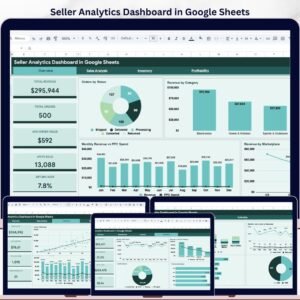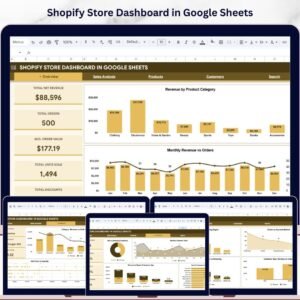
Shopify Store Dashboard in Google Sheets is a powerful cloud-based analytics template designed for Shopify store owners, e-commerce managers, and business analysts who want complete visibility into their sales performance, order trends, product analytics, and customer behavior — all inside a collaborative Google Sheets environment. This interactive Shopify Dashboard includes 6 dedicated sheet tabs — Overview, Sales Analysis, Products, Customers, Search, and Data — with dynamic charts, KPI cards, slicers, and a powerful search function powered by Google Apps Script. Whether you manage a single Shopify store or a multi-channel retail operation, this template transforms raw order data into actionable insights instantly. 📊💡
🔑 Key Features of Shopify Store Dashboard in Google Sheets
📌 6 Interactive Sheet Tabs — Overview, Sales Analysis, Products, Customers, Search, and Data Sheet for complete Shopify store analytics
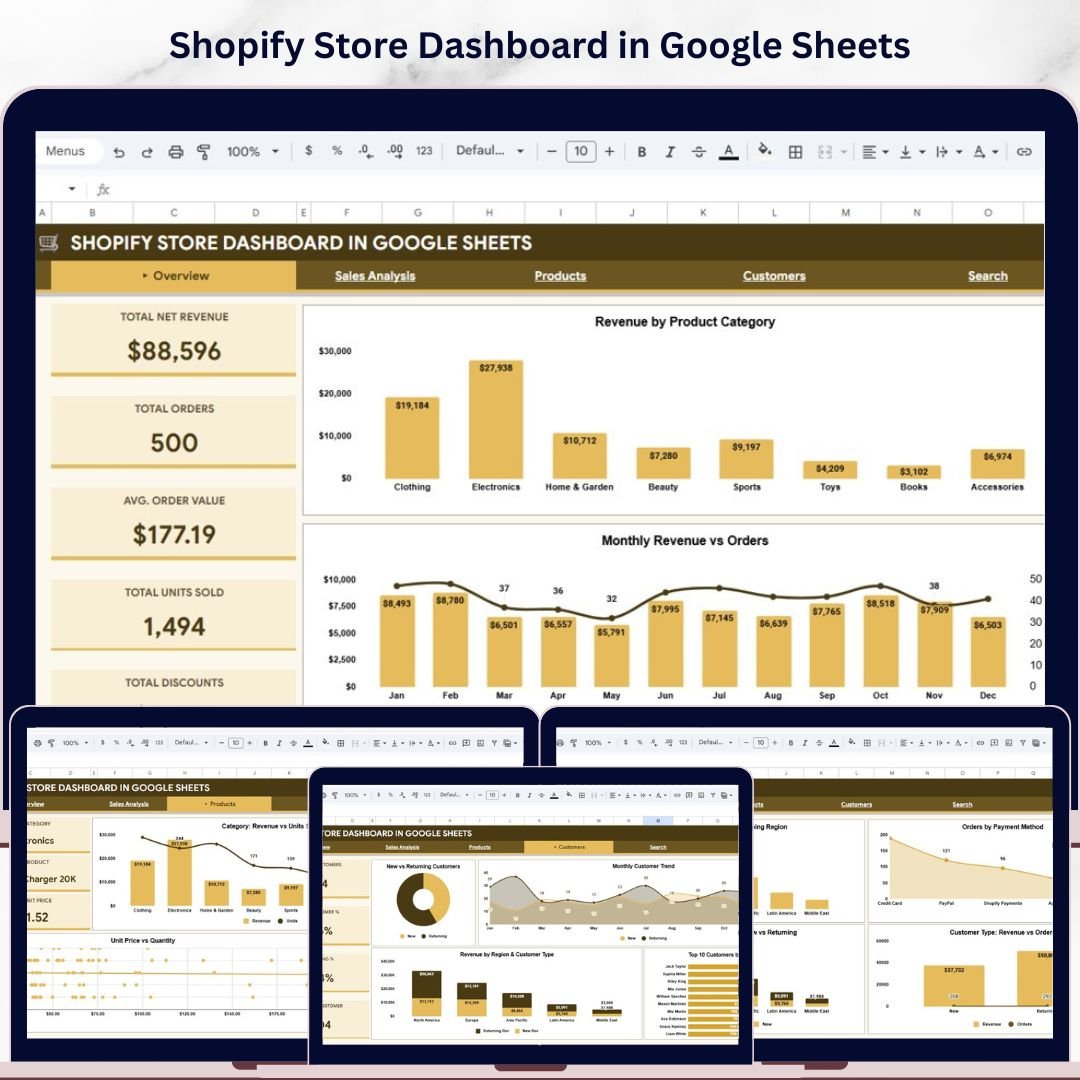
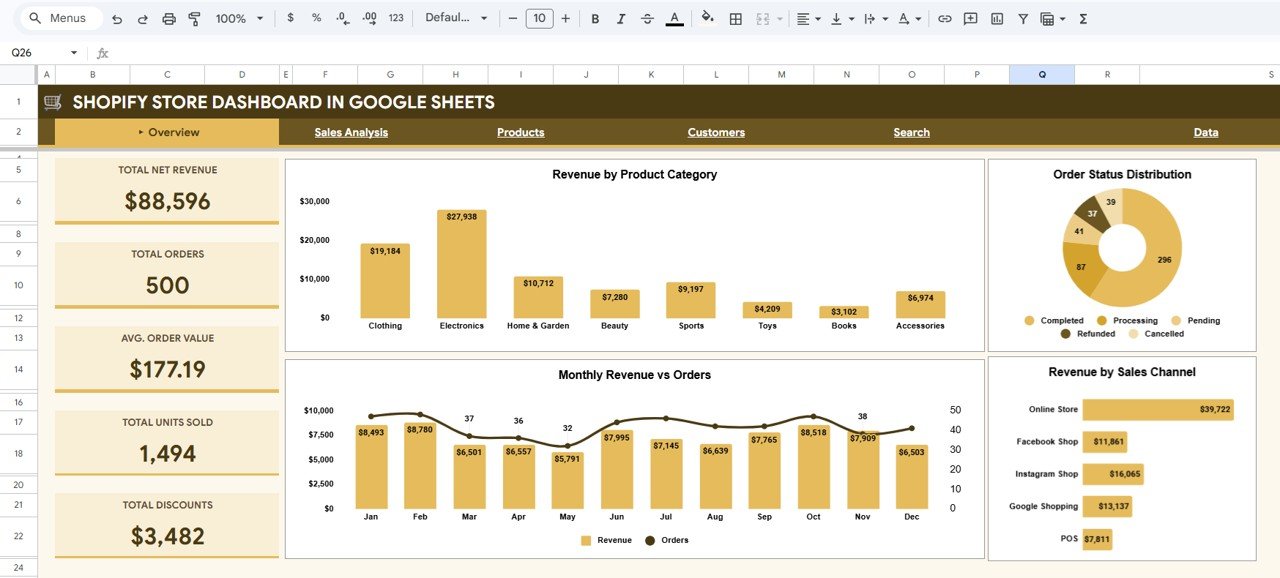
📌 5 High-Level KPI Cards — Track Total Net Revenue, Total Orders, Avg. Order Value, Total Units Sold, and Total Discounts at a glance
📌 15+ Dynamic Charts — Visualize revenue by category, order status distribution, monthly trends, regional performance, customer segmentation, and more
📌 Interactive Slicers — Filter the entire dashboard by product category, sales channel, order status, or time period with a single click
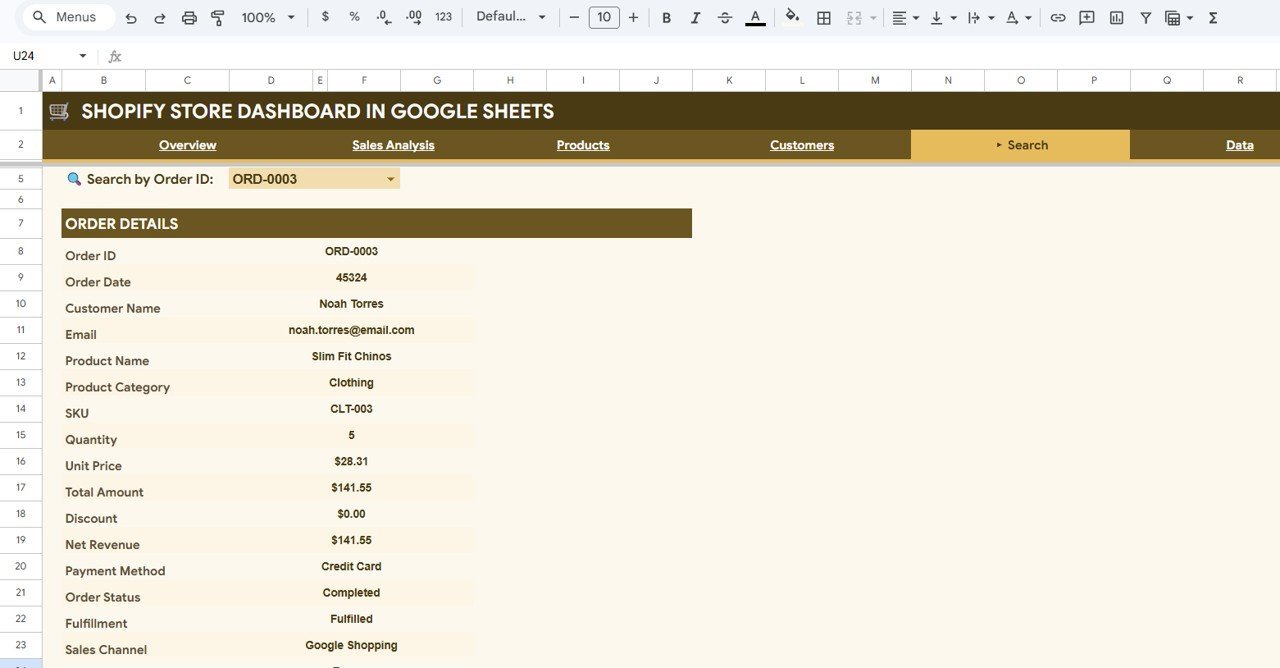
📌 Search Sheet with Dropdown — Search by Order ID using a dropdown and instantly view full order details including customer name, product, SKU, payment method, and fulfillment status
📌 Cloud-Based Collaboration — Share with your team in real time via Google Drive — no desktop software needed
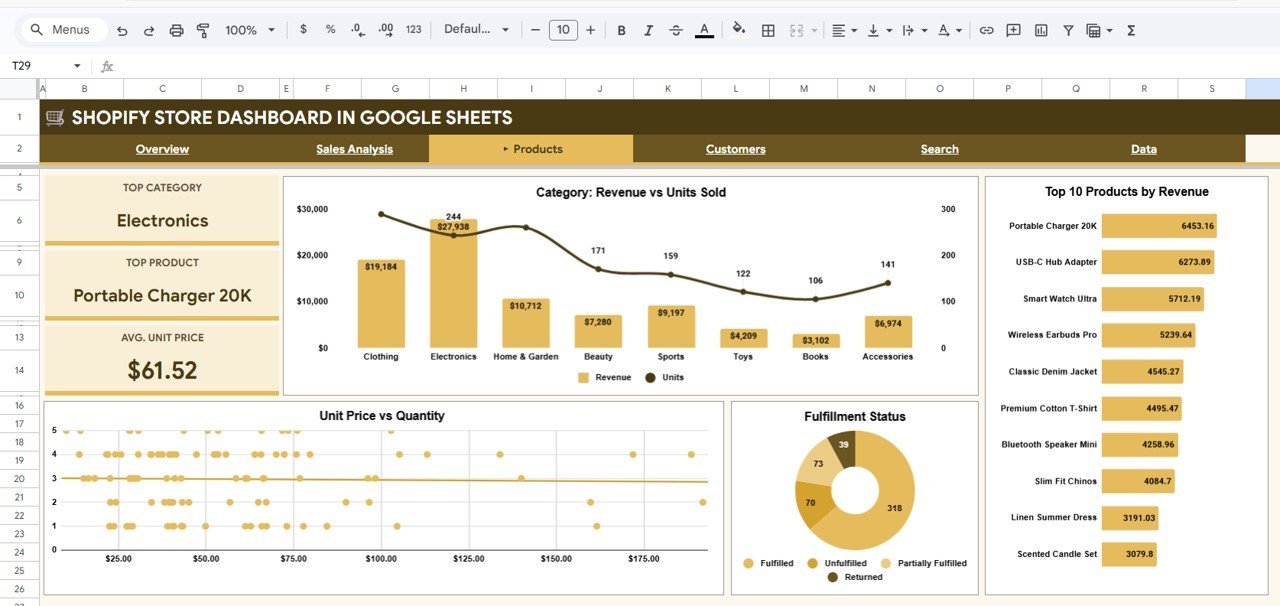
📌 Product-Level Analytics — Category revenue vs units sold, top 10 products by revenue, unit price vs quantity analysis, and fulfillment status tracking
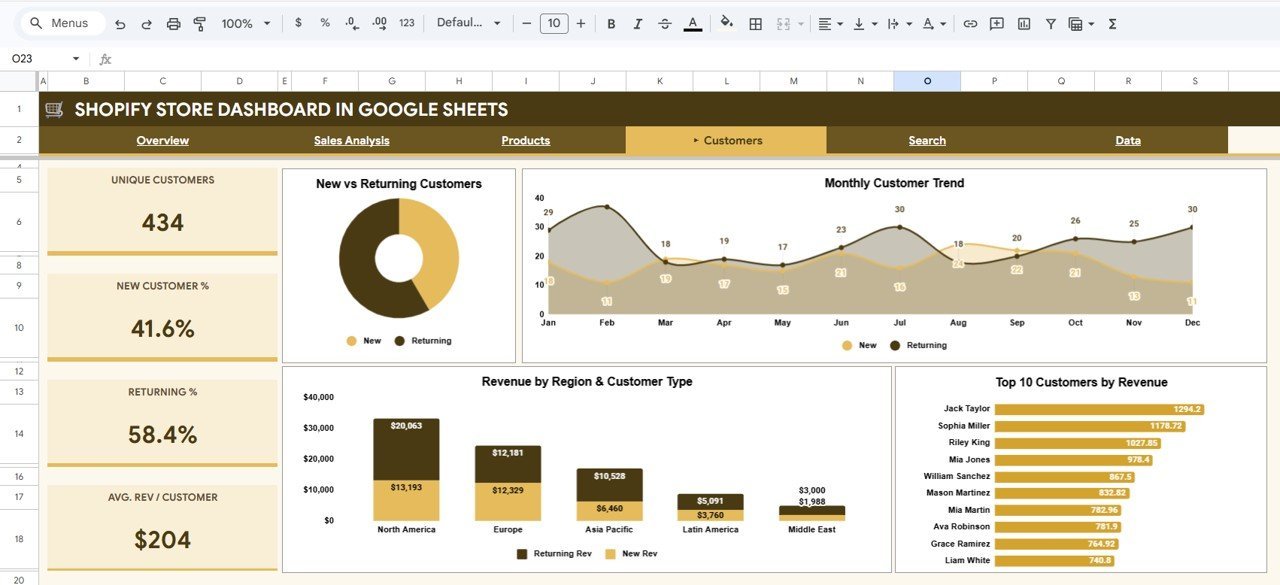
📌 Customer Insights — New vs returning customer analysis, monthly customer trends, revenue by region and customer type, and top 10 customers by revenue
📌 Easy Data Entry — Simply add your Shopify export data in the Data Sheet in the same format and all charts and KPIs update automatically
📌 Professional Design — Clean, modern layout built for Shopify entrepreneurs, e-commerce teams, and retail analysts
📦 What’s Inside the Shopify Store Dashboard in Google Sheets
This Google Sheets template includes 6 interactive sheet tabs that work together as a complete Shopify analytics system. The dashboard tracks 5 core KPIs and features over 15 analytical charts across all pages.
📌 1 – Overview Page: Your high-level command center. At the top, KPI cards display Total Net Revenue, Total Orders, Avg. Order Value, Total Units Sold, and Total Discounts. Below, dynamic charts visualize Revenue by Product Category to identify top-selling categories, Order Status Distribution to track order stages, Monthly Revenue vs Orders to monitor growth trends, and Revenue by Sales Channel to compare multi-channel performance. Multiple slicers let you filter the entire view instantly.
Shopify Store Dashboard in Google Sheets
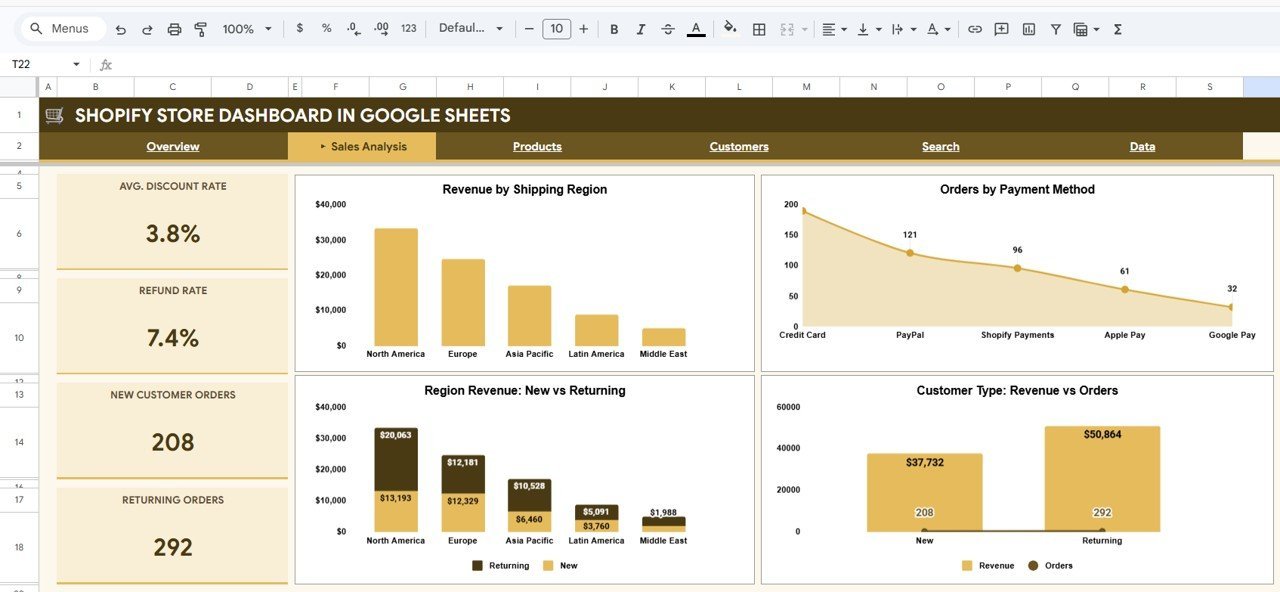
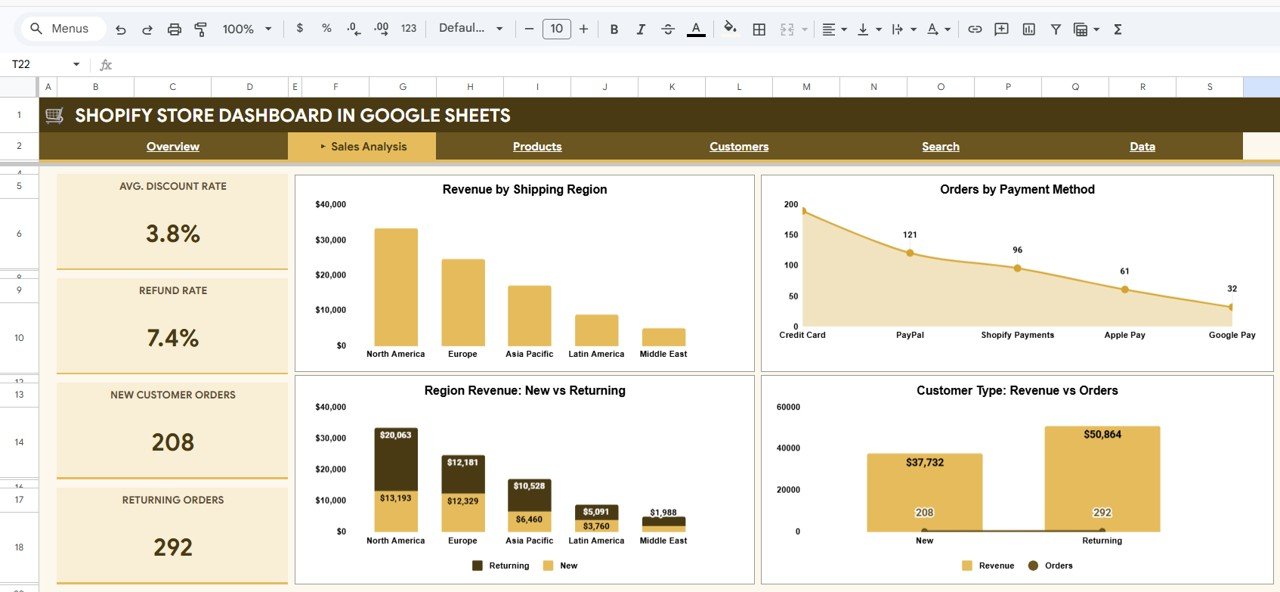
📌 2 – Sales Analysis: Dive deeper into your Shopify sales metrics with Revenue by Shipping Region to evaluate geographic performance, Orders by Payment Method to understand customer payment preferences, Region Revenue: New vs Returning to compare acquisition vs retention by location, and Customer Type: Revenue vs Orders to analyze the value of new versus returning buyers.
Sales Analysis
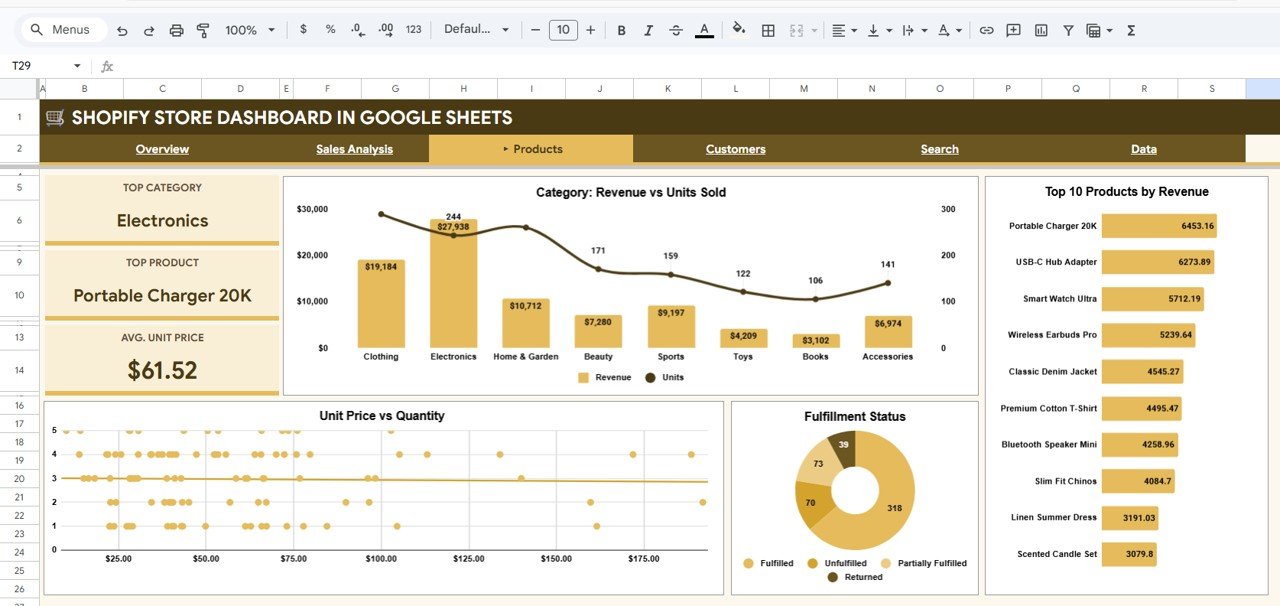
📌 3 – Products: Understand your product performance at a granular level with Category: Revenue vs Units Sold to compare volume leaders against revenue drivers, Top 10 Products by Revenue to identify bestsellers, Unit Price vs Quantity analysis for pricing optimization, and Fulfillment Status tracking to monitor delivery performance across your catalog.
Products
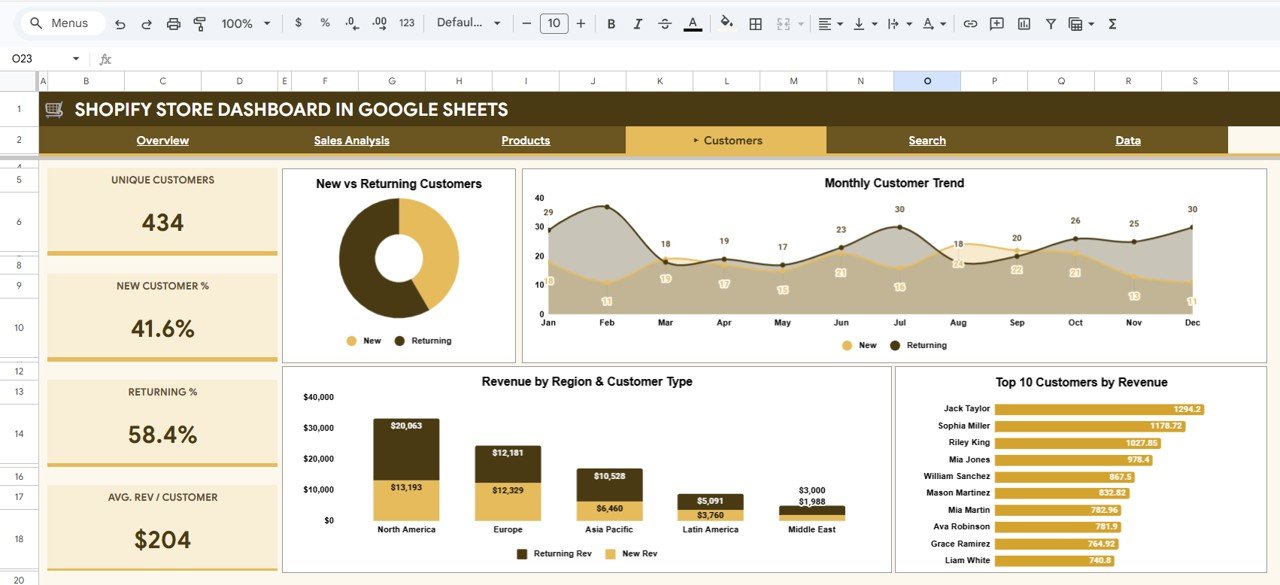
📌 4 – Customers: Gain deep customer insights with New vs Returning Customers breakdown, Monthly Customer Trend to track customer acquisition over time, Revenue by Region and Customer Type for segment-level analysis, and Top 10 Customers by Revenue to identify your most valuable buyers.
Customers
📌 5 – Search Sheet: This is the Search sheet. You can search by Order ID using the dropdown and it will display the full order details including Order ID, Order Date, Customer Name, Email, Product Name, Product Category, SKU, Quantity, Unit Price, Total Amount, Discount, Net Revenue, Payment Method, Order Status, Fulfillment, and Sales Channel.
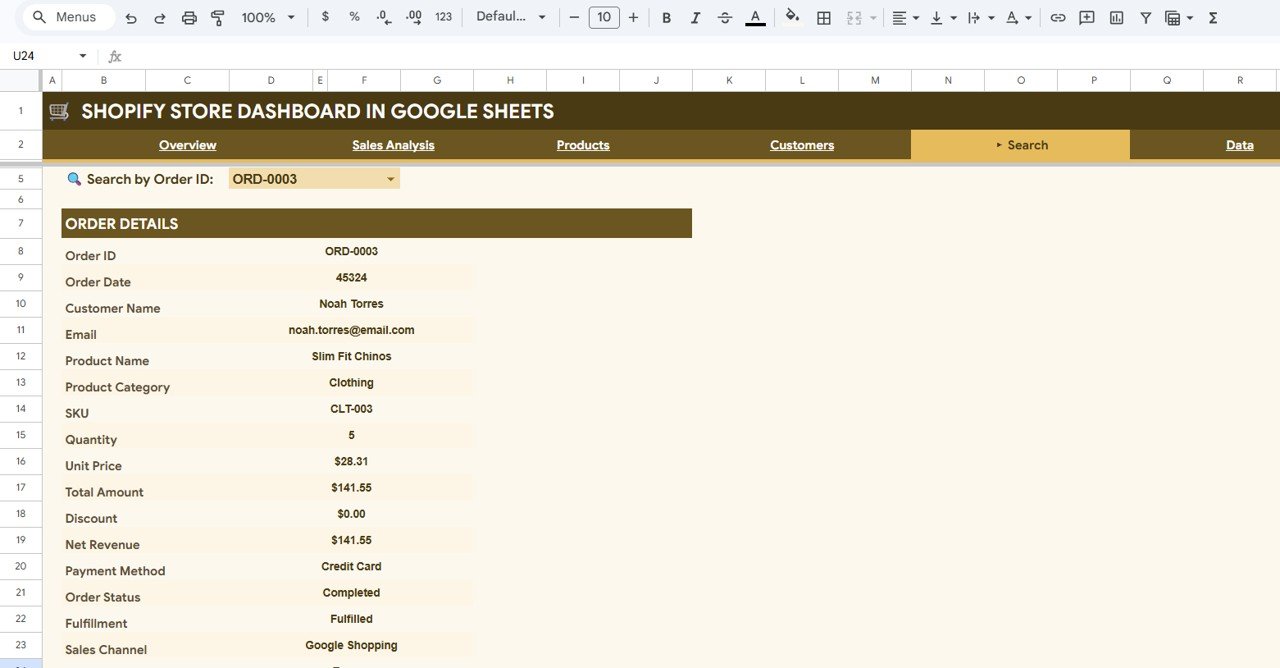
Search Sheet Tab
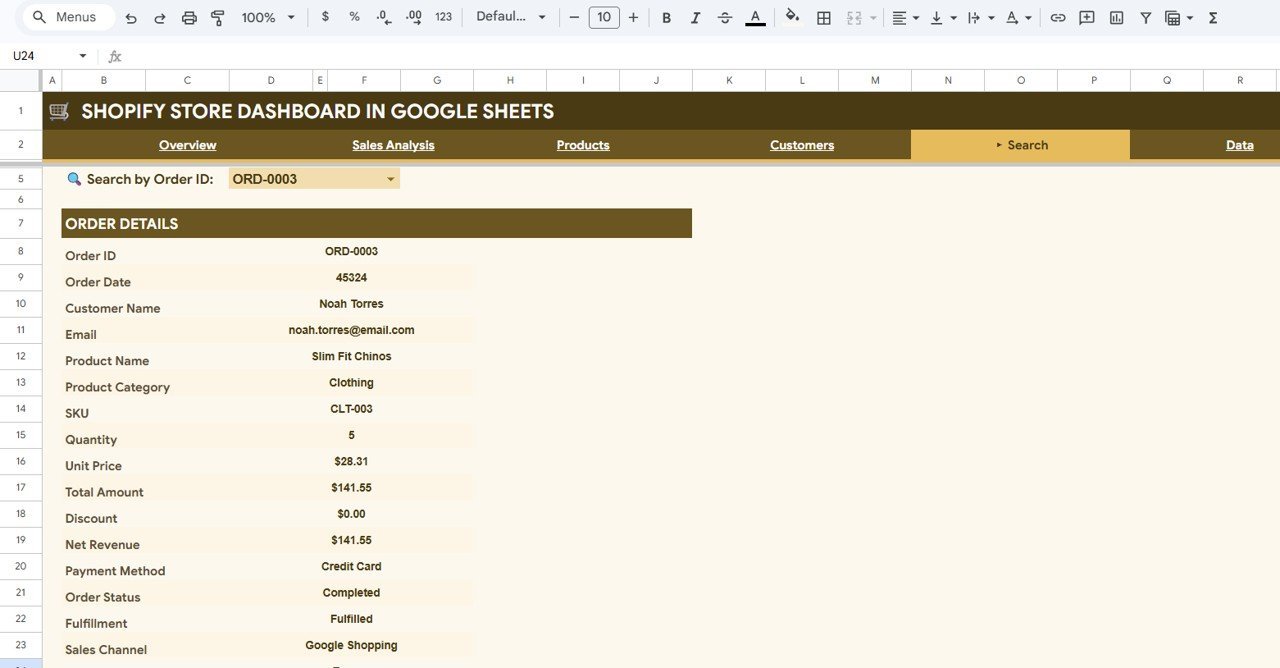
📌 6 – Data Sheet: This is the Data sheet. Here you need to add your Shopify store data in the same format. Simply export your orders from Shopify and paste them into this sheet — all charts, KPIs, and analysis pages update automatically.
Data Sheet Tab
⚙️ How to Use the Shopify Store Dashboard in Google Sheets
📌 Step 1: Open the PDF guide included in your download — it has the Google Sheets copy link
📌 Step 2: Click the link to create your own editable copy in Google Drive
📌 Step 3: Navigate to the Data Sheet and review the sample data structure
📌 Step 4: Replace the sample data with your own Shopify store export data
📌 Step 5: All charts, KPI cards, and analysis pages refresh automatically
📌 Step 6: Use slicers and filters to explore your data by category, channel, region, and customer type
👥 Who Can Benefit from This Shopify Store Dashboard
📌 Shopify Store Owners tracking revenue, orders, and customer trends across their product catalog
📌 E-Commerce Managers monitoring sales channel performance and fulfillment rates
📌 Marketing Teams evaluating customer acquisition — new vs returning buyer analysis
📌 Finance Teams analyzing revenue by region, payment method, and discount impact
📌 Operations Teams tracking order fulfillment status and delivery patterns
📌 Business Analysts building data-driven strategies using cloud-based Shopify analytics
If your business runs on Shopify, this dashboard helps you move from scattered data to actionable insights — all in the cloud. Explore more Google Sheets Dashboard Templates or check out the Shopify Store Dashboard in Excel for a pivot-table based alternative. You may also like the Shopify Store Dashboard in Power BI for advanced analytics.
❓ Frequently Asked Questions
What KPIs does the Shopify Store Dashboard in Google Sheets track?
The Shopify Store Dashboard in Google Sheets tracks 5 key performance indicators: Total Net Revenue, Total Orders, Average Order Value, Total Units Sold, and Total Discounts. It also includes 15+ analytical charts across 6 sheet tabs covering sales analysis, product insights, customer segmentation, and order search capabilities.
Do I need advanced Google Sheets skills to use this dashboard?
No. Simply copy the template to your Google Drive using the link in the PDF guide, replace the sample data with your own Shopify export, and all charts and KPIs update automatically. No formulas to write, no coding needed.
Can I share this dashboard with my team?
Yes. Since this runs in Google Sheets, you can share the file with team members via Google Drive for real-time collaboration. Multiple people can view and analyze the data simultaneously.
How do I search for a specific order?
Go to the Search sheet tab, select an Order ID from the dropdown, and the dashboard will instantly display all details for that order including customer info, product details, payment method, fulfillment status, and revenue breakdown.
What is the best Google Sheets dashboard template for Shopify store analytics?
The Shopify Store Dashboard in Google Sheets from NextGenTemplates is one of the best cloud-based Shopify analytics solutions available. It covers 6 interactive sheet tabs including sales analysis, product insights, customer segmentation, and a powerful search function — all with real-time Google Drive collaboration.
🔗 Explore Related Templates
📊 Shopify Store Dashboard in Excel — Track Shopify store performance using Excel pivot tables and charts.
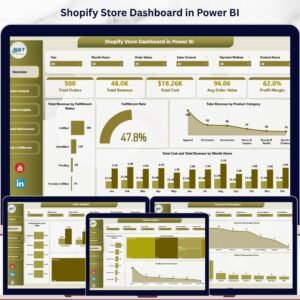
📈 Shopify Store Dashboard in Power BI — Advanced Shopify analytics with dynamic Power BI visuals.
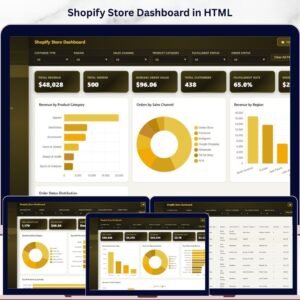
📋 Shopify Store Dashboard in HTML — Browser-based Shopify dashboard with zero software needed.
📖 Click here to read the Detailed Blog Post
Watch the step-by-step video tutorial: