Managing team activities, holidays, meetings, and important events can quickly become complicated when organizations rely on scattered spreadsheets, emails, or manual notes. Teams often miss important deadlines, face scheduling conflicts, or struggle to track upcoming events. Without a structured system, coordinating team schedules becomes inefficient and time-consuming.
The Team Performance Holiday Calendar in Excel is designed to solve this problem. It provides a centralized and organized calendar system that allows teams to manage events, track holidays, and monitor schedules efficiently in one place.
This ready-to-use Excel template uses interactive forms, automated calendar views, and a centralized event database to simplify event planning and team coordination. Instead of maintaining multiple schedules, organizations can track all team activities using one structured calendar.
Because the template is built in Microsoft Excel, it requires no complex software or expensive tools. Teams can easily customize the calendar based on their needs while maintaining a clean and organized scheduling system.
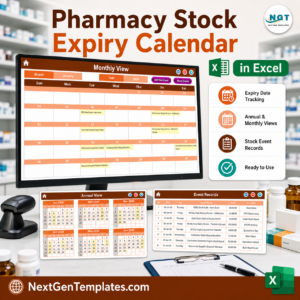
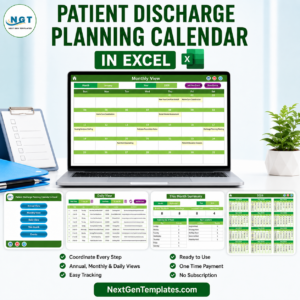
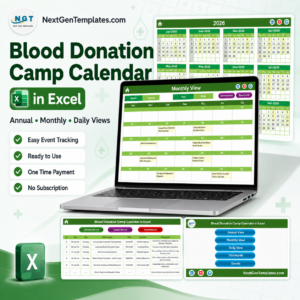
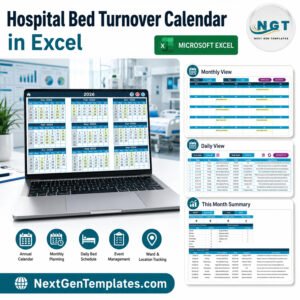
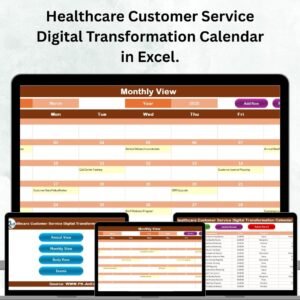
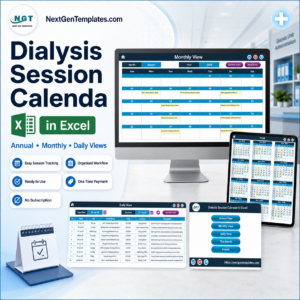
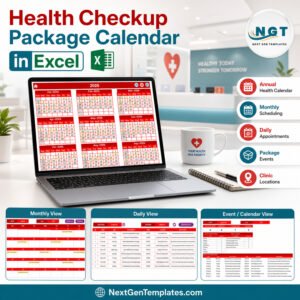
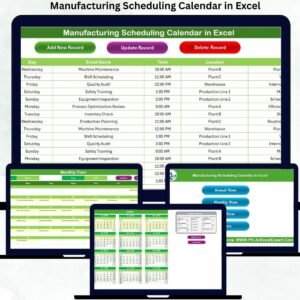
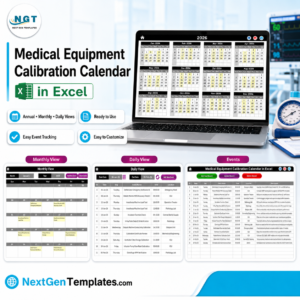
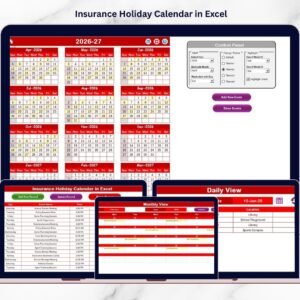
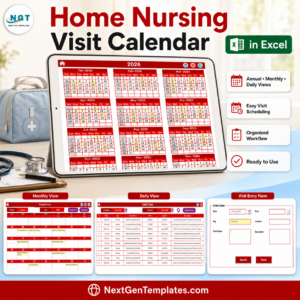
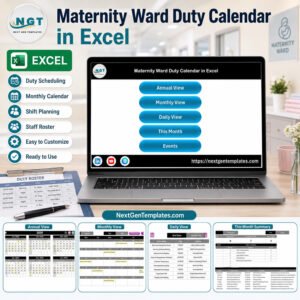
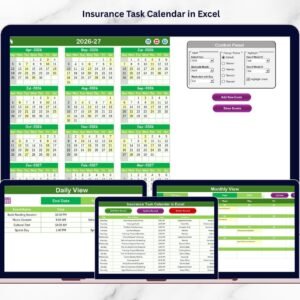
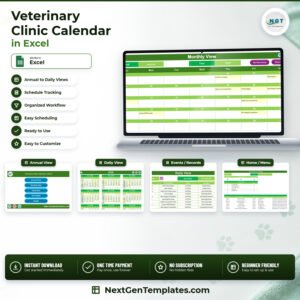
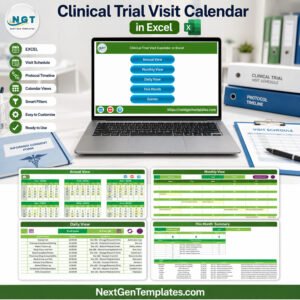
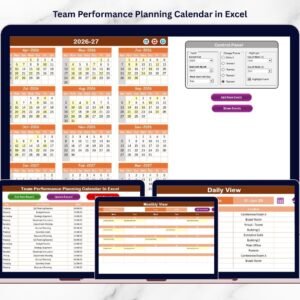
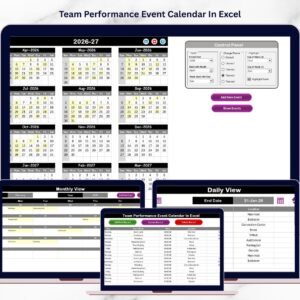
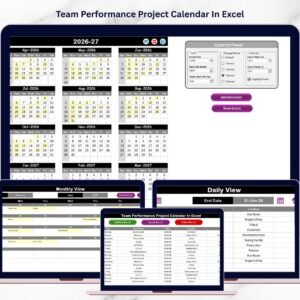
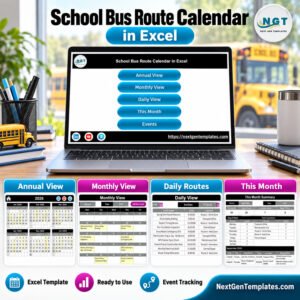
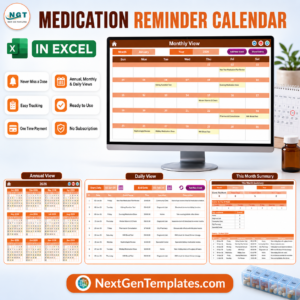
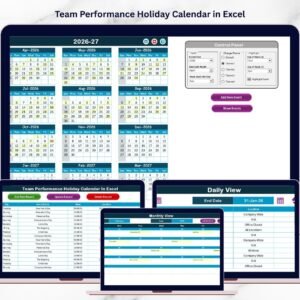
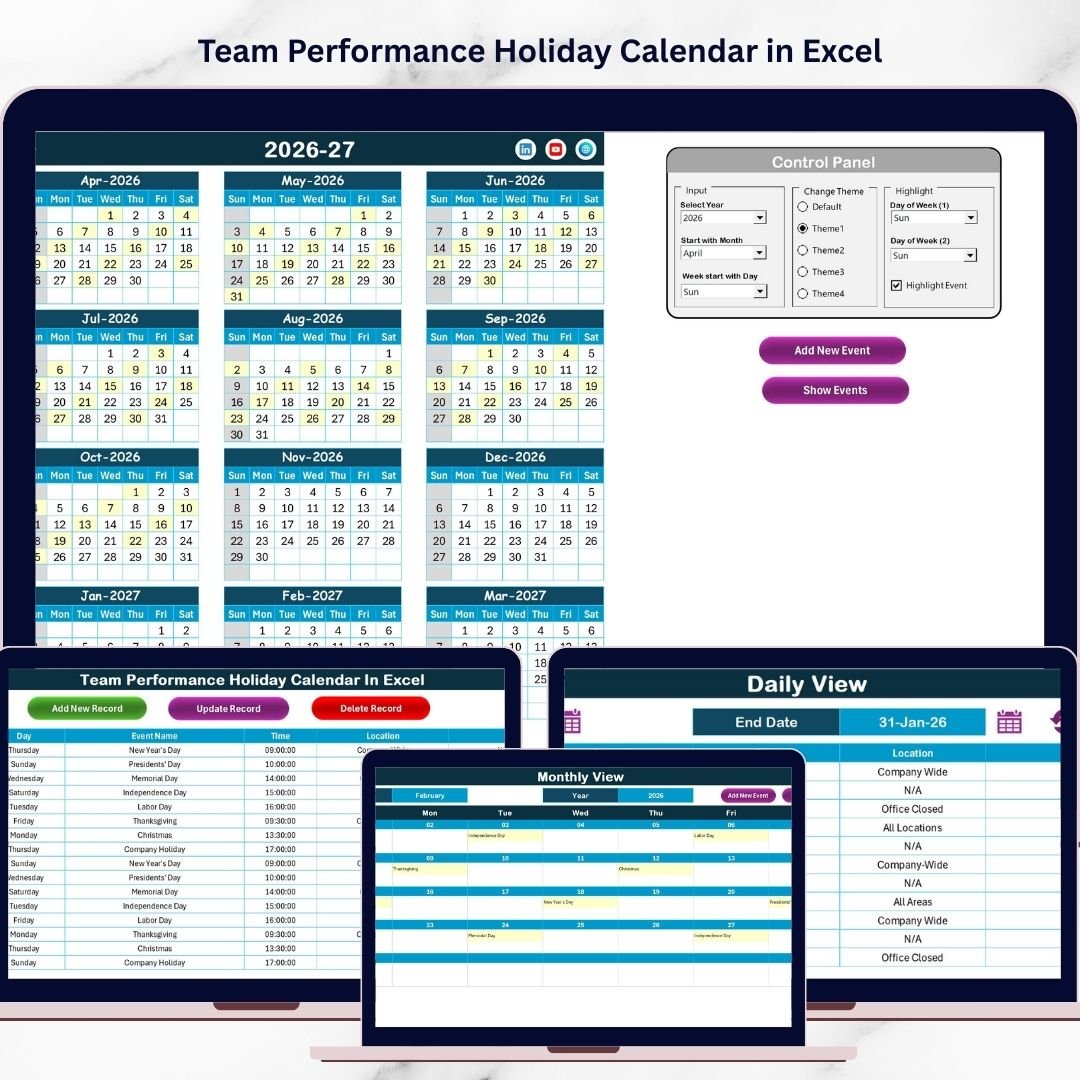
The calendar includes annual, monthly, and daily views, allowing users to plan long-term schedules, monitor monthly activities, and review detailed event lists. Additionally, users can add, update, and manage events through interactive buttons and forms.
Whether you are managing team meetings, holidays, training sessions, project milestones, or company events, this calendar template provides a practical solution to keep everyone aligned and informed.
With a centralized scheduling system in place, organizations can improve communication, planning efficiency, and overall team productivity.
📅 Key Feature of Team Performance Holiday Calendar in Excel
📊 Centralized Event Management
Store all team events, meetings, holidays, and activities in one organized calendar system.
📆 Multiple Calendar Views
Access annual, monthly, and daily views to monitor events at different levels.
⚡ Interactive Event Entry Forms
Add new events quickly using automated forms that update the calendar instantly.
🎯 Easy Navigation Dashboard
Quick navigation buttons allow users to switch between calendar views easily.
🎨 Customizable Themes
Choose from multiple color themes to match your organization’s style.
🔍 Event Highlighting System
Automatically highlight important dates and holidays for quick identification.
📊 Detailed Event Database
Store event details including date, time, location, and descriptions.
⚙️ Flexible Excel Customization
Modify the calendar according to your organization’s scheduling needs.
📦 What’s Inside the Team Performance Holiday Calendar in Excel
This ready-to-use Excel template contains five structured worksheets designed to simplify event planning and schedule management.
Home Sheet
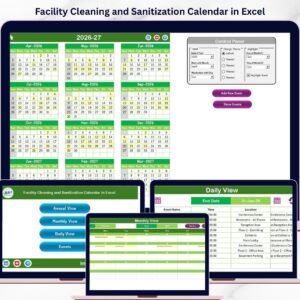
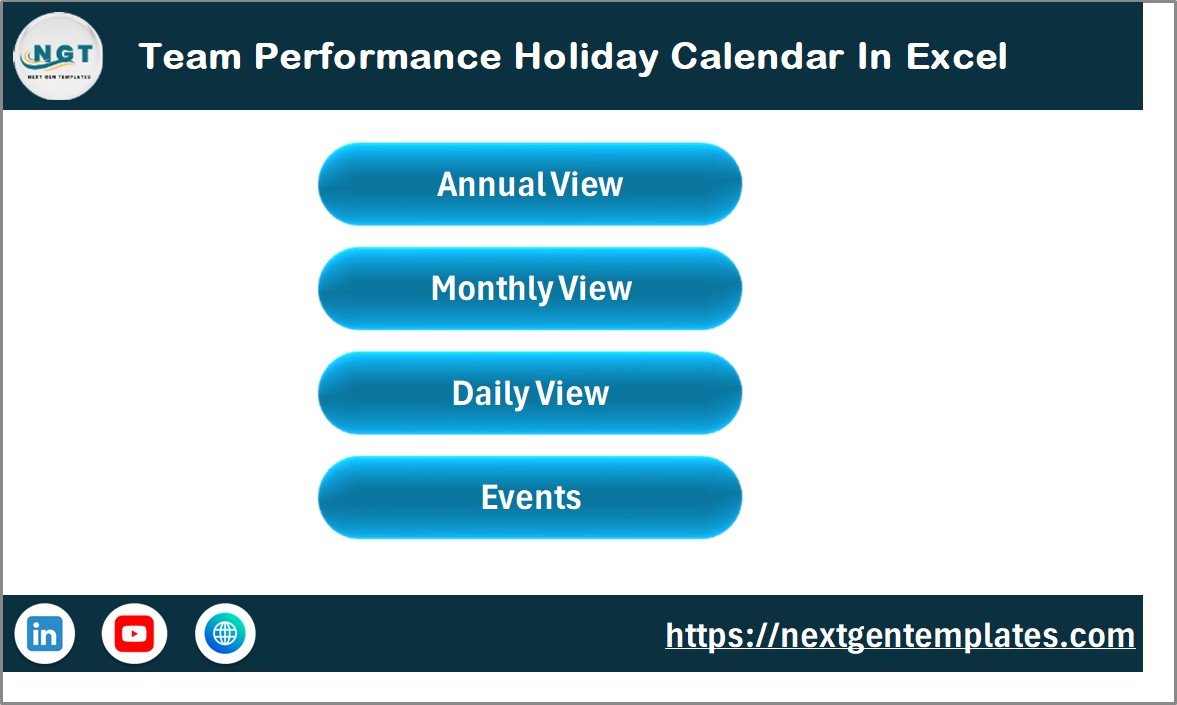
Acts as the main index page with navigation buttons that quickly open the Annual View, Monthly View, Daily View, and Events Database.
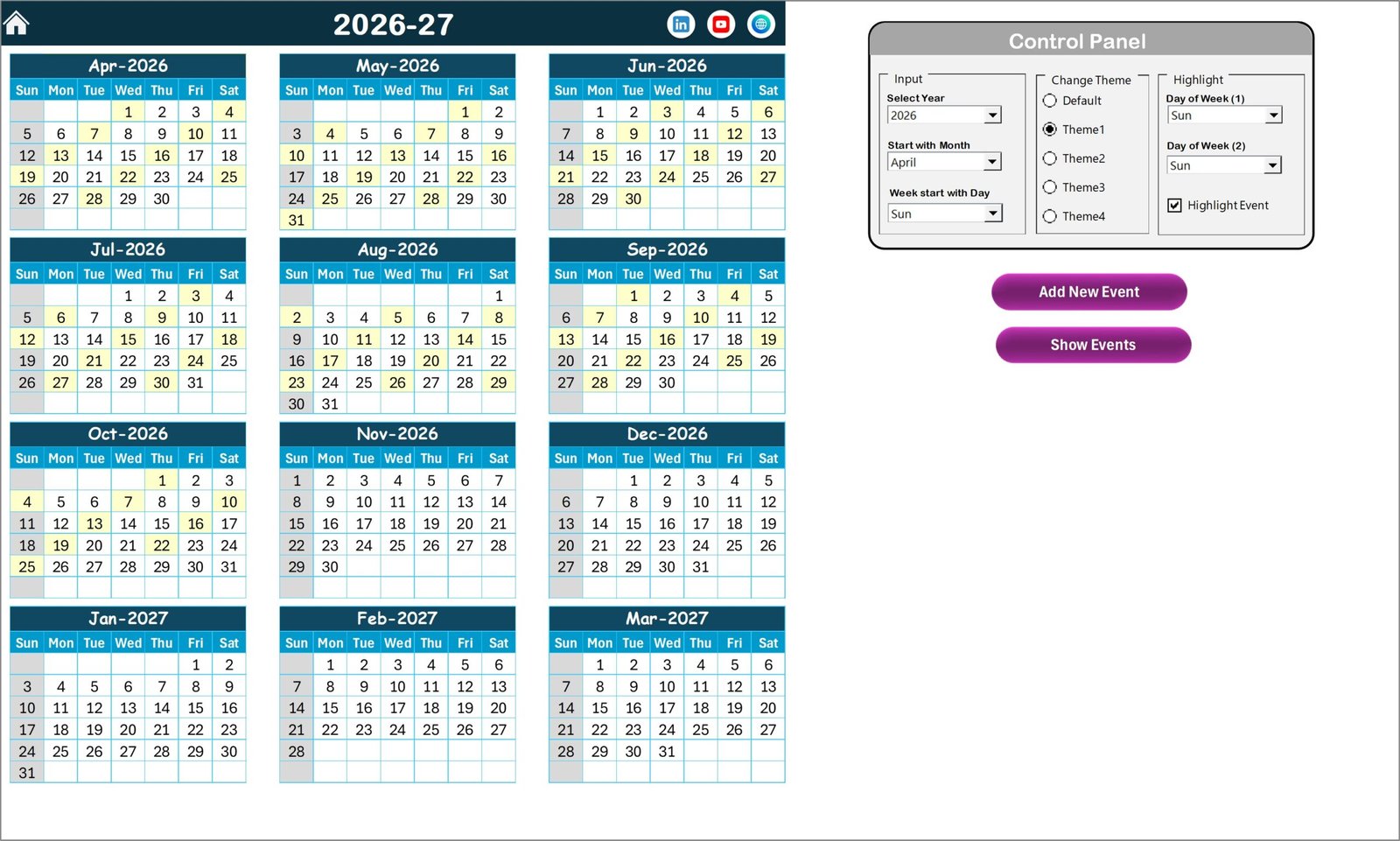
Annual View Sheet
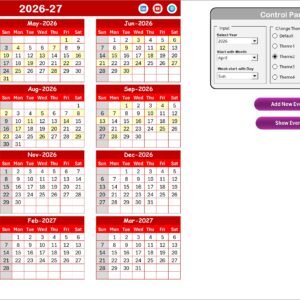
Displays the complete 12-month calendar in one screen, helping users plan yearly activities and track important dates.
Users can customize the calendar by selecting the year, changing the starting month, and choosing the starting day of the week.
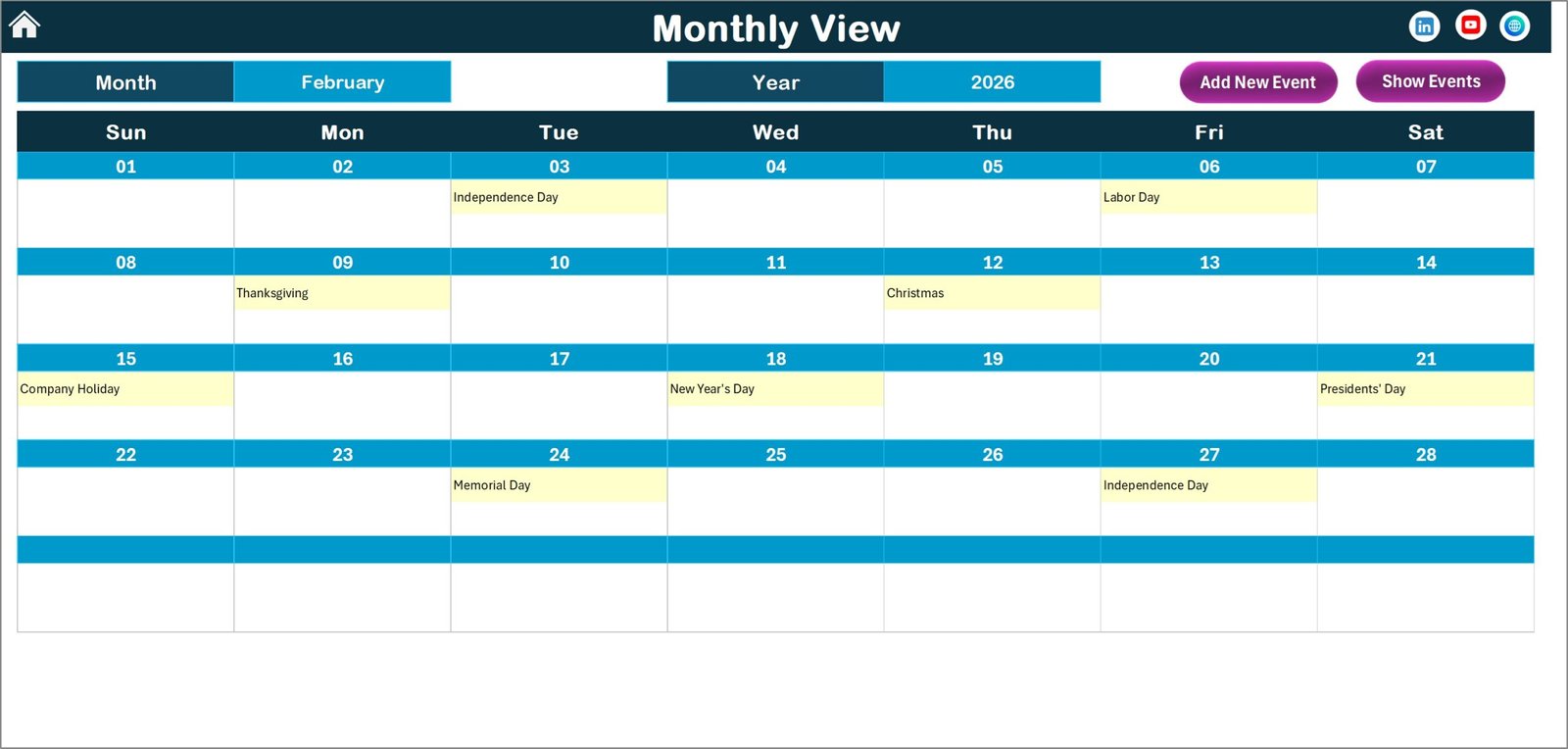
Monthly View Sheet
Provides a detailed monthly calendar that automatically updates when users select a specific month and year.
Users can add new events or review existing events directly from the calendar interface.
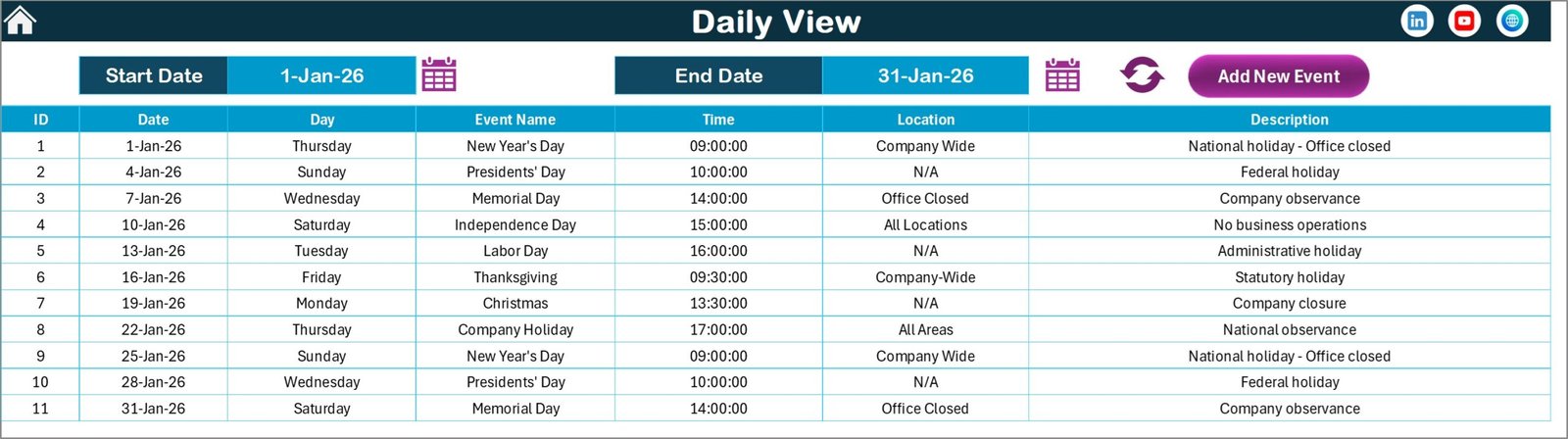
Daily View Sheet
Displays a detailed list of events within a selected date range, allowing teams to analyze upcoming activities.
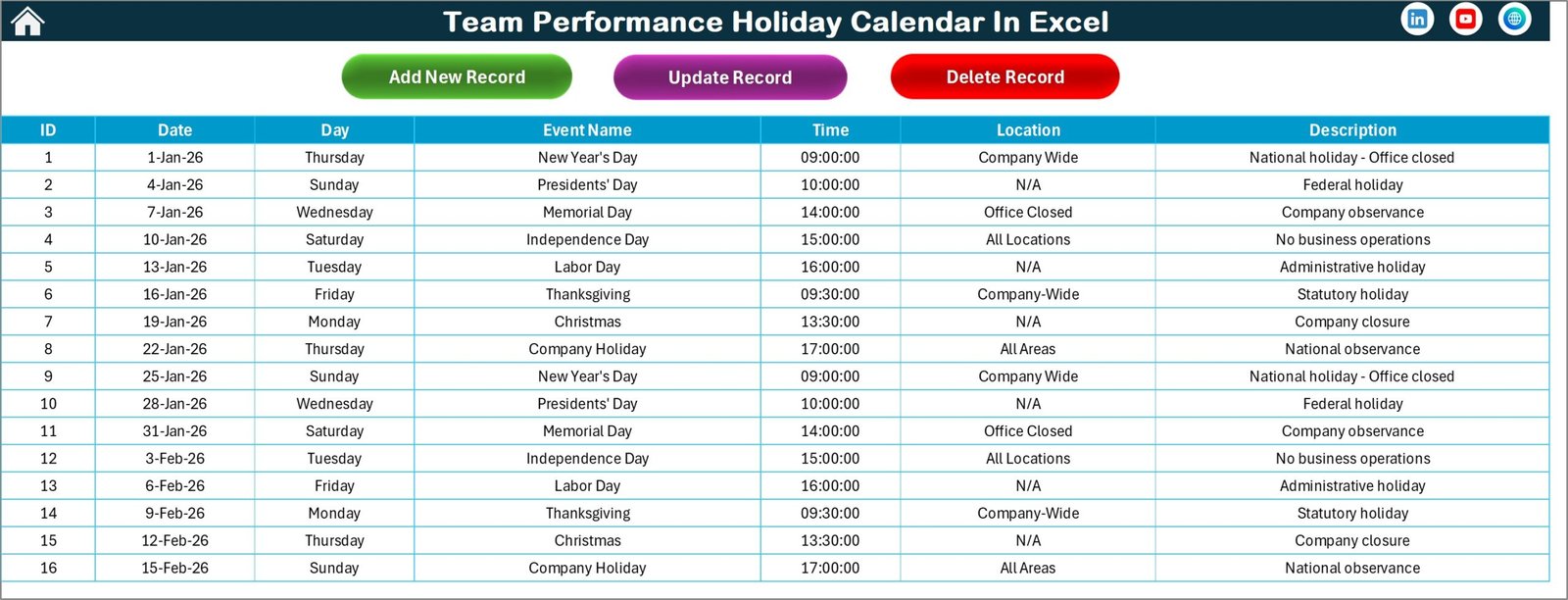
Events Sheet
Acts as the centralized database storing all event details including event ID, date, day, event name, time, location, and description.
Users can also update or delete events using built-in management buttons.
🧭 How to Use the Team Performance Holiday Calendar in Excel
Using the calendar template is simple and requires only basic Excel knowledge.
Step 1 – Set Calendar Preferences
Choose the year, starting month, and starting day of the week in the Annual View settings.
Step 2 – Add Team Events
Click the Add New Event button to enter event details such as date, time, location, and description.
Step 3 – View Scheduled Events
Use the Monthly View or Daily View sheets to review upcoming activities.
Step 4 – Update or Manage Events
Modify or delete events using the event management buttons on the Events Sheet.
Step 5 – Monitor Team Schedules
Use the calendar views to track holidays, meetings, and important dates efficiently.
By following these steps, teams can maintain a well-organized event management system.
👥 Who Can Benefit from This Team Performance Holiday Calendar
This Excel calendar template is useful for many professionals and organizations.
👨💼 Project managers
🏢 HR teams
📊 Operations managers
👥 Team leaders
🏫 Educational institutions
🏭 Corporate teams
📅 Event coordinators
Any organization that manages team schedules, meetings, or company events can benefit from this structured calendar system.
Click hare to read the Detailed blog post
Visit our YouTube channel to learn step-by-step video tutorials
👉 https://youtube.com/@PKAnExcelExpert