



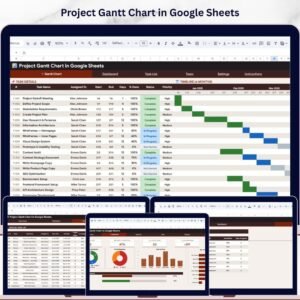
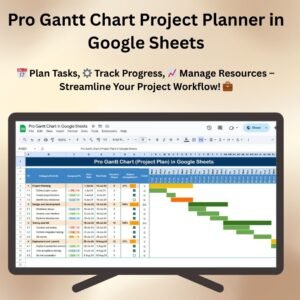
The Pro Gantt Chart Project Planner in Google Sheets combines a task list, color-coded timeline, progress indicators, resource assignments and milestones. Teams can enter tasks, deadlines and responsibilities, then update task status in a shared project plan as work progresses.
Whether you’re managing a team, organizing multiple projects, or tracking important milestones, this Gantt chart template simplifies the project planning process, helps allocate resources effectively, and ensures on-time delivery of tasks.

Key Features of the Pro Gantt Chart Project Planner in Google Sheets
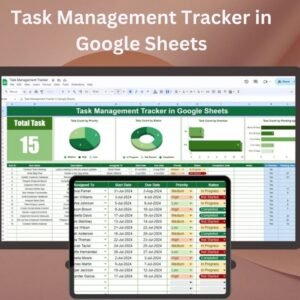
📅 Task Management: Manage all project tasks, subtasks, and milestones, with clear deadlines and completion statuses.
⚙️ Customizable Timeline: Adjust project start and end dates to fit your specific project timeline.
📈 Progress Tracking: Track the progress of each task, from not started to completed, with a visual progress bar.
📊 Resource Allocation: Allocate resources to tasks and monitor resource availability to ensure deadlines are met.
💼 Team Collaboration: Share with your team members for collaborative updates and real-time project tracking.
📊 Visual Representation: The color-coded Gantt chart timeline provides an easy-to-understand overview of the project. Pro Gantt Chart Project Planner in Google Sheets
Why You’ll Love the Pro Gantt Chart & Project Plan in Google Sheets
✅ Improved Project Visibility: Get a clear visual representation of all tasks, timelines, and progress in one easy-to-use Gantt chart.
✅ Customizable for Your Needs: Tailor the project plan, tasks, and timelines to fit the unique needs of your business or project.
✅ Real-Time Updates: Collaborate with your team and update the Gantt chart in real-time, ensuring accurate tracking of tasks and deadlines.
✅ Resource Management: Keep track of resources, deadlines, and task dependencies to ensure efficient project execution.
✅ Saves Time and Improves Efficiency: Automate project updates and reduce the need for manual progress tracking.
What’s Inside the Pro Gantt Chart & Project Plan in Google Sheets?
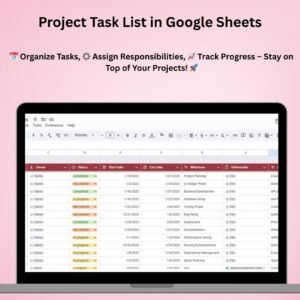
📅 Task Tracker: A detailed task list that helps track progress, deadlines, and responsibilities.
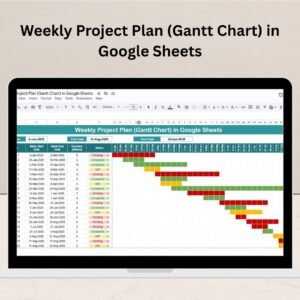
⚙️ Interactive Timeline: A color-coded Gantt chart that allows you to view the entire project timeline and track progress.
📈 Progress Indicators: Visual progress bars for each task, highlighting the percentage completed and remaining work.
💼 Resource Management: Assign resources (team members, equipment, etc.) to tasks and track their availability.
📊 Project Milestones: Track key project milestones to ensure timely project delivery.
How to Use the Pro Gantt Chart & Project Plan in Google Sheets
1️⃣ Download the Template – Access the pre-configured Gantt chart project plan in Google Sheets.
2️⃣ Add Your Project Details: Input project tasks, deadlines, and resources into the template.
3️⃣ Track Progress: Update task statuses and monitor progress through the color-coded timeline.
4️⃣ Allocate Resources: Assign resources to tasks and ensure they are available for project completion.
5️⃣ Collaborate: Share with team members for real-time updates and collaboration. Pro Gantt Chart Project Planner in Google Sheets
Who Can Benefit from the Pro Gantt Chart & Project Plan in Google Sheets?
🔹 Project Managers
🔹 Team Leaders
🔹 Operations Managers
🔹 Business Owners
🔹 Freelancers and Consultants
🔹 Project Coordinators
🔹 Small to Medium Enterprises (SMEs)
Enhance project management, streamline task tracking, and ensure timely delivery with the Pro Gantt Chart & Project Plan in Google Sheets. Perfect for anyone looking to manage projects more efficiently and collaboratively .Pro Gantt Chart Project Planner in Google Sheets
Click here to read the detailed blog post Pro Gantt Chart Project Planner in Google Sheets
Visit our YouTube channel to learn step-by-step video tutorials
Watch the step-by-step video tutorial: Pro Gantt Chart Project Planner in Google Sheets
Also check our Attendance Template in Google Sheet
Questions about this template
What project information should I prepare?
Prepare task and subtask names, start and end dates, responsible resources and key milestones. Update completion status to maintain the timeline and progress indicators.
How is task progress shown?
Each task has a progress bar that shows the percentage completed and the work remaining, next to the color-coded timeline.
Can I assign team members and equipment to tasks?
Yes. The resource section lets you assign team members or equipment to each task and check their availability.
Can I change the project dates?
Yes. Adjust the project start and end dates and the timeline follows them.
Can my team update the plan together?
Yes. Share the Google Sheets file with your team for real-time updates.
Compatibility and Requirements
- Works in Google Sheets with a free Google account and a web browser. No Excel installation is needed.
- New to Google Sheets? Google covers the basics in How to use Google Sheets.
Related Gantt and Project Templates
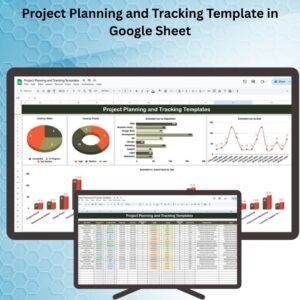
- Project Gantt Chart in Google Sheets: a larger project Gantt chart in Google Sheets
- Weekly Project Plan (Gantt Chart) in Google Sheets: a week-by-week Gantt plan in Google Sheets
- Pro Gantt Chart in Excel with data entry form: a Gantt chart in Excel with a data entry form
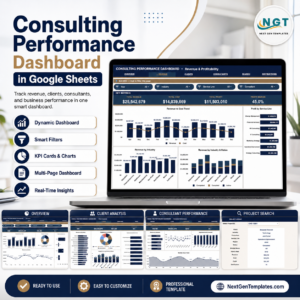
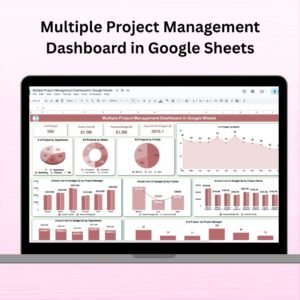
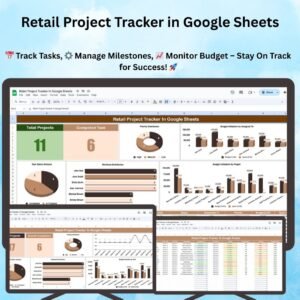
- Multiple Project Management Dashboard in Google Sheets: tracks several projects in one Google Sheets dashboard
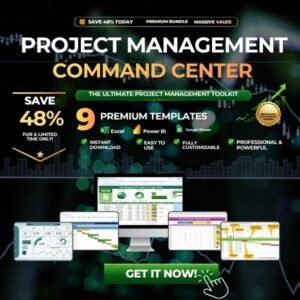
- Project Management Pro Bundle: nine project management templates in one bundle
Browse all Google Sheets project management templates or the Excel project management templates.










Reviews
There are no reviews yet.