

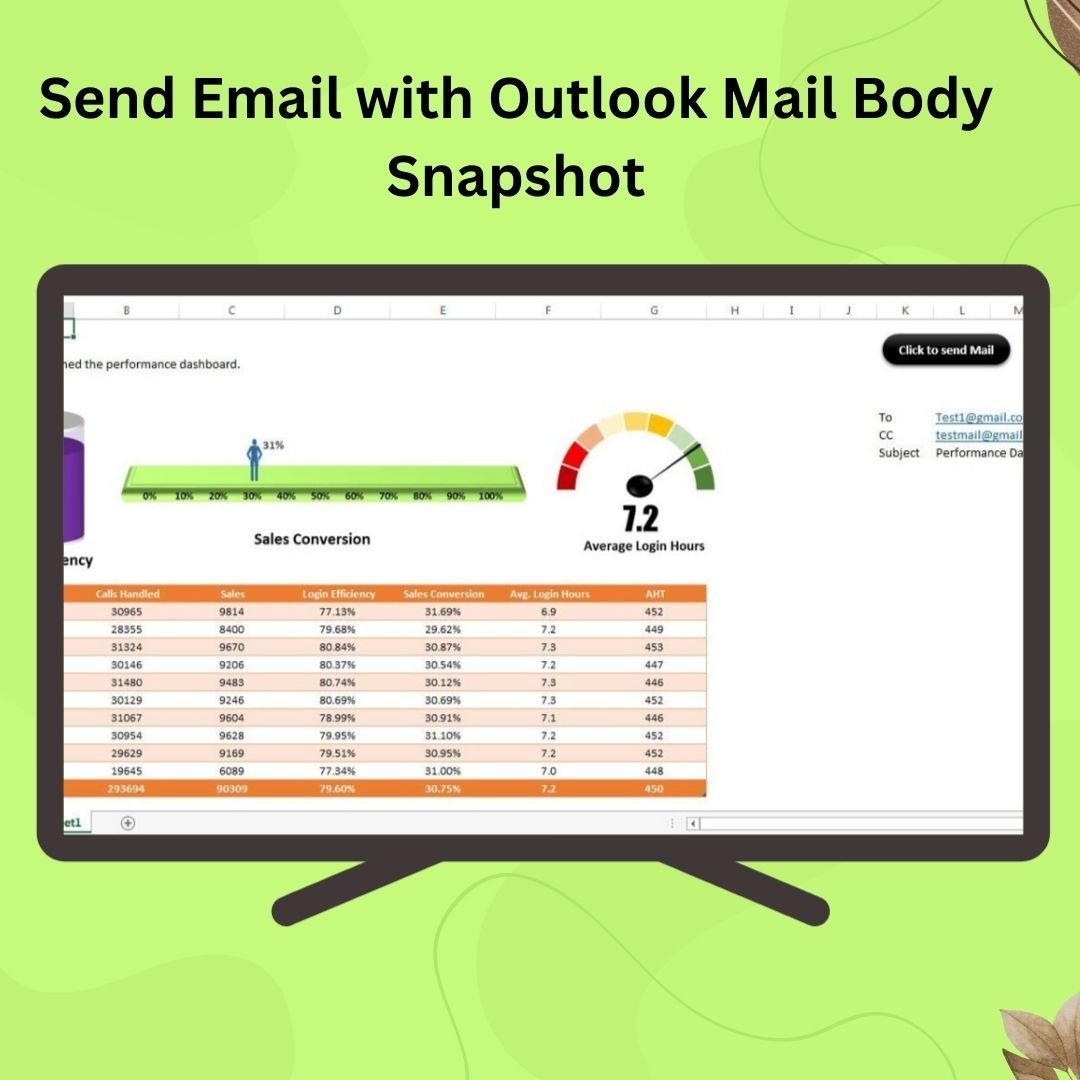
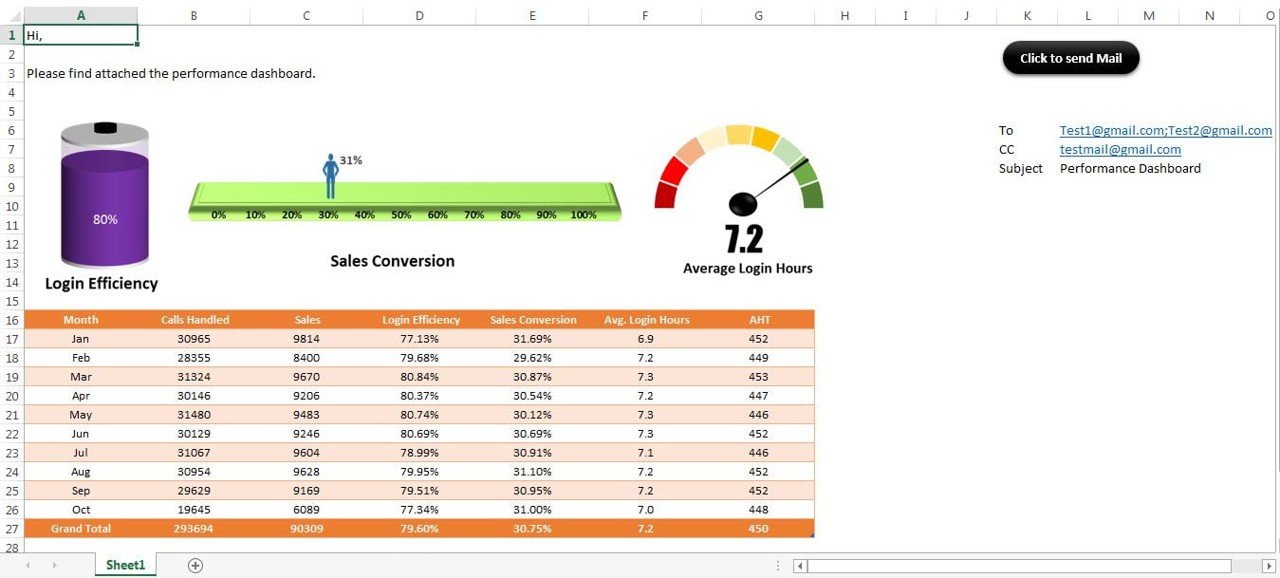

The Send Email with Outlook Mail Body Snapshot tool is a ready-made Excel VBA automation that captures a snapshot of a chosen worksheet range or chart and sends it by email through Outlook. It is built for managers, analysts, sales teams and anyone who shares Excel data regularly. The result is faster, more consistent reporting without copying and pasting data into emails.
Whether you send a weekly sales report, a project status update or a single chart to a colleague, this Excel snapshot tool captures the visual data and sends it for you. Recipients get exactly what they need, and you spend less time on manual work.
Key Features of the Send Email with Outlook Mail Body Snapshot Tool
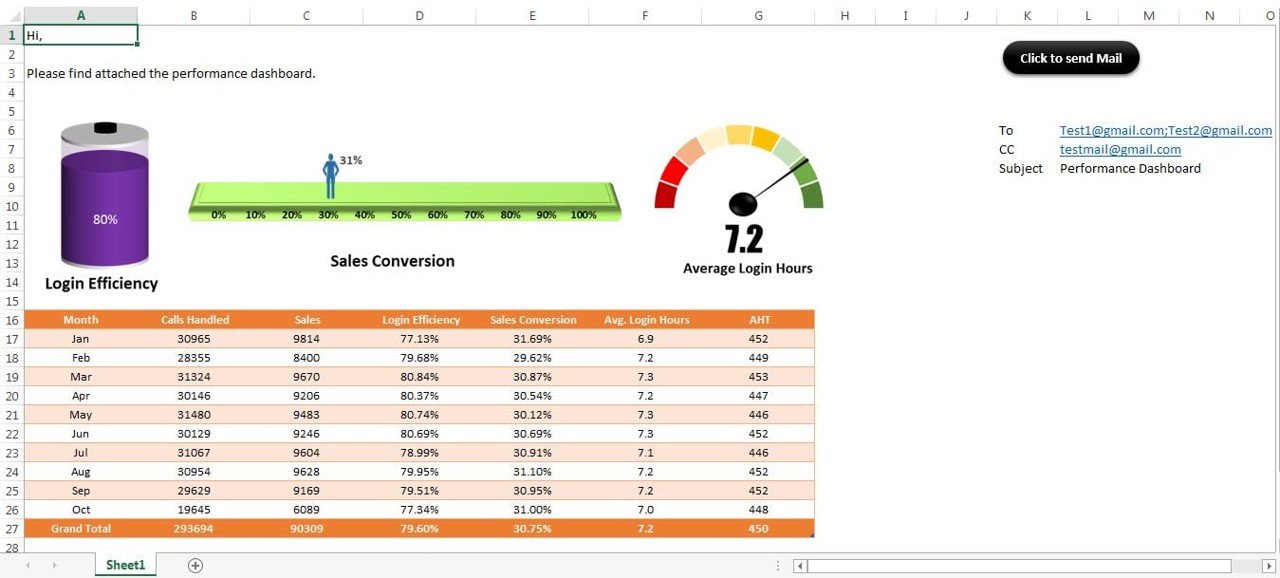
- Capture Excel snapshots: Capture a specific area or chart in your worksheet as an image.
- Send the snapshot by email: Send the captured snapshot by email directly from Excel, with no manual screenshots.
- Customizable email content: Set your own subject and body, and add any custom message or information.
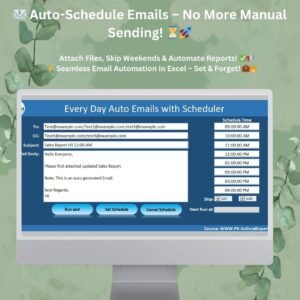
- Automated sending: Schedule emails for specific times, or trigger sending based on certain events or conditions.
- Real-time data capture: The snapshot updates when the data changes, so recipients always get the most current information.
- User-friendly interface: A simple interface lets you set up and send emails with snapshots without advanced Excel or coding skills.
Why Use This Excel Snapshot Tool?
- Automated email reporting: No more copying and pasting Excel data into emails.
- Time-saving: Send up-to-date snapshots of data or charts to colleagues, clients or stakeholders in moments.
- Easy customization: Choose the data for the snapshot and adjust the email content to suit each message.
- Higher efficiency: Automate routine email messages and spend your time on more important tasks.
- Built for business professionals: Suits managers, team leaders and anyone who needs to send Excel data by email regularly.
What’s Inside the Tool
| Component | What It Does |
|---|---|
| Snapshot Capture | Select any range or chart in your worksheet and capture it as a snapshot. |
| Email Functionality | Sends the snapshot by email, with options to customize the email content. |
| Customizable Email Template | Set email subject lines, body content and more for a professional result. |
| Scheduling Feature | Sets up automatic sending to match your needs, including recurring reports or urgent updates. |
| Real-Time Updates | Makes sure the snapshot shows the latest data changes at the time the email is sent. |
The tool comes as a macro-enabled Excel file with built-in email functionality. It is a simple way to add Outlook email automation to your existing reporting routine.
Who Is It For?
- Managers who share team performance figures
- Sales teams who send weekly or daily sales reports
- Project managers who circulate project status updates
- Customer support teams who report on service metrics
- Marketing professionals who share campaign charts
- Business analysts who send data summaries to stakeholders
- Consultants who send client updates
How to Use It
- Download the template: Get the Excel file with built-in email functionality and unzip it.
- Enable macros: Make sure macros are turned on before you use the file (see the tutorial link below).
- Select the snapshot range: Choose the range or chart you want to capture in your email.
- Customize the email content: Write the subject line and body of the email for your recipients.
- Send the email: Send the snapshot by email with a single click.
- Automate email sending: Schedule the email for specific times, or have it sent when certain conditions are met.
After you download and unzip this file, make sure macros are enabled before use. Our tutorial gives step-by-step instructions on enabling macros in Excel: https://www.pk-anexcelexpert.com/4-easy-ways-to-enable-macros-in-excel-vba/
Click here to read the detailed blog post on Send Email with Outlook Mail Body Snapshot
Visit our YouTube channel for step-by-step video tutorials.
Watch the Step-by-Step Video Tutorial: Send Email with Outlook Mail Body Snapshot
Frequently Asked Questions
What does the Send Email with Outlook Mail Body Snapshot tool do?
It captures a snapshot of a selected range or chart in your Excel worksheet and sends it by email. You can customize the subject and body of the email.
Do I need coding skills to use it?
No. The interface is simple, so you can set up and send emails with snapshots without advanced Excel or coding skills.
Do I need to enable macros?
Yes. This is a VBA tool, so macros must be enabled after you download and unzip the file. Follow the macro tutorial link above for step-by-step instructions.
Can I schedule emails to send automatically?
Yes. The scheduling feature lets you send emails at specific times or trigger sending based on certain events. This makes it useful for recurring reports and urgent updates.
Will the snapshot show my latest data?
Yes. The snapshot updates when your data changes, so recipients get the most current information when the email is sent.
Is there a guide or video for this tool?
Yes. A detailed blog post and a step-by-step YouTube video tutorial are linked on this page.
Simplify your email communication and improve reporting efficiency with this Excel tool, which lets you send emails with snapshots of your data and charts.
Also check our Asset Transfer Management System V1.0
Last updated: October 2026
Compatibility and Requirements
- Needs Microsoft Excel desktop on Windows with macros enabled, because the file runs on VBA.
- It does not work in Excel for the web, Google Sheets or the Excel mobile apps. Microsoft explains macro settings in Enable or disable macros in Microsoft 365 files.
- Sending uses Microsoft Outlook, so Outlook must be set up on the same PC.
Related Excel Email Automation Tools
- Automated Multiple Emails with Multiple Attachments and From option: send many emails with attachments
- Email Reminder Scheduler in Excel: send reminder emails on a schedule
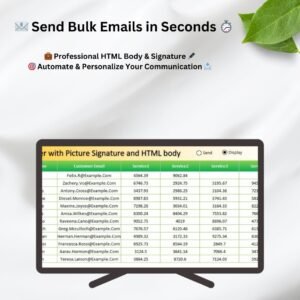
- Bulk Auto Emailer with Picture Signature and HTML body: bulk emails with a picture signature
- Outlook Calendar Events Automation in Excel VBA: create Outlook calendar events from Excel
Browse all VBA Tools.









Reviews
There are no reviews yet.