

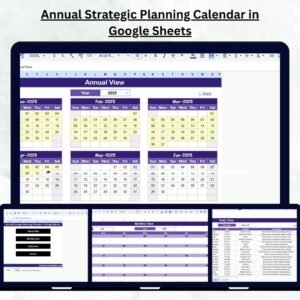
Annual Strategic Planning Calendar in Google Sheets .
Plan smarter, stay organized, and achieve your yearly goals with ease! This ready-to-use Google Sheets template is your all-in-one solution for strategic planning, event management, and performance tracking — all in one interactive dashboard. Whether you manage a business, nonprofit, or educational institution, this tool helps you visualize and execute your strategy seamlessly throughout the year.
✨ Key Features of the Annual Strategic Planning Calendar in Google Sheets
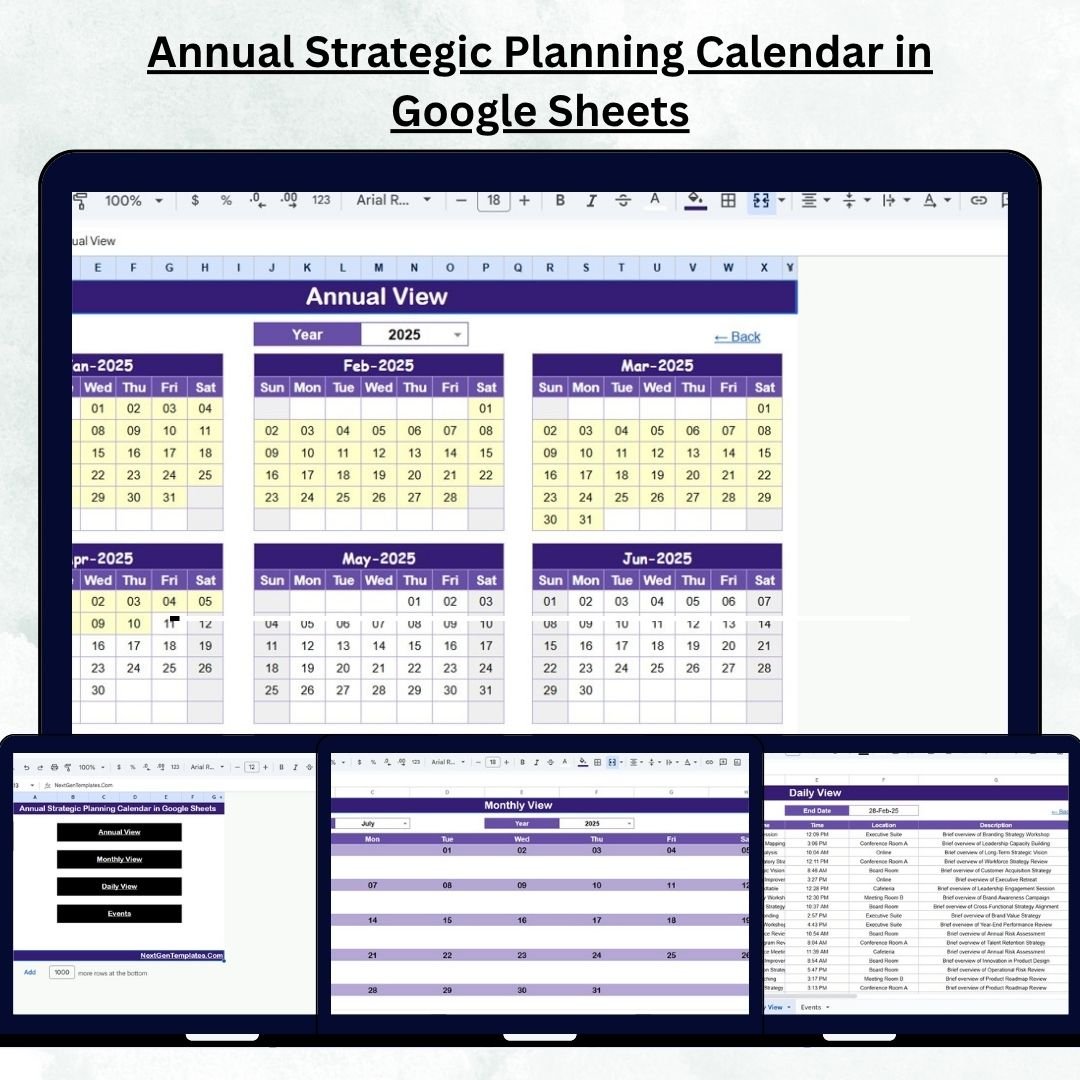
✅ Dynamic Annual, Monthly & Daily Views – Switch between high-level overviews and daily execution details with just a click.
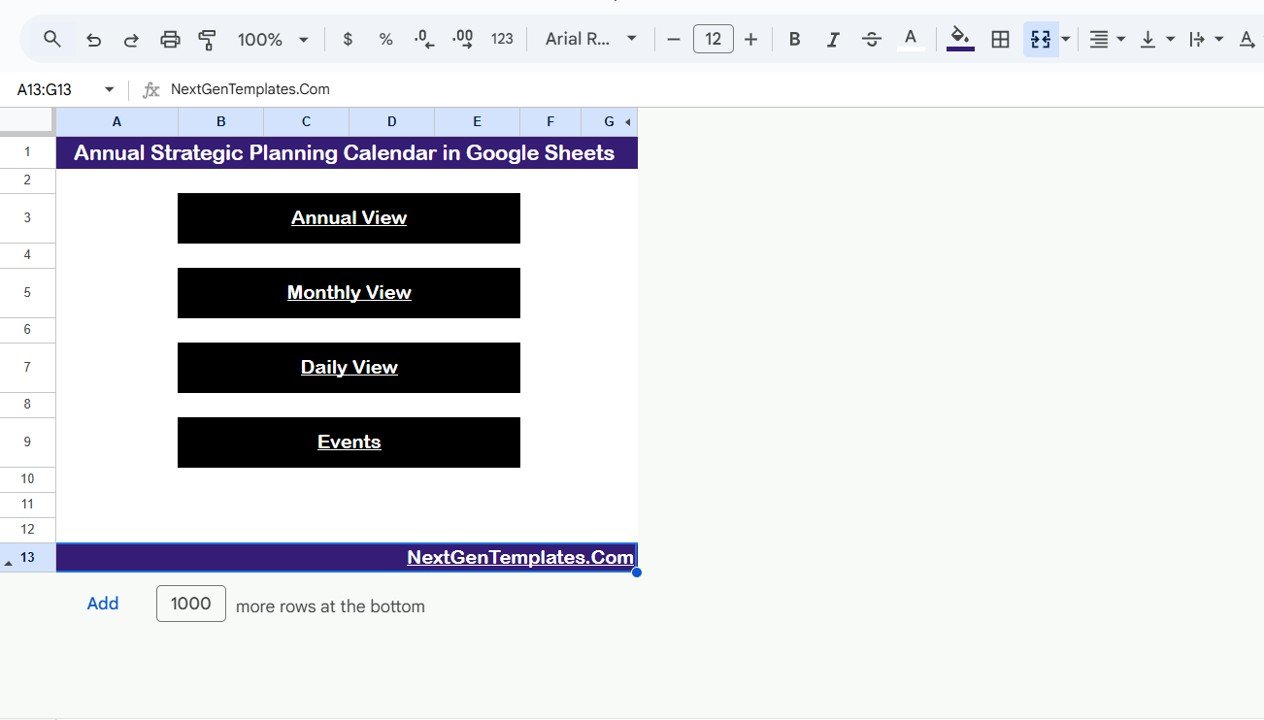
✅ Smart Navigation Buttons – Instantly jump to Annual View, Monthly View, Daily View, or Events Sheet directly from the Home Page.
✅ Customizable Year & Start Month – Perfect for both calendar and fiscal years.
✅ Cloud Collaboration – Multiple users can plan and update simultaneously.
✅ Centralized Database – All your events, meetings, and milestones in one structured table.
✅ Automatic Day Calculation – No need to manually type weekdays — it’s all automated!
✅ Theme and Control Panel Options – Adjust colors, layouts, and starting day of the week.
✅ No Add-Ons or Coding Required – 100% formula-driven, user-friendly interface.
✅ Compatible on Any Device – Access your plan anytime, anywhere — desktop, tablet, or mobile.
✅ Scalable for Teams of Any Size – Works seamlessly for startups or large organizations.Annual Strategic Planning Calendar in Google Sheets
📦 What’s Inside the Annual Strategic Planning Calendar
📁 1. Home Sheet Tab:
Your control center! Navigate across views with buttons for Annual, Monthly, Daily, and Events pages — no scrolling needed.
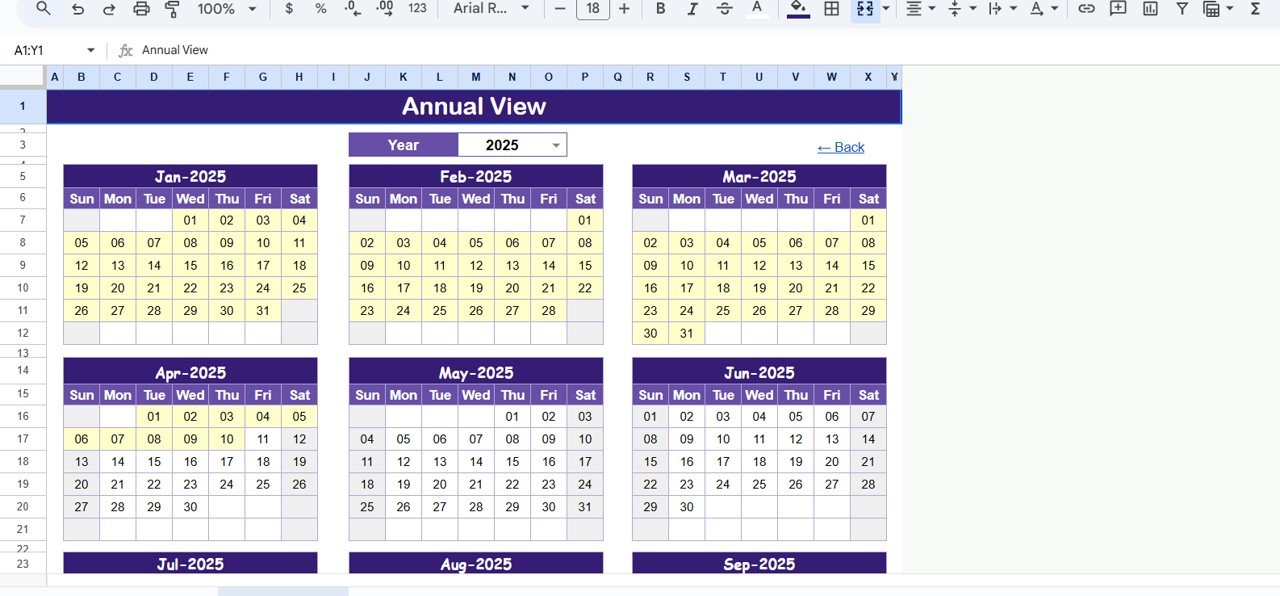
📁 2. Annual View Tab:
See your full-year plan in one glance. Select your desired year, fiscal start month, and starting weekday. Ideal for management reviews and strategic summaries.
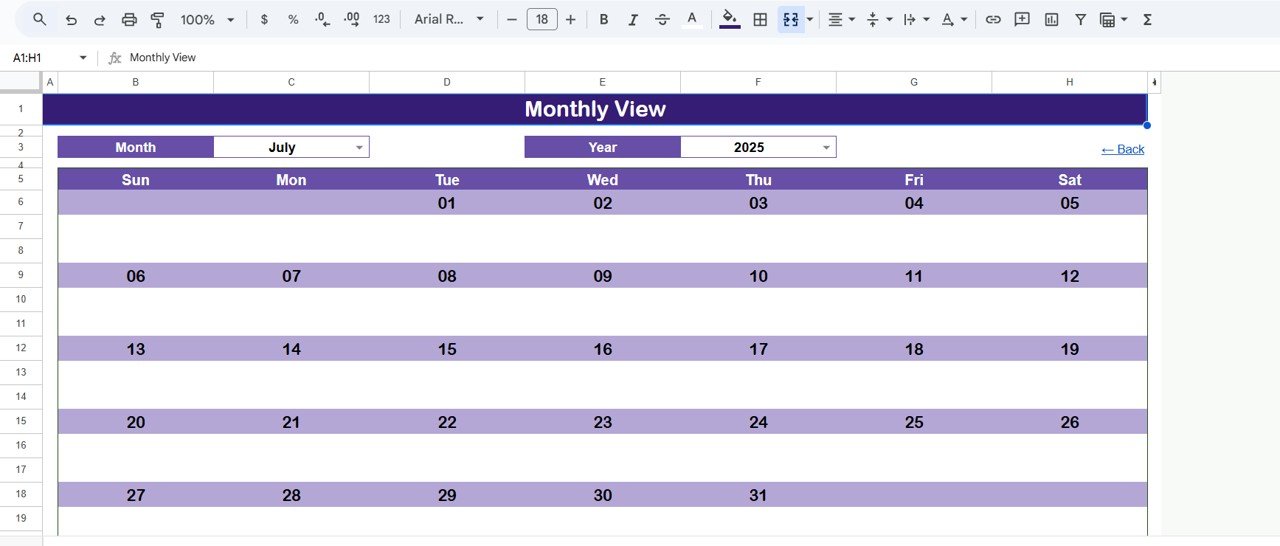
📁 3. Monthly View Tab:
Zoom into any month! Displays one event per day, with a “more than 1…” indicator for busy days. Helps you spot high-activity periods instantly.
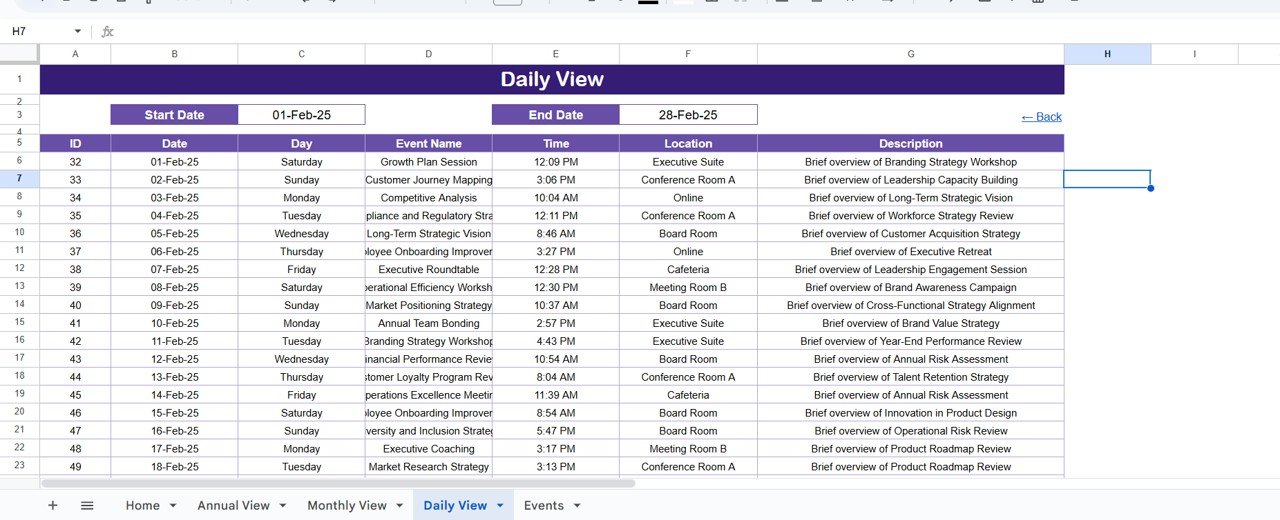
📁 4. Daily View Tab:
Focus on daily execution.Annual Strategic Planning Calendar in Google Sheets Choose a start and end date to review all events in that window — perfect for short-term scheduling and team tracking.
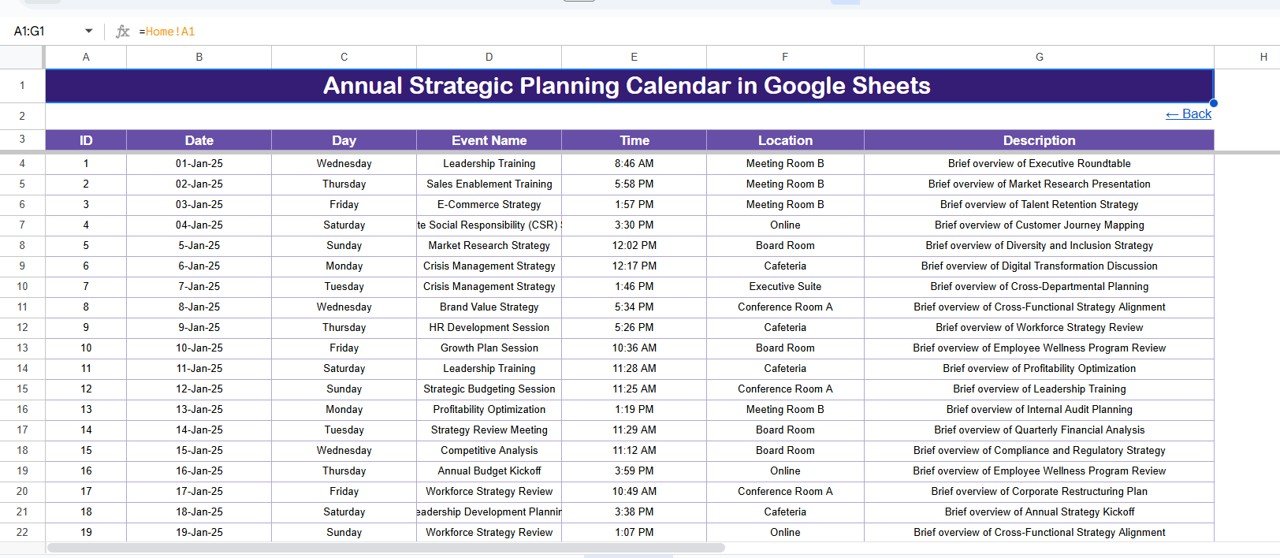
📁 5. Events Sheet Tab (Database):
The heart of your planner — record all events, meetings, and milestones. Columns include ID, Annual Strategic Planning Calendar in Google Sheets Date, Day, Event Name, Time, Location, and Description. Everything automatically syncs with other views!
⚙️ How to Use the Annual Strategic Planning Calendar
1️⃣ Open the Template – Copy the Google Sheet to your Drive.
2️⃣ Customize Settings – Select the year, start month, and first weekday in the control panel.
3️⃣ Add Events – Input your meetings, reviews, and deadlines in the Events Sheet.
4️⃣ Analyze Your Plan – Use Annual, Monthly, and Daily views to monitor initiatives.
5️⃣ Collaborate in Real Time – Share with your team for live editing and tracking.
6️⃣ Review Quarterly – Use the Annual View to compare achievements with strategic objectives.
👥 Who Can Benefit from This Calendar
👨💼 Business Leaders & CEOs: Align company objectives with department goals effortlessly.
📈 Project Managers: Monitor deadlines, milestones, and progress all in one view.
🏢 Department Heads: Coordinate activities across teams with visibility and accountability.
🎓 Educators & Administrators: Plan academic or institutional events strategically.
💡 Nonprofit Managers: Track campaigns, fundraising events, and annual targets.
🧑💻 Startup Founders: Manage launches, marketing efforts, and investor meetings efficiently.
🌍 Remote Teams: Keep everyone on the same page through real-time collaboration.
Click here to read the Detailed Blog Post
Watch the step-by-step video tutorial:
Visit our YouTube channel to learn step-by-step video tutorials
Compatibility and Requirements
- Works in Google Sheets. You need a free Google account and a web browser.
- Copy the sheet to your Google Drive, then share it with your team so several people can edit at once. Google explains the basics in Get started with Google Sheets.
Frequently Asked Questions
Which sheets are included?
Five tabs: Home, Annual View, Monthly View, Daily View and Events Sheet. The Events Sheet is the database that feeds the other views.
Can I use a fiscal year instead of a calendar year?
Yes. In the control panel you select the year, the start month and the first weekday of the week.
What do I enter for each event?
The Events Sheet has columns for ID, Date, Day, Event Name, Time, Location and Description. The day of the week is calculated automatically, so you do not type it.
Can my team edit it at the same time?
Yes. It is a Google Sheet, so several people can plan and update events together after you share it.
Is there an Excel version?
Yes. See the Annual Strategic Planning Calendar in Excel.
Related Planning Templates
- Annual Strategic Planning Calendar in Excel: the same calendar for Excel users
- Strategic Planning Dashboard in Google Sheets: a dashboard view of your strategy
- Strategic Planning Dashboard in Power BI: the Power BI edition of the dashboard
- Dynamic Holiday and Event Calendar in Google Sheets: another event calendar for Google Sheets
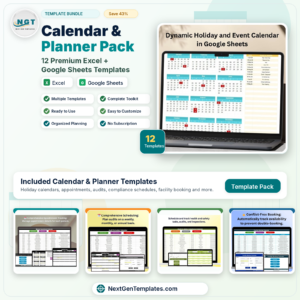
- Calendar & Planner Pack: 12 calendar and planner templates in one download
Browse all Google Sheets calendar templates.

Reviews
There are no reviews yet.