



In today’s fast-moving tech world, managing customer-related HR events, training, and engagement sessions across multiple teams and time zones is no small task. But now, you don’t need complicated software to keep everything in sync.
Meet the Technology HR Customer Experience Calendar in Excel—a dynamic, easy-to-use, and fully automated Excel calendar solution created specifically for HR professionals in tech companies. Whether you’re managing customer training, onboarding, feedback events, or experience campaigns, this calendar gives you the full picture—organized, visual, and completely under your control.
✨ Key Features of Technology HR Customer Experience Calendar in Excel
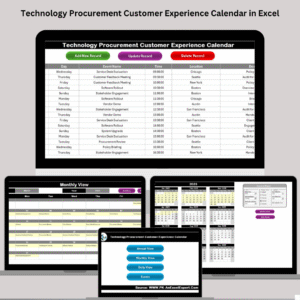
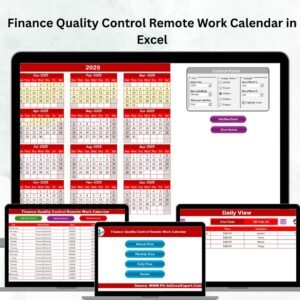
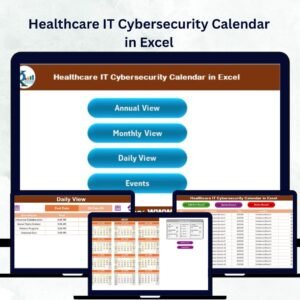
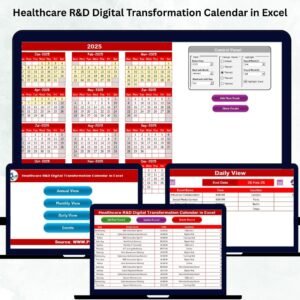
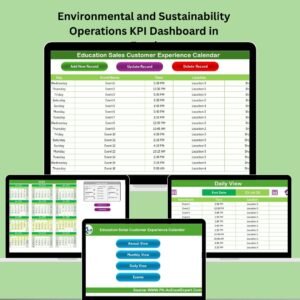
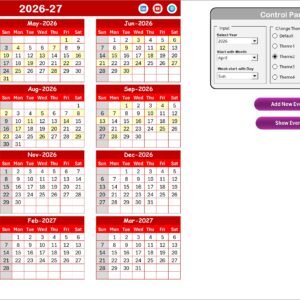
📅 Annual, Monthly, and Daily Views

Get full visibility at every level—whether you’re planning next year or tracking this week’s events.
🎛 Customizable Control Panel
Choose your year, calendar start month, and first weekday. Personalize your experience with 5 beautiful themes.
🎨 Highlight Options
Visually mark weekends, key workdays, or customer events using yellow highlights and shaded days.
📝 Form-Based Event Management
Use built-in forms to add, update, or delete events—no need to manually enter data in tables.
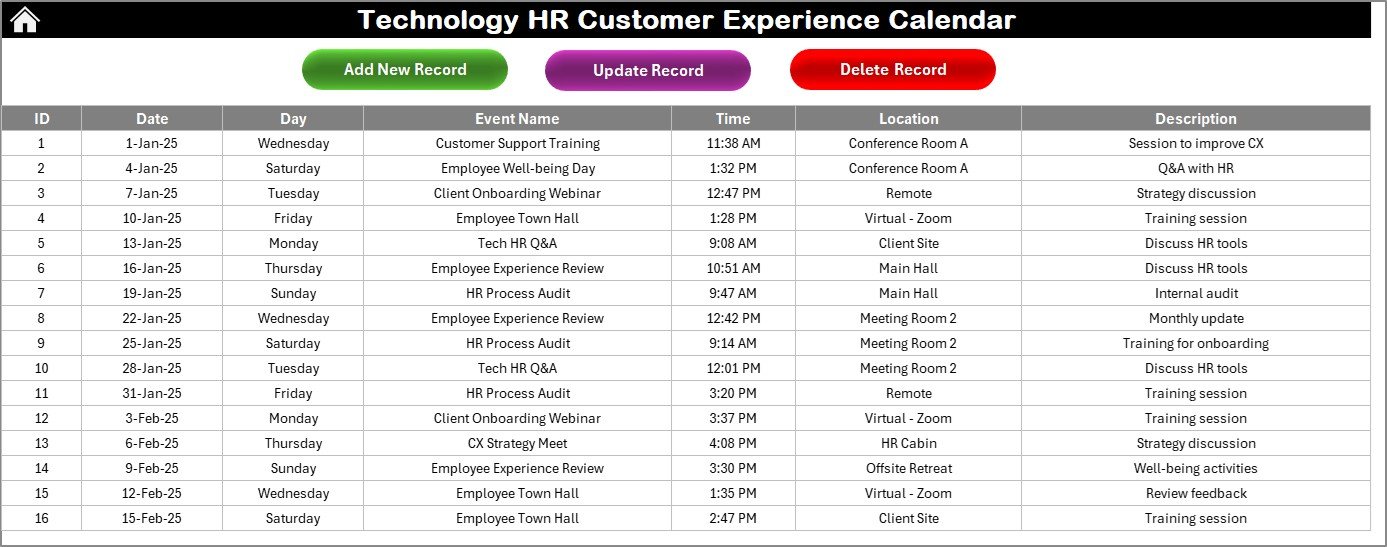
📋 Central Event Database
All events are auto logged in a structured backend with ID, Date, Day, Time, Location, and Description.
🔁 Dropdown-Driven Navigation
Quickly filter by month, date, or date range using smart dropdowns in Monthly and Daily views.
✅ VBA Automation
Behind-the-scenes macros ensure every entry and update is seamless—without needing to write a single line of code.
📂 What’s Inside the Excel Calendar Template
🟩 Home Sheet Tab – Central dashboard with clickable navigation buttons
📆 Annual View Sheet – 12-month customizable calendar with event controls
📅 Monthly View Sheet – Focused monthly display with note on multi-event days
📖 Daily View Sheet – Select any date range to view daily activities
📋 Events Sheet (Database) – Structured, searchable list of all event records
🛠️ Event Form – Use anytime to add new events or edit existing ones
🛠️ How to Use the Customer Experience Calendar
1️⃣ Start with the Home Tab
Use the four buttons to navigate between Annual, Monthly, Daily, or Events views.
2️⃣ Set Preferences in Annual View
Choose the year, first day of the week, and calendar start month. Pick a theme to match your team or brand.
3️⃣ Add or View Events
From any calendar view, use “Add New Event” or “Show Events” to manage entries quickly.
4️⃣ Use Daily or Monthly View to Monitor
Check how your events are distributed throughout the month or across a specific date range.
5️⃣ Maintain the Events Sheet
All events are stored automatically—easily update or delete via form by selecting the unique event ID.
👥 Who Can Benefit from This Template?
💼 HR Managers – Coordinate customer trainings, onboarding, and engagement activities
🛠️ Tech Companies – Centralize customer experience operations across teams
🗣️ Customer Success Teams – Track key dates like follow-ups, webinars, or surveys
🧩 Project Leads – Align internal and customer-facing schedules with clarity
🌐 Remote Teams – Plan across time zones with visual tracking and clarity
🔗 Click here to read the Detailed blog post
📺 Visit our YouTube channel to learn step-by-step video tutorials
Watch the step-by-step video tutorial:
Compatibility and Requirements
- Works in Microsoft Excel desktop on Windows, with macros enabled. It does not run in Excel for the web, Google Sheets or mobile apps.
- The event forms are driven by VBA macros. Microsoft explains how to turn them on in Enable or disable macros in Microsoft 365 files.
Frequently Asked Questions
Which sheets are included?
Six: Home, Annual View, Monthly View, Daily View, Events (the database) and the Event Form.
How do I add or change an event?
Use the Add New Event button in any calendar view to open the form. To update or delete an event, select its unique event ID in the form.
What details does each event record?
Every event is stored on the Events sheet with an ID, date, day, time, location and description.
Can I choose the start month and first weekday?
Yes. On the Annual View sheet you pick the year, the calendar start month and the first day of the week. There are also 5 color themes.
Can I view events for a date range?
Yes. The Daily View sheet lets you select a date range and shows the activities for those days. The Monthly View sheet filters by month using a dropdown.
Related Customer Experience Calendars
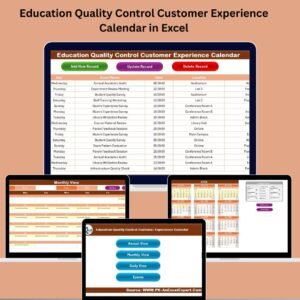
- HR Customer Experience Calendar in Excel: the general HR version of this calendar
- Technology Customer Service Customer Experience Calendar in Excel: the same calendar for tech customer service teams
- Technology Sales Customer Experience Calendar in Excel: for tech sales teams
- Technology Marketing Customer Experience Calendar in Excel: for tech marketing teams
- Customer Experience KPI Dashboard in Excel: track customer experience metrics next to your event schedule
Browse all Excel calendar templates.















Reviews
There are no reviews yet.