


Recognizing your team’s achievements shouldn’t be complex — and now, it doesn’t have to be. The Employee Recognition Nomination Tracker in Excel is a smart, fully automated Excel-VBA tool that helps HR leaders and managers simplify the nomination process, boost visibility, and build a thriving culture of appreciation.
Whether you’re running monthly award programs or tracking team contributions, this Excel tracker is your all-in-one solution — complete with login security, visual dashboards, and user-friendly data entry forms.
✨ Key Features of the Tracker
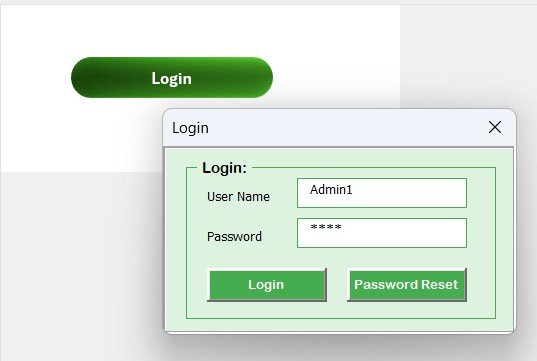
🔐 Login Form – Secure Access
Prevent unauthorized access with a secure login screen
Default credentials:
Username: Admin1,Password: abcdCustomize user roles with the built-in User Management feature
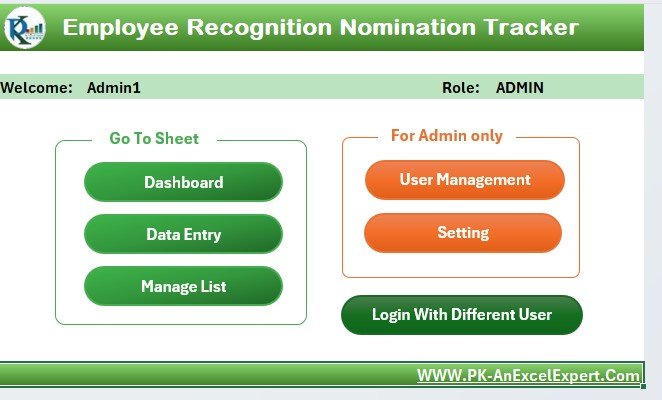
🧭 Main Form – Central Navigation Hub
View summaries, open entry forms, navigate reports
Access everything from one interface — no jumping between sheets
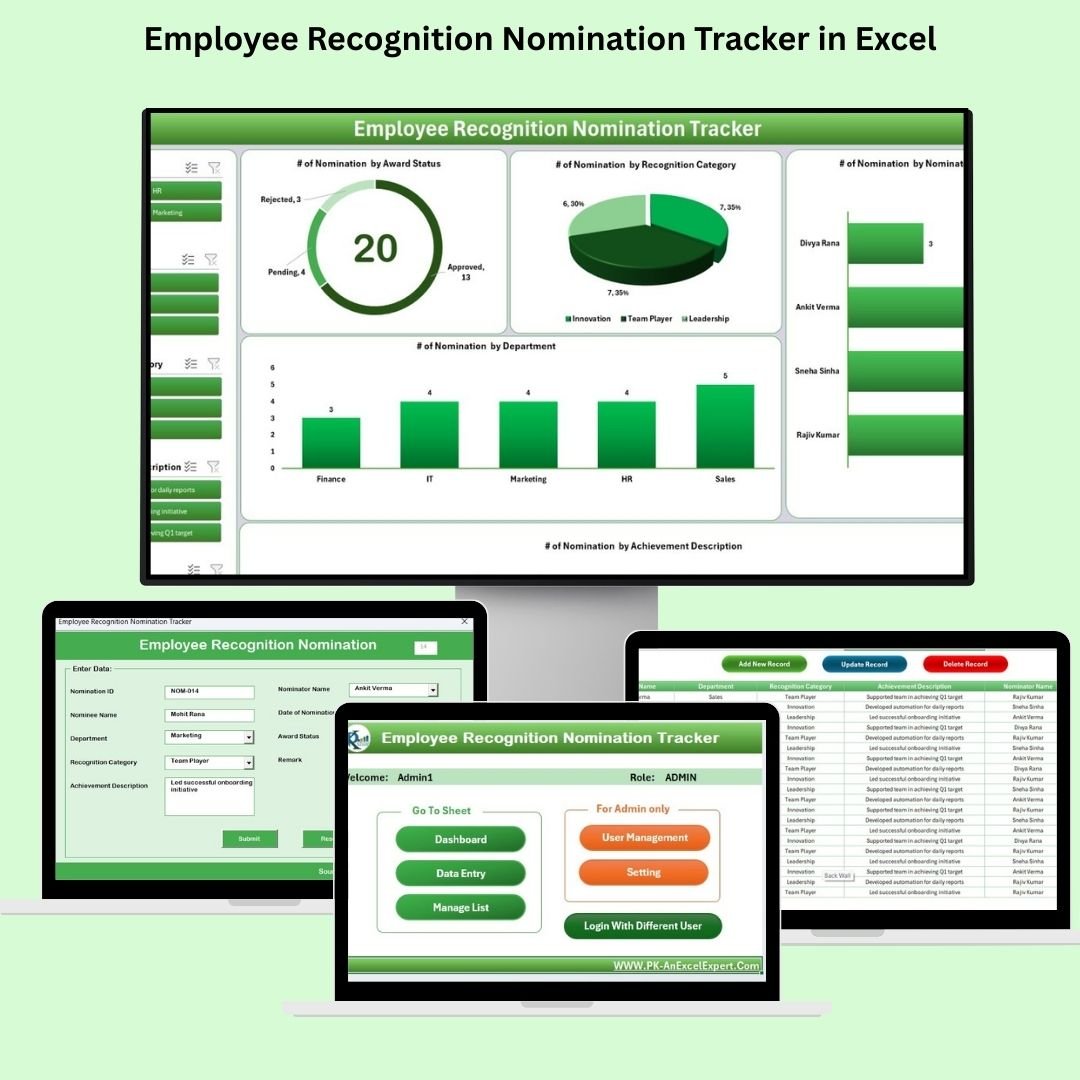
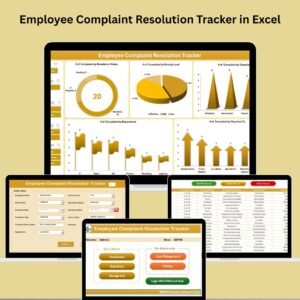
📊 Dashboard Sheet – Real-Time Visual Reporting
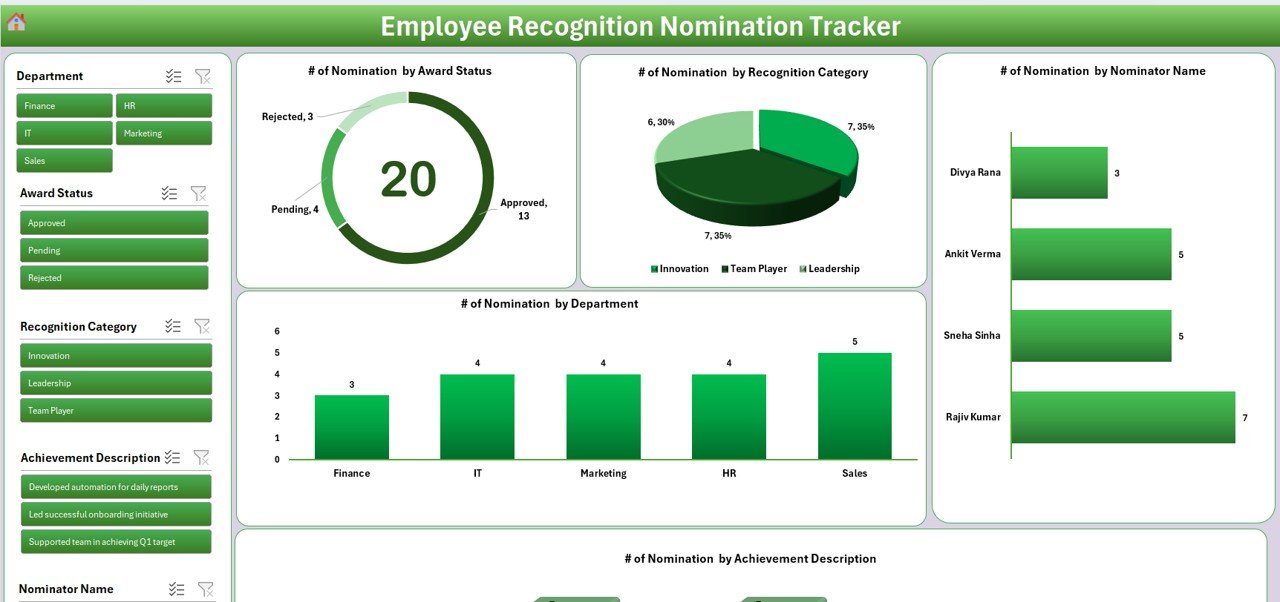
Includes slicers and auto-refreshing charts:
Doughnut Chart – Nominations by Award Status
Pie Chart – Nominations by Recognition Category
Bar Chart – Nominations by Name
Column Charts – By Department and Achievement Description
Filter by department, date, category, and more
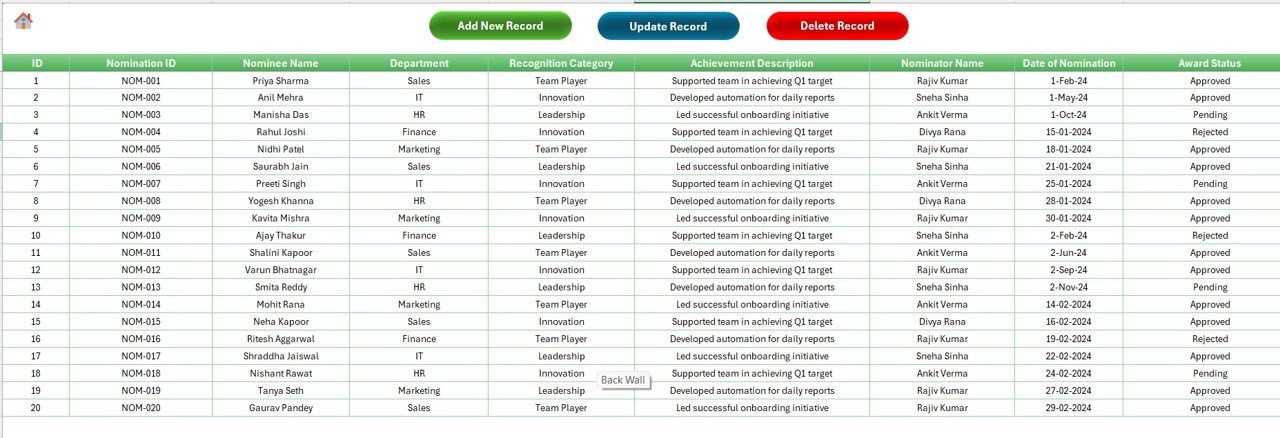
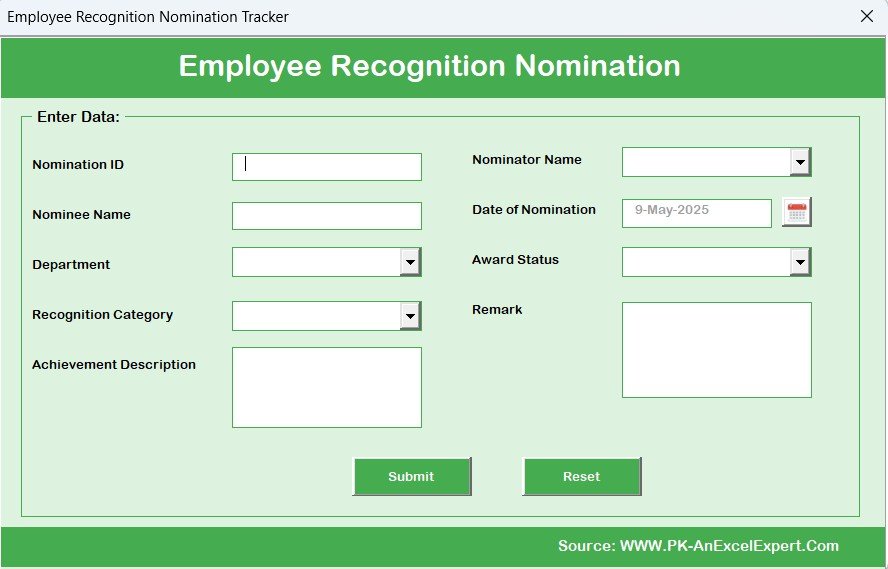
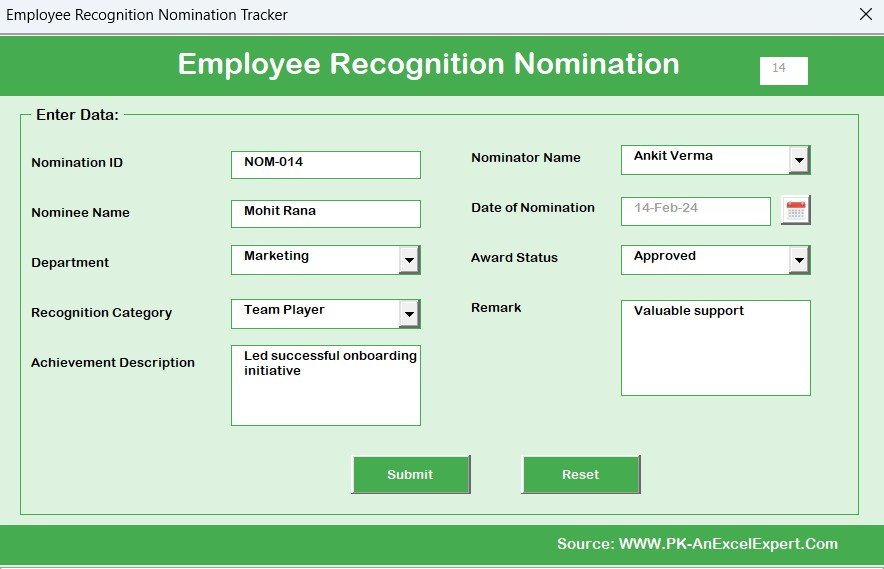
📝 Data Entry Sheet – Easy and Accurate Recordkeeping
Fields include: Nomination ID, Nominee, Category, Achievement, Nominator, Award Status, and Date
Top actions:
➕ Add New Record (via form)
✏️ Update Record
❌ Delete Record
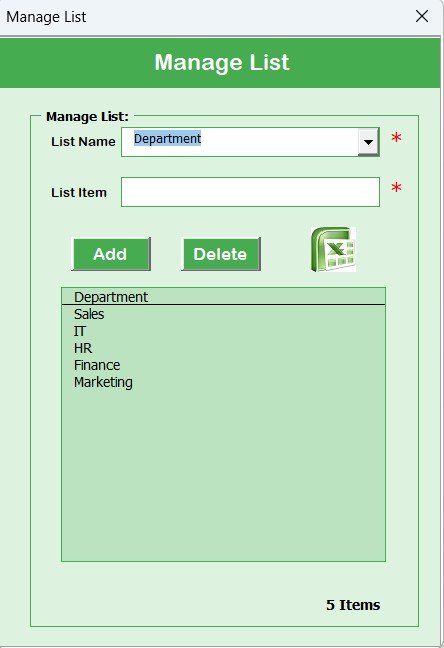
📋 Manage List Sheet – Drop-Down Central
Manage dropdown fields like Department, Category, Award Status, and Nominator
Add/Delete entries with buttons — no formula knowledge required
🔧 Support Sheet – The Engine Room
Hosts pivot tables that power the dashboard
Fully automated — no manual edits needed
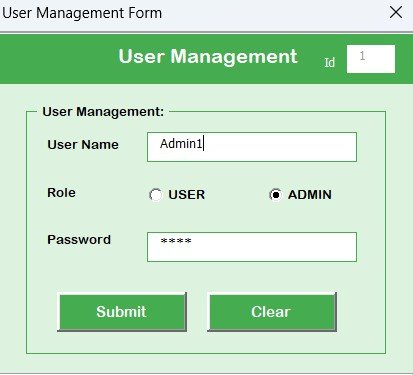
👥 User Management System
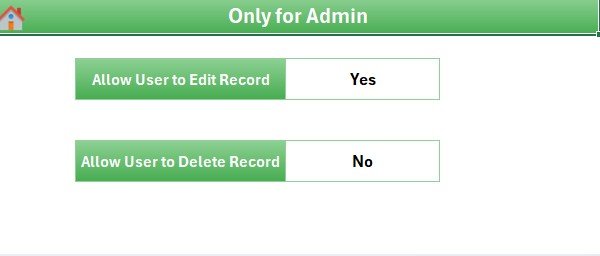
Add/edit users, reset passwords, assign access levels
Supports multiple admins for department-specific control
⚙️ Settings Sheet – Customize Your Tracker
Update preferences for naming, behavior, and look
Adaptable to your organization’s culture and workflow
📦 What’s Inside the File?
✔️ Fully unlocked Excel file (VBA protected)
✔️ 7 interactive sheets
✔️ User authentication system
✔️ Automated charts and progress visuals
✔️ Forms for easy data input
✔️ Built-in slicers and filters
✔️ No internet or subscription required
🛠 How to Use It
🔓 Login using your credentials
📋 Add nominations via the form — all fields auto-log
📊 View performance insights in the dashboard
🔧 Manage categories from the List Sheet
👥 Add more users using the User Management panel
💾 Back up regularly and share via OneDrive or SharePoint
Everything auto-updates. Just enable macros and you’re ready to go!
👥 Who Should Use This Tracker?
This tracker is perfect for:
🏢 Corporate HR Teams – Track recognition across departments
🏫 Schools and Universities – Nominate faculty or students
🤝 Nonprofits – Appreciate volunteers or contributors
🚀 Startups & SMEs – Foster culture and loyalty from the start
👨💼 Department Leads – Recognize performance in specific units
🚀 Advantages of This Excel-Based Tool
✅ Fully Automated System – From form submission to dashboard
🔒 Secure & Role-Based – Prevents unauthorized edits
📈 Visual Insights – Easily track trends and recognition fairness
💡 Zero Learning Curve – User-friendly forms for quick input
🎯 Tailored for Recognition – Focused on celebrating achievements
📤 Share Across Teams – Upload to cloud for collaborative use
🛠️ Customizable & Extendable – Add awards, departments, or KPIs as needed
💡 Best Practices
📅 Review Monthly – Analyze trends and award consistently
👥 Promote Peer Nominations – Broaden visibility and fairness
📋 Keep Dropdowns Updated – Avoid form errors and delays
🔐 Change Passwords Regularly – Secure sensitive data
🔧 Customize for Culture – Tailor categories to your values
🔁 Click here to read the Detailed blog post
📺 Visit our YouTube channel to learn step-by-step video tutorials
Watch the step-by-step video tutorial:
Compatibility and Requirements
- Made for Microsoft Excel on Windows (Excel 2016, 2019, 2021 or Microsoft 365).
- Macros must be enabled, because the login, forms and buttons run on VBA. Microsoft explains how in Enable or disable macros in Microsoft 365 files.
- Excel for the web, Google Sheets and the Excel mobile apps can’t run VBA, so use the Excel desktop app. For a browser-based option, see the Employee Recognition Nomination Tracker in Google Sheets.
Frequently Asked Questions
What is the default login?
The file opens with Username Admin1 and Password abcd. Change the password and add your own users in the User Management panel before you enter real nominations.
What fields does each nomination record?
Nomination ID, Nominee, Category, Achievement, Nominator, Award Status and Date. You add, update and delete records with the buttons on the Data Entry sheet.
Can I change the award categories and departments?
Yes. The Manage List sheet holds the dropdown values for Department, Category, Award Status and Nominator. Add or delete items there with the buttons.
What does the dashboard show?
Charts for nominations by award status, by recognition category, by name, by department and by achievement description, with slicers to filter the view.
Do I need an internet connection or a subscription?
No. The tracker is a single Excel file that runs on your computer.
Related Employee Recognition Templates
- Employee Recognition Nomination Tracker in Google Sheets: the same tracker for the browser
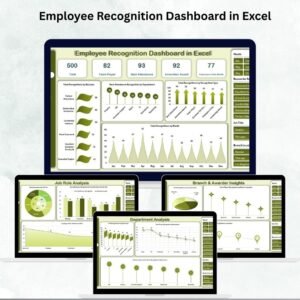
- Employee Recognition Dashboard in Excel: report on recognition across the company
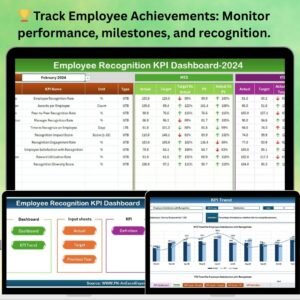
- Employee Recognition KPI Dashboard in Excel: a KPI view of recognition
- Employee Recognition Calendar in Excel: plan award dates and events
- HR & Workforce Analytics Bundle: 10 HR templates across Excel, Google Sheets and Power BI
Browse all Excel tracker templates or the HR and Payroll templates.












Reviews
There are no reviews yet.