



Recognizing and rewarding employees is one of the most powerful ways to boost engagement, improve performance, and create a culture of appreciation in the workplace. That’s why we built the Employee Recognition Dashboard in Excel — a ready-to-use, interactive tool that HR teams and managers can use to track, analyze, and visualize recognition data with ease. 📊✨
This all-in-one dashboard consolidates recognition data across departments, job roles, branches, and award types into a single Excel workbook. With detailed charts, KPI cards, and analysis sheets, it transforms raw recognition data into actionable insights that support better decision-making and fair recognition practices.’
🔑 Key Features of Employee Recognition Dashboard
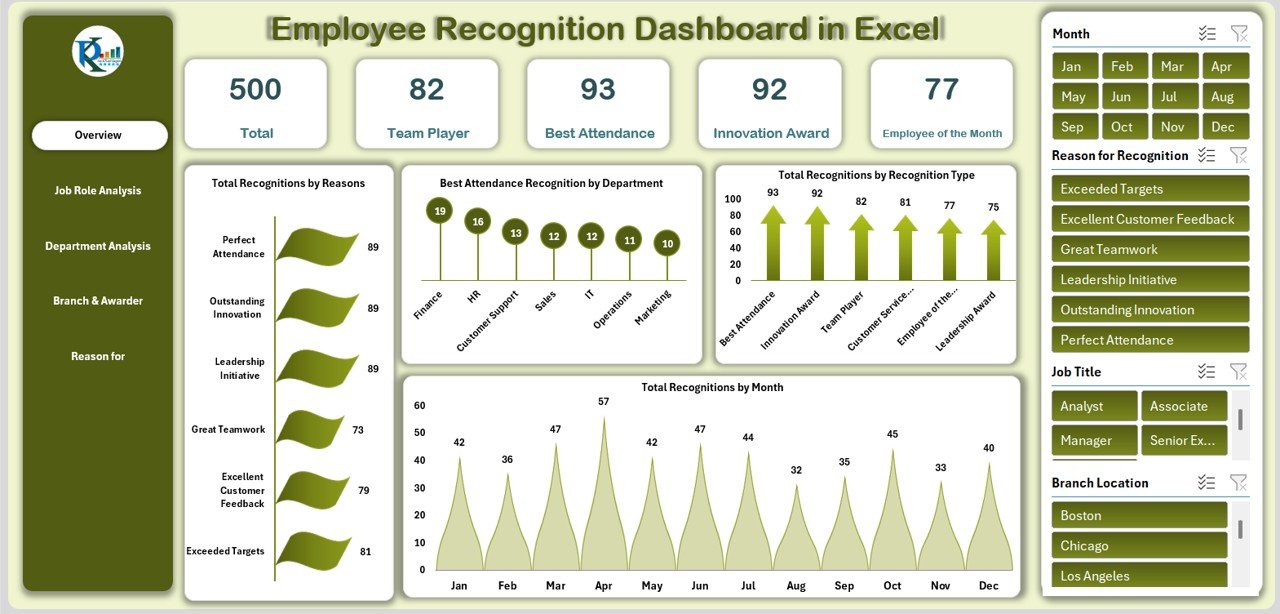
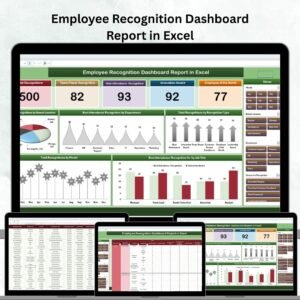
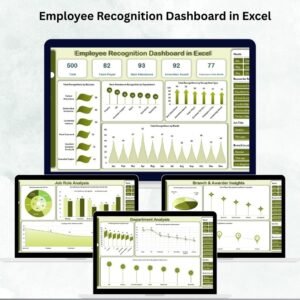
📌 Overview Sheet – A snapshot of total recognitions, team player awards, attendance recognitions, innovation awards, and Employee of the Month honors. Includes charts for recognition reasons, recognition type distribution, and monthly recognition trends.
👩💼 Job Role Analysis Sheet – Breaks down recognitions by job role. Identify which roles receive the most recognitions, compare innovation vs attendance awards, and analyze Employee of the Month trends by job title.
🏢 Department Analysis Sheet – See recognition distribution across departments. Charts show teamwork awards, customer service excellence, and overall recognitions at a departmental level.
📍 Branch & Awarder Insights Sheet – Track recognition distribution across office locations and awarders. Compare teamwork, leadership, and other awards branch by branch.
🎯 Reason for Recognition Sheet – Focus on what drives recognition. Charts reveal why employees earn Employee of the Month, attendance awards, and team player honors.
🧾 Data Sheet – The backbone of the dashboard where all recognition records are stored. Capture employee name, job title, department, branch, recognition type, recognition reason, awarder, and recognition month/year.
📦 What’s Inside the Dashboard
✅ 5 Analysis Sheets – Overview, Job Role, Department, Branch & Awarder, and Reason Analysis
✅ 1 Data Sheet – Pre-structured for easy data input
✅ Dynamic KPI Cards – Automatically updated metrics for quick insights
✅ Interactive Charts – Track recognition by type, role, department, branch, and reason
✅ Pre-Formatted Layout – Professionally designed for clarity and ease of use
✅ Customizable – Adapt to your organization’s unique recognition framework
📋 How to Use the Employee Recognition Dashboard
Download and open the Excel dashboard.
Enter recognition records in the Data Sheet.
Explore the Overview tab for high-level insights.
Dive into specific sheets for role-based, departmental, or branch-level analysis.
Use insights to improve recognition programs and share results with leadership.
No coding or advanced Excel skills required — just plug in your data and get started! 🚀
👥 Who Can Benefit from This Dashboard?
🏢 HR Teams – Monitor recognition across departments and ensure fairness.
👩💼 Managers & Leaders – Identify high-performing employees and recognize their contributions.
🌍 Branch Heads – Compare recognition practices across office locations.
📊 Executives – Gain organization-wide visibility into recognition trends.
🎯 Employees – Benefit from a fairer, more transparent recognition system.
🔗 Click here to read the Detailed blog post
Watch the step-by-step video Demo:
🔗 Visit our YouTube channel to learn step-by-step video tutorials
Compatibility and Requirements
- Works in Microsoft Excel desktop (Excel 2016 or later, or Microsoft 365).
- New to Excel charts? Microsoft explains them in Create a chart from start to finish.
Frequently Asked Questions
Which sheets are included?
Five analysis sheets (Overview, Job Role, Department, Branch and Awarder, Reason for Recognition) and one Data sheet.
What does the Overview sheet show?
Total recognitions, team player awards, attendance recognitions, innovation awards and Employee of the Month honors, with charts for reasons, types and monthly trends.
What do I record for each recognition?
Employee name, job title, department, branch, recognition type, recognition reason, awarder and recognition month and year.
Can I compare branches?
Yes. The Branch and Awarder Insights sheet compares teamwork, leadership and other awards branch by branch and by awarder.
Can I change the award types?
Yes. You can adapt the dashboard to your own recognition program.
Related Employee Recognition Templates
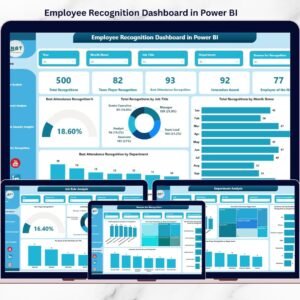
- Employee Recognition Dashboard in Power BI: the same topic in Power BI
- Employee Recognition Dashboard in Google Sheets: the same topic in Google Sheets
- Employee Recognition Nomination Tracker in Excel: collect and review nominations
- Employee Recognition KPI Dashboard in Excel: recognition KPIs against targets
- HR & Workforce Analytics Bundle: 10 HR templates in one download
Browse all Excel dashboards or the Excel HR and payroll templates.





Reviews
There are no reviews yet.