

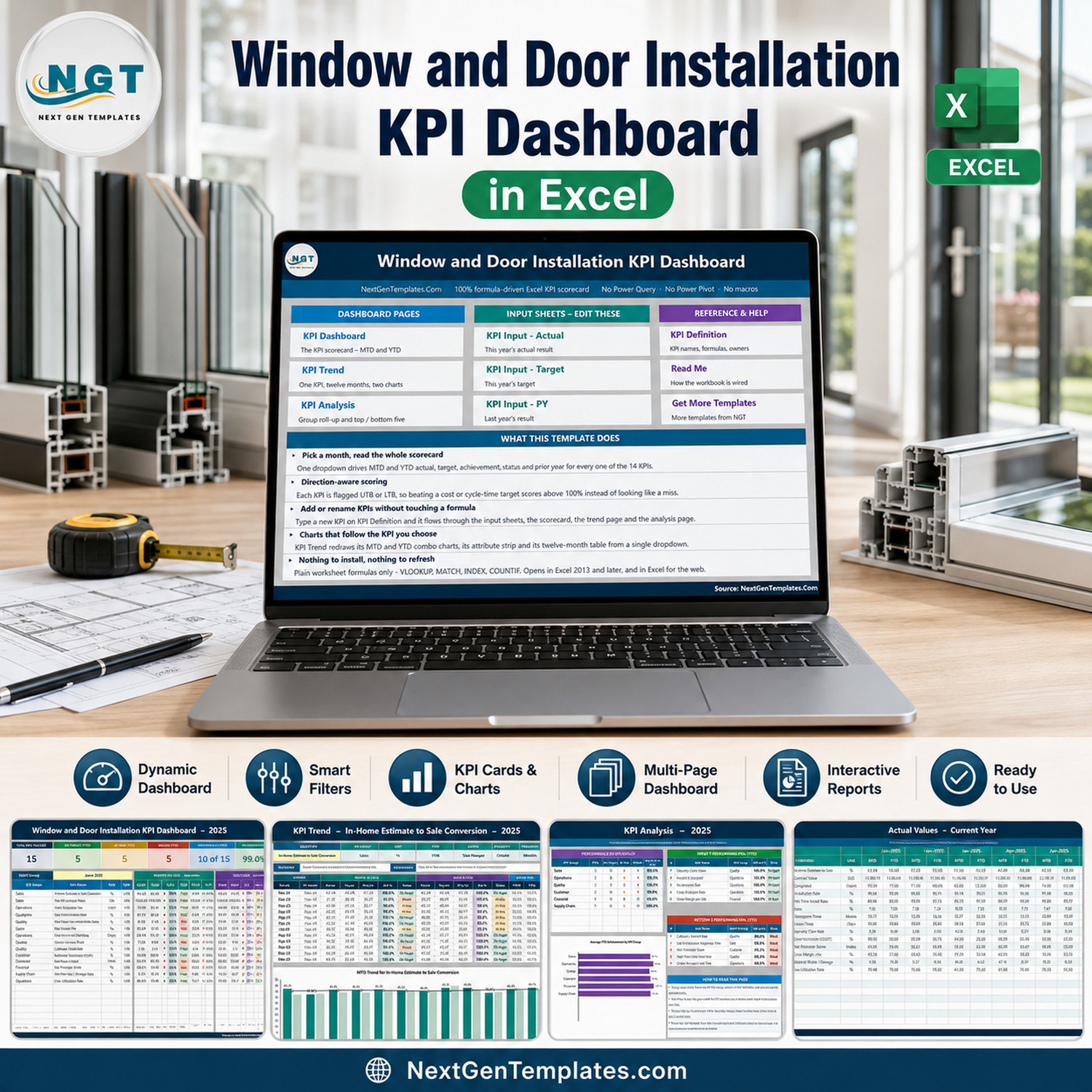

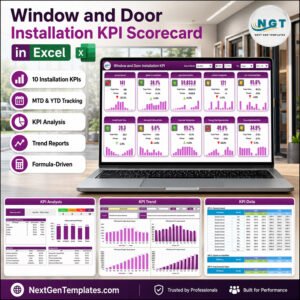
The Window and Door Installation KPI Dashboard in Excel is a month-picker KPI scorecard built for window and door installation companies – replacement window dealers, entry and patio door installers, glazing and fenestration contractors. It tracks 15 installation KPIs across six groups – Sales, Operations, Quality, Customer, Financial and Supply Chain – and shows MTD and YTD actual, target, achievement %, traffic-light status, prior year and year-on-year movement for every one of them from a single dropdown. It is 100% worksheet formulas: no macros, no Power Query, no Power Pivot, no add-ins and no data model. It opens in Excel 2013 and later and in Excel for the web. Sample 2025 data is included so the whole scorecard is populated the second you open it, and every cell is unlocked so you can rename a KPI, move a target or change a threshold. Instant download, lifetime access to the file you buy.Window and Door Installation KPI Dashboard in Excel

Which template is this? NextGenTemplates ships three similarly named lines and they are genuinely different products. This is the KPI Dashboard line – a month picker, seven summary cards, traffic lights, and dedicated KPI Trend and KPI Analysis pages. It is not the analytical Excel Dashboard line, which charts a transaction table through slicers, and it is not the lighter ten-KPI KPI Scorecard line. There is also a browser-based twin, the Window and Door Installation KPI Dashboard in Google Sheets, if you would rather work in a shared sheet than a workbook. They complement each other rather than duplicate each other.
Key Features of the Window and Door Installation KPI Dashboard in Excel
- One dropdown drives the whole scorecard. Cell D6 on KPI Dashboard lists the twelve months of the reporting year. Pick June 2025 and all 15 rows, the seven summary cards and the entire KPI Analysis page follow it. There is no refresh step and no query to run.
- Direction-aware scoring. Each KPI carries a UTB (upper the better) or LTB (lower the better) flag. This build ships 9 UTB and 6 LTB – Re-Measure Rate, Lead-to-Estimate Response Time, Order-to-Install Cycle Time, Callback / Rework Rate, Warranty Claim Rate and Material Waste / Damage Rate are the lower-is-better six. Achievement is Actual / Target for UTB and Target / Actual for LTB, so beating a cycle-time, callback or waste target scores above 100% instead of reading as a miss, and a rising re-measure rate shows a red arrow.
- Traffic lights with editable thresholds. On Target from 100%, At Risk 95-99%, Missed below 95%. The thresholds sit in plain formulas in columns L and U on KPI Dashboard – change them there to match your own governance.
- Seven summary cards. Total KPIs Tracked, On Target (YTD), At Risk (YTD), Missed (YTD), Improving vs PY (MTD), Avg Achievement (MTD) and Avg Achievement (YTD). In the shipped June 2025 sample they read 15, 5, 5, 5, 10 of 15, 99.0% and 97.8%.
- A KPI Trend page for one KPI at a time. A second dropdown in cell B4 on KPI Trend lists every KPI name; the attribute strip (group, unit, type, owner, priority, frequency), the formula, the definition, the twelve-month table and both charts all redraw together.
- Three live charts. “MTD Trend for In-Home Estimate to Sale Conversion” and “YTD Trend for In-Home Estimate to Sale Conversion” are combo charts – actual and prior-year columns with a target line – and they re-title themselves for whichever KPI you pick. “Average YTD Achievement by KPI Group” is the bar chart on the analysis page.
- Group roll-up plus top and bottom five. KPI Analysis counts On Target / At Risk / Missed per KPI group, averages MTD and YTD achievement per group, and ranks the best and worst five KPIs on YTD achievement. In the sample year the top five are Warranty Claim Rate (104.0%), Installs Completed (101.8%), Re-Measure Rate (101.5%), Crew Utilization Rate (100.9%) and Gross Margin per Job (100.7%).
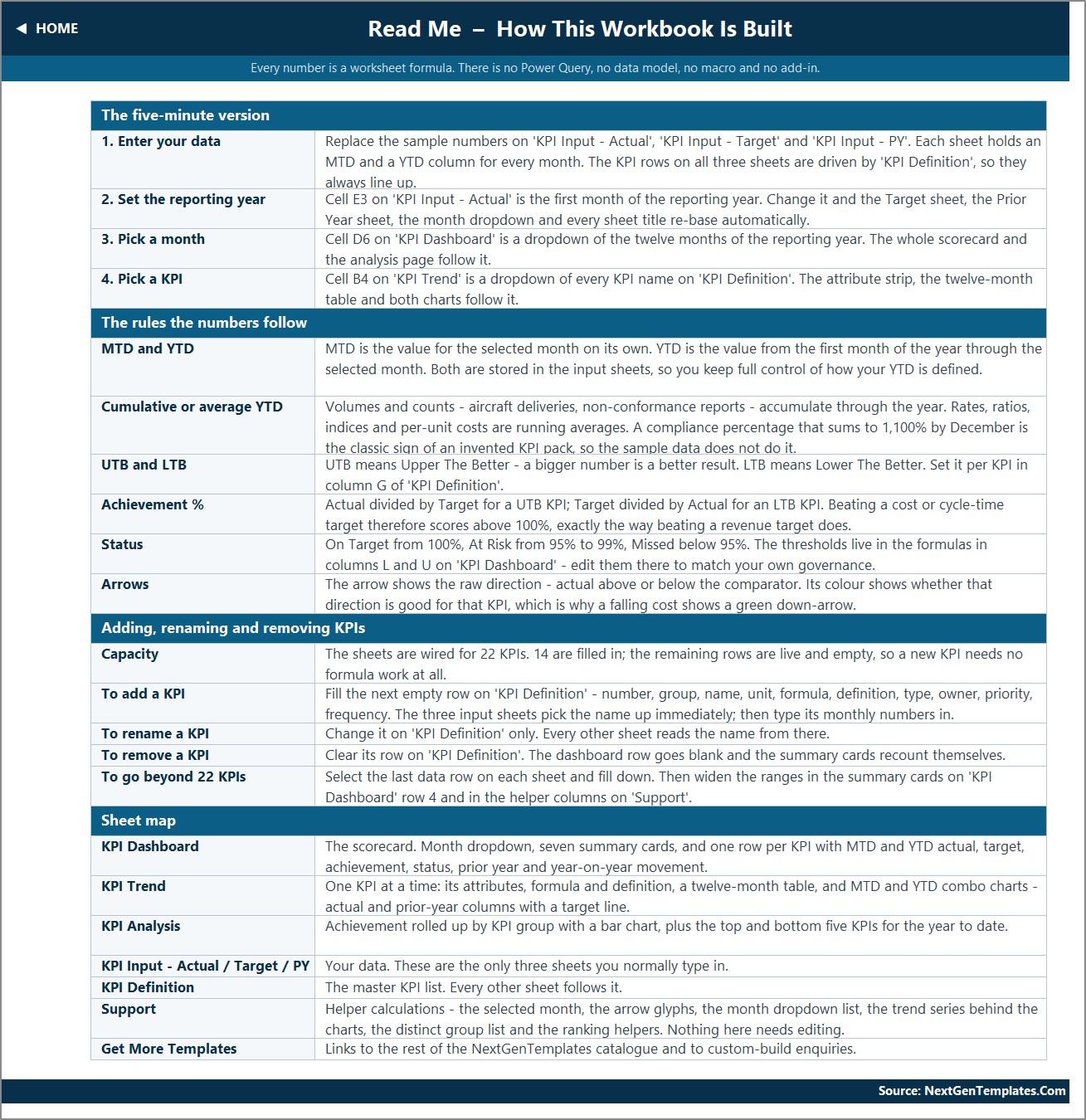
- Room to grow without formula work. The sheets are wired for 22 KPIs; 15 are filled in and the remaining rows are live and empty. Type a KPI on KPI Definition and it flows through the three input sheets, the scorecard, the trend dropdown and the analysis page automatically.

The 15 KPIs This Template Ships With
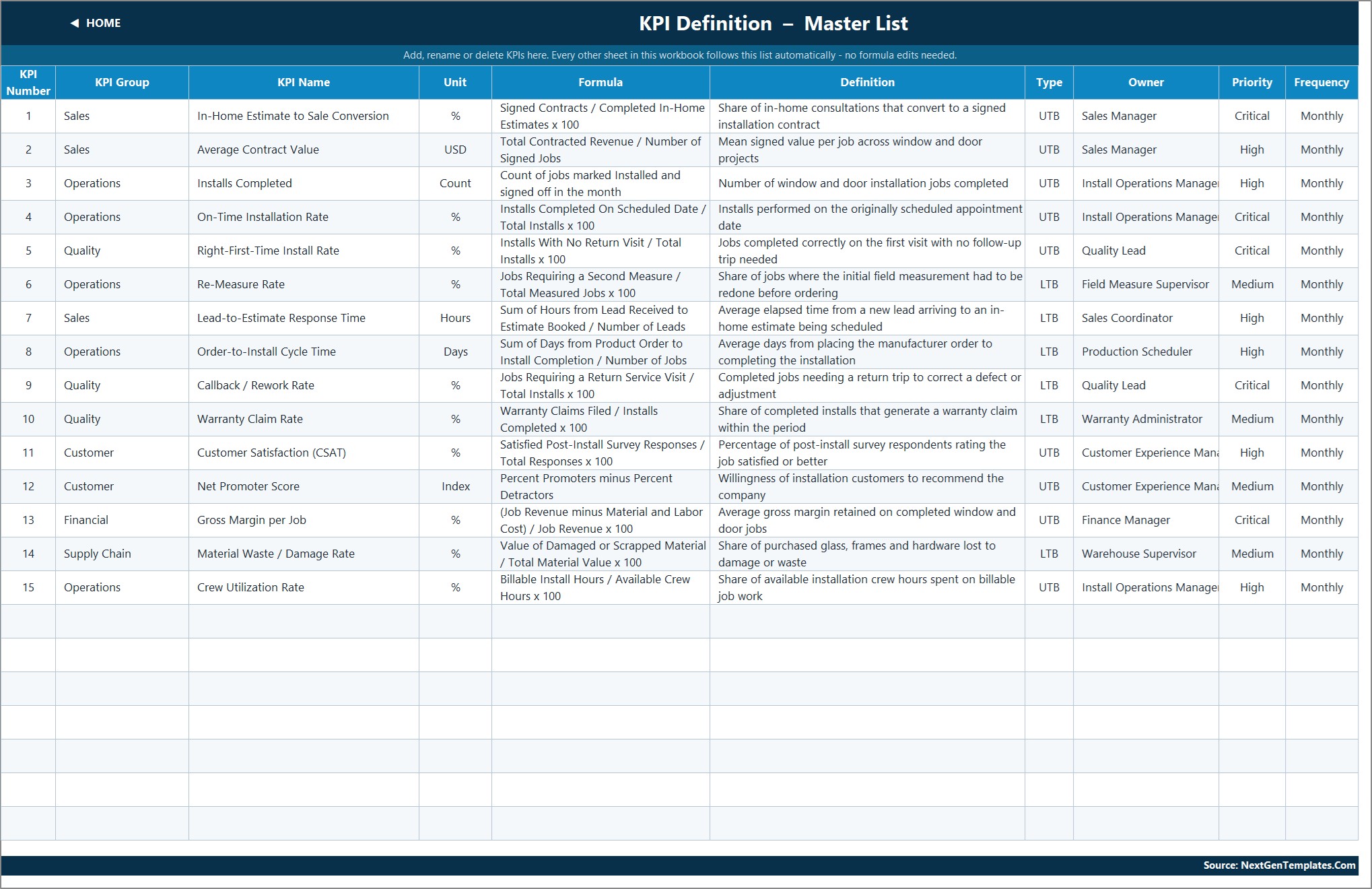
Every KPI below is on KPI Definition with its own group, unit, formula, plain-English definition, UTB/LTB flag, owner, priority and frequency. Rename any of them in one place and the whole workbook follows.
- Sales (3): In-Home Estimate to Sale Conversion (%, UTB), Average Contract Value (USD, UTB), Lead-to-Estimate Response Time (Hours, LTB).
- Operations (5): Installs Completed (Count, UTB), On-Time Installation Rate (%, UTB), Re-Measure Rate (%, LTB), Order-to-Install Cycle Time (Days, LTB), Crew Utilization Rate (%, UTB).
- Quality (3): Right-First-Time Install Rate (%, UTB), Callback / Rework Rate (%, LTB), Warranty Claim Rate (%, LTB).
- Customer (2): Customer Satisfaction / CSAT (%, UTB), Net Promoter Score (Index, UTB).
- Financial (1): Gross Margin per Job (%, UTB).
- Supply Chain (1): Material Waste / Damage Rate (%, LTB).
Each row also carries an owner – Sales Manager, Sales Coordinator, Install Operations Manager, Field Measure Supervisor, Production Scheduler, Quality Lead, Warranty Administrator, Customer Experience Manager, Finance Manager and Warehouse Supervisor – plus a Critical / High / Medium priority, so the scorecard doubles as a simple accountability list. The five Critical KPIs in this build are In-Home Estimate to Sale Conversion, On-Time Installation Rate, Right-First-Time Install Rate, Callback / Rework Rate and Gross Margin per Job.
What Is Inside the Download
The download is a ZIP holding the .xlsx workbook and the Excel KPI Dashboard User Manual (PDF). The workbook has ten visible sheets plus one hidden helper sheet:
- Home – a nine-tile launcher plus a plain-English summary of what the file does.
- KPI Dashboard – the scorecard: month picker, seven summary cards, and one row per KPI with a full MTD block and a full YTD block.
- KPI Trend – one KPI, twelve months, two combo charts.
- KPI Analysis – group roll-up, bar chart, top 5 and bottom 5 on YTD achievement.
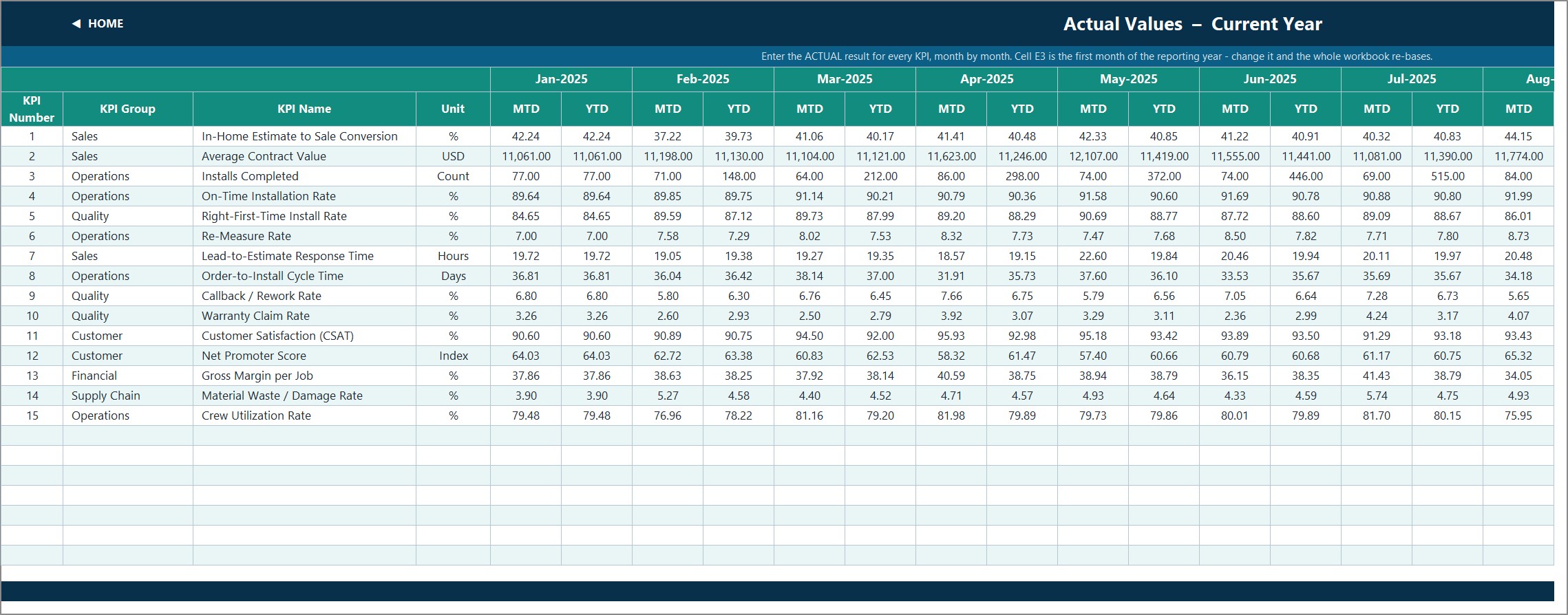
- KPI Input – Actual – this year’s numbers, an MTD and a YTD column for each of the twelve months.
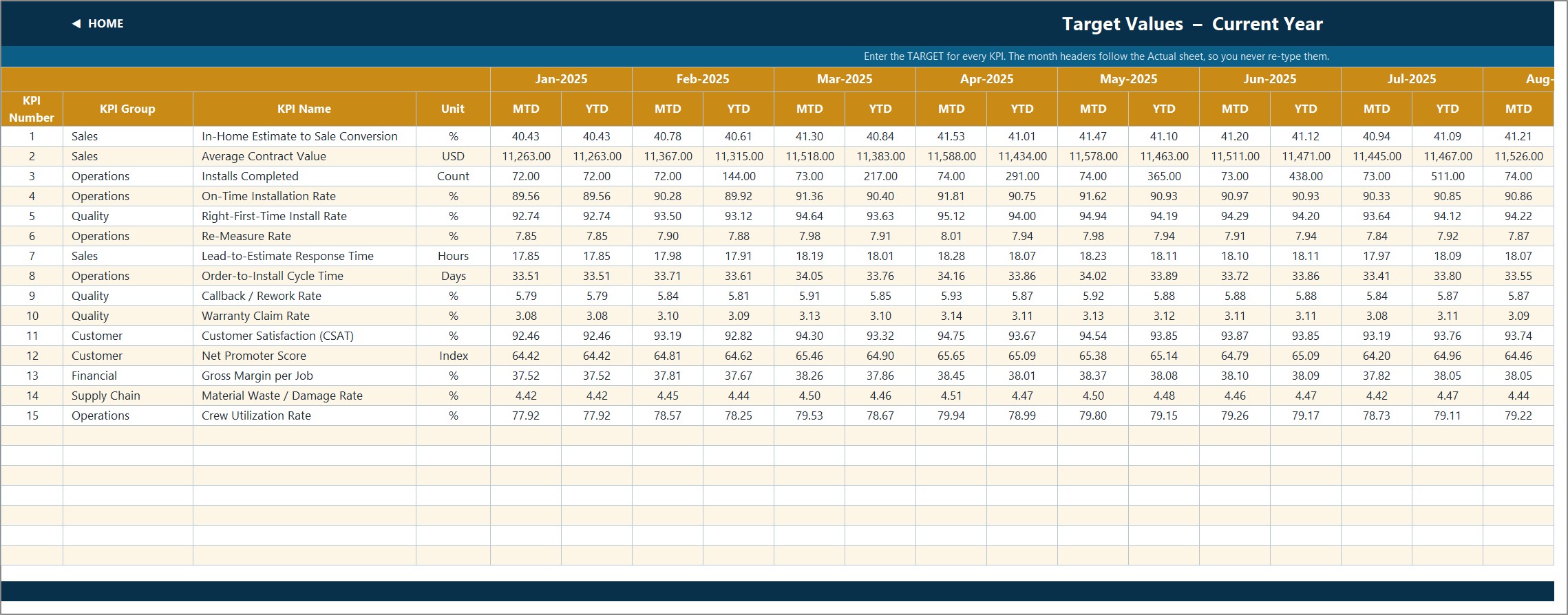
- KPI Input – Target – this year’s targets, same shape, month headers inherited from the Actual sheet.
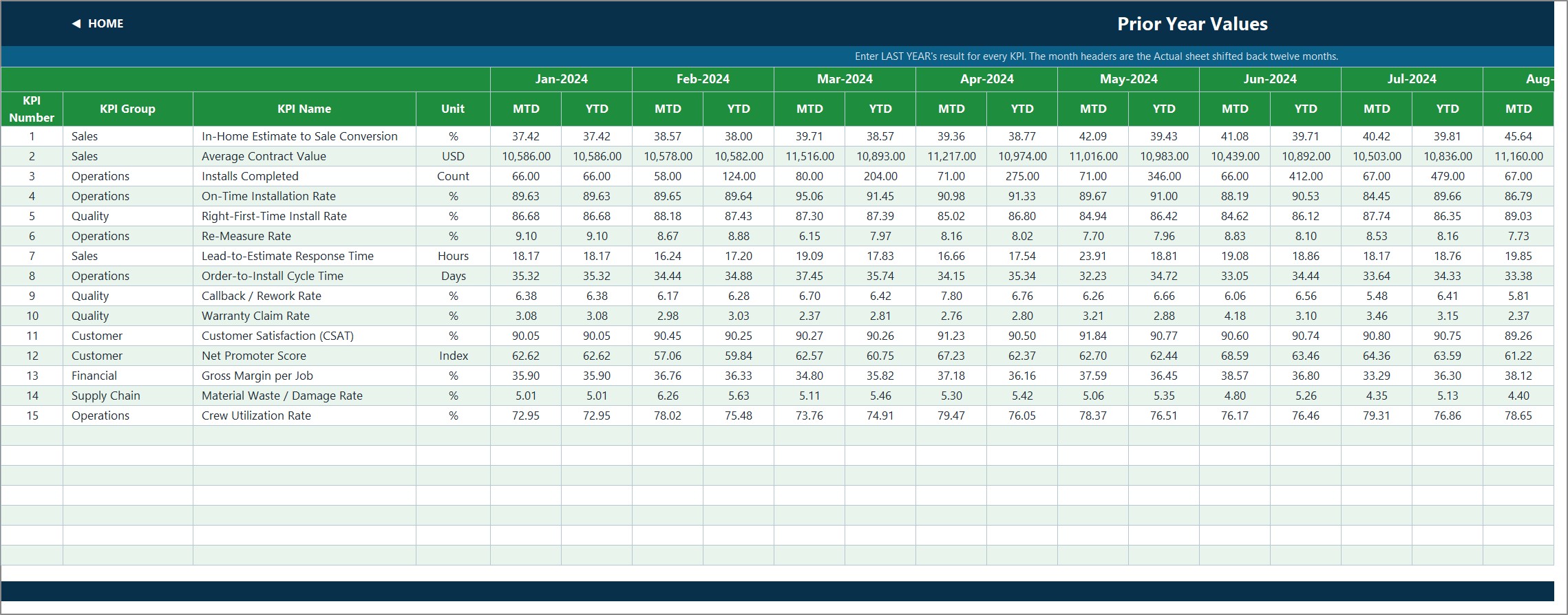
- KPI Input – PY – last year’s numbers, month headers shifted back twelve months automatically.
- KPI Definition – the master KPI list that every other sheet reads.
- Read Me – how the workbook is wired, in one page.
- Get More Templates – links to the rest of the NextGenTemplates catalogue.
- Support (hidden) – the selected month, arrow glyphs, month list, chart series and ranking helpers. Nothing here needs editing.

Excel vs. Google Sheets vs. Paid Field-Service SaaS – Where This Fits
| What you need | This Excel KPI Dashboard | A Google Sheets KPI dashboard | Window / field-service SaaS |
|---|---|---|---|
| Cost | One-off 12.99, lifetime access | One-off, similar | Typically 50-300+ per user per month |
| Setup time | Open it, type your numbers over the sample | Copy the sheet, type your numbers | Implementation, data mapping, training |
| Where your data lives | Your own file, on your own machine | Your Google Drive | The vendor’s cloud |
| Works offline | Yes | No | No |
| Automatic capture from CRM or job costing | No – you type MTD and YTD in | No | Yes, that is what you are paying for |
| Change a KPI, a target or a threshold | Type it – every cell is unlocked | Type it | Vendor roadmap or a paid customisation |
| Multi-user, real-time editing | No (single workbook) | Yes | Yes |
Put plainly: this is the right tool if you already have your monthly numbers somewhere – a CRM export, a job-cost report, a service log, a post-install survey summary – and you want a governed, board-ready scorecard on top of them without paying a monthly subscription. It is the wrong tool if you want the numbers to arrive on their own.
Who This Template Is For – and Who It Is Not For
It is for: owners and general managers of replacement window and door companies; install operations managers running crews and schedules; sales managers watching in-home estimate conversion, average contract value and lead response time; quality leads tracking right-first-time installs, callbacks and warranty claims; customer experience managers reporting CSAT and NPS; and controllers watching gross margin per job. It also suits a franchisee or dealer who has to send a monthly pack up to a manufacturer or franchisor.Window and Door Installation KPI Dashboard in Excel
It is not for you if you need job-by-job, crew-by-crew or branch-by-branch detail – this workbook stores one number per KPI per month – if you want the figures pulled automatically from a CRM, job-costing or measuring system (there is no connection and no import), or if you are looking for a scheduling, dispatch or measure-and-order tool. There is no job list, no calendar and no work-order form here; it is a reporting layer over numbers you already have.Window and Door Installation KPI Dashboard in Excel
How to Use the Window and Door Installation KPI Dashboard in Excel
- Unzip and open the .xlsx. It opens straight into Home. Nothing to enable, nothing to install.
- Set your reporting year. Cell E3 on KPI Input – Actual is the first month of the year. Change it and the Target sheet, the Prior Year sheet, the month dropdown and every sheet title re-base themselves.
- Make the KPI list yours. On KPI Definition, rename, re-group or delete any of the 15 rows, or fill an empty row to add a sixteenth. Set the Type column to UTB or LTB – this is the single most important field, because it decides whether a rise is good news.Window and Door Installation KPI Dashboard in Excel
- Type your numbers. Replace the sample data on KPI Input – Actual, KPI Input – Target and KPI Input – PY. Each sheet holds an MTD and a YTD column for every month, so you decide how your year-to-date is defined – cumulative for counts such as Installs Completed, running average for rates such as On-Time Installation Rate.Window and Door Installation KPI Dashboard in Excel
- Pick a month. Use the dropdown in D6 on KPI Dashboard. The scorecard, the cards and the analysis page follow it instantly.
- Drill into one KPI. On KPI Trend, pick a KPI from the dropdown in B4 to get its twelve-month table, its formula and definition, and both charts.Window and Door Installation KPI Dashboard in Excel
- Tune the thresholds if you need to. The 100 / 95 cut-offs live in the status formulas in columns L and U on KPI Dashboard.Window and Door Installation KPI Dashboard in Excel

Real-World Use Cases
- The monthly management meeting. Pick last month, print or share KPI Dashboard, and the discussion starts from the Missed rows rather than from a spreadsheet nobody agrees on. In the sample June the reds are Right-First-Time Install Rate, Re-Measure Rate, Lead-to-Estimate Response Time, Callback / Rework Rate, Net Promoter Score and Gross Margin per Job.
- Closing the measure-to-install loop. Re-Measure Rate and Order-to-Install Cycle Time sit next to each other, so you can see whether a second field measure is what pushed the order out – the classic cause of a late window install.
- Sales pipeline reviews. In-Home Estimate to Sale Conversion, Average Contract Value and Lead-to-Estimate Response Time on the trend page show whether a strong month was better closing or simply more leads, measured against prior year.
- Quality and warranty control. Right-First-Time Install Rate, Callback / Rework Rate and Warranty Claim Rate sit together, so a rise in callbacks can be read next to the first-visit numbers that predict it.
- Reporting up to a manufacturer or franchisor. The group roll-up on KPI Analysis gives one number per department, which is usually all an external reader wants.
- Setting next year’s targets. The Prior Year sheet and the vs PY columns give you the base you need to argue for a realistic target rather than a round-number one.
Frequently Asked Questions
Does it contain macros? No. It is a plain .xlsx with worksheet formulas only – VLOOKUP, MATCH, INDEX, COUNTIF and friends. There is no VBA, no Power Query, no Power Pivot and no add-in, so there is no security prompt and nothing to enable.
Which Excel versions does it work in? Excel 2013 and later on Windows, Excel for Mac, Microsoft 365, and Excel for the web. Dropdowns and charts behave the same way in all of them.
Does it pull data from my CRM or job-costing software? No, and the listing does not pretend otherwise. You type your monthly numbers onto the three input sheets. Both the MTD and the YTD figures are typed – the workbook does not derive year-to-date from the monthly cells – which is deliberate, because it lets you define YTD as a running total for counts and a running average for rates, but it does mean you enter two numbers per KPI per month rather than one.
Can I change the KPIs to mine? Yes. KPI Definition is the master list and every other sheet reads from it. Rename, re-group, delete or add – there are 22 wired rows and 15 are used, so seven more KPIs need no formula work at all. To go beyond 22, select the last data row on each sheet and fill down, then widen the ranges in the summary cards on row 4 of KPI Dashboard.
Is the sample data real? No. The 2025 figures are demonstration data generated for this template so that every chart, card and traffic light is populated when you open it. Delete it and type your own.
What is the difference between this and the KPI Scorecard line? Different templates from different lines. A KPI Scorecard is a lighter ten-KPI file for a quick weekly look; this KPI Dashboard ships 15 KPIs, seven summary cards, a dedicated KPI Trend page with two combo charts, and a KPI Analysis page with a group roll-up and top and bottom five. Plenty of firms buy both.
Are there any known cosmetic issues? Two worth knowing, neither of which affects a single calculation. The Home page and the Read Me page both still say “14 KPIs” in their narrative text; the workbook actually ships 15, and every formula, card and chart counts all 15 correctly – it is a stale label in two cells you can overtype. And the Read Me page’s “Cumulative or average YTD” row carries example wording from another industry (“aircraft deliveries, non-conformance reports”); the rule it describes is correct, the examples are simply not window and door ones.
Do I get the Power BI or Google Sheets version too? No – each edition is a separate file and a separate purchase. If you want the same 15-KPI scorecard in another tool, see the related templates below.
About the Author
Built by the NextGenTemplates team, the same people behind PK: An Excel Expert – twenty years of building Excel, Power BI and Google Sheets reporting tools for businesses that need a working file today rather than a project next quarter. Every template ships with sample data, unlocked cells and plain formulas you can read and trace. Questions or a custom build: [email protected].
Explore Related Templates
- Window and Door Installation KPI Dashboard in Google Sheets – the same scorecard for teams that live in a browser and want a shared link.
- Window and Door Installation KPI Dashboard in Power BI – the .pbix edition of the same KPI set, for anyone already publishing to a Power BI workspace.
- Window and Door Installation KPI Scorecard in Google Sheets – the lighter ten-KPI scorecard line for the same trade.
- Garage Door Service KPI Dashboard in Excel and Glass Installation KPI Dashboard in Excel – the same KPI Dashboard line for neighbouring trades.
- Insulation Contractor KPI Dashboard in Excel – useful if you also sell insulation or whole-home efficiency work.
- Browse the KPI Dashboard category and the MS Excel category for the rest of the shelf.
Download it now – instant delivery, the .xlsx plus the Excel KPI Dashboard User Manual PDF, lifetime access to the file you buy, and every cell unlocked so it becomes yours the moment you open it. Get the Window and Door Installation KPI Dashboard in Excel and start reporting from real numbers this month.
Watch the step-by-step video Demo:
Last updated: 09 September 2026.
Compatibility and Requirements
- Works in Microsoft Excel desktop (Excel 2016 or later, or Microsoft 365). It also opens in Excel for the web.
- The workbook uses worksheet formulas only, with no macros, Power Query or add-ins, so there is nothing to enable.
- You pick the reporting month from a dropdown and the scorecard, cards and charts update. Microsoft explains dropdowns in Create a drop-down list.
Frequently Asked Questions
Does the dashboard use macros?
No. It is a plain .xlsx file built on worksheet formulas, so there is no security prompt and nothing to enable.
Can I change the KPIs to match my company?
Yes. The KPI Definition sheet is the master list. Rename, re-group or delete any KPI, or fill an empty row to add one. The sheets are wired for 22 KPIs and 15 are filled in.
Do I enter month-to-date and year-to-date figures myself?
Yes. You type an MTD and a YTD number for each KPI and each month on the Actual, Target and PY input sheets. The template does not connect to a CRM or job-costing system.
How does it score KPIs where lower is better?
Each KPI is flagged UTB (upper the better) or LTB (lower the better). Re-Measure Rate, Callback / Rework Rate and Warranty Claim Rate are LTB, so beating the target scores above 100%.
Is there a Power BI or Google Sheets version?
Yes. See the Window and Door Installation KPI Dashboard in Google Sheets and the Window and Door Installation KPI Dashboard in Power BI.
Related Window and Door Installation Templates
- Window and Door Installation KPI Scorecard in Excel: a lighter scorecard for the same trade
- Window and Door Installation KPI Dashboard in Power BI: the Power BI edition
- Window and Door Installation KPI Dashboard in Google Sheets: the browser-based edition
- Garage Door Service KPI Dashboard in Excel: the same dashboard style for a neighboring trade
- Glass Installation KPI Dashboard in Excel: a KPI dashboard for glazing work
Browse all Excel KPI dashboards.




























Reviews
There are no reviews yet.