


Managing vendor payments accurately is critical for every business. As companies grow, the number of vendors and payment confirmations increases, making it harder to track using manual methods. Relying only on emails, notes, or scattered files often leads to delayed payments, errors, or missed approvals, which can damage vendor relationships and company credibility.
The Vendor Payment Confirmation Tracker in Excel solves these challenges. Built with Excel and VBA automation, this ready-to-use tool provides a centralized, secure, and automated system for managing vendor payments. With features like login forms, dashboards, data entry forms, and user management, it works like a mini payment management system inside Excel—easy to use, scalable, and fully customizable.
✨ Key Features of Vendor Payment Confirmation Tracker
✅ Secure Login Form – Protects sensitive financial data with user IDs and passwords.
✅ Main Form Navigation – Central hub for quick access to dashboards, data entry, and user management.
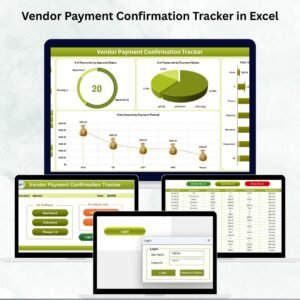
✅ Interactive Dashboard – Real-time charts with slicers to analyze:
Number of payments by approval status
Number of payments by payment status
Total amount by department
Total amount by payment method
✅ Data Entry Sheet – Add, update, or delete payment records via simple forms.
✅ Manage List Sheet – Maintain dropdown lists for departments, payment methods, and vendors.
✅ Support Sheet – Backend pivot tables powering dashboards (hidden for data protection).
✅ User Management – Add or delete users, assign access levels, and reset passwords.
✅ Settings Sheet – Customize formats, preferences, and tool behavior.
✅ Multi-User Login – Supports multiple users with unique credentials and access rights.
✅ Real-Time Updates – Dashboards refresh instantly with every entry or update.
📦 What’s Inside the Vendor Payment Confirmation Tracker

When you download this Excel template, you get:
Login Form: Secure access to prevent unauthorized data use.
Main Form: Central control panel with buttons for all features.
Dashboard Sheet: Visual insights into payments, approvals, and department spending.
Data Entry Sheet: Forms for adding, updating, and deleting vendor payment confirmations.
Manage List Sheet: Dropdown lists for consistent data entry.
Support Sheet: Backend calculations for dashboard automation.
User Management Section: Create and manage user accounts with different access levels.
Settings Tab: Adjust preferences such as date formats or default dashboard views.
This structure makes the tracker a complete, all-in-one solution for vendor payment confirmation.
🛠️ How to Use the Vendor Payment Confirmation Tracker
Login Securely – Use your unique credentials to access the system.
Navigate from Main Form – Access dashboards, data entry, or user management instantly.
Add New Records – Enter payment details via the Data Entry form.
Update Records – Select a record ID, edit, and save changes.
Delete Records – Remove outdated entries with confirmation to avoid errors.
Monitor Dashboards – Track approvals, statuses, and payment amounts by department/method.
Manage Lists – Keep vendor names, payment methods, and departments up to date.
Control User Access – Assign permissions and reset passwords from the User Management module.
👩💼 Who Can Benefit from This Tracker?
Finance Teams – Manage vendor payments efficiently with less manual work.
Accountants – Keep reliable, audit-ready records of payments.
Business Owners – Improve vendor trust with timely confirmations.
Procurement Managers – Track departmental spending and approvals.
Enterprises & SMEs – Scalable for both small and large organizations.
By implementing this tracker, businesses gain accuracy, transparency, and efficiency in payment processing while strengthening vendor relationships.
👉 Click here to read the Detailed blog post
Visit our YouTube channel to learn step-by-step video tutorials
Watch the step-by-step video tutorial:
Compatibility and Requirements
- Needs Microsoft Excel desktop on Windows with macros enabled, because the file runs on VBA.
- It does not work in Excel for the web, Google Sheets or the Excel mobile apps. Microsoft explains macro settings in Enable or disable macros in Microsoft 365 files.
- The download is an Excel workbook with the login form, main form and data entry forms built in.
Frequently Asked Questions
What does the dashboard show?
It shows the number of payments by approval status and by payment status, plus the total amount by department and by payment method, with slicers to filter.
How do I add or change a payment record?
Use the Data Entry form to add a record. To edit one, select its record ID, change the details and save. Deleting asks for confirmation first.
Can more than one person use the tracker?
Yes. It supports multiple users with their own login and access level. You can add or delete users and reset passwords in User Management.
Can I change the dropdown lists?
Yes. The Manage List sheet holds the departments, payment methods and vendors used in the dropdowns, so you can keep them up to date.
Related Vendor Payment Templates
- Vendor Payment Confirmation Tracker in Google Sheets: the same tracker for Google Sheets
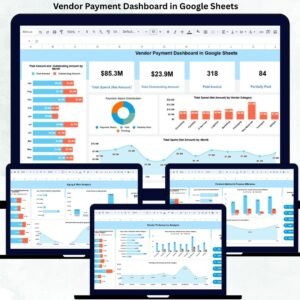
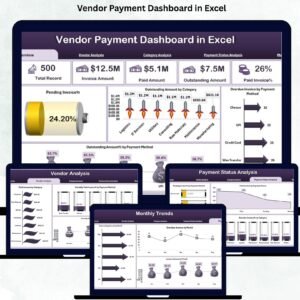
- Vendor Payment Dashboard in Excel: charts for vendor payment analysis
- Vendor Invoice Submission Tracker in Excel: tracks invoices before they are paid
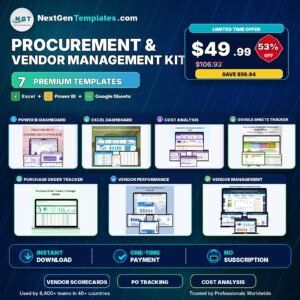
- Procurement and Vendor Management Kit: 7 procurement and vendor templates in one bundle
Browse all Excel trackers or the VBA tools.
Reviews
There are no reviews yet.