

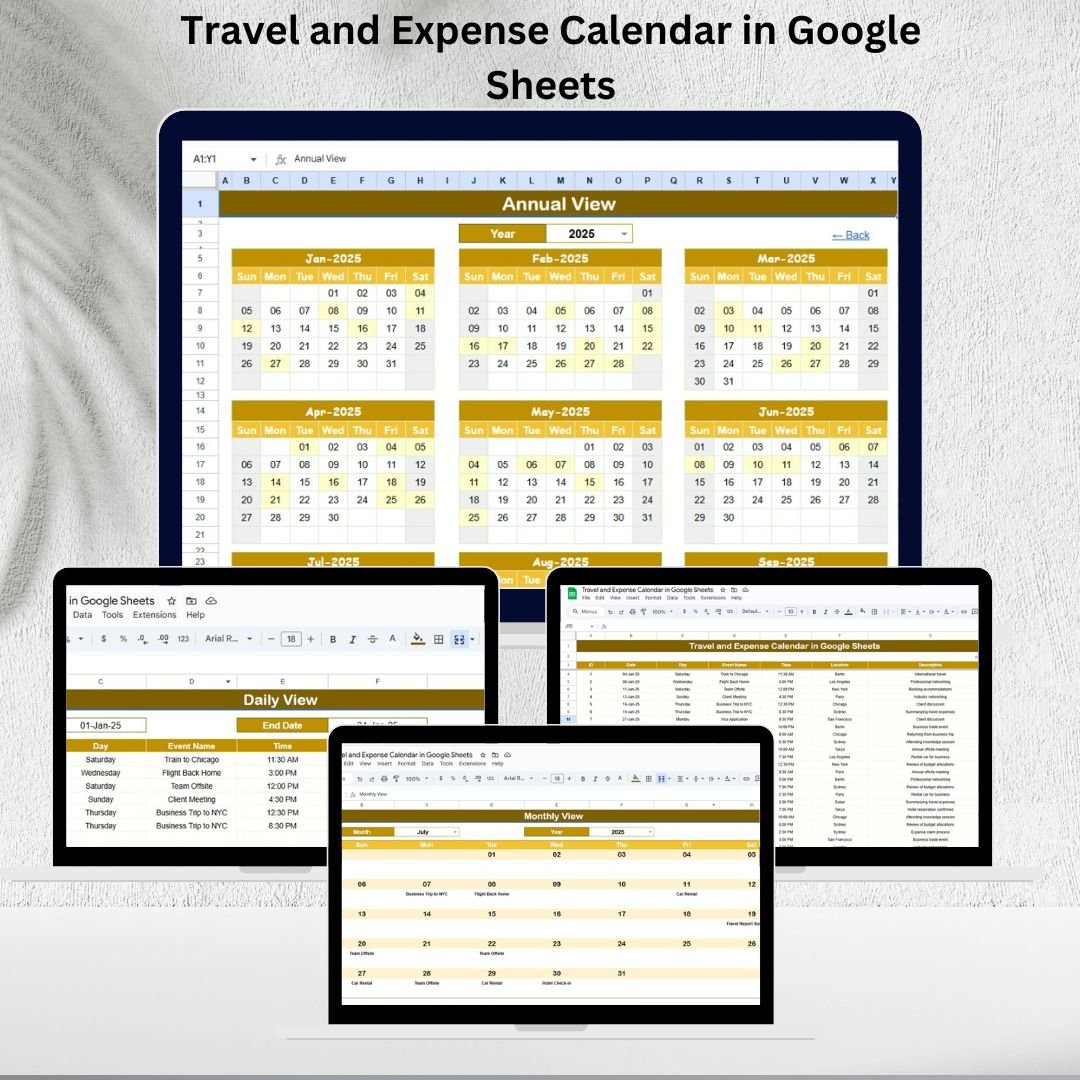



Managing travel and expense activities can quickly become chaotic if you don’t have a structured system. Between booking flights, scheduling meetings, and recording expenses, it’s easy to miss important details. That’s why we created the Travel and Expense Calendar in Google Sheets—a simple yet powerful tool designed to help businesses and individuals plan, track, and monitor travel activities and costs in one place.
Whether you’re part of an HR team, finance department, or an operations manager handling frequent travel schedules, this template ensures complete visibility into travel and expense management.
✨ Key Features of the Travel and Expense Calendar
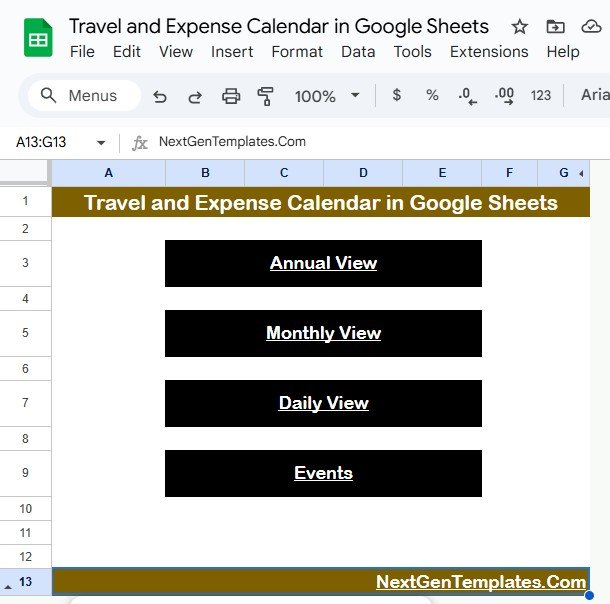
📌 Home Sheet (Navigation Hub)
Quick-access buttons for Annual, Monthly, Daily, and Events views.
Eliminates endless scrolling by providing direct navigation.
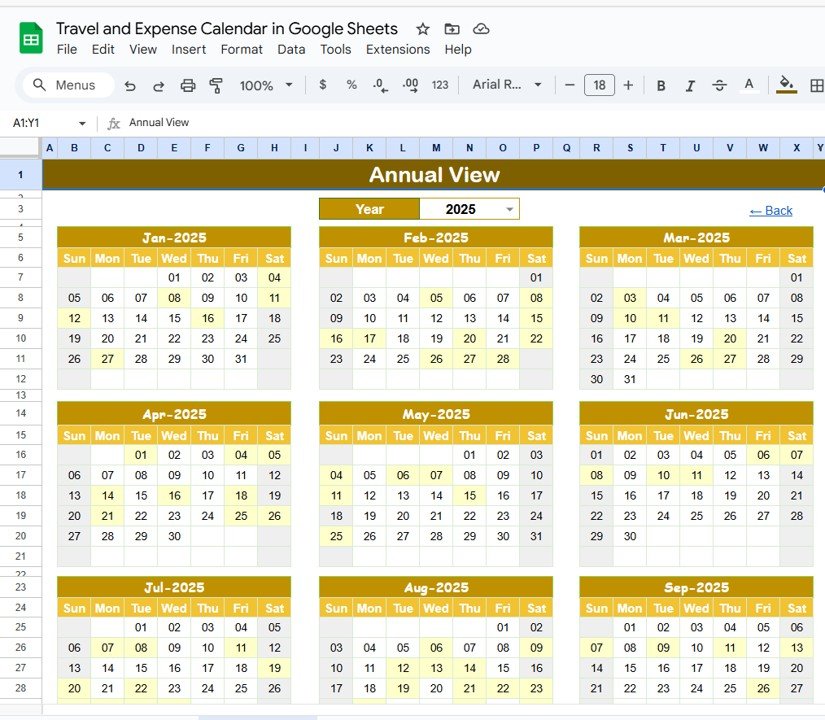
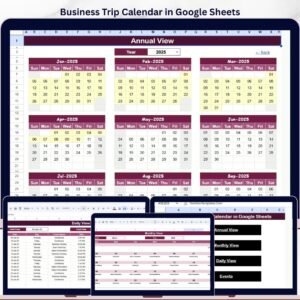
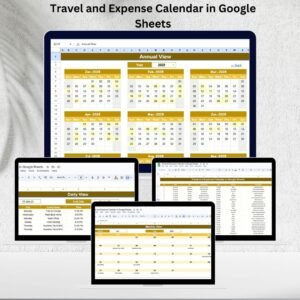
🗓 Annual View
Displays all 12 months on one sheet.
Year selection automatically updates the calendar.
Customizable start month and first day of the week.
Perfect for long-term travel planning and budget allocation.
📅 Monthly View
Focused, single-month snapshot.
Dropdown selectors for Month and Year.
If multiple events occur on one day, the calendar shows “more than 1…”, ensuring nothing is overlooked.
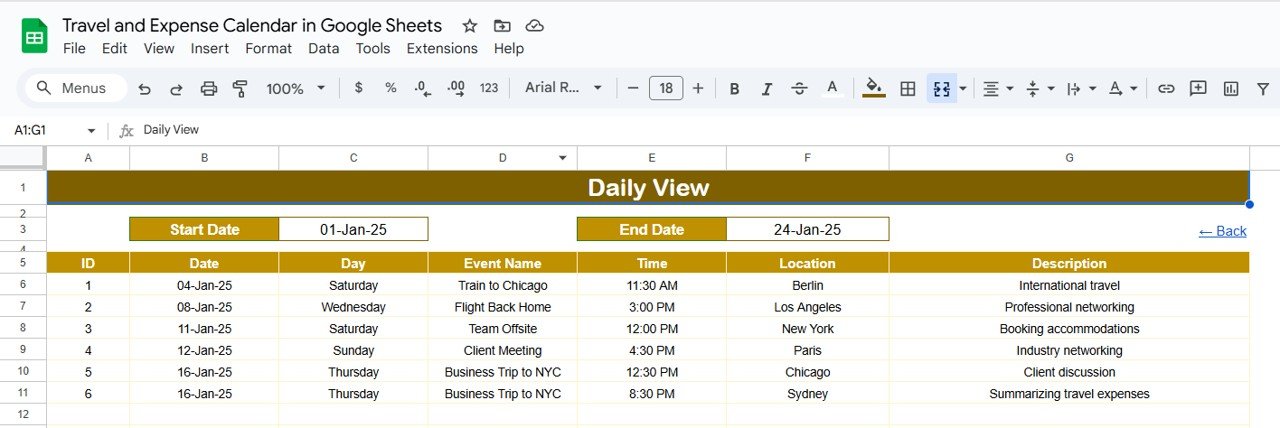
📋 Daily View
Displays all trips, meetings, and expenses within a chosen date range.
Includes event details: time, location, and description.
Ensures day-to-day accuracy for busy teams.
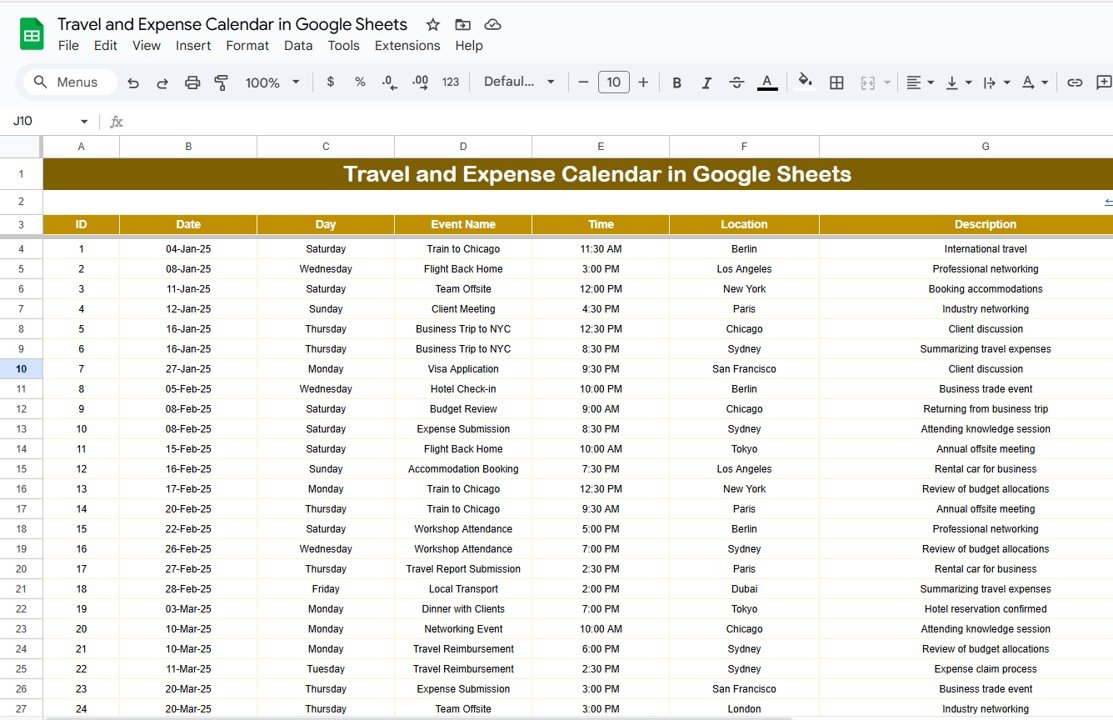
📑 Events Sheet (Database)
Stores all event records in one place.
Fields include: ID, Date, Day, Event Name, Time, Location, and Description.
Centralized structure means any updates here instantly reflect in all views.
📦 What’s Inside the Template?
5 Custom-Built Worksheets: Home, Annual View, Monthly View, Daily View, and Events.
Pre-designed dropdowns, calendars, and summaries.
A user-friendly interface designed to save time.
🛠 How to Use the Travel and Expense Calendar
Enter Events – Log trips, meetings, and expenses in the Events sheet.
Switch Views – Use Annual, Monthly, or Daily sheets depending on the planning horizon.
Track Expenses – Add costs and descriptions to maintain transparent records.
Collaborate in Real-Time – Share with team members for live updates.
Plan Smarter – Use the yearly and monthly snapshots to avoid conflicts and overbookings.
👥 Who Can Benefit from This Template?
HR Teams 🧑💼: Plan employee travel schedules.
Finance Departments 💰: Track costs, approvals, and reimbursements.
Managers & Team Leads 📊: Monitor upcoming trips and meetings.
Small Business Owners 🏢: Gain control over company-wide travel.
Remote/Hybrid Teams 🌍: Coordinate travel across multiple locations.
🚀 Advantages of Using This Template
Centralized Tracking: No more scattered spreadsheets.
Real-Time Updates: Cloud-based collaboration for teams.
Improved Planning: Spot conflicts before they happen.
Budget Control: Monitor costs and ensure accountability.
Customizable: Add extra fields or adapt categories to fit your needs.
✅ Best Practices
Update events promptly.
Use descriptive event names for clarity.
Segment events by department or employee.
Review Monthly and Annual Views to avoid overlaps.
Track budget compliance by logging expenses alongside events.
📌 Click here to read the Detailed Blog Post
Watch the step-by-step video Demo:
🎥 Visit our YouTube channel to learn step-by-step video tutorials
Compatibility and Requirements
- Works in Google Sheets. You need a free Google account and a web browser.
- You pick the month and year from dropdowns on the Monthly View. Google explains dropdowns in Create an in-cell dropdown list.
Frequently Asked Questions
Which sheets are included?
Five sheets: Home, Annual View, Monthly View, Daily View and Events.
Where do I enter trips, meetings and expenses?
Enter them on the Events sheet. Each record has an ID, Date, Day, Event Name, Time, Location and Description. The Annual, Monthly and Daily views read from this sheet.
What happens when two events fall on the same day?
The Monthly View shows “more than 1…” on that day. Open the Daily View to see every event in your chosen date range with its time, location and description.
Can I change the start month or the first day of the week?
Yes. The Annual View lets you pick the year, the start month and the first day of the week.
Is there an Excel version?
Yes. See the Travel and Expense Calendar in Excel.
Related Travel and Expense Templates
- Travel and Expense Calendar in Excel: the same calendar in Excel
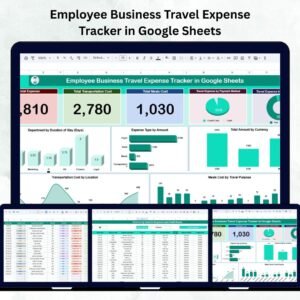
- Employee Business Travel Expense Tracker in Google Sheets: log employee trip costs
- Travel Expense Report Tracker in Google Sheets: report travel expenses
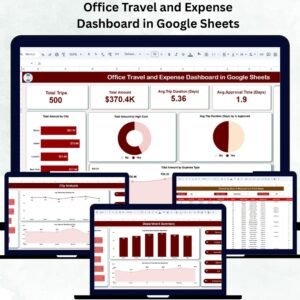
- Office Travel and Expense Dashboard in Google Sheets: a dashboard view of travel spending
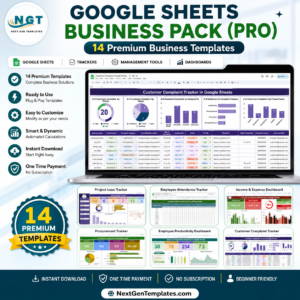
- Google Sheets Business Pack (Pro): 14 business templates in one download
Browse all Google Sheets calendars.









Reviews
There are no reviews yet.