

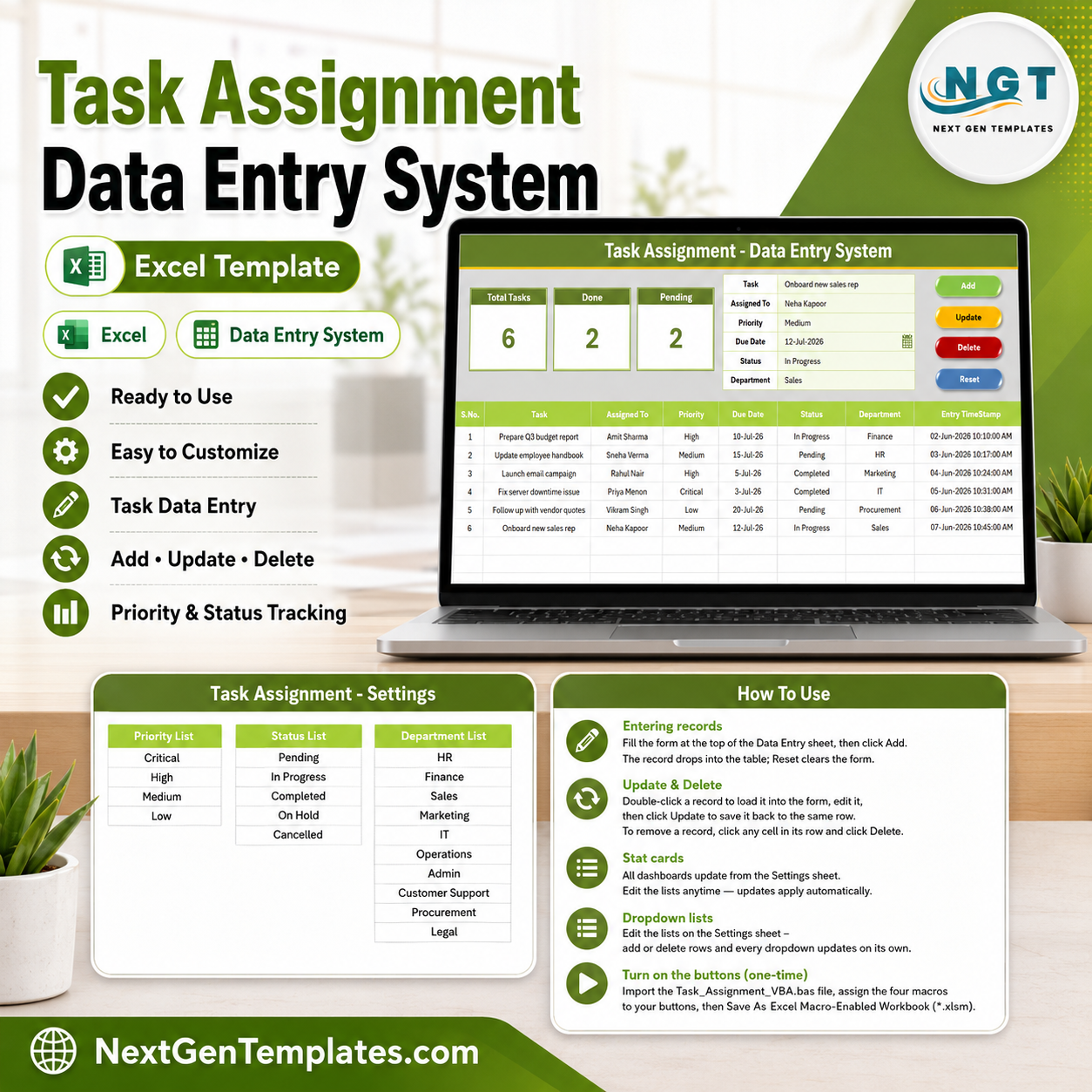
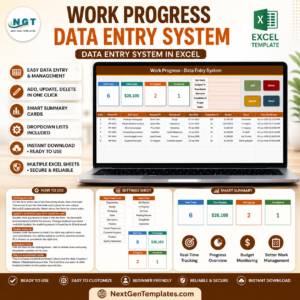
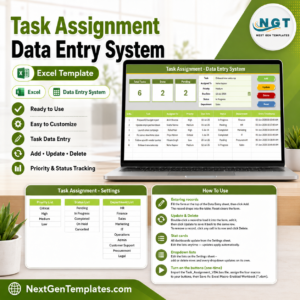
The Task Assignment Data Entry System in Excel logs every task across 6 fields — Task, Assigned To, Priority, Due Date, Status and Department — and updates 3 live KPI cards (Total Tasks, Done, Pending) the moment you add a record. First-time setup takes under 5 minutes: import the VBA module, save as .xlsm, and start entering tasks with the Add button.
🌍 Join 8,400+ teams in 40+ countries using NextGenTemplates to replace paid SaaS tools with one-time-purchase Excel, Google Sheets, Power BI, and HTML templates Task Assignment Data Entry System in Excel.
✅ Instant download · One-time payment · No subscription · No per-user fees · Lifetime access
🔑 Key Features of the Task Assignment Data Entry System in Excel
This is a VBA-driven data entry form, not a static spreadsheet. Every action runs through a macro button, so your records table stays clean and consistent no matter who is entering tasks.
- 🔹 Four one-click VBA buttons — Add, Update, Delete and Reset run every record action from the form, so nobody types directly into the table and breaks a formula.
- 🔹 Three auto-calculating KPI cards — the dashboard tracks Total Tasks, Done (Status = Completed) and Pending (Status = Pending), and all three recalculate the instant a record is added or edited.
- 🔹 Three dropdown-controlled fields — Priority, Status and Department pull from editable lists on the Setting sheet, so entries stay standardized for clean filtering and reporting.
- 🔹 Auto S.No and Entry TimeStamp — every task is numbered automatically and stamped with the entry date-time, giving you a reliable audit trail without extra typing.
- 🔹 Double-click to edit — click any row to load that task back into the form, change it, and hit Update to write it back in place.
📦 What’s Inside the Task Assignment Data Entry System
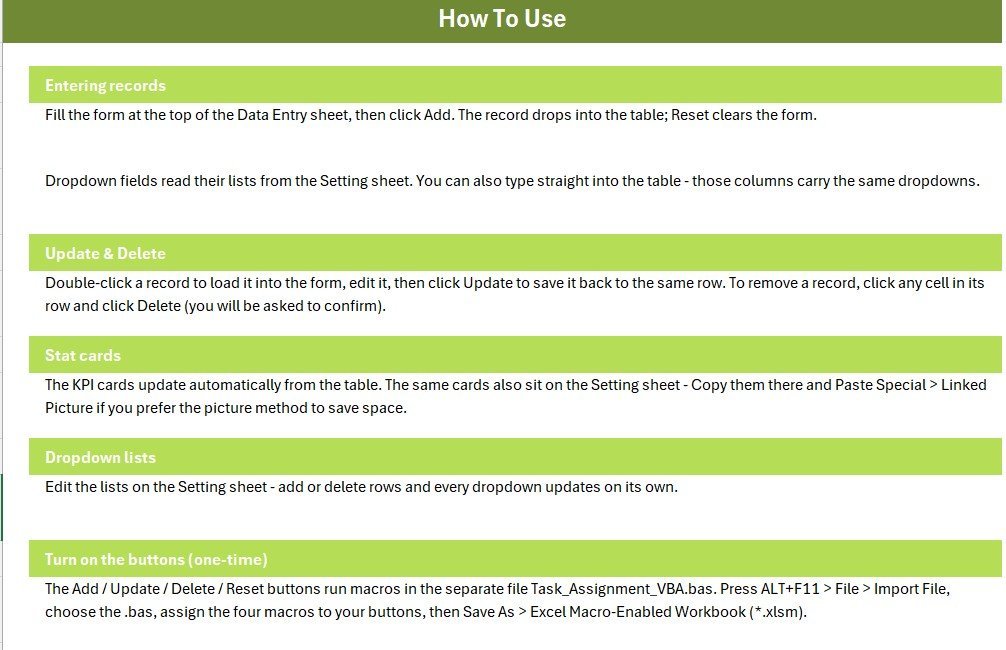
Data Entry Form and KPI Dashboard
The main sheet holds the entry form (Task, Assigned To, Priority, Due Date, Status, Department), the three KPI cards, the Add/Update/Delete/Reset buttons, and the records table below. Enter a task, click Add, and the row drops into the table with an auto S.No and timestamp Task Assignment Data Entry System in Excel.
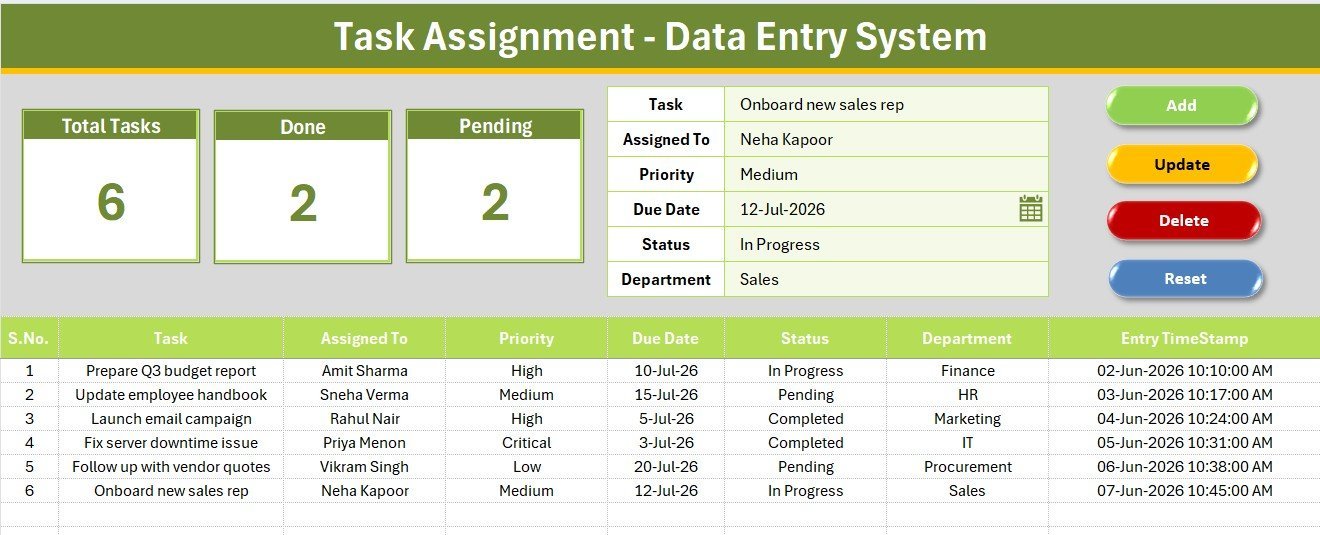
Setting Sheet — Dropdown Lists
The Setting sheet holds the source lists for the three dropdown fields: Priority (Critical, High, Medium, Low), Status (Pending, In Progress, Completed, On Hold, Cancelled) and Department (HR, Finance, Sales, Marketing, IT, Operations, and more). Edit these lists to match your own team and the form updates instantly.
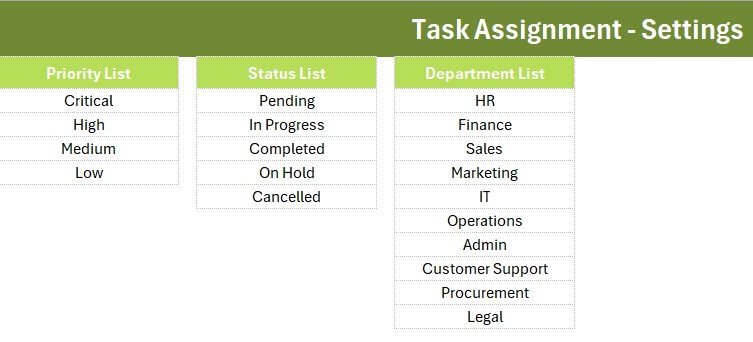
Instructions and Getting Started
A built-in Instructions sheet walks you through importing the VBA module, adding the four macro buttons, and saving as a macro-enabled workbook — so a first-time user is entering tasks within minutes.
📊 Task Assignment System in Excel vs. Google Sheets vs. Asana / Trello / Monday.com
| Feature | Task Assignment System (Excel) | Google Sheets equivalent | Asana / Trello / Monday.com |
|---|---|---|---|
| Cost | $5.99 one-time | Free but build-it-yourself | $8–24 / user / month |
| Platform | Microsoft Excel (offline) | Google Sheets (cloud) | Web / mobile SaaS |
| Setup time | Under 5 minutes ✅ | Hours to build | 15–30 min per project |
| One-click Add/Update/Delete | Yes, VBA buttons ✅ | Manual / scripts needed | Yes |
| Works fully offline | Yes ✅ | No | No |
| Per-user fees | None ✅ | None | Charged per seat |
| Own your data locally | Yes ✅ | In Google cloud | On vendor servers |
| Year-1 cost at 5 users | $5.99 ✅ | $0 | $480–$1,440 |
For teams that want fast, structured task logging without paying per seat every month, the Task Assignment Data Entry System sits in the sweet spot.
👥 Who This Template Is For — and Who It’s Not For
✅ This template is built for:
- Team leads and managers who assign day-to-day tasks and want a single Excel record of who owns what
- Small businesses (2–50 people) that prefer a one-time Excel tool over a monthly SaaS subscription
- Office admins, coordinators and freelancers who track tasks by priority, status and department
❌ This template is NOT for:
- Teams that need real-time cloud collaboration with multiple people editing at the same moment
- Enterprises requiring automated notifications, Gantt dependencies, or SSO — a dedicated PM platform fits better
⚙️ How to Use the Task Assignment Data Entry System
- Open the workbook, press ALT+F11, and import the included VBA module (.bas).
- Add four Form-Control buttons over the coloured cells and assign the Add, Update, Delete and Reset macros.
- Save the file as an Excel Macro-Enabled Workbook (.xlsm).
- Fill the form — Task, Assigned To, Priority, Due Date, Status, Department — and click Add to log it.
- Double-click any row to load it back into the form, edit, and click Update; the KPI cards refresh automatically.
💼 Real-World Use Cases
Neha manages operations at a 20-person agency. She logs every client and internal task with an owner, priority and due date, then glances at the Pending card each morning to see what still needs attention — without paying per-seat for Monday.com Task Assignment Data Entry System in Excel.
Vikram runs a small IT support desk. He assigns tickets by Department and Status, uses the Done count to report weekly throughput to his manager, and keeps the whole log in one offline Excel file he fully controls.
Sneha coordinates an HR team. She tracks onboarding and policy tasks by priority, filters the records table by Status, and updates entries in seconds using the double-click-to-edit form.
❓ Frequently Asked Questions
What fields does the Task Assignment Data Entry System track?
The Task Assignment Data Entry System captures six fields per record: Task, Assigned To, Priority, Due Date, Status and Department. Priority, Status and Department are dropdown-controlled from the Setting sheet to keep every entry consistent.
Do I need to enable macros?
Yes. The Task Assignment Data Entry System uses VBA for the Add, Update, Delete and Reset buttons, so you must enable macros and save the file as a macro-enabled workbook (.xlsm) for the buttons to work.
How long does setup take?
Setup takes under 5 minutes. You import the VBA module, attach four buttons to the coloured cells, save as .xlsm, and start entering tasks — the Instructions sheet walks you through each step.
How does this compare to Asana or Monday.com?
Asana and Monday.com charge $8–24 per user each month. The Task Assignment Data Entry System is a one-time $5.99 Excel tool that works offline with no per-user fees — ideal for small teams that don’t need real-time cloud collaboration.
Can I change the Priority, Status and Department options?
Yes. All three dropdown lists live on the Setting sheet. Edit the values there and the form dropdowns update automatically, so you can match the system to your own team structure.
👤 About the Author
Built by PK — Microsoft Certified Professional with 15+ years of Excel, Google Sheets, and Power BI experience. Founder of NextGenTemplates, reaching 300K+ subscribers across YouTube channels (@PK-AnExcelExpert, @NextGenTemplates, @NeoTechNavigators). Every template is hand-built and tested before release Task Assignment Data Entry System in Excel.
🔗 Explore Related Templates
Need a multi-user upgrade? The Advanced Task Management System Web App adds login and dashboards. Prefer more Excel data-entry tools? Try the Leave Application Data Entry System, the Employee Attendance Data Entry System, or the Income and Expense Data Entry System. Browse more in our Excel VBA Tools and Project Management templates.
📖 Click here to read the Detailed Blog Post
🎥 Visit our YouTube channel for step-by-step video tutorials
👉 YouTube.com/@NextGenTemplates














Reviews
There are no reviews yet.