


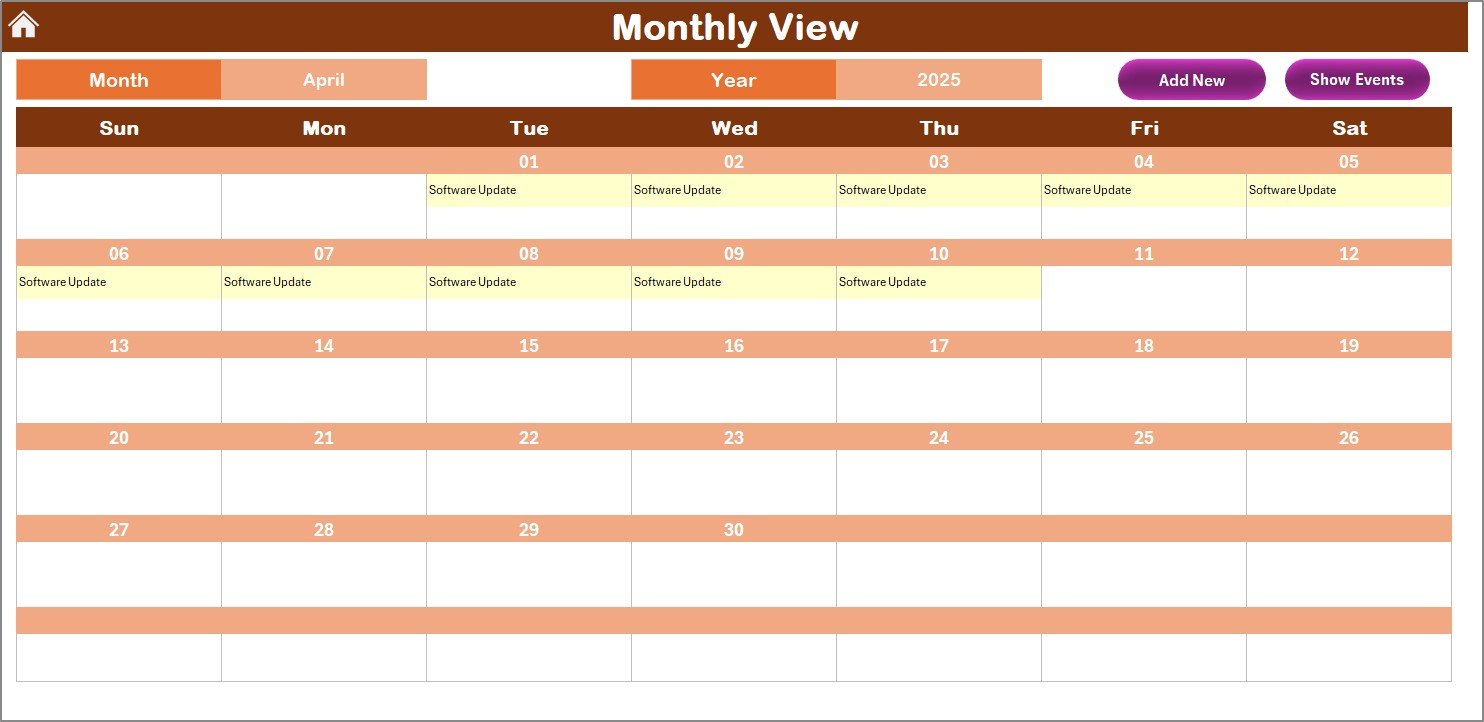



The Software Update Schedule Calendar in Excel is an essential tool for IT teams and organizations to manage and track software updates efficiently. This Excel-based calendar provides a structured approach to scheduling, monitoring, and documenting software updates, ensuring that your systems are always secure and up-to-date.
By centralizing all your software update information, this tool helps teams stay organized, minimize downtime, and ensure compliance with the latest software patches and updates.
Key Features of the Software Update Schedule Calendar in Excel
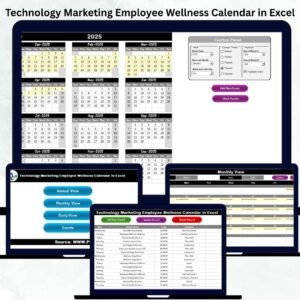
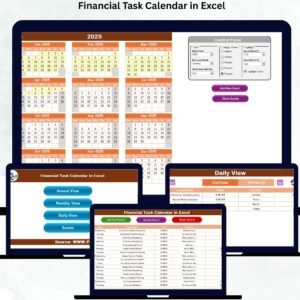
📅 Centralized Scheduling
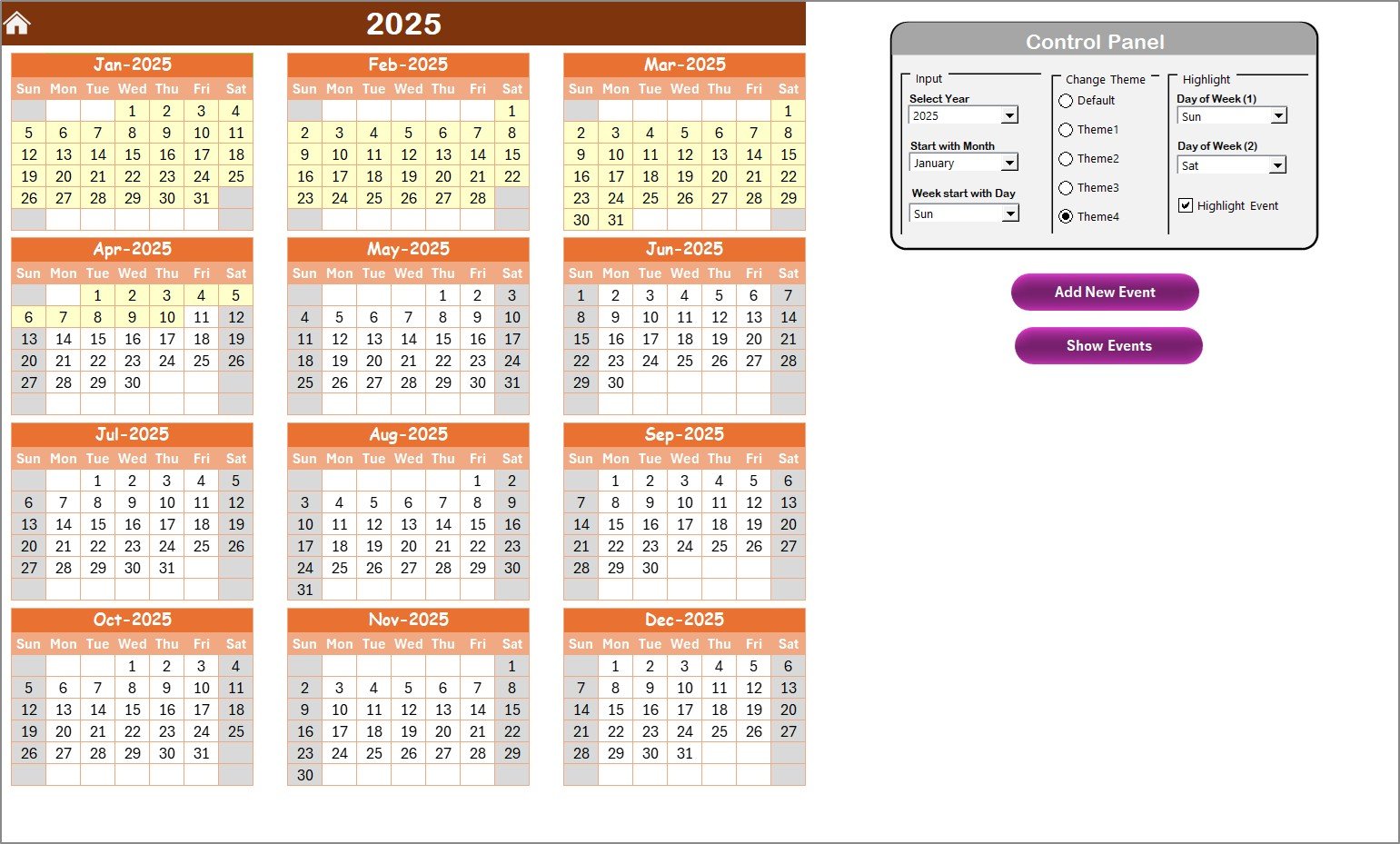
Unified Calendar View: Plan and schedule software updates across multiple systems and applications in a single, easy-to-read calendar.
Customizable Views: Toggle between daily, monthly, and annual views to see updates based on your desired level of detail.
📋 Event Details
Comprehensive Task Information: Each scheduled software update includes essential details such as the software name, version, update type (e.g., security patch, feature update), and assigned team member.
Status Tracking: Track the status of each update (e.g., Pending, In Progress, Completed) to stay on top of progress and ensure timely execution.
🔔 Automated Reminders
Update Notifications: Set up automatic reminders to notify team members of upcoming updates or deadlines, helping prevent delays and missed schedules.
📊 Reporting and Analytics
Generate Reports: Use built-in reporting features to track trends, identify recurring issues, and improve your update scheduling strategy over time.
Performance Monitoring: Assess the success of each update by monitoring the performance impact and any issues encountered during implementation.
🛠️ Customization and Flexibility
Customizable Fields: Modify the template to fit your organization’s specific software update requirements, adding new columns or adjusting categories.
Flexible Integration: Integrate with other project management tools or data sources to create a holistic software update management solution.
Benefits of Using the Software Update Schedule Calendar in Excel
✅ Improved System Security
By regularly scheduling and tracking software updates, your organization ensures that systems are protected against the latest vulnerabilities and threats.
✅ Minimized Downtime
With clear planning and progress tracking, the likelihood of missed or delayed updates is reduced, minimizing system downtime and disruptions to business operations.
✅ Better Resource Management
Efficiently allocate resources by assigning specific team members to handle particular updates and track the status of updates across systems.
✅ Enhanced Compliance
Stay compliant with industry standards and regulatory requirements by keeping your software up-to-date and documenting all updates for audits or internal reviews.
Getting Started with Your Software Update Schedule Calendar in Excel
Download the Template: Download the Software Update Schedule Calendar template to get started.
Set Up Update Schedule: Customize the calendar with your software names, versions, update dates, and assigned personnel.
Assign Responsibilities: Assign team members to each update task and ensure they are notified of upcoming deadlines.
Track Progress: Monitor each update’s status using the tracking feature to ensure timely completion and avoid missed deadlines.
Review and Update: Regularly update the calendar with new software updates and revise schedules based on changing priorities or project timelines.
By using the Software Update Schedule Calendar in Excel, your team can streamline the software update process, improve security, and ensure efficient management of IT resources.
Click here to read the Detailed blog post
Software Update Schedule Calendar in Excel
Visit our YouTube channel to learn step-by-step video tutorials
YouTube.com/@PKAnExcelExpert
Watch the step-by-step video Demo:
Who Uses This Calendar
IT teams and system administrators who plan software updates across several systems and applications. It also suits managers who assign update tasks to team members and need a record of completed updates for audits or internal reviews.
Compatibility and Requirements
- Works in Microsoft Excel desktop (Excel 2016 or later, or Microsoft 365).
- If you want to chart your update history, Microsoft explains the steps in Create a chart from start to finish.
Frequently Asked Questions
Which calendar views does it have?
You can switch between daily, monthly and annual views of your scheduled updates.
What details can I record for each update?
The software name, version, update type such as a security patch or feature update, and the assigned team member.
Can I track the status of each update?
Yes. Each update can be marked Pending, In Progress or Completed.
Can I add my own fields?
Yes. You can add columns or adjust the categories to fit your update process.
Related IT Schedule Templates
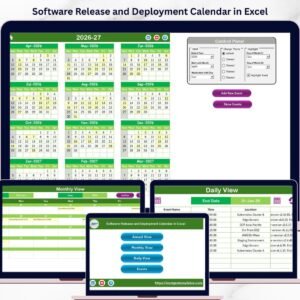
- Software Release and Deployment Calendar in Excel: plans releases and deployments
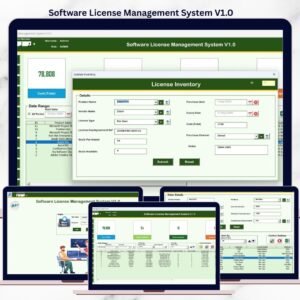
- Software License Management System V1.0: keeps track of software licenses
- IT Software Installation Request Tracker in Google Sheets: logs software installation requests
- IT Equipment Maintenance Checklist in Excel: a checklist for IT hardware upkeep
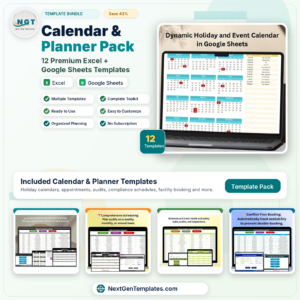
- Calendar & Planner Pack: 12 premium Excel and Google Sheets calendars in one bundle
Browse all Excel calendars or the Excel IT templates.














Reviews
There are no reviews yet.