


Managing a Secondary Schools Dashboard today requires more than academic excellence alone. School administrators must continuously monitor student strength, attendance, exam performance, scholarships, participation activities, and month-wise trends. However, when this information remains scattered across Excel files and manual reports, decision-making becomes slow, reactive, and error-prone.
That is exactly where the Secondary Schools Dashboard in Power BI becomes a powerful and practical solution.
This ready-to-use Power BI dashboard transforms raw school data into clear, interactive, and actionable insights. Instead of reviewing multiple reports, school leaders can monitor all key academic and administrative metrics from a single, centralized dashboard.
Built using Power BI with structured data sources, this dashboard enables schools to analyze performance dynamically using slicers and visuals. As a result, principals, coordinators, and management teams gain instant clarity and confidence in decision-making.
🔑 Key Features of Secondary Schools Dashboard in Power BI
📊 Centralized School Analytics – Track academics, attendance, scholarships, and activities in one place
🎯 Data-Driven Academic Insights – Identify performance gaps and improvement areas
🧑🎓 Student Distribution Analysis – Analyze students by grade, city, subject, and board
📈 Attendance & Exam Score Tracking – Monitor academic consistency over time
🎓 Scholarship Analysis – Evaluate scholarship distribution by gender, grade, and board
⚽ Participation Activity Insights – Measure engagement and its impact on performance
📅 Month-Wise Trend Analysis – Identify seasonal patterns and progress
🧭 Interactive Slicers – Filter data by month, grade, city, board, and activity
This dashboard helps schools move from manual reporting to proactive academic management.
📂 What’s Inside the Secondary Schools Dashboard in Power BI?
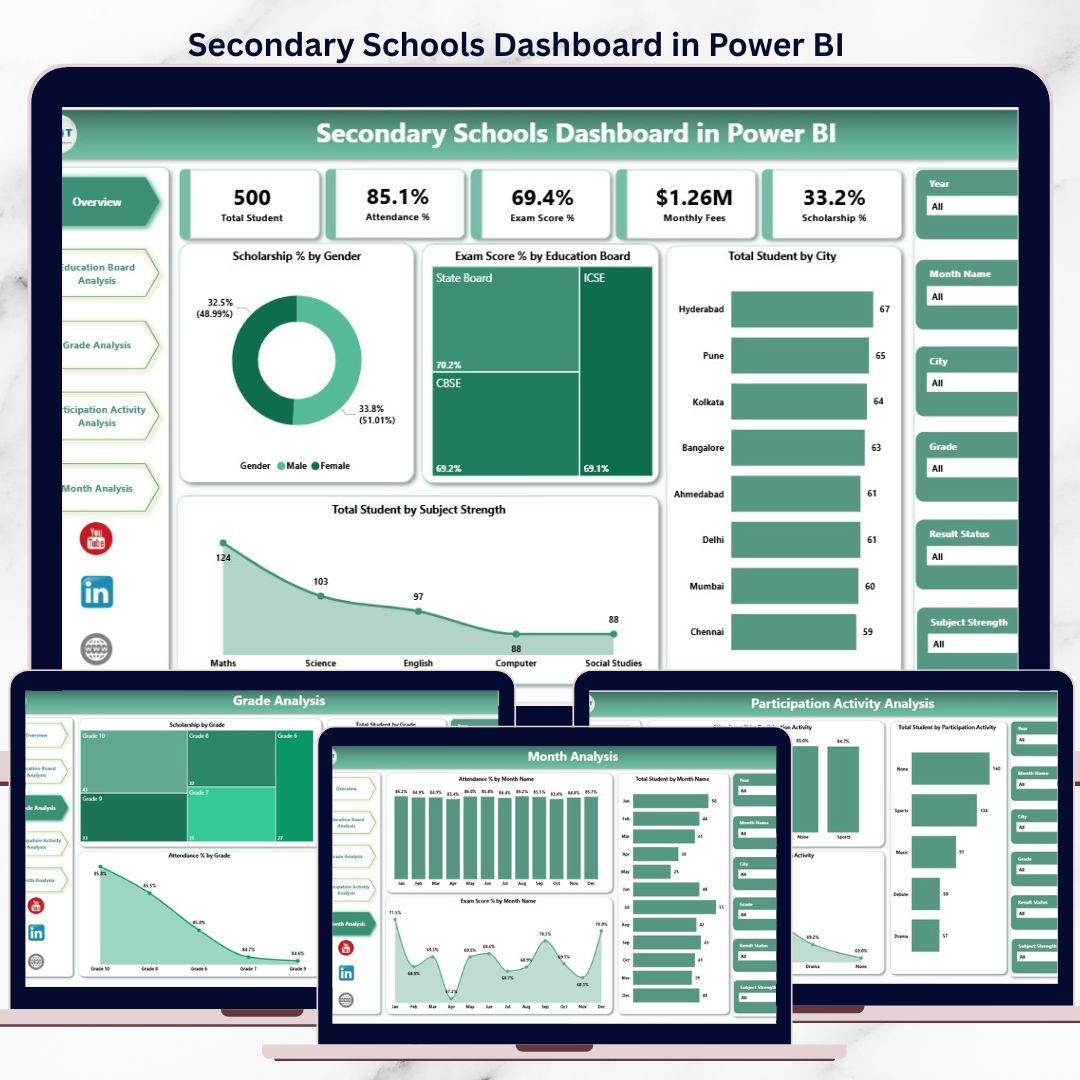
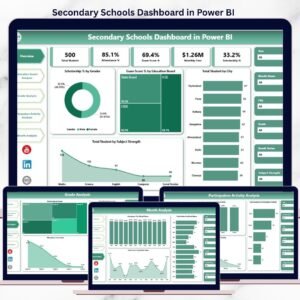
📊 1. Overview Page – Complete School Snapshot
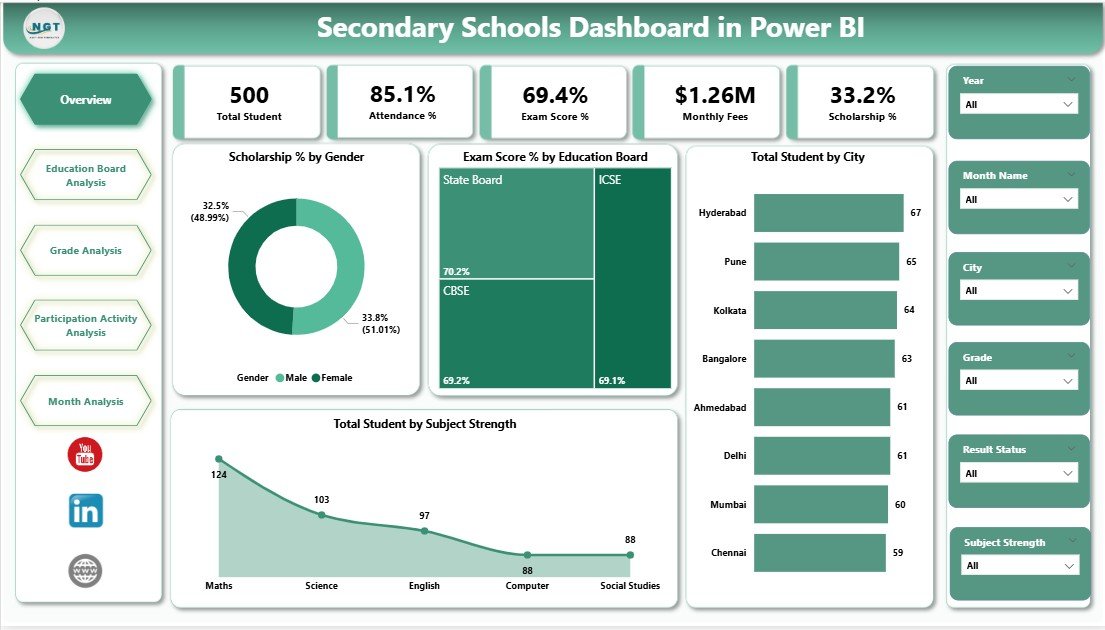
The Overview Page provides a high-level summary of overall school performance.
Key Visuals Included:
Scholarship % by Gender
Exam Score % by Education Board
Total Students by City
Total Students by Subject Strength
This page helps leadership understand the school’s current status within seconds.
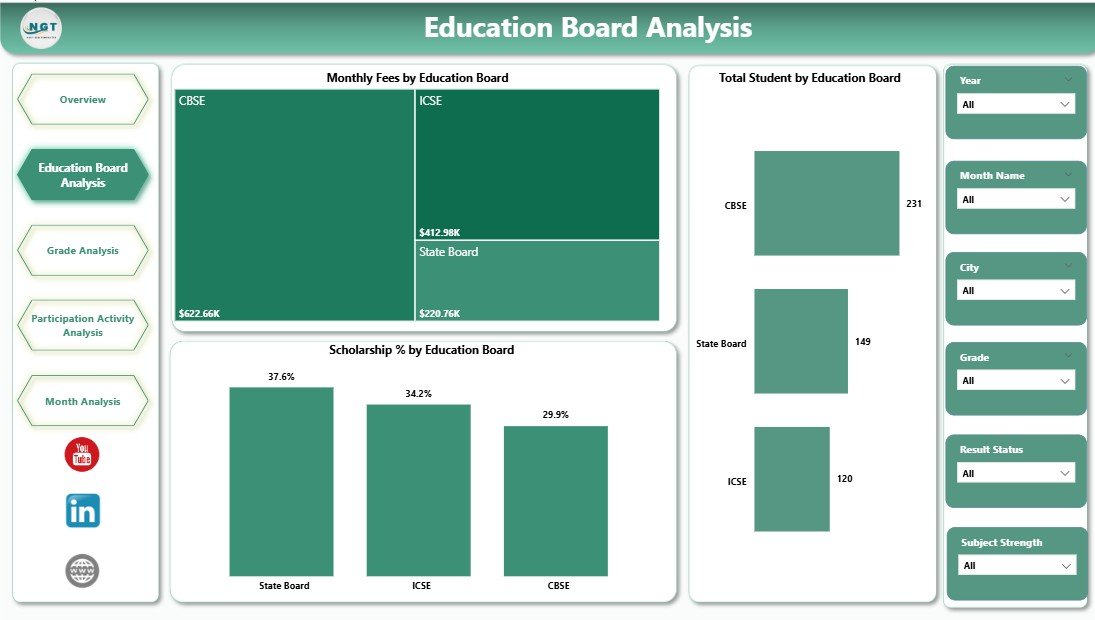
🏫 2. Education Board Analysis Page
This page compares performance across different education boards.
Key Insights:
Monthly Fees by Education Board
Total Students by Education Board
Scholarship % by Education Board
It supports strategic academic planning and financial evaluation.
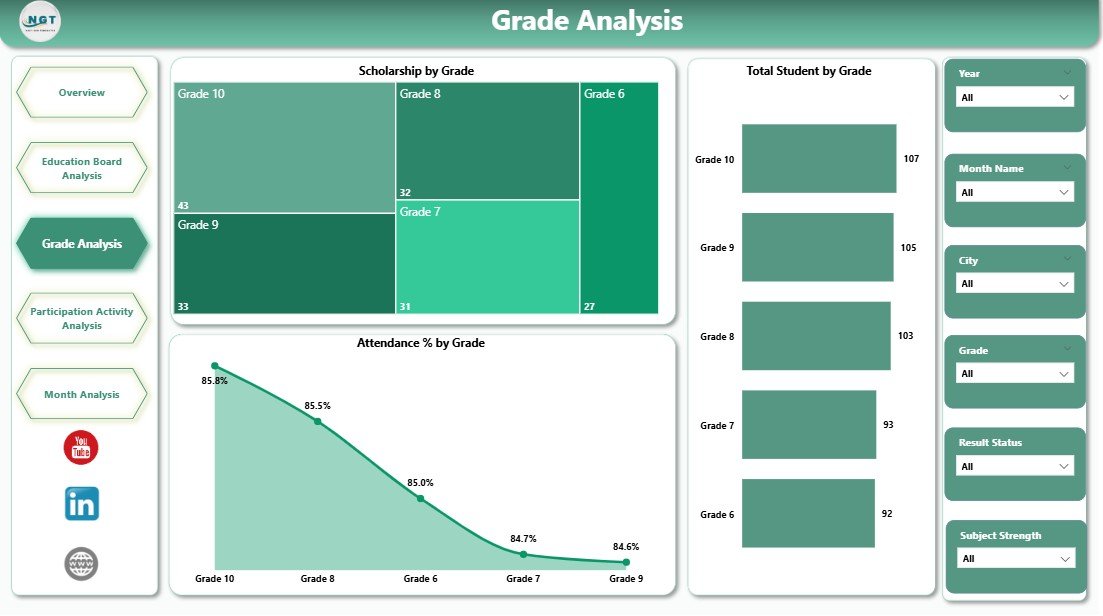
📚 3. Grade Analysis Page
The Grade Analysis Page focuses on grade-level insights.
Key Visuals:
Attendance % by Grade
Exam Score % by Grade
Total Students by Grade
Scholarship % by Grade
This page helps schools identify grades that require academic or attendance interventions.
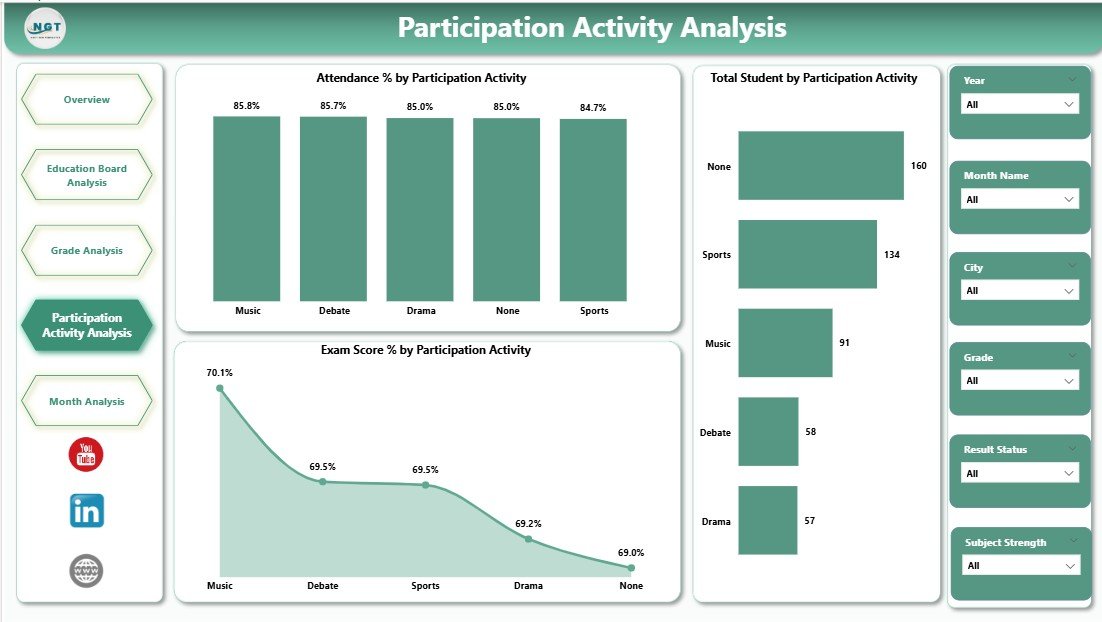
🎯 4. Participation Activity Analysis Page
This page evaluates extracurricular participation and its academic impact.
Key Visuals:
Attendance % by Participation Activity
Total Students by Participation Activity
Exam Score % by Participation Activity
It supports holistic student development and engagement planning.
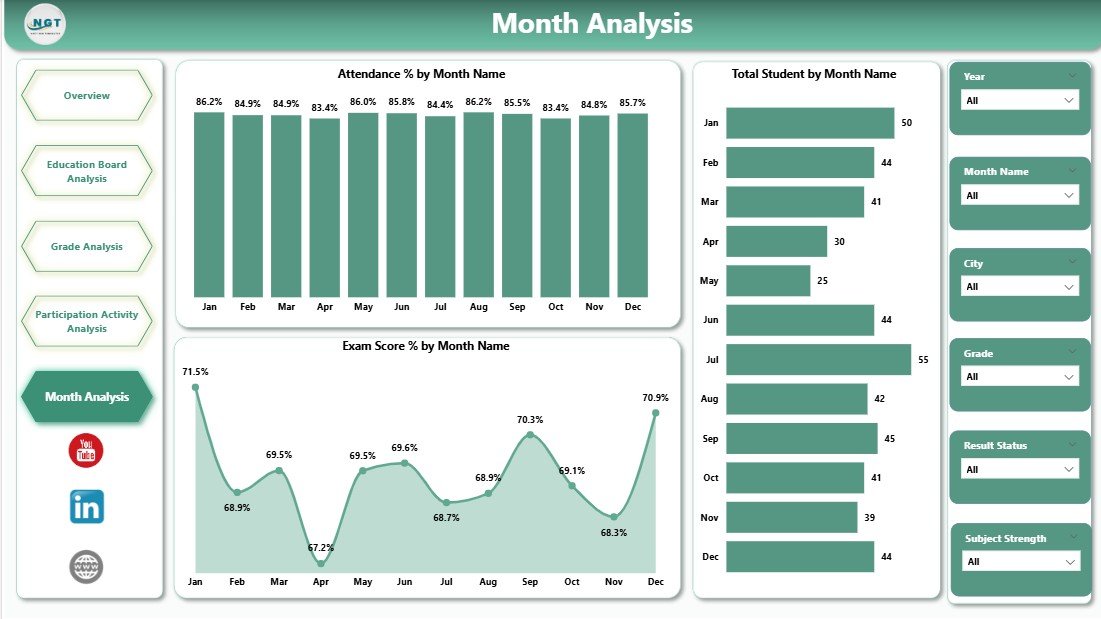
📆 5. Month Analysis Page
The Month Analysis Page tracks time-based trends.
Key Visuals:
Attendance % by Month
Total Students by Month
Exam Score % by Month
Monthly insights support planning, forecasting, and continuous improvement.
👥 Who Can Use This Dashboard?
🏫 School Principals & Administrators
📊 Academic Coordinators
💼 Management Committees
🎓 Education Boards
📈 Data & MIS Teams
Suitable for public and private secondary schools of any size.
👉 Click here to read the detailed blog post
▶️ Visit our YouTube channel for step-by-step tutorials
https://youtube.com/@PKAnExcelExpert
Watch the step-by-step video tutorial:
Compatibility and Requirements
- Works in Power BI Desktop, which is free to download from Microsoft. Microsoft explains the install in Get Power BI Desktop.
- The dashboard has five pages: Overview, Education Board Analysis, Grade Analysis, Participation Activity Analysis and Month Analysis.
- Slicers filter the data by month, grade, city, board and activity.
Frequently Asked Questions
Which pages are included?
Five pages: Overview, Education Board Analysis, Grade Analysis, Participation Activity Analysis and Month Analysis.
What can I see by grade?
The Grade Analysis page shows attendance %, exam score %, total students and scholarship % for each grade.
Can I filter the dashboard?
Yes. Slicers let you filter by month, grade, city, board and activity.
Does it show how extracurricular activities relate to results?
Yes. The Participation Activity Analysis page shows attendance %, total students and exam score % for each participation activity.
Is there an Excel or Google Sheets version?
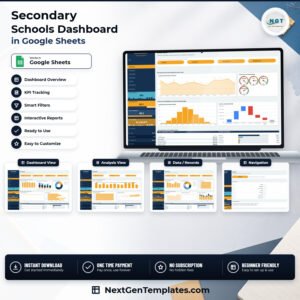
Yes. See the Secondary Schools Dashboard in Excel and the Secondary Schools Dashboard in Google Sheets.
Related School Templates
- Secondary Schools Dashboard in Excel: the same dashboard in Excel
- Secondary Schools Dashboard in Google Sheets: the Google Sheets edition
- Secondary Schools KPI Dashboard in Power BI: a KPI view for secondary schools
- School Admin Dashboard in Power BI: an admin view for schools
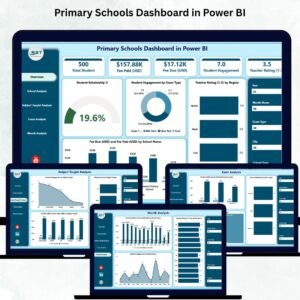
- Primary Schools Dashboard in Power BI: the primary school edition
Browse all Power BI dashboards or see template bundles.


Reviews
There are no reviews yet.