

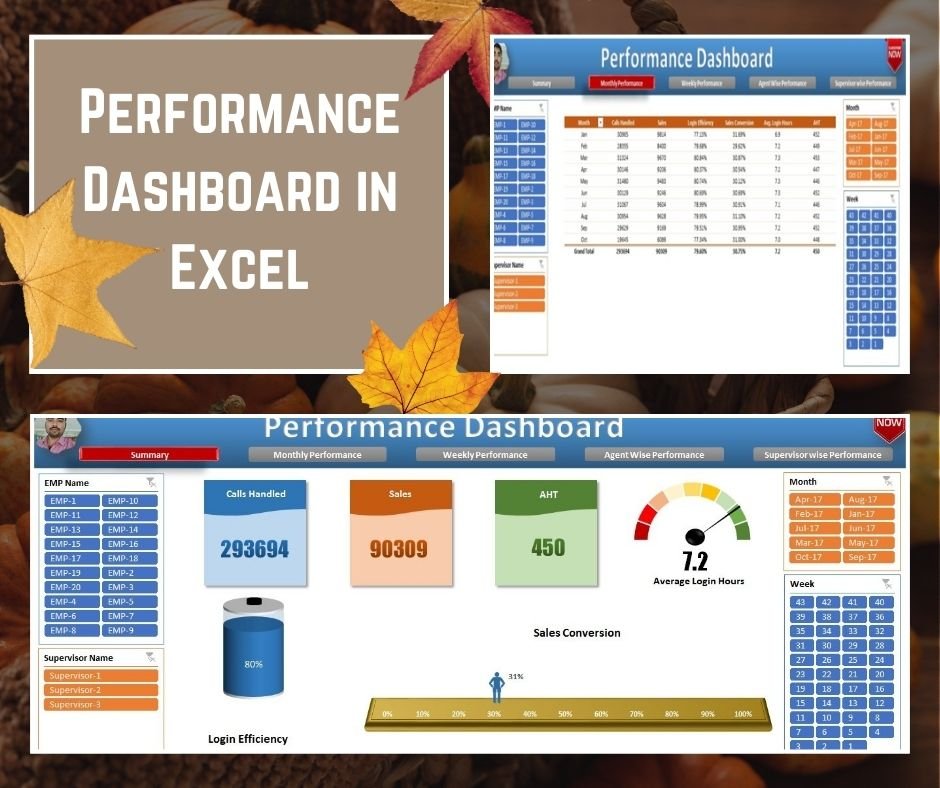
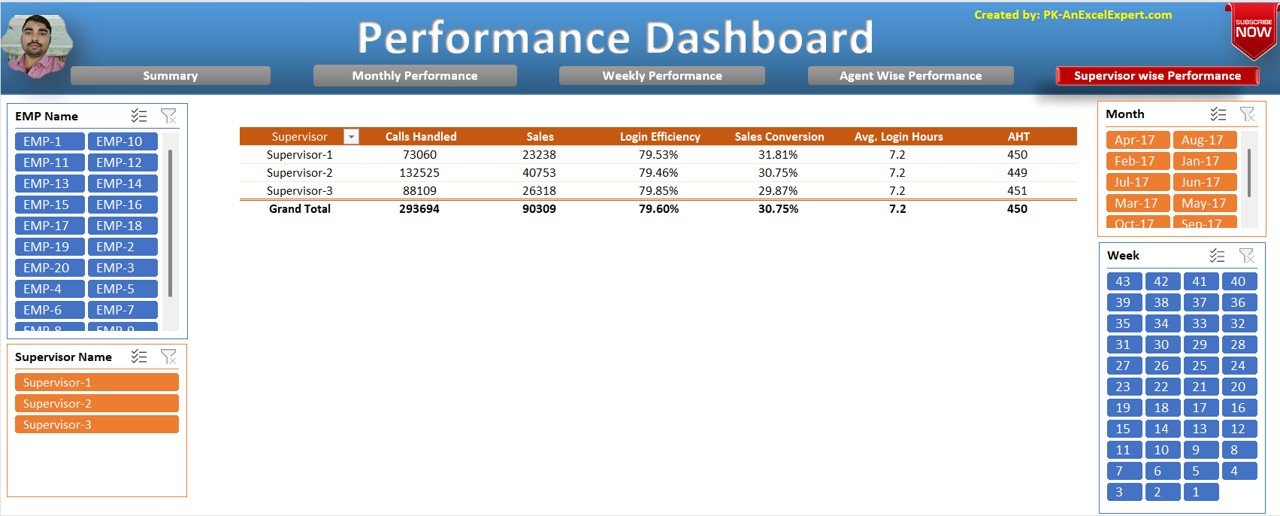

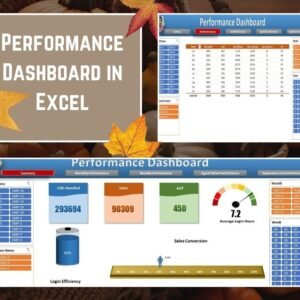
The Performance Dashboard in Excel is a ready-made, interactive Excel dashboard template for tracking team performance at the summary, monthly, weekly, agent-wise and supervisor-wise levels. It is built for managers, team leads and supervisors who track calls, sales and efficiency. Slicers and visual charts turn raw numbers into clear findings you can act on.
Key Features of the Performance Dashboard in Excel
1. Comprehensive Navigation
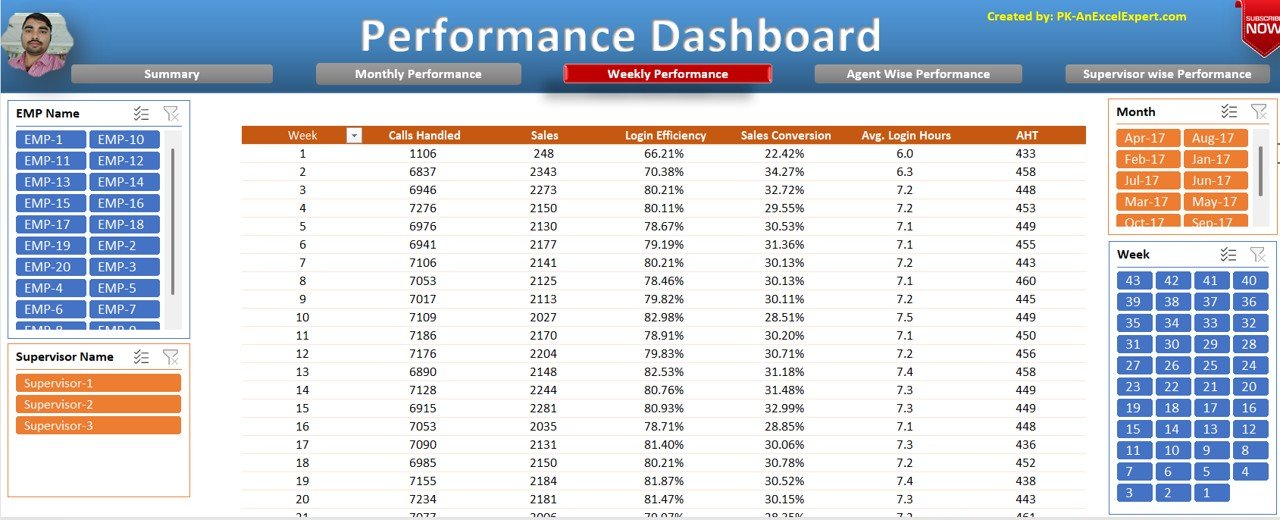
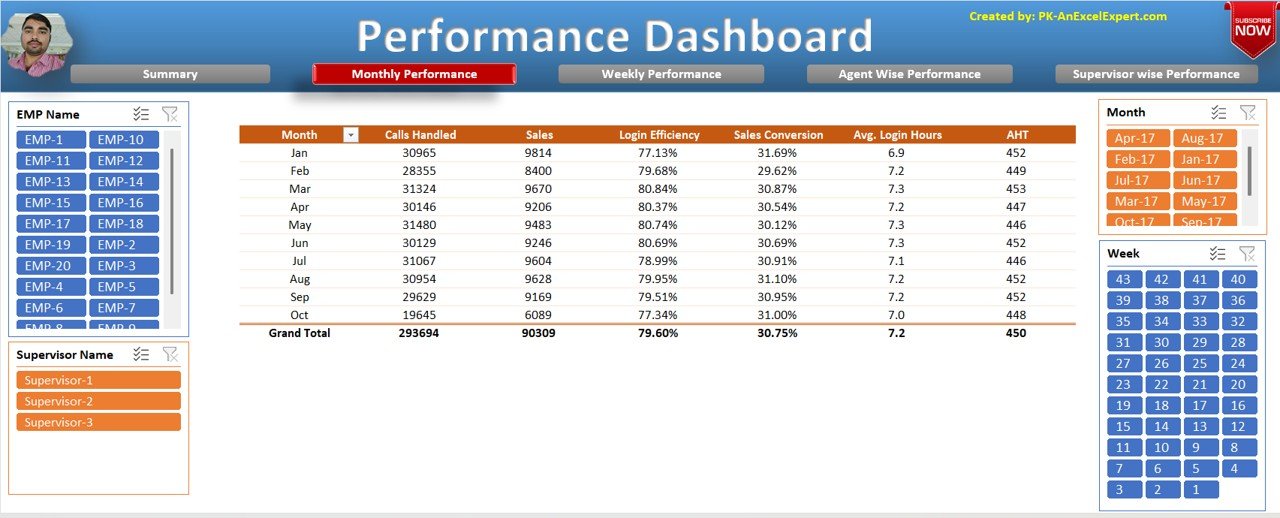
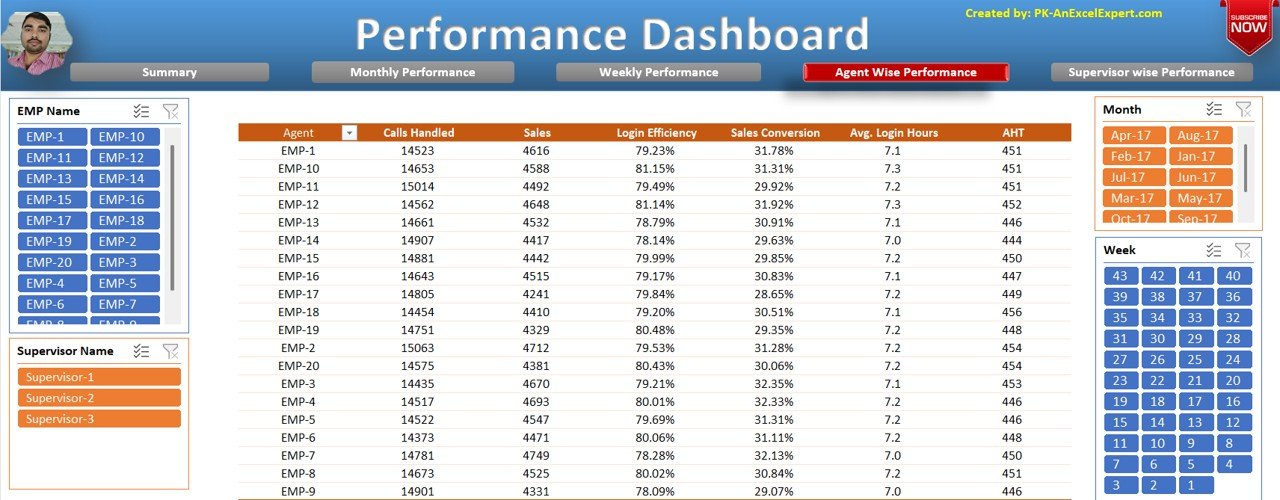
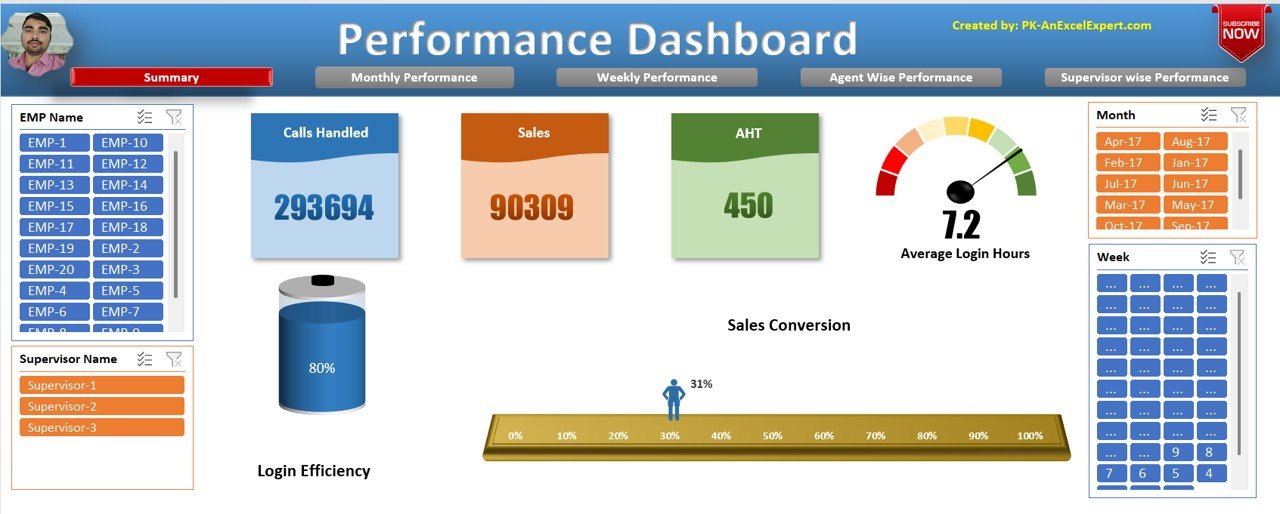
- A built-in navigation bar lets you move between performance views without hunting through tabs.
- Each view opens with a single click: summary, monthly, weekly, agent-wise and supervisor-wise performance.
2. Customizable Design
- You can replace the default images and logos with your company branding.
- You can adjust the look to match your business identity and reporting style.
3. Interactive Slicers
- Filter the data with slicers for:
- Employee Name
- Supervisor Name
- Month & Week Selection
- Narrow the view to a specific person, team or period to see detailed performance trends.
4. Dynamic Visualizations
- The dashboard includes several chart types that make the data easy to read:
- Speedometer Chart for login hours
- Battery Chart for performance efficiency
- Moving Man Chart for sales conversion trends
- These visuals show how the team is performing at a glance.
5. Detailed Performance Metrics
This KPI dashboard tracks the core metrics that matter to calling and sales teams:
| Metric | What it tells you |
|---|---|
| Calls Handled | The volume of calls managed by agents |
| Sales | The sales achieved |
| Login Efficiency | How efficiently login time is used |
| Sales Conversion Rate | How well calls turn into sales |
| Average Login Hours | The typical time agents are logged in |
| AHT (Average Handle Time) | The average time spent handling each call |
Together, these metrics show performance across different levels of your organization.
6. Hidden Support Sheets
- Raw data and calculations are stored in hidden sheets.
- This keeps the dashboard clean, professional and easy to navigate.
What’s Inside the Dashboard
The workbook is organized into clear performance views, which you reach through the navigation bar:
- Summary view: an overall picture of team performance.
- Monthly view: performance tracked month by month.
- Weekly view: performance tracked week by week.
- Agent-wise view: metrics for each individual employee. This makes it work as an employee performance tracker.
- Supervisor-wise view: performance grouped by supervisor.
- Hidden support sheets: the raw data and calculations that feed the dashboard.
Why Choose This Excel Dashboard Template?
- All-in-One Solution: track, analyze and improve team performance in one file.
- Time-Saving Automation: Excel does the calculations, so you don’t have to work them out by hand.
- Better Decision-Making: accurate data insights help you improve productivity.
- Made for Managers and Team Leads: track both agent and supervisor performance in one place.
Who Is It For?
- Team leads and managers who monitor calls handled, sales and AHT.
- Supervisors who want to compare agent performance and find who needs coaching.
- HR and operations teams who need a clear employee performance tracker.
- Sales managers who watch the sales conversion rate and login efficiency over time.
- Any business that wants a customizable, branded KPI dashboard in Excel.
How to Use the Performance Dashboard in Excel
- Open the file in Microsoft Excel.
- Replace the default images and logos with your company branding.
- Add your team’s performance data so the calculations can update.
- Use the navigation bar to switch between the summary, monthly, weekly, agent-wise and supervisor-wise views.
- Apply the slicers for Employee Name, Supervisor Name and Month & Week to focus on the details you need.
- Read the speedometer, battery and moving man charts to spot trends and act on them.
Click here to read the detailed blog post performance dashboard in Excel
Watch the step-by-step video tutorial:
Frequently Asked Questions
What does this performance dashboard in Excel track?
It tracks Calls Handled, Sales, Login Efficiency, Sales Conversion Rate, Average Login Hours and AHT (Average Handle Time). You can view them at the summary, monthly, weekly, agent-wise and supervisor-wise levels.
Can I filter the data by employee or supervisor?
Yes. The interactive slicers let you filter by Employee Name and Supervisor Name, and by Month and Week.
Which charts are included?
The dashboard includes a Speedometer Chart for login hours, a Battery Chart for performance efficiency and a Moving Man Chart for sales conversion trends.
Can I add my own company logo?
Yes. You can replace the default images and logos with your company branding to match your reporting style.
Where are the raw data and calculations stored?
They are kept in hidden support sheets. This keeps the dashboard clean and easy to navigate.
Is there a tutorial on how the dashboard works?
Yes. A detailed blog post and a step-by-step video tutorial are linked above on this page.
Also check our Inventory Management Form in Excel
Last updated: October 2026
Compatibility and Requirements
- Works in Microsoft Excel desktop (Excel 2016 or later, or Microsoft 365).
- Filtering uses Excel slicers for employee, supervisor, month and week, so use desktop Excel for the full experience.
- To learn how slicers filter data, see Microsoft’s guide Use slicers to filter data.
Related Performance Templates
- Call Center Operations Dashboard in Excel: for call volume and service levels
- Call Center Operations KPI Dashboard in Excel: monthly call center KPIs against targets
- Employee Performance Rating Card and Dashboard in Excel: to rate each employee on set criteria
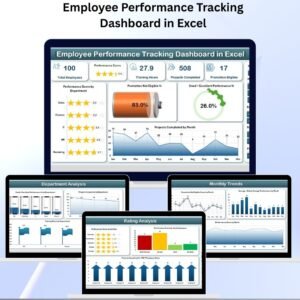
- Employee Performance Tracking Dashboard in Excel: for wider employee performance tracking
- HR and Workforce Analytics Bundle: 10 HR templates in one bundle
Browse all Excel dashboards or the Excel HR and payroll templates.






Reviews
There are no reviews yet.