

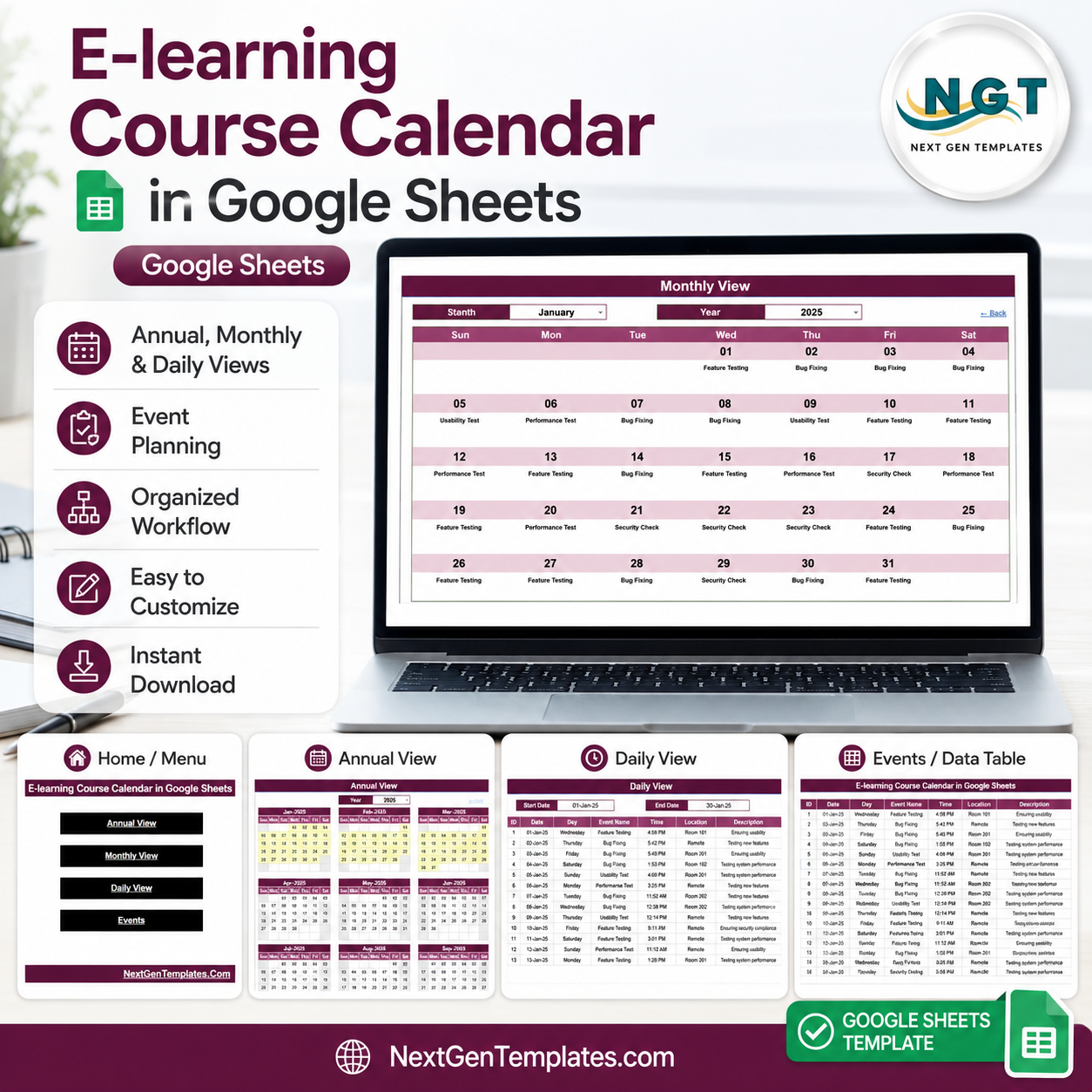
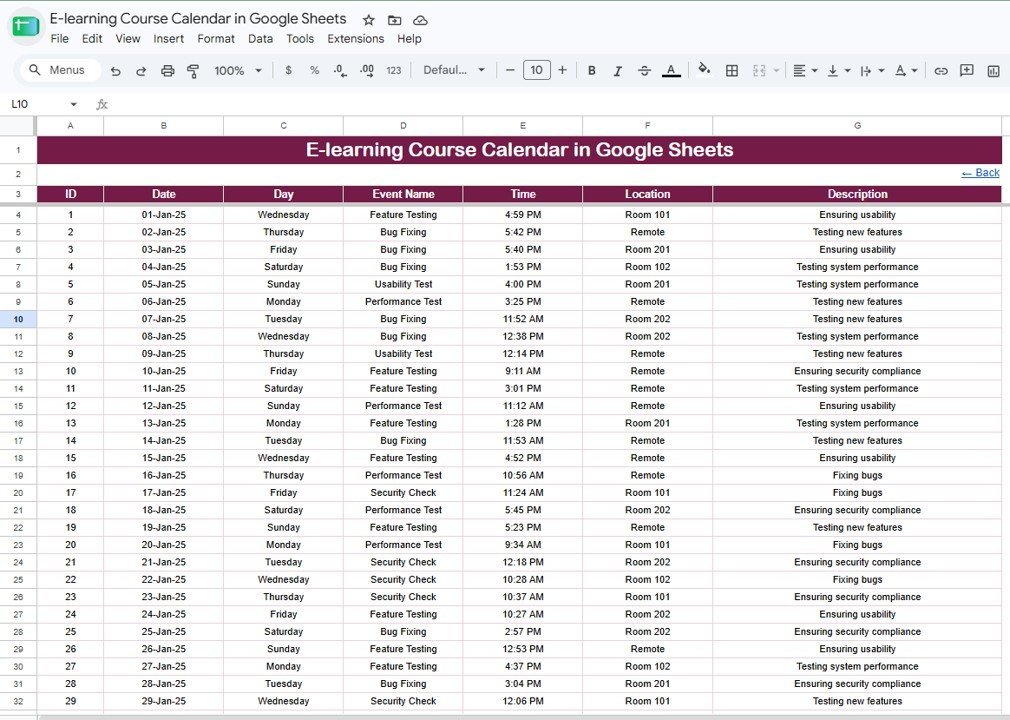
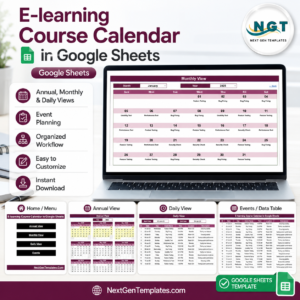
E-learning Course Calendar in Google Sheets gives online-course teams a 5-sheet calendar with 4 navigation buttons, 3 calendar views, and a 7-field event database for lessons, tests, rooms, remote sessions, and descriptions. Course operations often break at handoff points: one instructor updates a plan, another uses an old version, and learners miss a date. This template keeps the Annual, Monthly, and Daily views connected to one Events sheet, so updates happen once. Join 8,400+ teams in 40+ countries using NextGenTemplates to replace recurring SaaS costs with one-time template purchases. One payment, editable Google Sheets file, no per-user fees.
Key Features of E-learning Course Calendar in Google Sheets
- 5 connected sheet tabs: Home, Annual View, Monthly View, Daily View, and Events work together as one course calendar system.
- 4 navigation buttons: Jump from the Home sheet to Annual View, Monthly View, Daily View, or Events without hunting through sheet tabs.
- Annual planning view: See all 12 months for the selected year and spot busy course windows before dates collide.
- Monthly course view: Select a month and year to show scheduled course activities directly inside the calendar layout.
- Daily date-range view: Enter a start and end date to pull every matching event with date, day, time, location, and description.
- 7-field Events database: ID, Date, Day, Event Name, Time, Location, and Description drive the calendar views automatically.
- Built for collaboration: Share the Google Sheets copy with instructors, coordinators, assistants, or managers using normal Google Drive permissions.
What’s Inside the E-learning Course Calendar in Google Sheets
Home Sheet
The Home sheet is the launch page. It includes four large buttons for Annual View, Monthly View, Daily View, and Events, making the file easy for non-technical users to navigate.
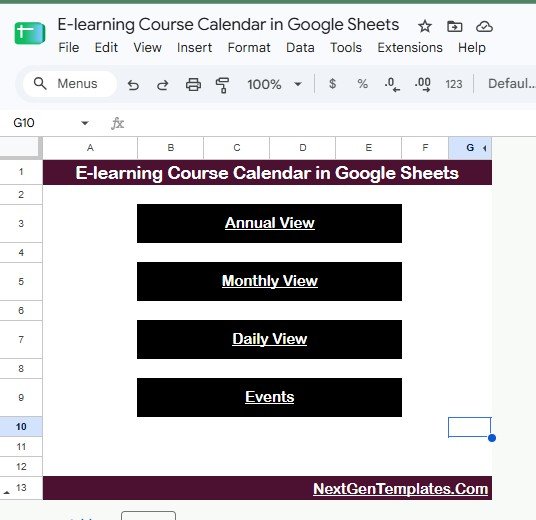
E-learning Course Calendar in Google Sheets – Home sheet
Annual View Sheet
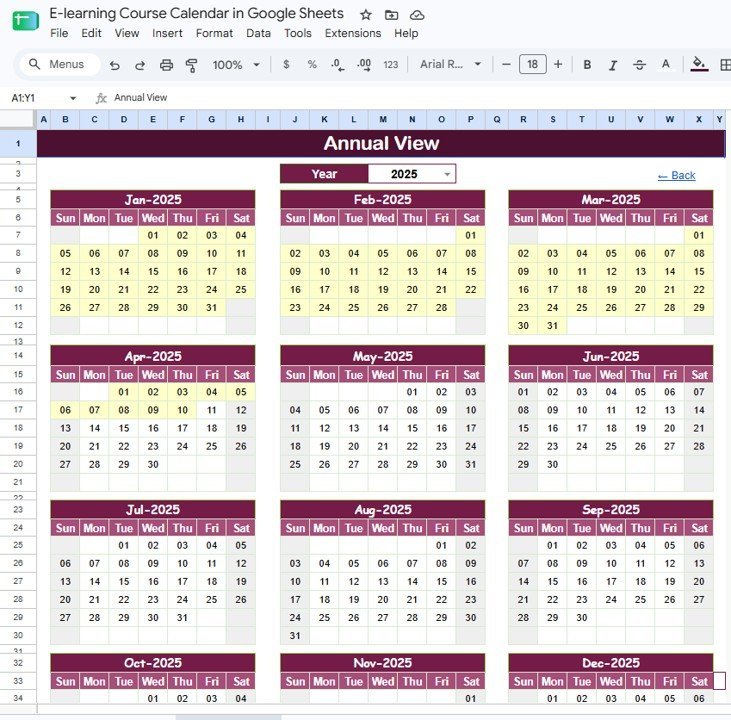
The Annual View shows 12 months on one screen for the selected year. It is useful for seeing course launches, test periods, workshops, and review weeks before committing to a schedule.
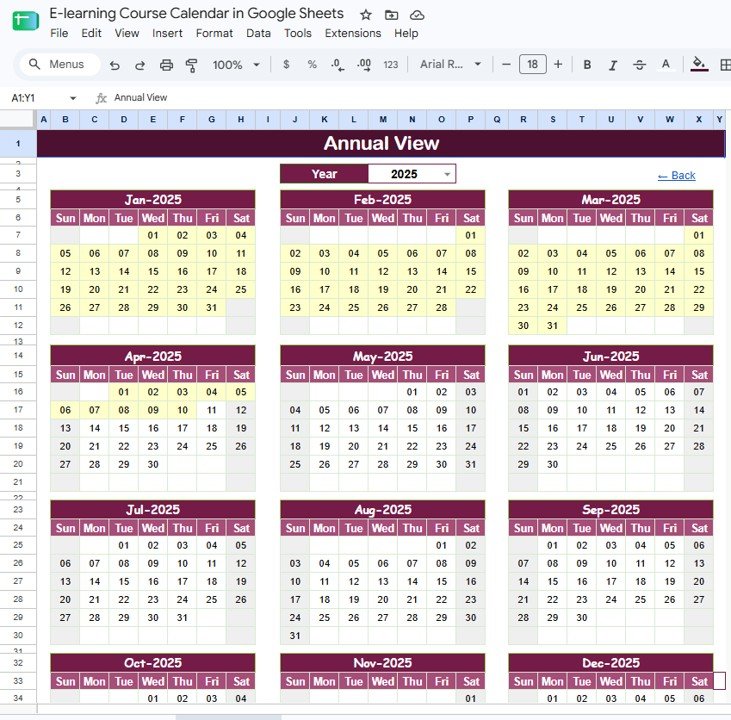
Annual View sheet tab
Monthly View Sheet
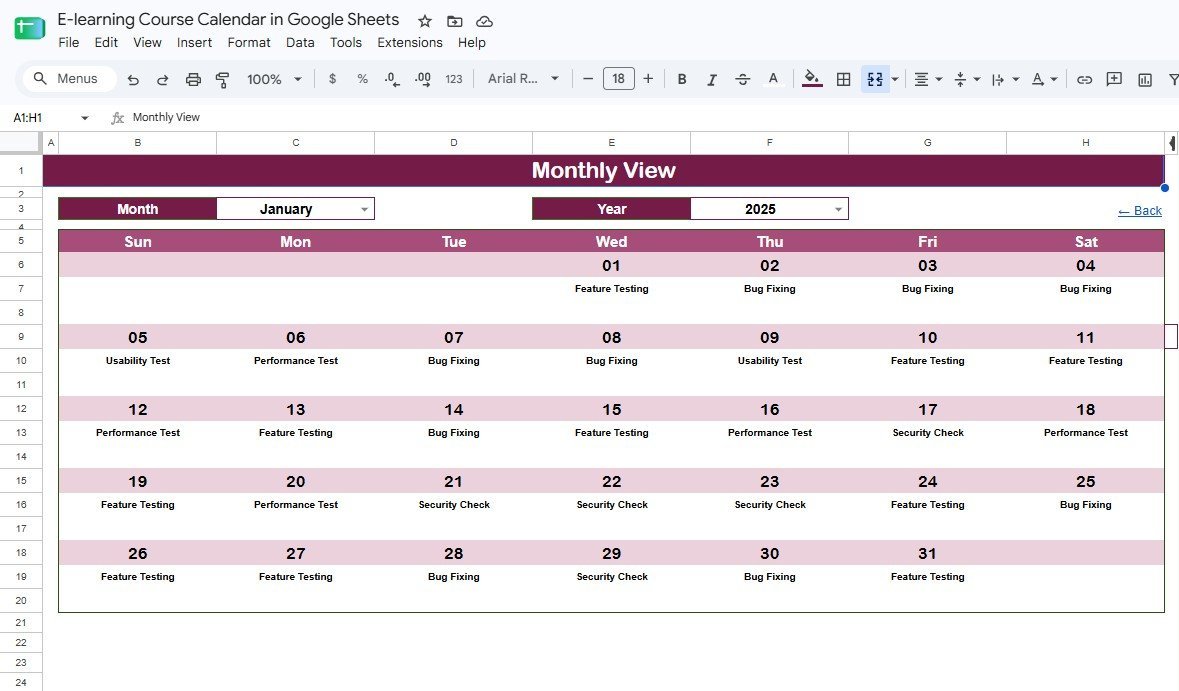
The Monthly View displays one selected month and year. Course events such as Feature Testing, Bug Fixing, Usability Test, Performance Test, and Security Check appear on their scheduled dates in the sample data.
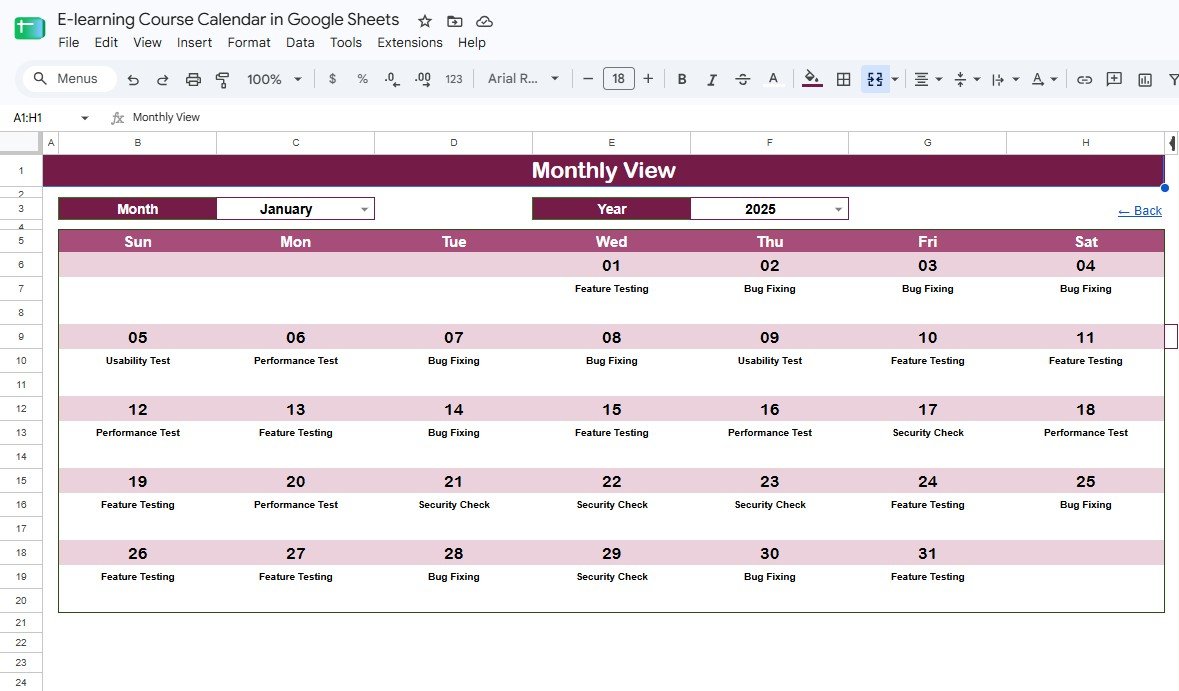
Monthly View sheet tab
Daily View Sheet
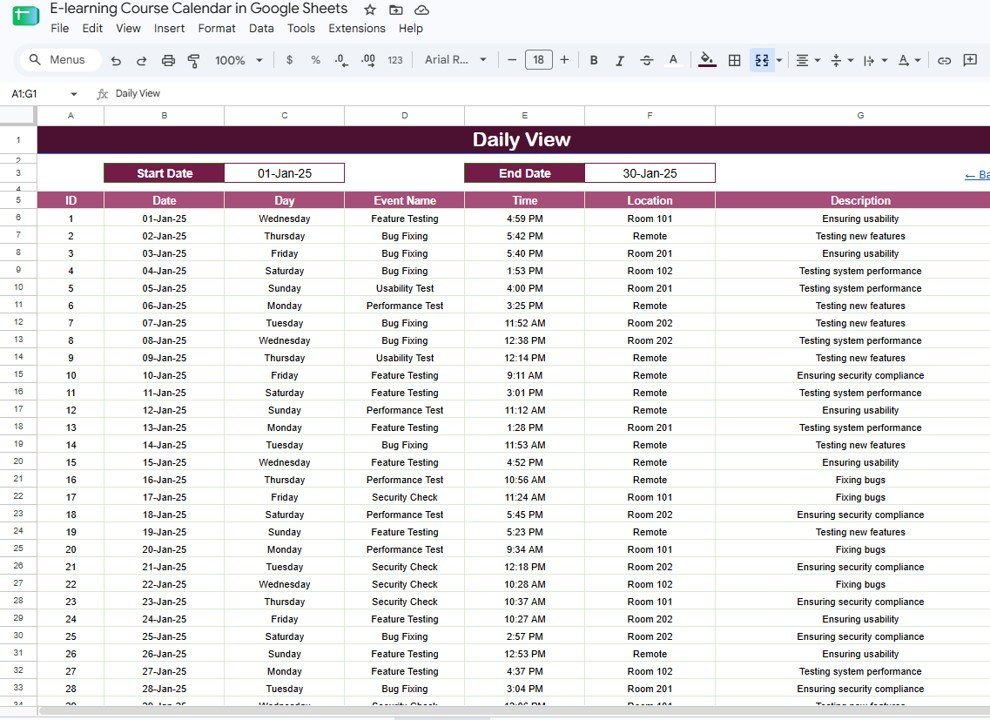
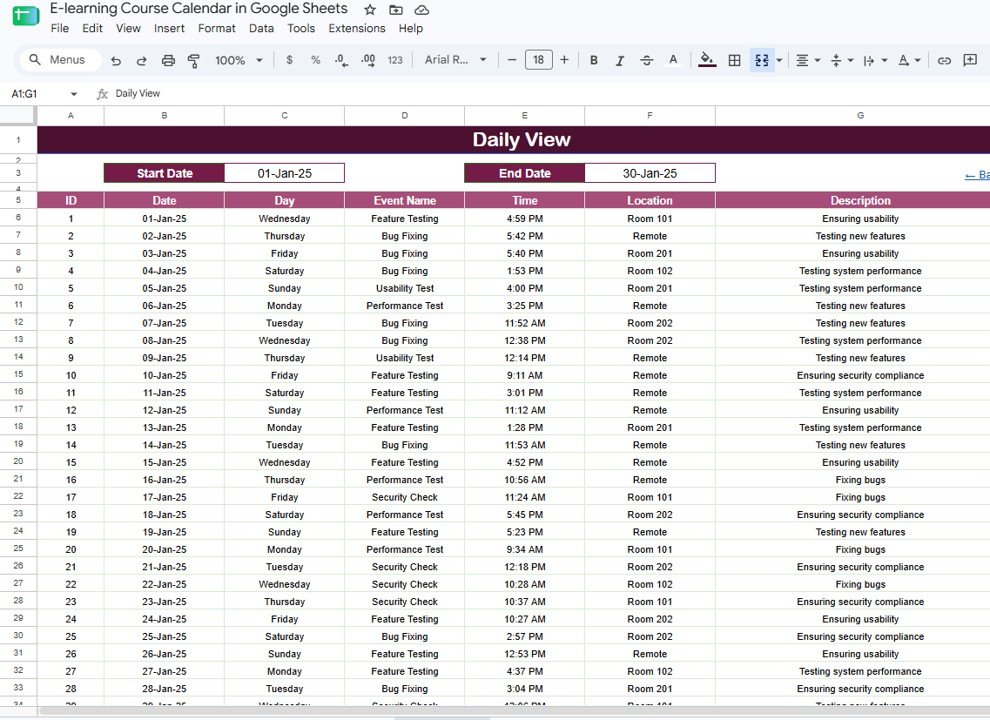
The Daily View lets you select a start date and end date, then returns every event in that window with full details. It works well as a printable course operations list for the week or month.
Daily View sheet tab
Events Sheet
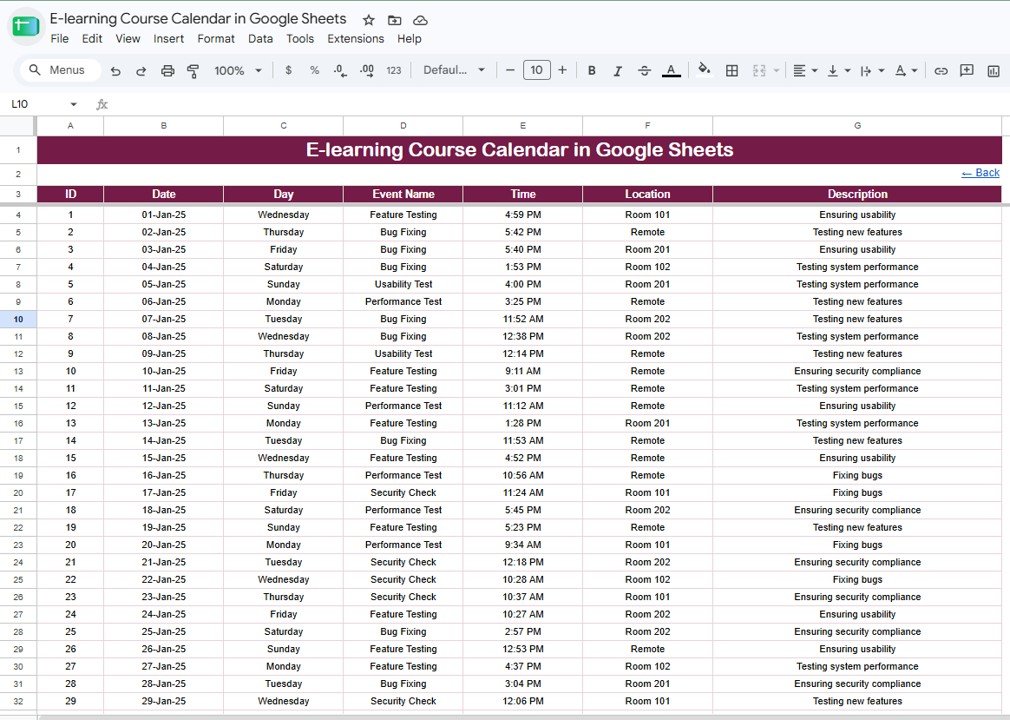
The Events sheet is the database behind the calendar. Add or edit each event here, and the other views read from the same source. Each row has an ID, date, day, event name, time, location, and description.
Events sheet tab
E-learning Course Calendar in Google Sheets vs. Microsoft Excel vs. Paid LMS/SaaS – Where This Fits
| Feature | This Google Sheets template | Microsoft Excel calendar | Paid LMS/SaaS calendar |
|---|---|---|---|
| Cost | $4.99 one-time | One-time file plus Microsoft 365 if needed | Monthly or annual subscription |
| Platform | Google Sheets in a browser | Excel desktop or web | Vendor cloud platform |
| Setup time | Under 10 minutes after copying the file | Under 15 minutes | Account setup, configuration, and onboarding |
| Real-time team collaboration | Built into Google Sheets | Needs OneDrive or SharePoint | Usually available by seat |
| Mobile access | Google Sheets app or browser | Excel mobile app | Vendor app or mobile site |
| Customizable fields | Editable sheet columns and labels | Editable workbook | Limited to vendor settings |
| Share with link | Yes, through Google Drive | Only through cloud storage | Seat-based access |
| Year-1 cost at 5 users | $4.99 total | Template plus software licenses | Often hundreds or thousands per year |
| Best fit | Course scheduling and event visibility | Individual offline planning | Full course delivery and learner accounts |
Who This Template Is For – and Who It’s Not For
This template is for online course creators, LMS coordinators, training managers, instructional designers, education operations assistants, and small academies that need a shared course calendar without buying a larger platform.
It is not for teams that need learner logins, content hosting, certificates, payment collection, automated email reminders, attendance capture, or live integration with an LMS. This is a scheduling template, not a course-delivery system.
How to Use the E-learning Course Calendar in Google Sheets
- Open the PDF guide from your download and use the Google Sheets copy link.
- Make your own editable copy in Google Drive.
- Open the Events sheet and replace the sample rows with your own course events.
- Fill the ID, Date, Day, Event Name, Time, Location, and Description fields.
- Use Annual View for year planning, Monthly View for course-month planning, and Daily View for date-range review.
- Share the copied file with your team using Google Drive permissions.
Real-World Use Cases
Maya, an online course creator, uses the Monthly View to plan lesson releases, live Q&A sessions, and assessment dates before opening enrollment.
Ravi, a corporate training coordinator, filters the Daily View for the next 30 days and sends the event list to instructors every Monday morning.
Elena, an instructional designer, keeps usability tests, feature testing, content reviews, and security checks in one Events sheet while the wider team uses view-only access.
Frequently Asked Questions
How many sheets are included?
The E-learning Course Calendar in Google Sheets includes 5 sheets: Home, Annual View, Monthly View, Daily View, and Events.
Can I change the year and month?
Yes. The Annual View uses a year selector, and the Monthly View lets you select the month and year for the calendar you want to review.
Can several people work in the same calendar?
Yes. Because it runs in Google Sheets, you can share the copied file through Google Drive and allow viewer, commenter, or editor access.
Does this send automatic reminders?
No. The template stores and displays events. It does not send email reminders, calendar invites, or LMS notifications by itself.
Is it suitable for students?
Yes. Students can use it to track online classes, assignments, tests, study sessions, and course milestones, while instructors can use the same structure for course operations.
Do I need add-ons or scripts?
No add-ons are required for the visible scheduling workflow. The template is designed to be used directly in Google Sheets.
About the Author
Built by PK – Microsoft Certified Professional with 15+ years of Excel, Google Sheets, and Power BI experience. Founder of NextGenTemplates, reaching 300K+ subscribers across YouTube channels. Every template is hand-built and tested before release.
Explore Related Templates
- E-learning Course Calendar in Excel – the closest Excel version for offline workbook users.
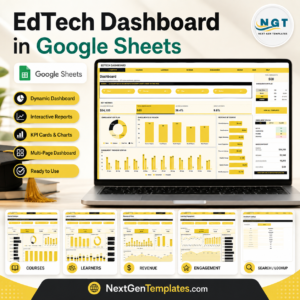
- EdTech Dashboard in Google Sheets – useful when course teams also want learner, revenue, and engagement analysis.
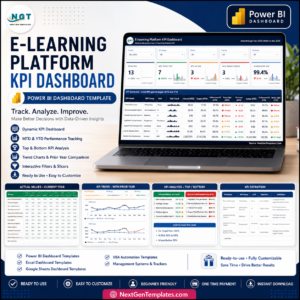
- E-learning Platform KPI Dashboard in Power BI – a KPI scorecard for platform performance review.
- Investor Relations Calendar in Google Sheets – another 5-sheet calendar built on the same simple planning pattern.
Browse more Google Sheets Calendar templates or the wider Google Sheets template library.
Ready to organize your online course schedule? Add the E-learning Course Calendar in Google Sheets to your toolkit, replace the sample events, and give your team one shared source for course dates.
Watch the step-by-step video Demo:
Last updated: August 21, 2026.

Reviews
There are no reviews yet.