

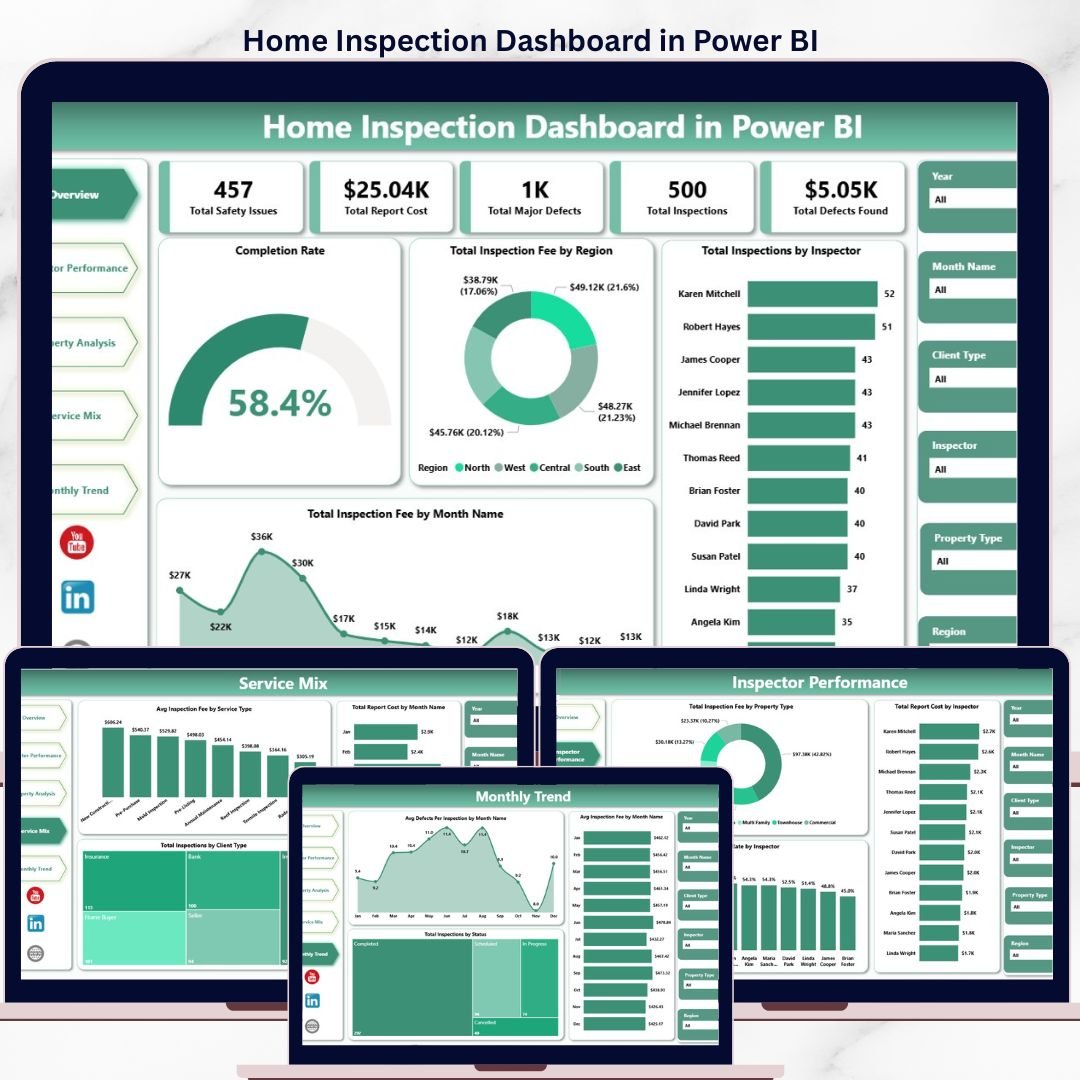
The Home Inspection Dashboard in Power BI tracks 5 core KPIs across 5 interactive report pages, with 16 DAX-driven visuals and slicers for region, inspector, service type, and property type. Setup takes under 10 minutes — open the .pbix file in Power BI Desktop, connect your inspection data, and every chart, card, and slicer refreshes automatically. Home inspection companies managing 2–30 inspectors get portfolio-level visibility for a one-time $17.99 instead of $79–$149/user/month for tools like Spectora or HomeGauge.
🌍 Join 8,400+ teams in 40+ countries using NextGenTemplates to replace paid SaaS tools with one-time-purchase Excel, Google Sheets, Power BI, and HTML templates.
✅ Instant download · One-time payment · No subscription · No per-user fees · Lifetime access
🔑 Key Features of Home Inspection Dashboard in Power BI
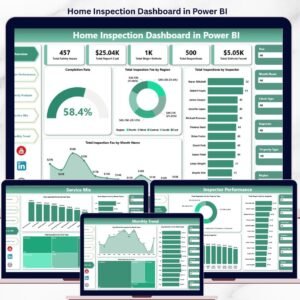
This dashboard tracks 5 headline KPIs — Total Safety Issues, Total Report Cost, Total Major Defects, Total Inspections, and Total Defects Found — displayed as cards at the top of the Overview page so your most critical metrics are visible the moment you open the report. All 16 visuals respond in under 1 second when any slicer is applied.
🔹 5 Interactive Report Pages — Overview, Inspector Performance, Property Analysis, Service Mix, and Monthly Trend. Each page answers a specific operational question inspection managers face every month.
🔹 16 DAX-Driven Visuals — every chart is backed by a Power BI DAX measure, so filtering by region, inspector, service type, or property type cascades across every visual simultaneously.
🔹 Completion Rate tracking — one of the most-requested metrics in home inspection analytics: this dashboard shows Completion Rate at both the portfolio level (Overview) and per inspector (Inspector Performance page), letting you spot fulfillment gaps before they become client complaints.
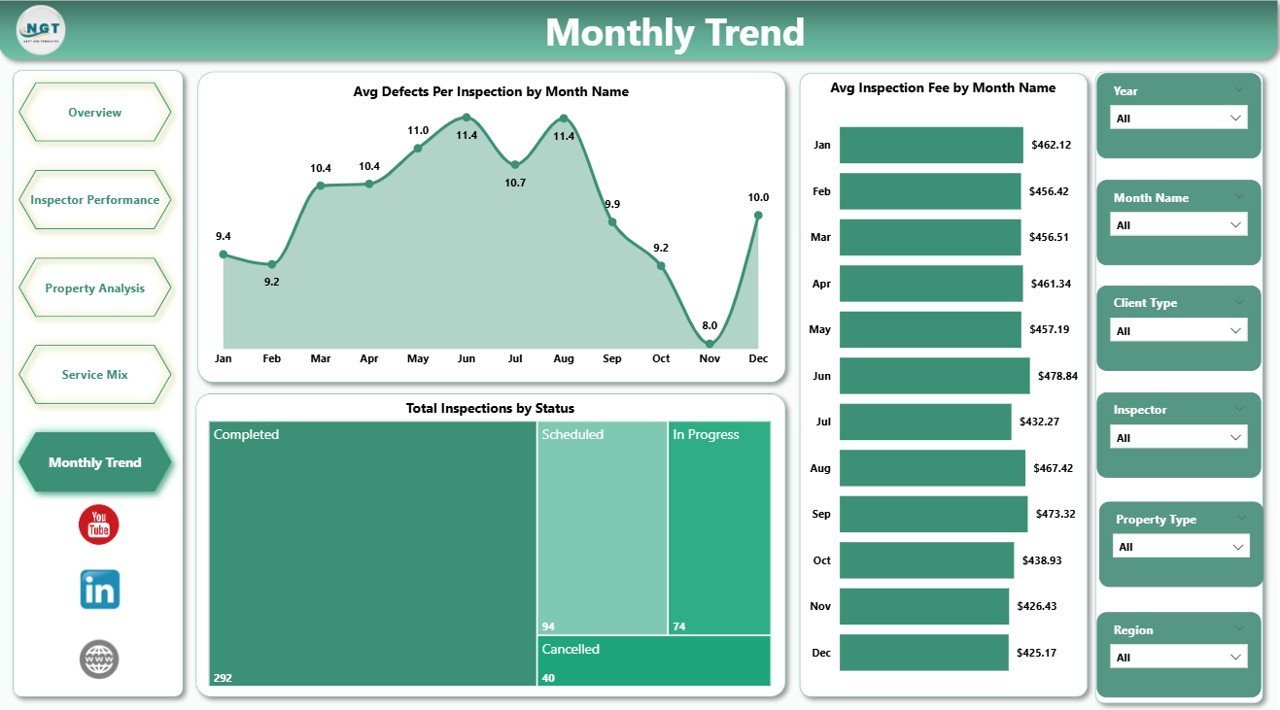
🔹 Defect analysis across 3 dimensions — Total Defects Found (Overview KPI card), Total Major Defects (Overview KPI card), and Avg Defects Per Inspection by Month (Monthly Trend page). This helps inspection firms identify seasonal defect patterns and property types with recurring issues.
🔹 Also available in Excel — Teams without Power BI can use the Home Inspection Dashboard in Excel for the same 5-page analysis built on pivot tables and slicers. Browse all Power BI Dashboard Templates in our catalog.
📦 What’s Inside the Home Inspection Dashboard in Power BI
The dashboard ships as a single .pbix file with 5 interactive report pages.
1. Overview Page — The command center displaying 5 KPI cards (Total Safety Issues, Total Report Cost, Total Major Defects, Total Inspections, Total Defects Found) at the top. Four charts provide high-level analysis: Completion Rate shows the overall job completion percentage; Total Inspection Fee by Region reveals geographic revenue distribution; Total Inspections by Inspector compares workload across the team; Total Inspection Fee by Month Name exposes seasonal revenue patterns.
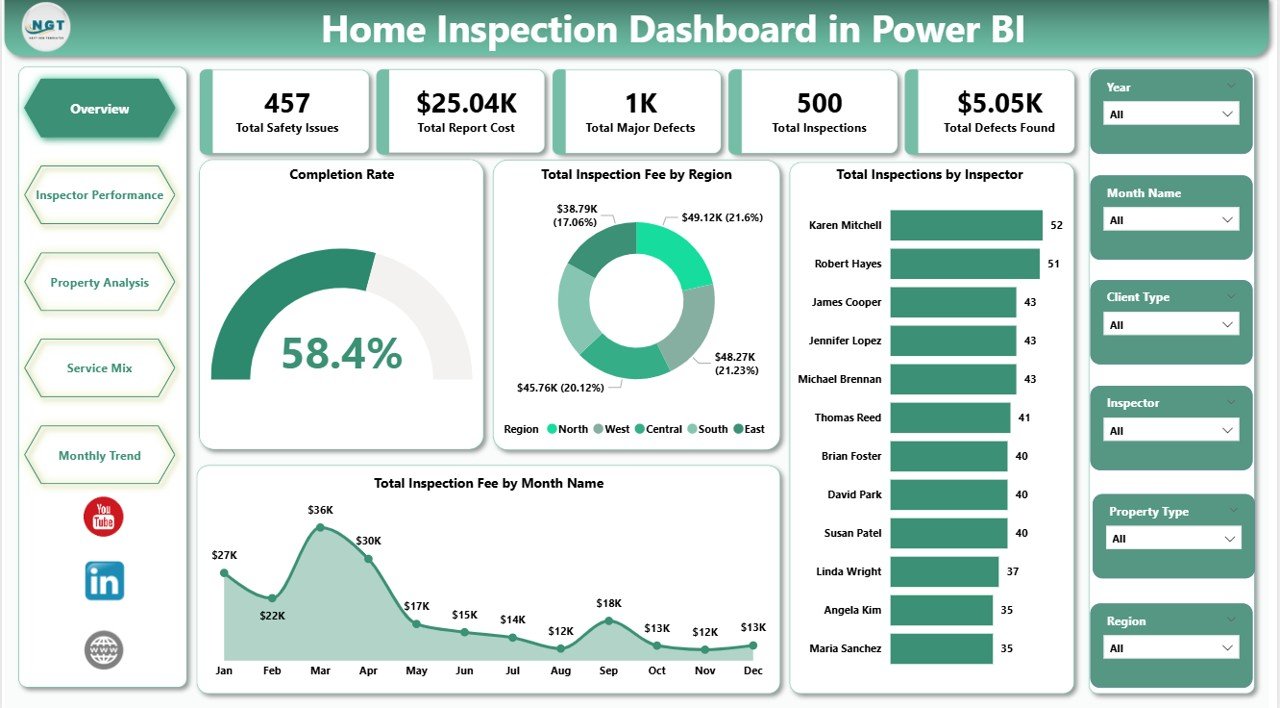
Overview Page
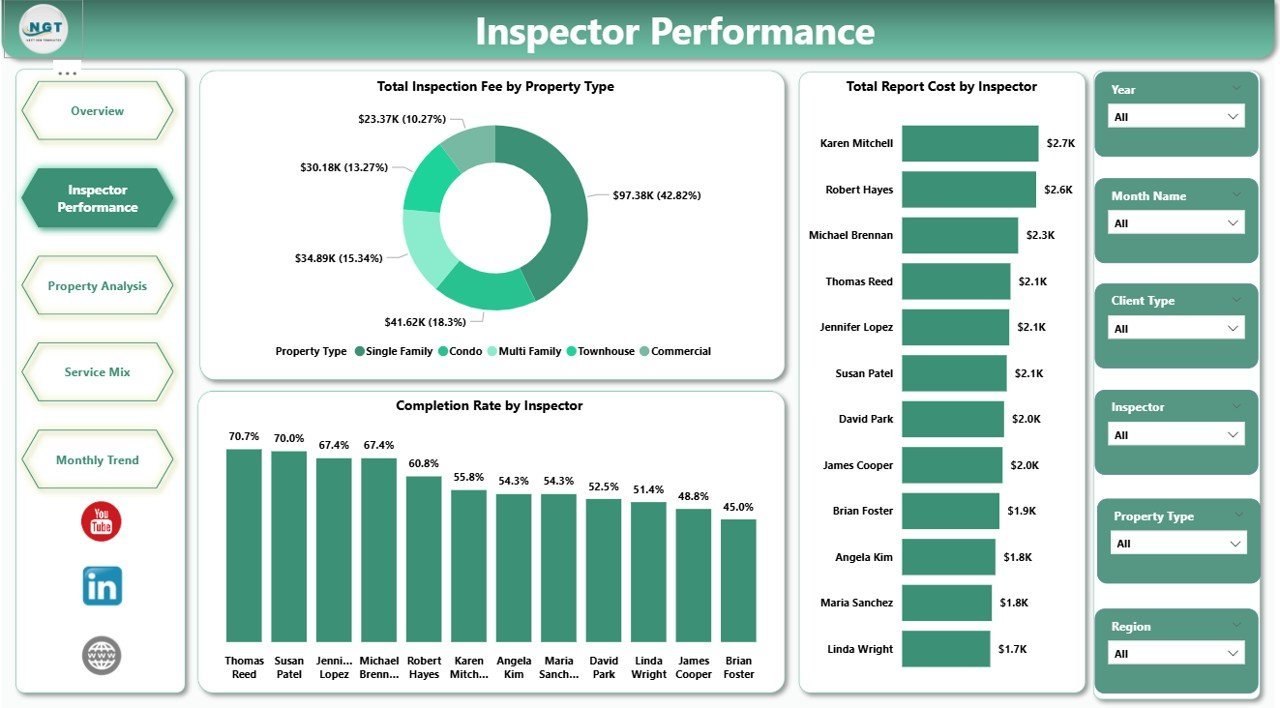
2. Inspector Performance Page — Analyzes productivity at the inspector level. Three charts: Total Inspection Fee by Property Type shows which property categories generate the most fee revenue; Completion Rate by Inspector compares job completion rates across team members; Total Report Cost by Inspector measures reporting overhead per team member to track efficiency.
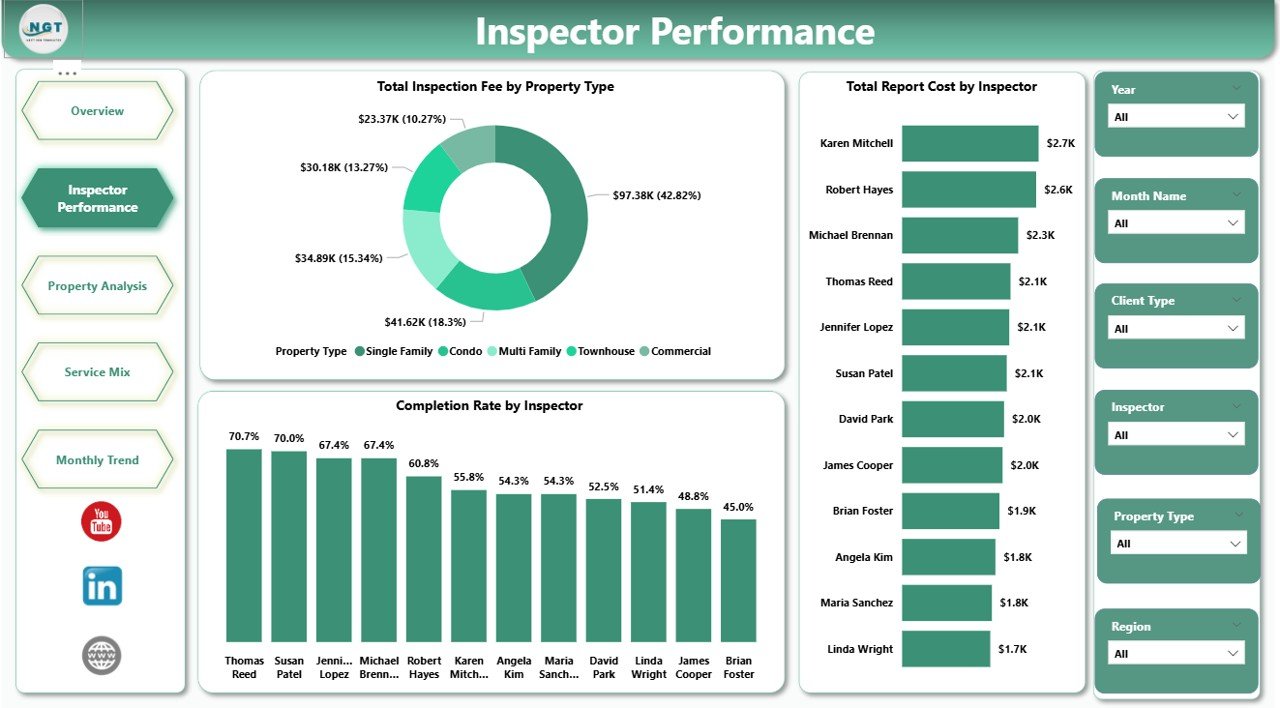
Inspector Performance Page
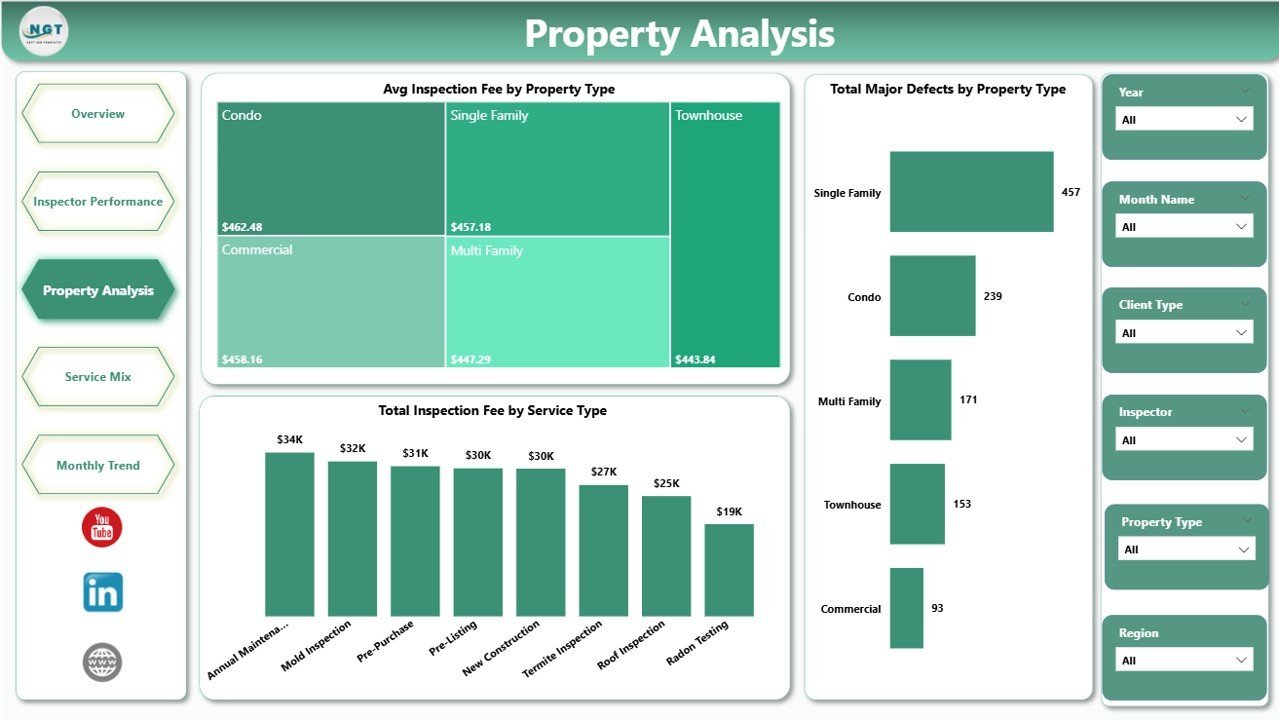
3. Property Analysis Page — Focuses on property-level defect and fee patterns. Three charts: Total Inspection Fee by Property Type reveals pricing differences across residential and commercial categories; Completion Rate by Inspector filtered to specific property types; Total Report Cost by Inspector broken down by property type highlights where documentation costs concentrate.
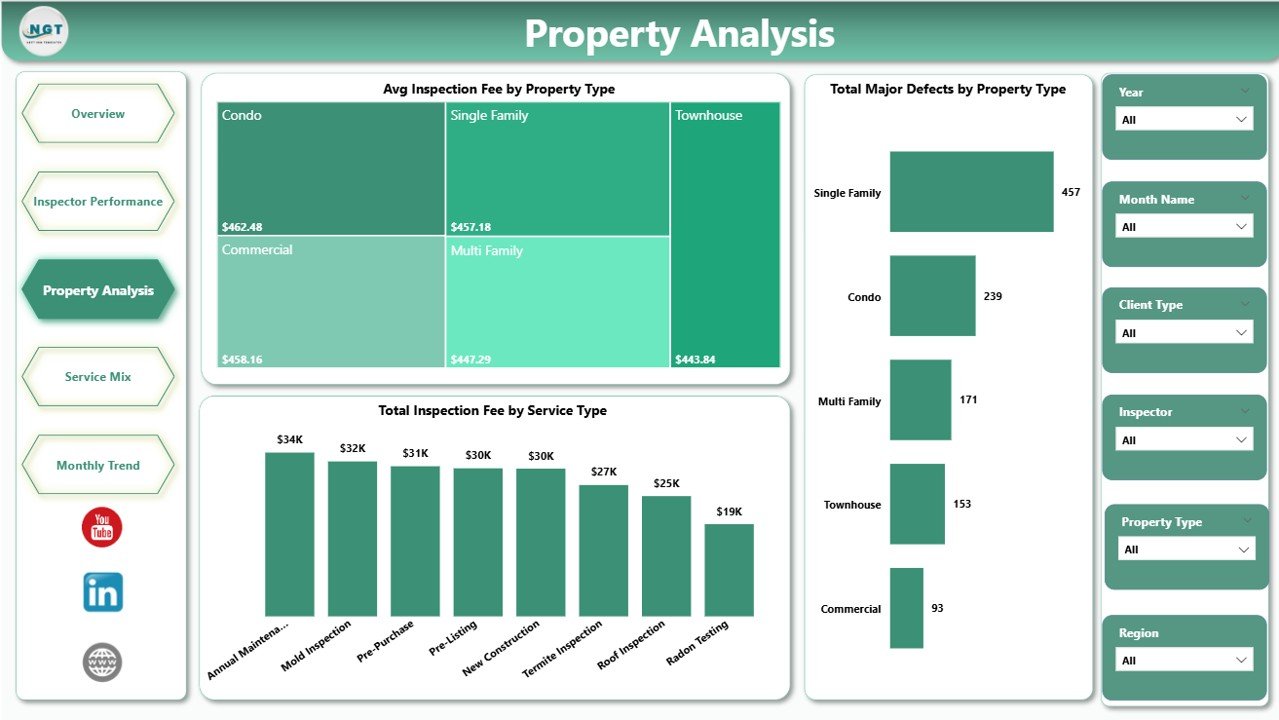
Property Analysis Page
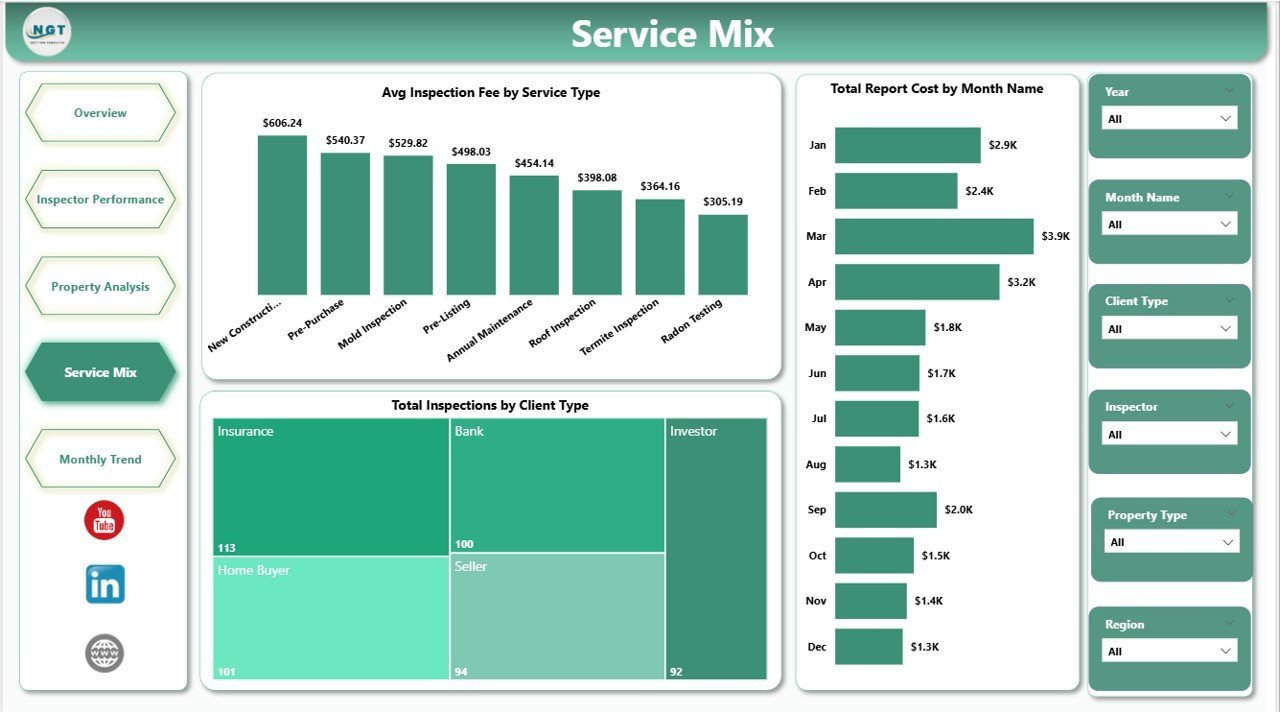
4. Service Mix Page — Analyzes the service portfolio and client base. Three charts: Avg Inspection Fee by Service Type shows which inspection services command the highest average fee; Total Inspections by Client Type compares residential vs. commercial vs. investor client volume; Total Report Cost by Month Name identifies months when documentation overhead spikes.
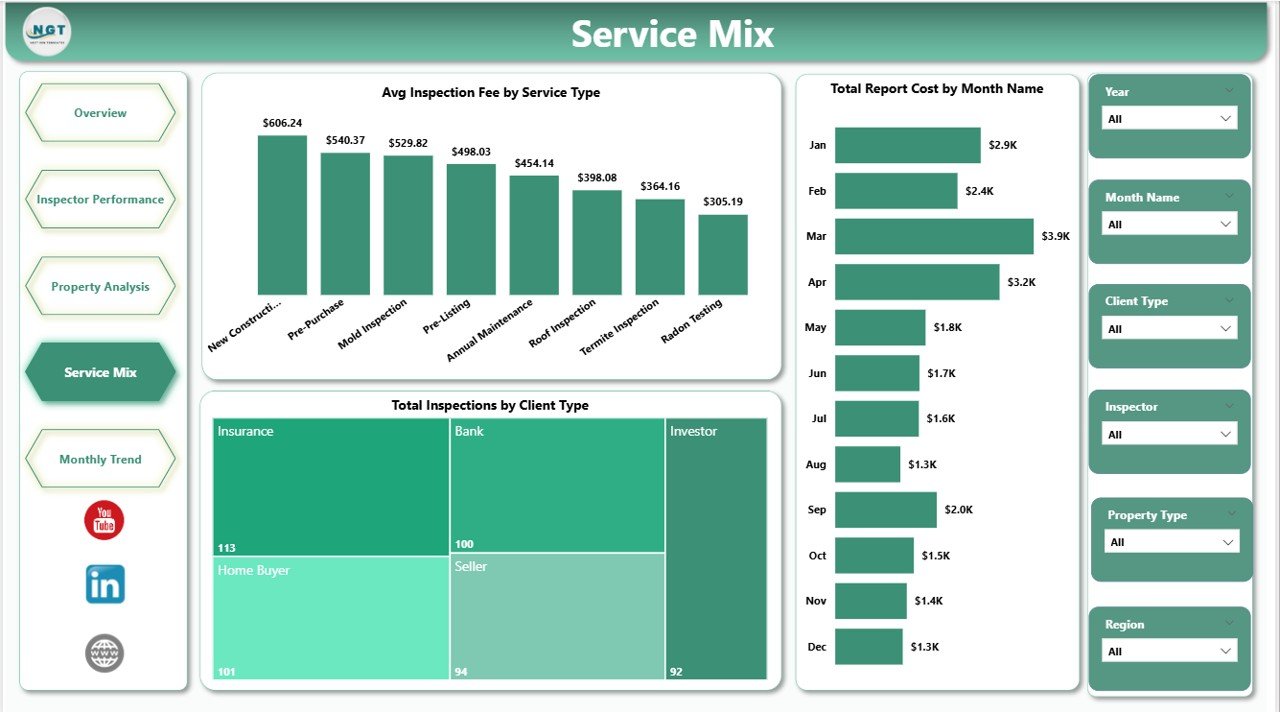
Service Mix Page
5. Monthly Trend Page — Three charts track performance over time: Avg Defects Per Inspection by Month Name surfaces seasonal defect trends; Total Inspections by Status shows volume split across Completed, Pending, and other statuses; Avg Inspection Fee by Month Name reveals monthly fee trends for revenue forecasting.
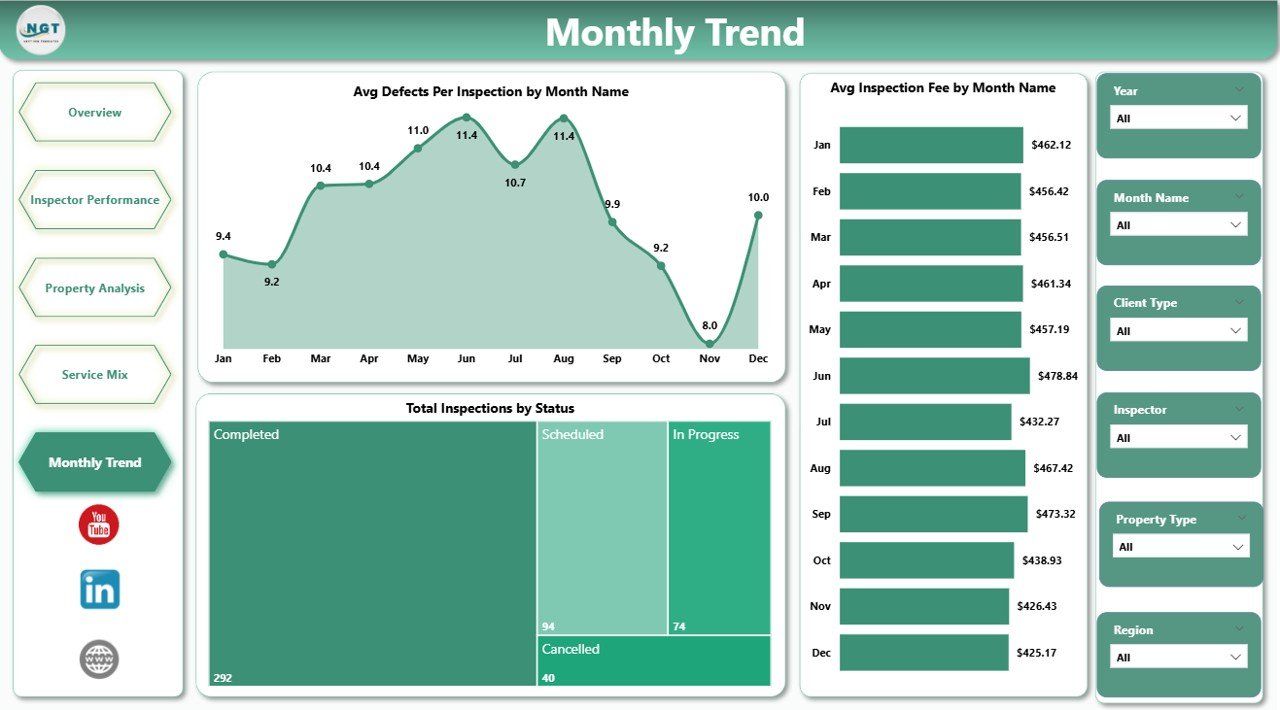
Monthly Trend Page
📊 Home Inspection Dashboard in Power BI vs. Excel Alternative vs. Spectora / HomeGauge
| Feature | Home Inspection Dashboard in Power BI | Excel Dashboard | Spectora / HomeGauge |
|---|---|---|---|
| Cost | $17.99 one-time ✅ | $17.99 one-time | $79–$149/user/month |
| Platform | Power BI Desktop (free) ✅ | Microsoft Excel | Web + mobile app |
| Setup time | Under 10 minutes ✅ | Under 10 minutes | 1–3 days onboarding |
| DAX-driven interactivity | ✅ Native Power BI | Pivot slicers | Vendor-defined only |
| Customizable measures | ✅ Unlimited DAX | ✅ Pivot formulas | ❌ Vendor-locked |
| Offline access | ✅ .pbix runs locally | ✅ Yes | ❌ Cloud only |
| Year-1 cost (5 inspectors) | $17.99 ✅ | $17.99 | $4,740–$8,940 |
For inspection firms that use Power BI and want structured analytics without monthly subscriptions, the Home Inspection Dashboard in Power BI sits in the sweet spot.
👥 Who This Template Is For — and Who It’s Not For
✅ This template is built for:
- Home inspection companies managing 2–30 inspectors who want interactive Power BI reports
- Solo inspectors already using Power BI Desktop for other business reporting
- Operations managers at real estate firms tracking inspection performance across regions
- Real estate investors who need defect analytics and inspection cost trends for their portfolios
❌ This template is NOT for:
- Teams without Power BI Desktop — use the Home Inspection Dashboard in Excel instead
- Enterprise inspection chains needing live API feeds from field apps with automated report dispatch
- Users requiring automated client invoicing or mobile field capture in the same tool
⚙️ How to Use the Home Inspection Dashboard in Power BI
- Download and unzip the file, then open the .pbix file in Power BI Desktop (free from Microsoft).
- Locate the data source — click Transform Data → Data Source Settings to see where sample data is pointed.
- Replace with your inspection data — point the source at your own Excel or database file, keeping column names identical to the sample.
- Click Home → Refresh to reload all DAX measures. Every KPI card, chart, and slicer updates in one action.
- Apply slicers and explore — filter by region, inspector, service type, or property type across all 5 pages.
- Publish to Power BI Service (optional) if your team has Pro licenses for web-based sharing.
💼 Real-World Use Cases
Marcus runs a 12-inspector home inspection firm across 3 regions. He uses the Inspector Performance page each month to compare Completion Rate and Total Report Cost per team member, identifying top performers and flagging inspectors who need coaching — without paying $149/user/month for Spectora’s analytics tier.
Priya is a property management operations lead at a mid-size real estate company. She uses the Property Analysis and Service Mix pages to present monthly inspection summaries to leadership, showing which property types generate the most defects and which service lines command the highest fees.
Tom is a certified home inspector who uses the Monthly Trend page each week to forecast busy seasons, adjust scheduling capacity, and review Avg Inspection Fee by Service Type before revising his pricing guide for the next quarter.
❓ Frequently Asked Questions
What KPIs does the Home Inspection Dashboard in Power BI track?
The Home Inspection Dashboard in Power BI tracks 5 headline KPIs — Total Safety Issues, Total Report Cost, Total Major Defects, Total Inspections, and Total Defects Found — plus 16 supporting visuals across 5 pages. All metrics update instantly when slicers are applied.
How long does setup take?
Setup takes under 10 minutes. Open the .pbix file in free Power BI Desktop, point the data source at your inspection Excel file keeping the same column structure, then click Refresh. All 5 pages update instantly.
Do I need Power BI Pro to use this dashboard?
No. Power BI Desktop is free from Microsoft and runs the Home Inspection Dashboard in Power BI fully offline. Pro is only needed to publish to Power BI Service for browser-based team sharing.
How does this compare to Spectora or HomeGauge?
Spectora and HomeGauge are field inspection platforms costing $79–$149/user/month. The Home Inspection Dashboard in Power BI is a $17.99 one-time analytics tool for teams that need structured performance reporting without an ongoing software subscription.
Can I customize the DAX measures and add new charts?
Yes. The Home Inspection Dashboard in Power BI uses standard DAX patterns any Power BI user can extend. Add new measures, create additional visuals, or modify the data model without touching the core report structure.
Is there an Excel version?
Yes. The Home Inspection Dashboard in Excel covers the same 5 analysis pages using pivot tables, slicers, and pivot charts — no Power BI Desktop required.
Is this a one-time purchase?
Yes. The Home Inspection Dashboard in Power BI is a $17.99 one-time purchase with lifetime access. No subscriptions, no renewal fees, no per-user charges.
👤 About the Author
Built by PK — Microsoft Certified Professional with 15+ years of Excel, Google Sheets, and Power BI experience. Founder of NextGenTemplates, reaching 300K+ subscribers across YouTube channels (@PK-AnExcelExpert, @NextGenTemplates, @NeoTechNavigators). Every template is hand-built and tested before release.
🔗 Explore Related Templates
🔹 Home Inspection Dashboard in Excel — the same 5-page inspection analytics built on Excel pivot tables. Ideal for teams without Power BI.
🔹 Property Management Dashboard in Google Sheets — track rent collection, occupancy, and maintenance across your property portfolio.
🔹 Real Estate Property Tracker in Google Sheets — 7-page tracker for landlords managing properties, tenants, income, and expenses. Browse all Power BI Dashboard Templates.
📖 Click here to read the Detailed Blog Post
🎥 Visit our YouTube channel for step-by-step video tutorials
👉 YouTube.com/@NextGenTemplates
Watch the step-by-step video tutorial:


Reviews
There are no reviews yet.