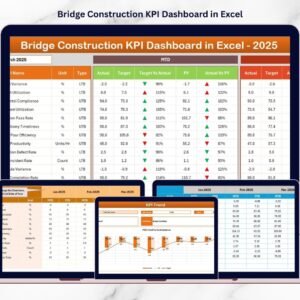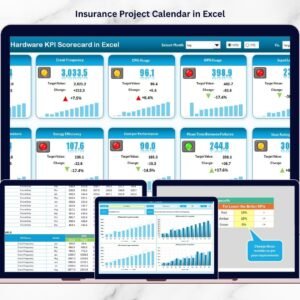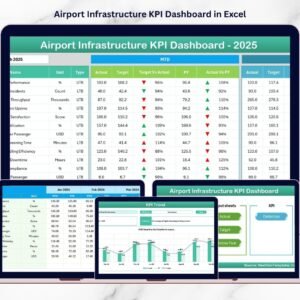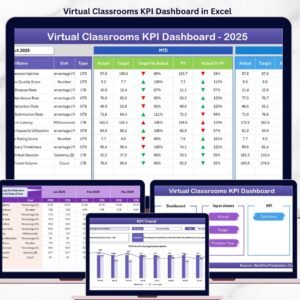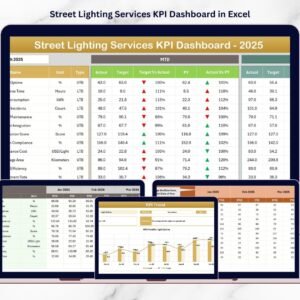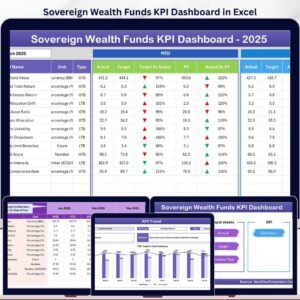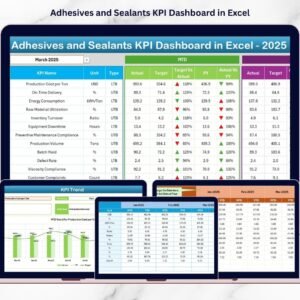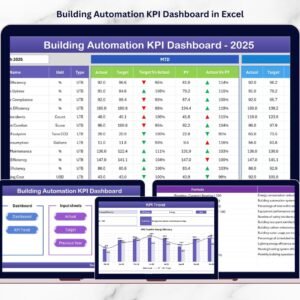
Travel agencies operate in a fast-paced and highly competitive environment. On a daily basis, they manage bookings, customers, destinations, agents, revenue targets, and service quality. However, when performance data is tracked using manual reports or disconnected Excel sheets, visibility drops, insights arrive late, and decision-making becomes reactive instead of strategic.
That is exactly where the Travel Agencies KPI Dashboard in Excel becomes a powerful and business-critical solution.
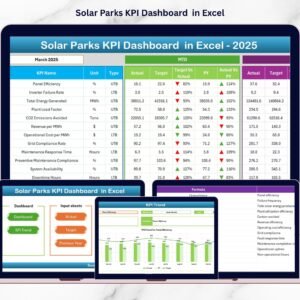
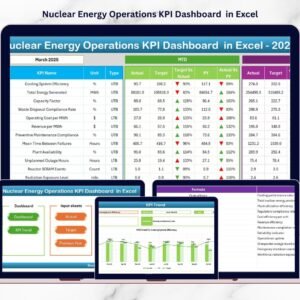
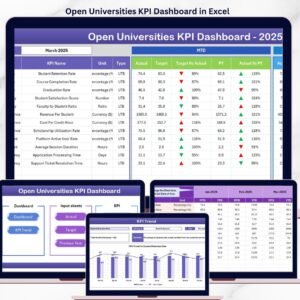
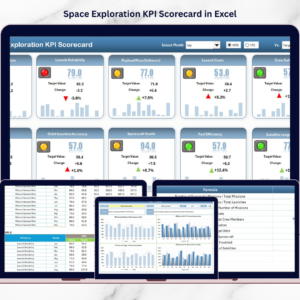
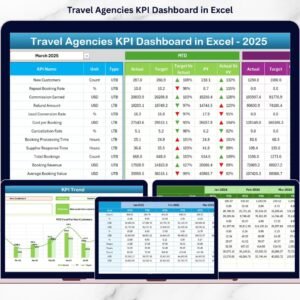
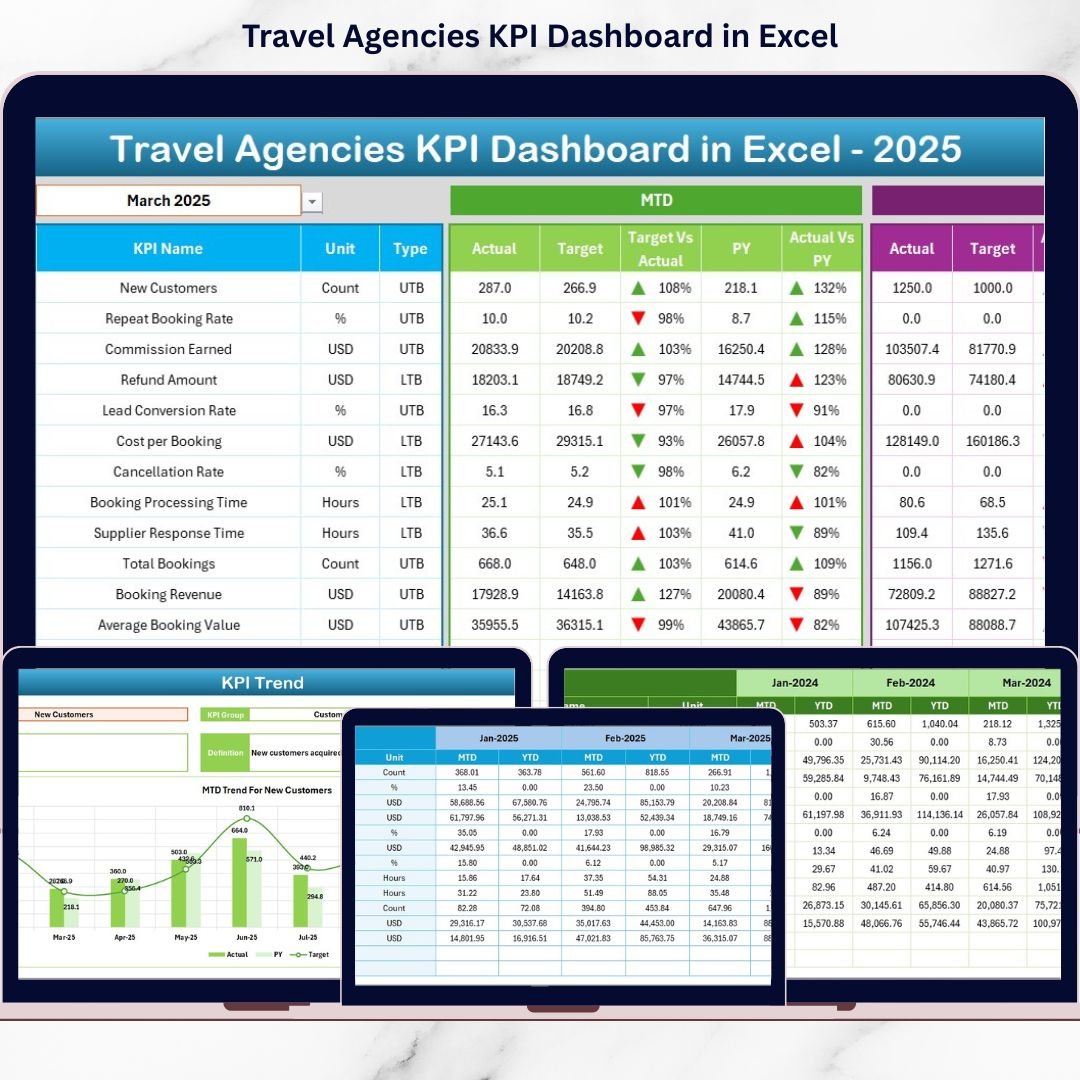
This ready-to-use Excel dashboard is designed specifically to help travel agencies track, analyze, and monitor key performance indicators (KPIs) in one centralized place. Instead of reviewing multiple reports, managers get a single interactive dashboard that shows MTD (Month-to-Date) and YTD (Year-to-Date) performance with clear visual indicators. As a result, travel agencies gain clarity, control, and confidence in their business decisions.
✅ Key Features of Travel Agencies KPI Dashboard in Excel
📊 Interactive KPI Dashboard
Monitor all critical travel agency KPIs on one professional dashboard.
📅 Month Selection Control
Select the reporting month from a dropdown and automatically refresh all numbers.
🎯 MTD & YTD Performance Analysis
Track short-term and long-term performance side by side.
📈 Target vs Actual Comparison
Instantly identify whether KPIs are meeting targets or falling short.
📉 Previous Year (PY) Comparison
Analyze growth and decline using PY vs Actual variance.
🚦 Conditional Formatting with Arrows
Up and down arrows visually highlight positive or negative performance.
📊 KPI Trend Analysis Sheet
Analyze KPI performance trends over time using charts.
📂 Structured Input & Definition Sheets
Ensure clean data entry and consistent KPI understanding.
📦 What’s Inside the Travel Agencies KPI Dashboard in Excel
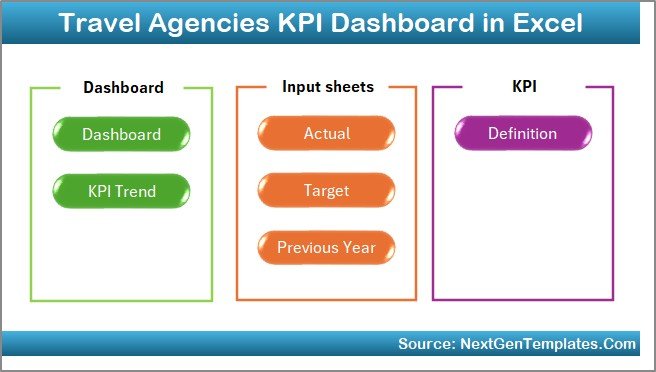
🏠 Home Sheet
Acts as the navigation hub with six clickable buttons that allow users to jump instantly to different sections of the dashboard. This improves usability and saves time.
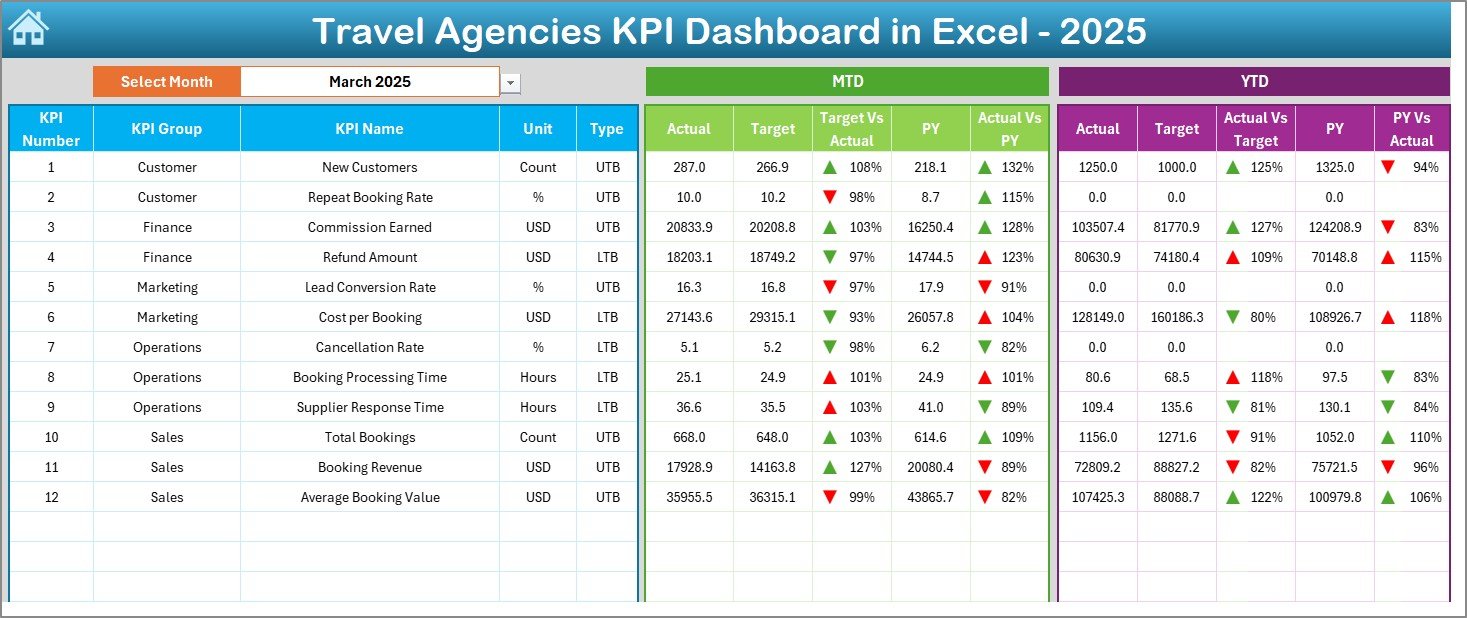
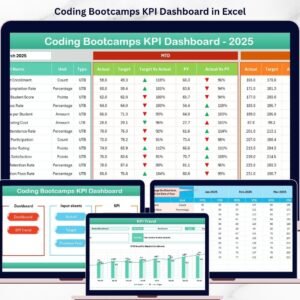
📊 Dashboard Sheet
This is the main reporting page.
Key highlights:
-
Month selection in cell D3
-
MTD Actual, Target, and PY values
-
YTD Actual, Target, and PY values
-
Target vs Actual and PY vs Actual variance
-
Conditional formatting with up/down arrows
Managers can instantly see which KPIs are performing well and which require attention.
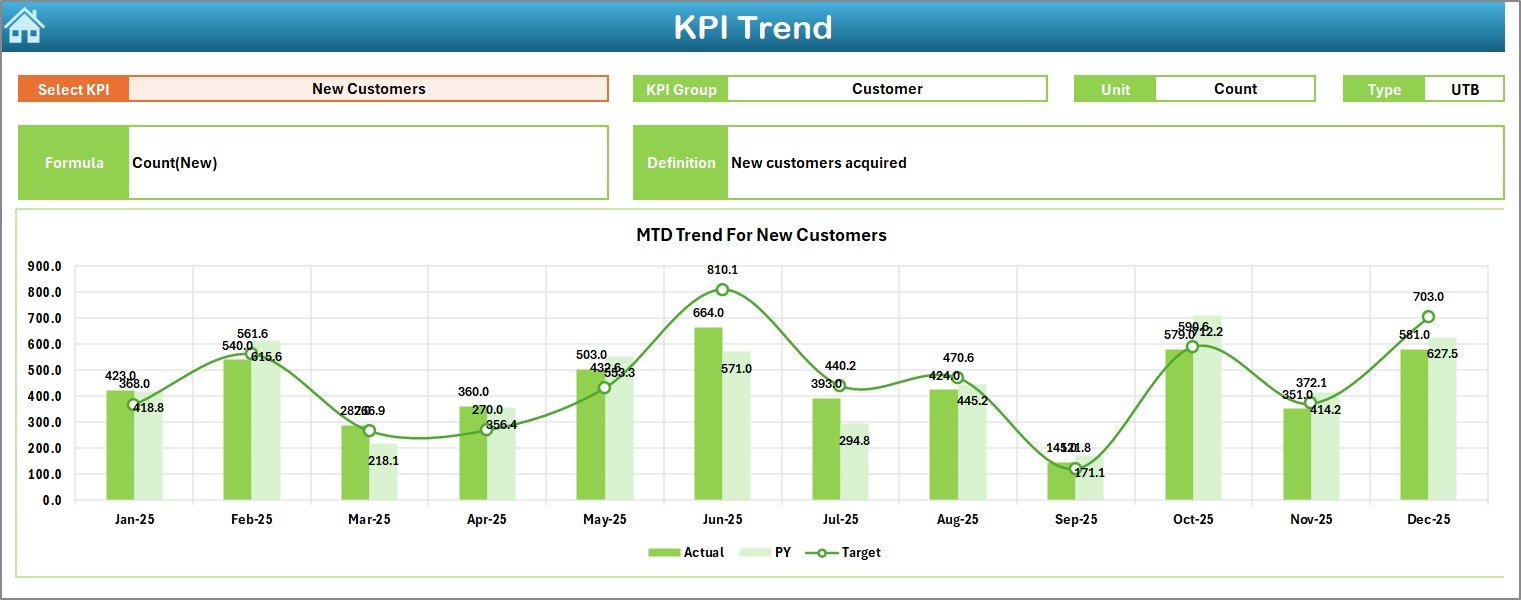
📈 KPI Trend Sheet
This sheet focuses on individual KPI analysis.
How it works:
-
Select the KPI name from the dropdown in cell C3
-
KPI details and charts update automatically
Displays:
-
KPI Group
-
Unit
-
KPI Type (UTB / LTB)
-
Formula & Definition
-
MTD & YTD trend charts for Actual, Target, and PY
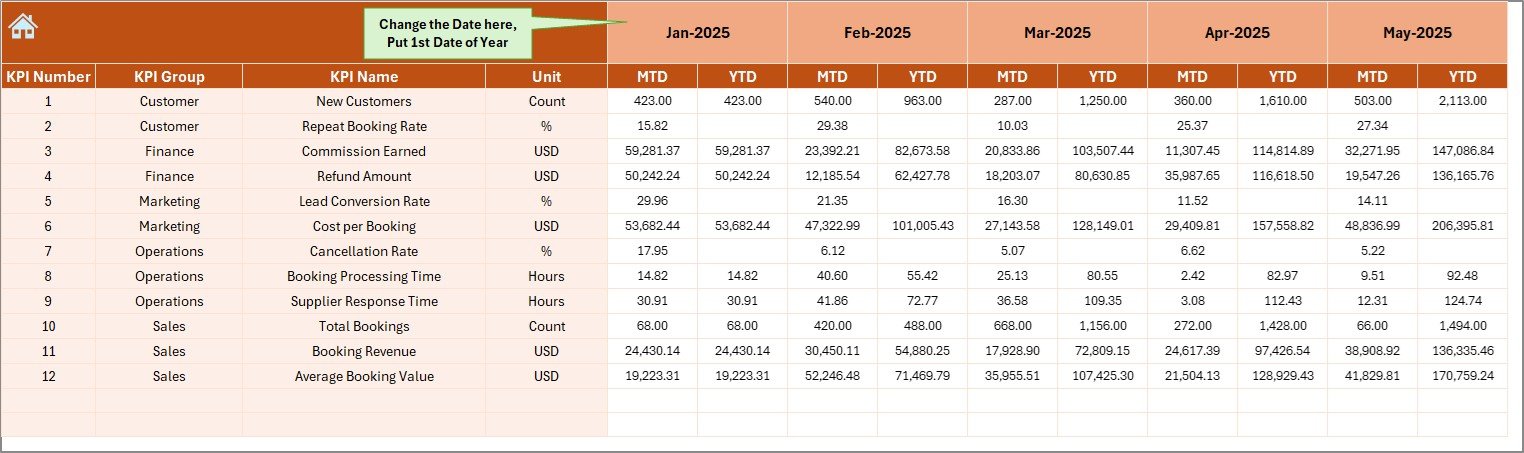
📥 Actual Numbers Input Sheet
Used to enter actual KPI values.
Features:
-
Monthly MTD and YTD data entry
-
Reporting month selection
-
Dynamic year configuration
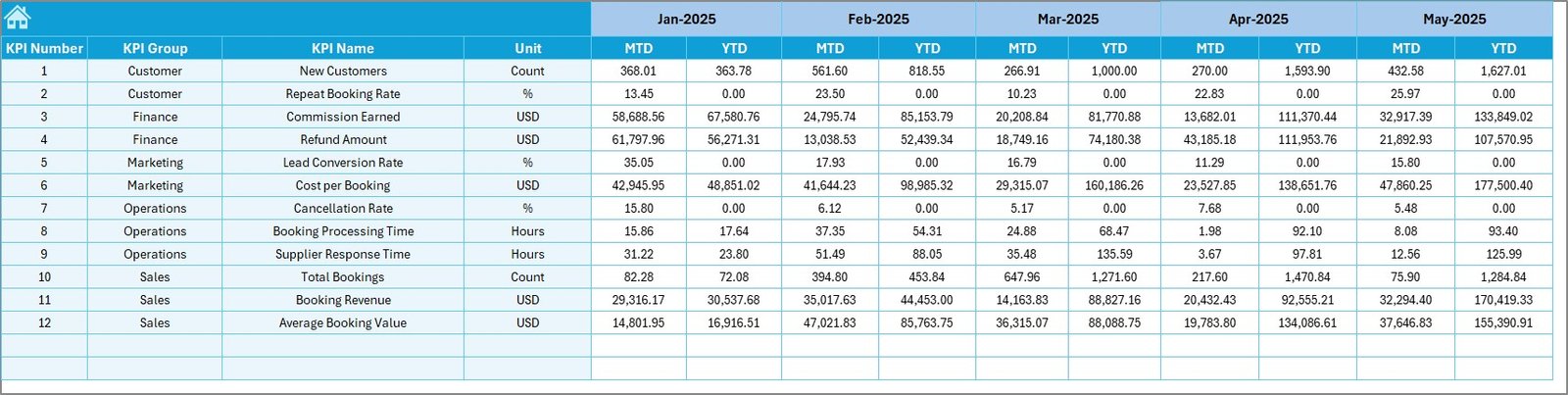
🎯 Target Sheet
Stores monthly MTD and YTD target values for each KPI. These targets power all variance calculations in the dashboard.
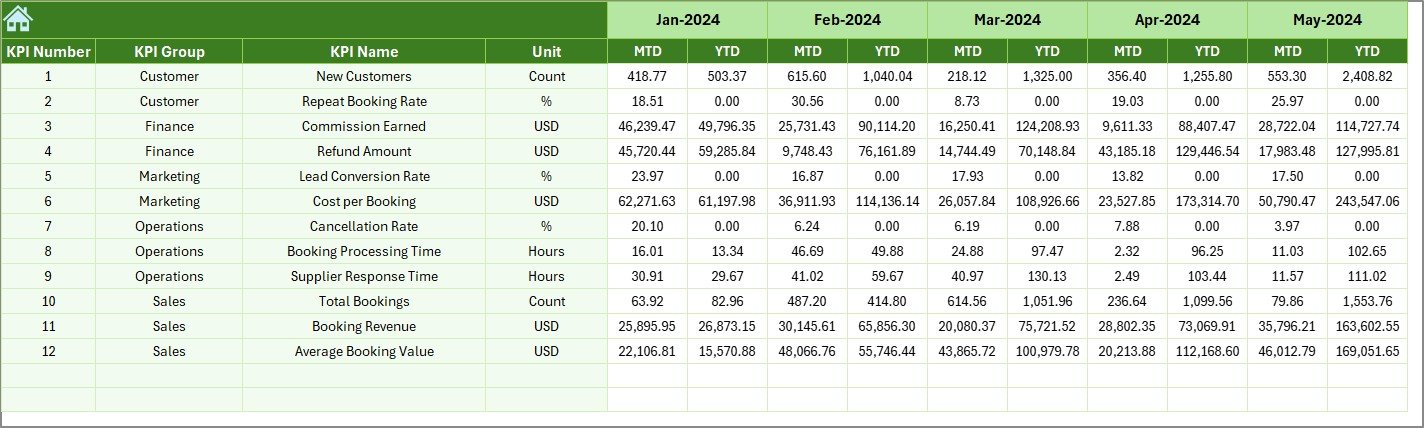
📆 Previous Year Number Sheet
Captures historical KPI data to support year-over-year comparison and growth analysis.
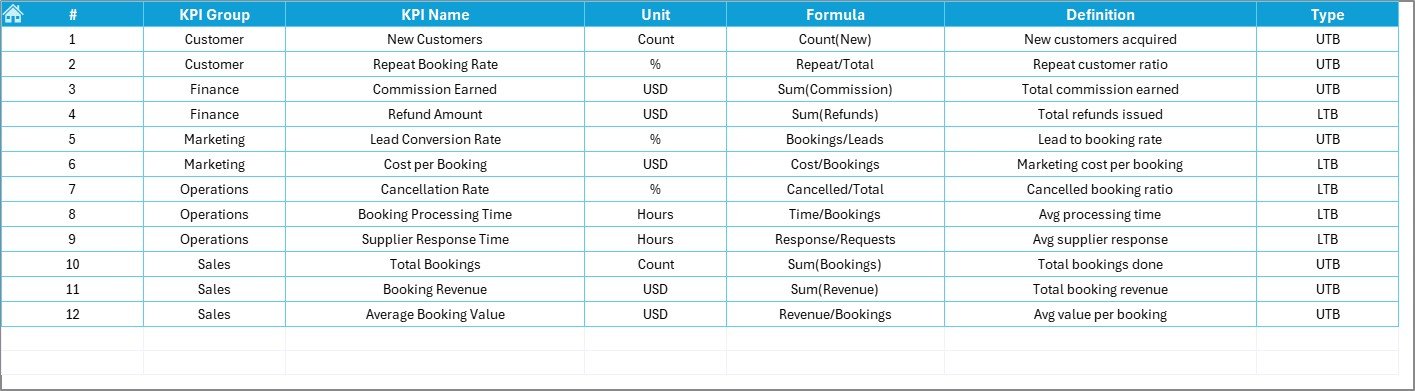
📘 KPI Definition Sheet
Maintains a single source of truth for KPIs.
Includes:
-
KPI Name
-
KPI Group
-
Unit
-
Formula
-
Definition
This ensures consistency across teams and reports.
🛠️ How to Use the Travel Agencies KPI Dashboard in Excel
1️⃣ Define KPIs and targets in the KPI Definition & Target sheets
2️⃣ Enter actual monthly data in the Actual Numbers Input sheet
3️⃣ Input previous year data in the PY sheet
4️⃣ Select the reporting month from the Dashboard
5️⃣ Review MTD and YTD performance instantly
6️⃣ Analyze trends using the KPI Trend sheet
Because all calculations are automated, users always see updated insights without manual effort.
👥 Who Can Benefit from This Travel Agencies KPI Dashboard
✈️ Travel Agency Owners
📊 Sales & Operations Managers
💼 Regional & Branch Heads
📈 Finance & Performance Teams
🏢 Small & Mid-Sized Travel Agencies
This dashboard adapts easily to different agency sizes and business models.
📘 Click here to read the Detailed blog post
▶️ Visit our YouTube channel to learn step-by-step video tutorials
👉 Youtube.com/@PKAnExcelExpert