

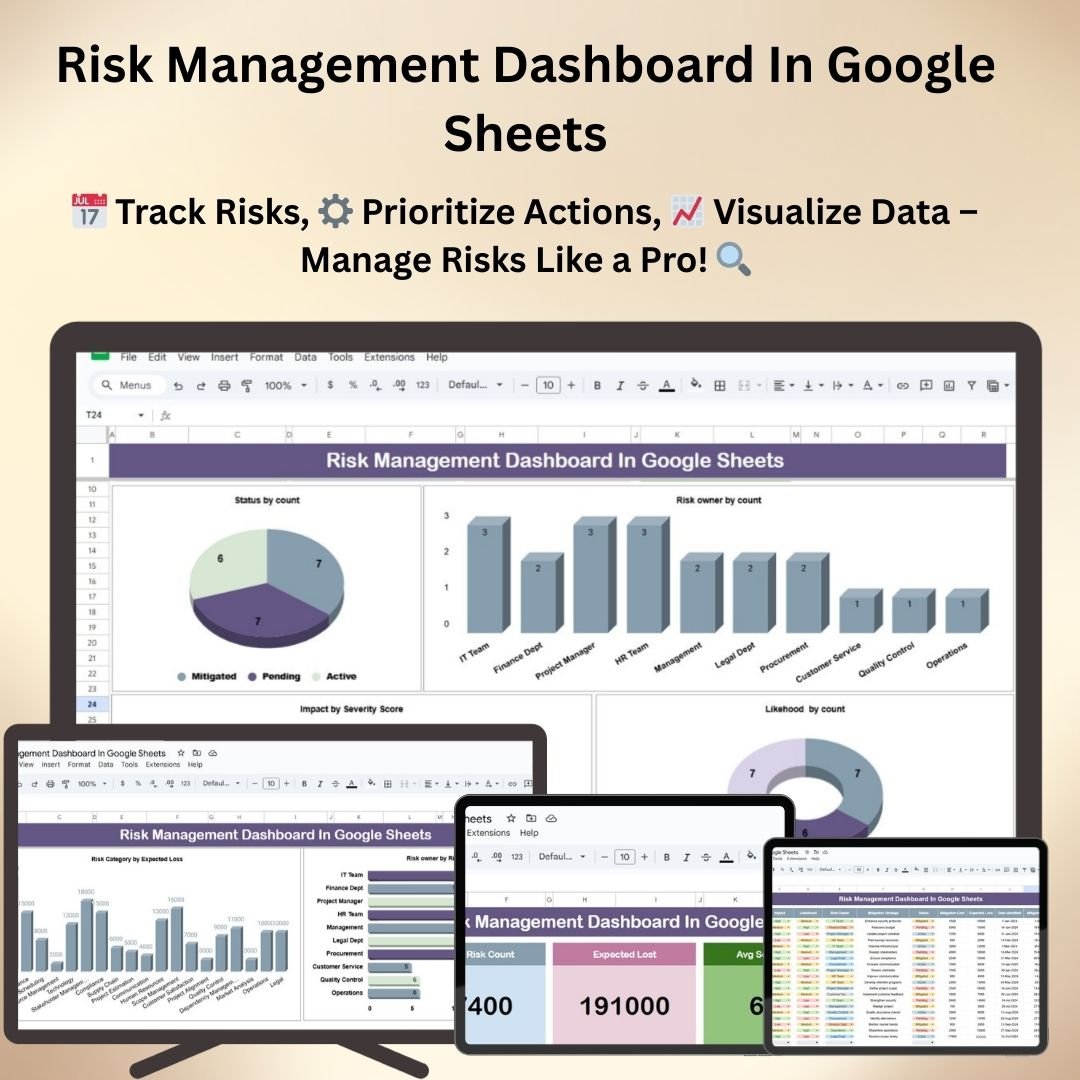
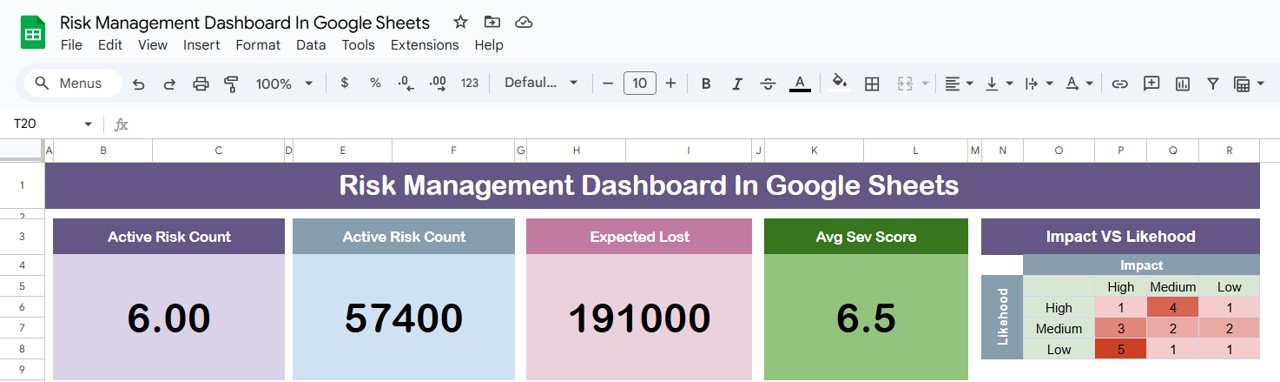

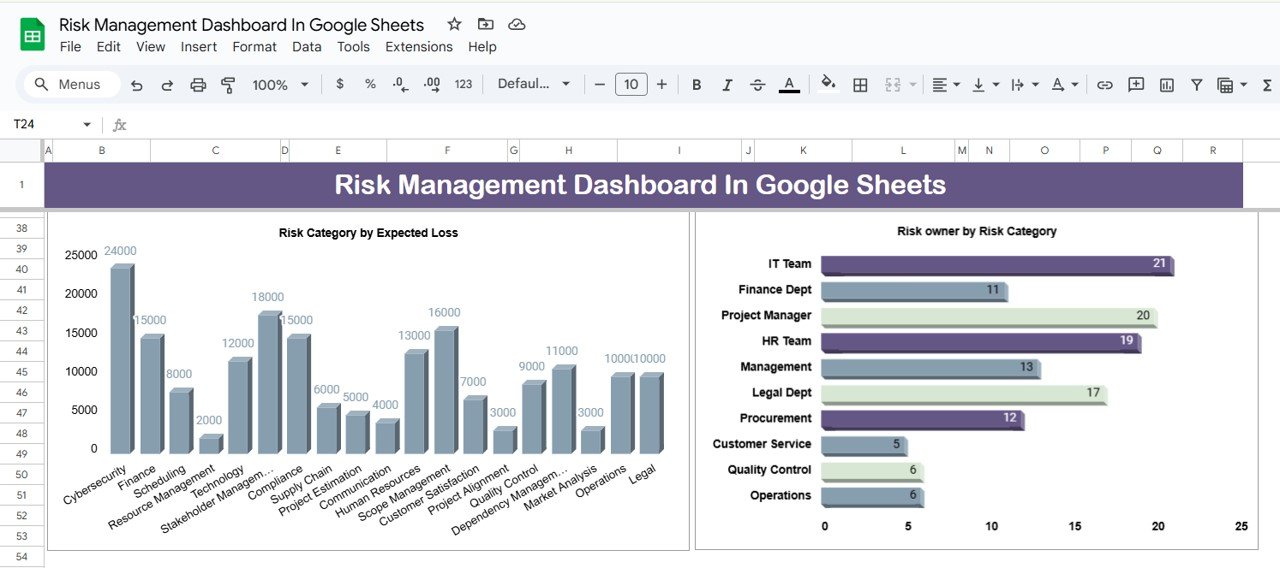
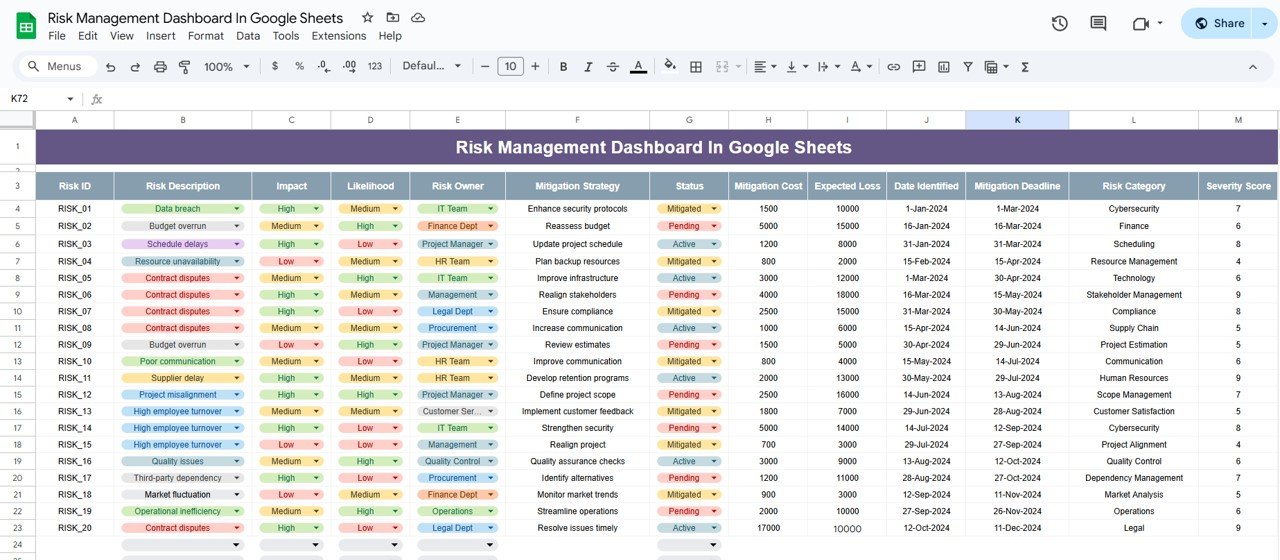

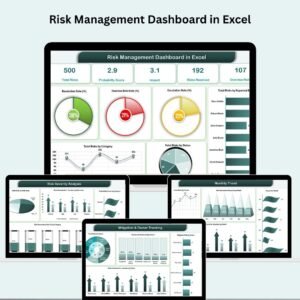
The Risk Management Dashboard in Google Sheets is a powerful tool designed to help businesses and project managers identify, track, and mitigate risks throughout the lifecycle of a project or business operation. This user-friendly, Excel-based template allows you to monitor various types of risks, assess their impact, and take proactive measures to prevent or minimize negative consequences.
With built-in features such as risk categorization, probability scoring, and impact assessment, this dashboard provides a comprehensive overview of your risk management efforts. Whether you’re in project management, operations, or business development, this template simplifies risk tracking and helps ensure the stability and success of your initiatives.

Key Features of the Risk Management Dashboard in Google Sheets
📅 Risk Identification and Tracking: Track potential risks, their likelihood, impact, and status in one centralized dashboard.
⚙️ Risk Categorization: Organize risks into categories (e.g., financial, operational, strategic) for better prioritization.
📈 Risk Probability and Impact Scoring: Assign probability and impact scores to each risk for effective risk prioritization.
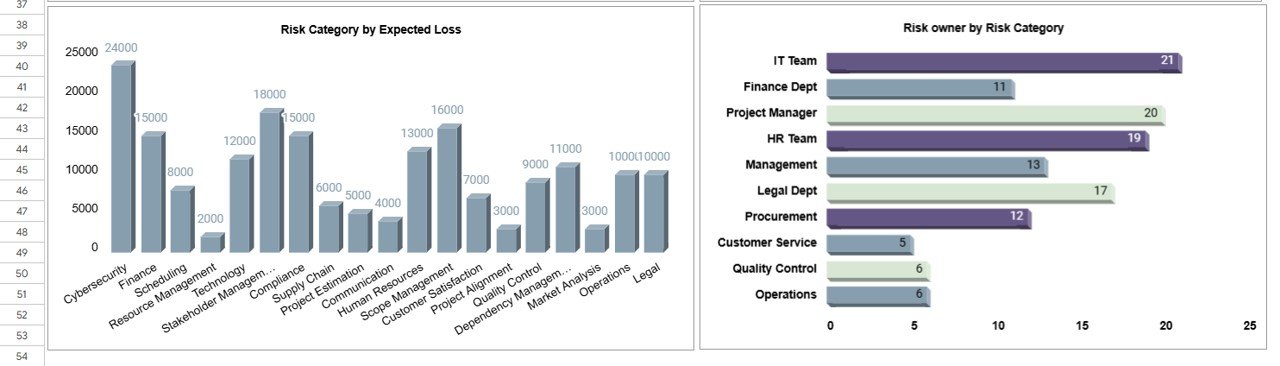
💼 Visual Dashboard: Visual charts and graphs to display risk data, helping you quickly identify high-priority risks.
🔄 Real-Time Collaboration: Share the risk dashboard with your team for collaborative risk assessment and mitigation planning.
⚖️ Risk Mitigation Actions: Assign and track mitigation strategies for each identified risk.
Why You’ll Love the Risk Management Dashboard in Google Sheets
✅ Efficient Risk Monitoring: Keep track of all potential risks in a single, easy-to-use dashboard.
✅ Data-Driven Decision Making: Use the probability and impact scores to prioritize risks and allocate resources effectively.
✅ Visual Insights: Visualize risk data with charts, helping to quickly assess your risk landscape.
✅ Customizable: Tailor the template to track specific risks, mitigation actions, and impact levels that are most relevant to your business or project.
✅ Collaborative: Share the dashboard with team members for real-time updates and input.
What’s Inside the Risk Management Dashboard in Google Sheets?
📅 Risk Register: A list of all identified risks, including risk descriptions, categories, probability, and impact.
⚙️ Risk Scores: Scoring system to assess the likelihood and potential impact of each risk.
📈 Visual Dashboard: Interactive charts and graphs to track risks and their progress.
💼 Risk Mitigation: Track mitigation strategies and responsible team members for each risk.
🔄 Real-Time Updates: Collaborate with your team for real-time updates and adjustments to your risk management plan.
How to Use the Risk Management Dashboard in Google Sheets
1️⃣ Download the Template – Get instant access to the pre-configured risk management dashboard.
2️⃣ Identify Risks: Enter the risks, categorize them, and assign probability and impact scores.
3️⃣ Track Mitigation: Add mitigation actions and monitor progress in addressing each risk.
4️⃣ Visualize Risks: Use the dashboard’s charts and graphs to visualize risk data.
5️⃣ Collaborate: Share the dashboard with your team to get input and track risk management progress in real time.
Who Can Benefit from the Risk Management Dashboard in Google Sheets?
🔹 Project Managers
🔹 Business Owners
🔹 Operations Managers
🔹 Risk Management Teams
🔹 Financial Analysts
🔹 HR and Compliance Teams
🔹 Consultants
Take control of your risk management efforts with the Risk Management Dashboard in Google Sheets. Identify, track, and mitigate risks effectively to keep your projects and business operations on track.
Click here to read the detailed blog post
Visit our YouTube channel to learn step-by-step video tutorials
Watch the step-by-step video tutorial:
Compatibility and Requirements
- Works in Google Sheets with a free Google account and a web browser. Nothing to install.
- Share the file with your team from the Share button to work on the risk register together.
- New to Google Sheets? Google explains the basics in How to use Google Sheets.
Frequently Asked Questions
How are risks scored?
Each risk gets a probability score and an impact score. Use the two scores together to rank risks and decide where to act first.
Can I use my own risk categories?
Yes. Risks are grouped into categories such as financial, operational and strategic, and you can tailor the categories to your business or project.
Can I assign mitigation actions to people?
Yes. The template tracks a mitigation strategy and a responsible team member for each risk.
Can my team update it at the same time?
Yes. It is a Google Sheets file, so you can share it and everyone sees updates in real time.
Is there an Excel version?
Yes. The Risk Management Dashboard in Excel covers the same topic in Excel.
Related Risk Management Templates
- Risk Management Dashboard in Excel: the Excel edition of this dashboard.
- Risk Management KPI Dashboard in Power BI: risk KPIs for Power BI users.
- Risk Management Report in Excel: a printable risk report.
- Risk Assessment Management System v1.0: a full risk assessment system in Excel.
- Project Management Pro Bundle: 9 Excel and Google Sheets project templates.
Browse all Google Sheets dashboard templates or the Google Sheets project management templates.





Reviews
There are no reviews yet.