

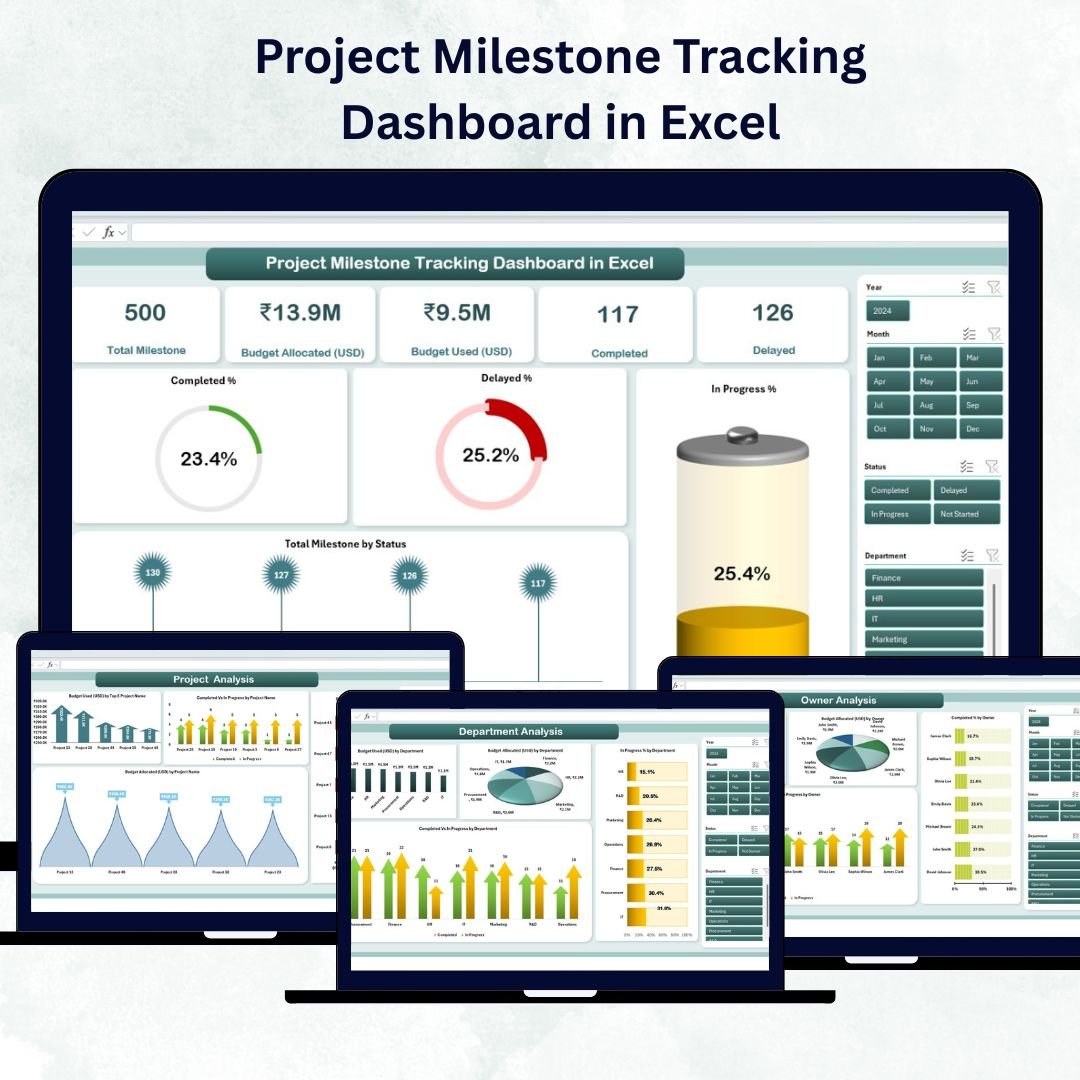

✨ Key Features of Project Milestone Tracking Dashboard in Excel
Managing multiple projects just got easier! 🚀 The Project Milestone Tracking Dashboard in Excel is a ready-to-use template that transforms complex data into clear, actionable insights. Whether you’re a project manager, business analyst, or department head, this dashboard simplifies milestone tracking, budgeting, and progress analysis — all in one place.
💡 Here’s what makes it stand out:
📊 Dynamic Dashboard Interface: Instantly visualize project health, budget status, and completion percentages.
💰 Budget Insights: Compare Budget Allocated vs. Budget Used for every project.
⏱️ Milestone Status Tracking: See what’s Completed, In Progress, or Delayed in real time.
🧭 Interactive Slicers: Filter data by project, department, or owner with just one click.
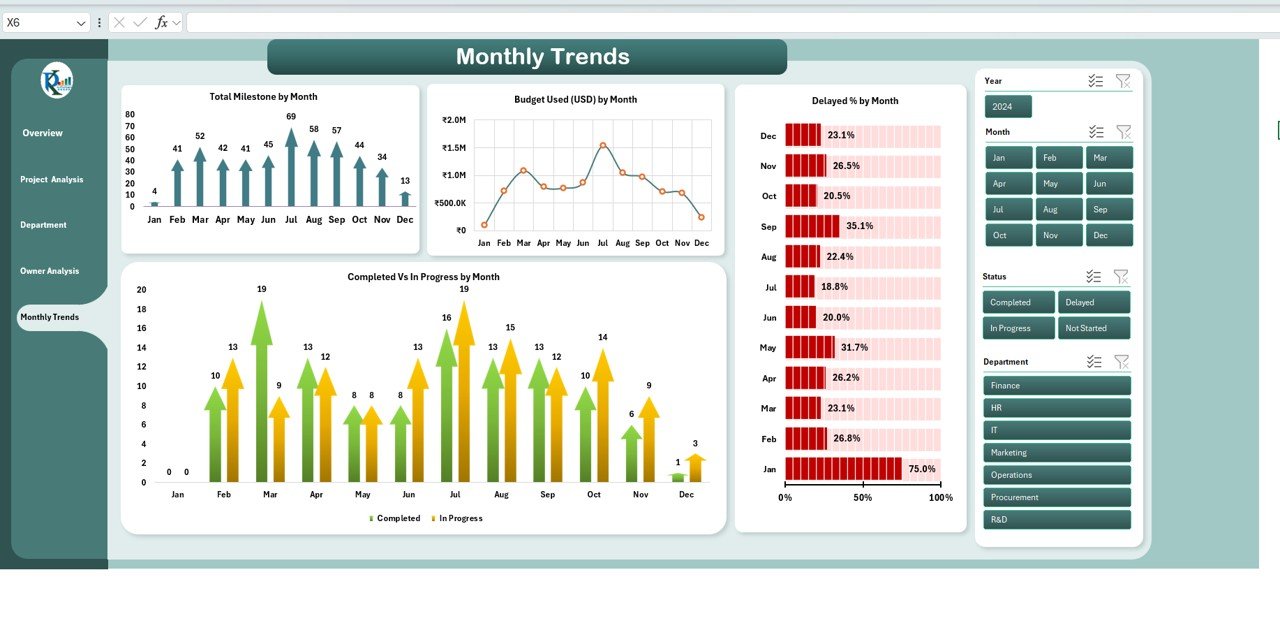
📅 Monthly Trend Charts: Monitor performance patterns across different months.
👥 Department & Owner Analysis: Track accountability and performance efficiency.
🧮 Fully Automated Formulas: No manual calculations needed — everything updates automatically.
🎨 Professional Visualization: Clean layout with progress bars, color-coded KPIs, and easy navigation.
🧩 Customizable for Any Industry: Works for construction, IT, marketing, education, or operations.
🔐 Offline & Secure: 100% Excel-based — no cloud dependency or third-party access.
This dashboard empowers you to make faster, smarter, and data-driven decisions — saving time while improving team accountability and project outcomes. ✅
📂 What’s Inside the Project Milestone Tracking Dashboard in Excel
Your purchase includes a complete Excel workbook with five powerful analytical pages, each crafted for clarity and impact:
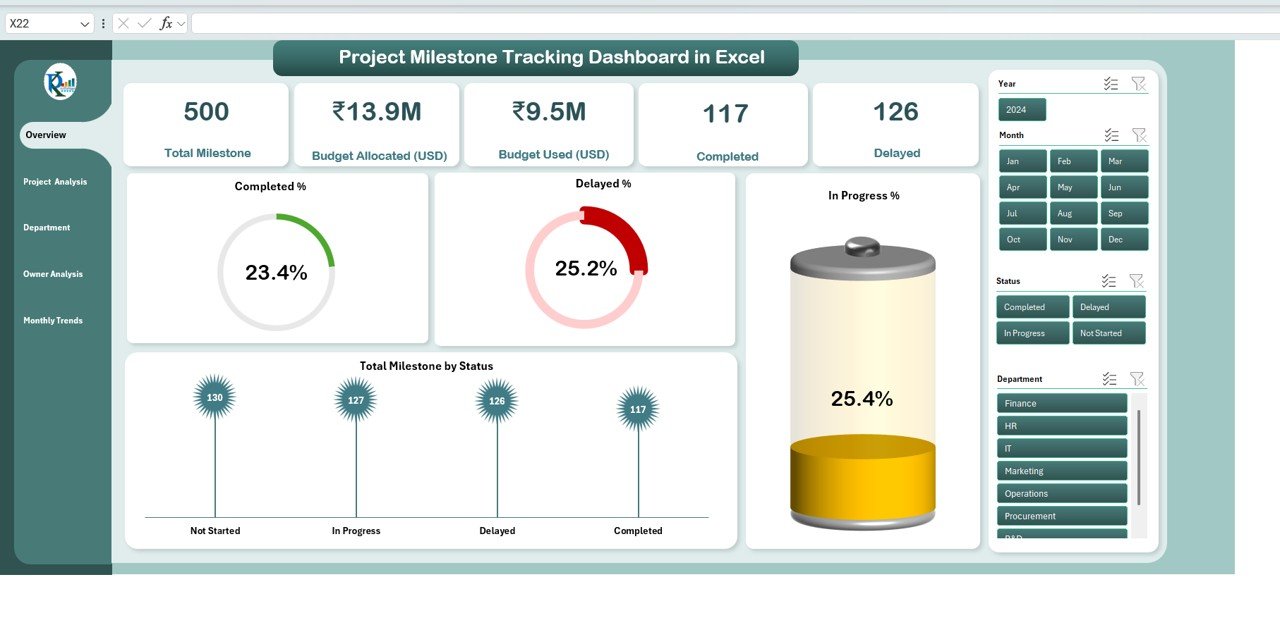
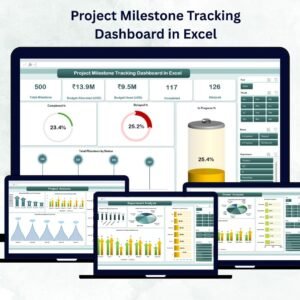
1️⃣ Overview Page – The control hub of your projects.
Cards for Total Milestones, Budget Allocated, Budget Used, Completed, and Delayed.
Charts: Completed %, Delayed %, In Progress %, and Total Milestones by Status.
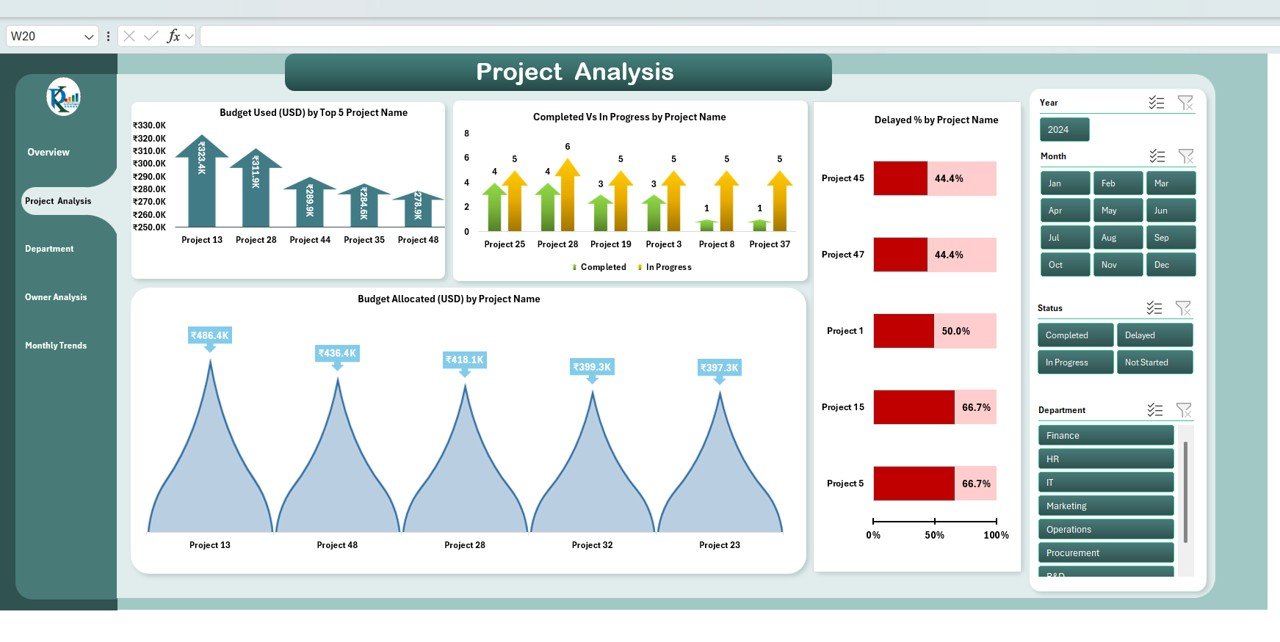
2️⃣ Project Analysis Page – Analyze financial and progress performance project-by-project.
Charts: Budget Used by Top 5 Projects, Budget Allocated, Completed vs. In Progress, and Delayed % by Project.
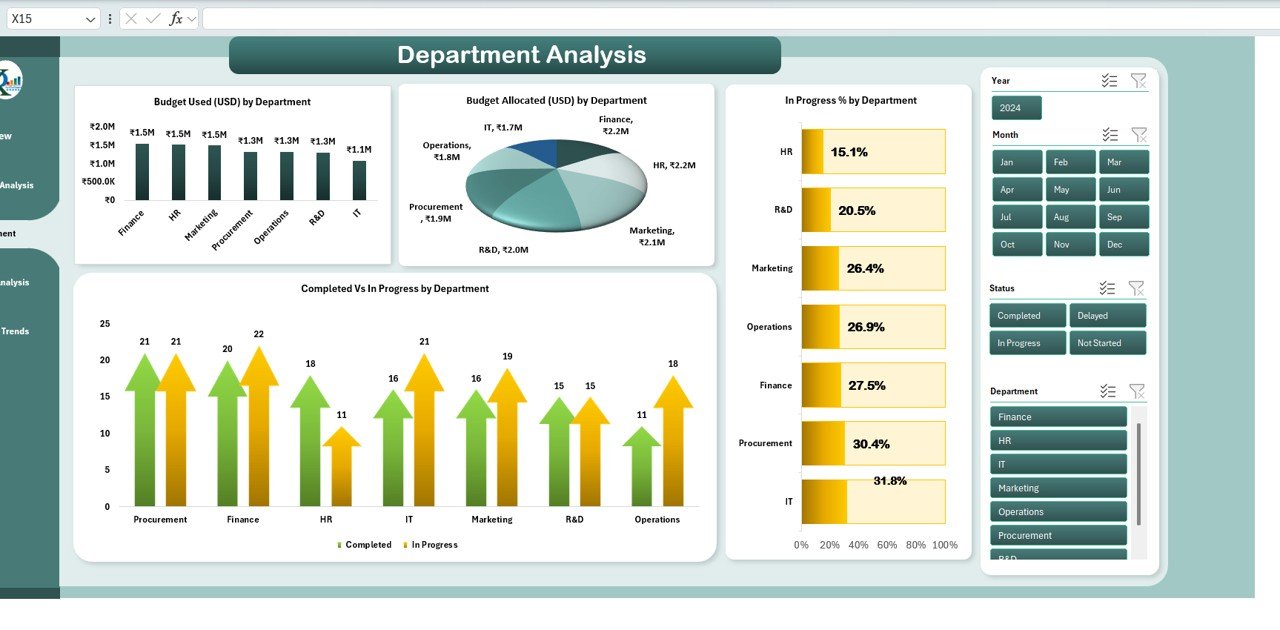
3️⃣ Department Analysis Page – Understand how each team performs.
Charts: Completed vs. In Progress, Budget Used, Budget Allocated, and In Progress % by Department.
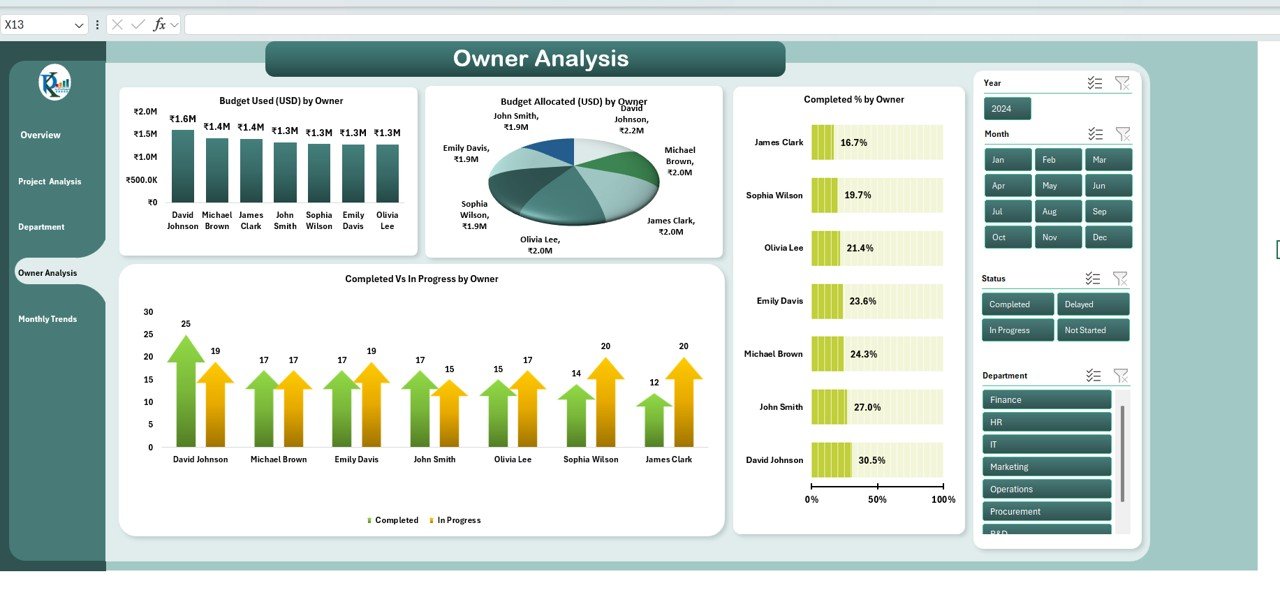
4️⃣ Owner Analysis Page – Gain accountability insights at the manager level.
Charts: Completed %, Budget Used, Budget Allocated, and In Progress % by Owner.
5️⃣ Monthly Trends Page – Spot seasonal trends and recurring bottlenecks.
Charts: Completed vs. In Progress, Budget Used, Delayed %, and Total Milestones by Month.
Each page is interactive — powered by slicers and formulas that automatically update based on your inputs in the data sheet. ⚡
⚙️ How to Use the Project Milestone Tracking Dashboard in Excel
Getting started is simple and takes just minutes 🕒:
1️⃣ Download the Template from your account on NextGenTemplates.com.
2️⃣ Open the Data Input Sheet and enter your project details (name, owner, budget, status, and milestones).
3️⃣ Watch the Dashboard Update Automatically!
Charts, KPIs, and performance cards refresh instantly.
4️⃣ Filter with Slicers to view results by department, project, or time frame.
5️⃣ Use It in Reports or Presentations to communicate project health with stakeholders.
No coding, macros, or advanced Excel knowledge required — everything is built-in and ready to go! 💪
🎯 Who Can Benefit from This Project Milestone Tracking Dashboard in Excel
This template is perfect for anyone managing multiple projects or tracking deliverables. 🌟
👷 Construction Managers: Monitor contractor performance, costs, and project delays.
💻 IT Project Teams: Track sprints, deployments, and resource efficiency.
📢 Marketing Managers: Measure campaign timelines and budget utilization.
🏫 Educational Institutions: Oversee institutional development and research projects.
🏢 Corporate Operations Teams: Manage multi-department initiatives with unified visibility.
📈 Consultants & Analysts: Provide data-driven recommendations and project summaries.
👨💼 Executives & Stakeholders: Get a real-time snapshot of progress and spending.
If you want clarity, accountability, and control — this dashboard is your one-stop project management solution! 💼
Click here to read the Detailed blog post
Watch the step-by-step video tutorial:
Visit our YouTube channel to learn step-by-step video tutorials
Compatibility and Requirements
- Works in Microsoft Excel desktop (Excel 2016 or later, or Microsoft 365).
- No macros or coding are needed. Formulas and slicers update every page from the data sheet.
- Microsoft’s guide to using slicers to filter data explains how the project, department and owner filters work.
Frequently Asked Questions
What pages are in the Project Milestone Tracking Dashboard?
Five: Overview, Project Analysis, Department Analysis, Owner Analysis and Monthly Trends.
What do the Overview cards show?
Total Milestones, Budget Allocated, Budget Used, Completed and Delayed, with charts for the completed, delayed and in progress percentages.
What data do I enter?
Project details in the data input sheet: project name, owner, budget, status and milestones. The charts, KPIs and cards refresh from there.
Which milestone statuses does it track?
Completed, In Progress and Delayed. Each page shows how milestones split across these statuses by project, department, owner or month.
Can I compare budget against spending?
Yes. Budget Allocated and Budget Used are shown for each project, department and owner, so overspending is easy to spot.
Related Project Management Templates
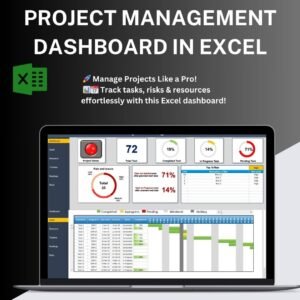
- Project Management Dashboard in Excel: a broader project management dashboard.
- Multiple Projects Management Dashboard in Excel: a portfolio view across projects.
- Project Timeline Dashboard in Excel: see project dates on a timeline.
- Multiple Project Management Dashboard in Google Sheets: a browser-based option.
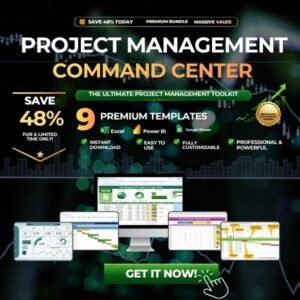
- Project Management Pro Bundle: 9 project templates in one bundle.
Browse all Excel project management templates or the Excel dashboards.



Reviews
There are no reviews yet.