

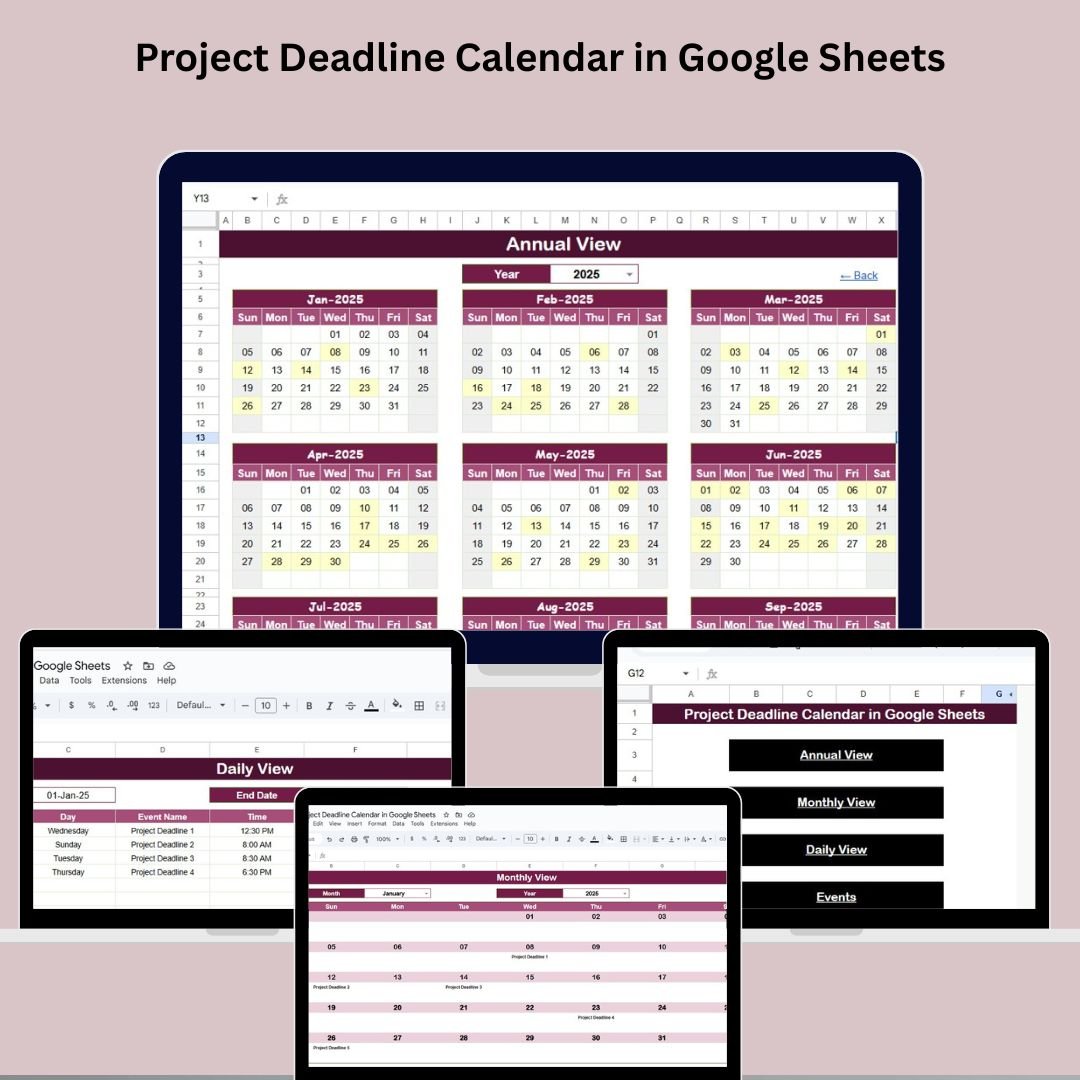
Keeping up with project deadlines doesn’t have to be overwhelming. The Project Deadline Calendar in Google Sheets is a simple yet robust solution to help you plan, track, and manage all your project events and deadlines efficiently. Whether you’re managing a single project or juggling multiple timelines across teams, this tool helps you stay organized with real-time visibility and structured tracking.
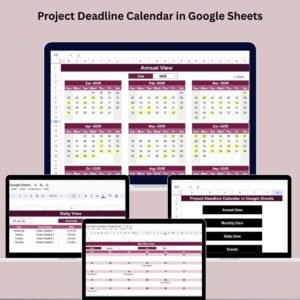
This template offers multiple calendar views—annual, monthly, and daily—and a powerful event management database, giving project managers and team members complete control over project schedules. Built in Google Sheets, it’s accessible, collaborative, and fully customizable.
🔑 Key Features of the Project Deadline Calendar
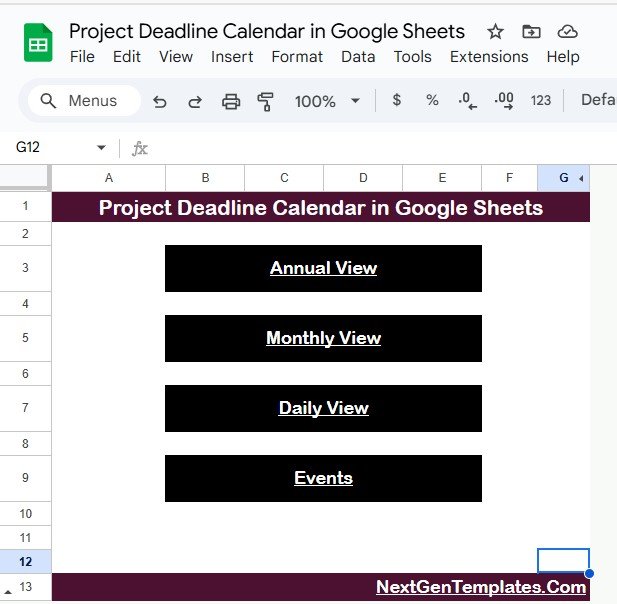
🏠 Home Sheet Tab – The Navigation Hub
Buttons to jump directly to:
✅ Annual View
✅ Monthly View
✅ Daily View
✅ Events Sheet
Clean interface for quick access to every view.
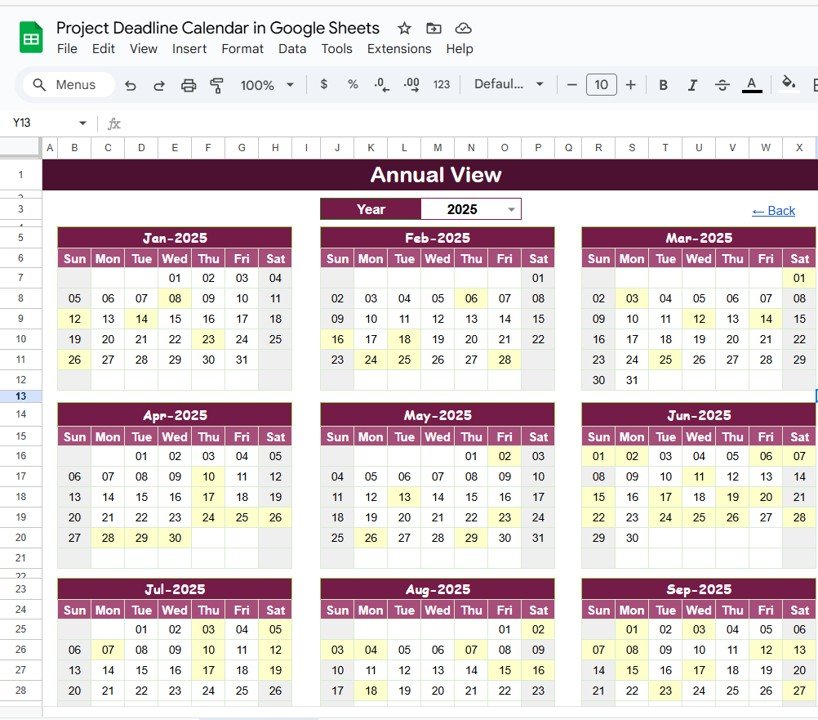
📆 Annual View Sheet – Yearly Overview
Choose the year via dropdown.
Customize the start month and starting weekday.
View all 12 months in a single glance.
Instantly track project milestones across the year.
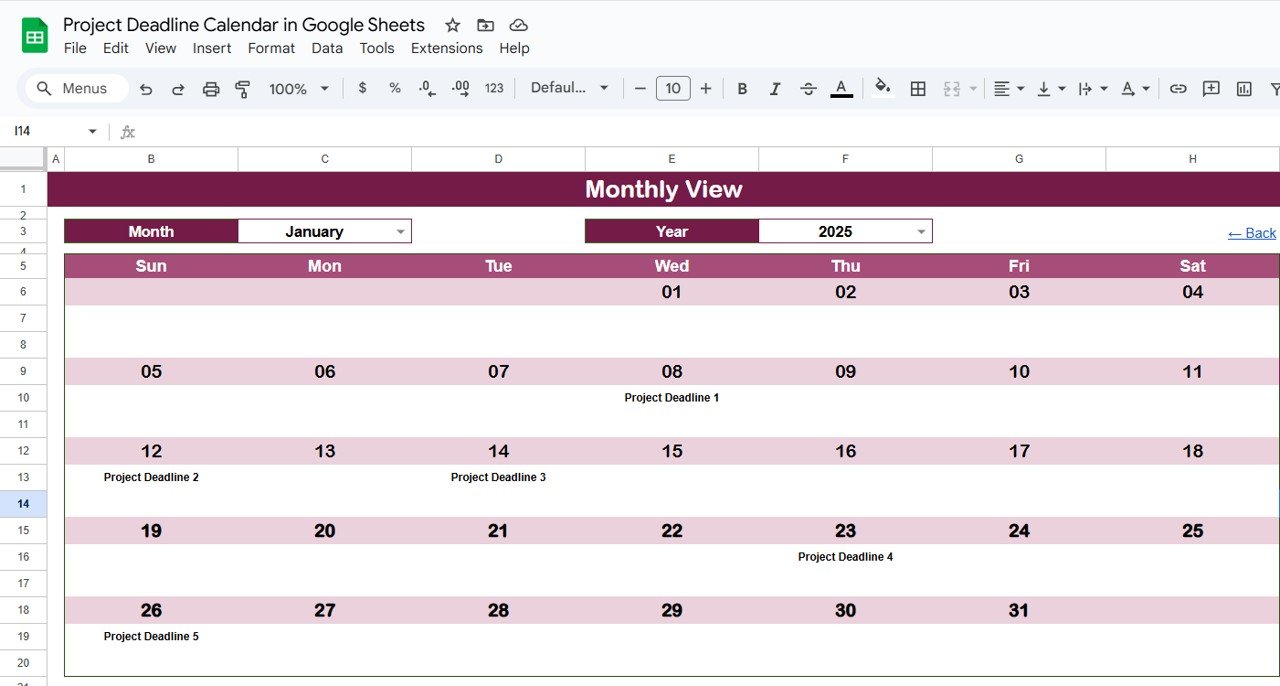
📅 Monthly View Sheet – Zoom into a Month
Select a specific month and year.
Automatically highlights:
Single events clearly
Multiple events with “more than 1…” indicator
Ideal for monthly planning and execution tracking.
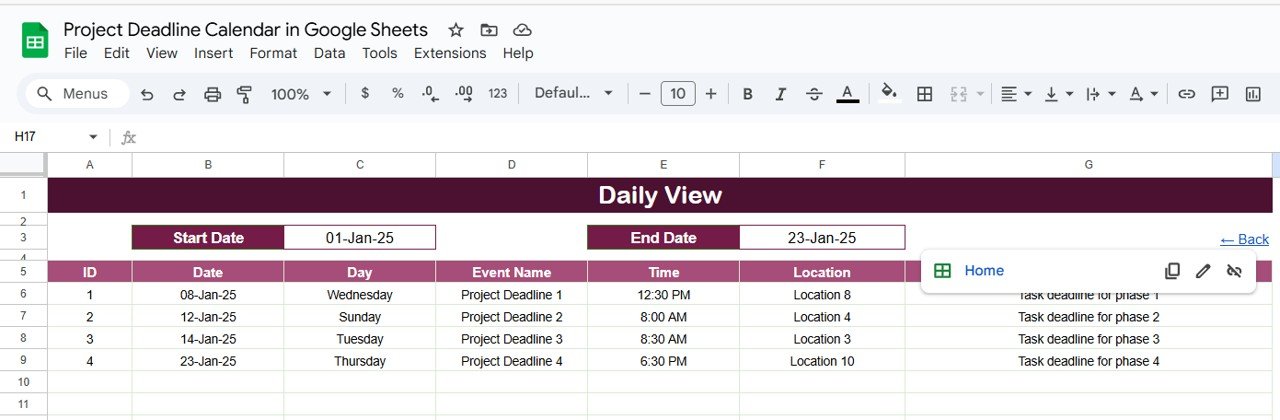
📂 Daily View Sheet – Detailed Event Tracker
Choose a start date and end date using calendar icons.
Displays all events and deadlines within the selected range.
Perfect for daily check-ins and task planning.
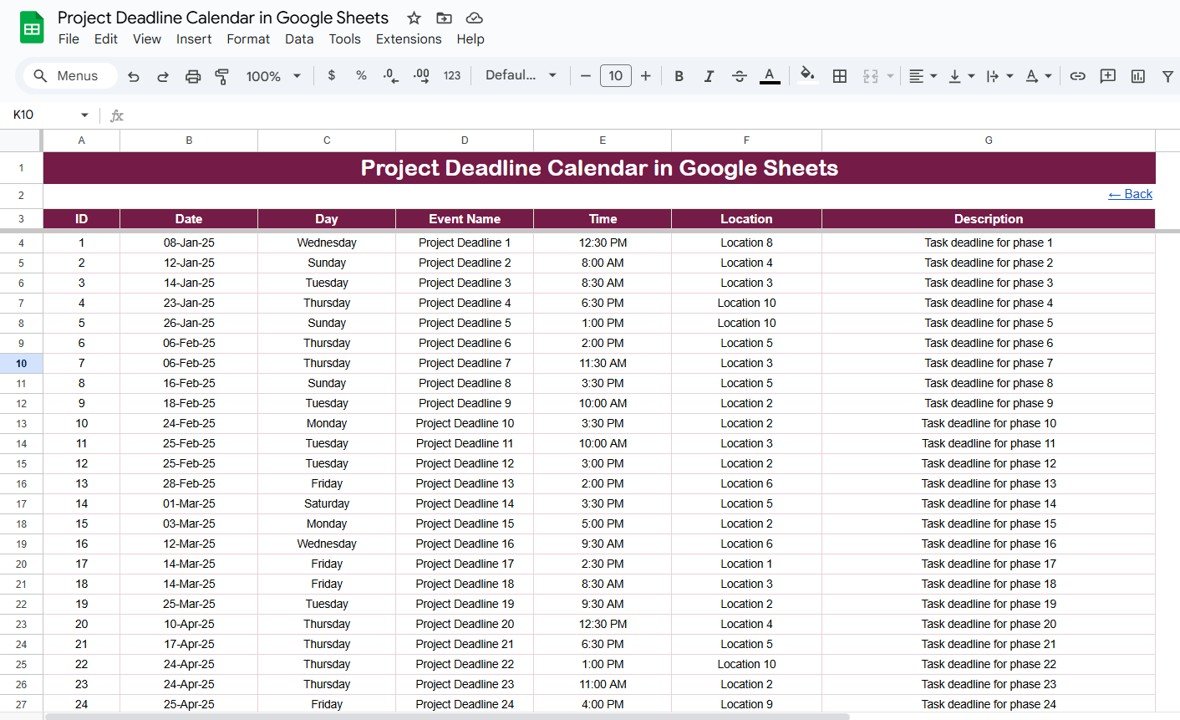
📋 Events Sheet – The Central Database
Stores all project deadline information:
ID
Date & Day
Event Name
Time
Location
Description
Automatically updates all other views.
Acts as your master event log.
✅ Benefits of Using This Calendar Template
🧠 Comprehensive Views – See your deadlines from a bird’s-eye view or drill down to the day.
🔄 Real-Time Updates – Changes made in the Events Sheet reflect instantly across all calendar views.
🧩 Fully Customizable – Add more fields, change layouts, or adapt for specific industries.
👥 Collaboration-Ready – Share with your team to manage deadlines together in Google Sheets.
⏱️ Increased Efficiency – Helps prioritize tasks, avoid deadline conflicts, and improve accountability.
📝 Best Practices for Maximum Productivity
📅 Update Events Promptly – Input new deadlines as soon as they are scheduled.
🔍 Use Daily View for Detailed Planning – Monitor deadlines closely each day.
🔧 Customize for Your Workflow – Add task owners, priority tags, or status columns if needed.
🤝 Share with Your Team – Enable real-time updates and transparency.
📋 Use the Events Sheet for Tracking – Centralize all project milestones for easy reporting.
📌 Who Should Use This Calendar?
👷 Project Managers tracking multiple deliverables
🧑💻 Freelancers organizing client deadlines
👥 Teams coordinating shared project timelines
🏢 Operations and Admin Staff planning internal events
📈 Business Analysts managing recurring deadlines and reviews
🚀 Make Project Planning Easy
With its intuitive structure, powerful filtering, and instant updates, the Project Deadline Calendar in Google Sheets gives you full control over your project timeline. No need for complex software or expensive subscriptions—just plug in your data and start managing your projects with clarity.
🔗 Read the Full Blog Post for More Details
Watch the step-by-step video Demo:
🎥 Watch the Step-by-Step Tutorial on Our YouTube Channel
📺 youtube.com/@NeotechNavigators
Compatibility and Requirements
- Works in Google Sheets. You need a free Google account and a web browser.
- The year, month and start weekday are picked from dropdowns. Google explains dropdowns in Create an in-cell dropdown list.
How to Use the Project Deadline Calendar
- Open the Home sheet and use the buttons to move between the views.
- Enter each deadline in the Events sheet with its date, event name, time, location and description.
- Pick the year, start month and starting weekday in the Annual View to see all 12 months.
- Pick a month and year in the Monthly View to see that month’s events.
- Set a start date and end date in the Daily View to list every event in that range.
Frequently Asked Questions
Which views does the calendar include?
It has a Home sheet, an Annual View, a Monthly View, a Daily View and an Events sheet that stores every deadline.
Where do I enter my deadlines?
You enter them in the Events sheet. The annual, monthly and daily views update from it automatically.
What happens when a day has more than one event?
The Monthly View shows a single event clearly and marks days with several events with a “more than 1” indicator.
Can my team use it together?
Yes. It is a Google Sheets file, so you can share it with your team and manage deadlines together.
Is there an Excel version?
Yes. The Project Deadline Calendar in Excel covers the same job in Excel.
Related Project Planning Templates
- Project Deadline Calendar in Excel: the same calendar in Excel
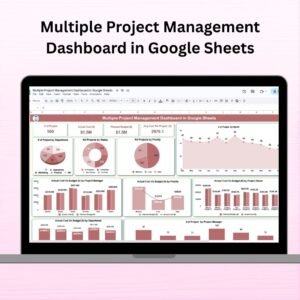
- Multiple Project Management Dashboard in Google Sheets: track several projects on one dashboard
- Project Status Tracker in Google Sheets: follow the status of each project task
- Project Management Issue Tracker in Google Sheets: log and close project issues
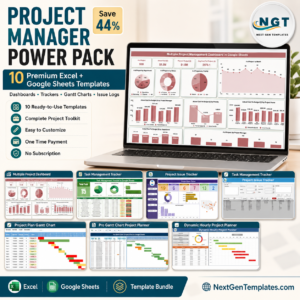
- Project Manager Power Pack: 10 project templates in one download
Browse all Google Sheets calendars or the Google Sheets project management templates.







Reviews
There are no reviews yet.