

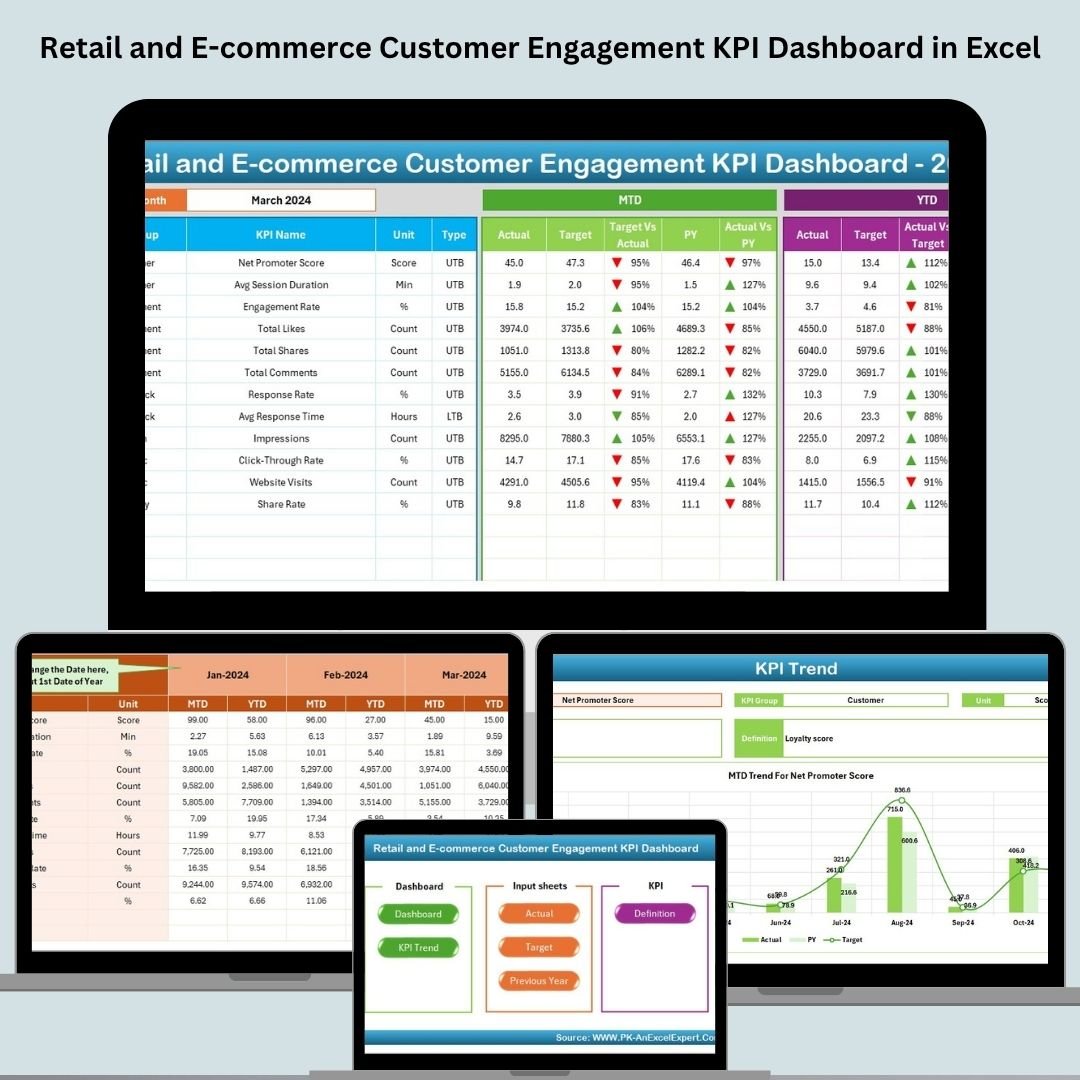


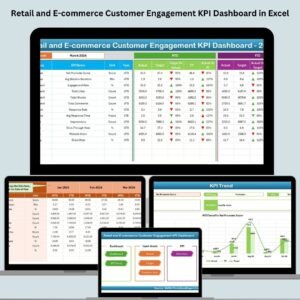
In the fast-paced world of retail and e-commerce, understanding your customers’ behavior is not optional—it’s the secret to success. That’s why we created the Retail and E-commerce Customer Engagement KPI Dashboard in Excel—a plug-and-play Excel template that helps you track, analyze, and improve your customer interaction strategies in real time.
Say goodbye to scattered spreadsheets and confusing data dumps. With this all-in-one dashboard, you get laser-sharp insights into performance metrics that matter—conversion rates, repeat purchases, cart abandonment, social media engagement, email click-throughs, and more.
Whether you’re a small online store or a large retail brand, this dashboard brings clarity, speed, and power to your engagement strategy—all inside the world’s most familiar tool: Microsoft Excel.
🔑 Key Features of Retail and E-commerce Customer Engagement KPI Dashboard
📊 All-in-One Excel Dashboard
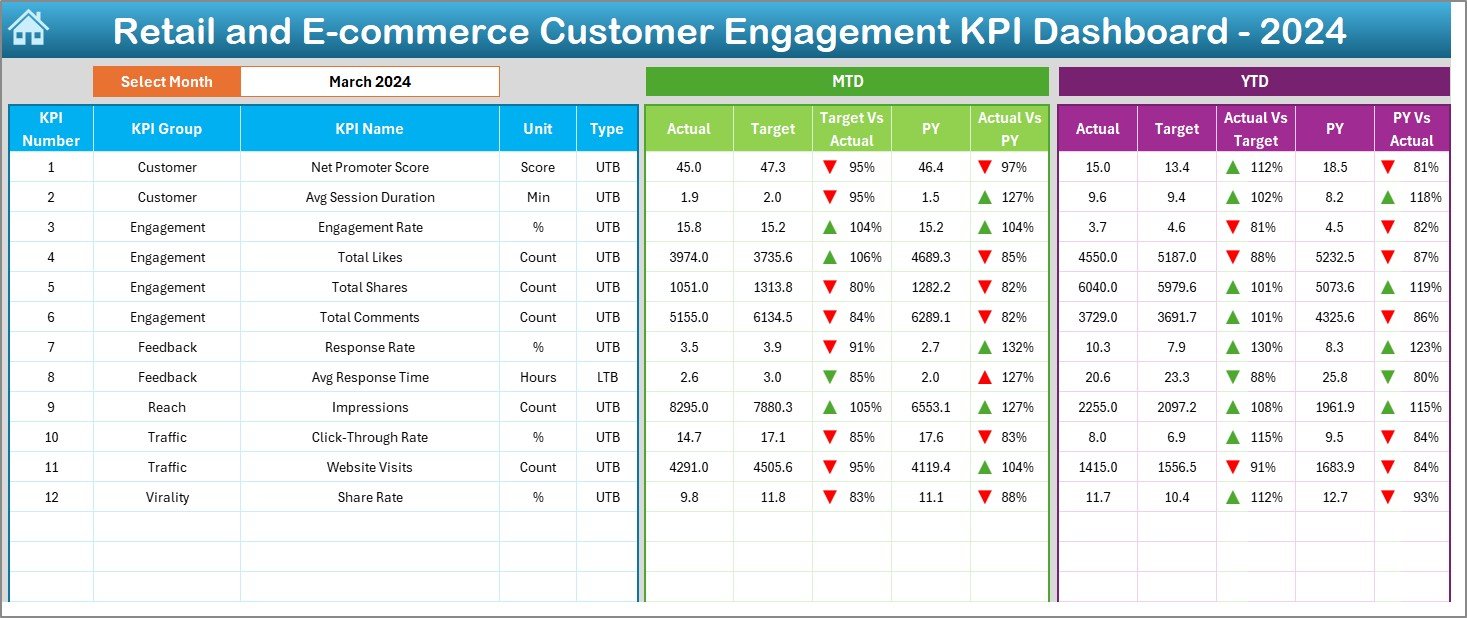
Track MTD (Month-to-Date), YTD (Year-to-Date), Actual, Target, and Previous Year performance—all from one central view.
📆 Month Selector
Choose any month from a drop-down in cell D3 and watch the entire dashboard update automatically.
🔄 Real-Time Variance Analysis
Spot gaps instantly with up/down arrow formatting between actual, target, and last year’s numbers.
📈 Dynamic Trend Charts
View trends over time for each KPI with smart visualizations for better pattern detection.
📌 Conditional Formatting
Instantly see which KPIs are underperforming—no guesswork needed.
📦 What’s Inside the Dashboard?
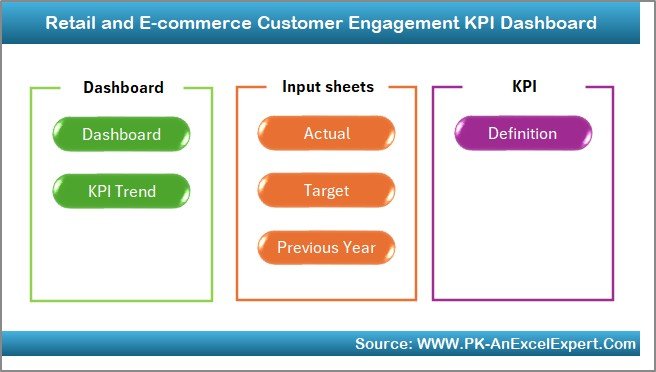
You’ll receive an Excel file with 7 well-structured sheets:
Home Sheet – Navigation buttons to all pages
Dashboard Sheet – Your main control panel
KPI Trend Sheet – Drill into each KPI with trend analysis
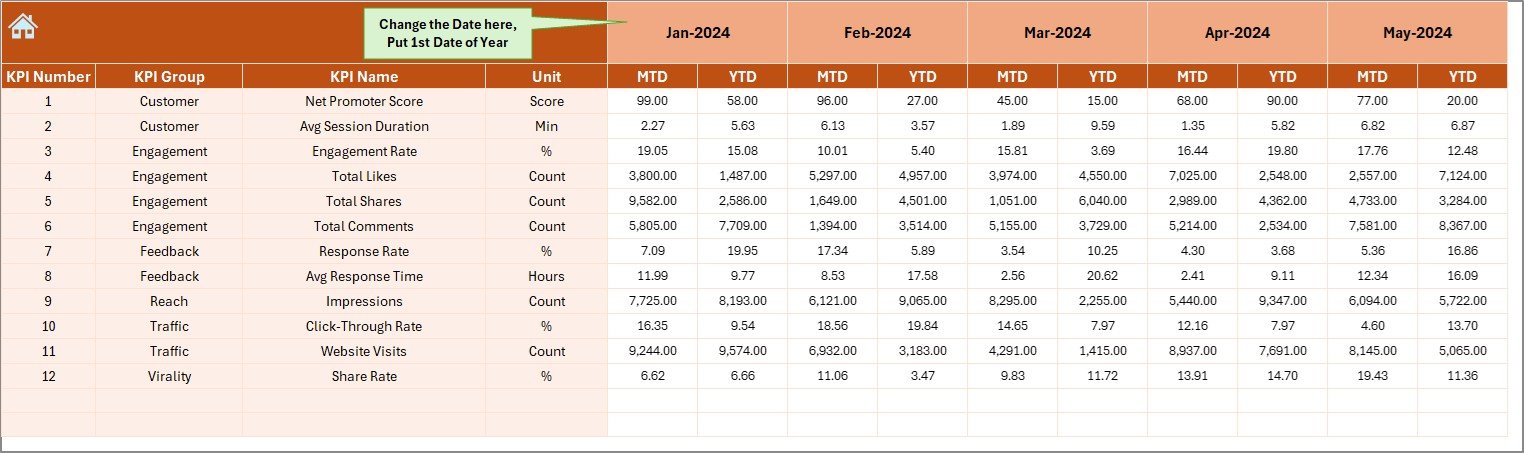
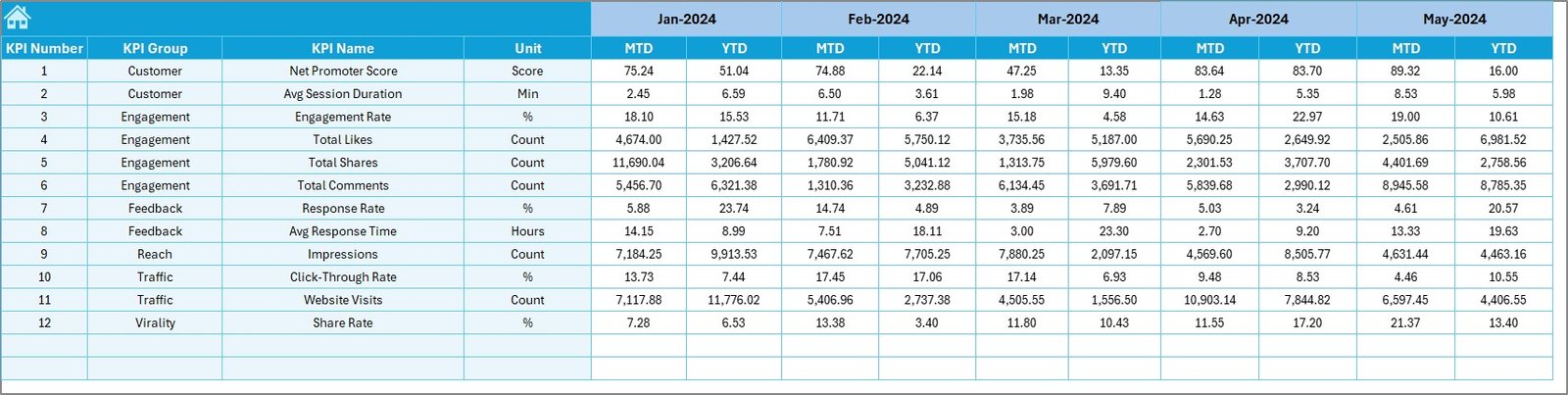
Actual Numbers Input Sheet – Enter live performance data
Target Sheet – Add your monthly and yearly targets
Previous Year Numbers – Enables YOY analysis
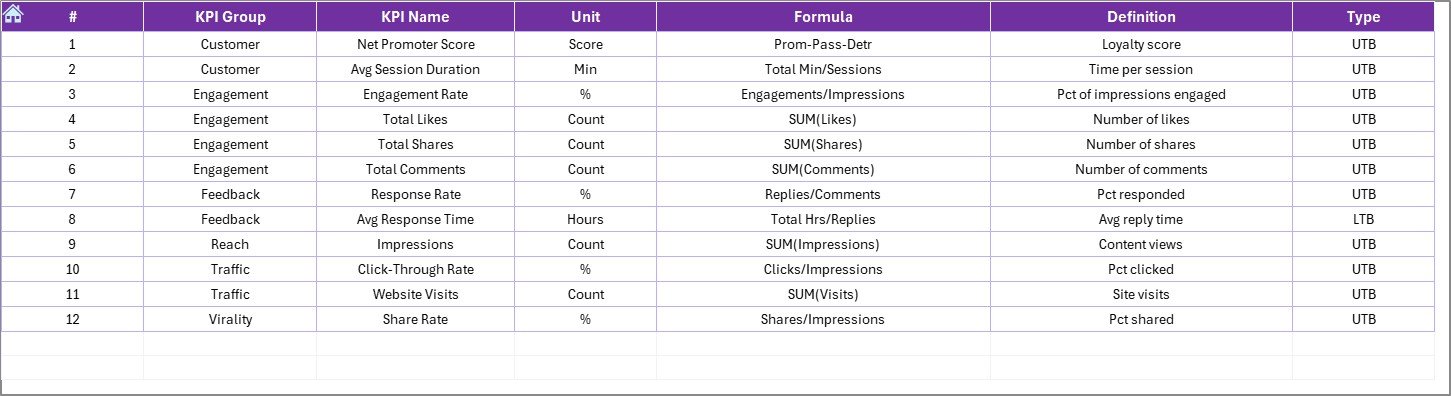
KPI Definition Sheet – All KPI formulas, types, and units explained
Each sheet is designed for clarity and ease of use. No clutter. No confusion. Just clean, actionable data.
🧩 How to Use the Dashboard
✅ Step 1 – Enter your actuals in the “Actual Numbers Input Sheet”
✅ Step 2 – Add your monthly goals in the “Target Sheet”
✅ Step 3 – Fill in last year’s numbers for benchmarking
✅ Step 4 – Select the month from the dropdown on Dashboard Sheet
✅ Step 5 – View insights, adjust strategy, repeat!
Everything updates dynamically based on your selections—no formulas to touch.
👤 Who Can Benefit from This Dashboard?
💼 E-commerce Business Owners – Understand what’s working in your funnel and what’s not
📧 Digital Marketers – Monitor email engagement, open rates, and conversions
📦 Retail Managers – Track customer satisfaction and purchase behavior
📊 Marketing Analysts – Get reliable trend data to guide campaign strategy
📈 Customer Success Teams – Use metrics to personalize service and drive loyalty
🛍️ Small Business Owners – Simplify data tracking without complex tools
If you’re managing a business and care about customer retention, this dashboard is your best friend.
🔗 Click here to read the Detailed blog post
🔗 Visit our YouTube channel to learn step-by-step video tutorials
Watch the step-by-step video tutorial:
Compatibility and Requirements
- Works in Microsoft Excel desktop (Excel 2016 or later, or Microsoft 365).
- You pick the month from a dropdown in cell D3 on the Dashboard sheet. Microsoft explains dropdowns in Create a drop-down list.
Frequently Asked Questions
Which sheets are included?
Seven sheets: Home, Dashboard, KPI Trend, Actual Numbers Input, Target, Previous Year Numbers and KPI Definition.
How do I update the dashboard?
Enter your actuals in the Actual Numbers Input sheet, your goals in the Target sheet and last year’s figures in the Previous Year Numbers sheet. Then choose a month from the dropdown in cell D3 on the Dashboard sheet and everything updates.
Can I compare this year with last year?
Yes. The Previous Year Numbers sheet lets you compare actual results with last year’s figures and with your targets. Up and down arrows show the variance.
How do I see the trend for one KPI?
Open the KPI Trend sheet. It shows trend charts for each KPI so you can spot patterns over time.
Where can I see how each KPI is calculated?
The KPI Definition sheet lists the formula, type and unit for every KPI.
Is there a Power BI or Google Sheets version?
Yes. See the Customer Engagement KPI Dashboard in Power BI and the Customer Engagement KPI Dashboard in Google Sheets.
Related Retail and Customer Templates
- Customer Engagement KPI Dashboard in Excel: the general customer engagement dashboard
- Retail and E-commerce Operations KPI Dashboard in Excel: operations KPIs for the same industry
- Retail and E-commerce Growth Metrics KPI Dashboard in Excel: growth KPIs for online and retail stores
- Customer Satisfaction Dashboard in Excel: a view of customer satisfaction results
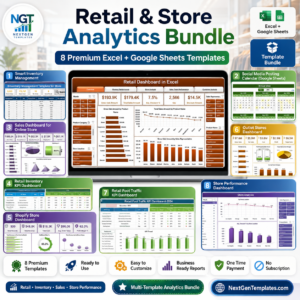
- Retail & Store Analytics Bundle: 8 templates for retail analytics in one download
Browse all Excel KPI dashboards.







Reviews
There are no reviews yet.